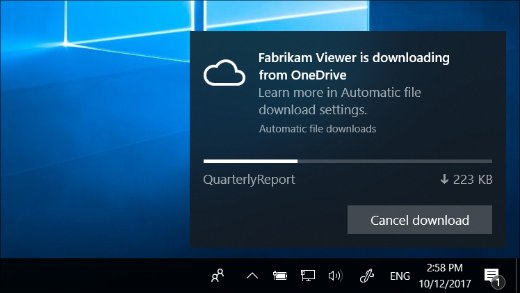
Automatic file download notifications in Windows 10 and Windows 11 appear when an app, such as Windows Media Player, downloads online-only files from a cloud provider like OneDrive, and you can let them finish, cancel the download, or block the app.
This guide covers each response, how to block and unblock apps, how to turn the notifications off, and how OneDrive Files On-Demand causes them.
Stop an app from automatically downloading OneDrive files in Windows
The notification shows where the files come from, how many files are downloading, and the progress.
- When the automatic file download notification appears, select Cancel download.
- Select Cancel download again to confirm and stop the transfer.
- To stop that app downloading online-only files in future, select Cancel download > Block app instead.
Blocking can make an app unstable. Do not block an app you trust and use often to open online-only files.
Automatic file download notifications: What's the deal?
With OneDrive for Windows and Files On-Demand, files can sit in File Explorer as online-only placeholders that take no disk space. When an app opens or scans them, Windows downloads them and tells you.
| Notification detail | What it tells you |
|---|---|
| Source | The online storage provider, for example OneDrive |
| File count | How many online-only files the app is downloading |
| Progress | How far the download has got |
| Requesting app | The app pulling the files, such as a music player reading your library |
Responding to the notifications: A choose-your-own-adventure moment
| Your situation | Do this | Result |
|---|---|---|
| You opened the files on purpose | Do nothing or dismiss the notification | Download finishes and the notification closes |
| You want to read it later | Select the arrow at the top right of the notification | It moves to the notification center (action center) |
| An unexpected download is running once | Cancel download, then confirm | This transfer stops; the app can try again later |
| The same app keeps downloading files you do not want | Cancel download > Block app | The app is blocked from downloading online-only files |
| You never want to see these alerts | Turn off Automatic file downloads in notification settings | Downloads still happen, but silently |
1. Let it slide (the chill approach)
- Read the source and file count in the notification to confirm the download is expected.
- Leave the notification alone; it goes away when the download completes.
- Or select the arrow in the upper-right corner to move it to the notification center.
- Check later in File Explorer that the files now show as locally available.
2. Block it (the drastic move)
This is the same action as blocking automatic downloads, taken from the notification itself.
- Wait for the notification from the app you want to stop.
- Select Cancel download.
- Select Block app.
- Confirm the download stops and the app no longer pulls online-only files.
Fine-tuning your downloads: Mastering settings
Windows keeps the blocked-app list on its own Settings page, and the notification switch on the Notifications page. Both open directly from the Run box.
| What you want | Open this | Run command |
|---|---|---|
| See and unblock blocked apps | Automatic file downloads settings (Privacy) | ms-settings:privacy-automaticfiledownloads |
| Turn the notifications off or on | Notifications settings | ms-settings:notifications |
| Stop files being online-only | OneDrive settings > Sync and back up > Advanced settings | Not available |
How to block automatic downloads
- Let the app start downloading so the notification appears.
- Select Cancel download in the notification.
- Select Block app.
- Repeat for any other app you want to stop.
Blocking needs a notification to act on, so keep the notifications on until you have blocked the apps you want.
How to unblock apps
- Press Windows + R to open Run.
- Type
ms-settings:privacy-automaticfiledownloadsand press Enter. - Find the blocked app on the automatic file downloads page and allow it again.
- Open the app and confirm it can open your online-only files.
Disarming notifications entirely
- Press Windows + R, type
ms-settings:notifications, and press Enter. - Scroll to Get notifications from these senders.
- Turn off Automatic file downloads.
Like turning off other notifications, this hides the alert only. Apps still download online-only files, and you lose the Block app button for new apps.
What's happening under the hood? A peek into Windows' file handling
OneDrive Files On-Demand needs Windows 10 version 1709 or later, and OneDrive build 23.066 or later turns it on by default. That is why most PCs signed in to OneDrive can show these notifications.
| File Explorer status | Meaning | Triggers a download? |
|---|---|---|
| Blue cloud icon | Online-only; takes no space and cannot open offline | Yes, when an app opens it |
| Locally available | Downloaded after being opened; opens offline | No |
| Green circle with white check mark | Marked Always keep on this device | No, already downloaded |
To stop downloads for a folder you use all the time, right-click it and select Always keep on this device. To reclaim space, right-click and select Free up space.
Broader implications: Why this matters
| Concern | What to know |
|---|---|
| Disk space | Each automatic download turns an online-only file into a local copy that uses space |
| Metered or slow connections | A media app scanning a large library can pull many files at once |
| App stability | Microsoft warns that blocking an app can make it unstable |
| Deleting files | Deleting an online-only file removes it from OneDrive on every device; it stays in the OneDrive recycle bin for 30 days on personal accounts |
Check that automatic file download settings took effect
- Open the blocked app and try to open an online-only file; it should no longer download.
- Open
ms-settings:privacy-automaticfiledownloadsand confirm the app is listed as blocked, or gone after you unblock it. - Open
ms-settings:notificationsand confirm the Automatic file downloads switch is in the position you chose.
Fix automatic file download notification problems in Windows
A blocked app crashes or will not open files
The app needs online-only files it is now blocked from downloading.
- Open
ms-settings:privacy-automaticfiledownloads. - Allow the app again.
- Or right-click the folder it uses and select Always keep on this device.
Notifications keep appearing for the same files
The files are online-only and the app reads them each time.
- Right-click the folder in File Explorer.
- Select Always keep on this device so the files stay local.
Files On-Demand options are missing in OneDrive settings
Windows Information Protection is configured, or the latest OneDrive has not rolled out.
- Ask your IT team whether WIP is enabled on a work PC.
- Update OneDrive to the latest version.
Automatic file download notifications in Windows FAQ
Why does Windows say an app is downloading files automatically?
An app opened or scanned OneDrive online-only files, so Windows downloaded them and showed a notification. Media players reading a music library are a common example. The notification shows the source, file count and progress.
Is the automatic file download notification a virus?
No. It is a built-in Windows notification for apps that download online-only files from a cloud provider such as OneDrive. Check the app name in the notification; if you do not recognize it, cancel the download and block the app.
How do I unblock an app from automatic file downloads?
Press Windows + R, run ms-settings:privacy-automaticfiledownloads, and allow the blocked app on that page. The app can then download online-only files again.
How do I turn off automatic file download notifications?
Open Settings > Notifications (ms-settings:notifications), find Get notifications from these senders, and turn off Automatic file downloads. Downloads still happen; only the alerts stop.
Does blocking an app delete my OneDrive files?
No. Blocking stops the app from downloading online-only files; the files stay in OneDrive. Microsoft warns the app may become unstable, so avoid blocking apps you use with those files.
How do I stop OneDrive files being online-only?
Right-click a file or folder in File Explorer and select Always keep on this device. The files download once and stay local, so apps no longer trigger automatic downloads for them.
Which Windows versions show automatic file download notifications?
Windows 10 and Windows 11 both show them. They depend on OneDrive Files On-Demand, which needs Windows 10 version 1709 or later.
And now you're ready to control it all
Leave the notifications on, cancel one-off surprises, block only apps you never want touching OneDrive files, and mark folders you use daily as Always keep on this device. The notification is the only place the Block app button appears, and keeping busy folders local stops repeat downloads without making apps unstable.