Download the installer from google.com/chrome, run it, approve the Windows prompt, and Chrome opens by itself when setup finishes on Windows 11.
This guide also covers sign-in and sync, importing bookmarks, making Chrome the default browser, privacy settings, and the install errors Google documents.
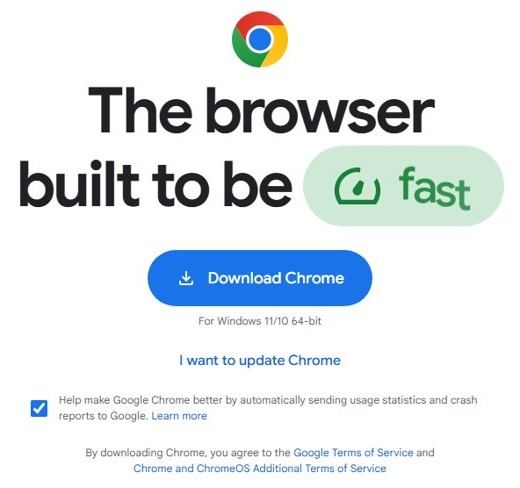
Getting Google Chrome on Windows 11: A comprehensive guide for the modern user
These four steps finish the install on a normal Windows 11 PC. Everything after them is setup, choice and repair.
- Open google.com/chrome in Microsoft Edge and download the installation file.
- Run the installer. If you see Do you want to run this file?, select Run.
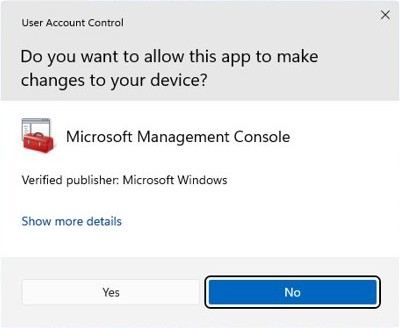
- If you see Do you want to allow this app to make changes to your device?, select Yes.
- Wait for setup to finish. A Chrome window opens automatically on Windows 10 and later.
Chrome system requirements for Windows 11
| Requirement | What Google lists | What it means on your PC |
|---|---|---|
| Windows version | Windows 10 or later on Intel-based PCs; Windows 11 or later on Arm | Any supported Windows 11 PC qualifies |
| Processor | Intel Pentium 4 or later that is SSE3 capable | Every Windows 11 Intel PC clears this floor |
| S mode | Chrome cannot install while the PC is in S mode | Switch out of S mode first; the switch is free and one-way |
| Disk space | Error 0x80070070 means the system disk is full | Google publishes no size figure, so free space on C: if setup stops |
| Permission | Windows may ask you to allow changes to your device | A standard account needs an administrator's credentials at that prompt |
Why Chrome on Windows 11 still matters
Windows 11 includes Microsoft Edge, so Chrome is always a separate install. These are the practical reasons people add it.
| Reason | What it gets you |
|---|---|
| One account across devices | Bookmarks, passwords, extensions and settings follow your Google Account to other devices |
| Chrome Web Store | Extensions install directly with Add to Chrome |
| Long Windows 11 runway | Google lists Chrome's Windows 11 deprecation as not yet scheduled |
| Arm support | Google supports Chrome on Windows 11 Arm PCs |
Downloading Google Chrome: Step-by-step simplified
The only safe source is Google's own page. A download portal or a lookalike ad adds risk and saves nothing, because Chrome costs nothing.
- Type
google.com/chromedirectly into your current browser's address bar. - Check that the address bar still shows
google.comafter the page loads. - Select the download button for Windows.
- Open the finished file from your browser's download list.
IT teams deploying to many PCs should use the Chrome Enterprise page instead, which offers Bundle and MSI files in 64-bit, Arm and 32-bit versions.
A note on trust and security
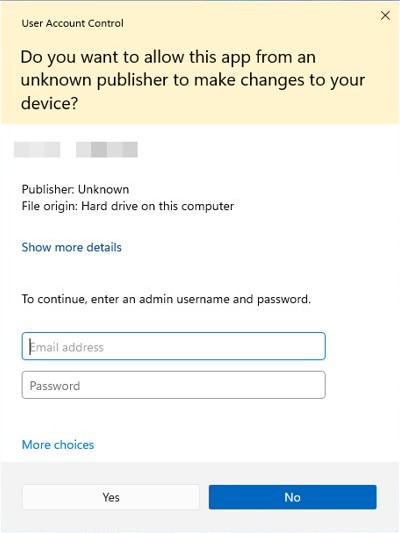
Windows checks the installer's publisher before it shows the elevation prompt. The colour of that prompt tells you what Windows found.
| Check | Safe result | Stop if |
|---|---|---|
| Download address | The file came from google.com/chrome |
A third-party portal or an ad supplied it |
| User Account Control prompt | Gray background, meaning a verified publisher signed the file | Yellow background, meaning the file is unsigned or its signature is not trusted; select No |
| Updates after install | Automatic updates stay on, as Google recommends | Anything asks you to turn Chrome updates off |
| Safe Browsing | Standard protection is on, which is the default | A tool or page asks you to choose No protection |
The installation process: What happens behind the scenes
| Stage | What happens |
|---|---|
| You run the file | Windows analyzes the executable to determine its publisher, then decides how to color the prompt |
| Elevation | An administrator approves with Yes; a standard user must enter administrator credentials |
| Updater | Chrome's updater, Google Update, is what keeps the browser current and also updates itself |
| First launch | A Chrome window opens when installation finishes on Windows 10 and later |
| Update checks | Google Update runs hourly to decide on tasks, and it checks for updates about every five hours |
| New versions | Updates install in the background and take effect when you close and reopen Chrome |
Chrome offline installer for Windows 11
Use this route when the normal download fails on your PC. Google offers a standalone file that you fetch on a different computer.
- On a computer with working internet, open the Chrome standalone installer page.
- At the bottom of the page, under Chrome Family, select Other Platforms.
- Select the operating system of the PC that needs Chrome.
- Download the file and move it to that PC.
- Run the file and follow the on-screen instructions.
How to check your Chrome version on Windows 11
- Open Chrome and select More, the three-dot icon at the top right.
- Select Help, then About Google Chrome.
- Read the version number below the Google Chrome heading.
- Select Relaunch if it appears. No Relaunch button means Chrome is up to date.
Chrome checks for updates each time this page opens, so it is the quickest manual update check too.
Tweaking preferences and first-run experience
Sign-in is optional on first launch, so you can set these preferences with or without a Google Account.
- Select More, then Settings.
- Select On startup and choose Open the New Tab page, Continue where you left off, or Open a specific page or set of pages.
- Under Appearance, turn on Show Home button and choose the New Tab page or a custom address.
- Select Search engine, select Change next to Search engine, and pick your default.
A missing search engine can be added under Manage search engines and site search.
How to sign in to Chrome and turn on sync on Windows 11
- Select the Profile icon at the top right, then Sign in to Chrome.
- Enter your Google Account details and select Next.
- To include open tabs and history, select More, Settings, then You and Google.
- Select your account name and turn on History and tabs.
Signed-in data includes bookmarks, the reading list, passwords, payment info, extensions, web apps and settings. A custom passphrase lets Google store synced data without being able to read it, though Google Wallet payment methods and addresses are not covered.
How to import bookmarks into Chrome from another browser
Export your bookmarks as an HTML file from the old browser first. Each browser has its own export option.
- In Chrome, select More, then Bookmarks and lists.
- Select Import bookmarks and settings.
- Select Choose file.
- Pick your HTML file, select Open, then select Done.
With no existing Chrome bookmarks, the imports land on the bookmarks bar. Otherwise they go into Other bookmarks. Saved passwords use a separate import through Google Password Manager.
Making Chrome the default browser: Navigating Windows 11’s hurdles
Windows 11 sets the default from its own Settings app. Links then open in Chrome from then on, and you can change the choice at any time.
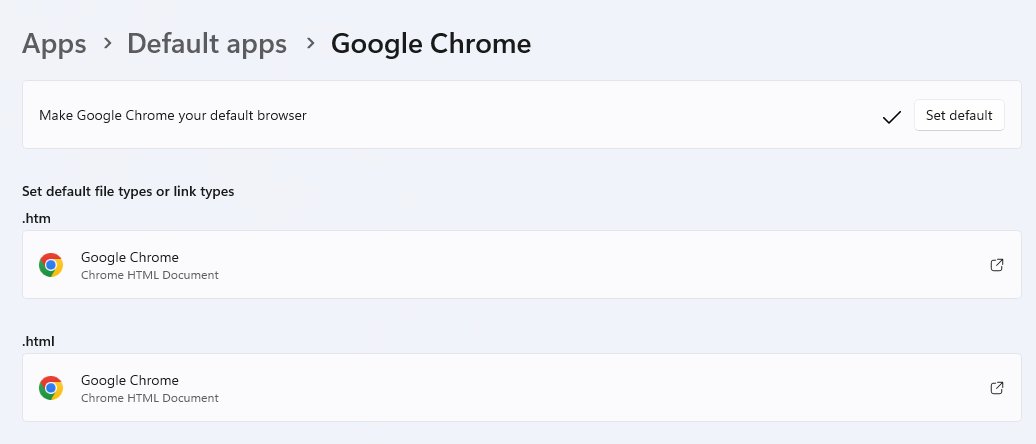
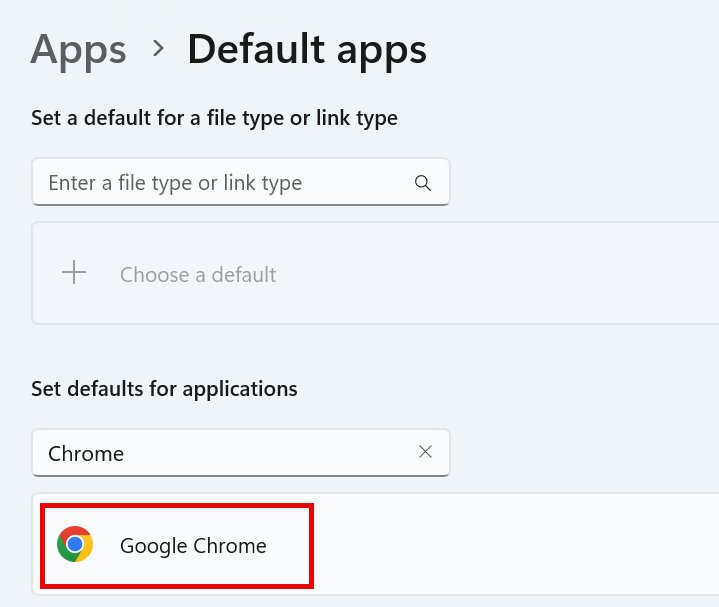
- Open Start, then go to Settings > Apps > Default apps.
- Type
Chromein the search box under Set defaults for applications. - Select Google Chrome.
- Select Set default next to Make Google Chrome your default browser.
- Review Set default file types or link types to confirm the types you need.
In S mode, Microsoft Edge stays the default browser until you leave S mode.
How default browser handling has changed
The changes Microsoft has documented come from its Digital Markets Act work, and it describes them for the European Economic Area (EEA).
| When and where | What changed |
|---|---|
| November 2023, EEA preview | Microsoft said Windows will always use your configured defaults for link and file types |
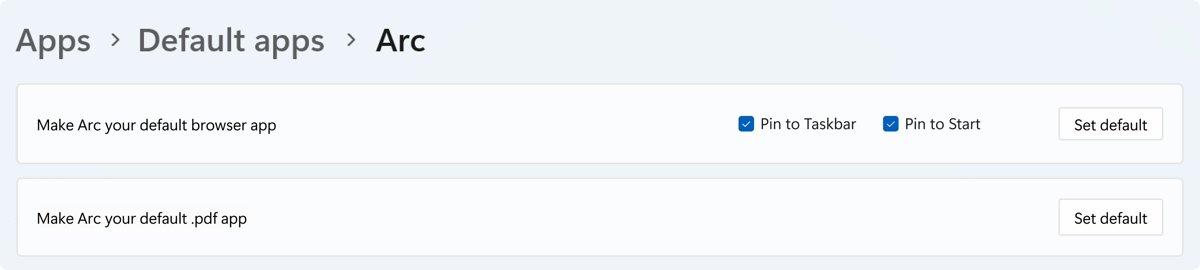
| June 2025 baseline | Set default sets only http, https, .htm and .html |
| From July 2025, EEA retail PCs | Set default also covers registered types such as ftp, read, .xhtml and .svg |
| From July 2025, EEA retail PCs | Set default pins the browser to the taskbar unless you clear the checkboxes |
| EEA detection | Windows uses the region chosen during device setup, and only a PC reset changes it |
Microsoft’s persistent nudges
Microsoft documents an Edge prompt that offers to make Edge your default browser and Bing your default search engine. Dismissing it changes nothing.
| Prompt | What it does | Your move |
|---|---|---|
| Edge default browser settings campaign | Accepting it can switch your default browser to Edge and your search engine to Bing | Dismiss it to keep Chrome |
| Edge prompt in the EEA | Edge asks only when you open it directly, for example from its taskbar icon | Dismiss it the same way |
| New app registration prompt | Windows can ask about defaults when a newly installed app registers for content | Keep Chrome selected unless you want the new app |
| Managed PCs | The DefaultBrowserSettingsCampaignEnabled policy, set to disabled, stops the Edge prompt |
Ask your administrator; it applies to Edge 113 and later |
The hidden strengths: Chrome adoption on Windows 11
These features sit a few clicks below the surface, and they suit people who run Chrome every day.
| Strength | How it works |
|---|---|
| Separate profiles | Each Chrome profile keeps its own bookmarks, history, passwords and settings |
| Per-extension controls | Details on any extension sets site access and Incognito permission |
| Encrypted sync option | A custom passphrase keeps synced data unreadable to Google, with the Wallet exceptions noted above |
| Admin tooling | Group Policy templates and Google Update policies let IT teams manage it on Windows |
| Choice of protection level | Safe Browsing offers Standard protection or Enhanced protection, depending on how much data you want to share |
Potential risks and frictions
None of these should stop an install, but each one has a real consequence worth knowing first.
| Risk or friction | What happens | How to limit it |
|---|---|---|
| Leaving S mode | The switch is free but permanent, and you lose S mode's security and performance benefits | Decide before you select Get in Microsoft Store |
| Crash reports | Reports can include crash memory, which may hold page content, payment details or passwords | Turn off Help improve Chrome's features and performance |
| Extensions | Extensions can request permissions when you add them | Approve only extensions you trust |
| Uninstalling after sync | Some information can remain on Google's servers | Delete synced data separately |
1. Fragmented default app experience
Microsoft's June 2025 post says Set default sets only http, https, .htm and .html, with more types added in the EEA. Other types keep their own assignments, so a file can open in a different app than your links.
- Go to Settings > Apps > Default apps.
- In the search box, enter a file extension or link type, such as
.svg. - Select the matching result.
- Choose Google Chrome if it appears in the list of options.
The same page lets you set Chrome as the default PDF viewer when PDFs still open elsewhere.
2. Persistent reversion attempts
Microsoft notes that Windows may re-assign default handlers for some inbox apps on upgrade, and it documents an An app default was reset notification. Recheck your choice after a feature update.
- Open Settings > Apps > Default apps after a Windows feature update.
- Search for
Chromeand select Google Chrome. - Check the assignments under Set default file types or link types.
- Select any type that moved to another app and choose Google Chrome again.
3. Microsoft’s integrated web protocols
Windows treats web protocols such as http and https as link types, and your default browser handles them. A few Microsoft surfaces work differently.
| Surface | Behavior Microsoft documents | Where it applies |
|---|---|---|
| Link and file types | Windows uses your configured defaults | Microsoft's stated EEA commitment |
| Some Microsoft apps | They may choose to open web content in Edge | Stated in Microsoft's EEA post |
| Windows Search web results | A new interoperability point, and Bing web search can be uninstalled | EEA |
| Widgets Board feeds | A new interoperability point | EEA |
| S mode | Edge is always the default browser and Bing is the default search engine | Any S mode PC |
4. Privacy and telemetry concerns
Chrome's usage and crash reports can include your settings, installed extensions, the page you were on, your device details and your country. Crash memory may also hold page content, payment details or passwords.
- Select More, then Settings.
- Select You and Google, then Google services.
- Turn Help improve Chrome's features and performance on or off.
- Select Privacy and security, then Security.
- Under Safe Browsing, keep Standard protection or choose Enhanced protection.
Standard protection sends an obfuscated part of each URL through privacy servers, and sends full URLs and page content only when a site behaves suspiciously. Enhanced protection sends Google more data, including the site URL and a small sample of page content.
The power of choice: User empowerment through browser freedom
Installing Chrome does not commit you to anything. Match your goal to the setting below.
| Your goal | What to do |
|---|---|
| Use Chrome occasionally and keep Edge as default | Install Chrome and skip Set default |
| Open all web links in Chrome | Select Set default under Google Chrome in Default apps |
| Use Chrome for links and another app for some files | Assign each file type on its own in Default apps |
| Keep Chrome but stop using Google Search | Change the engine under Settings > Search engine |
| Run Chrome on an S mode PC | Switch out of S mode through Microsoft Store, which is free and one-way |
Google also notes that some countries show a browser choice prompt, and you can change the result at any time.
The impact on corporate and educational environments
On a work or school PC, an administrator may control what you can install. Google's documentation for these teams is the Chrome Enterprise and Education Help site.
| IT task | Tool | Detail |
|---|---|---|
| Deploy Chrome | Chrome Enterprise Bundle or MSI | Stable or Beta channel; free to download and deploy |
| Configure browsers | ADM or ADMX Group Policy templates | Admins can set the home page or turn off usage statistics and crash reports |
| Control updates | Google Update policies | Only domain-joined or MDM-managed PCs honor them; check chrome://policy |
| Set default apps in an image | Dism /Online /Export-DefaultAppAssociations, then /Import-DefaultAppAssociations against the mounted image |
Refresh the XML file with each major Windows version |
| Stop Edge's default prompt | DefaultBrowserSettingsCampaignEnabled policy |
Disabled means no prompt to switch to Edge or Bing |
Practical tips for a seamless Chrome experience
Once Chrome is running, you can add the Google Translate extension or any other from the Chrome Web Store. These small settings make daily use easier.
| Tip | Where to find it |
|---|---|
| Keep an extension visible | Select the Extensions icon, then Pin |
| Turn an extension on or off | More > Extensions > Manage extensions |
| Separate work and personal browsing | Profile icon > Add Chrome profile |
| Choose a profile each time Chrome opens | Profile icon > Manage Chrome profile > Show on startup |
| Apply a pending update | Close and reopen Chrome; open tabs return, but Incognito windows do not |
| Reach Chrome faster | Add it to the taskbar, as Google suggests |
Beyond Chrome and Edge: The value of diversity
Other browsers run on Windows 11 too, and competition gives you an exit if Chrome stops suiting you. The table lists each vendor's own claims, not independent test results.
| Browser | What the vendor says |
|---|---|
| Mozilla Firefox | Blocks trackers by default and imports Chrome bookmarks, passwords, history and preferences |
| Brave | Built on Chromium, blocks third-party ads and cross-site trackers by default, and runs Chrome extensions |
| Vivaldi | Includes a tracker and ad blocker and lets you bring your Chrome extensions |
Forward momentum: What might change next
Neither Google nor Microsoft has published dates for further changes here, so treat this table as a list of things to watch rather than a forecast.
| Area | On record today | Why it matters |
|---|---|---|
| Chrome on Windows 11 | Deprecation is not yet scheduled | No end date applies to current PCs |
| Chrome on Windows 10 | Deprecation is not yet scheduled, though Microsoft's support ended in October 2025 | Past Windows versions stopped at a final Chrome release, as Windows 7 did at Chrome 109 |
| Default browser rules | Microsoft's expanded Set default behavior is described for the EEA | Other regions keep the narrower set unless Microsoft says otherwise |
| Edge launch speed | Edge 157 notes list Accelerated App Launch on Windows 11 25H2, 26H1 and 26H2 | It applies when Edge already runs in the background |
How to uninstall Google Chrome on Windows 11
- Close every Chrome window.
- Open Start, then Settings.
- Go to Apps, then open the installed apps list.
- Find Google Chrome, open its More menu and choose to uninstall it.
- Confirm the removal and approve the prompt to change your device.
Deleting profile information during removal clears that data from the PC. Some information can stay on Google's servers, so delete Chrome synced data as a separate step if you want it gone.
Google Chrome won't install on Windows 11
Can’t install Chrome because you’re in S mode
S mode allows only Microsoft Store apps.
- Open the Switch out of S mode page in Microsoft Store.
- Select Get and wait for the confirmation message.
- Run the Chrome installer again.
Error 0x80070070 on Windows
The system disk, usually C:, is full.
- Free up space on the system disk.
- Run the installer again.
Installation failed because your version of Windows isn't supported
The PC does not meet Chrome's current system requirements.
- Compare your Windows version and processor with the requirements table above.
- Update Windows if the PC falls short, then run the installer again.
Your Windows computer has Google Chrome for all users
A copy of Chrome for all users already exists on the PC.
- Uninstall the existing Chrome app.
- Download Chrome again and install the version you want.
Can't install because you're not an administrator on Windows
Your account lacks the rights the installer asked for.
- Run the standard download and install steps again.
- Contact your system administrator if the message returns.
Can't connect to the Internet on Windows
A firewall, security software or an unsupported proxy server blocks the installer.
- Check your internet connection.
- Use the offline installer from a different computer.
- On a work PC, ask your administrator to allow Chrome's updater.
Chrome installer won't run
The setup file does not launch, or it stops with a failed-to-start message.
- Download the installer again from
google.com/chrome. - Try the offline installer if the new file also fails.
- If it still does nothing, you can fix a Chrome installer that won't launch with a registry change.
Error 1603 and 0x00000643 on Windows
Google lists no single cause for these codes.
- On a first-time install, report the error in the Chrome Help Community.
- If it appears after an app is already installed, run Microsoft's install troubleshooter and follow its instructions.
Error codes 4, 7, 12, 13, 31, 35, 57, 102 or 103
Code 4 means a newer Chrome is already present, code 31 means Chrome could not reinstall, and the others are install failures with unknown causes.
- Delete temporary files, cache files and unused programs to free disk space.
- Download Chrome again and reinstall.
- Contact your system administrator if the error returns.
Install Google Chrome on Windows 11 FAQ
Is Google Chrome free on Windows 11?
Yes. Chrome costs nothing to download or install, and Google says the same of its Enterprise Bundle and MSI files. You also do not need a Google Account, because signing in to Chrome is optional.
Do I need a Google Account to use Chrome?
No. Chrome runs without an account, and signing in is optional. Signing in adds access to your bookmarks, passwords, extensions and settings on other devices that use the same Google Account, and you can change that choice at any time.
Does Chrome work on Windows 11 Arm PCs?
Yes. Google lists Windows 11 or later as the requirement for Arm processors, so Windows 10 on Arm does not qualify. The Chrome Enterprise download page also offers a separate 64-bit Arm build for IT teams.
Can I install Chrome on Windows 11 in S mode?
No. S mode runs only Microsoft Store apps, so Chrome stops with an S mode message. Switching out through Microsoft Store is free, but it is permanent. After that, you can install Chrome and choose your own default browser.
Can I install Chrome without administrator rights?
Sometimes not. A standard account has to enter administrator credentials if Windows asks for elevation. Google's advice for the not-an-administrator message is to repeat the standard install steps, then contact your system administrator if the message returns.
How do I make Chrome my default browser on Windows 11?
Go to Settings > Apps > Default apps, search for Chrome and select Google Chrome. Then select Set default next to Make Google Chrome your default browser. Review the file and link types listed below that button afterwards.
Can I keep both Chrome and Microsoft Edge on Windows 11?
Yes. Installing Chrome does not remove Edge, and Windows 11 lets you choose which one is the default. You can also assign individual file and link types to either browser from Settings > Apps > Default apps.
How do I move my bookmarks from Edge to Chrome?
Export your Edge bookmarks as an HTML file first. In Chrome, select More > Bookmarks and lists > Import bookmarks and settings, then Choose file. Pick the HTML file, select Open, then Done. Passwords use a separate Google Password Manager import.
Does Chrome update itself on Windows 11?
Yes. Chrome usually installs updates in the background, and each one takes effect when you close and reopen the browser. To check manually, select More > Help > About Google Chrome. A Relaunch button means an update is waiting.
Will uninstalling Chrome delete my bookmarks?
Only if you delete profile information during removal, which clears that data from the PC. If you signed in, some information can also remain on Google's servers. Google points you to deleting your browsing data to remove it there.