To set up a Google reminder, create a task with a date and time in Google Calendar or the Google Tasks app, and Google notifies you at that moment on every signed-in device.
This guide covers creating reminders on the web, Android and iPhone, finding them again, assigning them to other people, changing the alerts, and fixing reminders that stay silent.
How to set a reminder in Google Calendar
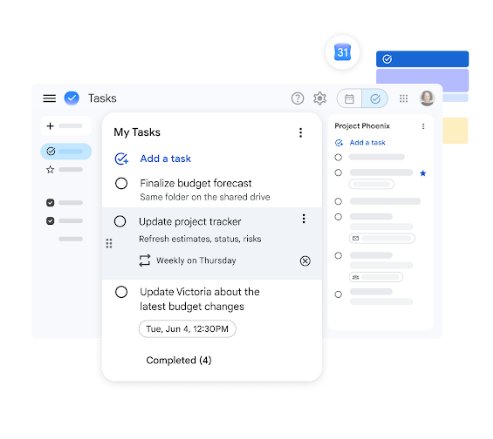
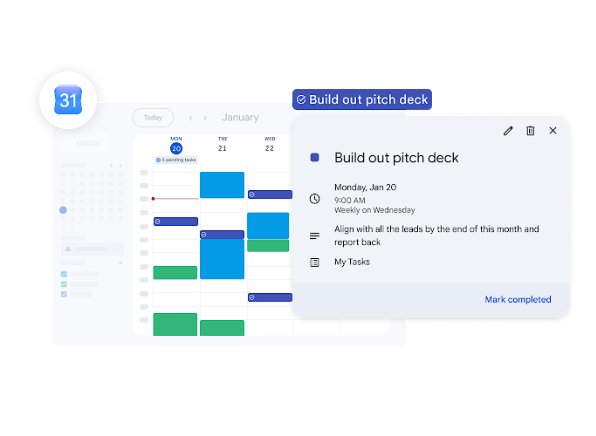
Reminders now live in Google Tasks, and Google Calendar is the quickest place to make one on a computer. A task with a date shows on your calendar grid and syncs to your phone.
- Go to calendar.google.com and sign in to your Google Account.
- Click Create at the top left and select Task.
- Type what you want to be reminded about in the title field.
- Pick the date and a time. Leave the time empty and the alert arrives at 9 AM that day.
- Click Save.
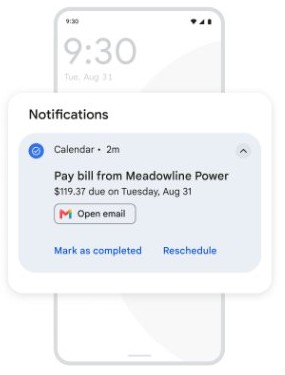
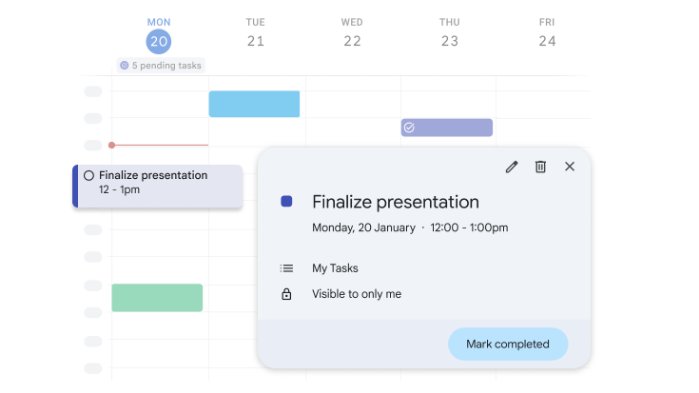
The task appears on your calendar and in the Tasks app, and the notification fires at the time you picked.
Where did Google reminders go?
Google folded its separate reminder features into Google Tasks. The old reminder sources still work, but each one now creates or shows a task.
| Where you used to set reminders | Where they are now | What to look for |
|---|---|---|
| Google Calendar | Tasks inside Calendar | Create > Task, and the Tasks calendar under My calendars |
| Google Keep | Google Tasks and Google Calendar | Keep no longer sends reminder alerts; moved reminders say "From Keep" in the task details |
| Google Assistant | Google Tasks | Assistant can set, edit and delete tasks by voice |
| Gmail, Chat, Drive, Docs | Tasks in the side panel | Show side panel at the bottom right, then Tasks |
Because everything lands in one list, a reminder made by voice on your phone shows up in Calendar on your laptop a moment later.
How to create reminders on the web app
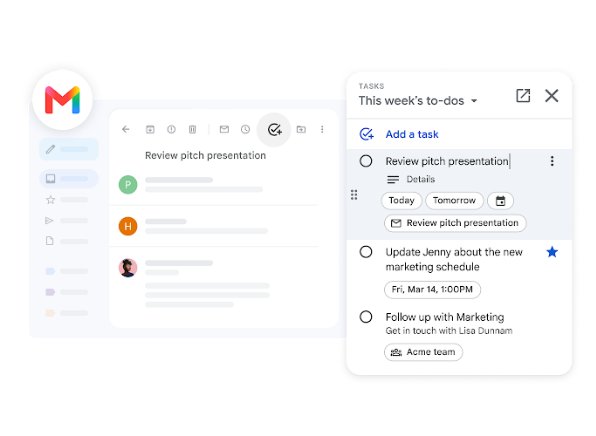
On a computer you can add a reminder from Calendar itself or from the side panel in Gmail, Chat, Drive, Docs, Sheets and Slides. Both routes save to the same task list.
- Open Google Calendar in your browser and click an empty slot on the grid.
- Select Task in the box that opens, enter a title and set the date and time.
- Click Save to finish, or use the side panel route for the next steps.
- In Gmail, Drive or a Docs file, click Show side panel at the bottom right if the panel is hidden.
- Click Tasks on the right, then click Add a task and type the reminder.
- Click Edit next to the task to add details or a due date and time, then close the panel.
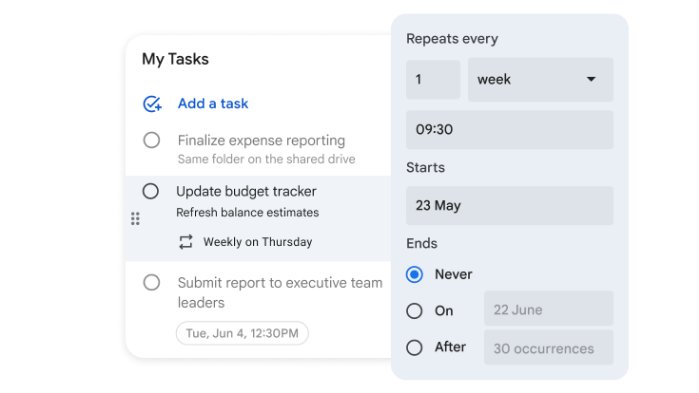
To make a reminder repeat, open its date and time and choose Repeat. A task that has subtasks cannot repeat, so remove the subtasks first.
How to add reminders on Android or iPhone
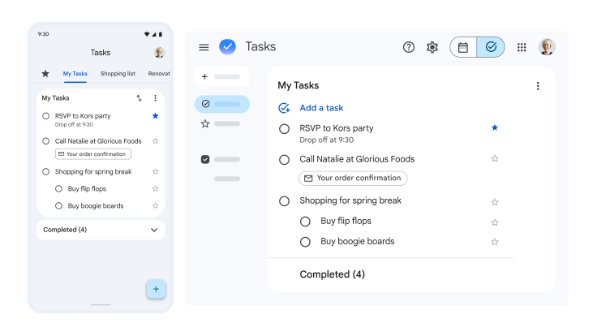
Install the Google Tasks app from the Play Store or the App Store, or use the Google Calendar app you already have. Sign in with the same Google Account you use on the web.
- Open the Google Tasks app.
- Tap Add task.
- Enter a title for the reminder.
- Tap Add details if you want notes, then tap the date and time option to set when it fires or how often it repeats.
- Save the task. In the Google Calendar app, tap an empty slot instead, choose Task, set the time and tap Save.
You can also ask Google Assistant to set, edit or delete tasks by voice. If voice commands do not respond, open Google Assistant settings and check that Assistant is turned on.
How to check your Google reminders
Every reminder with a date sits on your calendar, and the full list lives in the Tasks app. Use whichever view matches what you need to see.
- Open Google Calendar on your computer and make sure Tasks is ticked under My calendars on the left.
- Look at the day or week grid: dated reminders sit at their scheduled time.
- Click Pending tasks at the top of the calendar to list unfinished tasks from the last 365 days.
- On your phone, open the Google Tasks app to see every list, including tasks with no date.
- Tap a task to read its details, including "From Keep" on reminders that moved over from Google Keep.
Tasks without a date never appear on the calendar grid, so check the Tasks app when a reminder seems to be missing. If you plan your week in Calendar, these dated tasks work well beside time-blocked planner events.
How to assign a reminder to someone else
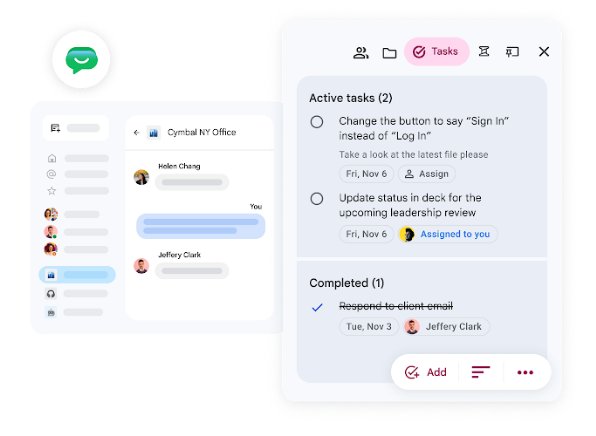
Personal reminders cannot be handed to another person, but shared tasks can. You create them in a Google Chat space or in a Google Doc, and they land in the assignee's own task list.
- Open Google Chat, or open Gmail and click Chat on the left.
- Select the space that includes the person you want to assign.
- Click Tasks at the top right, then click Add at the bottom of the panel.
- Enter a title, details, a date and the assignee.
- Click Add. In a Google Doc, type @task, press Enter, fill in the details, pick the assignee and click Assign as a task.
Assigning from Google Docs works only on work or school accounts. The assignee receives an email, and shared tasks cannot have subtasks or repeat.
How to manage your reminder notifications
Task alerts on a computer come through Google Calendar, so Calendar's notification settings control them. On a phone, the Tasks app and the Calendar app each send their own alerts.
- Open Google Calendar on your computer and click Settings menu > Settings at the top right.
- Under General on the left, click Notification settings.
- Open the Notifications drop-down and choose how alerts should appear, or turn them off.
- Return to the calendar and make sure Tasks is selected under My calendars.
- On Android or iPhone, open the Google Tasks app, tap your Profile picture at the top right, then tap Settings to change task notifications.
- Allow notifications for the Tasks and Calendar apps in your phone's own settings.
When notifications arrive also depends on how the task was set up.
When Google Tasks reminders send notifications
| How the reminder is set | When the alert arrives |
|---|---|
| Date and time | At the scheduled date and time |
| Date with no time | 9 AM on that date |
| Deadline | 9 AM local time on the day of the deadline |
| No date | No notification; the task stays in your list |
Give a reminder a specific time whenever 9 AM is too early or too late for it.
How to edit or delete a Google reminder
- Open Tasks in Google Calendar on your computer, or open the Google Tasks app on your phone.
- Click or tap the reminder, change its title, details or time, and go back to save it.
- Click Complete to the left of a task to mark it done.
- To delete it on a computer, point to the task and click Task options > Delete. For a repeating task, click Delete all.
- To delete it on a phone, tap the task and tap Delete.
- To clear finished items, click List options at the top of the list and choose Delete all completed tasks.
To remove only one occurrence of a repeating reminder on Android, open the Google Calendar app, tap the task and tap Delete > This task.
Google reminders not working
No reminder pop-up on your computer
Desktop alerts only appear while Calendar is open and the browser is allowed to show its notifications.
- Keep a Google Calendar tab open in your browser.
- In Chrome, click More > Settings > Privacy and security > Site settings > Notifications.
- Next to Allowed to send notifications, click Add, enter calendar.google.com and click Add.
- Check that Tasks is ticked under My calendars in Calendar.
Google Keep reminders stopped sending alerts
Keep no longer sends reminder notifications; they move to Tasks and Calendar.
- Install the Google Tasks app or the Google Calendar app on your phone.
- Allow notifications for that app when it asks, or in your phone's settings.
- Open the moved reminder in Tasks and look for From Keep to jump back to the original note.
The reminder fired at 9 AM instead of the time you wanted
The task has a date but no time, or only a deadline.
- Open the task in Calendar or the Tasks app.
- Add a specific time next to the date.
- Save the task and check the new time on the calendar grid.
Tasks is missing from a work or school account
The administrator controls access to Tasks, and the Tasks service may be off for the organization.
- Click Show side panel at the bottom right of Gmail or Calendar to rule out a hidden panel.
- If Tasks still does not appear, ask your administrator to turn on the Tasks service for your account.
Google reminders FAQ
Does Google still have reminders?
Yes, but they now work as Google Tasks. A task with a date and time behaves like a reminder: it shows on Google Calendar, syncs to the Tasks app on your phone and sends a notification at the scheduled time.
How do I set a reminder on Google Calendar?
Click Create at the top left of Google Calendar, select Task, enter a title, pick a date and time and click Save. The task appears on the calendar grid and you get a notification when it is due.
Can I set a recurring Google reminder?
Yes. Open the task's date and time and choose Repeat, then pick how often it should come back. Tasks that contain subtasks cannot repeat, and shared tasks in Chat or Docs cannot repeat either.
Where do I see all my Google reminders?
Open the Google Tasks app to see every list, including tasks with no date. In Google Calendar, tick Tasks under My calendars, or click Pending tasks to list unfinished tasks from the last 365 days.
Can I share a Google reminder with someone?
You can assign a shared task in a Google Chat space or, on a work or school account, in a Google Doc with @task. The task then appears in the other person's task list and they receive an email about it.
What time do Google reminders go off without a time set?
A task with a date but no time sends its notification at 9 AM on that day. A task with a deadline notifies you at 9 AM local time on the deadline day.
Why am I not getting Google reminder notifications on my PC?
Calendar must stay open in your browser, and the browser must allow calendar.google.com to show notifications. Also check that Tasks is selected under My calendars and that notifications are on in Calendar's Notification settings.
Put your mind at ease
Make every reminder a Google Task with a specific date and time, and keep the Google Tasks app installed on your phone. Tasks is where Calendar, Keep and Assistant reminders now end up, a set time avoids the default 9 AM alert, and the phone app keeps notifications coming when your browser is closed.
If you check your schedule all day on a Windows PC, putting Google Calendar on your desktop keeps those alerts in view.