When AirPods won't connect, put both AirPods in the charging case, check that Bluetooth is on, close the lid for 15 seconds, then pair them again from the case; if that fails, reset them.
This guide gives the 7 ways to fix AirPods that won't connect to an iPhone, iPad, Mac, Android phone or Windows PC, with Apple's exact steps for each AirPods model.
How to fix AirPods not connecting to iPhone
Match what you see to a row, then jump to that numbered fix. Most connection failures clear at fix 3 or fix 5.
| What you see | Start with | Why |
|---|---|---|
| No status light when you open the case | 1. Charging and power | AirPods with no charge cannot connect |
| AirPods missing from the Bluetooth or AirPlay list | 2. Bluetooth off and on | Clears a stuck Bluetooth radio on the phone |
| AirPods listed but the connection fails | 3. Re-pair | Apple's first step for AirPods that won't connect |
| Connection drops or features are missing after an iOS update | 4. Firmware and software update | Old firmware or an old iOS version causes mismatches |
| Re-pairing does not help | 5. Factory reset | Clears the pairing record and custom settings |
| Works on iPhone but not on a Mac, Android phone or PC | 6. Device compatibility and settings | Each device type pairs differently |
| One AirPod dead, case will not charge, or reset fails | 7. Apple Support and repair | Points to a battery or hardware fault |
Understanding why AirPods won’t connect
AirPods connect over Bluetooth and sync their pairing through your Apple Account, so a fault in any of those layers stops the connection.
| Cause | Typical sign | Fix number |
|---|---|---|
| Flat AirPods or case | No status light, or only one AirPod shows battery | 1 |
| Bluetooth off or stuck on the device | AirPods never appear in the device list | 2 |
| Damaged or stale pairing record | AirPods appear but will not connect | 3 |
| Outdated firmware or iOS, iPadOS or macOS | Problems start after an update to only one side | 4 |
| Corrupted settings on the AirPods | Re-pairing fails again and again | 5 |
| Connected to another device, or a non-Apple device | Audio jumps to a Mac, iPad or car | 6 |
| Battery or hardware fault | One AirPod never charges or never makes sound | 7 |
1. Ensure proper charging and power status
Apple's first check for AirPods that won't connect is that both AirPods sit in the charging case and both are charging.
- Put both AirPods in the charging case and close the lid.
- Connect a Lightning or USB-C cable to the case, depending on your model, and plug it into a USB charger or port.
- Charge the AirPods and case for at least 15 minutes.
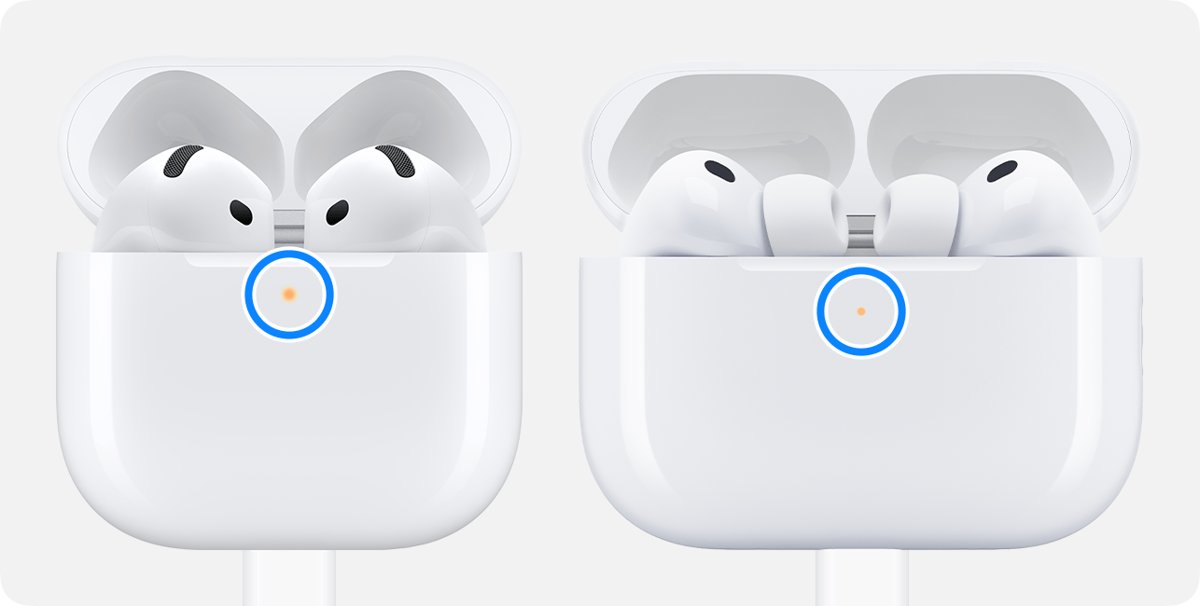
- Open the lid and look at the status light: green means fully charged, amber means less than one full charge remains.
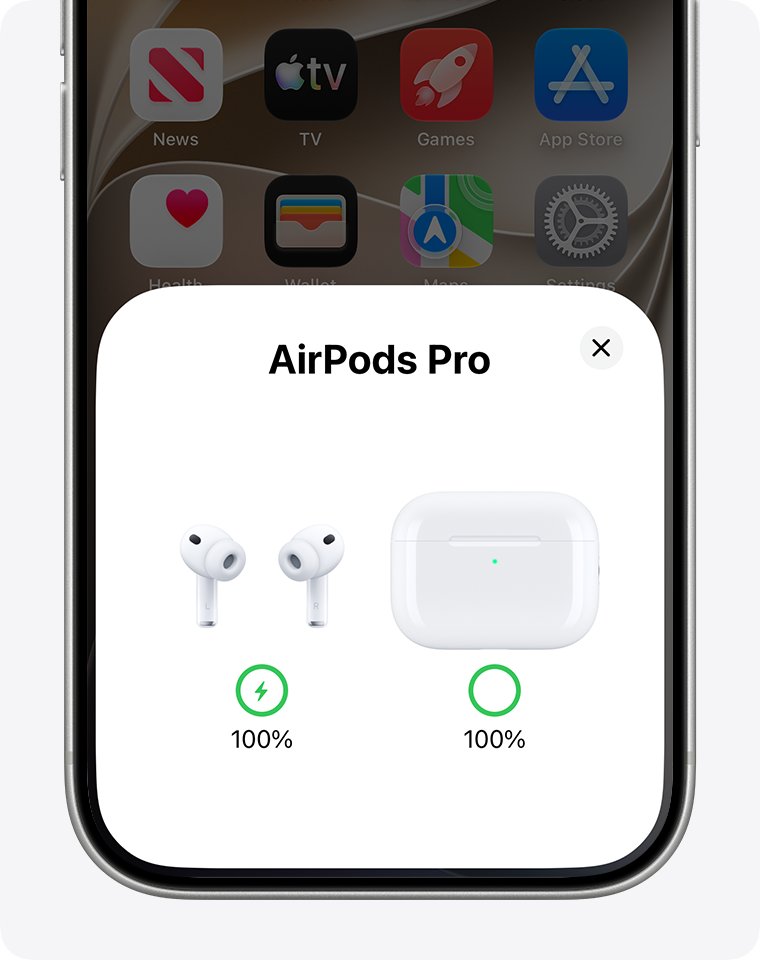
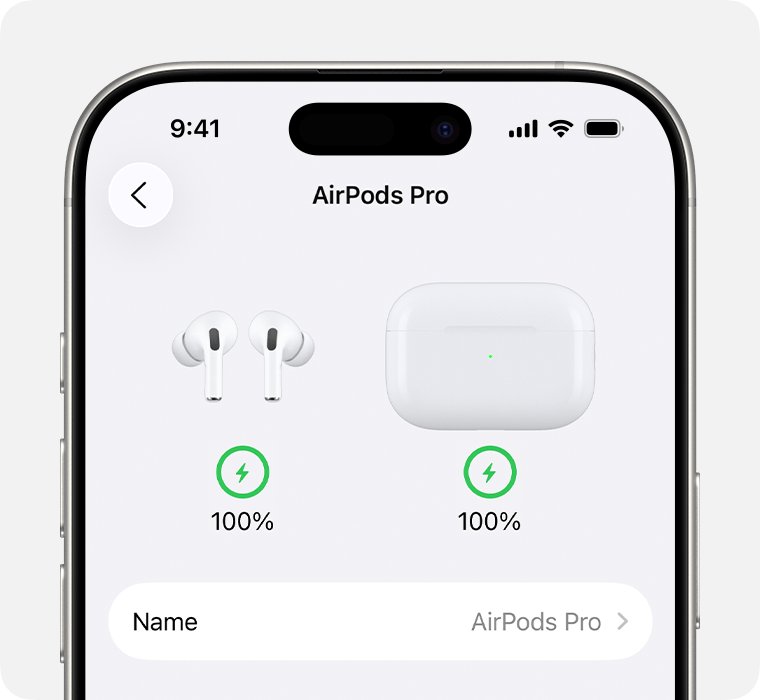
- On an iPhone or iPad, open the lid near the phone, go to Settings > Bluetooth, tap the name of your AirPods and tap the Info button to see the charge of each AirPod.
- Check that both the left and right AirPod show a charge level.
On a Wireless Charging Case with a Qi-compatible charger, place the case with the status light facing up; if the light does not turn on, reposition the case or use a cable. If no light appears at all, the AirPods need charging before they can be used.
2. Turn Bluetooth off and on again
AirPods cannot appear in any device list while Bluetooth is off or stuck on the phone, tablet or Mac.
- On iPhone or iPad, go to Settings and tap Bluetooth.
- Turn Bluetooth off, wait a few seconds, then turn it back on.
- On a Mac, choose the Apple menu > System Settings, click Bluetooth and turn it off and on.
- Take the AirPods out of the case and put them in your ears.
- Open Control Center and tap or click the AirPlay button.
- Select your AirPods if they appear, then play audio with the volume turned up.
If your AirPods do not appear in the list, or appear but will not connect, move on to re-pairing them.
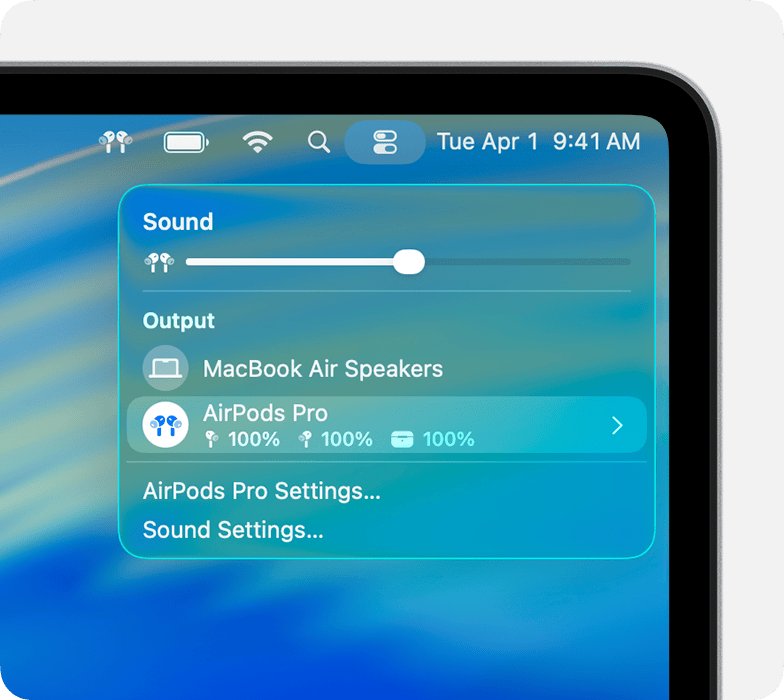
3. Re-pair your AirPods
Re-pairing rebuilds the connection from the case. The button you use depends on your AirPods model.
- Put both AirPods back in the charging case and close the lid.
- Wait 15 seconds, then open the lid.
- For AirPods 4, AirPods 5 or AirPods Pro 3, double-tap the front of the case until the status light flashes white.
- For all other models, press and hold the setup button on the back of the case until the status light flashes white.
- Hold the open case, with the AirPods inside, next to your iPhone or iPad.
- Follow the steps on the screen, then tap Done.
To connect AirPods to a Mac, pair them manually: open System Settings > Bluetooth, put the AirPods in pairing mode as above, select your AirPods in the list and click Connect. For AirPods Max, press and hold the listening mode button for about 5 seconds until the status light flashes white.
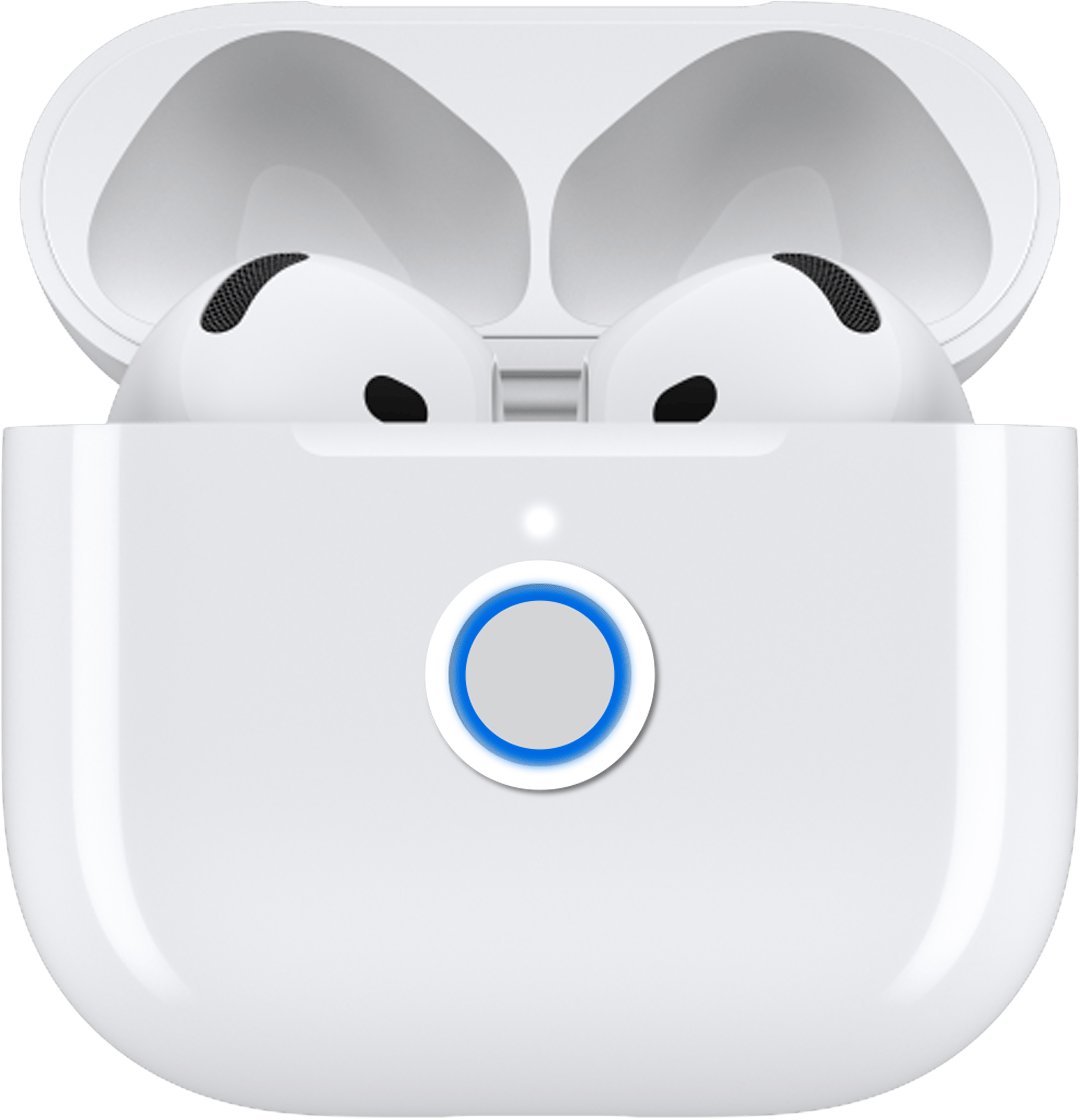
4. Update firmware and device software
Apple tells you to update your iPhone or iPad to the latest iOS or iPadOS, or your Mac to the latest macOS, before anything else. AirPods firmware then updates automatically while the AirPods charge in Bluetooth range of that device on Wi-Fi.
- Update your iPhone, iPad or Mac to the latest version of iOS, iPadOS or macOS, and make sure Bluetooth is on.
- Connect the AirPods to that device, and connect the device to Wi-Fi.
- Connect the charging case to power.
- Put the AirPods in the case, close the lid and keep them in Bluetooth range of the device.
- Wait at least 30 minutes for the firmware to update.
- Open the lid to reconnect, then check the version in Settings > Bluetooth > the Info button next to your AirPods > About.
Apple lists the current firmware version for each model on its AirPods firmware page. If the update still does not install, reset the AirPods and try again. With no Apple device nearby, an Apple Store or Apple Authorized Service Provider can update the firmware.
5. Reset AirPods to factory settings
A reset removes the AirPods from your devices and returns custom settings to default, so you will set them up again afterwards. These steps are for AirPods 1, 2 and 3 and AirPods Pro 1 and 2.
- Put the AirPods in the charging case, close the lid and wait 30 seconds.
- On the paired iPhone or iPad, go to Settings > Bluetooth.
- Tap the More Info button next to your AirPods, tap Forget This Device and tap again to confirm.
- Open the lid of the charging case.
- Press and hold the setup button on the back of the case for about 15 seconds, until the status light flashes amber, then white.
- Hold the open case next to your device and follow the steps on the screen to reconnect.
For AirPods 4, AirPods 5 and AirPods Pro 3, follow the first four steps, then double-tap the front of the case while the light is on, double-tap again when it flashes white, and double-tap a third time when it flashes faster. For AirPods Max, press and hold the Digital Crown and the listening mode button together until the light changes from flashing amber to flashing white, around 15 seconds.
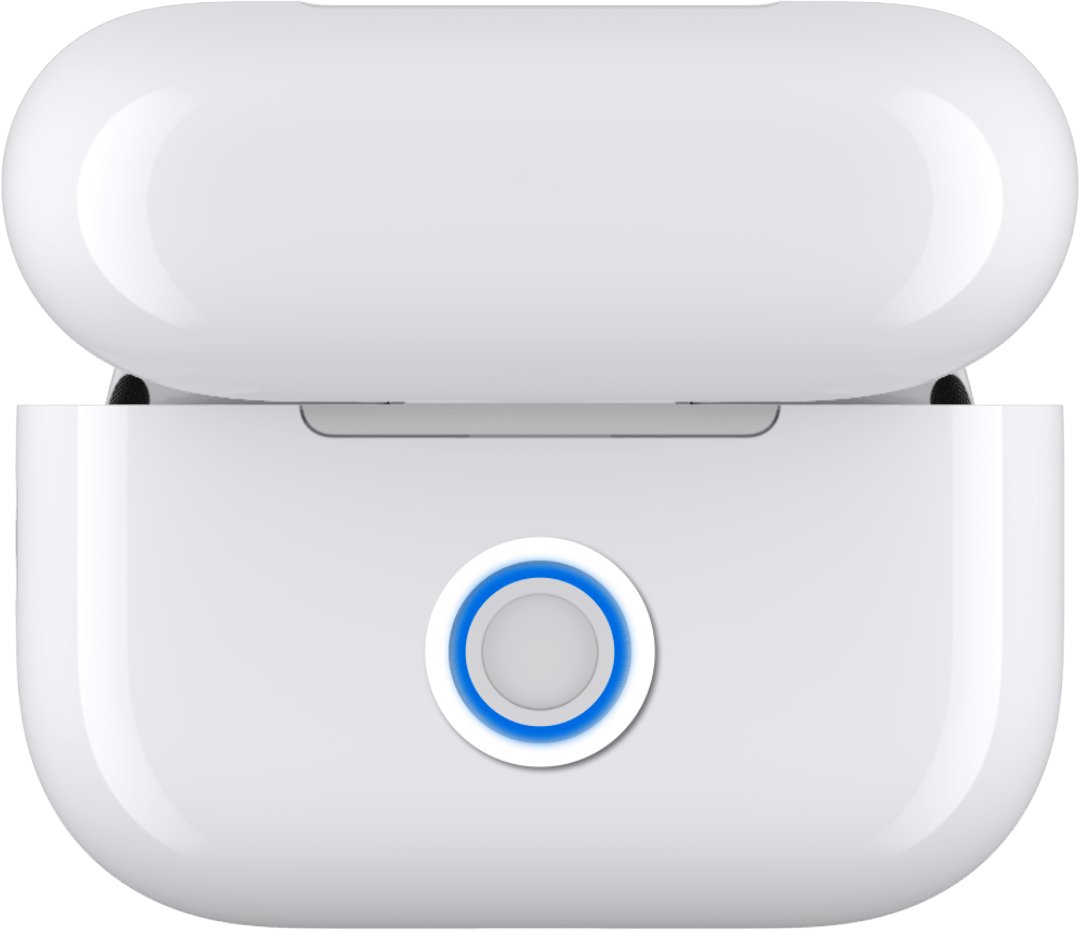
6. Troubleshoot device compatibility and settings
AirPods work as a normal Bluetooth headset on non-Apple devices, but without Siri. On Apple devices they follow your Apple Account and switch automatically between devices.
| Device or problem | What to do | Result |
|---|---|---|
| Android phone | Go to Settings > Connections > Bluetooth, put the AirPods in pairing mode, then select them in the list | Listen and talk; Siri does not work |
| Windows PC | Turn on Bluetooth in Windows, put the AirPods in pairing mode, then add them as a Bluetooth device | Works as a Bluetooth headset |
| Apple Watch | Open Settings > Bluetooth on the watch and tap your AirPods | Connects to the watch directly |
| Apple TV | Open Settings > Remotes and Devices > Bluetooth and select your AirPods below Headphones | Plays TV audio in the AirPods |
| Audio keeps moving to a Mac or iPad | On iPhone, open Settings, tap your AirPods, then Connect to This iPhone > When Last Connected to This iPhone | Stops automatic switching to that device |
| Audio moves to the car or a speaker | Go to Settings > General > AirPlay & Continuity and turn on Keep Audio with Headphones | Audio stays in the AirPods |
| New Apple device does not see them | Sign in to the same Apple Account as the device you set the AirPods up on | AirPods connect automatically |
On a PC, you can connect AirPods to a Windows laptop from Bluetooth settings, and if they pair but misbehave, fix AirPods not working on Windows 11 from the Windows side. When no Bluetooth device pairs with the PC at all, the fault is in Windows Bluetooth rather than the AirPods.
7. Contact Apple Support and consider hardware repair
If one AirPod never charges, never makes sound, or the case light will not flash white after a reset, the problem is likely the battery or the hardware rather than a setting.
- Note the signs of hardware issues: one AirPod that never shows a charge, a case that will not charge with a known-good cable, or a reset light that never flashes white.
- Find the serial number of your AirPods for the repair request.
- Open support.apple.com/airpods/repair and select Get started.
- Describe the problem and try the solutions Apple suggests.
- Choose a repair or replacement, and select your model to see the estimated out-of-warranty cost.
- Check whether AppleCare covers the repair before you pay.
Apple can replace a single lost or damaged AirPod or a charging case, and its battery service covers AirPods that no longer hold a charge. Apple Authorized Service Providers set their own fees.
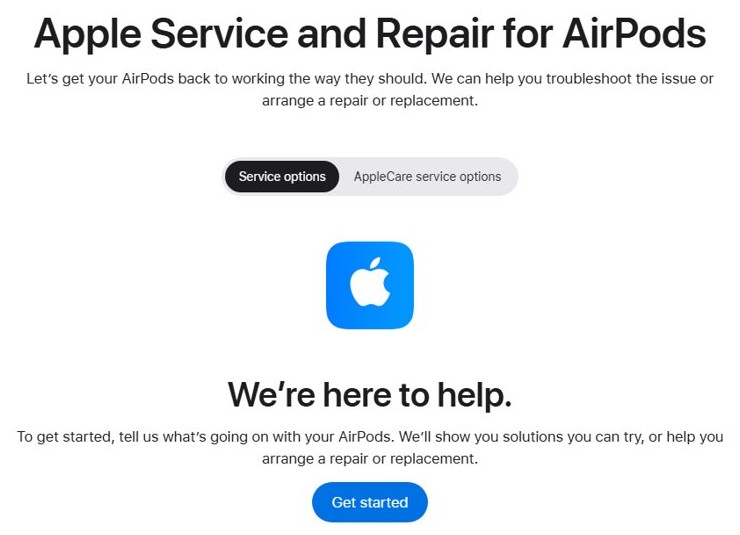
How to tell if AirPods are connected to iPhone
A working connection shows up in three places on an iPhone or iPad.
- Open Control Center, tap the AirPlay button and check that your AirPods are selected.
- Go to Settings > Bluetooth and check that your AirPods appear in My Devices.
- Tap the Info button next to them and check that both AirPods show a battery level.
- Play audio with the volume turned up and listen in both ears.
- If audio plays in only one ear, go to Settings > Accessibility > Audio & Visual and check that the Balance slider is in the middle.
AirPods still not connecting after reset
The status light does not flash white when you reset
The reset sequence did not register, often because the AirPods were not seated or the lid was opened too soon.
- Put the AirPods in the case and close the lid for 20 seconds.
- Open the lid.
- On AirPods 1, 2 or 3 or AirPods Pro 1 or 2, press and hold the setup button again for about 15 seconds until the light flashes amber, then white.
- On AirPods 4, AirPods 5 or AirPods Pro 3, repeat the three double-taps on the front of the case.
Only one AirPod connects or plays sound
That AirPod is not charging, or the case or its port is dirty.
- Clean the charging port of the case and charge both AirPods for 30 seconds.
- Open the case near your iPhone and check that each AirPod shows a charge.
- Put the faulty AirPod in your ear, close the other in the case and play audio.
- If it still fails, reset the AirPods, then contact Apple Support.
AirPods connect but keep switching to another Apple device
Automatic switching moves AirPods to whichever signed-in device starts playing audio.
- Wear your AirPods and connect them to the iPhone you want to keep them on.
- Open Settings, tap the name of your AirPods, then tap Connect to This iPhone.
- Choose When Last Connected to This iPhone.
AirPods connected to a PC but no sound
Windows is sending audio to a different output, or the AirPods connected in the wrong mode.
- Open the Windows sound output list and choose your AirPods.
- Remove the AirPods from Windows Bluetooth devices and pair them again from the case.
- If Windows 11 still plays nothing, fix AirPods connected but no sound from the Windows sound settings.
Final tips and best practices for maintaining AirPod connectivity
| Habit | Why it keeps AirPods connecting |
|---|---|
| Keep AirPods in the case when not in use | The case keeps them charged, and firmware only updates while they charge |
| Keep the case itself charged | A flat case cannot recharge the AirPods or show a status light |
| Keep iOS, iPadOS and macOS up to date | Apple's first fix for AirPods that won't connect is the latest software |
| Clean the case and charging port | Debris in the port stops one or both AirPods from charging |
| Use one Apple Account across your devices | AirPods follow that account to every device signed in to it |
| Use Forget This Device before you sell or give away AirPods | It removes them from every device signed in to your Apple Account |
AirPods won't connect FAQ
Why won't my AirPods connect to my iPhone?
The usual causes are AirPods that are not charged, Bluetooth that is off, an outdated iOS version or a broken pairing. Put both AirPods in the case, close the lid for 15 seconds, then put them in pairing mode and hold the case next to the iPhone.
How do I put my AirPods in pairing mode?
Open the case with the AirPods inside. On AirPods 4, AirPods 5 or AirPods Pro 3, double-tap the front of the case. On other models, press and hold the setup button on the back. The status light flashes white in pairing mode.
Why is my AirPods case not flashing white?
The case may be out of charge or the button press did not register. Charge the case for at least 15 minutes, put the AirPods inside, close the lid for 20 seconds, open it and repeat the setup button hold or the double-taps.
How do I reset my AirPods?
Put them in the case, close the lid and wait 30 seconds. Open the lid, then press and hold the setup button for about 15 seconds on older models, or double-tap the front of the case three times on AirPods 4, AirPods 5 and AirPods Pro 3.
Can AirPods connect to an Android phone?
Yes. Turn on Bluetooth on the Android phone, put the AirPods in pairing mode until the light flashes white, then select them in the list of Bluetooth devices. You can listen and talk, but Siri does not work on non-Apple devices.
How do I update my AirPods firmware?
Firmware updates install automatically. Keep the AirPods in their case with the lid closed, connect the case to power, and keep them in Bluetooth range of an up-to-date iPhone, iPad or Mac on Wi-Fi for at least 30 minutes.
Why does only one AirPod connect?
The other AirPod is usually not charging. Clean the case's charging port, charge both AirPods for 30 seconds and check each AirPod's charge on your iPhone. If one still will not work, reset the AirPods, then contact Apple about a replacement.
Why do my AirPods keep connecting to my Mac instead of my iPhone?
AirPods switch automatically between Apple devices signed in to the same Apple Account. On the Mac, open System Settings, click your AirPods and set Connect to This Mac to When Last Connected to This Mac.