To remove Apple Watch locked to owner, the account holder must unpair the watch in the Apple Watch app or remove it at icloud.com/find with their Apple Account password.
This guide covers a watch you inherited or bought used, what to do without the password, how to check the lock is gone, and how to stop the watch locking its screen.
How to remove Apple Watch locked to owner with the owner's Apple Account
Apple Watch locked to owner is the Activation Lock screen. It stays on through an erase, so only the Apple Account that set up the watch, or Apple itself, can release it.
- Ask the owner to go to icloud.com/find on any computer and sign in with their Apple Account.
- Under All Devices, they click the Apple Watch, then click Erase and follow the prompts.
- Leave the phone number and message blank, because the watch is not lost.
- When the watch is erased, they click Remove This Device and then Continue.
- Pair the watch with your own iPhone.
If the owner cannot be reached, has died, or you cannot sign in, use the matching section below. A support request needs proof of purchase.
Why is my Apple Watch locked to owner?
Find My and Activation Lock turn on automatically when Find My is set up on the paired iPhone. After that, the owner's Apple Account email address or phone number and password are needed to unpair the watch, pair it with a new iPhone, or turn off Find My.
| Your situation | What removes the lock | What you need |
|---|---|---|
| Your own watch, paired iPhone in hand | Unpair it in the Apple Watch app | Your Apple Account password |
| Your own watch, no iPhone or watch nearby | Erase and remove it at icloud.com/find | Your Apple Account sign-in |
| Bought used from a person | The seller removes it at icloud.com/find | The seller's cooperation |
| Inherited from a family member who died | A Legacy Contact or deceased account request | Access key, death certificate or court order |
| Bought it and nobody can sign in | An Activation Lock support request | Proof of purchase documentation |
| Watch from a business or school | The organization's IT department | Their admin process |
How to remove Activation Lock from Apple Watch on iPhone
Unpairing restores the watch to factory settings and removes Activation Lock in one step. It needs the iPhone the watch is paired with.
- Keep the Apple Watch and iPhone close together.
- On the iPhone, open the Apple Watch app and go to the My Watch tab.
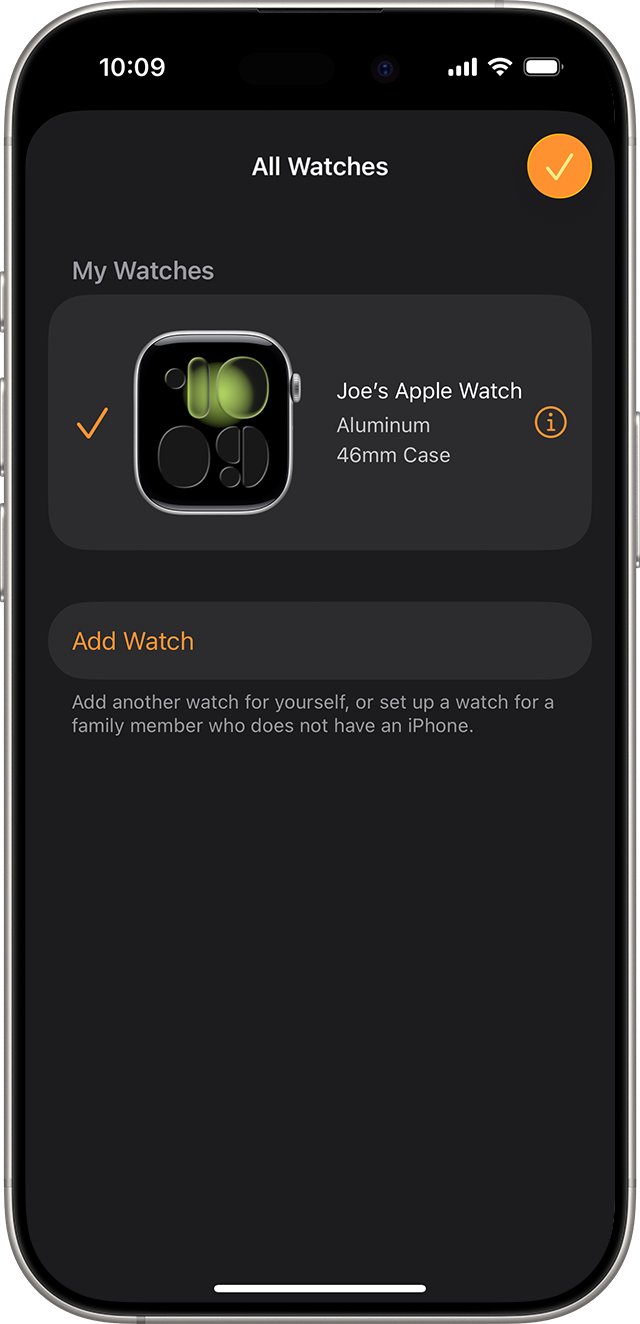
- Tap All Watches at the top, then tap the info button next to the watch.
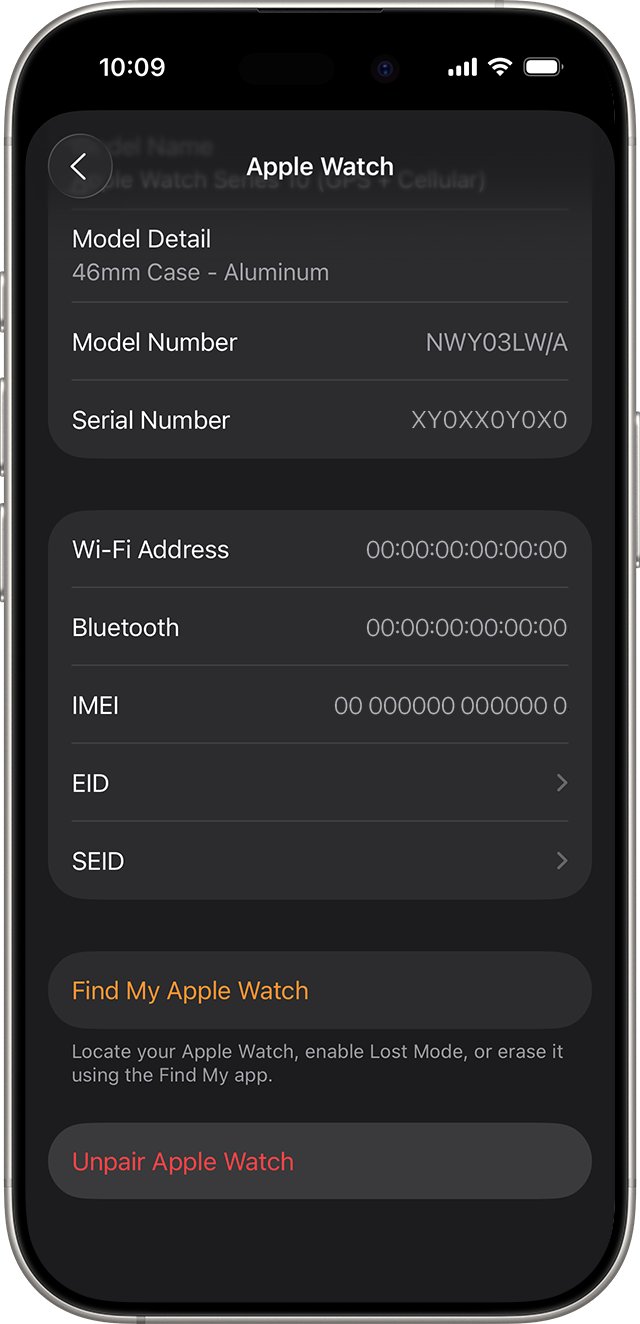
- Tap Unpair Apple Watch, then tap Unpair [watch name] to confirm.
- On a cellular model, choose Remove Cellular Plan if the watch is changing hands.
- Enter the Apple Account password to turn off Activation Lock, then tap Unpair.
The iPhone tries to back up the watch while unpairing. If the password is forgotten, recover the Apple Account first and then unpair.
Apple Watch iCloud lock removal on iCloud.com
Use this when the owner no longer has the paired iPhone or the watch is already with someone else. Removing an online watch that is not erased only marks it Ready for Repair or Trade In, so erase it first.
- Go to icloud.com/find and sign in with the Apple Account that set up the watch.
- In the list of devices, select the Apple Watch.
- Click Erase, then Next, and enter the Apple Account password if asked.
- Skip the phone number and message, then click Erase.
- If the watch is offline, wait for the email that says it was erased once it comes online.
- Click Remove This Device, then click Continue.
Activation Lock is removed immediately after the erased watch is removed. If AppleCare+ with Theft and Loss covers the watch, the last button is Deactivate & Remove.
Bought a used Apple Watch locked to owner
Apple's rule for used watches is that the previous owner must unpair the watch and enter their Apple Account password. Without that, the watch cannot be set up on your iPhone.
- Contact the seller and ask them to remove the watch from Find My at icloud.com/find.
- Send them the steps from the iCloud.com section above if they are unsure how.
- Ask them to remove and cancel any cellular plan on a cellular model.
- Once they confirm removal, pair the watch with your iPhone again.
- If the seller will not help and you have proof of purchase, start an Activation Lock support request with Apple.
The same rule covers an iPhone locked to its owner, which is released the same way.
Remove Activation Lock from a deceased person's Apple Watch
Apple says it might be able to remove Activation Lock from devices signed in to a loved one's Apple Account. It verifies legal documentation first, usually a death certificate and possibly a court order.
- Look for a Legacy Contact access key in your own Apple Account settings, printed out, or in the estate planning documents.
- If you have one, start a Legacy Contact access request on Apple's Digital Legacy website.
- If not, gather the death certificate, or the documentation your country requires.
- Start a request on the Digital Legacy website, or contact Apple Support with a court order that names you as the rightful inheritor.
- When the Legacy Contact or account deletion request is complete, Activation Lock is removed automatically.
- Erase the watch and set it up with your own Apple Account.
Apple cannot remove a passcode lock without erasing the device, and only one person can request access to a deceased person's account.
How to reset a locked Apple Watch if you forgot the passcode
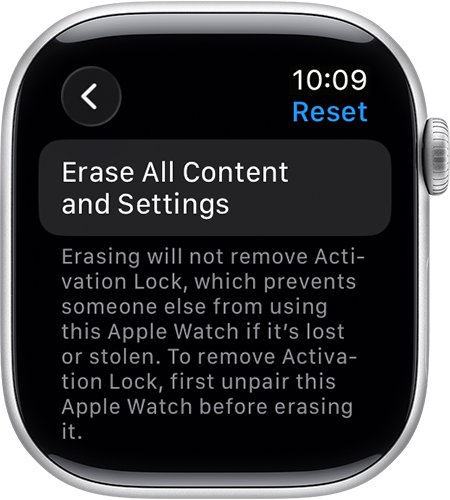
A forgotten passcode is a different lock from Activation Lock. Hard resetting the watch clears the passcode, but Apple states that it does not remove Activation Lock.
- Put the watch on its charger and leave it there until you finish.
- Press and hold the side button until the power button appears in the upper-right corner.
- Press and hold the Digital Crown until you see Erase all content and settings.
- Tap Reset, then tap Reset again to confirm.
- Wait for the erase to finish, then set up the watch and restore from a backup when asked.
With the paired iPhone, you can instead open the Apple Watch app, tap My Watch > General > Reset and tap Erase Apple Watch Content and Settings.
How to check if Activation Lock is on Apple Watch
- On the paired iPhone, open the Apple Watch app.
- Tap the My Watch tab, then tap All Watches.
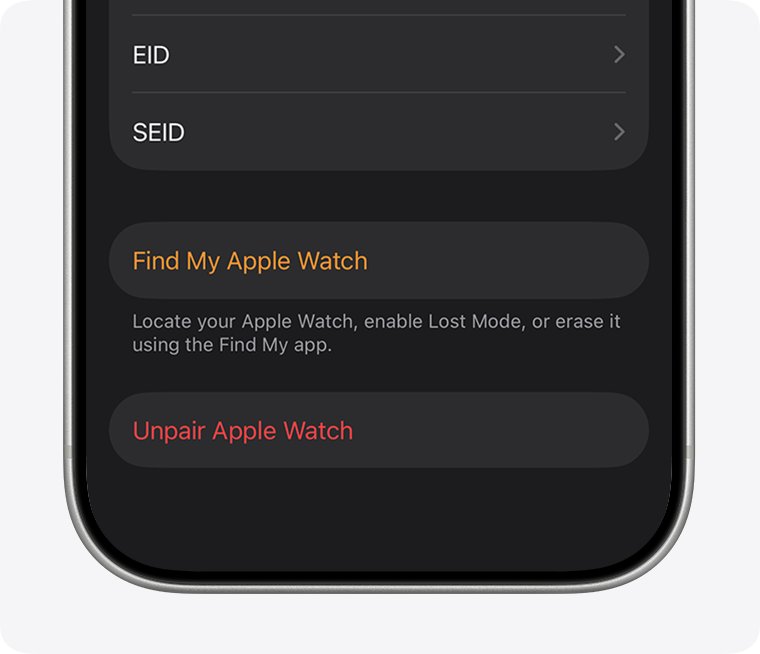
- Tap the More Info button next to the watch.
- If you see Find My Apple Watch, Activation Lock is on.
- On a watch you are setting up, a request for the previous owner's Apple Account password means the lock is still on.
If a used watch shows the passcode lock screen or the Home screen, it still needs to be erased before you can pair it.
How to stop Apple Watch from locking
This is the screen lock, not Activation Lock. With Wrist Detection on, the watch locks itself when you take it off.
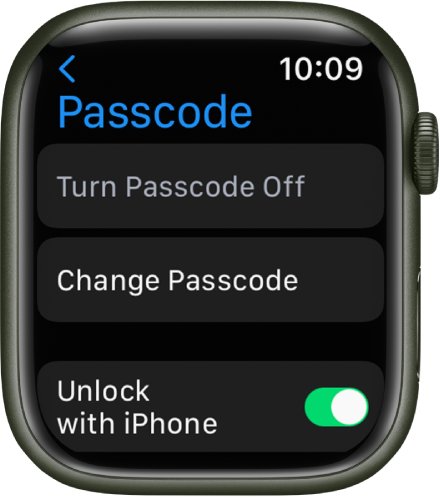
- To unlock the watch whenever you unlock your iPhone, open the Apple Watch app, tap My Watch > Passcode and turn on Unlock with iPhone.
- To stop automatic locking, open Settings on the watch, tap Passcode and turn off Wrist Detection.
- To remove the passcode entirely, tap Passcode > Turn Passcode Off.
- To lock the watch manually while wearing it, press the side button to open Control Center and tap the lock button.
With Wrist Detection off, heart rate tracking and notifications turn off and fall detection will not place an emergency call. Without a passcode, Apple Pay and unlocking your Mac stop working.
Locked out of Apple Watch: common problems
My Apple Watch is locked and unpaired
The watch was erased without unpairing, so Activation Lock stayed on.
- Try to pair the Apple Watch again with the iPhone it used before.
- Enter the Apple Account password when setup asks for it.
- If the password is unknown, remove the watch at icloud.com/find from that account.
Apple Watch still locked after Remove This Device
An online watch that was not erased is only marked Ready for Repair or Trade In.
- Erase the watch from icloud.com/find first.
- Select Remove This Device again after the erase finishes.
Apple Watch reappeared in Find My
An offline watch that comes online after 30 days relocks if it is still signed in to the owner's Apple Account.
- Have the owner erase the watch and then remove it.
- Unpair it from the owner's iPhone if they still have it.
Apple Watch screen locked after wrong passcode attempts
The passcode is not known, or Erase Data wiped the watch after 10 failed attempts.
- Reset the watch with the side button and Digital Crown steps above.
- Set it up again and restore from the iPhone backup.
Erased the watch but Activation Lock is still on
Erasing on the watch or with the side button never removes Activation Lock.
- Unpair it from the paired iPhone with the Apple Account password.
- Or erase and remove it at icloud.com/find.
Apple Watch locked to owner FAQ
Can you reset a locked Apple Watch?
Yes, but a factory reset of the watch only clears the passcode and your data. Apple states that erasing all content and settings does not remove Activation Lock, so the watch still asks for the owner's Apple Account password during setup.
How do I unlock a locked Apple Watch?
For a passcode lock, enter the passcode or reset the watch from its charger. For Apple Watch locked to owner, the owner must unpair it or remove it at icloud.com/find, or Apple must approve a support or Digital Legacy request.
Why is my Apple Watch locked?
Either the screen locked because Wrist Detection detected you took it off, or Activation Lock is on because Find My was set up on the paired iPhone. The second needs the owner's Apple Account to remove.
How do I remove an Apple Watch from my iPhone?
Open the Apple Watch app, tap My Watch, tap All Watches, then tap the info button next to the watch. Tap Unpair Apple Watch, confirm, and enter your Apple Account password to turn off Activation Lock.
How do I erase an Apple Watch from the watch itself?
Open Settings on the watch, tap General, tap Reset, then tap Erase All Content and Settings. Enter the passcode if prompted and tap Erase All. This does not remove Activation Lock, which needs the paired iPhone or icloud.com/find.
How do I keep my Apple Watch unlocked?
Turn off Wrist Detection under Settings > Passcode on the watch, or turn on Unlock with iPhone in the Apple Watch app. Turning off Wrist Detection also turns off heart rate tracking and fall detection emergency calls.
How do I lock my Apple Watch from my iPhone?
Open Find My on the iPhone, tap the watch and choose Lost Mode, then tap Continue and Activate. Lost Mode locks the watch with its passcode and suspends Apple Pay until you turn it off.