To factory reset a Samsung tablet, open Settings, tap General management > Reset > Factory data reset, then tap Reset and enter your PIN.
If the tablet is locked, use the Recovery Mode buttons or erase it remotely with Samsung Find. This guide covers all three methods, the backup to make first and what to do when a reset will not go through.
Which Samsung tablet reset method should you use?
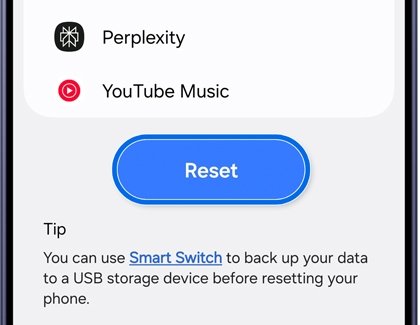
Pick the row that matches your tablet right now; the table is a quick summary of every route, with full steps for each further down. Every route erases the tablet completely, so back up first if the screen still works.
| Your situation | Use this | Why |
|---|---|---|
| The tablet works and you know the PIN | Settings > General management > Reset > Factory data reset | Fastest route, and it signs the tablet out cleanly |
| The tablet is locked, frozen or will not start Android | Recovery Mode with Volume Up and Power | Runs before Android loads and does not ask for the screen lock |
| The tablet is lost, stolen or out of reach | Samsung Find at samsungfind.samsung.com | Sends an erase command through your Samsung account |
| No Samsung account was ever added | Google Find Hub at google.com/android/find | Uses the Google account signed in on the tablet |
| The tablet is only slow or one app misbehaves | A soft reset or Safe Mode | Fixes many problems without deleting anything |
Before you reset a Samsung tablet: three things to do first
A factory reset deletes your personal data, settings, Play Store apps, messages, contacts and photos. Back up and remove your Google account before you start any method that you can run from Settings.
- Back up the tablet to your Samsung account, your Google account or a computer with Samsung Smart Switch. Photos and videos can also go to an SD card.
- Remove the Google account if the tablet is leaving your hands: open Settings, tap Accounts and backup > Manage accounts, tap the Google account and tap Remove account.
- Write down your Google email and password if you are keeping the tablet, because setup asks for them after a reset that does not start from Settings.
- Connect the tablet to Wi-Fi and charge it well, since Samsung asks for a Wi-Fi connection before a reset from Settings.
Removing the Google account turns off Factory Reset Protection, the Google feature that blocks a stranger from setting up a wiped tablet.
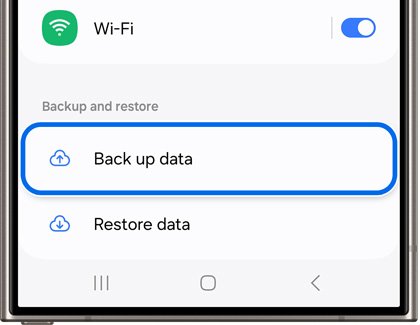
Method 1: How to factory reset a Samsung tablet from Settings through General management
Use this method when the tablet turns on and you can unlock it. Menu names can vary slightly by model and One UI version.
- Swipe up on the Home screen to open your apps, then tap Settings.
- Scroll down and tap General management.
- Tap Reset.
- Tap Factory data reset and read the list of accounts and data that will be erased.
- Scroll to the bottom and tap Reset.
- Enter your PIN, pattern or password when the tablet asks for it.
- Confirm the wipe, then wait while the tablet restarts on its own.
The tablet shows the first setup screen when the wipe is done. That usually takes a few minutes.
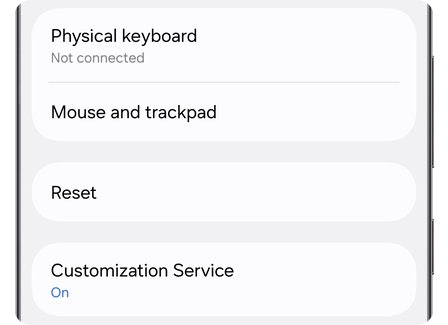
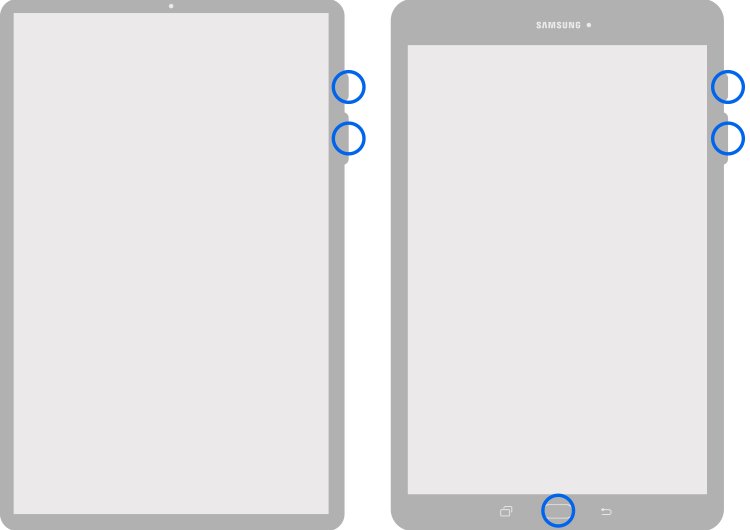
Method 2: How to factory reset a Samsung tablet with Recovery Mode and hardware buttons
Recovery Mode is the fix for a locked tablet, a forgotten PIN or a tablet stuck on the Samsung logo. Make sure you know the Google account that was signed in, because setup asks for it afterwards.
- Power the tablet off completely.
- Hold Volume Up and Power together. On an older Galaxy Tab with a physical Home key below the screen, hold Volume Up, Power and Home.
- Release the buttons when the recovery menu appears.
- Press Volume Down until Wipe data/factory reset is highlighted, then press Power to select it.
- Press Volume Down until Yes (or Factory data reset) is highlighted, then press Power.
- When Data wipe complete appears, press Power to select Reboot system now.
Every current Galaxy Tab, including the Tab A9, A9+, A8, A7, S6 Lite, S7, S9 and S10 series, has no Home key, so the two-button combination applies.
Method 3: How to factory reset a Samsung tablet remotely
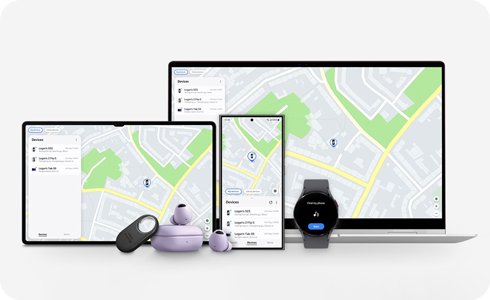
Samsung Find (formerly Find My Mobile) erases a Galaxy tablet running One UI 2 or later from any browser, including a PC, and the same site can locate a lost Galaxy tablet before you wipe it. It only works if Allow this phone to be found was turned on under Settings > Find My Mobile before you lost access to the tablet.
- Open a browser on a computer or phone and go to
samsungfind.samsung.com. - Sign in with the Samsung account registered on the tablet.
- Select the tablet in your device list.
- Select Erase data and confirm with your Samsung account password.
- Leave the tablet powered on and connected to Wi-Fi so it receives the command.
- Wait for the tablet to restart into the setup screens.
Use this route to factory reset a Samsung phone without the password too, since the same Samsung account lists phones and tablets together.
Alternative ways to reset a Samsung tablet and other reset options
These routes help when the three main methods are not available, or when a full wipe is more than the problem needs.
| Option | What it does | What it needs |
|---|---|---|
| Google Find Hub from a PC | Open google.com/android/find, select the tablet, select Settings, then Factory reset |
Tablet powered on, online, signed in to Google, Find Hub on and visible on Google Play |
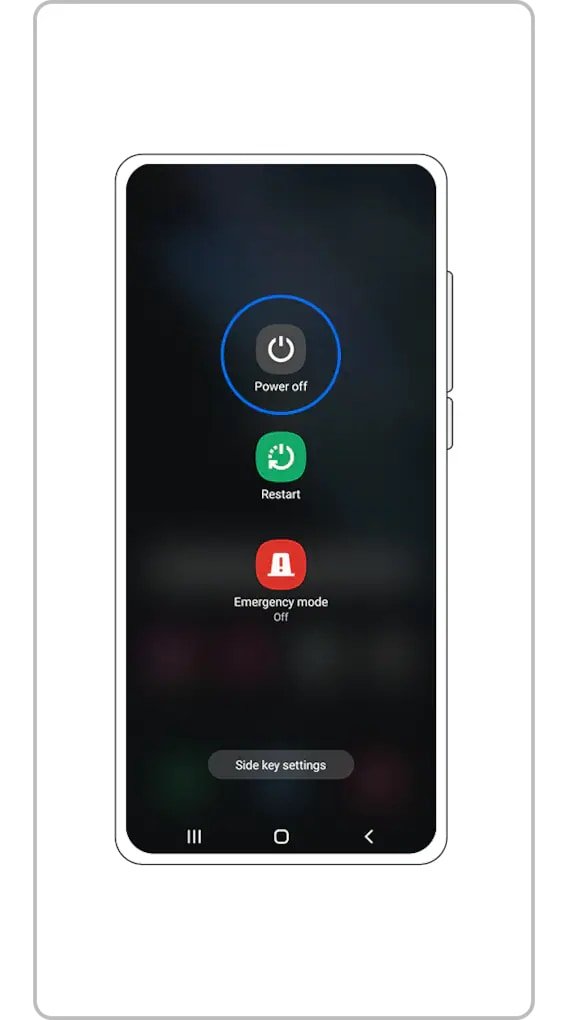
| Soft reset | Restarts the tablet, closes apps and clears memory without touching your data | Swipe down with two fingers, tap the Power icon, then Power off |
| Safe Mode | Starts the tablet with third-party apps turned off, so you can see if an app causes the problem | Samsung suggests trying it before a factory reset meant to fix a fault |
| Samsung Smart Switch on Windows or Mac | Backs up the tablet to a computer and restores the data after the wipe | An unlocked tablet and a USB cable; it does not reset the tablet itself |
| Samsung service centre | Staff reset the tablet and help when the Google account check blocks you | The tablet and its proof of purchase |
What to expect immediately after the Samsung tablet reset
- Wait a few minutes while the tablet restarts; the Samsung logo may stay on screen longer than a normal boot.
- Look for the language and welcome screen, which shows the tablet is back to factory settings.
- Connect to Wi-Fi when setup asks.
- Sign in with the Google account that was on the tablet if setup shows a verification screen.
- Check that Settings > Accounts and backup > Manage accounts shows only the accounts you added during setup.
- After a remote erase, confirm the tablet no longer appears in Google Find Hub.
What to do after the Samsung tablet reset
- Choose to restore from your Samsung account, Google account or Smart Switch backup during setup, or set the tablet up as new.
- Sign in to your Google account so the Play Store can reinstall your apps.
- Set a new PIN, pattern or password when setup offers screen lock options.
- Turn on Allow this phone to be found under Settings > Find My Mobile so a remote erase works in future.
- Insert your SD card again if you removed it, and copy back photos stored on it.
Why a factory reset fixes so many Samsung tablet problems
| Problem | Does a factory reset help? | Why |
|---|---|---|
| Forgotten PIN, pattern or password | Yes, through Recovery Mode or a remote erase | The screen lock is deleted with everything else |
| Slow, crashing or freezing apps | Often, but try Safe Mode first | The reset removes apps, caches and changed settings that build up |
| A setting you cannot undo | Yes | Every setting returns to the state the tablet left the factory with |
| Selling or giving the tablet away | Yes, after removing your Google account | Personal data and accounts are erased |
| Cracked screen, dead battery or broken port | No | A reset only changes software, not hardware |
Samsung tablet soft reset vs factory reset: know the difference
| Soft reset | Factory reset | |
|---|---|---|
| What it is | A power cycle, like restarting a computer | A hard or master reset to factory settings |
| Your data | Kept | Permanently erased |
| How to do it | Swipe down with two fingers, tap Power, then Power off | Settings > General management > Reset > Factory data reset, or Recovery Mode |
| Good for | Lag, a frozen app, a dropped Wi-Fi connection | A forgotten PIN, persistent faults, selling the tablet |
| Google account check afterwards | No | Yes, unless you removed the account first |
Samsung tablet factory reset still not working? Try these fixes
Samsung tablet locked and the Settings reset asks for a PIN
A reset from Settings always asks for the current screen lock.
- Power the tablet off.
- Use Recovery Mode with Volume Up and Power, which does not ask for the PIN.
- Or erase the tablet from
samsungfind.samsung.comif it is online.
Recovery Mode will not open on the Samsung tablet
The buttons were released too early, or the tablet was not fully off.
- Charge the tablet, then power it off completely.
- Hold Volume Up and Power until the Samsung logo appears, and keep holding until the recovery menu shows.
- Connect the tablet to a computer with a USB cable and try again; Samsung requires this step on recent Galaxy phones before the recovery menu opens.
Samsung tablet asks for the previous Google account after the reset
Factory Reset Protection is active because the account was not removed first.
- Enter the Google email and password that was last signed in on the tablet.
- Reset the Google password on another device if you forgot it, then wait before trying again on the tablet.
- Take the tablet and proof of purchase to a Samsung service centre if you cannot recover the account.
Remote erase does not reach the Samsung tablet
The tablet is off, offline, or the find setting was never turned on.
- Turn the tablet on and connect it to Wi-Fi.
- Try Google Find Hub at
google.com/android/findinstead of Samsung Find. - Use Recovery Mode if you have the tablet in your hands.
How to wipe a Samsung tablet before selling or giving it away
- Back up anything you want to keep to your Samsung account, Google account or Smart Switch.
- Remove your Google account under Settings > Accounts and backup > Manage accounts.
- Take out the SD card, because Google warns that a remote reset may not delete SD cards.
- Run the factory reset from Settings > General management > Reset > Factory data reset.
- Check that the tablet starts on the welcome screen and does not ask for your Google account.
The same order applies to any tablet you pass on; resetting an Amazon Fire tablet follows a similar backup-then-wipe sequence.
Samsung tablet factory reset FAQ
How do I factory reset a locked Samsung tablet?
Power the locked tablet off and hold Volume Up and Power to open Recovery Mode. Select Wipe data/factory reset, confirm with Yes, then choose Reboot system now. Setup then asks for the Google account that was on the tablet.
How do I factory reset a Samsung tablet without a password or PIN?
Use Recovery Mode with the hardware buttons, or erase the tablet from samsungfind.samsung.com. Neither route asks for the screen lock, while the reset in Settings always does.
How do I factory reset a Samsung tablet with a PC?
Open samsungfind.samsung.com or google.com/android/find in the PC browser, sign in, select the tablet and choose Erase data or Factory reset. The tablet must be powered on and online for the command to arrive.
How do I factory reset a Samsung Galaxy Tab A9 or A9+?
The Tab A9 and A9+ have no Home key. Use Settings > General management > Reset > Factory data reset, or power off and hold Volume Up and Power to reach Recovery Mode.
How do I factory reset a Samsung Tab A7 or A8?
Both use the same steps as other current Galaxy Tabs: the Factory data reset option under General management in Settings, or Volume Up and Power from a powered-off tablet to open Recovery Mode.
How do I factory reset a Samsung Tab S6 Lite, S7 or S10?
Open Settings, tap General management, then Reset and Factory data reset. If the Tab S is locked, power it off and hold Volume Up and Power, then choose Wipe data/factory reset.
How long does a Samsung tablet factory reset take?
Samsung says a factory reset takes a few minutes. The tablet then restarts on the welcome screen. Restoring a backup and reinstalling apps afterwards takes longer, depending on how much data you saved.
Does a factory reset delete everything on a Samsung tablet?
Yes. It deletes personal data, settings, Play Store apps, messages, contacts and photos stored on the tablet. Files on a removable SD card may survive, so remove or wipe the card separately.
Will a factory reset make an old Samsung tablet faster?
It often helps, because it clears apps, caches and changed settings that build up over time. It cannot fix worn-out hardware or a full SD card, and an old tablet will still run the same Android version.