The Dropbox app download for Windows 11, Windows 10 and Mac comes straight from dropbox.com, and the desktop app itself is free. It puts a Dropbox folder in File Explorer or Finder that syncs with your account.
You sign in with a Dropbox account. The free Basic plan gives one person 2 GB on up to three devices, and paid plans add storage rather than unlock the app.
This guide covers which installer fits your machine, the official links, installing on Windows and Mac, the offline and MSI files, pricing, updates and the install failures that stop people.
Which Dropbox download do you need?
Most people need the standard installer from the Install button. Pick a different file only when your machine or your network rules it out.
| Your machine | What to install | Note |
|---|---|---|
| Windows 11 or 10, any chip | Dropbox installer from dropbox.com/install | Setup that downloads the app during install |
| Windows PC with no reliable internet | Full offline installer | Installs without a connection |
| Windows 11 or 10 in S mode | Dropbox Lite from the Microsoft Store | Files stay online, no local folder |
| Windows managed by IT | Enterprise MSI for x64, x86 or ARM64 | For admins on team plans |
| Mac with Apple silicon or Intel | Dropbox installer from dropbox.com/install | macOS 11 Big Sur or later |
| Ubuntu or Fedora, 64-bit | Linux install page | No ARM build on Linux |
| Windows Server | Dropbox system requirements | Not supported |
Every link above stays on a Dropbox or Microsoft domain. Download portals repackage the installer and often serve an old build.
Download the Dropbox app from the official Dropbox pages
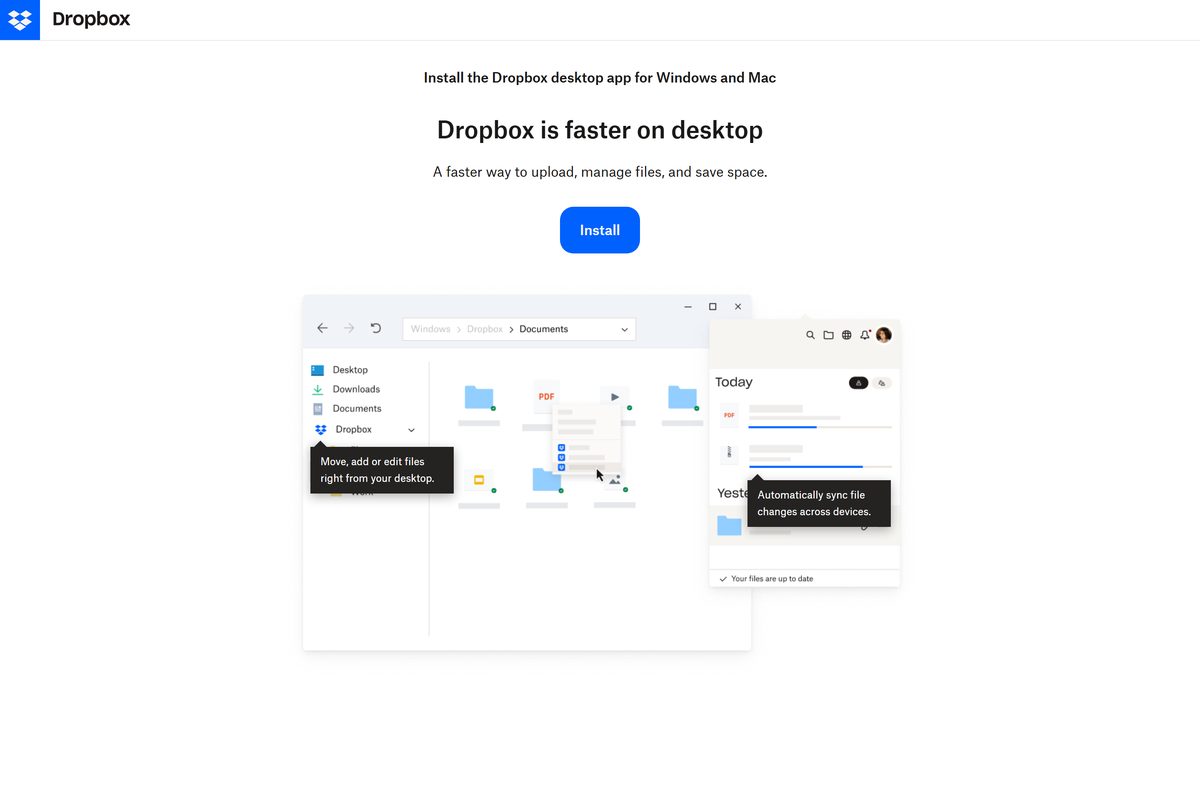
The install page detects your system and serves the matching setup file. The other links cover the offline, managed and store routes.
- Install Dropbox for Windows and Mac — the standard installer
- Windows offline installer — full setup, no connection needed during install
- Dropbox on the Microsoft Store — free, x64 and ARM64
- Enterprise installers for Windows and Mac — MSI and PKG files for team admins
- Dropbox for iPhone and iPad — needs iOS 17.0 or later
- Dropbox for Linux — Ubuntu and Fedora packages
Anything that charges for the installer is not a Dropbox product. The app is free on every platform.
How to install Dropbox on Windows 11 and Windows 10
The app needs admin rights for sync icons and the right-click menu. Keep an admin password ready if your account is a standard one.
- Open dropbox.com/install in your browser.
- Click Install. The browser saves the Dropbox setup file.
- Uninstall any older copy of Dropbox first if one is on the PC.
- Double-click the setup file. Do not choose Run as administrator.
- Click Yes at the User Account Control prompt and enter admin credentials if asked.
- Wait while the installer downloads and sets up the app.
- Sign in to your account, or click Sign up to create a free Basic account.
- Follow the prompts to choose how files sync, then open the Dropbox folder in File Explorer.
Dropbox does not support installing the app on a network drive. Keep it on the local NTFS drive.
Install Dropbox from the Microsoft Store
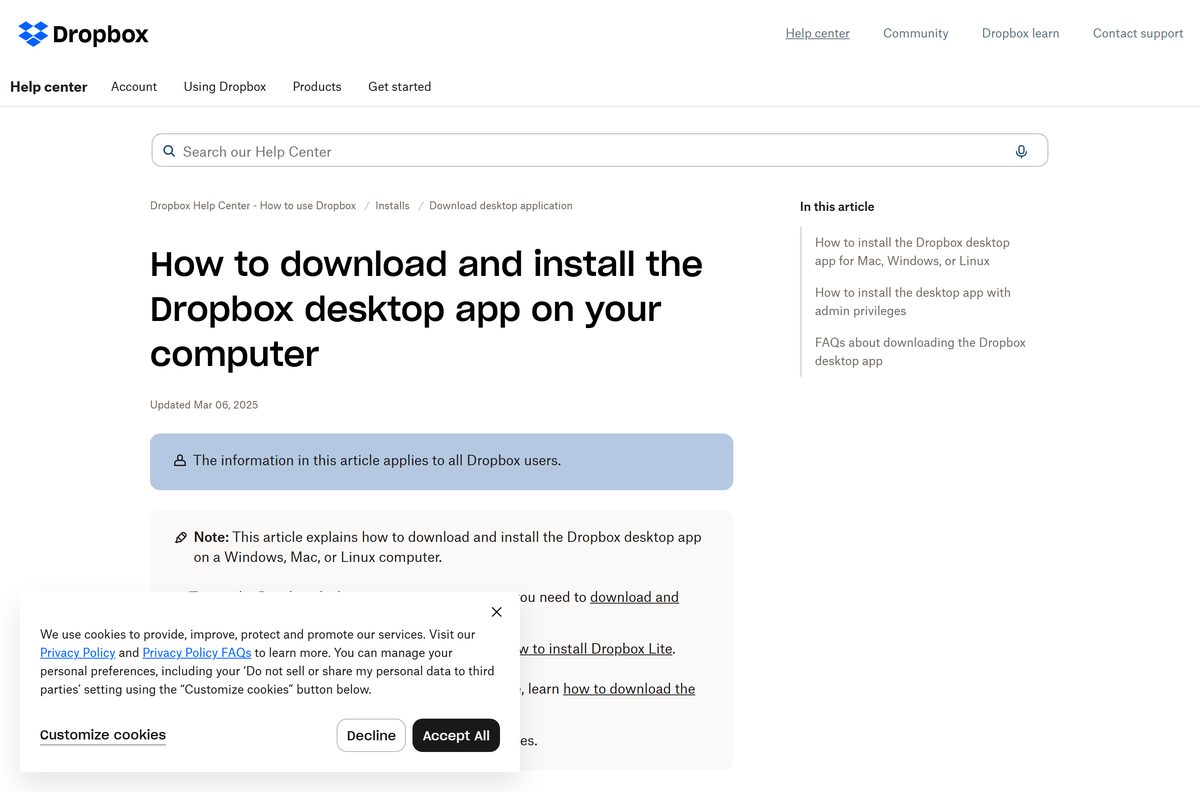
The Store listing is the same free app from Dropbox Inc., packaged for x64 and ARM64 PCs on Windows 10 build 19045 or later. It updates through the Store.
- Open the Dropbox listing on the Microsoft Store.
- Check that the publisher reads Dropbox Inc.
- Click Get, then Open Microsoft Store if the browser asks.
- Click Get or Install in the Store app.
- Click Open when the install finishes.
- Sign in to your Dropbox account and pick your sync settings.
On a PC in S mode, install Dropbox Lite instead. It is the only Dropbox app S mode accepts, and it keeps files online rather than on the disk.
Download the Dropbox offline installer and MSI for deployment
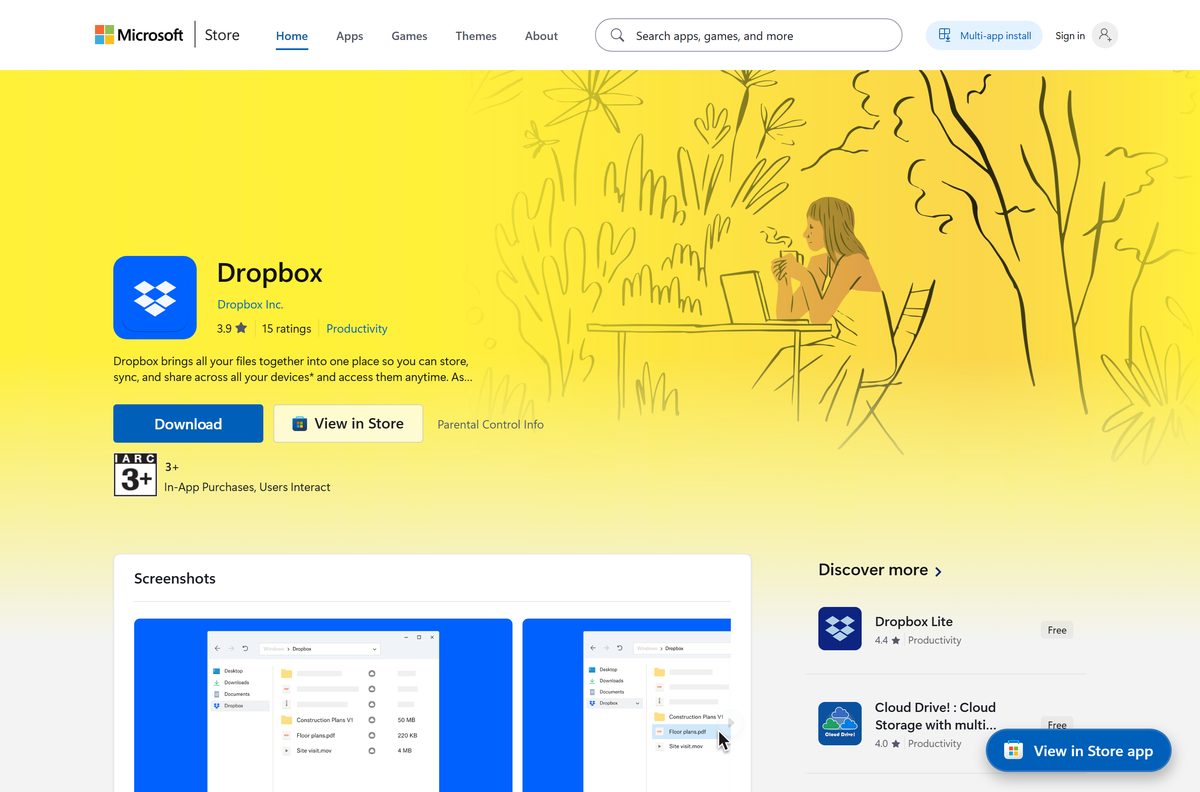
Admins on Standard, Business, Advanced, Business Plus and Enterprise teams can push the app without user interaction. Each person still signs in once.
| File | Machines | Install command |
|---|---|---|
| Offline Installer.exe | Windows 10 and 11 | Offline Installer.exe /S or /NOLAUNCH |
| Enterprise Installer MSI, 64-bit | 64-bit Windows | msiexec /i “Dropbox x.y.z Enterprise Installer.msi” /qn |
| Enterprise Installer MSI, 32-bit | 32-bit Windows | msiexec /i with /qn |
| Enterprise Installer MSI, ARM64 | Windows on Arm | msiexec /i with /qn |
| PKG for Apple silicon | M-series Macs | sudo installer -pkg Dropbox.pkg -target / |
| PKG for Intel Macs | Intel Macs | sudo installer -pkg Dropbox.pkg -target / |
The /S switch launches the app when setup ends, and /NOLAUNCH leaves it closed. Test the command on one machine before you push it to the fleet.
Which Dropbox download do you need for your Mac?
The install page serves the right Mac build for you. Your macOS version decides which edition of the app you get.
| Your Mac | What to install | Note |
|---|---|---|
| macOS 12.5 or later | Dropbox from dropbox.com/install | Runs on File Provider, folder in ~/Library/CloudStorage |
| macOS 11 Big Sur to 12.4 | Dropbox from dropbox.com/install | Full app, supported |
| macOS 10.13 to 10.15 | Simplified desktop app | Reduced feature set |
| Apple silicon Mac your IT team manages | arm64 PKG | Deploy with MDM |
| Intel Mac your IT team manages | x86_64 PKG | Deploy with MDM |
Open the downloaded installer, enter your Mac password when asked, then sign in. The folder shows under Locations in the Finder sidebar.
The Mac App Store has no Dropbox desktop app. Apps there with Dropbox in the name come from other developers.
Is Dropbox free?
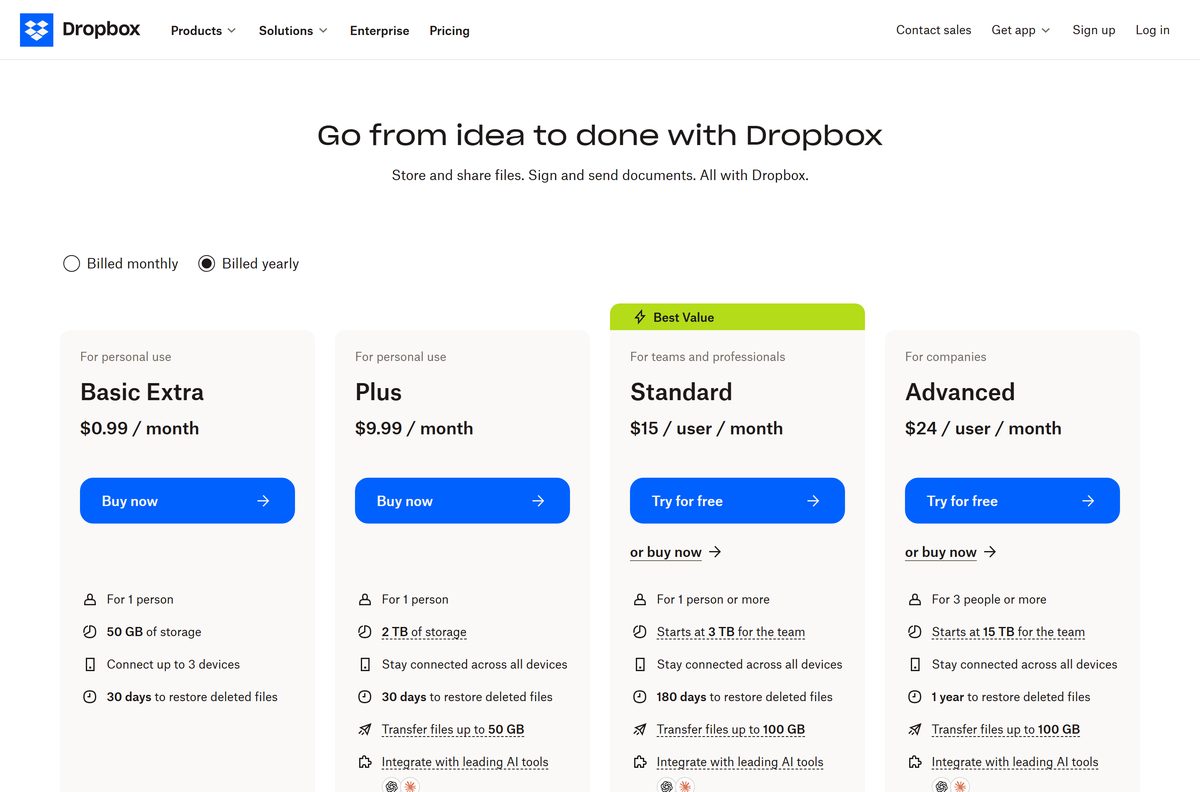
The app never costs anything. Your plan sets how much you can store and how many devices you can link.
Dropbox is free to download and use on Windows, Mac, Linux and mobile with the Basic plan. Basic gives one person 2 GB of storage on up to three devices. Paid plans raise the storage and device limits, and none of them changes the app you install.
Basic Extra gives one person 50 GB on up to three devices. Plus costs $9.99 per month billed monthly and gives one person 2 TB on all devices.
Standard costs $15 per user per month and starts at 3 TB for the team. Advanced costs $24 per user per month for three or more people and starts at 15 TB.
Standard and Advanced carry a free trial. Enterprise pricing comes from Dropbox sales.
How to check your Dropbox version and update it
The app updates itself, and you cannot switch auto-updates off. A manual reinstall helps when an update stalls.
- Click the Dropbox icon in the Windows taskbar or the Mac menu bar.
- Click the round account menu with your photo or initials.
- Click Preferences.
- On Windows, read the version at the bottom of the dialog under Language.
- On a Mac, read the version next to About Dropbox.
- To update by hand, download the current installer from dropbox.com/install and run it over the old copy.
The current desktop release is 270.4.3312. Dropbox warns that a copy that falls behind can stop syncing.
Check the Dropbox system requirements before you install
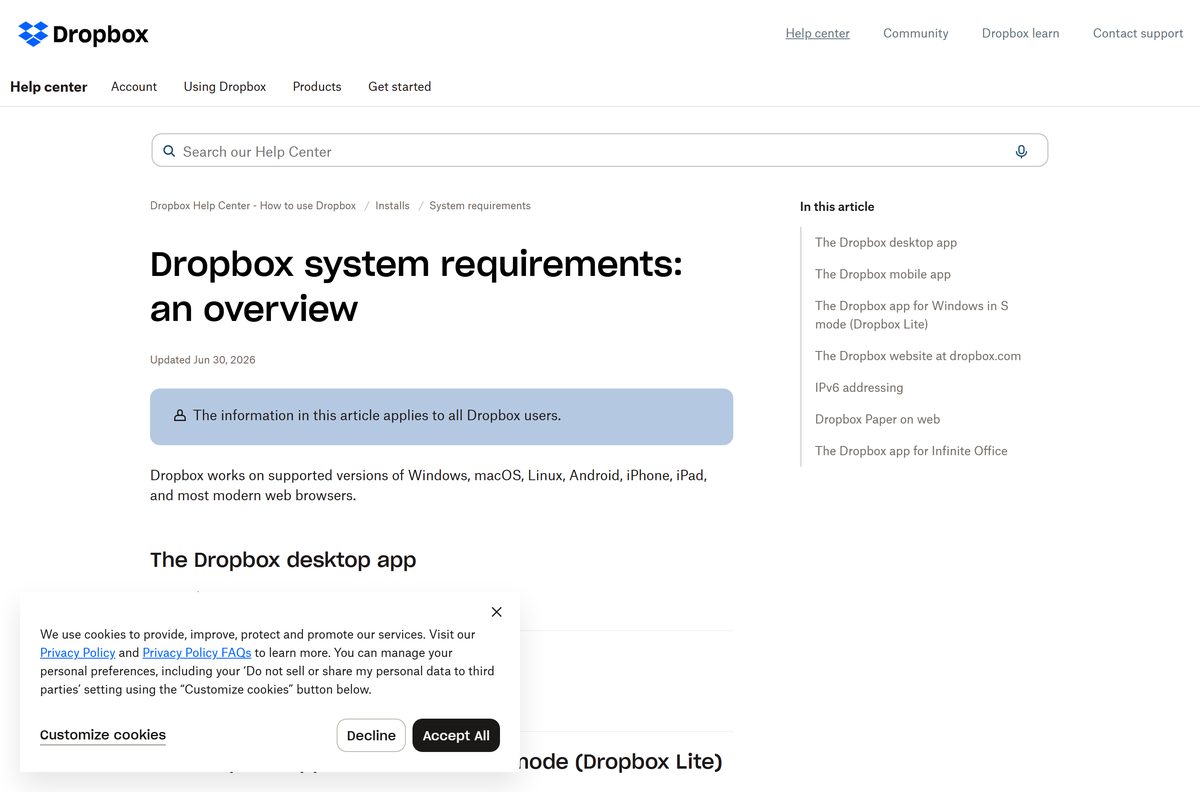
The file system trips people up more than the OS version. Windows needs an NTFS drive, and macOS needs HFS+ or APFS with extended attributes on.
| Field | Value |
|---|---|
| Software | Dropbox desktop app |
| Developer | Dropbox, Inc. |
| Latest version | 270.4.3312 (Microsoft Store package 2026.908.312.0) |
| Price | Free app; free Basic plan with 2 GB, paid plans from Basic Extra to Advanced |
| Windows | Windows 10 or 11 on an NTFS drive; Windows 7, 8 and 8.1 need update KB2758857 or KB3063858; no Windows Server |
| Windows in S mode | Dropbox Lite from the Microsoft Store, Windows 10 version 1703 or later |
| macOS | macOS 11 Big Sur or later; 10.13 to 10.15 get the simplified app |
| Linux | Ubuntu 18.04 or later and Fedora 28 or later, 64-bit |
| Architecture | Windows x64, x86 and ARM64; Mac Apple silicon and Intel; Linux x64 only |
| iPhone and iPad | iOS 17.0 or later |
| Android | Android 10 or later, 100 MB free space |
| Offline installer | Yes, for Windows; MSI and PKG files for team admins |
| Official download source | dropbox.com |
| Last verified | 2026-09-24 |
Fix Dropbox not installing on Windows 11 or 10
Most failed installs trace back to a blocked connection, missing admin rights or an unsupported system. Find your symptom below.
The installer stalls or cannot connect
The standard setup downloads the app during install, and a firewall or antivirus blocks it.
- Allow the Dropbox installer through your antivirus and firewall.
- Download the full offline installer instead.
- Run the offline installer. It needs no internet connection to finish.
Sync icons or the right-click menu are missing after install
The app was installed without admin privileges.
- Uninstall Dropbox from Settings > Apps.
- Download a fresh installer from dropbox.com/install.
- Open it normally, not with Run as administrator.
- Enter admin credentials when Windows asks, then sign in again.
Setup says your system is not supported
The PC runs Windows Server, S mode or an unpatched older Windows.
- Press Windows + R, type winver and press Enter.
- On S mode, install Dropbox Lite from the Microsoft Store instead.
- On Windows 7 or 8, install update KB2758857 or KB3063858 first.
- Move to a supported desktop edition if the PC runs Windows Server.
A work account refuses to link the computer
Your team admin has to approve new devices.
- Contact your Dropbox team admin.
- Ask them to approve the device, then sign in again.
An update fails on a Mac
Standard macOS accounts lack the privileges the updater needs.
- Sign in to macOS with an administrator account.
- Download the current installer from dropbox.com/install and run it.
- Follow the Mac install error guide if it still fails.
How to uninstall Dropbox
Uninstalling the app keeps your account and leaves the Dropbox folder on the disk. Delete the folder yourself if you want the local copies gone.
- Click the Dropbox icon in the taskbar, click your avatar and click Quit.
- Click Start, then Settings, then Apps.
- Open Installed apps on Windows 11 or Apps & features on Windows 10.
- Select Dropbox and click Uninstall.
- Back up anything you need, then drag the Dropbox folder to the Recycle Bin.
- On a Mac, quit Dropbox from the menu bar, open Applications in Finder and drag Dropbox to the Trash.
Your files stay online at dropbox.com after the app is gone.
Which Dropbox app should you install?
Dropbox ships several clients. Pick by the device and the restrictions on it.
| App | What it does | When to use it |
|---|---|---|
| Dropbox desktop app | Syncs a Dropbox folder with the disk | The default on Windows 10, 11 and macOS |
| Dropbox Lite | Online-only Store app | Windows in S mode |
| Simplified desktop app | Reduced-feature client | macOS 10.13 to 10.15 |
| Dropbox for iOS | Phone and tablet app | iPhone and iPad on iOS 17 or later |
| Dropbox on the web | Browser access | A locked-down PC where you cannot install software |
Install the desktop app on any supported Windows PC or Mac. It is the only client that keeps a local folder in sync.
Frequently asked questions
Is the Dropbox app free to download?
Yes. The desktop app is free on Windows, Mac and Linux. The free Basic plan gives one person 2 GB of storage on up to three devices. Paid plans such as Plus at $9.99 per month add storage.
What is the official Dropbox download page?
The official page is dropbox.com/install, which serves the Windows or Mac installer for your system. Dropbox also publishes the app on the Microsoft Store under the publisher Dropbox Inc. No download portal is an official source.
Does Dropbox work on Windows 11?
Yes. Dropbox supports Windows 10 and Windows 11 on an NTFS-formatted drive, including PCs with ARM processors. It does not support Windows Server. Windows 11 in S mode needs Dropbox Lite from the Microsoft Store.
What is the Dropbox download size?
Dropbox publishes no installer size on its install page or help center. The standard installer downloads the app during setup, while the offline installer carries the full package. Your browser shows the exact size when the download starts.
Is there a Dropbox offline installer?
Yes. The link dropbox.com/download?full=1 serves the full Windows offline installer, which installs without an internet connection. Team admins also get MSI files for 32-bit, 64-bit and ARM64 Windows and PKG files for Macs.
How do you install Dropbox on a Mac?
Open dropbox.com/install, click Install and open the downloaded file. Enter your Mac password when asked, then sign in. Dropbox needs macOS 11 Big Sur or later for the full app, and runs on Apple silicon and Intel Macs.
Does Dropbox support 64-bit and ARM64?
Yes. Dropbox ships Windows builds for x64, 32-bit x86 and ARM64, and Mac builds for Apple silicon and Intel. On Linux it supports 64-bit Ubuntu and Fedora but not ARM processors.
Is Dropbox safe to install?
The installer is safe when it comes from dropbox.com or the Microsoft Store listing published by Dropbox Inc. Copies from download portals can be repackaged or out of date. Check the publisher name before you run any file.
What is the latest Dropbox version?
The current desktop release is 270.4.3312 for Windows and Mac. The Microsoft Store package carries its own number, 2026.908.312.0. The app updates itself, so an installed copy moves to new releases automatically.
Why will Dropbox not install on my PC?
The usual causes are an antivirus or firewall blocking the download, missing admin rights, or an unsupported system such as Windows Server or S mode. The full offline installer fixes most blocked-connection failures.
Does uninstalling Dropbox delete my files?
No. Uninstalling the desktop app leaves your Dropbox account and the local Dropbox folder in place. Your files stay online, and the local copies stay on the disk until you delete the folder yourself.