To add weather to the lock screen in Windows 11, open Settings > Personalization > Lock screen, turn Widgets on and add the weather widget; the taskbar shows weather through the Widgets button, and the Widgets board puts it over the desktop.
This guide covers the lock screen, desktop and taskbar in both Windows 11 and Windows 10, plus how to change the weather city, switch units and remove weather again.
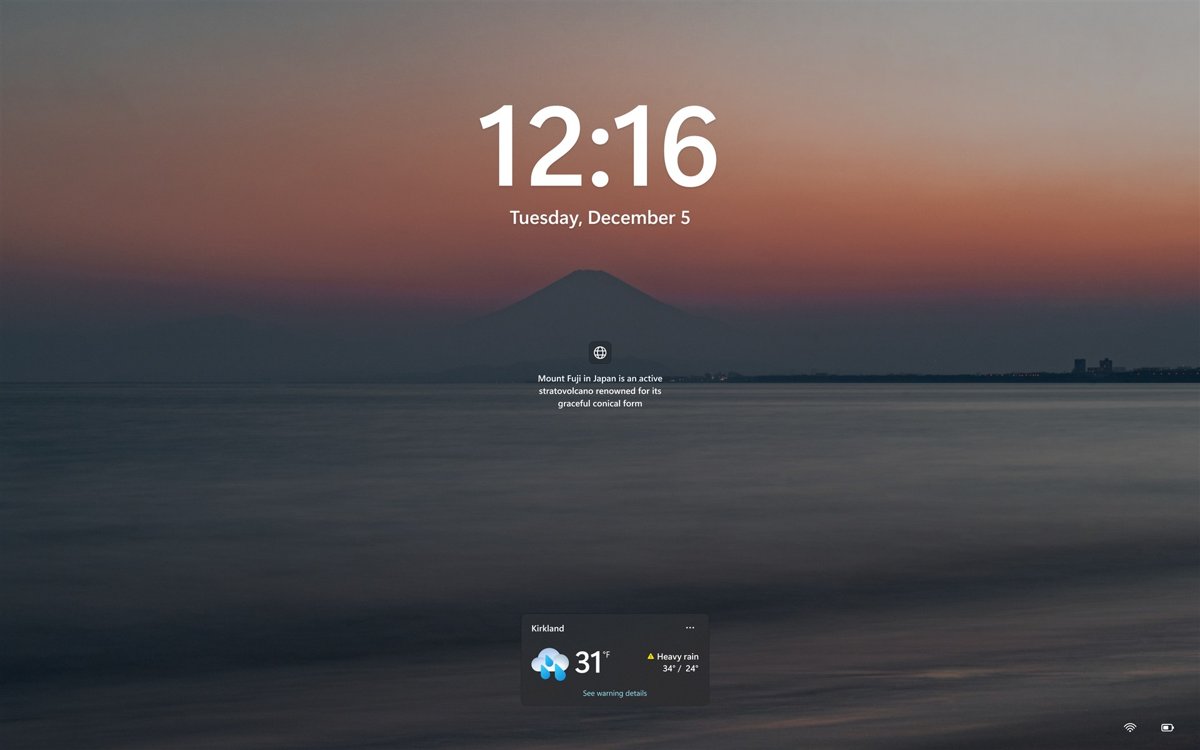
How to add a Weather widget to the lock screen in Windows
Windows 11 shows widgets on the lock screen, so you can read the current conditions before you sign in. Only widgets that support a small size can be added there.
- Select Start > Settings > Personalization > Lock screen.
- Turn the Widgets switch to On.
- Check the list under Widgets. If a weather widget is already listed, it shows on the lock screen.
- If it is missing, select Add widget below the list and choose the weather widget.
- Drag the weather widget to the top of the list to make it the first widget on the lock screen.
- Press Windows logo key + L to lock the PC and see the weather on the lock screen.
The order of widgets in Settings matches their reading order on the lock screen. You can also change the lock screen background on the same Settings page.
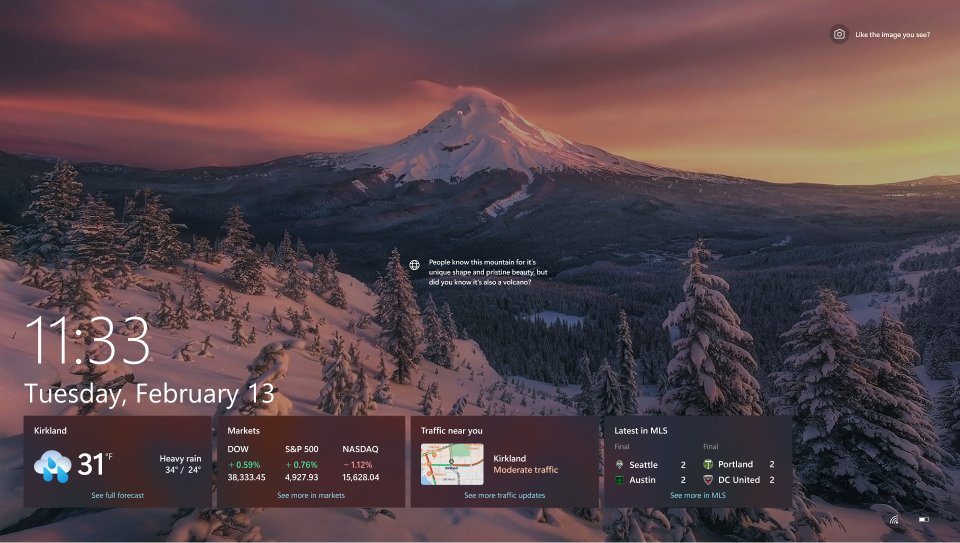
How to show weather on the lock screen in Windows 10
Windows 10 has no lock screen widgets. It shows weather as the detailed status of one app, picked from a list on the same Settings page.
- Select Start > Settings > Personalization > Lock screen.
- Find Choose one app to show detailed status on the lock screen.
- Select the app icon under that label and choose Weather and more from the list.
- Under Choose which apps show quick status on the lock screen, select a plus icon to add more apps if you want them.
- Lock the PC with Windows logo key + L to check the weather on the lock screen.
Weather and more shows the current weather plus small updates for finance, sports and traffic. Its widget list cannot be customized. Microsoft ended support for Windows 10 on October 14, 2025.
How to add Weather to desktop in Windows 11/10
Neither version of Windows pins a weather card directly onto the wallpaper. The desktop routes below open weather over the desktop with one click or one shortcut.
| Windows version | Weather on the desktop | How to open it |
|---|---|---|
| Windows 11 | Weather widget on the Widgets board, a panel that slides over the desktop | Press Windows + W, select the Widgets area on the taskbar, or swipe in from the left edge of a touch screen |
| Windows 11 | Larger weather card on the Widgets board | On the board, select More options on the weather widget, then Medium or Large |
| Windows 10 | Weather card in the news and interests panel | Select the weather on the taskbar, or turn on Open on hover to open it by pointing at it |
| Windows 11 and Windows 10 | Full forecast in the MSN Weather app | Install MSN Weather from the Microsoft Store, open it from Start, and pin it to Start or the taskbar |
To add the weather widget to the Widgets board if it is missing, select + on the board and pick it from the widget picker. The same picker lets you add, resize or move other widgets.
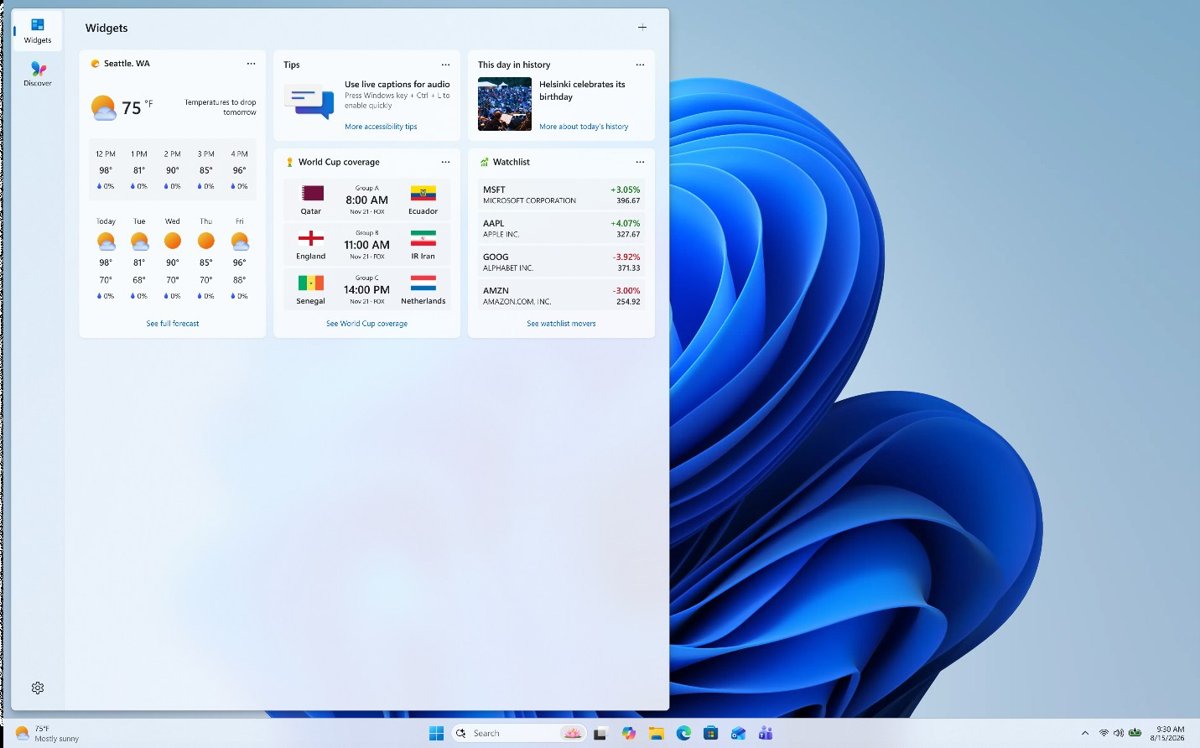
How to add a Weather widget to the taskbar in Windows 11/10
In Windows 11, the Widgets button on the taskbar shows the current weather most of the time. Turning Windows 11 taskbar weather on is a single switch.
- Right-click an empty area of the taskbar and select Taskbar settings.
- Under Taskbar items, turn the Widgets switch to On.
- Look at the left side of the taskbar. The Widgets button shows the temperature and conditions for your location.
- Select the weather on the taskbar to open the Widgets board with the full forecast.
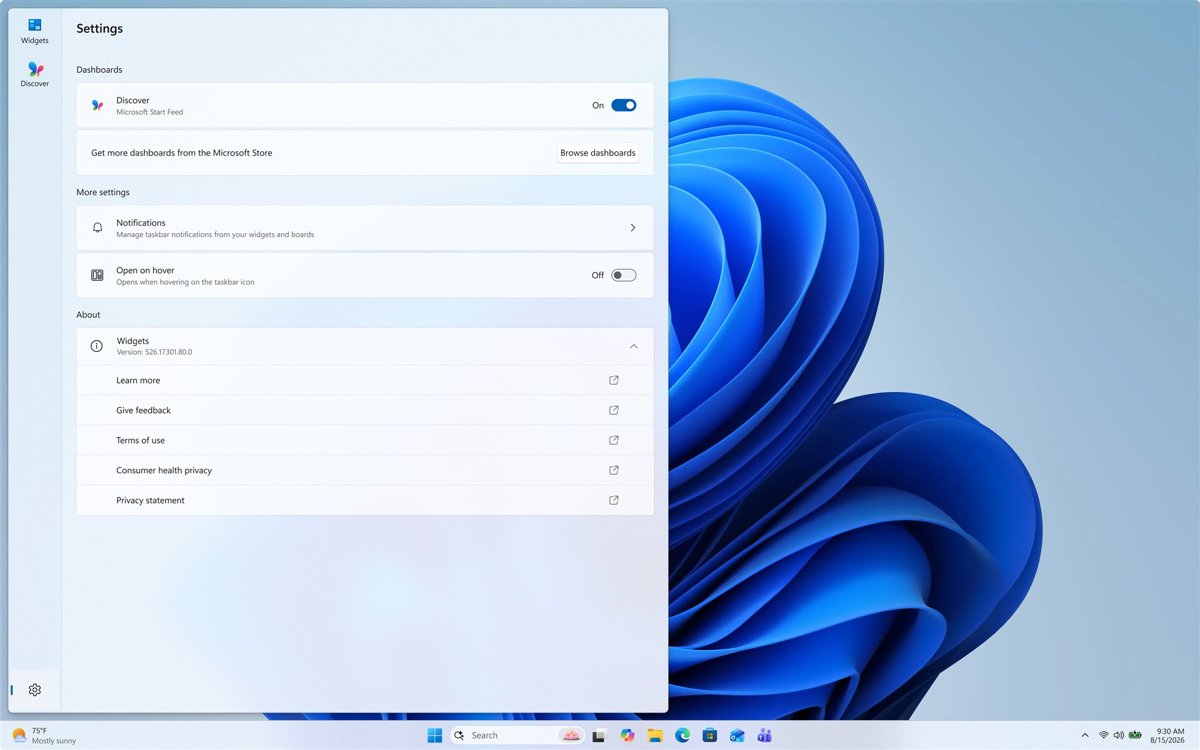
- To open the board by pointing at the weather instead of clicking, open the board, select the settings button on the navigation bar and turn Open Widgets board on hover to On.
How to show weather on the Windows 10 taskbar with news and interests
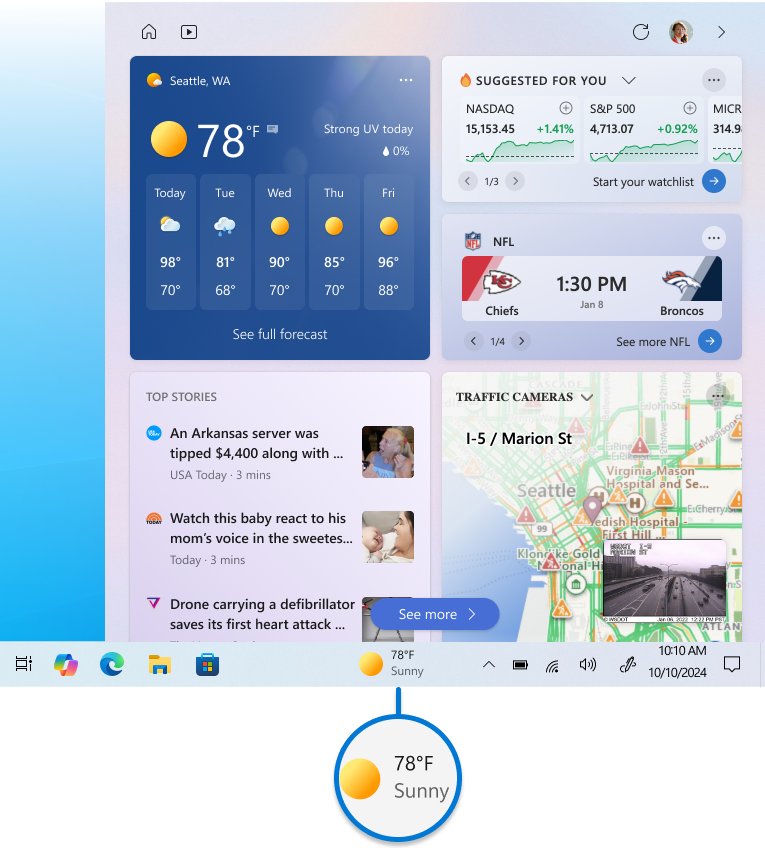
Windows 10 shows taskbar weather through news and interests. The settings sit in the taskbar's right-click menu rather than in the Settings app.
- Right-click a blank space on the taskbar.
- Point to News and interests.
- Select Show icon and text to see the temperature and conditions on the taskbar.
- Select Show icon only instead if you want just the weather icon to save taskbar space.
- Select Reduce taskbar updates if you want the taskbar to show only the weather.
- Clear Open on hover if the panel opens every time the pointer passes over the weather.
If News and interests is missing from the menu, you can restore a missing news and interests button before trying these options. Reduce taskbar updates is not offered in Windows 11.
Lock screen weather settings in Windows 11 and Windows 10
| Setting | Windows 11 | Windows 10 |
|---|---|---|
| Show weather on the lock screen | Settings > Personalization > Lock screen > Widgets On, then Add widget | Settings > Personalization > Lock screen > detailed status app Weather and more |
| Change the order of lock screen items | Drag widgets in the Widgets list | Pick apps with the plus icons under quick status |
| Weather on the taskbar | Taskbar settings > Taskbar items > Widgets | Taskbar right-click > News and interests > Show icon and text |
| Weather city | More options on the weather widget > Customize widget | News and interests > user account icon > Location |
| Celsius or Fahrenheit | Not covered by the lock screen settings | Three dots on the weather card > Celsius or Fahrenheit |
| Location the weather uses | Settings > Privacy & security > Location | Settings > Privacy > Location |
| Settings shortcut | Press Windows + R, type ms-settings:lockscreen and press Enter |
Same ms-settings:lockscreen command |
Change weather location on lock screen
Lock screen widgets tailor their content to an estimated location. That estimate comes from the Windows Location service if it is on, and from your internet connection's IP address if it is off.
- Select Start > Settings > Personalization > Lock screen.
- Under Widgets, select the More options button next to the weather widget.
- Select the customize option if the widget offers one, then search for your city and save it.
- For the Widgets board and taskbar weather, press Windows + W, select More options on the weather widget and select Customize widget.
- Enter the city and select it from the matches.
- Lock the PC with Windows logo key + L and check that the lock screen shows the new city.
In Windows 10, open news and interests from the taskbar, select your user account icon and select Location. That also changes the city shown on the taskbar. To switch units, select the three dots on the weather card and pick Celsius or Fahrenheit.
How to set weather for my location in MSN Weather
The MSN Weather app can follow your current position instead of a fixed city. It needs location permission on the device to do that.
- Open MSN Weather from Start.
- Select the settings icon.
- Select Always detect my location.
- Select the back arrow in the top-left corner to leave settings.
- If the city is still wrong, select Seeing different weather? and give more accurate location information.
- To check another place, type its name in the search box in the top-right corner and select it from the suggestions.
Some smaller places have no weather data. The app then shows a nearby larger location, which you can choose to use instead.
How to remove weather from lock screen
You can drop only the weather widget or hide every widget on the lock screen. Neither change affects the weather on the taskbar.
- Select Start > Settings > Personalization > Lock screen.
- To remove only the weather, select More options next to the weather widget under Widgets and remove it.
- To hide all lock screen widgets, turn the Widgets switch to Off.
- In Windows 10, select None under Choose one app to show detailed status on the lock screen.
- To remove taskbar weather in Windows 11, open Taskbar settings and turn Widgets to Off under Taskbar items.
- To remove taskbar weather in Windows 10, right-click the taskbar and select News and interests > Turn off.
Windows + W still opens the Widgets board after you hide the Widgets button, so the forecast stays one shortcut away.
Weather not showing on lock screen or taskbar in Windows 11/10
Lock screen weather shows the wrong city
The widget follows an estimated location, which falls back to your IP address when location services are off.
- Open Settings > Privacy & security > Location and turn on Location services.
- Make sure Let apps access your location is also on.
- Set the city on the weather widget itself, as shown in the location steps above.
MSN Weather isn't detecting my current location
Location permission is off for the device, or location detection is disabled in your region.
- Turn on location permissions under Settings > Privacy & security > Location.
- In MSN Weather, select the settings icon and select Always detect my location.
- Search for your city by name if detection is unavailable where you live.
Widgets isn't working well, or the weather never updates
Widgets need the latest Windows Web Experience Pack and Start Experiences App.
- Open the Microsoft Store and select Library.
- Install any update offered for Windows Web Experience Pack.
- Install updates under Settings > Windows Update, then restart the PC.
Weather is missing from the Windows 10 taskbar
News and interests is set to Turn off.
- Right-click a blank space on the taskbar.
- Select News and interests > Show icon and text.
- Restart the PC if the weather still does not appear.
No Add widget button on the Windows 11 lock screen settings
The Widgets switch is off, so the list and the button are hidden.
- Open Settings > Personalization > Lock screen.
- Turn Widgets to On.
- Select Add widget below the list and choose the weather widget.
Windows lock screen weather FAQ
How do I add weather to the lock screen?
In Windows 11, open Settings > Personalization > Lock screen, turn Widgets on and select Add widget to add the weather widget. In Windows 10, choose Weather and more under Choose one app to show detailed status on the lock screen.
How do I add a weather widget to the lock screen?
Select Add widget below the Widgets list on the Lock screen page in Settings. Only widgets that support a small size can be added, and you can drag the weather widget up the list to show it first.
How do I get weather on the lock screen without signing in?
Add the weather widget to the lock screen from Settings > Personalization > Lock screen. Lock screen widgets are meant to be read at a glance, so the forecast is visible before you enter a PIN or password.
How do I remove weather from the lock screen?
Open Settings > Personalization > Lock screen, select More options next to the weather widget and remove it. In Windows 10, select None under the detailed status setting instead.
How do I turn off lock screen weather?
Set the Widgets switch on the Lock screen page in Settings to Off. That hides every lock screen widget, including weather, but leaves taskbar weather and the Widgets board as they are.
How do I set the weather for my location?
Turn on Location services under Settings > Privacy & security > Location, or set a city with Customize widget on the weather widget. In MSN Weather, select the settings icon and choose Always detect my location.
How do I add weather to the Windows taskbar?
In Windows 11, right-click the taskbar, select Taskbar settings and turn Widgets on under Taskbar items. In Windows 10, right-click the taskbar and select News and interests > Show icon and text.
Why does the lock screen show weather for the wrong place?
Lock screen widgets use an estimated location from the Windows Location service, or from your IP address when that service is off. Turn location on, or set the city directly on the weather widget.