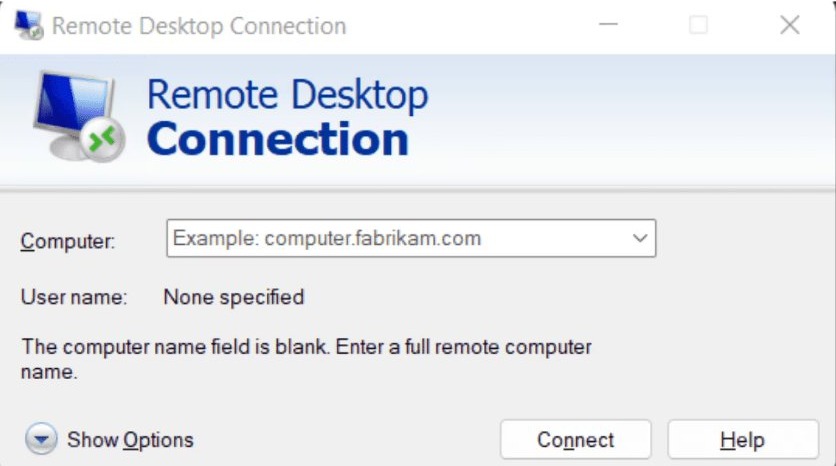
To connect to a remote PC on Windows 11, open Remote Desktop Connection, enter the PC name or IP address in Computer, select Connect, and sign in with an account allowed on that PC.
The remote PC needs Remote Desktop turned on and a Pro, Enterprise or Education edition, and the sections below cover Windows App, the mstsc command, shortcut keys, connections over the internet and fixes for failed sessions.
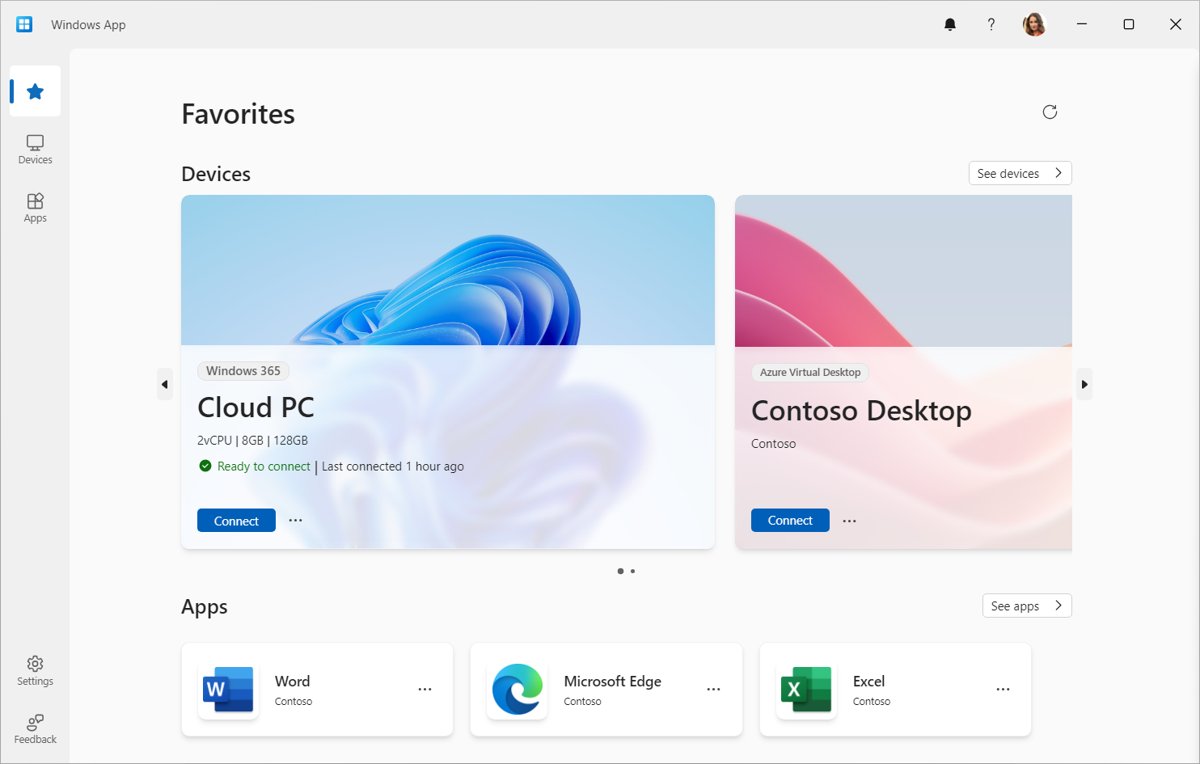
Connect to a remote computer on Windows 11
This route uses the Remote Desktop Connection app that comes with Windows 11. It works from any edition, including Home.
- On the Windows 11 PC in front of you, select Start, type
Remote Desktop Connectionand open the app. - In Computer, enter the PC name or IP address of the remote PC.
- Select Connect.
- Enter the user name and password of an account allowed on the remote PC, then select OK.
The remote desktop then opens with that PC's apps, files and network resources available. If the connection fails, check the remote PC against the table below.
What is required to connect to a remote PC on Windows 11
The PC you connect to does the hosting, so nearly all of these items apply to that machine. The PC you connect from only needs a client app and a network path.
| Requirement | Why it matters | How to meet it |
|---|---|---|
| The remote PC runs Pro, Enterprise or Education | Home editions can connect out but cannot accept incoming connections | Open Settings > System > About and read Edition under Windows specifications |
| Remote Desktop is on | Connections are refused until the feature is enabled | Open Settings > System > Remote Desktop on the remote PC |
| The remote PC is on and awake | You cannot connect to a PC that is off, asleep or hibernating | Set its sleep and hibernation timers to Never |
| Your account is allowed | Administrators can connect automatically, and other accounts must be added by name | Add the account under Remote Desktop users on the remote PC |
| You have a network path | Remote Desktop is a peer-to-peer connection, so your device needs direct access | Use the same network, a VPN or a forwarded port |
| The firewall allows Remote Desktop | The Remote Desktop port, usually 3389, must be open on the remote PC | Select Remote Desktop under Allow an app or feature through Windows Firewall |
Remote Desktop Connection vs Windows App on Windows 11
Both clients reach the same remote PC. The choice depends on what else you connect to and whether you want another app installed.
| Your situation | Use this | Why |
|---|---|---|
| You want to connect now with nothing extra to install | Remote Desktop Connection | It opens from Start or with mstsc |
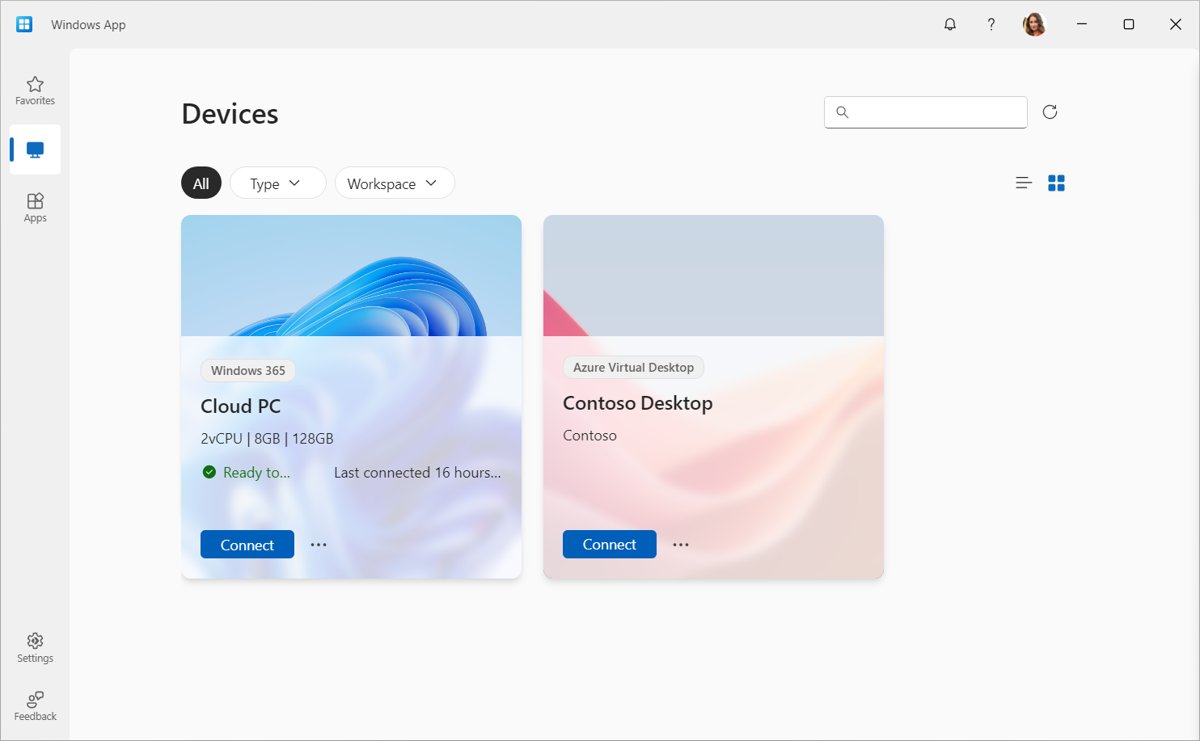
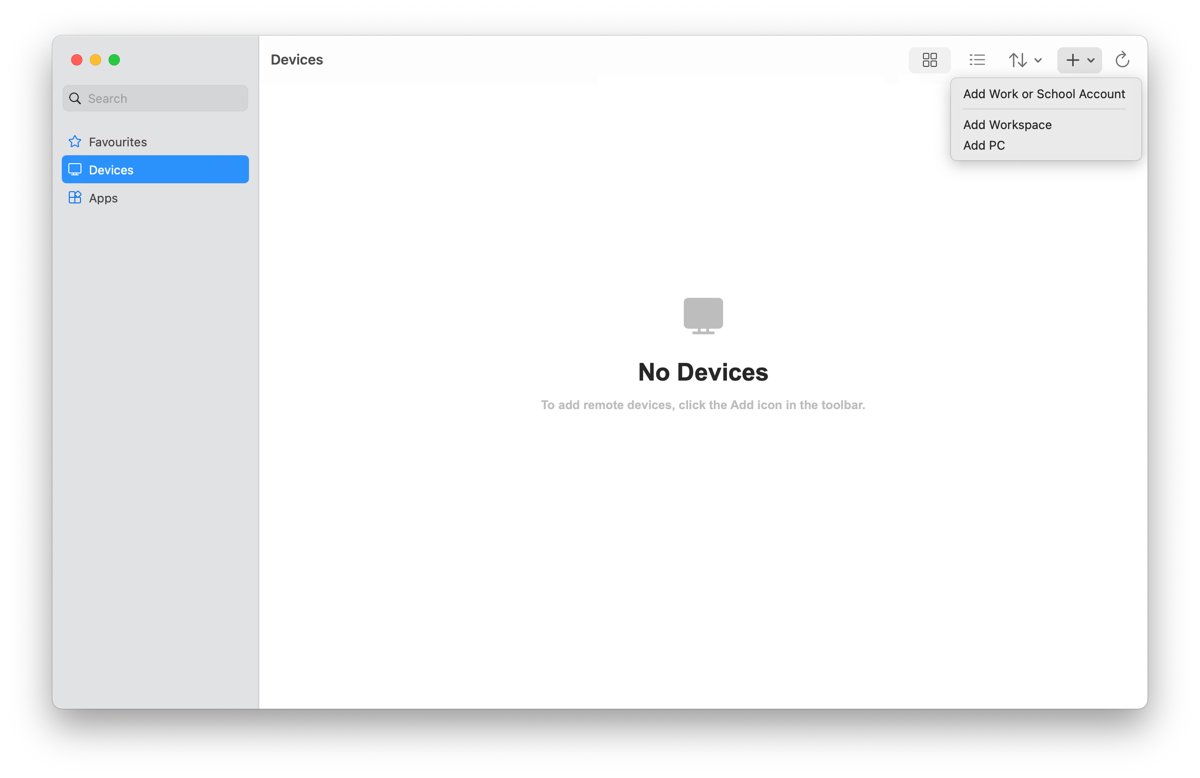
| You want your PCs saved as cards on one home screen | Windows App | The Devices tab lists each PC you add, and you can pin favorites |
| You also use Windows 365, Azure Virtual Desktop or Microsoft Dev Box | Windows App | One app covers those services and your remote PCs |
| You want to start a session from a script or shortcut | mstsc command |
Switches set the PC name, window size and monitor layout |
| You connect to a Remote Desktop Services deployment | Remote Desktop app for Windows | Windows App on Windows does not yet support Remote Desktop Services |
How to set up the remote PC for Remote Desktop on Windows 11
Do this once, at the PC you want to reach later. You need administrator rights, and you can also turn on Remote Desktop from Control Panel or PowerShell instead of Settings.
- On the remote PC, select Start > Settings > System > About.
- Under Windows specifications, check that Edition shows Pro, Enterprise or Education.
- Select Start > Settings > System > Remote Desktop.
- Turn on Remote Desktop, then select Confirm.
- Note the name shown under PC name.
- To allow a standard account, select Remote Desktop users > Add, type the user name and select OK.
Enabling the feature opens a port on the PC, so turn it on only on a network you trust. A Windows 10 remote PC accepts the same client, and its toggle reads Enable Remote Desktop.
How to find the PC name or IP address of a remote PC on Windows 11
The client needs one of the two. Note both while you are at the remote PC, because the name does not resolve on every network.
- On the remote PC, open Settings > System > Remote Desktop and read PC name.
- Open Settings > Network & internet.
- Select Wi-Fi and then the network you are connected to, or select Ethernet for a wired connection.
- Read the value next to IPv4 address.
- To get the name from a terminal, open Command Prompt, type
hostnameand press Enter.
Using the PC name requires your network to resolve it through DNS. On many home networks the IPv4 address is the entry that connects.
How to connect to a remote PC with Windows App on Windows 11
Windows App for your PC is a separate Microsoft client that installs from the Microsoft Store. You do not need to sign in to the app to reach a remote PC.
- Install Windows App from the Microsoft Store, then open it.
- On the welcome page, select Add a remote PC, and select Not now if the tour appears.
- On the Devices tab, select the Add (+) icon or Choose a resource to add.
- In PC Name, enter the computer name or IP address of the remote PC.
- Select Additional settings if you want a friendly name, display options or access to local resources.
- Select Add & Connect.
- Enter a user account for the remote PC when prompted.
All redirections are off by default in Windows App, so turn on the local resources you need under Additional settings. To reconnect later, select the PC's card on the Devices tab.
How to connect to a remote PC with the mstsc command on Windows 11
mstsc is the command behind Remote Desktop Connection. Press Win + R or open a terminal, then replace OFFICE-PC with the remote PC's name or IP address.
mstsc /v:OFFICE-PCThe /v: switch names the remote computer. It also accepts a port, so mstsc /v:OFFICE-PC:3390 connects to a PC whose listening port was changed to 3390.
You should see: Remote Desktop Connection starts a connection to OFFICE-PC and asks for the credentials of an account on that PC.
Add /g:<gateway> when your organization provides a Remote Desktop Gateway. The command reads the gateway only when you also name the PC with /v.
Remote Desktop full screen and multiple monitors on Windows 11
Each row sets how one session opens. Replace OFFICE-PC with your remote PC's name or IP address.
| What you want | How to set it | Result |
|---|---|---|
| Full screen | mstsc /v:OFFICE-PC /f |
The session starts in full-screen mode |
| A fixed window size | mstsc /v:OFFICE-PC /w:1920 /h:1080 |
The session opens at that width and height |
| All monitors, same layout | mstsc /v:OFFICE-PC /multimon |
The session's monitor layout matches the PC in front of you |
| One desktop across side-by-side monitors | mstsc /v:OFFICE-PC /span |
The desktop spans monitors that share a resolution and align horizontally |
| A list of your monitor IDs | mstsc /l |
Shows each attached monitor and its ID |
| No cached passwords on a shared PC | mstsc /v:OFFICE-PC /public |
Remote Desktop does not cache passwords and bitmaps |
| A credential prompt every time | mstsc /v:OFFICE-PC /prompt |
You are asked for credentials when you connect |
| Credentials kept off the remote PC | mstsc /v:OFFICE-PC /remoteGuard |
Your credentials are not sent to the remote PC |
| A saved connection | mstsc filename.rdp, or mstsc /edit filename.rdp to change it |
The .rdp file opens or goes into editing |
| Sound from the remote PC | Show Options > Local Resources > Remote audio | Sets remote sound for that connection |
Windows saves .rdp files you create in your Documents folder by default, but you can keep them anywhere.
Remote Desktop keyboard shortcuts for a remote PC session
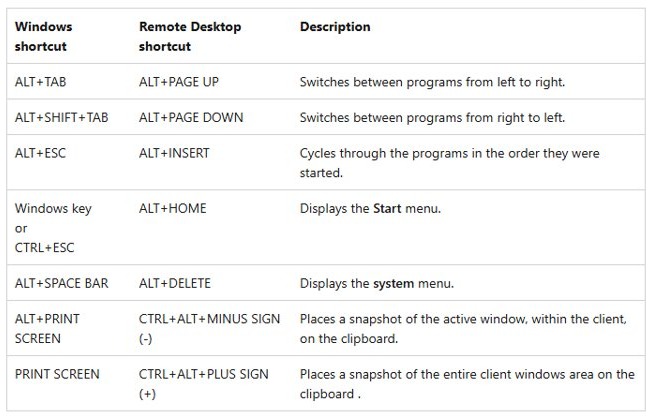
Some Windows shortcuts stay on your own PC during a session. These combinations reach the remote PC instead.
| Remote Desktop shortcut | What it does | Standard Windows equivalent |
|---|---|---|
| Ctrl + Alt + End | Opens the Windows Security dialog on the remote PC | Ctrl + Alt + Del |
| Ctrl + Alt + Home | Activates the connection bar | None |
| Ctrl + Alt + Break | Switches between full-screen mode and a window | None |
| Alt + Home | Displays the Start menu | Windows key or Ctrl + Esc |
| Alt + Page Up | Switches between programs from left to right | Alt + Tab |
| Alt + Page Down | Switches between programs from right to left | Alt + Shift + Tab |
| Alt + Insert | Cycles through programs in the order they started | Alt + Esc |
| Ctrl + Alt + Plus | Copies the entire session window area to the clipboard | Print Screen |
| Ctrl + Alt + Minus | Copies the active window in the session to the clipboard | Alt + Print Screen |
On a compact keyboard without Break, try Ctrl + Alt + Pause, Ctrl + Alt + PrtScn or Ctrl + Alt + Fn + ScrLk.
To choose where standard shortcuts apply, open Remote Desktop Connection and select Show Options > Local Resources. Then set Apply Windows key combinations to On this computer, On the remote computer or Only when using the full screen.
How to connect to a remote PC over the internet on Windows 11
An internal IP address works only on the remote PC's own network. From anywhere else, your client needs one of these routes.
| Your situation | Use this | What to enter in Computer |
|---|---|---|
| You can reach the remote PC's network with a VPN | Connect to the VPN first | The PC's internal name or IPv4 address, as if you were on that network |
| Your company provides a Remote Desktop Gateway | mstsc /v:<PC name> /g:<gateway> |
The internal PC name, with the gateway named in the command |
| You have neither, and you control the router | Port forwarding, which maps port 3389 on the router's public IP to the PC's internal IP | The router's public IP address, or a Dynamic DNS name if that IP changes |
Microsoft warns that port forwarding opens your PC up to the internet, is not recommended, and that a VPN is preferable. If you must forward the port, set a strong password, restrict the rule to known source IP addresses and give the PC a static internal IP.
How to connect to a Windows 11 PC from a Mac, iPhone or Android
The remote PC setup stays the same and only the client changes. Windows App does not need a sign-in to reach a remote PC.
| Your device | App to open | Then |
|---|---|---|
| Mac | Windows App from the Apple App Store | Add the PC name of the remote PC, then select the PC |
| iPhone or iPad | Windows App from the Apple App Store | Add the PC name of the remote PC, then select the PC |
| Android phone, tablet or Chromebook | Windows App, or the Remote Desktop app from Google Play | Add the PC name, select the PC and wait for the connection to complete |
| Web browser | Not supported for a remote PC | Use an installed client, because Windows App in a browser does not support remote PC connections |
How to tell which PC a Remote Desktop session is connected to
A full-screen session can look exactly like your own desktop. This check takes seconds and proves where your commands are running.
- Press Ctrl + Alt + Home to activate the connection bar. If it responds, your keyboard is in a session.
- Inside the session, select Start, type
cmdand open Command Prompt. - Type
hostnameand press Enter. - Compare the name it prints with the PC name you noted on the remote PC.
If it prints your local PC's name, that window belongs to the PC in front of you, not to the session.
How to disconnect from a remote PC in Remote Desktop on Windows 11
Disconnecting and signing out are different. A disconnect keeps your apps running, while signing out ends them.
- To leave your apps running, open Command Prompt inside the session and run
tsdiscon. - Reconnect later with the same account. Apps that were running are still running, with no loss of data.
- To end the session instead, save your work and run
logoff. All processes end and the session is deleted. - To use a dialog instead of a command, press Ctrl + Alt + End to open Windows Security.
- To stop all remote access, turn off Remote Desktop in Settings > System on the remote PC.
How to connect to a Windows 11 Home PC remotely
Windows 11 Home cannot host Remote Desktop, whichever client you use. Reaching a Home PC takes a different tool or an edition upgrade.
| Your situation | Use this | How it starts |
|---|---|---|
| Someone at the Home PC can accept the session | Quick Assist | Open it with Ctrl + Windows + Q. The helper shares a 6-digit code, and the person at the PC selects Allow |
| Nobody will be at the Home PC | Chrome Remote Desktop | In Chrome on that PC, go to remotedesktop.google.com/access, then select Download under Set up Remote Access |
| You want the built-in feature on that PC | An upgrade to Windows 11 Pro | After the upgrade, the Remote Desktop toggle in Settings > System works as described above |
Only let a helper connect through Quick Assist if you started the contact yourself. Quick Assist is one of the remote help options in Windows, and it has its own install and abuse-reporting steps.
Why can't I connect to a remote PC on Windows 11?
Match the message or behavior on your screen to one group below. Display faults inside a working session are among the common Remote Desktop screen issues.
"Remote Desktop can't connect to the remote computer for one of these reasons"
Remote access is off, the remote PC is off or the network cannot reach it.
- Confirm the remote PC is on and awake, not asleep or hibernating.
- On the remote PC, check that Remote Desktop reads On in Settings > System > Remote Desktop.
- On the remote PC, run
qwinstaand look forrdp-tcpin theListenstate. - From another PC on the same network, open PowerShell as administrator and run
Test-NetConnection -ComputerName <PC name or IP> -port 3389 -InformationLevel Detailed. - Read
TcpTestSucceeded. False points to the network or a firewall, so continue to the firewall fix below.
"This computer can't connect to the remote computer"
The Remote Desktop listener is not working, or another process holds its port.
- On the remote PC, open Services and check that Remote Desktop Services and Remote Desktop Services UserMode Port Redirector are running.
- Open an elevated Command Prompt and run
tasklist /svc | findstr TermService. - Run
netstat -anob | findstr 3389and compare the process IDs. - If the IDs differ, stop the other process, then restart Remote Desktop Services.
The remote PC can't be found
The PC name is misspelled, or your network does not resolve it through DNS.
- Run
hostnameon the remote PC to confirm the exact name. - Enter the remote PC's IPv4 address in Computer instead of its name.
- If the address connects, the fault is name resolution, so keep using the address.
- If the PC is on a different network, connect through a VPN first.
The Remote Desktop port is blocked by a firewall
The inbound Remote Desktop rule is off on the remote PC, or another firewall blocks the port.
- On the remote PC, open Windows Firewall and select Allow an app or feature through Windows Firewall.
- Select Change settings and approve the prompt.
- Under Allowed apps and features, select Remote Desktop, then select OK.
- If you use a different firewall, open the Remote Desktop port there, usually 3389.
Remote Desktop stopped connecting after the port was changed
The client still tries the default port 3389.
- Ask whoever changed the port for the new number.
- Enter
hostname:portorIPaddress:portin Computer, for exampleOFFICE-PC:3390. - Confirm the remote PC's firewall allows the new port.
You can see the sign-in screen but can't sign in
Your account is not in the Remote Desktop Users group or an administrators group on the remote PC.
- On the remote PC, open Settings > System > Remote Desktop.
- Select Remote Desktop users > Add.
- Type your user name and select OK.
- Connect again, using the account on the remote PC, not the one on your own PC.
"Remote machine is Microsoft Entra joined" logon failure
A work account was entered in the domain\user format.
- Enter your user name as
[email protected]orAzureAD\[email protected]. - If your organization uses Microsoft Entra authentication, select Show Options, open the Advanced tab and select Use a web account to sign in to the remote computer.
- With that option on, connect by PC name, because an IP address cannot be used.
Can't use Remote Desktop on Windows 11 Home
Home editions cannot host incoming connections.
- On the remote PC, open Settings > System > About and read Edition.
- If it reads Home, connect to a PC running Pro, Enterprise or Education instead.
- To reach that Home PC, use one of the options in the Home section above.
Sound doesn't play in the Remote Desktop session
The session has stalled, or sound is set per connection and is not reaching your PC.
- Sign out of the session completely, instead of only disconnecting.
- Open Remote Desktop Connection and select Show Options > Local Resources.
- Check the Remote audio settings, then connect and sign in again.
FAQs about configuring a remote PC on Windows 11
Can I use Remote Desktop on Windows 11 Home?
Partly. Windows 11 Home can run Remote Desktop Connection and connect to other PCs, but it cannot accept incoming connections. To reach a Home PC, use Quick Assist or Chrome Remote Desktop, or upgrade that PC to Windows 11 Pro.
Why can't I use Remote Desktop on Windows 11?
The usual causes are a Home edition on the remote PC, Remote Desktop switched off, a sleeping PC, a firewall blocking port 3389, a PC name that does not resolve, or an account missing from the Remote Desktop Users group.
How does Windows Remote Desktop work?
It creates a peer-to-peer connection from a client app to the remote PC, which listens on port 3389 by default. You then use that PC's apps, files and network resources as if you were sitting at its desk.
Can I use Remote Desktop on another computer?
Yes. Any Windows edition can be the client, and so can a Mac, iPhone, iPad, Android device or Chromebook with the right app. The limit applies to the remote PC, which must run an edition that can host connections.
How do you use Remote Desktop to connect over a VPN?
Connect your device to the VPN first. The Remote Desktop client then acts as part of the remote network, so you enter the PC's internal name or IPv4 address as usual, and the PC stays off the public internet.
How do you check an IP address for Remote Desktop?
On the remote PC, open Settings > Network & internet, select Wi-Fi and your network, or select Ethernet, then read the IPv4 address. That internal address works on the same network or through a VPN to that network.
Can Remote Desktop use all my monitors?
Yes. Run mstsc /v:PC-NAME /multimon to match your monitor layout, or /span to stretch one desktop across side-by-side monitors. Spanned monitors must share a resolution and align horizontally, and vertical spanning is not supported.
What port does Remote Desktop use on Windows 11?
Remote Desktop uses port 3389 by default. If an administrator changed the listening port, enter the name as hostname:port or IPaddress:port in Remote Desktop Connection, or add the port to the mstsc /v: switch.
Can you connect to a remote PC that is asleep?
No. You cannot connect to a PC that is off, asleep or hibernating. Set the sleep and hibernation timers on the remote PC to Never before you leave it, and note that hibernation is not available on all PCs.
Do you need to sign in to Windows App to connect to a remote PC?
No. Windows App connects to a remote PC without an app sign-in, and you enter a user account for the PC itself. App sign-in applies to services such as Windows 365 and Azure Virtual Desktop, and needs a work or school account.