To set a background in a Teams video call, select Effects and avatars on the pre-join screen, pick a Teams background or blur, and join the meeting.
The steps below also cover changing it mid-call, uploading your own image, the phone app, the AI Decorate effect, green screen, and what to do when the option is missing.
How to set a background in Teams video call?
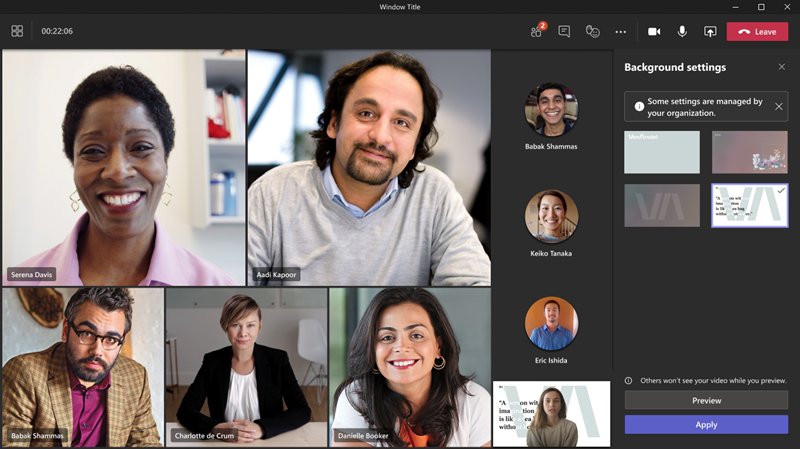
Setting the background before you join means nobody sees your real room, even for a second. The choice also carries over to your later meetings and calls until you change it.
- Open your Teams calendar.
- Select the meeting, then select Join.
- Turn your camera on so you can see the preview on the pre-join screen.
- Select Effects and avatars.
- Select a Teams background to apply it to your video feed.
- Select Join now to enter the meeting with that background.
If you want more choices than the short list shows, select More video effects. There are other ways to join a Teams meeting if the calendar entry is missing, and you can run a test call on Teams to check your camera and audio first.
Teams blur vs background image vs Decorate vs green screen
Each effect solves a different problem, so match the row to what you want other people to see.
| What you want | Use this in Teams | What to expect |
|---|---|---|
| Hide a messy room but stay in your real space | Blur > Standard blur or Portrait blur | No image to choose, and your surroundings stay out of focus |
| Replace the room with a picture | A Teams background, or Add new for your own image | Your uploaded file must be .JPG, .PNG or .BMP |
| Keep your real room but make it look different | Decorate | AI generates options from a theme such as Clean up or Greenhouse |
| Get cleaner edges and use props in front of a virtual background | Green screen settings | You need a solid-colored wall behind you and appropriate lighting |
| Show a company logo or branded image | Teams Premium backgrounds from your organization | Your admin uploads them and assigns the policy |
Change the background during an active Teams meeting
You can swap the background without leaving the call. The Preview step lets you see the result before anyone else does.
- In your meeting controls, select More actions.
- Select Video effects and settings.
- Select Video effects.
- Select a Teams background, or select Add new to upload an image from your computer.
- Select Preview to view the background before you apply it.
- Select Apply.
How to blur background in Teams
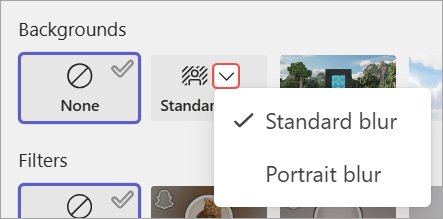
Teams offers two blur styles, and both sit behind a small dropdown arrow next to Blur. Open that arrow from the pre-join effects panel or from Video effects during a meeting.
- Before a meeting, select Effects and avatars on the pre-join screen. During a meeting, select More actions > Video effects and settings > Video effects.
- Select the dropdown arrow next to Blur.
- Choose Standard blur or Portrait blur.
- During a meeting, select Preview, then select Apply. Before a meeting, select Join now.
Blur reduces what people can see, but it is not a privacy guarantee. Microsoft warns that blurring or replacing your background may not stop sensitive information from being visible, so move anything confidential out of frame.
How to customize background in Teams?
Your own image goes in through Add new, and it works before or during a meeting. Use a .JPG, .PNG or .BMP file saved on your computer.
- On the pre-join screen, select Effects and avatars > More video effects. During a meeting, select More actions > Video effects and settings > Video effects.
- Select Add new.
- Choose the image on your computer and upload it.
- Select the uploaded image to apply it to your video feed.
- During a meeting, select Preview, then select Apply.
A missing Add new button at work can mean your admin limits video effects. The policy values are in the troubleshooting section further down.
Teams virtual background image size and file types
Microsoft sets different rules for images you upload yourself and images an admin uploads for the whole organization. Its help page for personal uploads lists file types only and gives no dimensions.
| Rule | Your own upload | Admin upload (Teams Premium) |
|---|---|---|
| File types | .JPG, .PNG, .BMP | PNG, JPEG |
| Minimum size | Not specified by Microsoft | 360 x 360 px |
| Maximum size | Not specified by Microsoft | 3840 x 2160 px |
| Number of images | Not specified by Microsoft | Up to 50 |
| Frosted glass effect | Not specified by Microsoft | A transparent PNG |
| License needed | None, uploads work with or without Teams Premium | Teams Premium for anyone who selects these images |
How to change background on Teams mobile app
The phone app uses Background effects instead of the desktop label. The steps match on the pre-join screen and during a call, apart from how you reach the panel.
- Before a meeting, open your Teams calendar, tap the meeting, tap Join, and tap Background effects.
- During a meeting, tap More in your meeting controls, then tap Background effects.
- Tap an effect to preview it, or tap Add new to upload an image from your device.
- Tap Done to apply it.
On Android, Microsoft requires Android 10 or later, Teams version 1416/1.0.0.2021143402 or later, and a supported GPU. Supported chips are Qualcomm Adreno 610 or later, Arm Mali-G71 or later, and Arm Mali-T720 or later.
How to change background in Teams for personal use
Microsoft Teams for personal use, the consumer version, names the button differently on a phone. Look for Change background rather than Background effects.
- In the Teams app, tap the Meet tab.
- Find the meeting and tap Join.
- On the pre-join screen, tap Change background.
- Tap blur, tap one of the available backgrounds, or tap Add new to upload an image from your device.
- Tap the X at the top of the screen to go back to the meeting screen.
- Tap Join now.
During a personal meeting, tap More actions > Change background, make your choice, and tap Done. If you see no Done button, tap the X at the top of the screen instead.
How to use AI to decorate your Teams background
Decorate keeps your real room and has AI restyle it. Your camera turns off while you choose a new background.
- Open the video effects menu before or during a meeting, using the steps above.
- Select Decorate.
- Select Start when prompted to turn off the camera and see your options.
- Choose a theme: Clean up, Fancy, Greenhouse, Celebration or Surprise me.
- Select Generate to preview options, and Generate more if you want other versions.
- Select Apply and turn on video.
Clean up removes clutter, Fancy adds elegant touches such as wallpaper and chandeliers, and Greenhouse adds plants. Celebration adds balloons and streamers, while Surprise me cycles through other styles.
How to use a green screen in Microsoft Teams
A green screen sharpens how you look against a virtual background and lets you move or hold props without distorting it. You need a solid-colored background and appropriate lighting behind you.
- Join your meeting and turn your camera on at the pre-join screen.
- Select Effects and avatars > More video effects > Green screen settings.
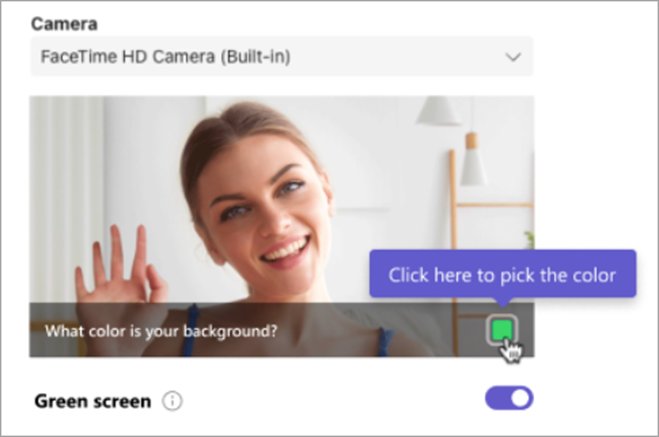
- In Devices > Video, turn the Green Screen toggle on.
- Check that the color detected in the preview is accurate.
- If it is wrong, select the box in the preview and pick your background color with the color dropper.
- Close settings and select Join now.
The setting applies to your future meetings automatically, but you must turn it on separately on each device. To turn it off later, go to Settings and more > Settings > Devices and use the same toggle.
How to preview your Teams background before others see it
The two previews below show the effect on your own video first, so you can catch a bad crop or a poor edge.
- On the pre-join screen, turn on the Camera toggle and look at your own video tile.
- During a meeting, select Preview in the video effects panel before you select Apply.
- Check that the background fills the frame and that your face and shoulders are not cut away.
- Select Join now before a meeting, or Apply during one, once it looks right.
Turn off or remove the background in Teams
Your background stays in place across all your meetings and calls until you change it, so a joke image will follow you into the next call. Selecting None clears it.
- Before a meeting, select Effects and avatars on the pre-join screen. During a meeting, select More actions > Video effects and settings > Video effects.
- Select None.
- During a meeting, select Apply. On the phone app, tap None, then tap Done.
To delete an image you uploaded, rather than just stop using it, go to the folder in the next section.
Where are Teams custom backgrounds stored?
Microsoft documents one folder for personally uploaded images in new Teams on Windows. It is also the route Microsoft gives for deleting them when an admin policy hides your own uploads from the gallery.
- Open File Explorer.
- Go to
C:\Users\{username}\AppData\Local\Packages\MSTeams_8wekyb3d8bbwe\LocalCache\Microsoft\MSTeams\Backgrounds\Uploads, replacing{username}with your Windows account name. - Select the image you no longer want.
- Press Delete.
How to set a Teams background for your whole organization
This is an admin job in the Teams admin center. Teams Premium licensed users can select these images, while anyone in the meeting can see them once applied.
- Open the Teams admin center and select Meetings.
- Select Customization Policies, then open a policy or create a new one.
- In the Meeting Backgrounds section, turn on Use background images from my organization.
- Select +Add and upload your images in the Managing Backgrounds pane.
- Select Save below the preview table.
To force one image, select it in the table and choose Set as required. Users with that policy cannot change it. External and anonymous users cannot apply these custom backgrounds.
Teams background effects not showing or not working
Most missing background options trace back to the device, the camera state or an admin policy. Find the symptom that matches what you see.
Why can't I see the background effects option?
Microsoft says the feature might not be available on your device, and it is not offered on Linux or through optimized VDI.
- Check whether you are on Linux or using Teams through optimized virtual desktop infrastructure, because background effects are unavailable in both.
- On Android, confirm your device meets the Android 10 and supported GPU requirements listed in the mobile section.
- Update Microsoft Teams, then reopen the meeting.
Background effects button is grayed out in Teams
In Teams for personal use, Microsoft links a grayed-out button in the pre-join window to the camera being off.
- Turn your Camera on in the pre-join window.
- Tap or select the background button again.
Add new is missing or you can only blur in a work account
Your admin controls Participants can use video effects per user.
- Compare what you see with the policy values: Off allows no customization, and Only background blur allows blur alone.
- Only background blur and default backgrounds adds the built-in images, and All video effects also allows uploads.
- Ask your IT admin to change the policy if you need uploads, because users cannot change it themselves.
Only the background appears, or blur shows without your face
Microsoft points to the camera feed rather than to the effect itself.
- Turn off background effects and Blur in Teams.
- Confirm the camera is not covered.
- Open the Windows Camera app and check for a real image.
- Turn video back on in Teams.
No camera preview in Teams on the web
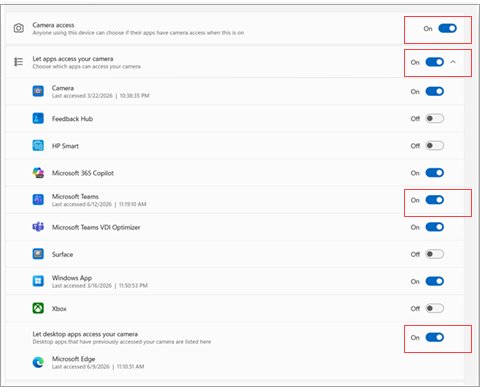
The browser is blocking camera access for the site.
- Select the site permissions menu next to the address bar.
- Set Camera to Allow.
- Refresh the page and rejoin the meeting or call.
- Select Allow if the browser asks to use your camera.
Additional tips for Teams video call backgrounds
These small details decide whether a background looks professional or distracting on the call.
| Tip | Why it matters |
|---|---|
| Set the effect before you join | Nobody sees your room, and the choice applies from your first frame |
| Reset the background after a casual call | The effect persists in all your meetings and calls until you change it |
| Clear confidential items from the room | Microsoft warns that a blur or replacement may not hide sensitive information |
| Use only images you have rights to | Teams does not screen uploads, and organizations are told to set their own rules |
| Try video filters for color and frames | Filters are a separate feature, found in More video effects on desktop |
| Turn on the green screen when edges look rough | It sharpens your outline and lets you hold props without distortion |
Teams video call background FAQ
Can I change my Teams background before joining a meeting?
Yes. Select Join on the meeting, then select Effects and avatars on the pre-join screen. Pick a blur or a background, and select Join now to enter with it applied.
Can I upload my own background image?
Yes, if your organization allows uploads. Select Add new in the video effects panel and choose a .JPG, .PNG or .BMP file. Work accounts need the All video effects policy value for uploads to appear.
Why can't I see the background effects option?
Your device or setup may not support it. Background effects are unavailable on Linux and through optimized VDI. Android needs version 10 or later and a supported GPU, and an admin can also turn video effects off.
Does changing the background affect meeting performance?
Microsoft publishes no performance figure for background effects. It does recommend a four-core processor from 2018 or newer for meetings with more than 10 participants, and Android needs a supported GPU before the feature appears at all.
Can I change my background during a meeting?
Yes. Select More actions > Video effects and settings > Video effects, choose a background, select Preview, then select Apply. On a phone, tap More > Background effects, choose one, and tap Done.
Is the Blur background different from a virtual background?
Yes. Blur keeps your real room in view but out of focus, using Standard blur or Portrait blur. A virtual background replaces the room with a Teams image or a picture you upload.
Does a Teams background stay on for every meeting?
Yes. Microsoft says your background persists in all your meetings and calls until you change it again. Select None in the effects panel when you want your real room back.
Do I need Teams Premium to change my background?
No. You can blur or choose a Teams background without it, and you can upload your own whether or not you have a Premium license. Teams Premium adds admin-uploaded branded backgrounds that licensed users can select.