To open and run a JAR file, install Java, then type java -jar filename.jar in Command Prompt from the folder that holds the file.
This guide covers checking for Java, installing it, running a JAR from the command line or by double-click, viewing what is inside a JAR, and fixing the errors that stop one from starting.
How to run a JAR file on Windows the fastest way
This route works on Windows 11 and Windows 10 once Java is installed, and it shows any error the program prints.
- Press Win + R, type
cmdand press Enter to open Command Prompt. - Type
cdfollowed by the folder that holds the JAR, for examplecd %USERPROFILE%\Downloads, and press Enter. - Type
java -jar app.jar, replacingapp.jarwith the real file name, and press Enter. - Leave the Command Prompt window open while the program runs, because closing it ends a console program.
If Windows says it does not recognise java, Java is missing or not on your PATH. Steps 1 and 2 below sort that out.
Which way to run a JAR file should you use?
| Your situation | Use this | Why |
|---|---|---|
| First time running this JAR | java -jar app.jar in Command Prompt |
Errors stay visible in the window, so you can see why it fails |
| Desktop app you launch every day | Double-click with javaw.exe as the default app |
No console window opens behind the program |
| Command-line tool or server | java -jar in Command Prompt or Windows Terminal |
It prints output and reads input from the console |
| You only want to see the files inside | jar tf app.jar |
Lists the contents without running any code |
| Mac or Linux | java -jar app.jar in Terminal |
The same launcher command works on every platform |
What you need before running a JAR
A JAR (Java ARchive) is a ZIP-based package of compiled Java classes and resources. Windows cannot run it on its own; the Java launcher does the work.
| Requirement | Details |
|---|---|
| A Java runtime or JDK | Provides java.exe and javaw.exe. The JAR's developer may name a minimum version. |
| An executable JAR | Its manifest needs a Main-Class line naming the class to start. Library JARs have none and cannot be run directly. |
| Administrator rights to install Java | Both the java.com installer and the Oracle JDK installer ask for admin access. |
| A trusted source | A JAR runs with your user account's permissions, the same as any program you start. |
| Any files the program expects | Some apps load config or data files from the folder they are started in. |
Step 1: Check whether Java is installed
Open Command Prompt or Windows Terminal and ask the launcher for its version. The output also tells you which Java a JAR will use.
java -versionPrints the version of the first java found on your PATH and exits. Run where java to list every java.exe Windows can find on the PATH, in the order it searches them.
You should see: A version line such as java 21.0.1 or java version "1.8.0_...". An error that java is not recognised means no Java is on the PATH.
Without a command line, open Start, find the Java folder and select About Java. That shows a java.com runtime, but not every JDK adds this entry.
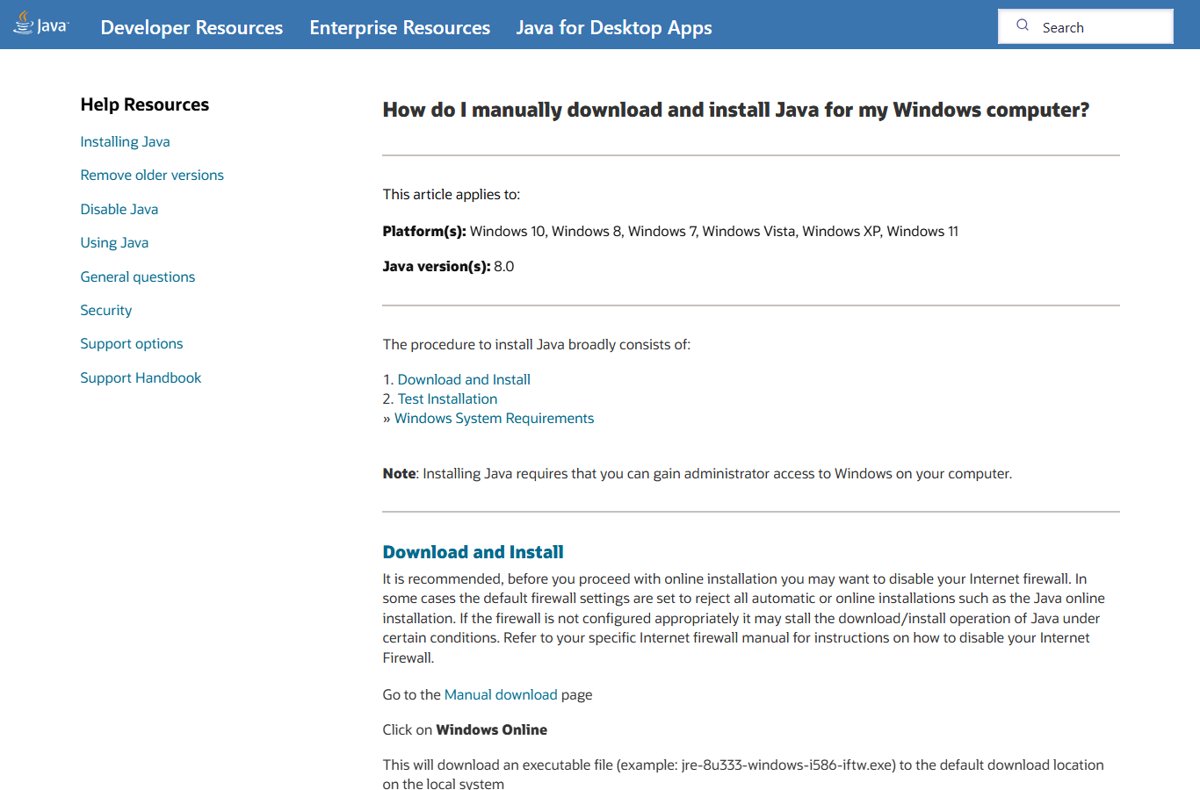
Step 2: Install Java on Windows
You can install the Java JRE from java.com for everyday desktop JAR files, or the Oracle JDK when an app needs a newer release such as Java 17 or 21.
- Open the java.com download page or the Java downloads page on oracle.com in your browser.
- Download the Windows installer for your system, usually the x64 version.
- Double-click the installer and select Yes in the User Account Control prompt.
- Select Install to accept the licence and start setup.
- Select Close when the final setup dialog appears.
- Close any open Command Prompt windows and open a new one, so it reads the updated PATH.
- Run
java -versionagain to confirm the install.
The Oracle JDK installs to a folder such as C:\Program Files\Java\jdk-21 and copies java.exe and javaw.exe into C:\Program Files\Common Files\Oracle\Java\javapath, which is on your PATH.
If Java was installed from a ZIP file, nothing is added to the PATH. Run the launcher by its full path, for example "C:\Java\jdk-21\bin\java.exe" -jar app.jar, or add that bin folder through Advanced system settings > Environment Variables.
Older installs pick up security fixes once you update Java on Windows 11.
Step 3: Run a JAR from Command Prompt or Windows Terminal
The Java launcher takes the JAR after the -jar flag. Anything typed after the file name goes to the program as arguments.
| Situation | Command to type | What it does |
|---|---|---|
| JAR in your Downloads folder | java -jar "%USERPROFILE%\Downloads\app.jar" |
Runs it by full path from any folder; quotes protect spaces |
| Change to the JAR's folder first | cd /d D:\Tools\MyApp then java -jar app.jar |
Starts the app with that folder as its working directory |
| Pass arguments to the application | java -jar app.jar --input data.txt |
Everything after app.jar reaches the program's main method |
| Use a specific Java version | "C:\Program Files\Java\jdk-21\bin\java.exe" -jar app.jar |
Bypasses whichever Java comes first on the PATH |
| Run without a console window | javaw -jar app.jar |
Starts a desktop app and returns the prompt straight away |
When you use -jar, the JAR is the only source of application classes, and any other class path setting is ignored. The JAR's own manifest must list the extra libraries it needs.
Step 4: Open a JAR by double-clicking it
Double-clicking works once Windows links the .jar extension to javaw.exe.
- Open Settings and go to Apps > Default apps.
- Type
.jarin the search box at the top and select the.jarresult. - Pick the Java launcher from the list of apps Windows offers.
- If Java is not listed, choose the option to look for another app on this PC and browse to
javaw.exein your Javabinfolder, such asC:\Program Files\Java\jdk-21\bin. - Confirm the choice, then double-click the JAR in File Explorer.
Choose javaw.exe rather than java.exe for desktop apps. With java.exe, a black console window opens behind the program and stays until it closes.
java versus javaw
| Feature | java.exe | javaw.exe |
|---|---|---|
| Console window | Opens or uses one | None |
| Program output and errors | Printed in the console | Not shown; a dialog appears only if the launch fails |
| Best for | Command-line tools, servers, first test runs | Desktop apps with their own window |
| Right app for Open with | Works, but leaves a console window open | Yes, the usual choice for double-click |
| Command syntax | java -jar app.jar |
javaw -jar app.jar |
How to open a JAR file to view or extract its contents
Opening a JAR to look inside is different from running it. The jar tool ships with the JDK, not the java.com runtime.
jar tf app.jart lists the table of contents and f names the file. Add v (jar tvf app.jar) for sizes and dates. To unpack everything into the current folder, run jar xf app.jar.
You should see: A list of paths such as META-INF/MANIFEST.MF and .class files. A MANIFEST.MF with a Main-Class line means the JAR is executable.
Because the format is based on ZIP, any archive tool that can open ZIP files also shows the contents.
How to check a JAR file ran correctly
- Run the JAR with
java -jar app.jarrather than a double-click, so messages stay on screen. - Confirm the app's window appears, or the tool prints its own output, with no
Exceptiontext in the console. - Open Task Manager and look for a Java process while the app runs.
- Run
java -versionagain if anything failed, and compare it with the version the app's developer requires.
Why a JAR may not run
Run the JAR from Command Prompt first. Most fixes below depend on the message it prints there.
Double-clicking the JAR does nothing
.jar is not linked to javaw.exe, or the app fails and javaw hides the error.
- Run
java -jar app.jarin Command Prompt to see the real error. - Set
javaw.exeas the default app for.jarin Settings > Apps > Default apps. - Double-click the JAR again.
The JAR is not executable
Its manifest has no Main-Class line, so the launcher does not know which class to start.
- Run
jar tf app.jarand confirmMETA-INF/MANIFEST.MFexists. - Check the developer's instructions; the JAR may be a library or a plugin loaded by another program.
- If the developer names a start class, run
java -cp app.jar com.example.Mainwith that class name.
The JAR needs a different command
Some apps need extra launcher options or ship a script that adds them.
- Look for a
.bator.cmdfile next to the JAR and run that instead. - Copy any command line given in the developer's readme exactly.
- Keep the JAR name directly after
-jar, with Java options before it and app arguments after it.
The Java version is too old
The JAR was compiled for a newer Java, and the launcher stops with UnsupportedClassVersionError.
- Read the class file version in the error message.
- Match it to a Java release with the table in the next section.
- Install that Java release or a newer one, then run the JAR again.
The wrong Java installation is being used
Several Java versions are installed, and an older one comes first on the PATH. A Java 8 runtime installed after JDK 21 can do this.
- Run
where javato list eachjava.exein search order. - Run the JAR with the full path to the right
java.exe. - To fix it for good, uninstall the old Java, or reinstall the version you need so it is first on the PATH.
The path is wrong or the file is blocked
The command points at the wrong folder, or Windows marked the downloaded file as coming from the internet.
- Wrap paths that contain spaces in double quotes.
- Run
dir *.jarin the folder to check the exact file name. - Scan the file and confirm the source is trusted.
- Right-click the JAR, select Properties, tick Unblock if it appears, and select OK.
The program needs a particular working directory
The app loads config or data files from the folder it is started in, not the folder the JAR sits in.
- Run
cd /dfollowed by the JAR's folder. - Start the app with
java -jar app.jarfrom that folder. - If it still cannot find its files, check the readme for the folder it expects.
Useful error messages and their likely causes
| What you see | Likely cause | Fix |
|---|---|---|
Windows says java is not recognised as a command |
Java is not installed or not on the PATH | Install Java, then open a new Command Prompt |
| The launcher reports no main manifest attribute | The manifest has no Main-Class entry |
Use the developer's start command or class name |
| The launcher says it cannot access the jarfile | Wrong file name, wrong folder or unquoted spaces | Use dir to check the name and quote the full path |
UnsupportedClassVersionError |
The JAR needs a newer Java than the one running it | Install the matching or newer Java release |
ClassNotFoundException or NoClassDefFoundError |
A library the JAR needs is missing | Keep the app's lib folder next to the JAR, or use its launch script |
| A javaw dialog appears and the app closes | The launch failed without a console | Run java -jar app.jar to read the full error |
Which Java version does a JAR file need?
An UnsupportedClassVersionError names a class file version. Each Java release runs class files up to its own number, so match the number to the release below or newer.
| Class file version | Minimum Java release | Released |
|---|---|---|
| 52 | Java 8 | March 2014 |
| 55 | Java 11 | September 2018 |
| 61 | Java 17 | September 2021 |
| 65 | Java 21 | September 2023 |
Running a JAR on other operating systems
The launcher command is the same everywhere. Only the way you open a terminal and install Java changes.
| System | Check Java | Run the JAR |
|---|---|---|
| Windows 11 and 10 | java -version in Command Prompt |
java -jar app.jar, or double-click with javaw.exe set as default |
| macOS | java -version in Terminal |
cd to the folder in Terminal, then java -jar app.jar |
| Linux | java -version, and which java to see which one runs |
java -jar app.jar in a terminal |
Safe ways to handle downloaded JAR files
A JAR is a program, not a document. It runs with the same access as your user account, so treat one from an unknown site like any unknown .exe.
- Download JAR files only from the developer's own site or an official project page.
- Right-click the JAR, select Show more options, then Scan with Microsoft Defender.
- Run
jar tf app.jarto look inside before running it. - Run
jarsigner -verify app.jar; jar verified. confirms the signature and that the contents are unchanged since signing. - Treat jar is unsigned as a reason for extra care, not proof of harm; many legitimate JARs are unsigned.
- Unblock the file in Properties only after you have checked the source and scanned it.
JAR file FAQ
How do I open and run a JAR file?
Install Java, open Command Prompt in the JAR's folder and type java -jar filename.jar. To launch it by double-click instead, set javaw.exe as the default app for the .jar extension in Settings > Apps > Default apps.
How do I run a JAR file in Windows 11?
Press Win + R, type cmd and press Enter. Change to the JAR's folder with cd, then type java -jar app.jar. Java must be installed first; java -version confirms it is.
Why can't I run a JAR file?
Usually Java is missing, the JAR needs a newer Java, or it is not an executable JAR. Run it from Command Prompt with java -jar to see the exact error, then match it to the fix for that message.
Can I open a JAR file without installing Java?
You can view its contents without Java, because a JAR is a ZIP-based archive that archive tools can read. Running the program needs a Java runtime or JDK, since Windows has no built-in Java launcher.
Why does my JAR do nothing when I double-click it?
Either .jar is not linked to Java, or javaw.exe started the app and it failed without showing a console. Run java -jar app.jar in Command Prompt to read the error.
Is java.exe or javaw.exe the right app for Open with?
Choose javaw.exe for desktop apps. It runs the JAR without a console window. java.exe also works, but it keeps a command window open behind the program.
How do I know whether a JAR is executable?
Run jar tf app.jar and open META-INF/MANIFEST.MF after extracting it with jar xf. A Main-Class line means java -jar can start it. Without one, it is a library or plugin.
Which Java version should I install for a JAR?
Install the version the developer names, or any newer one. If you see UnsupportedClassVersionError, the class file version in the message maps to a release: 52 is Java 8, 55 is Java 11, 61 is Java 17 and 65 is Java 21.
Can I run a JAR with arguments?
Yes. Put them after the file name, as in java -jar app.jar --input data.txt. Java options such as memory settings go before -jar, and everything after the JAR name is passed to the program.
How do I open a .jar file on Windows to see what is inside?
Run jar tf app.jar in Command Prompt to list its contents, or jar xf app.jar to extract them. The jar tool comes with the JDK; a ZIP-capable archive tool also works.
The bottom line on running JAR files
Install a current Java release, run each new JAR once with java -jar in Command Prompt, and set javaw.exe as the .jar default only for desktop apps you trust. The command line shows the exact error when something goes wrong, while javaw gives a clean double-click launch once the app is known to work.