To install the Lenovo touchpad driver on Windows 11, open Settings > Windows Update > Advanced options > Optional updates and install the touchpad driver listed there, or let Device Manager fetch it for you.
This guide covers the three install routes, how to tell which driver your Lenovo laptop is running, and how to roll back or reinstall the driver when the touchpad misbehaves.
Fastest way to install the Lenovo touchpad driver on Windows 11
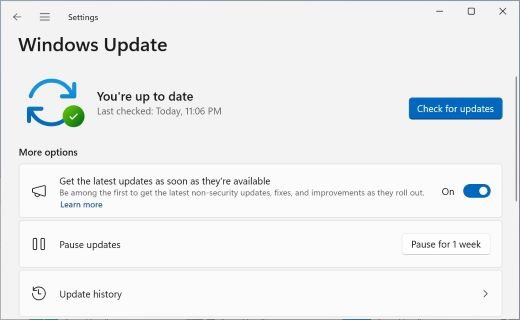
Microsoft names Windows Update as the recommended way to get touchpad drivers. Recommended drivers install on their own, but optional drivers wait until you pick them, so check that list first.
- Select Start, then open Settings > Windows Update > Advanced options.
- Make sure Receive updates for other Microsoft products is turned On.
- Under Additional options, select Optional updates.
- Tick the touchpad or pointing-device driver if one is listed, then select Download and install.
- Right-click Start, select Shut down or sign out > Restart, and restart even if Windows does not ask for it.
If no touchpad driver appears in Optional updates, use Device Manager or Lenovo's own support site, both covered below.
Finding your way to the touchpad driver on a Lenovo laptop
Windows lists the touchpad in one of two Device Manager categories, and the driver can arrive from four places. Knowing both saves you from installing the same package twice.
| What you are looking for | Where it is on Windows 11 | Notes |
|---|---|---|
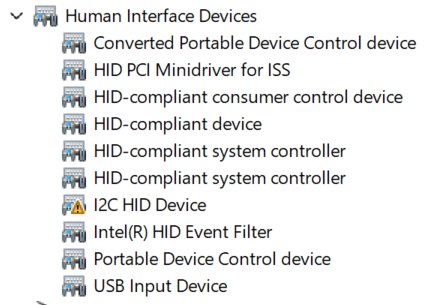
| The touchpad device itself | Device Manager > Human Interface Devices or Mice and other pointing devices | Right-click Start and select Device Manager to open it |
| Driver from Microsoft | Settings > Windows Update > Advanced options > Optional updates | Microsoft's recommended source for touchpad drivers |
| Driver from inside Device Manager | Right-click the touchpad > Update driver | Searches for a newer driver and installs it |
| Driver from Lenovo | Lenovo's support site at support.lenovo.com, under your exact model | Use when Windows Update has nothing newer |
| Lenovo's own update app | Lenovo Vantage, from the Microsoft Store | Lenovo describes it as the app that automates updates on Lenovo PCs |
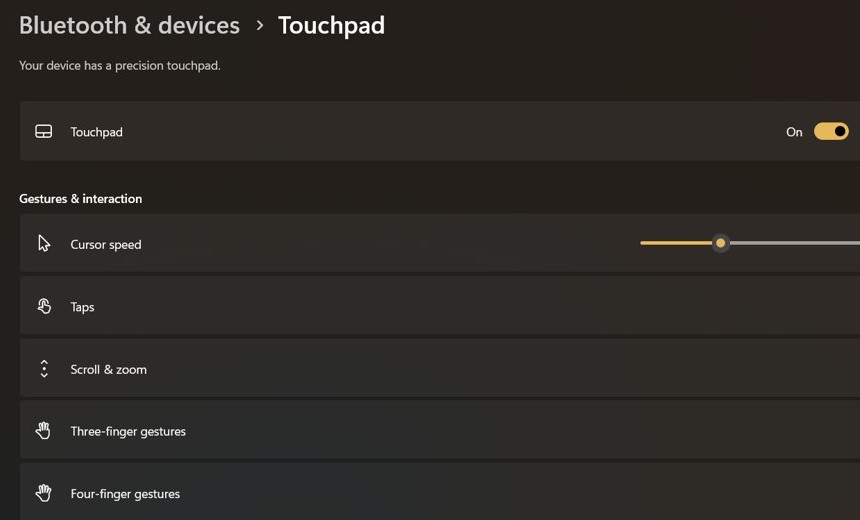
| Touchpad settings | Settings > Bluetooth & devices > Touchpad | Gesture drop-downs live here once the driver works |
Method 1: Use Device Manager to update the Lenovo touchpad driver
Device Manager in Windows 11 can look for a newer touchpad driver without opening Settings. It is the quickest route when the touchpad still shows up but behaves oddly.
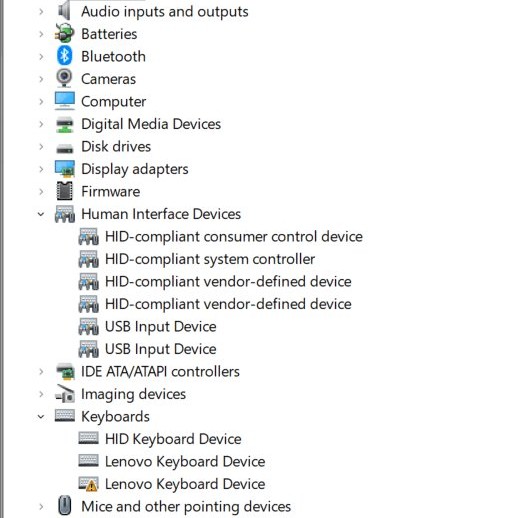
- Right-click Start and select Device Manager.
- Select the arrow next to Human Interface Devices, or next to Mice and other pointing devices, to expand it.
- Right-click the touchpad entry and select Update driver.
- In the Update Drivers window, select Search automatically for updated driver software.
- If Windows finds nothing, select Search for updated drivers on Windows update and install what Windows Update offers.
- Select Close, then restart the laptop.
To list every driver on the laptop with its version and date, you can view installed drivers with details before and after the update.
Method 2: Use Windows Update to get the Lenovo touchpad driver
Windows Update covers more than the optional list. A full update check also pulls recommended drivers, which install automatically with the rest of the update.
- Select Start > Settings > Windows Update.
- Select Check for updates and let Windows install what it finds.
- Open Advanced options and make sure Receive updates for other Microsoft products is On.
- Select Optional updates under Additional options.
- Pick any touchpad or input driver in the list and select Download and install.
- Restart the laptop from Start > Shut down or sign out > Restart once installs finish.
Lenovo Vantage or Windows Update for touchpad drivers?
| Your situation | Use this | Why |
|---|---|---|
| Touchpad works but gestures feel off | Windows Update optional updates | Microsoft's recommended source, and the driver is matched to your hardware |
| Touchpad entry shows in Device Manager | Device Manager > Update driver | Checks for a newer driver from the device itself |
| Windows Update finds no newer driver | Lenovo's support site | Microsoft advises checking the manufacturer's site when Windows Update has nothing |
| You want Lenovo updates handled for you | Lenovo Vantage | Lenovo's app looks for the latest updates on Lenovo devices automatically |
| Touchpad broke right after an update | Roll Back Driver | Returns the previous driver without a download |
Lenovo Vantage is available from the Microsoft Store, and Lenovo says to search for Vantage in your installed apps if it is already on the laptop. Legion owners get Lenovo Vantage for Gaming instead.
Method 3: Manually download from Lenovo
Lenovo's glossary gives the rule for any driver: download it from the hardware maker's website and follow that maker's install instructions. Microsoft adds that you should avoid driver downloads from any other site.
- Find the model number printed on the underside or back of the laptop; Lenovo uses it to match drivers to your device.
- Open Lenovo's support site at support.lenovo.com in your browser and find the page for that exact model.
- Open the driver list for that model and pick the touchpad driver built for Windows 11.
- Download the package and follow Lenovo's install instructions for it.
- If the package only extracts files, open Device Manager, right-click the touchpad and select Update driver > Browse my computer for drivers.
- Select Browse…, pick the extracted folder, select OK, then Next.
- Select Close and restart the laptop.
If the folder holds the same driver you already run, Windows shows The best drivers for your device are already installed. The same Browse route works for any hardware, so it pays to know how to install a device driver manually.
How to tell if the Lenovo touchpad driver is installed
Lenovo's driver glossary says a working driver shows no error or warning in Device Manager. The gestures page in Settings gives the second proof.
- Right-click Start and select Device Manager.
- Expand Human Interface Devices and Mice and other pointing devices and find the touchpad.
- Make sure the entry carries no warning symbol.
- Right-click it, select Properties, and open the Driver tab to see the installed driver.
- Open Settings > Bluetooth & devices > Touchpad and expand Three-finger gestures.
- Swipe up with three fingers on the touchpad; Windows should show all open windows.
Some touchpad gestures only work with precision touchpads, so a missing gesture alone does not mean the driver failed.
Change Lenovo touchpad gestures in Windows 11
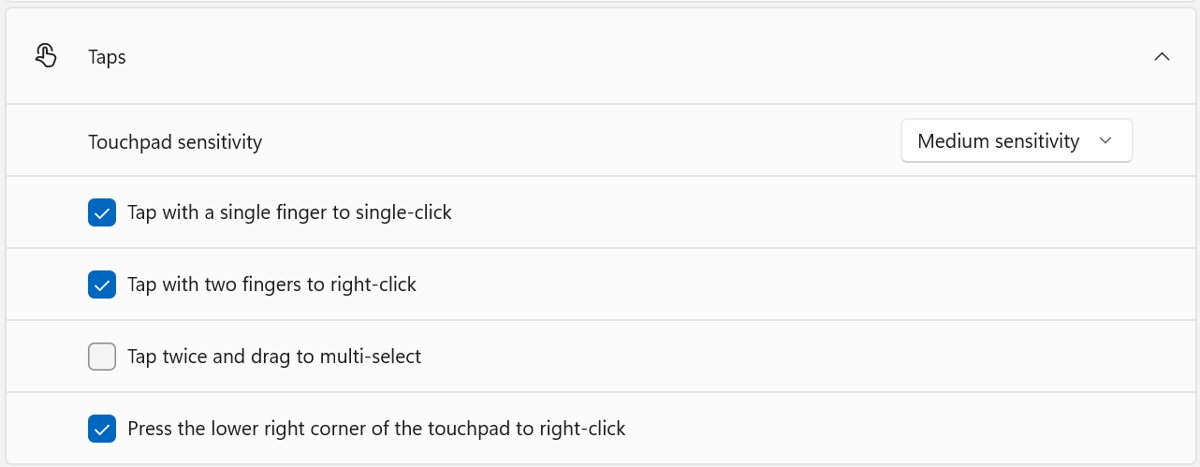
Once the driver is in, Windows 11 lets you remap the three-finger and four-finger gestures from Settings.
| Default touchpad gesture | What it does | Can you change it? |
|---|---|---|
| Tap | Selects an item | No |
| Two fingers slide | Scrolls horizontally or vertically | No |
| Two fingers pinch or stretch | Zooms in or out | No |
| Two-finger tap, or press the lower-right corner | Shows more commands, like right-click | No |
| Three fingers up | Shows all open windows | Yes, under Three-finger gestures |
| Three fingers down | Shows the desktop | Yes, under Three-finger gestures |
| Three fingers left or right | Switches between open apps or windows | Yes, under Three-finger gestures |
| Four fingers left or right | Switches desktops | Yes, under Four-finger gestures |
To change one, open Settings > Bluetooth & devices > Touchpad, expand the gesture section and pick a new action from its drop-down menu.
How to roll back the Lenovo touchpad driver in Windows 11
Rolling back needs an account with administrator permissions. The button is only active when an older driver is still stored on the laptop.
- Right-click Start and select Device Manager.
- Expand the category that holds the touchpad.
- Right-click the touchpad and select Properties.
- Open the Driver tab and select Roll Back Driver.
- Choose a reason when prompted, then select Yes.
- Restart the laptop if Windows asks.
Lenovo touchpad driver not working on Windows 11
Microsoft traces most cases of a touchpad not working in Windows 11 to a missing or out-of-date driver. Match your case below.
The touchpad stopped working and updating the driver did not help
The installed driver is damaged, or no newer driver exists to replace it.
- Save your work and close all apps.
- Open Device Manager and expand Human Interface Devices or Mice and other pointing devices.
- Right-click the touchpad and select Uninstall device, then Uninstall.
- Restart from Start > Shut down or sign out > Restart; Windows reinstalls the touchpad and pulls the latest driver from Windows Update.
Windows Update and Device Manager find no touchpad driver
Microsoft has no newer driver for that touchpad, so the maker's own package is the next source.
- Follow Method 3 above to get the Windows 11 driver for your exact model from Lenovo.
- Install it, or point Browse my computer for drivers at the extracted folder.
- Restart the laptop.
The touchpad misbehaves right after a driver update
The new driver does not suit the laptop.
- Open the touchpad's Properties in Device Manager.
- On the Driver tab, select Roll Back Driver and confirm with Yes.
- Restart, and leave that driver unticked the next time it appears in Optional updates.
"The best drivers for your device are already installed"
The driver you pointed Windows at is not newer than the one already running.
- Check the driver on the Driver tab of the touchpad's Properties.
- Download a newer Windows 11 package from Lenovo's site, or keep the current driver if the touchpad works.
Nothing above fixed the Lenovo touchpad
The fault may be hardware or a model-specific setting.
- Contact Lenovo support, as Microsoft advises when driver steps fail; keep the serial number from the sticker under the laptop ready.
- Use Lenovo Vantage to look for Lenovo updates for the laptop.
Lenovo touchpad driver FAQ
Does Windows 11 install the Lenovo touchpad driver automatically?
Yes, in most cases. Windows Update installs recommended drivers on its own, while optional drivers wait in Settings > Windows Update > Advanced options > Optional updates until you select them and choose Download and install.
Where is the touchpad in Device Manager?
Look under Human Interface Devices or Mice and other pointing devices. Right-click Start, select Device Manager, and expand both categories to find the touchpad entry on a Lenovo laptop.
Is it safe to download a touchpad driver from another website?
No. Microsoft advises against downloading drivers from any site other than the manufacturer's official one, and Lenovo warns that generic third-party drivers can cause compatibility problems or carry malware.
How do I reinstall the Lenovo touchpad driver?
Open Device Manager, right-click the touchpad, select Uninstall device and then Uninstall, and restart. Windows reinstalls the touchpad on restart and downloads the latest driver from Windows Update.
Can I go back to the old touchpad driver?
Yes, if the previous driver is still stored. Open the touchpad's Properties in Device Manager, go to the Driver tab, select Roll Back Driver, pick a reason and select Yes. You need administrator permissions.
Do I need Lenovo Vantage to get touchpad drivers?
No. Windows Update and Device Manager can install the driver without it. Lenovo Vantage is Lenovo's optional app for automating updates on its PCs, and it is available from the Microsoft Store.
Why do some touchpad gestures not work after installing the driver?
Some Windows touchpad gestures only work on precision touchpads. Check Settings > Bluetooth & devices > Touchpad to see the gesture sections available on your laptop and set each one from its drop-down menu.
Do I need a different touchpad driver for Windows 11 than for Windows 10?
Often, yes. Lenovo's driver glossary notes that different Windows versions can need different driver versions, so pick the package Lenovo lists for Windows 11 when you download it manually.