To stop surprise update restarts, pause updates in Settings > Windows Update, set your active hours, and schedule any pending restart for a time you pick.
This guide covers each control on Windows 11 and Windows 10, the restart warning switch, the sign-in setting that finishes updates, and what to check when Windows still reboots on its own.
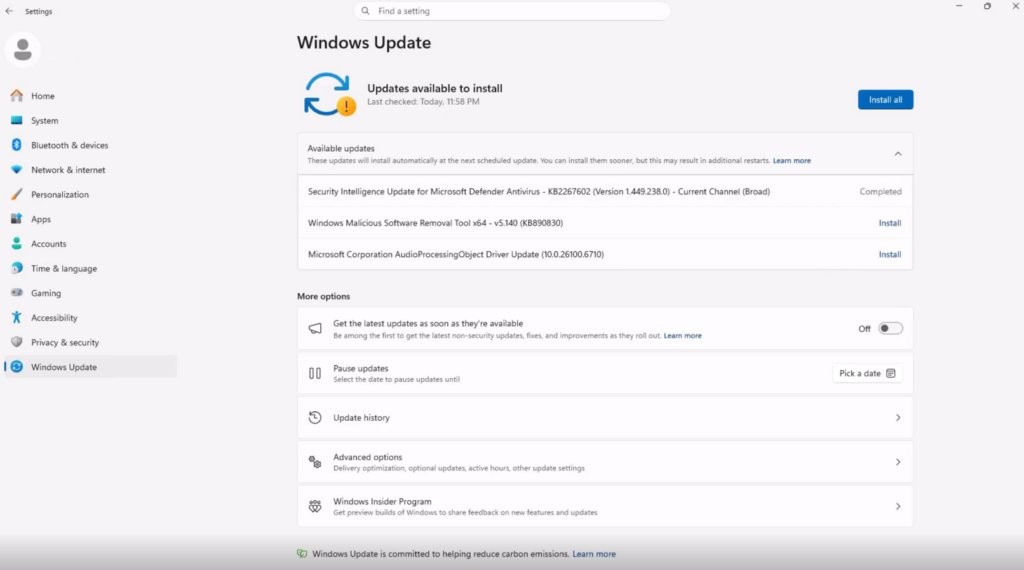
Step-by-step: Pause updates (fastest way to prevent immediate surprise restarts)
Pausing is the quickest fix when a restart is about to interrupt you. While updates are paused, Windows does not download or install updates that need a restart, and it does not restart to finish them.
On Windows 11 you can pause for up to 35 days from today.
- Select Start, then Settings.
- Select Windows Update in the left pane.
- Find Pause updates at the top of the page.
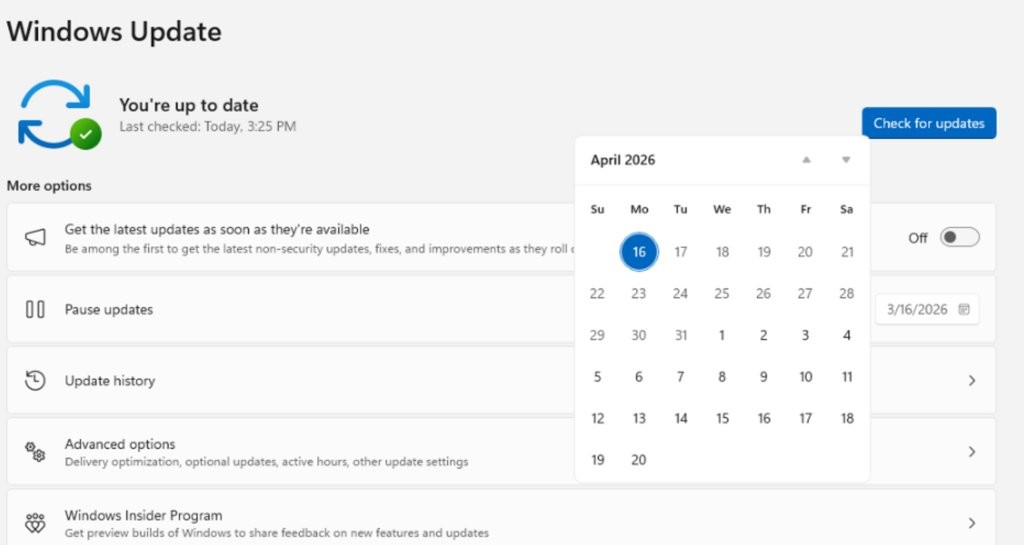
- Select Pick a date and choose the day updates should resume.
- Check that the Windows Update page now shows the date updates will resume.
On Windows 10, go to Start > Settings > Update & Security > Windows Update and select Pause updates for 7 days. For a longer pause, select Advanced options and pick a resume date from the Pause updates drop-down.
Updates already in progress when you pause are canceled. If you need a longer break than one pause allows, there are other ways to pause or stop Windows 11 updates.
Where to find active hours and pause updates in Windows 11 and Windows 10
Microsoft placed these controls on different pages in each version. Match your version to its row before you follow the steps below.
The only prerequisites are a Windows 11 or Windows 10 PC and Settings that are not locked by a work or school policy, which can hide the pause option.
| Control | Windows 11 | Windows 10 |
|---|---|---|
| Pause updates | Settings > Windows Update > Pause updates > Pick a date | Settings > Update & Security > Windows Update > Pause updates for 7 days, or Advanced options > Pause updates |
| Active hours | Settings > Windows Update > Advanced options > Active hours | Settings > Update & Security > Windows Update > Change active hours |
| Schedule a restart | Settings > Windows Update > Schedule the restart | Settings > Update & Security > Windows Update > Schedule the restart |
| Restart warnings | Settings > Windows Update > Advanced options > Notify me when a restart is required to finish updating | Not documented by Microsoft for Windows 10 |
| Update history | Settings > Windows Update > Update history | Settings > Update & Security > Windows Update > View update history |
Microsoft ended support for Windows 10 on October 14, 2025, so the Windows 10 update settings page can look different on older builds.
Step-by-step: Set active hours (stops restarts during the times you use your PC)
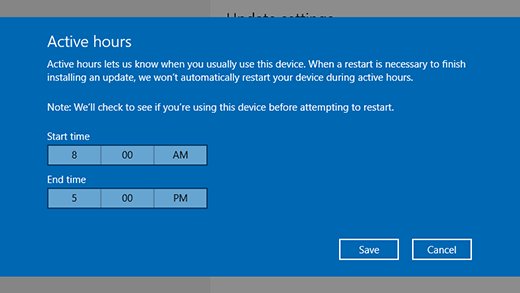
Active hours tell Windows when you normally use the PC. Automatic restarts after an update happen outside that window.
On a PC the default active hours are 8 AM to 5 PM. Current versions allow an active hours window of up to 18 hours, counted from the start time.
- Select Start > Settings > Windows Update.
- Select Advanced options.
- Select Active hours to expand it.
- Open the Adjust active hours drop-down.
- Choose Automatically to let Windows learn your hours, or Manually to set them yourself.
Windows 10 users start from Start > Settings > Update & Security > Windows Update and select Change active hours instead. The two options below explain which choice suits you.
Option A — set active hours automatically (recommended for most users)
Automatic active hours suit anyone whose schedule shifts from day to day. Windows adjusts the window based on when the device is actually in use.
- Select Start > Settings > Windows Update > Advanced options.
- Select Active hours.
- Set Adjust active hours to Automatically.
- Close Settings. Windows now tracks your activity and updates the window itself.
On Windows 10, select Change active hours, turn on Automatically adjust active hours for this device based on activity, and then select Save.
Option B — set active hours manually (best if you have predictable work times)
Manual hours are the safer pick for fixed shifts, overnight renders or a PC that runs long jobs. You decide exactly when Windows must not restart.
- Select Start > Settings > Windows Update > Advanced options.
- Select Active hours.
- Set Adjust active hours to Manually.
- Choose the start time and end time that cover your working day.
- Keep the span within 18 hours, the longest window Windows allows.
Windows 10 manual steps: select Change active hours, select Change next to your current active hours, pick the start time and end time, and then select Save.
Step-by-step: Schedule a restart (so Windows reboots when you choose)
Once an update is installed and waiting, Windows tries to restart when you are not using the PC. If it cannot, it asks you to schedule the restart. You can also schedule it yourself at any point.
- Save your work and close apps you do not need overnight.
- Select Start > Settings > Windows Update.
- Select Schedule the restart.
- Pick a day and time that suits you, such as late evening.
- Leave the PC on and plugged in at that time so the restart can finish.
On Windows 10 the path is Start > Settings > Update & Security > Windows Update, then Schedule the restart.
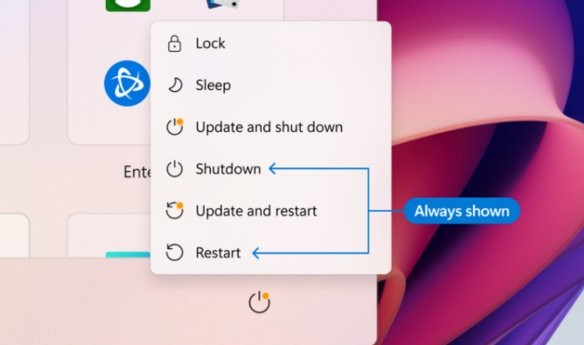
To restart sooner instead, select Restart now on the Windows Update page, or open Start > Power and choose Update and restart or Update and shut down.
Step-by-step: Enable "Restart notifications" (so Windows warns you)
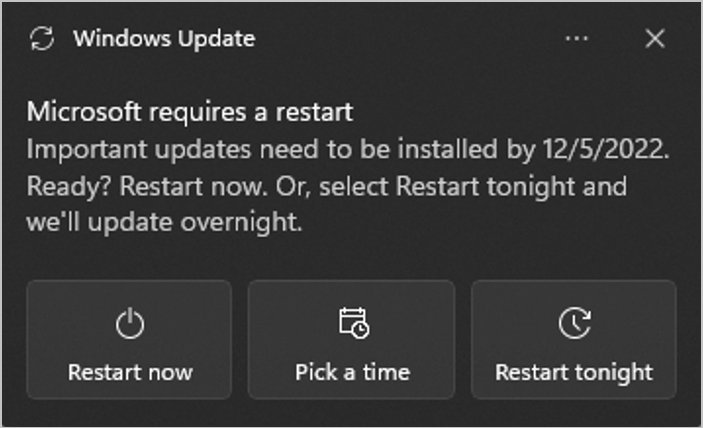
With this switch on, Windows shows a notification as soon as an update needs a restart. It also blocks automatic restarts for 24 hours after that first notification, which gives you a day to save work and pick a time.
With the switch off (the default), restart notifications are held back for 24 hours, and automatic restarts can still happen outside active hours during that time.
- Select Start > Settings > Windows Update.
- Select Advanced options.
- Turn on Notify me when a restart is required to finish updating.
- Close Settings. The next pending restart now triggers a notification straight away.
Microsoft documents this switch for Windows 11, version 22H2 and 23H2 with KB5037771 or later, and for newer versions. Its support pages do not document an equivalent switch for Windows 10.
Step-by-step (optional but useful): Use "Pause" + "Schedule" together for maximum control
Combining the two gives you a restart on your terms. The pause buys time, and the scheduled restart decides the exact moment once updates arrive.
- Pause updates with Pick a date and choose a day when a restart will not hurt, such as a Friday.
- Set Active hours manually to cover the hours you work.
- When the pause ends, let Windows download and install the waiting updates.
- Open Settings > Windows Update and select Schedule the restart as soon as it appears.
- Choose a time outside your active hours and leave the PC plugged in.
After the pause limit is reached, Windows must install the latest updates before you can pause again. Plan the restart for that day rather than trying to stretch the pause.
Windows 11 one restart a month for updates explained
Starting with updates released on and after July 28, 2026, Windows holds updates that need a restart and installs them together with the monthly security update. Your PC then restarts once, outside active hours whenever possible.
The change is rolling out gradually and applies to devices that are not managed by an IT department.
| Update type | Waits for the monthly restart? |
|---|---|
| Driver updates from Windows Update | Yes, combined with the security update |
| .NET updates | Yes, combined with the security update |
| Firmware updates | Yes, combined with the security update |
| Microsoft Defender security intelligence updates | No, installed right away |
| AI component updates | No, installed right away |
| Critical or expedited driver updates | No, installed right away |
| Emergency and out-of-band updates | No, installed right away |
The monthly security update usually arrives on the second Tuesday of each month, so that week is the one to plan your scheduled restart around.
How to tell if Windows Update is waiting for a restart
A pending restart shows on the Windows Update page itself. Check it before you leave the PC running a long job.
- Select Start > Settings > Windows Update.
- Look for a Restart now button or a Schedule the restart option at the top of the page.
- Check the list under Available updates for anything marked as waiting on a restart.
- Select Update history to see which updates finished installing, and when.
- Open Start > Power: an Update and restart entry also means an update is pending.
Tip: Check your sign-in setting for finishing updates
Some update steps can only finish while you are signed in. Windows automatic restart sign-on (ARSO) handles this: after an update restart, it signs the last user in, finishes those steps, and locks the session so it is ready when you return.
Microsoft advises against ARSO on devices where physical theft is a concern, because the sign-in secret is kept on disk until the restart completes.
| Item | Detail |
|---|---|
| What it does | Signs in and locks the last interactive user after a Windows Update restart |
| When it applies | Only if the last user did not sign out before the restart |
| Policy name | Sign-in and lock last interactive user automatically after a restart |
| Policy location | Computer Configuration > Administrative Templates > Windows Components > Windows Logon Options |
| Default | Enabled when the policy is not configured |
| Encryption condition | By default it runs only if BitLocker is on and not suspended |
If you change the policy, open the Group Policy Editor in Windows 11 and leave the BitLocker condition at its default.
Tips and troubleshooting notes
These details explain most of the cases where pause, active hours and scheduling seem not to behave.
| Situation | What happens |
|---|---|
| Extending a pause | The new end date can be up to 35 days from today; previously paused days are not added on |
| Pause expires | Updates resume automatically, and Windows checks for and installs the latest ones |
| Laptop left on battery | Keep it plugged in when idle so updates outside active hours can finish |
| Metered connection | Some updates are not downloaded or installed automatically |
| Pause options greyed out | An organization policy can remove access to Pause updates; Settings then shows Some settings are managed by your organization |
If you share a mobile hotspot, you can set the connection as metered so large updates wait for a better network.
If Windows still restarted unexpectedly
The PC restarted overnight while a job was running
Overnight is outside active hours, which is exactly when Windows is allowed to restart.
- Open Settings > Windows Update > Advanced options > Active hours.
- Set Adjust active hours to Manually and stretch the window to cover the job, up to 18 hours.
- Turn on Notify me when a restart is required to finish updating so you get a 24-hour warning next time.
- Pause updates before the next long job.
Windows restarted during active hours
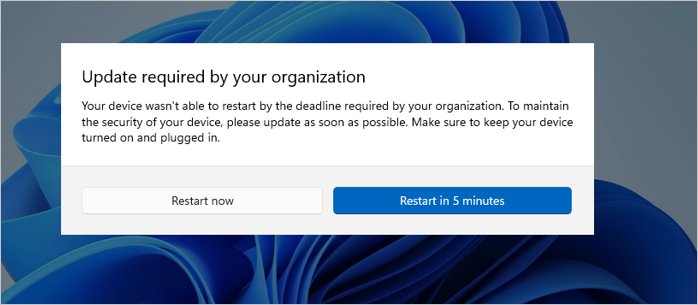
A restart deadline was reached, which forces a restart regardless of active hours.
- Open Settings > Windows Update and check whether a restart is still pending.
- Select Schedule the restart as soon as the option appears instead of dismissing the notification.
- On a work or school PC, ask your IT administrator about the restart deadline policy, because it overrides your own settings.
Pause updates is greyed out or missing
An organization policy has removed access to pausing.
- Look for the Some settings are managed by your organization notice at the top of Windows Update.
- Use active hours and Schedule the restart instead, since they remain available.
- Contact the device administrator if you need the pause option back.
Windows will not let you pause again
The pause limit was reached, so the latest updates must install first.
- Select Check for updates in Settings > Windows Update.
- Install what is offered and schedule the restart for a convenient time.
- Pause again once the restart is done.
An update installed but broke something after the restart
A specific update conflicts with a driver or app on the PC.
- Open Settings > Windows Update > Update history.
- Select Uninstall updates.
- Select the update you want to remove, then select Uninstall.
Not every update can be removed this way. You can uninstall problematic Windows updates with the other routes when the button is missing.
Warning: Don't permanently delay updates
Microsoft states that updates cannot be stopped entirely; they will eventually download and install whatever your settings say.
Pausing is meant to move a restart, not to skip security fixes.
Use pause for a busy week, then let the updates install and schedule the restart for a quiet hour. The monthly security update closes known holes, and every pause ends with a forced catch-up anyway, so a long delay only stacks a bigger update and a longer restart later.
Windows Update active hours and restart FAQ
What are active hours in Windows 11?
Active hours are the period when you normally use your PC. Windows avoids automatic update restarts during that window and restarts outside it instead. You set them in Settings > Windows Update > Advanced options > Active hours.
What are the default active hours in Windows?
On PCs the default active hours run from 8 AM to 5 PM. You can change them manually, or let Windows adjust them automatically based on when you use the device.
How long can active hours be in Windows 11?
Current Windows versions allow an active hours window of up to 18 hours, counted from the start time. Windows 10 version 1607 limited the window to 12 hours.
How long can I pause updates in Windows 11?
You can pause updates for up to 35 days from the current date with Pick a date in Settings > Windows Update. Extending a pause resets the limit to 35 days from today rather than adding days.
Can I stop Windows updates permanently?
No. Microsoft says updates cannot be stopped entirely. You can pause them temporarily, set active hours, and schedule the restart, but once the pause limit is reached Windows installs the latest updates before you can pause again.
Will Windows restart during active hours?
Normally no, because automatic restarts happen outside active hours. A restart can still be forced during active hours once a restart deadline is reached, which is common on work or school PCs managed by IT.
Does pausing updates cancel a download in progress?
Yes. Updates that are in progress when you pause are canceled. When the pause ends, Windows checks for updates again and installs the latest ones.
How do I restart now to finish an update?
Select Restart now in Settings > Windows Update, or open Start > Power and choose Update and restart. Save your work first, because the restart closes every open app.