Copilot shows the signed out message when it can no longer use your sign-in, so sign in again with the same account you used before, then refresh the page or restart the app.
If the message returns, the fixes below cover account mix-ups, stale cookies, the Edge sidebar, the Copilot app, and network blocks, in the order to try them.
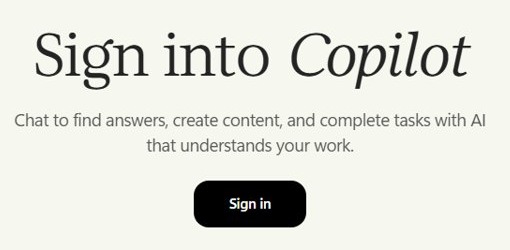
Copilot says it looks like you’ve been signed out
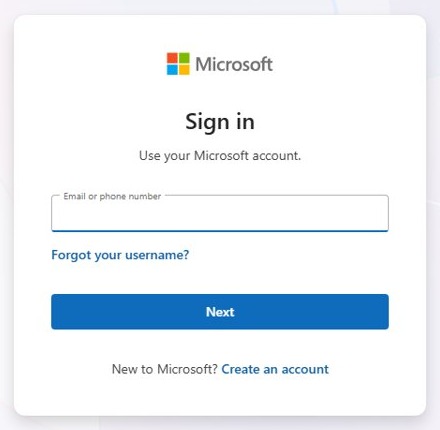
This restores your session in most cases. Use the same sign-in method as before, because chats and content stay with the account that created them.
- Select Sign in in Copilot, or the sign-in prompt in the message.
- Enter the same personal Microsoft account or work or school account you used before.
- If you signed up with Google or Apple, select Continue with Google or Continue with Apple instead of typing the email address.
- On the web, refresh the page. In the Copilot app, close it and open it again.
- Open your recent chats to see that your own conversations are back.
If you can't get past the sign-in page itself, the fault is with your Microsoft account sign-in rather than Copilot. Run Microsoft's sign-in helper from the I can't sign in to my Microsoft account support page first.
Why does Copilot keep signing me out?
Find what you are seeing here, then go straight to that fix.
| What you see | Likely reason | Where to go |
|---|---|---|
| The message appears on the web only | Stale Copilot cookies, or cookies blocked in the browser | Clear Copilot cookies in Microsoft Edge |
| Different chats, or none, after signing in | A different account, or content still moving to the updated app | Copilot signed in with the wrong account |
| A Sign in or Try again button in the Edge pane | Edge can't get a valid authentication token for the profile | Copilot sidebar in Edge not working |
| The message only appears in the Windows app | An app sign-in or app data fault | Repair or reset the Copilot app |
| A work or school PC or network | A block on copilot.cloud.microsoft, or a tenant policy |
Copilot connectivity troubleshooter |
Copilot signed in with the wrong account
Personal and work or school accounts stay separate in Copilot, and their chats and files never move between them. Signing in to the other one looks like lost content or a signed-out session.
- Open the account switcher in Copilot and read which account is active.
- Select the account you normally use, if a different one is showing.
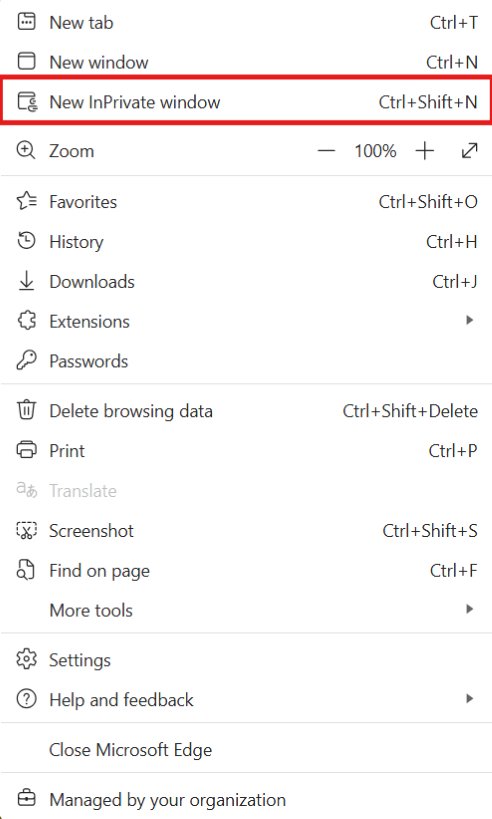
- To test an account without touching your main session, open Settings and more in Edge and select New InPrivate window.
- Go to
copilot.microsoft.comin that window and sign in with the account you want to check. - Close the InPrivate window, then sign in to that same account in your normal window.
Check every device too. Different chats on each device usually mean different accounts, so sign in with one account and restart Copilot on each.
Clear Copilot cookies in Microsoft Edge
Sign-in sessions on the web depend on cookies, and Microsoft's Copilot requirements list a supported browser with cookies enabled for web use. Delete the Copilot entries only, so other sites keep you signed in.
- In Edge, open Settings and more in the upper-right corner and select Settings.
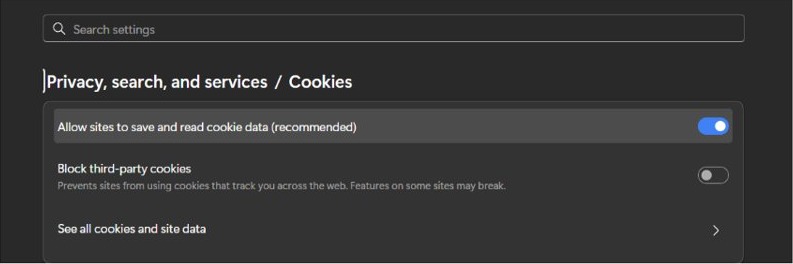
- Go to Privacy, search, and services and select Cookies.
- Select See all cookies and site data and search for copilot.
- Select the down arrow beside each Copilot site, then select Delete.
- On the Cookies page, turn on Allow sites to save and read cookie data (recommended) if it is off.
- Restart Edge, go to Copilot and sign in again.
To clear everything instead, press Ctrl + Shift + Delete, select Cookies and other site data and select Clear now, which signs you out of other sites as well. If cookies keep vanishing, make sure Edge isn't set to clear browsing data on close.
Copilot sidebar in Edge not working [Fix]
Edge shows sidebar problems in two ways: the Copilot icon is missing, or the pane opens and won't load. A missing icon is a settings or policy fault, while a pane that shows Sign in or Try again means Edge can't get a valid authentication token for your profile.
Copilot in the sidebar needs Edge version 111 or later on a desktop edition of Windows, and it isn't available in PWA or web app windows. Child accounts can't use it.
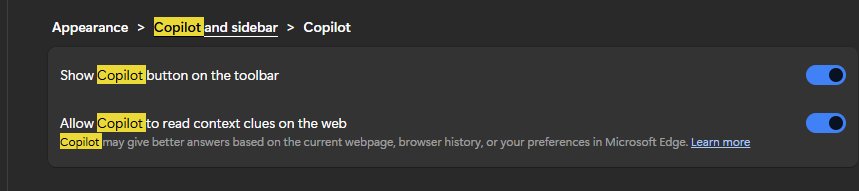
- Go to
edge://settings/appearance/copilotAndSidebarand select Always on. - Under App specific settings, select Copilot and turn on Show Copilot button on the toolbar.
- Go to
edge://settings/help, let Edge install any update, and restart it. - If the pane shows Sign in, select it and complete the sign-in.
- If it shows Try again, go to
edge://settings/profiles, sign out of the Edge profile and sign back in. - If you switched accounts recently, close the sidebar and open it again to refresh the sign-in.
- Select the profile icon, then Add profile > Add, and test Copilot in the new profile.
If Copilot works in the new profile, the old one is at fault. Go to edge://settings/reset and select Restore settings to their default values. This restores the startup page, new tab page, search engine and pinned tabs to their defaults, disables extensions and clears cookies, but your favorites, history and saved passwords stay.
On a managed PC, open edge://policy and look for HubsSidebarEnabled. If it is set to Disabled, only your IT administrator can change it. The toolbar setting is also where you can show or hide the Copilot button later.
Repair or reset the Copilot app in Windows 11
Use this when only the app shows the message and Copilot works in a browser. Microsoft's order is Repair first, then Reset if Repair is missing or does not fix the problem.
- Open Start and go to Settings > Apps > Installed apps.
- Find Copilot in the list and select the More icon next to it.
- Select Advanced options. Not every app offers this page.
- Select Repair, then open Copilot and test it.
- If the message returns, go back to the same page and select Reset.
- Open Copilot and sign in with the same account.
The app requires Windows 11, version 22H2 or later. If it still fails, download Microsoft Copilot again from Microsoft's site or the Microsoft Store.
It’s not you, it’s me error in Copilot [Fix]
Microsoft's support pages do not give a specific cause for this wording, so treat it as a failed connection to the service. Work through Microsoft's documented checks in this order, and retry after each one.
- Refresh the page, or close and reopen the Copilot app.
- Check the Microsoft 365 Service health status page at
status.cloud.microsoftfor outage reports, and retry later if one is listed. - In the Get Help app, run the Copilot connectivity troubleshooter.
- Sign out of Copilot and sign back in with the same account.
- Clear the Copilot cookies, or repair the app, using the steps above.
Copilot connectivity troubleshooter
A blocked connection can look like a sign-in fault. Microsoft's troubleshooter checks for firewall rules and other blockers between your PC and Copilot.
- Start the Get Help app.
- In the search bar, enter Copilot connectivity troubleshooter.
- Follow the steps, then read the findings and suggested remedies at the end.
- On a work or school network, send the findings to your IT team and ask them to allow
*.cloud.microsoft, includingcopilot.cloud.microsoft.
Admins can also test the domain with Microsoft's connectivity test at connectivity.m365.cloud.microsoft/copilot. Microsoft notes that proxy timeouts, blocked WebSocket traffic and TLS inspection can all break Copilot.
How to log into Copilot on each device and app
Microsoft has been moving people to an updated Copilot app, so the address and sign-in page can differ from what you remember. Sign in to the updated app by December 31, 2026 to keep eligible chats and content.
| Where you use Copilot | How to sign in | Accounts accepted |
|---|---|---|
| Web, personal | Go to copilot.com; older copilot.microsoft.com addresses redirect once your account has moved |
Personal Microsoft account, Google or Apple |
| Web, work or school | Go to copilot.cloud.microsoft |
Microsoft Entra work or school account |
| Windows or Mac app | Open the Microsoft Copilot app and select the sign-in option; use the account switcher to change accounts | Personal, work or school, or both |
| Edge sidebar | Sign in to the Edge profile at edge://settings/profiles |
Personal, work or school |
| iPhone, iPad or Android | Download the updated Copilot app, then sign in | Personal, work or school |
Copilot signed out message FAQ
Can I use Microsoft Copilot without logging in?
Yes. Microsoft says Copilot is free without a Microsoft account at copilot.com and in the Copilot apps. Without an account, prompts rely only on public web data, and Copilot can't reach personal files, emails or organizational content. Signing in is needed to keep your chats.
How do I log into Copilot?
Go to copilot.com or open the Copilot app, select the sign-in option, and use your personal Microsoft, Google or Apple sign-in, or your work or school account. For Google or Apple, select the matching button rather than typing the email address on the sign-in page.
Is something wrong with Copilot today?
Check the Microsoft 365 Service health status page at status.cloud.microsoft for outage reports. If nothing is listed, run the Copilot connectivity troubleshooter in the Get Help app, which looks for firewall rules and other blockers on your own connection, then try again.
How to tell if Copilot is working?
Open Copilot in a new InPrivate window, sign in, and send a short prompt. If that works but your normal window does not, the problem is in that browser profile or its cookies. If it fails in both, look at the account, service status or network next.
Why is Copilot different today?
Microsoft is moving people to an updated Copilot app, and web users are redirected automatically to the updated version once their account moves. Personal and work or school accounts can be used side by side, and Projects now appear as Notebooks in the left navigation pane.
Where are my Copilot images?
Images and chats stay with the account that created them, so first make sure you are signed in with that account. Microsoft says eligible chats, images and other content move to the updated app, and a coming soon message means they may still be on the way.
How to check if you have Copilot?
Copilot's free version is available at copilot.com and in the Copilot apps, so you can check by opening it there. For a paid Microsoft 365 Copilot license, run the Copilot license troubleshooter in the Get Help app if you believe you are licensed but can't see the Copilot icon in your Microsoft 365 apps.
Where is my Copilot?
Copilot lives at copilot.com, in the Microsoft Copilot app on Windows, Mac, iPhone, iPad and Android, and in the Edge sidebar. If the Edge icon is missing, go to edge://settings/appearance/copilotAndSidebar and turn on Show Copilot button on the toolbar under App specific settings.