RAM (random access memory) is a computer's short-term memory: it holds the apps and files the processor is using right now, and it is erased when the device shuts down or restarts.
This guide explains what RAM does, how it works, DDR generations, speeds, voltages and capacities, how much you need, and how to check the RAM in a Windows PC.
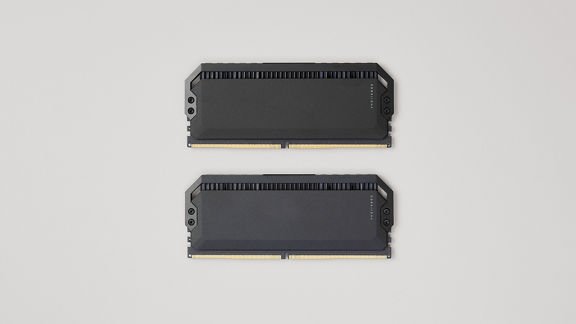
What is RAM?
RAM is also called memory or PC memory. In a desktop or laptop it usually sits on small circuit boards called memory modules, and most computers ship with at least two modules plus room for more.
Phones, tablets, game consoles and servers all use RAM for the same job.
Think of RAM as the computer's desk and the SSD or hard drive as its filing cabinet: work in progress goes on the desk because it is far faster to reach. Apps and files are copied from the slower disk into RAM so the processor can read and write them quickly. The disk keeps data permanently; RAM keeps it only while the power is on.
What RAM does
| Task | What RAM does for it |
|---|---|
| Running the operating system | Holds the parts of Windows, macOS or Android that are in use |
| Opening an app | Stores the app's code and data so it responds without waiting on the disk |
| Multitasking | Keeps several apps loaded at once, so switching between them is quick |
| Working on files | Holds the open document, photo or video project while you edit it |
| Gaming | Keeps game data close to the processor instead of on the slower disk |
| Closing an app or shutting down | The app's data is cleared out of RAM and the space is freed |
More memory lets a device run more tasks at once without slowing down. Too little memory forces the system to wait on the much slower disk.
That is why RAM is important: without enough of it, the PC has to keep shuffling data between the disk, RAM and the processor, and everything from opening a photo to switching apps slows down.
How RAM works
| Stage | What happens |
|---|---|
| 1. You open an app or file | The operating system copies it from the SSD or hard drive into RAM |
| 2. The processor works | The CPU reads and writes the data in RAM, which is much faster than the disk |
| 3. Data moves at the RAM's speed | RAM speed sets how quickly data travels between RAM and the CPU |
| 4. You save | Changes are written back to the disk, the permanent store |
| 5. You shut down or restart | RAM loses its contents; anything unsaved is gone |
Random access means the processor can reach any location in memory directly rather than reading through it in order. Modern PC memory is DRAM (dynamic RAM).
Types of RAM explained: SRAM, DRAM, SDRAM, DDR, LPDDR and GDDR
All the different types of RAM are volatile: they lose their data when the power goes. They differ in how they hold each bit, how fast they run and what device they sit in.
| Type of RAM | How it works | Where you find it |
|---|---|---|
| SRAM (static RAM) | Stores each bit in flip-flops, so it needs no refreshing; faster and lower latency than DRAM | CPU caches and registers |
| DRAM (dynamic RAM) | Each cell is a capacitor and a transistor; the charge leaks, so cells are refreshed every few milliseconds | Main memory in PCs, laptops, phones and tablets |
| SDRAM (synchronous DRAM) | DRAM that runs in step with a clock signal shared with the rest of the system | The basis of every modern DDR generation |
| DDR SDRAM (DDR4, DDR5) | Transfers data on both edges of the clock signal, twice per cycle | Desktop DIMMs and laptop SODIMMs |
| LPDDR (low-power DDR) | Tuned for power efficiency in battery-powered and compact designs | Phones, tablets, thin laptops; usually soldered |
| GDDR SDRAM (graphics DDR) | Built for very high per-pin speeds: up to 24 Gbps for GDDR6 and 40 Gbps for GDDR7 (Samsung) | Graphics cards and consoles, as video memory |
| ECC DRAM | Checks for and corrects errors in the data it holds | Servers and workstations; DDR5 also adds on-die ECC |
What is RAM and ROM? RAM vs ROM vs storage
| Type | Keeps data without power? | Speed | Typical job |
|---|---|---|---|
| RAM | No | Fastest of the three | Working space for open apps and files |
| ROM (read-only memory) | Yes | Slower than RAM | Firmware that starts the device |
| SSD or hard drive | Yes | Slower than RAM, larger capacity | Long-term storage for Windows, apps and files |
| Flash memory (NAND) | Yes | Faster than a hard disk, slower than RAM | The chips inside SSDs, USB drives and memory cards |
| Virtual memory (page file) | Lives on the disk | Disk speed, far slower than RAM | Overflow space Windows uses when physical RAM is full |
| CPU cache (SRAM) | No | Faster than main RAM | Small store of the data the processor uses most |
Phone listings often say "8 GB RAM, 256 GB storage". The first number is memory for running apps; the second is space for photos, apps and files.
What is DDR?
DDR stands for double data rate. It is a type of DRAM that transfers data on both edges of the clock signal, so it moves data twice per clock cycle.
| Generation | Top data rate (Samsung, per pin) | Voltage | Notes |
|---|---|---|---|
| DDR4 | Up to 3,200 Mbps | 1.2 V | RDIMM, UDIMM and SODIMM modules; XMP 2.0 profiles |
| DDR5 | Up to 8,000 Mbps (server RDIMM); up to 5,600 Mbps for PC UDIMM and SODIMM | 1.1 V | On-die ECC, on-module power management (PMIC), burst length 16 and 32 banks; XMP 3.0 profiles |
| LPDDR | Varies by generation | Lower-power design | Soldered memory for phones, tablets and thin laptops |
Different DDR generations cannot be mixed. A DDR4 motherboard takes only DDR4 modules, and a DDR5 board only DDR5. Samsung rates DDR5 at over 20% better power efficiency and up to 2.5 times the bandwidth of DDR4.
Evolution of RAM technology: from SDRAM to DDR5 and LPDDR6
The history of RAM in PCs is a move from plain DRAM to synchronous DRAM, then to faster, lower-voltage DDR generations. SDRAM is not a rival to RAM; it is the clocked kind of DRAM that every DDR generation builds on.
| Stage | What changed | Key figures |
|---|---|---|
| SIMM modules | Memory on single inline modules, common in the 1980s and 1990s | 30 to 72 pins, 32-bit transfers |
| SDRAM and DIMM modules | Memory synchronised to the system clock, on dual inline modules with pins on both sides | 168 pins or more, 64-bit transfers |
| DDR, DDR2, DDR3 | Data on both clock edges; each generation faster and more power-efficient | Superseded on new PCs |
| DDR4 | Bank-group architecture for mainstream PCs | Up to 3,200 Mbps at 1.2 V |
| DDR5 | On-die ECC, power management on the module, dual 32-bit sub-channels | Up to 8,000 Mbps at 1.1 V |
| LPDDR5 and LPDDR5X | Low-power memory for phones, wearables and thin laptops | Up to 6.4 Gbps (LPDDR5) and 10.7 Gbps (LPDDR5X) |
| LPDDR6 | Next low-power generation for mobile devices, AI PCs and servers | Up to 14.4 Gbps |
Boosting performance with LPDDR5 comes from higher data rates at low power, which suits slim, battery-sensitive devices. The trend for future directions points the same way: faster low-power memory, plus LPDDR on removable modules such as Samsung's LPCAMM2 and the SOCAMM2 server module, instead of chips soldered to the board.
Speeds, voltages, and capacities
| Spec | What it means | What to look for |
|---|---|---|
| Speed (data rate) | How fast data moves between RAM and the CPU, quoted in Mbps or MT/s | The fastest rate your motherboard and CPU support |
| Voltage | Power the module runs at: 1.2 V for DDR4, 1.1 V for DDR5 | Leave it at default unless you apply an XMP profile |
| Capacity | How much data RAM holds, in GB | 8 GB for everyday use, 16 GB or more for editing and gaming |
| Desktop modules | Full-size DIMMs (UDIMM) | Check the motherboard's slot count and maximum capacity |
| Mobile modules | Smaller SODIMMs, or soldered LPDDR in thin laptops, phones and tablets | Check the laptop's manual for upgradable slots |
| Timings (CAS latency and other memory timings) | The delay values the module is set to run at, listed with its speed | Match timings when you pair modules for dual channel; an XMP profile sets them for you |
| XMP profiles | Preset speed, timing and voltage combinations tested by the module maker | Enable XMP in the BIOS on a supported board to run above default speed |
Modules first boot at their default JEDEC settings. Selecting an XMP profile in the BIOS raises the speed; reselecting the default profile returns to standard settings.
Do you need fast RAM? Only for speed-sensitive work such as gaming and large data jobs. For most people, enough capacity matters more than a higher data rate, and the module can only run as fast as the motherboard and CPU allow.
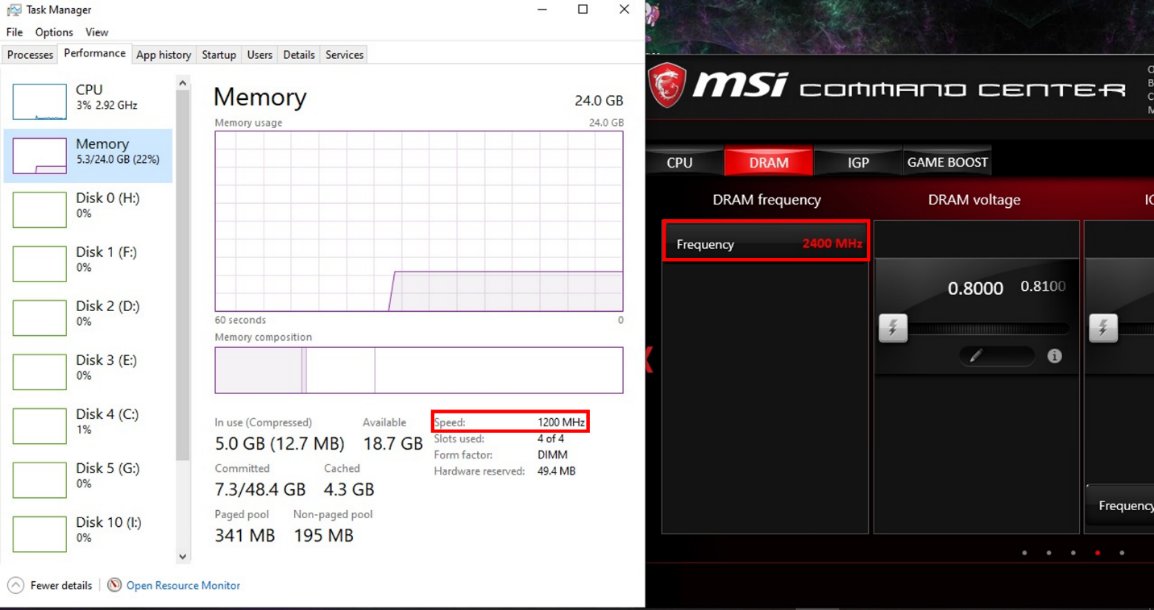
XMP and AMD EXPO: how to enable a RAM memory profile
A memory profile runs compatible DDR5 or DDR4 modules above their standard settings. Intel XMP 3.0 covers DDR5 and XMP 2.0 covers DDR4; each profile holds a speed, timing and voltage combination the module maker has tested for stability.
- Check that the module box or the motherboard carries the Intel XMP badge, or that the module appears on the motherboard's memory support list.
- Restart the PC and enter the BIOS. The board maker's website names the key and the memory menu for your model.
- Open the memory or overclocking menu and select the XMP profile. If your BIOS lists AMD EXPO instead, select that profile the same way, following the board manual.
- Save the changes and restart. The system applies the profile's speed, timings and voltage automatically.
- Open Task Manager, select Performance > Memory and confirm the Speed value has gone up.
- If the PC is unstable or will not start, return to the BIOS and reselect the default profile to go back to standard settings.
On Intel systems, Z and B series motherboards support XMP memory overclocking. Without a profile, modules run at their default JEDEC settings.
What are RAM channels? Single vs dual channel memory
A memory channel is a path between the RAM and the memory controller. Dual-channel memory uses two channels at once, which raises memory bandwidth; it does not add capacity.
| Setup | What you install | Effect |
|---|---|---|
| Single channel | One module, or modules in slots that share a channel | One data path; lowest bandwidth |
| Dual channel | A matched pair in the slots the motherboard manual names | Higher theoretical bandwidth; helps gaming, video editing and integrated graphics |
| Mismatched pair | Modules with different capacity or speed | May still work, but runs at the slower module's speed or limits dual-channel use |
| Ranks and module configuration | Modules come in single-rank and multi-rank organisations, as Samsung lists for its RDIMMs | Buy a configuration the motherboard's memory support list names, and pair modules with the same capacity, speed and timings |
Use the exact slots your motherboard or laptop documentation lists. Slot colour and distance from the processor are not a universal rule, and the BIOS usually sets dual channel up automatically.
How much RAM do you need?
| What you do | RAM to get | Why |
|---|---|---|
| Web browsing, documents, streaming video | 8 GB (4 GB minimum) | Microsoft recommends 8 GB to keep a device running well over time |
| Running Windows 11 at all | 4 GB minimum | Microsoft's minimum requirement; Copilot+ PCs need 16 GB |
| Photo and video editing, gaming | 16 GB or more | Large files and games fill 8 GB quickly |
| Heavy creative apps such as Photoshop | 32 GB | Intel describes 32 GB as a no-compromise setup |
| Professional workloads and virtual machines | 64 GB or more | Several large apps and datasets stay loaded at once |
A 64-bit version of Windows handles large amounts of memory more efficiently than 32-bit, and the difference shows from about 4 GB of RAM upward.
Can you get more RAM without upgrading?
No setting adds physical RAM. Only new modules raise capacity, but you can free the RAM you have and let Windows lean on virtual memory.
| Option | What it does | Limit |
|---|---|---|
| Close apps and browser tabs | Frees the RAM they hold; sort Task Manager's Processes tab by Memory to find the biggest users | Gains last only until you reopen them |
| Virtual memory (page file) | Windows moves less-used data from RAM to a page file on the disk when RAM is full | The disk is far slower than RAM, so heavy paging feels sluggish; do not turn it off |
| Run modules in dual channel | Raises memory bandwidth with a matched pair | Adds speed, not capacity |
| Add or replace modules | The only way to more physical RAM | Needs free slots or larger modules; soldered memory cannot be upgraded |
Virtual memory size is set in System Properties on the Advanced tab. Too little virtual memory causes slowdowns, while too much uses up disk space.
How to see what RAM is in my PC
Windows shows the installed amount in the Windows 11 Settings app and live memory details in Task Manager. You can also check RAM on Windows 11 from Command Prompt.
- Right-click the Start button and select Settings.
- Select System, then About.
- Read the installed RAM under Device specifications.
- Press Ctrl + Shift + Esc to open Task Manager.
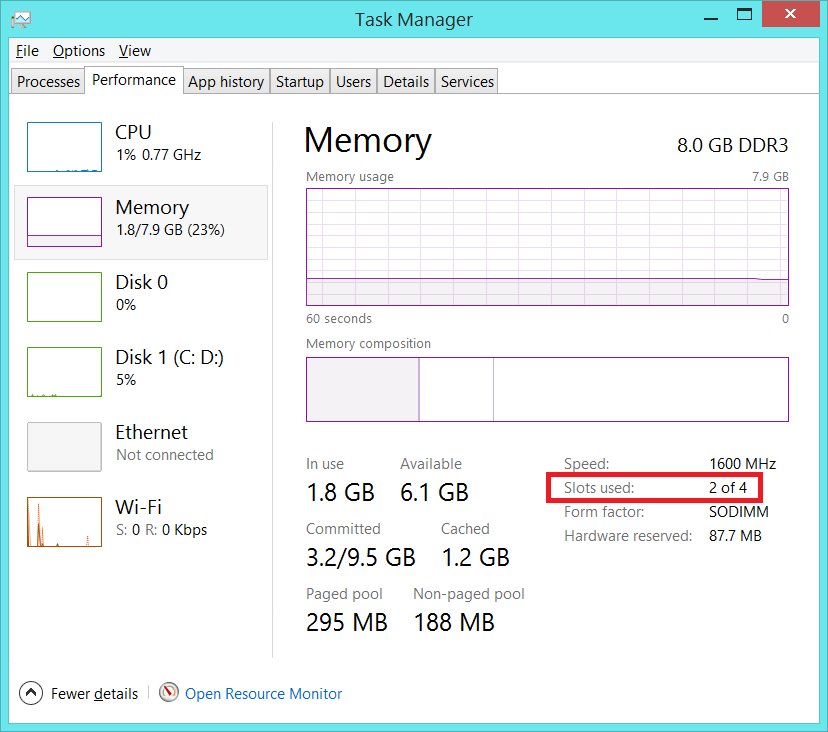
- Select Performance, then Memory, to see how much memory is in use and details of the installed modules.
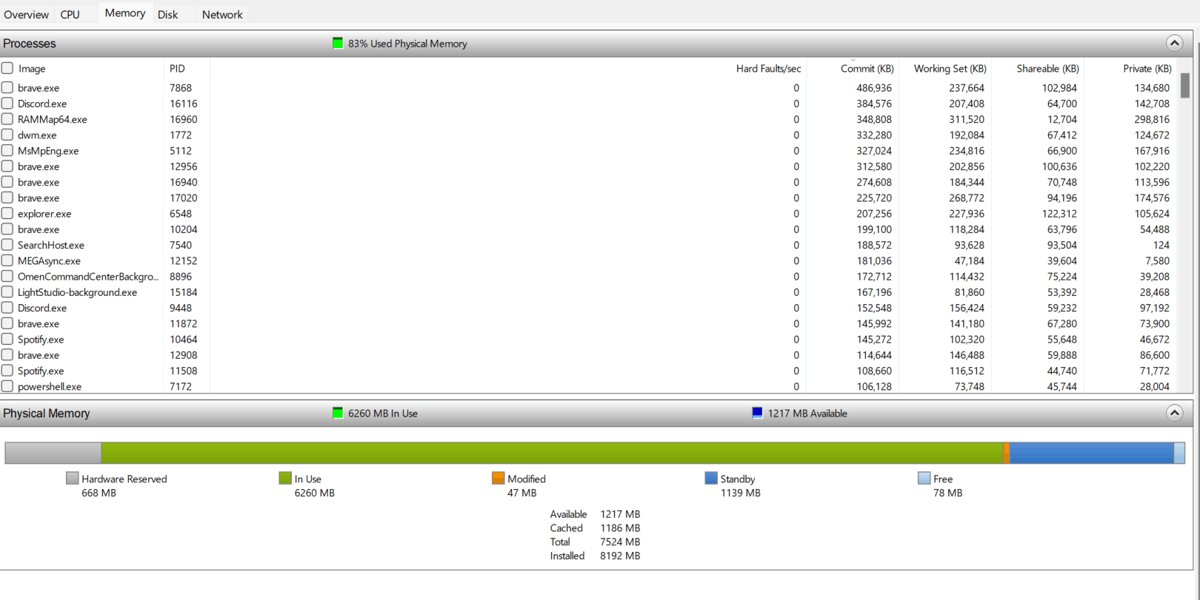
How to see what is using RAM
- Press Ctrl + Shift + Esc to open Task Manager.
- Select the Processes tab.
- Select the Memory column header to sort apps by memory use, largest first.
- Close apps you do not need, or select one and choose End task if it is not responding.
- Check Performance > Memory again to see how much memory is now in use. The Cached figure there is RAM cache that Windows hands back to apps when they need it.
How to know what RAM is compatible for a PC
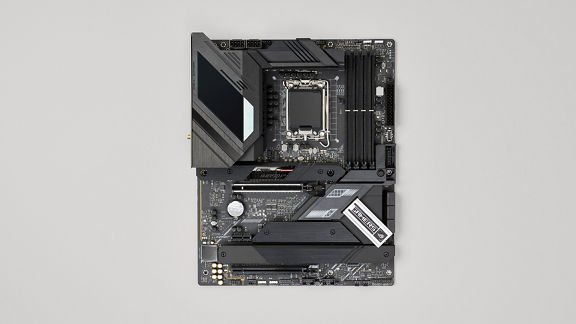
Can you upgrade your RAM? Many desktops and even many laptops have free or replaceable slots, but some laptops, tablets and phones use soldered memory that cannot be changed. The device documentation says which kind you have.
- Find your PC or motherboard model in Settings > System > About, or on its label.
- Look up that model's memory specifications on the manufacturer's support site.
- Note the DDR generation it supports; DDR4 and DDR5 cannot be mixed.
- Note the module type: full-size DIMM for desktops, SODIMM for most upgradable laptops.
- Check the maximum capacity and number of slots, then buy modules within those limits.
- Match the module speed to the fastest rate the motherboard supports.
How to install RAM in a desktop or laptop
The exact procedure varies by model, so keep the PC or motherboard manual open while you work. If you would rather not open the case, a professional can fit the modules for you.
- Confirm in the documentation that the memory is user-replaceable and that the new modules match the supported type, form factor, capacity and speed.
- Shut down the computer and unplug external power. On a laptop, disable or disconnect the internal battery as the manual describes.
- Ground yourself to discharge static before you touch any component.
- Open the case or the laptop's bottom panel to reach the memory slots.
- Release and remove an old module if you are replacing it.
- Align the new module as the manual shows and press it into the slot until it seats. Stop if it does not fit or needs excessive force.
- Use the slots the manual names for dual channel, close the PC, reconnect power and start it.
- Open Settings > System > About and confirm the installed RAM shows the new total.
If the PC does not recognise the new RAM, shut it down, unplug it and check compatibility and seating again. Update the BIOS only when the maker recommends it for your exact model.
Signs your PC needs more RAM
How to know if it's time to upgrade: check Task Manager's Performance > Memory page during your normal work, then match what you see to the symptoms below. Several of them on an ongoing basis point to an upgrade.
Memory usage stays at 80 to 100 percent
Sustained usage at that level means the PC lacks enough memory for what you run.
- Sort the Processes tab by Memory and close what you do not need.
- Add RAM if usage stays high during your normal workload.
Apps open slowly or the PC slows down with several apps open
RAM fills up, so the system waits on the slower disk.
- Run fewer apps and browser tabs at once.
- Upgrade to at least 8 GB, or 16 GB for editing and gaming.
Programs crash or the PC freezes
Low memory or a faulty module.
- Check memory usage in Task Manager when the freeze happens.
- Run Windows Memory Diagnostic to test the modules for errors.
An installer warns that the PC is below minimum requirements
The app needs more RAM than is installed.
- Compare the app's stated RAM requirement with the amount in Settings > System > About.
- Add modules if the PC has free slots and supports more memory.
Which to upgrade: RAM or computer?
On cost, a RAM upgrade is one of the cheapest ways to speed up a PC that runs short of memory. What you pay depends on the generation, capacity and speed you need, and DRAM costs less per bit than the SRAM used in processor caches.
Upgrade the RAM when the PC has free or replaceable slots and runs short of memory but is otherwise fast enough; buy a new computer when the memory is soldered, already at the board's maximum, or the processor is the bottleneck too. Software keeps asking more of the hardware, and RAM standards move on, so an older board eventually cannot take faster or larger modules. Spending on modules for a PC that also falls short elsewhere only delays a replacement.
Common RAM myths and misconceptions
| Myth | What is actually true |
|---|---|
| More RAM always makes a PC faster | Extra RAM helps only when the PC runs short of memory; once your apps fit, adding more changes little |
| Faster RAM beats more RAM | For most people enough capacity matters more, and a module only runs as fast as the motherboard and CPU allow |
| Dual channel doubles your memory | Dual channel raises bandwidth; the capacity stays the total of the installed modules |
| Any RAM fits any PC | DDR generations cannot be mixed, and desktops and laptops use different module sizes or soldered memory |
| RAM stores your files | RAM loses its contents when the PC shuts down or restarts; files live on the SSD or hard drive |
| Turning off virtual memory frees up RAM | Windows uses the page file when RAM is full, and too little virtual memory causes slowdowns |
What is RAM FAQ
What is RAM in a computer?
RAM is the computer's short-term memory. It holds the apps and files the processor is using right now, so they load faster than from the SSD or hard drive. Its contents are erased when the computer shuts down or restarts.
What does RAM stand for?
RAM stands for random access memory. Random access means the processor can read or write any location directly, instead of working through the data in order.
What is the difference between RAM and ROM?
RAM is fast, temporary memory that loses its contents without power and holds running apps. ROM is read-only memory that keeps its contents without power and stores the firmware a device needs to start.
How do I explain RAM to someone?
Compare RAM to a desk and storage to a filing cabinet. Files you are working on sit on the desk, where they are quick to reach. A bigger desk lets you work on more things at once.
How do I know what DDR my RAM is?
Check the motherboard or laptop specifications on the manufacturer's support site, or look at the label on the memory module. Task Manager's Performance > Memory page also shows details of the installed memory.
How much RAM do I need?
Microsoft recommends 8 GB for most people, with 4 GB as a minimum for browsing and documents. Choose 16 GB or more for photo and video editing or gaming, and 32 GB or more for heavy creative work.
Is more RAM always faster?
No. More RAM helps only when you run out of it. Once your apps fit comfortably in memory, adding more brings little change; RAM speed and the processor then matter more.
Can you have too much RAM?
Extra RAM does no harm, but memory your apps never use brings little benefit for the money. The motherboard's maximum capacity and slot count set the upper limit.
Can I mix DDR4 and DDR5 RAM?
No. Different DDR generations cannot be mixed, and each motherboard supports only one generation. Use the type your motherboard or laptop specifications list.