To fix the “Unable to Connect to EA Servers” error, first confirm the problem is not an EA outage, then restart your modem, router and PC and flush the Windows DNS cache.
If that fails, the fixes below move from firewall rules and game file repair to DNS changes, driver updates and a full network reset, in the order most likely to help.
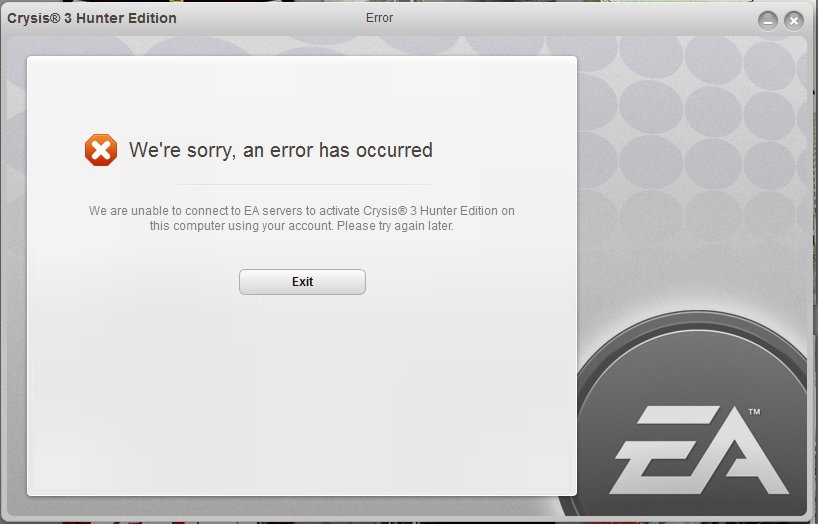
The fastest way to fix Unable to Connect to EA Servers
These five steps clear most cases in under ten minutes. Work through them in order and retry the game after the last one.
- Open two or three unrelated websites in your browser. If they fail too, the problem is your connection, not EA.
- Unplug the power cable from your router and modem, wait at least 30 seconds, then plug the modem back in first and the router second.
- Select Start > Power > Restart on the PC.
- Select Search on the taskbar, type Command prompt, then select Run as administrator > Yes.
- Type
ipconfig /flushdnsand press Enter, then launch the game again.
If every other site loads and only EA games fail, wait 15 to 30 minutes and retry before changing any settings. A server-side fault clears on its own.
Understanding the Error
The message means the game or the EA app sent a request to EA's online services and got no usable answer. The fault can sit on EA's side, on your network, or on your PC.
Server-side faults work like a website's 500 Internal Server Error: nothing on your PC fixes them, so waiting is the fix.
| Where the fault is | What you notice | Fix to try |
|---|---|---|
| EA's servers | Other sites and games work; only EA titles fail | Method 1, then wait |
| Router or modem | Several devices at home lose internet at once | Method 2 |
| Weak or unstable Wi-Fi | Connection drops mid-match, lag spikes | Method 3 |
| Firewall or security software | Error started after a security update or new install | Method 4 |
| Damaged game files | Only one EA game fails, others connect | Methods 5 and 12 |
| DNS lookups | Pages load slowly or some sites fail to resolve | Methods 6 and 7 |
| Network adapter or driver | Problem started after a Windows or driver update | Methods 9 and 11 |
| Your EA account | Sign-in fails even though the game reaches EA | Method 13 |
Which fix should you try first?
| Your situation | Start with | Why |
|---|---|---|
| Nothing online works on the PC | Method 2, then Method 11 | The fault is local, so EA-side fixes do nothing |
| Everything works except EA games | Method 1, then Method 4 | Either EA is down or something blocks only the game |
| One EA game fails, others connect | Method 5 | Missing or damaged files break the online handshake |
| Sites load slowly or fail to resolve | Methods 7 and 6 | Stale or slow DNS answers point the game at nothing |
| Error began after a Windows update | Method 9, then Method 11 | A new driver or adapter setting is the likely cause |
| You can reach EA but cannot sign in | Method 13 | Account problems need EA's support team |
Method 1: Check EA Server Status
Rule out EA's side before you change anything on Windows. If EA's services are down, every fix below is wasted effort.
- Load a few unrelated websites and one non-EA online game to confirm your own connection works.
- Open EA's connection help page, the address EA points players to for this error, and read any notice at the top.
- Search EA Help for your game's name and check its page for outage or maintenance notices.
- Ask a friend on a different internet provider to launch the same game.
- If others cannot connect either, wait and retry later instead of changing settings.
Method 2: Restart Your Computer and Network Devices
A router restart forces a fresh connection to your internet provider. Everyone on your Wi-Fi drops off briefly while it restarts.
- Close the game and the EA app.
- Unplug the power cable for the router, then the power cable for the modem. If you have a single modem-router combo, unplug just that device.
- Wait at least 30 seconds. If the modem's lights stay on, remove its backup battery, then put it back.
- Plug the modem back in and wait for its lights to stop blinking.
- Plug the router back in and wait a few minutes for both devices to fully power on.
- Select Start > Power > Restart on the PC, then launch the game.
Method 3: Optimize Your Internet Connection
Online games need a steady connection more than a fast one. A wired link removes most of the drops that Wi-Fi introduces.
- Connect the PC to the router with an Ethernet cable if you can. Use a LAN port on the router, not the port marked for the modem.
- Open Settings > Network & internet and confirm your connection shows Connected under its name.
- If it shows Action needed, select Ethernet or Wi-Fi to open that connection's settings.
- On Windows 11, run the Network and Internet troubleshooter in the Get Help app to diagnose and fix common faults automatically.
- Pause large downloads, cloud backups and streaming on other devices while you play.
- Close any VPN client before launching the game, then test again.
If a second Ethernet cable fixes the problem, the first cable was faulty.
Method 4: Adjust Firewall and Antivirus Settings
Never turn your firewall or antivirus off to reach EA. Allow the game and the EA app instead, which opens their connections only while they run.
Microsoft notes that an allowed app opens the required ports only when needed, while an open port stays open until you close it.
- Open the Windows Security app and select Firewall & network protection.
- Select Allow an app through firewall.
- Select Change settings and approve the administrator prompt.
- Find the game and the EA app in the list and tick their boxes. If one is missing, select Allow another app and browse to its .exe file.
- Select OK, then launch the game.
- If you use third-party security software, add the game and the EA app to that product's allowed or trusted list using its own settings.
Remove the entry later if you uninstall the game. An allowed app you no longer use is an unnecessary opening.
Method 5: Repair Game Files
A missing or damaged file can stop the game from completing its connection to EA. A verify pass checks the install and replaces only the files that fail the check.
- Restart the PC and open Steam if you own the game there.
- Right-click the game in your Library, or select the gear icon on the game's Library page.
- Select Properties… from the menu.
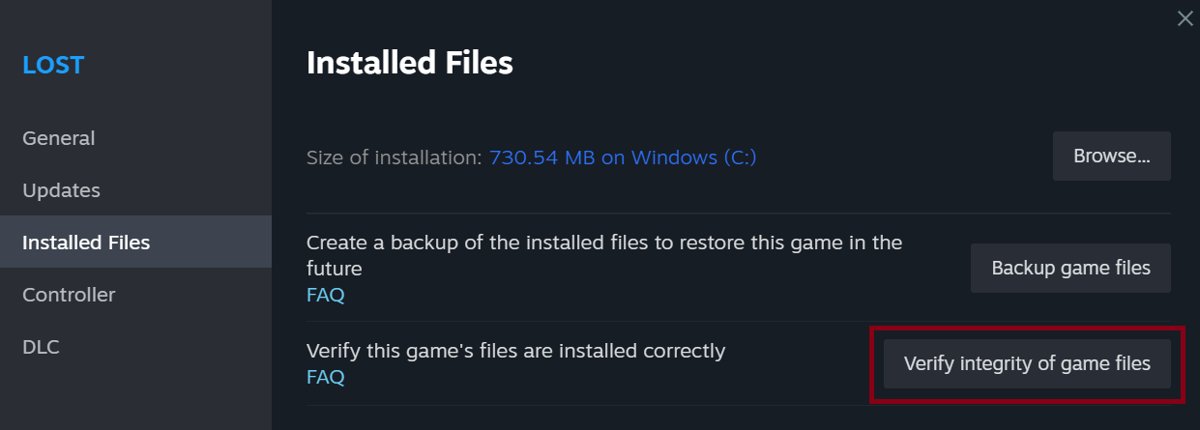
- Open the Installed Files tab and select Verify integrity of game files.
- Wait for the check to finish. It can take several minutes, so avoid virus scans or other heavy tasks meanwhile.
- For games installed through the EA app or another launcher, run that launcher's own repair or verify option for the game.
Steam may report that one or more files failed to verify. Those are local configuration files, and Valve says the message is normal and safe to ignore.
Method 6: Change DNS Settings
DNS turns EA's server names into addresses. If your provider's DNS is slow or failing, switching to a public resolver can restore the connection.
- Open Settings > Network & internet.
- For Wi-Fi, select Wi-Fi > Manage known networks and choose your network. For a cable, select Ethernet and choose your connection.
- Next to IP assignment, select Edit.
- Choose Manual and turn on IPv4.
- Type a primary address in Preferred DNS and a backup address in Alternate DNS, using a pair from the table below.
- Select Save, then restart the game.
To undo the change, return to the same screen and choose Automatic (DHCP), which hands DNS back to your router.
Public DNS addresses to enter
Both providers publish two addresses per protocol for redundancy. Enter one provider's pair rather than mixing providers.
| Provider | Preferred DNS (IPv4) | Alternate DNS (IPv4) | IPv6 pair |
|---|---|---|---|
| Google Public DNS | 8.8.8.8 | 8.8.4.4 | 2001:4860:4860::8888 and 2001:4860:4860::8844 |
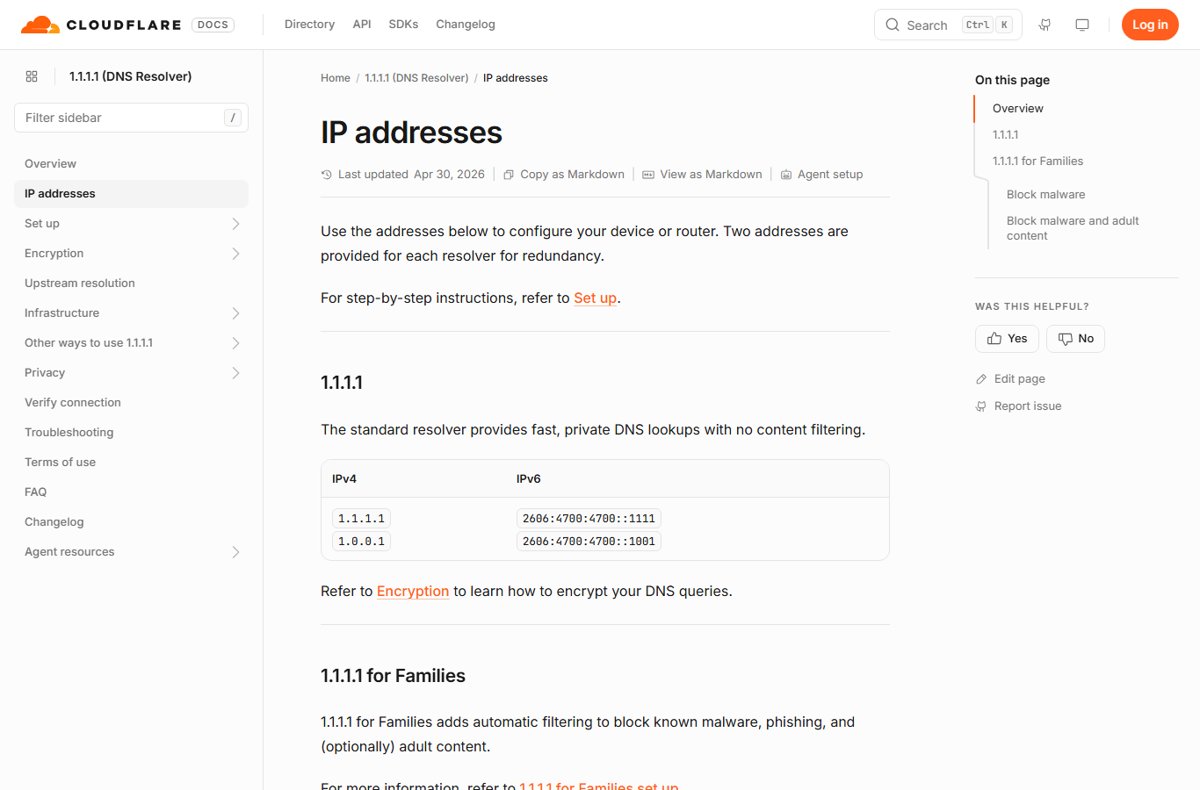
| Cloudflare 1.1.1.1 | 1.1.1.1 | 1.0.0.1 | 2606:4700:4700::1111 and 2606:4700:4700::1001 |
On Windows 11 the same screen also offers DNS over HTTPS. Windows 10 does not have that option.
Method 7: Flush DNS Cache
Windows keeps recent DNS answers in a local cache. A stale entry can keep sending the game to an address EA no longer uses.
Open Command Prompt as administrator: select Search on the taskbar, type Command prompt, then select Run as administrator > Yes.
ipconfig /flushdnsClears the DNS client resolver cache so Windows looks up EA's server addresses again on the next request.
You should see: Command Prompt prints a confirmation line and returns to the prompt with no error.
Flush the cache again right after Method 6 so the new DNS servers answer every lookup.
Method 8: Port Forwarding
Most players never need port forwarding. Try it only when Methods 1 to 7 fail and the game connects on other networks but not on yours.
Forward only the ports that EA Help lists for your specific game. Never open port ranges copied from unofficial sites.
- Look up your PC's address: open Settings > Network & internet, select Ethernet or your Wi-Fi network, and note the IPv4 address.
- Sign in to your router's admin page and follow the router maker's instructions to forward the game's listed ports to that address.
- On the PC, open Windows Security > Firewall & network protection > Advanced settings.
- Select Inbound Rules, then under Actions select New Rule… and complete the wizard for the same ports.
- Test the game. If nothing changes, select the rule and choose Disable Rule, then remove the router forward as well.
An open port stays open until you close it, which makes the PC less secure. Undo any forward that did not help.
Method 9: Update Network Drivers
A faulty network adapter driver can cause intermittent drops that EA's servers read as a lost connection. Windows Update carries many adapter drivers as optional updates.
- On Windows 11, open Settings > Windows Update > Advanced options.
- Under Additional options, select Optional updates.
- Tick any network adapter driver listed and select Download and install.
- On Windows 10, open Settings > Update & Security > Windows Update, select Check for updates, then View optional updates.
- Restart the PC after the install, even if Windows does not ask.
- If Windows Update offers nothing, get the latest network driver from your PC or motherboard maker's website.
If the error began right after a driver update, reinstall the driver instead: in Device Manager, expand Network adapters, right-click the adapter, select Uninstall device, tick Attempt to remove the driver for this device, select Uninstall and restart. Windows reinstalls a driver automatically. Save a backup driver from the maker's site first.
Method 10: Check Windows Services
Windows networking depends on background services such as DHCP Client, which gets your PC its address. A stopped service breaks every online game, not only EA's.
Open PowerShell and run the command below to see the state of the DHCP Client service and any installed service whose display name starts with EA.
Get-Service -Name Dhcp; Get-Service -DisplayName "EA*"Get-Service lists each matching service with its Status, Name and DisplayName columns. The second part returns nothing if no EA service is installed.
You should see: The Status column reads Running for Dhcp and for any EA service you rely on.
If a service shows Stopped, restart the PC and run the command again. If it stays stopped, reinstall the EA app so its services register again.
Method 11: Reset Network Settings
Run the four network commands first. Use a full network reset only if they fail, because it removes every adapter and its settings.
After a reset, reinstall any VPN client, and set your home network back to private if you had changed it.
- Open Command Prompt with Run as administrator.
- Run these one at a time, pressing Enter after each:
netsh winsock reset,netsh int ip reset,ipconfig /release,ipconfig /renew,ipconfig /flushdns. - Restart the PC and test the game.
- If it still fails, open Settings > Network & internet > Advanced network settings > Network reset.
- Select Reset now, then Yes to confirm.
- Wait for the PC to restart, reconnect to your Wi-Fi if needed, and launch the game.
Network reset may set every known network to the public profile, which hides the PC from other devices on the network.
Method 12: Reinstall the Game
Reinstall only after Method 5 fails, because a full download takes far longer than a repair. Back up any local save files the game keeps outside your EA account before you uninstall.
- Close the game and the launcher.
- Uninstall the game from the launcher that installed it: the EA app, Steam or Epic Games Launcher.
- Restart the PC.
- Install the game again from the same launcher and let the download finish.
- Launch the game while online and sign in with the same EA account.
Method 13: Contact EA Support
Contact EA when your connection is fine, other games work and every method above has failed. Account bans, sign-in locks and platform linking faults need EA's team.
- Note the exact error text, any error code, the game name and your platform (EA app, Steam or Epic).
- Write down which methods from this guide you already tried.
- Open EA's contact page and sign in with the EA account that owns the game.
- Choose the game, then the topic that matches a connection or sign-in problem.
- Pick a contact option from the ones offered and share the details you noted.
How to check the connection is fixed
- Open Settings > Network & internet and confirm your connection shows Connected.
- Open the EA app and confirm it signs you in to your EA account.
- Launch the game and load its online menu or a multiplayer lobby.
- Play one full online match or session. A fix holds if you are not dropped back to the error screen.
- Restart the PC once more and repeat the launch. The error should not return after a reboot.
Fix EA connection errors that keep coming back
Every EA game says unable to connect, but other sites load
An EA outage, or a firewall or DNS problem that affects only EA's addresses.
- Check EA's connection help page and your game's EA Help page for notices.
- Allow the EA app and the game through the firewall as in Method 4.
- Switch to a public DNS pair from the table above, then run
ipconfig /flushdns.
Other apps also cannot reach their servers
The PC's network stack or adapter is faulty, not EA.
- Run the Network and Internet troubleshooter in Get Help on Windows 11.
- Run the netsh and ipconfig sequence from Method 11.
- Use Network reset if the commands do not help. The same local fault is behind errors like the Microsoft Store 0x80072EFD error.
EA account unable to connect or sign in
The game reaches EA but the account itself is blocked, locked or not linked.
- Sign out of the EA app, restart the PC and sign in again.
- Confirm you are using the EA account that owns the game on this platform.
- Contact EA through its contact page as in Method 13.
Frequently Asked Questions
How do I fix EA unable to connect?
Check that other websites load, restart your modem, router and PC, then run ipconfig /flushdns as administrator. If only EA games fail, allow the game and the EA app through Windows Firewall, repair the game files, and switch to a public DNS server.
Why is my EA account not connecting?
Your EA account fails to connect when EA's services are down, your network blocks EA, or the account itself has a sign-in problem. If your internet works and other games connect, sign out and back in, then contact EA support through help.ea.com.
How do I know if EA servers are down?
Load other websites and a non-EA online game first. If those work and friends on other networks also cannot connect, the fault is on EA's side. Check EA's connection help page and your game's page on EA Help for notices.
Does flushing DNS fix EA connection errors?
Flushing DNS fixes the error when a stale cached address sends the game to the wrong server. Run ipconfig /flushdns in an administrator Command Prompt. It takes seconds and does no harm, so try it early.
Which DNS server should I use for EA games?
Google Public DNS (8.8.8.8 and 8.8.4.4) or Cloudflare (1.1.1.1 and 1.0.0.1) both work as replacements for a slow provider DNS. Enter one provider's pair in Preferred DNS and Alternate DNS, then flush the DNS cache. Cloudflare’s resolver also supports encrypted lookups, so you can use 1.1.1.1 for secure DNS with DNS over HTTPS turned on.
Do I need port forwarding for EA games?
Most players do not need port forwarding. Allow the game through Windows Firewall first, because an allowed app opens ports only while it runs. Forward ports only if EA Help lists them for your game and every other fix has failed.
Should I disable my antivirus to connect to EA servers?
No. Turning security software off exposes the whole PC. Add the game and the EA app to Windows Firewall's allowed apps list, and to your third-party security product's trusted list, instead.
Will a network reset delete my files or games?
No. Network reset removes and reinstalls network adapters and returns their settings to defaults. Your files and games stay, but you may need to reconnect to Wi-Fi and reinstall VPN software afterwards.
Will reinstalling the game fix the Unable to Connect error?
Reinstalling fixes the error only when damaged game files are the cause. Try the launcher's repair or verify option first, because it replaces bad files much faster than a full download.