A 500 Internal Server Error means the website's server hit an unexpected problem and could not finish your request, so the fault almost always sits with the site, not with you.
Visitors can do little beyond reloading, waiting and reporting it. Site owners fix it by reading the server's error log, undoing the last change, and working through the causes in the table below.
The fastest way to fix a 500 Internal Server Error
Find your row and do that first. Most visitor-side 500s either clear on a reload a minute later or need the site owner.
| Your situation | Do this first | Why |
|---|---|---|
| You are visiting someone else's site | Wait a minute, then reload the page with F5 or the reload button | Many 500s come from a brief restart or overload on the server |
| It still fails after several reloads | Report it to the site with the page address and the time you saw it | Only the owner can see the server log that names the cause |
| You own the site and just changed something | Undo that change: the update, plugin, config edit or deployment | A recent change is the most likely trigger |
| You own the site and changed nothing | Open the server or application error log at the time of the failure | The log records the real error hidden behind the generic 500 page |
The page mentions cloudflare or cloudflare-nginx |
Follow the Cloudflare row in the troubleshooting section below | Cloudflare support handles 500s it generated itself |
What Is a 500 Internal Server Error?
MDN, citing the HTTP Semantics standard, defines 500 as a response for an unexpected condition that stopped the server from fulfilling the request. It is the generic catch-all a server sends when no more specific 5xx code fits.
| Fact | What it means for you |
|---|---|
| 500 belongs to the server error class (5xx) | Your browser, device and connection did their job. The failure happened after the request arrived. |
| It is a catch-all code | The page says “something broke” without saying what. The detail lives in the server's own logs. |
| MDN lists typical causes | Bad server configuration, out-of-memory conditions, unhandled exceptions in the code, and wrong file permissions. |
| Wording varies by server | “Internal Server Error”, “HTTP Error 500”, “500 – Internal server error” and a blank white page can all be the same status. |
| IIS adds a decimal substatus | Codes such as 500.19 or 500.13 narrow the cause. See the IIS table further down. |
| Related codes are more specific | 502 is a bad answer from an upstream server, and 503 is a temporary overload or maintenance. For 503, see how to fix the HTTP Error 503 Service Unavailable. |
First: Is the Problem on Your Side or the Website’s Side?
A 500 is almost never caused by the visitor. MDN states plainly that visitors seeing 500 errors need server owners or administrators to investigate. Use these checks to confirm which side you are on before you spend time on fixes.
| What you observe | Whose problem it is | Next step |
|---|---|---|
| Other sites load normally, this one shows 500 | The website's | Reload once or twice, then report it |
| The same page fails on your phone's mobile data too | The website's | Nothing on your device will change it |
| Only one page fails, the rest of the site works | The website's, in that page's code or data | Report the exact URL to the owner |
| It fails only while you are signed in | Usually the website's, triggered by your account's data | Try a private window, then report it with that detail |
| Every site shows errors, not only this one | Yours: network or browser, and it is not a true 500 | Check your connection and restart the browser |
| You run the site and see it on every page | Yours as the owner | Go straight to the diagnosis section |
What to do if you are a visitor
These steps rule out the few browser-side factors and get the error to the one person who can fix it. Clearing your cache rarely fixes a true 500, so it comes late in the list.
- Wait about a minute, then reload the page with F5 or the reload button.
- Open the site's home page. If it loads, the problem is limited to the page you tried.
- Open the same page in a new Incognito window with Ctrl + Shift + N in Chrome.
- If it works in Incognito, clear that site's data: in Chrome select More > Delete browsing data, tick Cookies and other site data, then select Delete data.
- Check the service's official status page or social account for an outage notice.
- If you were submitting a form or payment, do not resubmit repeatedly. Check your email or account for a confirmation first.
- Report the error to the site with the full page address, the time and your time zone.
The 403 guide covers browser cache, cookies, VPNs and extensions in more depth; check it if a 403 Forbidden error appears after the 500 clears.
How to Diagnose a 500 Error Quickly
The generic page hides the cause, so diagnosis means reproducing the error and reading the log line written at that moment.
- Reproduce the error and note the exact URL, the time, and whether you were signed in.
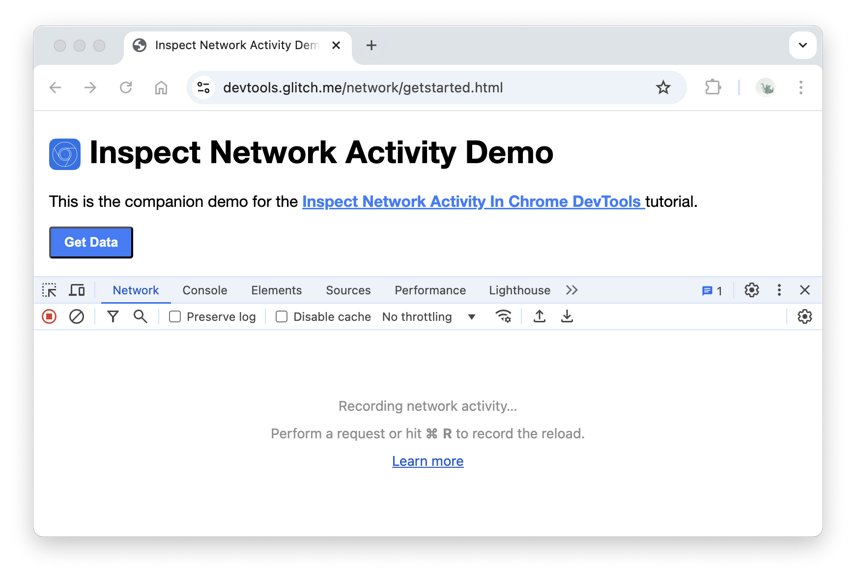
- In Chrome, press Ctrl + Shift + J to open DevTools, then click the Network tab.
- Reload the page and read the Status column. Confirm the failing request shows
500and note whether it is the page itself or one script or API call. - Click that request and open the Response tab. Look for a request ID or error reference printed by the application.
- Open your server or application error log and search for entries at the time you reproduced it.
- List every change made shortly before the errors started: updates, plugins, deployments, config edits, new environment variables.
- Undo the most recent change first and test again before touching anything else.
Where to find the error log for your server
The log is where a 500 stops being generic. The exact folder for Apache, Nginx and PHP depends on your host's configuration, so check your hosting control panel if the path is not obvious.
| Platform | Where the error detail is | What to look for |
|---|---|---|
| IIS on Windows Server | inetpub\logs\LogFiles, one folder per site, one file per day named like exYYMMDD.log |
The status code, with its substatus, on the failing request |
| IIS configuration errors | Event Viewer > Windows Logs > Application | WAS or IIS-W3SVC events, which often give the line number and XML element |
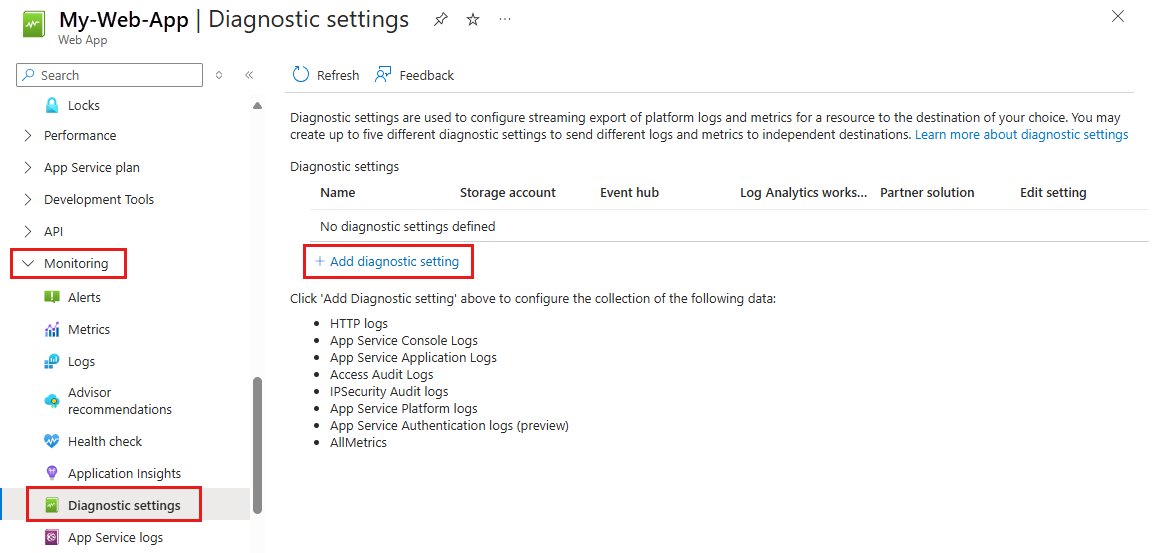
| Azure App Service | Monitoring > Log stream in the Azure portal, or /home/LogFiles (D:\home\LogFiles on Windows) |
Application logs, detailed error pages and failed request traces, once you turn them on |
| Cloudflare Workers | The Workers dashboard's logs | A JavaScript exception or CPU time limit error |
| Apache, Nginx, PHP on shared hosting | The error log listed in your hosting control panel or server config | A fatal error, permission denial or config syntax error at the failure time |
Top Causes of 500 Internal Server Errors and How to Fix Them
Match the clue in your log or recent history to a row. The first seven cover most real-world 500s.
| Cause | Typical clue | Fix |
|---|---|---|
| 1. Application code errors | An unhandled exception or stack trace in the application log | Fix or roll back the code path named in the trace |
| 2. PHP fatal errors | A “fatal error” line naming a file and line number | Correct that file, or restore the previous version of the plugin, theme or script |
| 3. Incorrect file or folder permissions | “Permission denied” in the log after an upload or migration | Give the web server's account read access to site files and folders; IIS 500.19 with 0x80070005 means IIS_IUSRS lacks read access |
| 4. Broken .htaccess rules | Errors start right after a rewrite or redirect edit | Restore the last working copy of the file and reapply the change carefully |
| 5. Plugin, theme or extension conflicts | Errors start after an install or update | Deactivate the newest one; if the admin area is down, disable it from the file system |
| 6. Server resource limits | Out-of-memory messages, or IIS 500.13 “Web server is too busy” | Raise the limit with your host, or reduce the heavy request; see the 503 guide for load |
| 7. Database connection or query failures | “Error establishing database connection”, which Cloudflare lists as a common 500 | Check the database server is running and the credentials match; contact your host if it is theirs |
| 8. Web server misconfiguration | A config syntax error, or IIS 500.19 “Configuration data is invalid” | Fix the file at the line named in the error, or restore a known-good copy |
| 9. Timeout between a proxy and upstream server | A proxy or CDN in front of an app that answers slowly or badly | Check the app behind the proxy responds on its own; a bad upstream answer is usually reported as 502 or 504 |
| 10. Corrupt or incomplete uploads and deployments | Errors start mid-deploy or after a partial file upload | Redeploy the full release; Microsoft recommends redeploying to overwrite corrupted configuration |
| 11. Bad environment variables or secrets | Errors after rotating a key or moving environments | Compare variables with the working environment and fix the missing or wrong value |
| 12. Security rules, WAFs and ModSecurity blocks | Only certain requests fail, often after a new rule | Check the security rule log for that request and correct the rule, rather than switching protection off |
| 13. Incorrect PHP, runtime or framework version | Errors after a host upgrade, or IIS 500.19 on ASP.NET Core without its Hosting Bundle | Match the runtime version to what the application supports |
| 14. Cache or opcode cache problems | Old and new code mixed after a deploy | Clear the application and server caches, then reload |
| 15. Disk space, inodes or log file problems | Writes fail, uploads fail, logs stop growing | Free space, rotate or archive large logs, and remove unused files |
What IIS 500 substatus codes tell you
IIS records a decimal substatus in its log. Microsoft documents what each one means, which turns a generic 500 into a named cause.
| Code | Meaning | What to do |
|---|---|---|
| 500.0 | Module or ISAPI error | Check the log and the module named in the detailed error |
| 500.11 | Application is shutting down | Wait for the worker process to stop, then retry; if it persists, the app is not shutting down cleanly |
| 500.12 | Application is busy restarting | Refresh the page; it should clear once the app pool restarts |
| 500.13 | Web server is too busy | Concurrent requests exceed what the app can process; check performance settings and hardware |
| 500.15 | Direct requests for Global.asax are not allowed | Remove any link that requests that file directly |
| 500.19 | Configuration data is invalid | Read the HRESULT code in the error and fix Web.config or ApplicationHost.config |
| 500.21 to 500.24 | Module not recognized, or an ASP.NET setting that does not apply in Managed Pipeline mode | Correct the module or pipeline mode setting for that app |
| 500.50 to 500.53 | URL Rewrite rule error at a named processing stage | Review the inbound or outbound rewrite rules |
| 500.100 | Internal ASP error | Check the IIS log for the ASP error number |
WordPress-Specific 500 Error Checklist
WordPress 500s usually trace back to a plugin, a theme, the rewrite file or PHP limits. Work down the list and test the site after each step.
- Back up the site files and database through your host before changing anything.
- Deactivate the plugin you installed or updated most recently, then reload the site.
- If the admin area also shows 500, open the host's file manager or SFTP and rename that plugin's folder to disable it.
- Still failing? Disable all plugins the same way, then re-enable them one at a time to find the culprit.
- Switch to a default WordPress theme to rule out a theme error.
- Restore a known-good copy of the
.htaccessfile from your backup. - Check the PHP error log for a fatal error or memory limit message, and ask your host to raise the limit if needed.
- Confirm the host's PHP version is one your WordPress version, theme and plugins support.
How to Fix a 500 Error Safely in Production
A live site needs the fix that restores service fastest with the least new risk. Roll back first, investigate second.
- Back up the current configuration files and database, even though they are broken.
- Roll back the most recent deployment or change to the last version that worked.
- If rollback is not possible, reproduce and test the fix on a staging copy first.
- Change one thing at a time and test after each change, so you know what fixed it.
- Keep detailed error pages off for visitors. Microsoft advises against sending them to clients in production; log them on the server instead.
- Watch the error log for new 500 entries for at least an hour after the fix.
- Write down the cause and fix so the next incident is faster.
How to check the 500 error is fixed
- Open the page that failed in a new Incognito window.
- Press Ctrl + Shift + J, click Network, and reload the page.
- Confirm the page request shows Status
200instead of500. - Test other pages, the admin area and any form, login or checkout that failed before.
- Check that no new 500 entries appear in the error log after the fix time.
- In Google Search Console, watch the server error reports for the affected URLs over the next days.
Google's crawlers slow down on a site that returns 500s and drop URLs that keep failing. Once pages return 200 again, Google gradually increases the crawl rate.
Fix a 500 error that keeps coming back
500 Internal Server Error on a site behind Cloudflare
Usually the origin server failed; sometimes Cloudflare itself, a Page Rule or a Worker.
- Read the error page's HTML. If it contains
cloudflareorcloudflare-nginx, the 500 came from Cloudflare. - In that case, open
https://www.example.com/cdn-cgi/traceon your own domain and copy the output. - Contact Cloudflare support with your domain, the time and time zone of the error, and that trace output.
- Otherwise, review recent Page Rules, Transform Rules or Workers changes, and check the Workers logs for exceptions.
- Pause Cloudflare temporarily to confirm whether the origin server is the source, then contact your host.
500 Internal Server Error on Nginx or Apache
The web server or the application behind it failed; the page itself holds no detail.
- Open the web server's error log at the time of the failure.
- If the log names a config file and line, fix the syntax there or restore the last working copy.
- If it points to PHP or another backend, open that backend's log next.
- Test the configuration and reload the server only after the file is corrected.
500 Internal Server Error in Postman or an API call
The API's server code failed on this request, often an unhandled exception triggered by the input.
- Read the response body for an error message or request ID.
- Resend the request with a minimal valid body to see if specific input triggers it.
- Compare headers, content type and authentication with a request that works.
- Send the request ID and time to the API owner, or find it in your server log if the API is yours.
HTTP Error 500.19 – Internal Server Error in IIS
The site's Web.config or ApplicationHost.config is invalid, locked, unreadable or references a missing module.
- Note the HRESULT code shown on the error page.
- For
0x8007000d, fix malformed XML or install the missing module, such as URL Rewrite. - For
0x80070021, unlock the section in IIS Manager > Configuration Editor > Unlock Section, if policy allows. - For
0x80070005, grant Read toIIS_IUSRSon the folder that holds the config file. - Check the section with
%windir%\system32\inetsrv\appcmd list config /section:system.webServer.
500 error on a large service such as Discord
The service's own servers are failing; nothing on your side causes it.
- Check the service's official status page or support account for an incident.
- Close and reopen the app, or reload the web version, after a few minutes.
- Try again later rather than retrying repeatedly.
When to Contact Your Hosting Provider
Cloudflare's own guidance for most 5xx errors is to start with the hosting provider or site administrator. Contact them in these cases, and send the details in the last row.
| Situation | Contact your host? | Why |
|---|---|---|
| You cannot open the error log | Yes | The host can read logs your plan does not expose |
| The log shows memory, disk or process limits | Yes | Only the host can raise plan limits |
| “Error establishing database connection” on managed hosting | Yes | The database server is usually theirs to run |
| The error started with no change on your side | Yes | A server update or outage may be the cause |
| The log names your plugin, theme or code | No, fix or roll back that first | The host cannot debug your code for you |
| What to send | The URL, the time and time zone, the log lines, and recent changes | Precise details shorten the support ticket |
How to Prevent Future 500 Errors
- Test updates, plugins and deployments on a staging copy before they reach the live site.
- Back up configuration files before any update, and snapshot virtual machines before patching, as Microsoft recommends.
- Keep application logging on so the next 500 leaves a clear trail.
- Set up an uptime check that alerts you when pages return 5xx codes.
- Watch memory, disk space and log file growth before they hit the limit.
- Keep a one-step rollback for every deployment.
- Handle errors in code so bad input returns a clear 4xx message instead of crashing into a 500.
Quick 500 Error Troubleshooting Checklist
- Visitor: reload after a minute, test another page, then report the URL and time.
- Owner: reproduce the error and confirm the
500in the DevTools Network panel. - Read the error log at the exact failure time.
- Undo the most recent change.
- Check permissions,
.htaccessorWeb.config, plugins, and the runtime version. - Check memory, disk space and the database connection.
- Verify a
200status and a clean log, then contact your host if it still fails.
Frequently Asked Questions
What does 500 Internal Server Error mean?
It means the web server hit an unexpected condition that stopped it from completing your request. It is a generic catch-all code, used when no more specific 5xx error applies, so the real cause is recorded only in the server's own logs.
Is a 500 Internal Server Error my fault?
Almost never. A 500 is a server-side error, and MDN notes that visitors seeing one need the site's owners or administrators to investigate. The most you can do is reload, try later, and report the page address and time to the site.
Why am I getting a 500 Internal Server Error?
The site's server failed while handling your request. Common reasons are a code or PHP error, a bad configuration file, wrong file permissions, an out-of-memory condition, a broken plugin, or a failed database connection. A recent update or deployment is the most frequent trigger.
What causes a 500 Internal Server Error?
The main causes are unhandled application errors, PHP fatal errors, incorrect file permissions, broken .htaccess or Web.config rules, plugin conflicts, server resource limits and database connection failures. The server's error log names which one applies to a specific incident.
How do I fix a 500 Internal Server Error?
As a visitor, reload after a minute and report the problem if it continues. As the site owner, open the error log at the failure time, undo the most recent change, and then work through permissions, configuration files, plugins, resource limits and the database connection.
How do I clear a 500 Internal Server Error?
A visitor cannot clear a true 500, because it is generated on the server. Reloading helps when the server was briefly restarting. Deleting the site's cookies in your browser helps only in rare cases where the page fails for you but works in a private window.
How do I test for a 500 Internal Server Error?
Open Chrome DevTools with Ctrl + Shift + J, click the Network tab and reload the page. The Status column shows each request's HTTP code, so you can see whether the page itself or one script or API call returns 500.
Why do we get a 500 Internal Server Error on an API?
The API's server code failed while processing the request, often through an unhandled exception caused by unexpected input. Check the response body for a request ID, compare the failing request with a working one, and check the API server's log for that time.
Does a 500 error hurt my site's Google ranking?
It can if it lasts. Google slows crawling in proportion to how many URLs return server errors, ignores content served with a 5xx code, and eventually drops URLs that keep failing. Crawling picks up gradually once pages return 200 again.
What is the difference between a 500 and a 503 error?
A 500 is a generic failure with no more specific explanation. A 503 means the server is temporarily overloaded or down for maintenance and should recover after a delay. The 503 fixes, such as waiting out maintenance or reducing load, are covered in a separate guide.




![Java JRE latest version: Download & Install [32-bit, 64-bit]](https://techdows.com/wp-content/uploads/2026/10/Java-JRE-latest-version-Download-Install-32-bit-64-bit-1-600x338.jpg)
How to Fix the “Unable to Connect to EA Servers” Error on Windows - Techdows
[…] faults work like a website's 500 Internal Server Error: nothing on your PC fixes them, so waiting is the […]
Lost in the web? Decode the mysterious 404 error and find your way back - Techdows
[…] number tells you who has to act. A 404 points at the address; a 5xx server error points at the server; a 403 points at your […]