Press Windows logo key + E to open File Explorer in Windows 10, pick a location in the navigation pane on the left, and use the ribbon tabs at the top to copy, move, share or change how your files are shown.
This walkthrough covers every main feature of the Windows 10 File Explorer, the full keyboard shortcut list, Google Drive in the navigation pane, and fixes for freezing, ISO mounting and Explorer windows that keep popping up.
How to open File Explorer in Windows 10
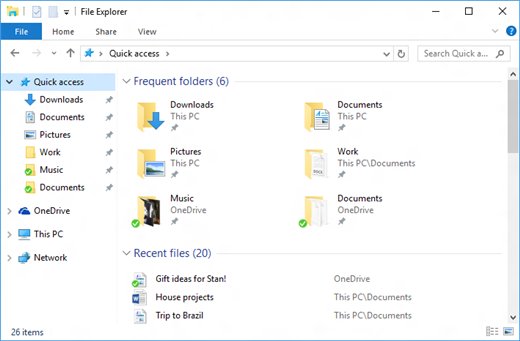
Every route below opens the same window, which lands on Quick access by default.
- Press Windows logo key + E from anywhere in Windows 10.
- Or select the folder icon labelled File Explorer on the taskbar.
- Or open the Start menu and select File Explorer.
- Or right-click Start and select File Explorer.
- Press Ctrl + N inside File Explorer when you want a second window.
Features and uses of Explorer in Windows 10
File Explorer is the built-in Windows 10 app for browsing, opening and organising the files and folders on your PC, on OneDrive and on network locations.
| Feature | What you use it for | Where to find it |
|---|---|---|
| Quick access | Pinned folders, frequently used folders and recently used files on one page | Top of the navigation pane; File Explorer opens here |
| This PC | Every drive and device on the computer, with free and total space | Navigation pane |
| OneDrive | Cloud files that sit in File Explorer like local folders | Navigation pane |
| Libraries | Collections of folders shown as one place | Hidden by default; View tab > Navigation pane > Show libraries |
| Network | Shared folders and other computers on your network | Navigation pane |
| Share | Send selected files to another app | Share tab on the ribbon |
| Search | Find a file by name or by a word inside it | Search box at the top right, or Ctrl + E |
| Preview pane | See a file's contents without opening it | Alt + P |
| Disc images | Open an ISO file as a virtual drive | Right-click the ISO file > Mount |
| Folder Options | Start page, privacy, file extensions and hidden items | View tab > Options |
Windows 10 support ended on October 14, 2025, so File Explorer on Windows 10 no longer receives fixes or new features.
Windows 10 File Explorer explained: ribbon, navigation pane and status bar
| Part | Where it sits | What it does | Keyboard access |
|---|---|---|---|
| Ribbon tabs | Top of the window | Tools for copying, moving, deleting and sharing files | Press Alt, then the arrow keys to move between tabs |
| Toolbar | Left of the address bar | Back, Forward, Recent locations and Up buttons | Alt + Left arrow, Alt + Right arrow, Alt + Up arrow |
| Address bar | Below the ribbon | Shows the current path and accepts a typed one | Alt + D, or F4 for the address bar list |
| Search box | Right of the address bar | Searches the folder or drive you have open | Ctrl + E, Ctrl + F or F3 |
| Navigation pane | Left side | Lists folders, drives, OneDrive and network locations | F6 cycles to it |
| Content pane | Centre | Lists the files and folders in the current location; sort buttons appear in Details view | Arrow keys, Home, End |
| Status bar | Bottom of the window | Buttons for changing the view mode | Ctrl + mouse scroll wheel also resizes icons |
How to pin folders to Quick access in Windows 10
Quick access keeps the folders you use every day one click away. You can also turn Quick access on or off if you prefer a plainer start page.
- Right-click the folder you want to keep handy, or press and hold it on a touch screen.
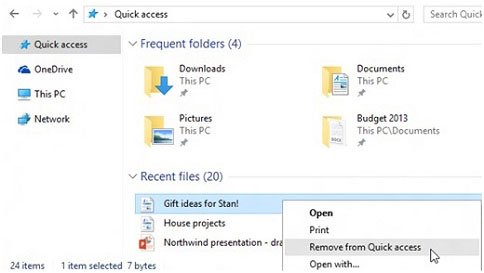
- Select Pin to Quick access; the folder now sits under Quick access in the navigation pane.
- To remove a pinned folder, right-click it and select Unpin from Quick access.
- To drop a recent file from the list, right-click it and select Remove from Quick access; it will not come back there, even if you open it daily.
- To show only pinned folders, select the View tab, then Options.
- Under Privacy, clear the check boxes for recently used files and frequently used folders, then select Apply.
Turning those two check boxes back on later can bring back items you removed earlier.
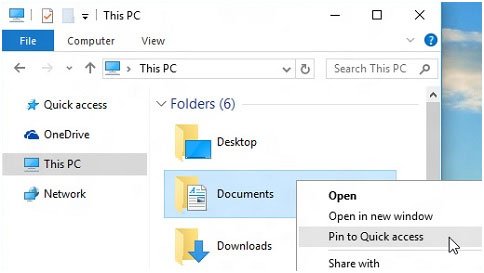
How to make File Explorer open to This PC in Windows 10
Start on This PC instead of Quick access if you mostly work with drives rather than recent files.
- Open File Explorer.
- Select the View tab on the ribbon.
- Select Options.
- In the Open File Explorer to: list, choose This PC.
- Select Apply, then OK.
How to use File Explorer search in Windows 10
File Explorer searches the location you have open, so start from the narrowest folder that holds the file.
- Open File Explorer from the taskbar, or right-click Start and select File Explorer.
- Select This PC in the left pane to search every drive, or Documents to search only the files stored there.
- Select the search box, or press Ctrl + E, Ctrl + F or F3.
- Type the file name or a word from inside the document; results appear in the content pane.
- Double-click a result to open it.
For a quicker search across the PC and OneDrive, type the document name or a keyword into the Windows Search box on the taskbar and open it from Best match.
How to copy, move, rename and delete files in Windows 10 File Explorer
The keyboard is the fastest way to manage files, and the same commands sit on the ribbon tabs.
- Select a file, or press Ctrl + A to select everything in the folder.
- Press Ctrl + C to copy it, or Ctrl + X to cut it for a move.
- Open the destination folder and press Ctrl + V to paste.
- To rename, select the item, press F2, type the new name and press Enter.
- To delete, press Delete or Ctrl + D; the item moves to the Recycle Bin.
- Press Shift + Delete only when you want to delete the item without moving it to the Recycle Bin first.
- Press Ctrl + Z to undo the last action, or Ctrl + Y to redo it.
Press Ctrl + Shift + N to create a new folder in the current location.
How to show file extensions and hidden files in Windows 10
Extensions such as .docx or .exe show what a file really is, and hidden items include app data folders that Windows keeps out of sight.
- Open File Explorer and select the View tab.
- Select Options, then Change folder and search options.
- Select the View tab in the Folder Options window.
- Under Advanced settings, clear Hide extensions for known file types.
- Select Show hidden files, folders, and drives.
- Select Use check boxes to select items if you want tick boxes for easier multi-selection.
- Select OK.
How to use the preview pane and Details view in Windows 10 File Explorer
- Select a file and press Alt + P to display the preview pane on the right.
- Use the view buttons on the status bar at the bottom of the window to switch to Details view.
- In Details view, select a column's sort button, such as the name or date column, to sort by it; select it again to reverse the order.
- Hold Ctrl and turn the mouse scroll wheel to change the size and appearance of file and folder icons.
- Press Ctrl + Shift + E to display all folders above the selected folder in the navigation pane.
- Press F11 to maximise or minimise the window.
How to share files from File Explorer in Windows 10
- Open the folder that holds the files.
- Select the file, or hold Ctrl and select several.
- Select the Share tab on the ribbon.
- Select the Share button.
- Choose the app you want to send the files with and follow its prompts.
Files stored in OneDrive can also be shared from the OneDrive folder in the navigation pane.
How to show libraries in File Explorer on Windows 10
Libraries are hidden in the Windows 10 navigation pane by default.
- Open File Explorer.
- Select the View tab.
- Select Navigation pane.
- Select Show libraries; Libraries now appear in the navigation pane.
Repeat the same steps and clear Show libraries to hide them again.
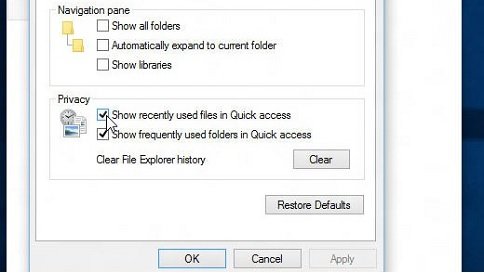
File Explorer keyboard shortcuts in Windows 10
These are the shortcuts Microsoft lists for File Explorer and general file handling in Windows 10.
| Shortcut | What it does |
|---|---|
| Windows logo key + E | Open File Explorer |
| Ctrl + N | Open a new window |
| Ctrl + W | Close the active window |
| Alt + D | Select the address bar |
| F4 | Display the address bar list |
| Ctrl + E, Ctrl + F or F3 | Select the search box |
| Ctrl + Shift + N | Create a new folder |
| F2 | Rename the selected item |
| F5 | Refresh the active window |
| F6 | Cycle through screen elements in the window |
| Alt + Enter | Display properties for the selected item |
| Alt + P | Display the preview pane |
| Alt + Left arrow or Backspace | View the previous folder |
| Alt + Right arrow | View the next folder |
| Alt + Up arrow | View the folder that the folder was in |
| Ctrl + Shift + E | Display all folders above the selected folder |
| Num Lock + asterisk (*) | Display all subfolders under the selected folder |
| Num Lock + plus (+) | Display the contents of the selected folder |
| Num Lock + minus (-) | Collapse the selected folder |
| Home / End | Jump to the top or bottom of the window |
| Shift + F10 | Open the context menu for the selected item |
| Shift + Delete | Delete without moving to the Recycle Bin |
How to add Google Drive to File Explorer navigation pane in Windows 10 and 11
Google Drive for desktop adds your Drive to File Explorer as a drive, and pinning its My Drive folder puts it at the top of the navigation pane.
- Get Google Drive for desktop from Google's Drive help page, open GoogleDriveSetup.exe and follow the prompts.
- Open Google Drive for desktop, select Get started, then Sign in with your Google account.
- Open File Explorer; Google Drive appears as a drive under This PC, using G: by default.
- Open the Google Drive folder to see My Drive, Shared drives and other synced folders.
- Right-click My Drive and select Pin to Quick access; it now sits in the navigation pane under Quick access.
To choose between streaming and mirroring, open the Drive for desktop menu in the system tray and go to Settings > Preferences > Folders from Drive. Streaming takes almost no disk space; mirroring keeps a full copy on your PC.
Drive for desktop signs in up to four Google accounts at once. Work or school accounts may need your organisation to install the app.
Can you use Windows 10 File Explorer in Windows 11?
Windows 11 replaces the Windows 10 ribbon, and the Windows 10 right-click commands sit under Show more options. Press Shift + right-click to open that classic menu straight away.
| Feature | Windows 10 | Windows 11 |
|---|---|---|
| Commands | Ribbon tabs such as Share and View | A row of buttons below the toolbar; Cut, Copy, Paste, Rename, Share and Delete at the top of the right-click menu |
| Start page | Quick access | Home |
| Tabs | None; Ctrl + W closes the window | Ctrl + T opens a tab, Ctrl + W closes it |
| File extensions and hidden items | View > Options > Change folder and search options | View > Show |
| Navigation pane switch | View tab > Navigation pane | View > Show > Navigation pane |
| Updates | Support ended October 14, 2025 | Still supported |
After an upgrade, File Explorer in Windows 11 opens on Home and adds tabs, so a few routines change.
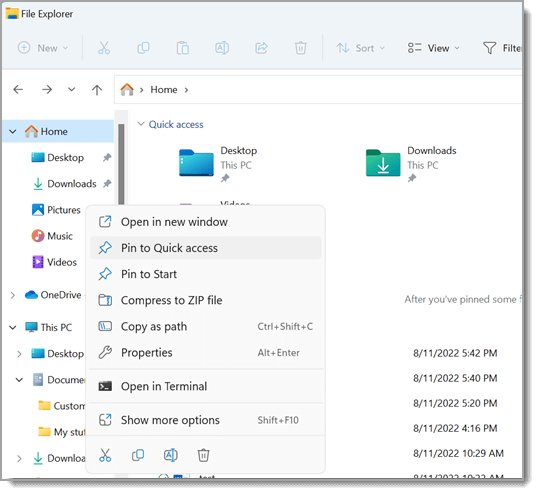
How to fix File Explorer not responding in Windows 10
Work through these in order; most File Explorer freezes and crashes clear at the first or second fix.
File Explorer is frozen or the taskbar stopped responding
The Windows Explorer process has hung.
- Press Ctrl + Shift + Esc to open Task Manager.
- On the Processes tab, right-click Windows Explorer and select End task.
- Select File > Run new task, type
explorer.exeand press Enter.
File Explorer will not open at all
A pending update or a session that needs a restart.
- Select Start > Settings > Update & Security > Windows Update.
- Select Check for updates and install what is offered.
- Restart the PC even if no update asks for it, so pending updates finish.
File Explorer is slow or keeps crashing
Low virtual memory or a full system drive.
- Search the taskbar for Control Panel, then open System and Security > System > Advanced system settings.
- On the Advanced tab, under Performance, select Settings, then the Advanced tab.
- Set Adjust for best performance of to Programs.
- Under Virtual memory, select Change and tick Automatically manage paging file size for all drives, then select OK and Apply and restart.
- Search the taskbar for disk cleanup, open Disk Cleanup, pick a drive, tick the file types to delete and select OK.
File Explorer still crashes after updates and a restart
Damaged system files or a maintenance problem.
- In Control Panel, set View by to Large icons, then select Troubleshooting > View all > System Maintenance and follow the prompts.
- Type
cmdin the taskbar search box, right-click Command Prompt, select Run as administrator and runDISM.exe /Online /Cleanup-image /Restorehealth. - Run
sfc /scannowin the same window and leave it open until the scan finishes. - Restart the PC and open File Explorer again.
"Windows Resource Protection found corrupt files and successfully repaired them" means the repair did its job. The Get Help app and Microsoft Support offer more File Explorer help options when these fixes are not enough.
File Explorer freezes when mounting ISO in Windows 10 and 11
Double-clicking an ISO, or right-clicking it and selecting Mount, attaches it as a virtual drive. When Explorer hangs at that point, these fixes get the image open.
File Explorer stops responding after you open an ISO
Explorer hung while attaching the image.
- Restart Windows Explorer from Task Manager: End task on Windows Explorer, then File > Run new task >
explorer.exe. - Select Start, type
PowerShelland open Windows PowerShell. - Run
Mount-DiskImage -ImagePath "C:\ISO\file.iso"with the full path to your ISO. - Open This PC; the mounted image appears as a new drive. ISO files always mount read-only.
Mount is missing, or the ISO opens in another app
Another program took over the .iso file type.
- Right-click the ISO file and select Properties.
- On the General tab, select Change next to Opens with.
- Select Windows Explorer, then OK.
- Right-click the ISO again and select Mount.
"The process cannot access the file because it is being used by another process"
The image is already mounted.
- Open Windows PowerShell.
- Run
Dismount-DiskImage -ImagePath "C:\ISO\file.iso"with the same path. - Mount the image again from File Explorer or with
Mount-DiskImage.
If every ISO freezes Explorer, run the DISM and sfc /scannow repair from the section above.
Explorer keeps popping up in Windows 10 and 11 [Fix]
A File Explorer window opens every time you connect a USB drive, phone or memory card
AutoPlay is set to open the device's folder.
- Press Windows logo key + R.
- Type
ms-settings:autoplayand press Enter. - Turn the AutoPlay switch off, or pick a different default action for that device.
File Explorer opens on its own after you sign in
An app set to run at startup is opening a folder.
- Select Start > Settings > Apps > Startup.
- Turn off any app you do not recognise or do not need at sign-in.
- Restart the PC and check whether the window still appears.
Explorer windows keep reopening or the screen flashes
Explorer is crashing and restarting, often because of damaged system files or a missing update.
- Install updates from Settings > Update & Security > Windows Update and restart.
- Run
DISM.exe /Online /Cleanup-image /Restorehealthand thensfc /scannowfrom an administrator Command Prompt. - Restart the PC once both commands finish.
Windows 10 File Explorer FAQ
What is Windows File Explorer?
File Explorer is the built-in Windows app for browsing and managing files and folders. It shows your drives, OneDrive and network locations, and lets you open, copy, move, rename, share and delete files from one window.
What is File Explorer used for?
File Explorer is used to find, open and organise files. You can create folders, move files between drives, search by name or by a word inside a file, preview files and choose which folders appear in Quick access.
How do I get to File Explorer in Windows 10?
Press Windows logo key + E, select the File Explorer icon on the taskbar, or right-click Start and select File Explorer. Each route opens the same window on Quick access unless you changed it to open on This PC.
How do I get File Explorer to work again?
Open Task Manager with Ctrl + Shift + Esc, end the Windows Explorer task, then run explorer.exe from File > Run new task. If it still fails, install updates, restart, and run DISM followed by sfc /scannow.
Does Windows 10 File Explorer have tabs?
No. Tabs are a Windows 11 File Explorer feature, opened with Ctrl + T. In Windows 10, Ctrl + N opens a second window instead, and Ctrl + W closes the active window.
How do I use Windows File Explorer search?
Open the folder or drive you want to search, select the search box or press Ctrl + E, and type a file name or a word from the document. Select This PC first to search every drive.
How does File Explorer work in Windows?
The navigation pane on the left lists your main locations, the content pane in the centre shows what is inside the selected one, and the ribbon or command bar at the top holds the actions you can take on selected files.
Where can I get help with File Explorer in Windows 10?
Open Start, type Get Help and open the app to describe the problem and get guided fixes. Microsoft's File Explorer articles on support.microsoft.com still include Windows 10 steps, although Windows 10 support ended on October 14, 2025.
Why does File Explorer say a file is in use?
Another program still has the file open, so Windows blocks moving, renaming or deleting it. Close that program and try again; if File Explorer itself holds the file, restart Windows Explorer from Task Manager.