DisplayFusion is a multi-monitor tool for Windows 10 and Windows 11 from Binary Fortress Software: install it from Steam or the vendor's 30-day trial, then set up your monitors before you touch anything else.
The sections below cover installation, the first configuration, each main feature, the license options, compatibility, workflows, fixes and the alternatives already on your PC.
How to install DisplayFusion on Windows (verified steps)
DisplayFusion runs on Windows 10 and Windows 11. It is sold on Steam, and a 30-day trial of DisplayFusion Pro is on the download page of the Binary Fortress website.
- Open the DisplayFusion page on Steam.
- Choose Buy DisplayFusion for one license or Buy DisplayFusion 4-pack for four.
- Complete the purchase and install DisplayFusion from your Steam library.
- Launch DisplayFusion from within Steam the first time, which replaces any existing Pro trial automatically.
Skip the purchase if you want to try it first and take the 30-day Pro trial from the vendor's site instead. Steam Deck, SteamOS and Linux, including Proton and Wine, are not supported.
What is DisplayFusion used for?
| Detail | Answer |
|---|---|
| Developer and publisher | Binary Fortress Software |
| On Steam since | March 29, 2013 |
| Windows versions | Windows 10 and Windows 11 |
| Monitor limit | As many monitors as you can connect to the PC |
| Multi-panel graphics | Features also work when AMD Eyefinity or NVIDIA Surround is enabled |
| Languages | Over 40 languages |
| Main job | Adds taskbars, wallpapers, hotkeys, title bar buttons, window positioning and automation across monitors |
First configuration: get displays and profiles right
Get Windows arranged first, because every DisplayFusion feature builds on the layout Windows reports. Connect your screens and set a different scaling level per monitor before you begin.
- Open Settings > System > Display and select Identify to number each screen.
- Drag the displays to match your desk, then select Apply.
- Press Win + P and select Extend so the desktop spans them.
- In DisplayFusion, open Monitor Configuration and set resolution, color depth, refresh rate and orientation.
- Save the result as a Monitor Profile.
- Assign the profile to a key combination or a TitleBar Button so you can load it later.
- Link a Wallpaper Profile to it so the wallpaper changes with the monitors you have connected.
Key features explained (what you’ll actually use)
Start with the row that matches your problem, then read that feature's section below.
| If you want | Use this feature |
|---|---|
| A taskbar on every monitor that shows only that monitor's windows | Multi-Monitor Taskbars |
| Wallpaper images fitted across your monitors | Multi-Monitor Wallpaper |
| An ultrawide treated as several screens | Monitor Splitting |
| One key or button that moves a window | Functions, TitleBar Buttons and hotkeys |
| Windows that rearrange themselves when something happens | Triggers and Scripted Functions |
| Saved window arrangements | Window Position Profiles |
| Control from a phone or tablet | Remote Control |
Multi-monitor taskbars
Windows 11 can already show a taskbar on every display. Right-click the taskbar, select Taskbar settings, expand Taskbar behaviors and select Show my taskbar on all displays. DisplayFusion's version adds per-monitor control.
| Option | What it lets you do |
|---|---|
| Window list | Show all windows on each taskbar, or only the windows on that monitor |
| Button handling | Use button grouping, auto-hide and window previews |
| Pinned apps | Give each taskbar its own custom set of shortcuts |
| Layout | Change the position of the Start button, taskbar buttons and the clock and system tray |
| Jump Lists | Assign Functions to Jump List menus, so they run even on minimized apps |
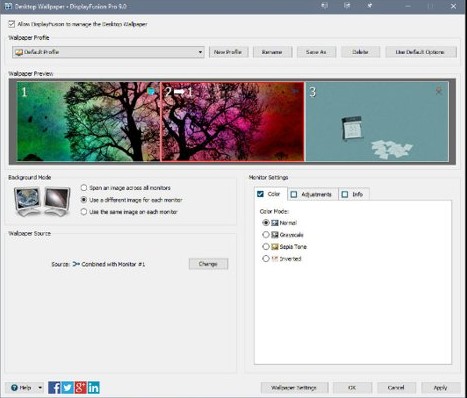
Wallpaper management
| Task | What DisplayFusion offers |
|---|---|
| Find images | Online sources including WallpaperFusion, Flickr, InterfaceLIFT and Vladstudio |
| Fit images | Tile, stretch, scale, crop and position each image |
| Adjust images | Tint an image to suit your desktop |
| Switch sets | Link a Wallpaper Profile with a Monitor Profile, so wallpaper follows the monitors you have connected |
| Split screens | Give each split its own wallpaper |
Monitor splitting (virtual monitors)
Monitor Splitting divides one monitor into several virtual monitors, and it works with NVIDIA Surround and AMD Eyefinity. It suits a very wide screen you want to treat as separate displays.
| Behavior | What happens |
|---|---|
| Maximizing | Non-full screen apps maximize to the size of the split, not the whole panel |
| Per-split settings | Each split can have its own taskbar, wallpaper, Trigger rules, Functions and screen saver |
| Moving windows | Functions such as Move to Next Monitor treat each split as a separate monitor |
| Bezels | Bezel compensation keeps windows from disappearing behind the frames on ATI and NVIDIA setups |
Window snapping, Functions & HotKeys
DisplayFusion ships with over 30 pre-configured Functions, and you can create your own to load profiles, move windows, change window opacity or toggle features. Window snapping is also included.
- Open the Functions list in DisplayFusion.
- Pick a pre-configured Function such as Move to Next Monitor, or create a custom one.
- Assign it a key combination if you prefer the keyboard.
- Assign it to a TitleBar Button if you prefer the mouse.
- Press the key or select the button on a test window before you rely on it.
Triggers & automation
Triggers listen for an event, then run a preset command or a custom script. Scripted Functions, or macros, are written in C# inside DisplayFusion and can go well beyond moving a window.
| Trigger event | Example use |
|---|---|
| Window creation | Move a new app window to the monitor you keep it on |
| Window focus | Run a command when you switch to a particular app |
| Desktop unlock | Load a saved profile when you sit back down |
| System idle | Run a preset command while the PC is not in use |
Remote control (mobile)
Remote Control runs DisplayFusion actions from a phone or tablet, which suits a PC you are not sitting directly in front of.
| Action from your phone | Useful when |
|---|---|
| Change the wallpaper | You want a new look without opening settings |
| Move windows around | An app is on the wrong screen during a presentation or stream |
| Enable or disable monitors | You want a screen off without reaching for it |
| Run a scripted Function | One tap should run a whole saved set of actions |
Mouse management & monitor fading
| Need | Tool | What it does |
|---|---|---|
| Less distraction from other screens | DisplayFusion Monitor Fading | Automatically dims unused monitors and application windows |
| DisplayFusion's own mouse options | The manual linked from its Steam page | The place to check current mouse settings before you buy |
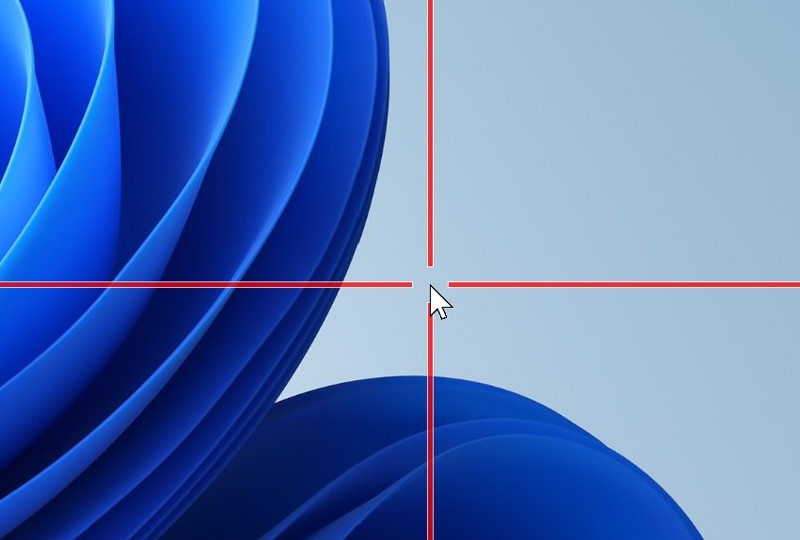
| Find or jump the pointer across screens | PowerToys Mouse utilities | Free Microsoft tools including Find My Mouse, Jump and Crosshairs |
Alt+Tab handler, desktop icon profiles
| Feature | What it does | Windows built-in equivalent |
|---|---|---|
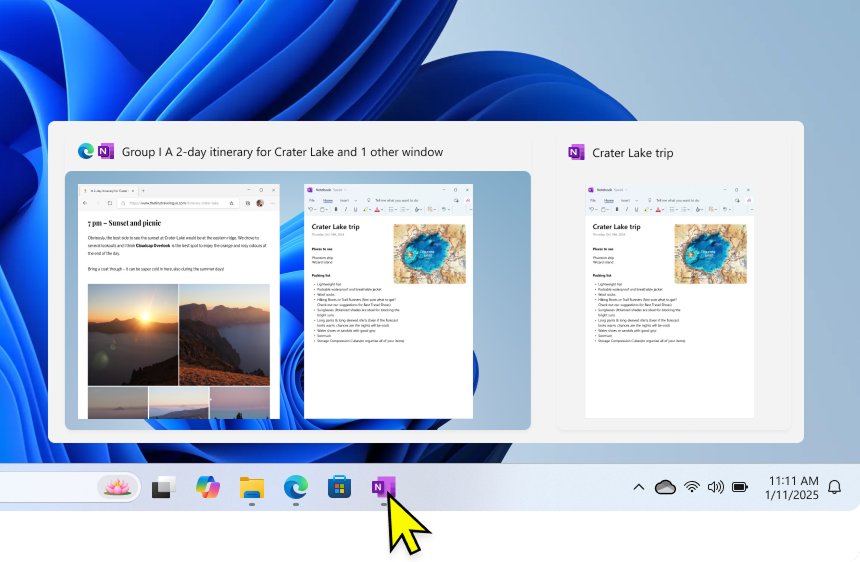
| Alt+Tab replacement | Replaces the standard window switcher | Alt + Tab switches windows and shows Snap groups |
| Desktop icon layout | Saves and restores where your desktop icons sit | No documented Windows setting does this |
| Window Position Profiles | Saves and loads window sizes and positions in preset arrangements | Snap groups restore windows you snapped together |
Free vs Pro: what you get and when to upgrade
Steam sells DisplayFusion Pro with a lifetime license, covering future updates and new major versions at no extra cost. The store page does not list a Free feature set, so use the vendor's own site to compare editions before you pay.
| Your situation | Choose | Why |
|---|---|---|
| You are unsure the features fit your setup | 30-day Pro trial from the vendor's download page | You test Pro on your own monitors first |
| You have decided and use one PC | Buy DisplayFusion on Steam, $39.99 in the US | One payment and no charge for later versions |
| You run several PCs | Buy DisplayFusion 4-pack on Steam, $99.99 in the US | Covers four licenses in one purchase |
| You only need a taskbar on each display or simple tiling | Stay with Windows and PowerToys | Both are already free |
Performance, compatibility and resource usage — what to expect
Binary Fortress publishes no CPU or memory figure on its store page, so measure it on your own PC. Press Ctrl + Shift + Esc, select Processes and look for DisplayFusion while your usual features are on.
| Area | What to expect |
|---|---|
| Operating system | Windows 10 and Windows 11 |
| Unsupported platforms | Steam Deck, SteamOS and Linux, including Proton and Wine |
| Multi-panel graphics | Works when AMD Eyefinity or NVIDIA Surround is enabled |
| Scaling | Set Windows scaling first, so DisplayFusion works from the layout you intend to keep |
| Resource use | Depends on what you turn on, so test with your own Triggers, scripts and wallpaper sources running |
Pro tips and advanced workflows
| Goal | Combine | How it works |
|---|---|---|
| Dock and undock a laptop cleanly | Monitor Profile, Wallpaper Profile and a hotkey | One key loads the monitor settings and the matching wallpaper |
| Return to a known window arrangement | Window Position Profile and a TitleBar Button | One click puts your apps back where you saved them |
| Treat an ultrawide as two screens | Monitor Splitting and per-split taskbars | Maximized apps fill only their half, with their own window list |
| Automate a daily set of apps | Window creation Trigger and a custom Function | New windows move to their usual monitor on their own |
| Run a whole routine from your phone | Scripted Function and Remote Control | One tap runs the complete set of actions |
| Reduce glare during focused work | Monitor Fading | Unused monitors and windows dim automatically |
Troubleshooting and risks
Scripted Functions and Triggers run custom code and act automatically, so read any script before you add it and test each Trigger on one window first.
Windows disappear behind monitor bezels
ATI and NVIDIA bezel compensation hides part of the desktop behind the frames between panels.
- Open the Monitor Splitting options in DisplayFusion.
- Set DisplayFusion's bezel compensation to match your ATI or NVIDIA configuration.
- Move a window across the gap to check the result.
A maximized app fills only part of a monitor
Monitor Splitting is active, and non-full screen apps maximize to the size of the split.
- Open the Monitor Splitting options in DisplayFusion.
- Remove or resize the split on that monitor.
- Maximize the app again.
A monitor is not listed
Windows has to detect the display before other software can use it.
- Open Settings > System > Display > Multiple displays.
- Select Detect.
- Reopen DisplayFusion and check its Monitor Configuration.
Other monitors dim while you work
Monitor Fading dims unused monitors and application windows automatically.
- Turn off Monitor Fading in DisplayFusion.
- Check whether a Trigger or hotkey is turning it back on.
The Pro trial still shows after buying on Steam
The Steam version replaces the trial the first time you launch it from within Steam.
- Close DisplayFusion.
- Open your Steam library and launch DisplayFusion from there.
DisplayFusion vs PowerToys FancyZones
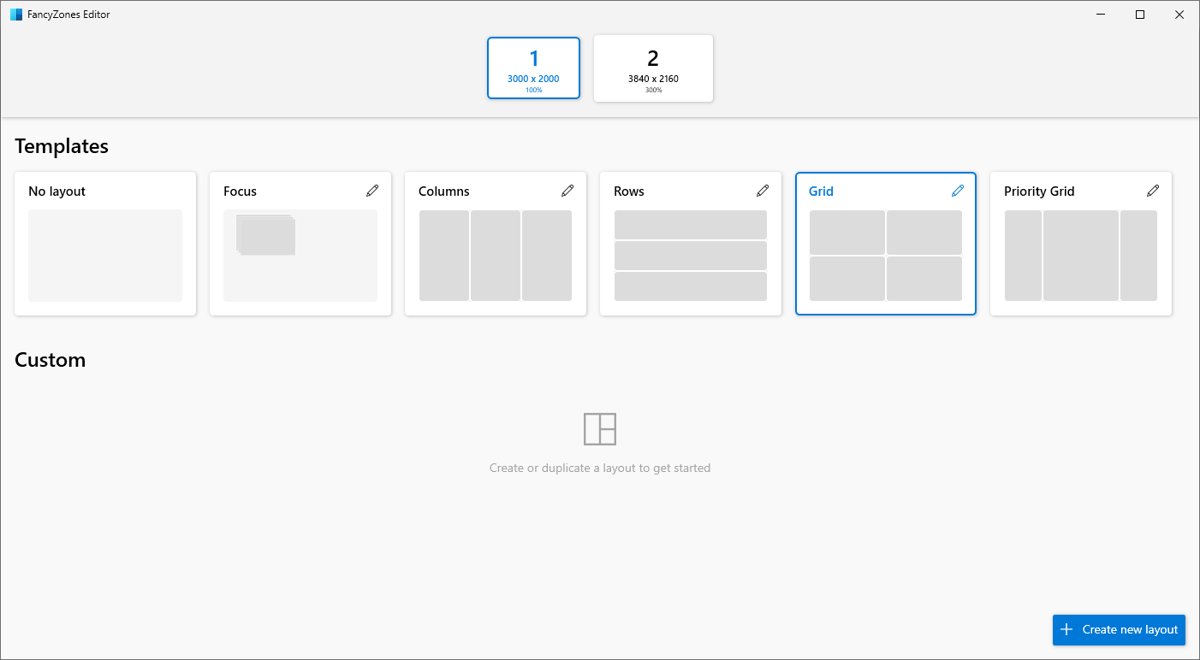
These tools overlap only on window placement. FancyZones is the free choice for layouts, and DisplayFusion covers the rest of the multi-monitor desktop.
| Need | DisplayFusion | PowerToys |
|---|---|---|
| Price | Paid on Steam, with a 30-day Pro trial | Free and open source |
| Custom window zones | Window snapping and Window Position Profiles | FancyZones with Grid and Canvas layouts |
| Saved sets of apps | Window Position Profiles arrange windows | Workspaces launches apps into saved positions |
| Taskbar on each monitor | Yes, with per-monitor window lists | Not a PowerToys utility |
| Per-monitor wallpaper tools | Yes, with online sources and tinting | Not a PowerToys utility |
| Splitting one monitor | Yes, as virtual monitors | Zones only, not virtual monitors |
| Event-driven automation | Triggers and C# scripts | Not a FancyZones feature |
| Dimming or brightness | Monitor Fading dims unused screens | Power Display controls external monitor brightness and contrast |
Alternatives and when not to use DisplayFusion
Check what you already have before you buy. The Windows display settings handle resolution and scaling, and you can manage multiple monitors with PowerToys at no cost.
| Your situation | Use this instead | Why |
|---|---|---|
| You only want a taskbar on each screen | Show my taskbar on all displays in Taskbar settings | Built into Windows 11 |
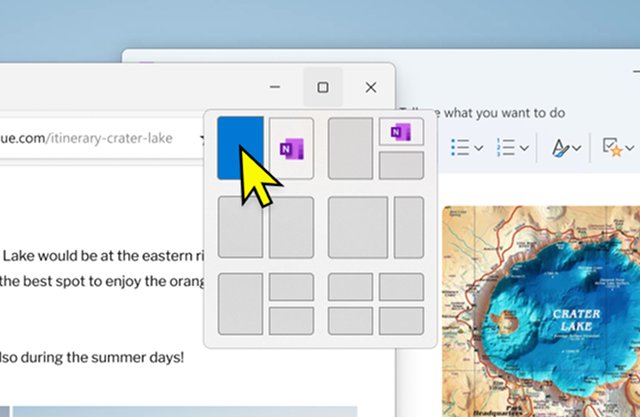
| You want windows side by side | Snap layouts with Win + Z | Built into Windows 11 |
| You want custom window zones | PowerToys FancyZones | Free, and made by Microsoft |
| You move windows between monitors now and then | Win + Shift + Left or Win + Shift + Right | Needs no software at all |
| You use Steam Deck, SteamOS or Linux | A tool made for that platform | DisplayFusion does not support them |
DisplayFusion FAQ
Does DisplayFusion work on Windows 11?
Yes. Its system requirements list Windows 10 and Windows 11, and its feature list includes Windows 10 and Windows 11 tweaks. It is not supported on Steam Deck, SteamOS or Linux, including Proton and Wine.
How much does DisplayFusion cost?
Steam lists DisplayFusion at $39.99 and the DisplayFusion 4-pack at $99.99 in the US. Prices vary by region, and Steam can change them. The license is a one-time lifetime purchase covering future updates and new major versions.
Is there a DisplayFusion trial?
Yes. A 30-day trial of DisplayFusion Pro is on the download page of the Binary Fortress website. If you later buy the Steam version, it replaces the trial the first time you launch it from within Steam.
Does DisplayFusion work with NVIDIA Surround and AMD Eyefinity?
Yes. Binary Fortress says its features work when AMD Eyefinity or NVIDIA Surround is enabled, and that Monitor Splitting works with both. Bezel compensation also keeps windows from disappearing behind the frames between panels.
How many monitors does DisplayFusion support?
Binary Fortress says DisplayFusion supports as many monitors as you can connect to your computer. Monitor Splitting can also divide one physical monitor into several virtual monitors, and each split can have its own taskbar and wallpaper.
Can DisplayFusion be controlled from a phone?
Yes. Remote Control lets you change wallpaper, move windows and enable or disable monitors from a phone or tablet. It also supports scripted functions, so one tap can run a complete saved set of actions.
Can DisplayFusion save window positions?
Yes. Window Position Profiles save and load window sizes and positions, so you can return to a preset arrangement quickly. Monitor Profiles do the same job for resolution, color depth, refresh rate and orientation.
Final assessment — strengths and what to watch
Take the 30-day Pro trial if you run two or more monitors and want taskbars, wallpaper control, splitting and automation in one tool. Its strengths are the depth of per-monitor control and a one-time license. Watch the overlap with free Windows and PowerToys features, and test your own Triggers and scripts before you rely on them.