The Steam folder on Windows 10 is at C:\Program Files (x86)\Steam by default, and installed games sit in its steamapps\common subfolder.
This guide shows how to reach it when Steam lives somewhere else, using Windows search, the Steam Library, a game install and PowerShell, and explains what each subfolder holds.
Where is the Steam folder on Windows 10?
Valve lists C:\Program Files (x86)\Steam\ as the default installation location. The Run dialog takes you straight there.
- Right-click Start and select Run.
- Type
C:\Program Files (x86)\Steamin the box. - Press Enter to open the folder in File Explorer.
- Look for
steam.exeand thesteamappsanduserdatafolders, which confirm this is the Steam install folder.
If Windows reports that it cannot find the path, Steam was installed or moved somewhere else. Use one of the routes below to track it down.
Ways to find the Steam folder on Windows 10
The right route depends on what you already have in front of you. Match your situation to a row.
| Your situation | Use this | What it finds |
|---|---|---|
| Steam is in the default location | Run dialog with the default path | The Steam install folder |
| Steam is on the Start menu but the default path fails | Windows search, then Open file location | The folder that holds steam.exe |
| You want the files for one game | Properties > Installed Files > Browse in your Steam Library | That game's main install folder |
| No game is installed yet | The install dialog for any game you own | Your Steam Library folders |
| You want to see which drives hold games | Steam > Settings > Storage | Your default drive and every other library drive |
| Steam has no shortcut and will not open | File Explorer search or PowerShell | Every copy of steam.exe on a drive |
Windows search
The search box on the taskbar finds the Steam app by name, and you can use Windows Search to open the location behind any result. On a normal install, the first result is a Start menu shortcut, so this route takes two jumps.
- Select the search box on the taskbar and type
Steam. - Under Best match, right-click Steam.
- Select Open file location.
- In the File Explorer window that opens, right-click the Steam shortcut.
- Select Open file location again.
- Check that the new window shows
steam.exe. That window is the Steam folder.
Steam Library
Every game's properties include a button that opens its install folder. That folder sits inside steamapps\common, so its path also tells you where the Steam Library is.
- Open Steam and select Library.
- Right-click an installed game, or click the gear icon on the far right of the game's Library page.
- Select Properties.
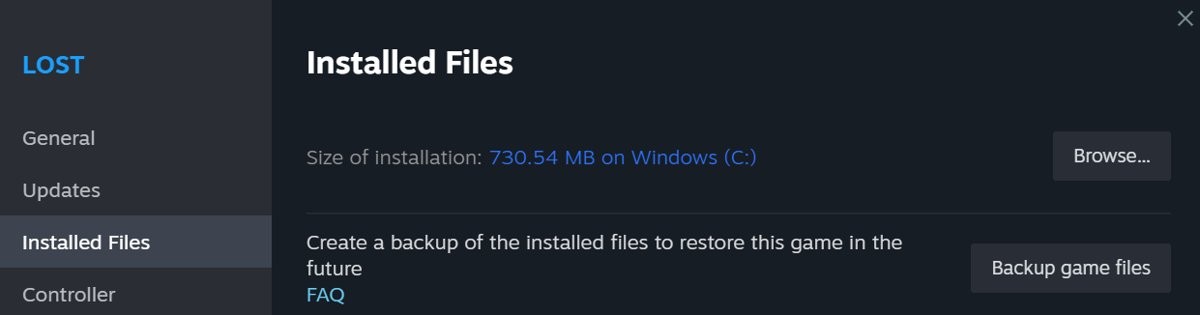
- Select the Installed Files tab. Older Steam versions call this tab Local Files.
- Select Browse to open the game's main install folder in File Explorer.
- Go up two levels to reach
steamapps, then up one more to reach the Steam or library folder.
A game on a second drive opens that drive's library rather than the Steam install folder. Use a game on your default drive if you want the install folder itself.
Install a game
Steam lets you pick the install location from all your existing Library folders when you download a game. That makes the install dialog a useful list when nothing is installed yet.
- Open your Library in Steam.
- Select a game you own that is not installed.
- Select Install.
- Read the install location shown in the dialog, and open the list to see every library folder.
- Note the drive and folder, then open that location in File Explorer.
- Close the dialog if you do not want to download the game now.
Inside each library, game content sits in steamapps\common, in a folder named for the game.
Find Steam library folders in Steam Settings
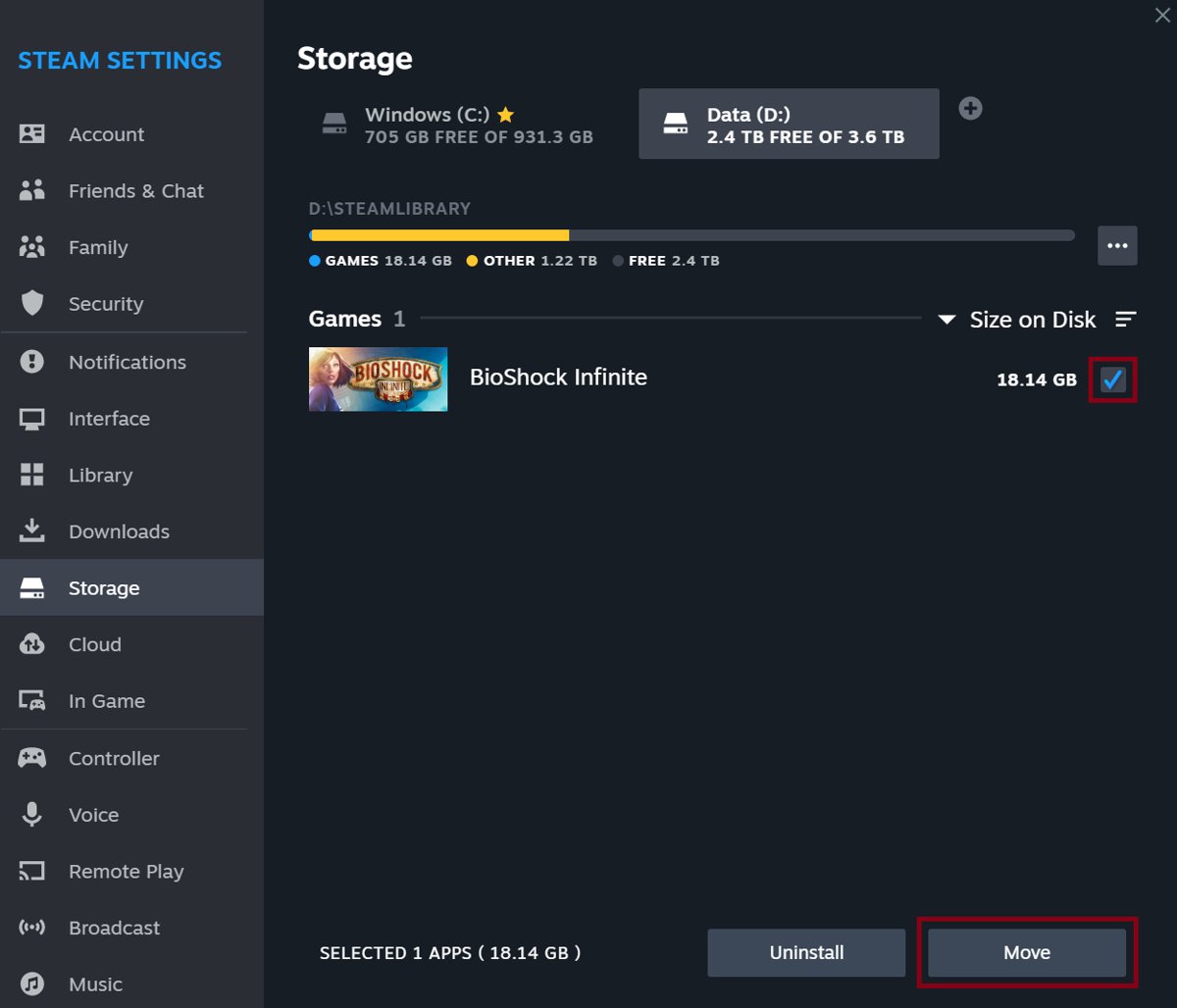
The Storage tab shows your default installation drive and any other library drive you have added. It is the fastest way to see where games are spread across several disks.
- Open Steam and select Steam in the top-left menu.
- Select Settings.
- Select the Storage tab.
- Note the default installation drive shown there.
- Select another drive, if one is listed, to see the games installed on it.
Find steam.exe in File Explorer on Windows 10
File Explorer can search a whole drive when Steam has no shortcut or will not open. A search of This PC covers every drive but takes longer.
- Select File Explorer on the taskbar.
- Select This PC in the left pane.
- Type
steam.exein the search box at the top right. - Wait for the results to finish loading.
- Right-click the
steam.exeresult and select Open file location.
Find the Steam folder with PowerShell
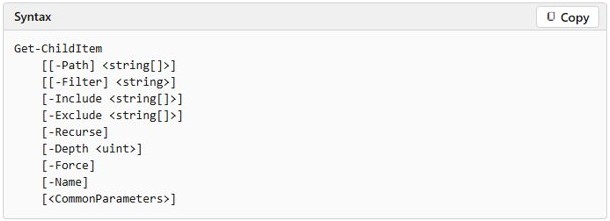
PowerShell searches a drive without relying on the search index. Run it once per drive, swapping C:\ for D:\ and so on, and expect a full drive to take a few minutes.
Get-ChildItem -LiteralPath C:\ -Filter steam.exe -Recurse -ErrorAction SilentlyContinueGet-ChildItem lists files. -LiteralPath sets the drive to search, -Filter keeps only steam.exe, -Recurse checks every subfolder, and -ErrorAction SilentlyContinue hides messages about folders you have no permission to read.
You should see: A Directory line such as C:\Program Files (x86)\Steam above a row for steam.exe. No output means that drive has no steam.exe, so try the next drive.
Steam folder location and what each subfolder holds
The paths below use the default location. If Steam lives elsewhere, the same names sit under that folder.
| Folder | Default path | What it holds |
|---|---|---|
| Steam install folder | C:\Program Files (x86)\Steam\ |
steam.exe and every folder below |
| steamapps | C:\Program Files (x86)\Steam\steamapps\ |
Downloaded game content, settings and any saved games stored there |
| common | C:\Program Files (x86)\Steam\steamapps\common\ |
One folder per installed game |
| userdata | C:\Program Files (x86)\Steam\userdata |
One folder per Steam ID that has signed in on this PC, with game data listed by app ID |
| Client settings | Steam\userdata\[steamID]\7\ |
Local copy of your Steam client settings |
| logs | C:\Program Files (x86)\Steam\logs |
Client log files, including cloud_log.txt for Steam Cloud problems |
How to tell if a folder is the Steam install folder
A library folder on a second drive looks similar, so look for what only the install folder contains.
- Open the folder in File Explorer.
- Look for
steam.exeat the top level. - Look for the
userdataandlogsfolders next to it. - Open
steamapps\commonand check that it lists folders named after your games. - Treat a folder with
steamappsbut nosteam.exeas a library folder, not the install folder.
Where are Steam games installed on Windows 10?
Games go to one place by default, and the location changes only when you add a library or move a game.
| How the game was installed | Where its files are | How to open them |
|---|---|---|
| Default settings | C:\Program Files (x86)\Steam\steamapps\common\ |
Run dialog, or Properties > Installed Files > Browse |
| To another library you picked at install | The steamapps\common folder of that library |
Properties > Installed Files > Browse |
| Moved later with Steam's Move feature | The library you moved it to | Steam > Settings > Storage, then select the drive |
| After the whole Steam folder was moved | Under the new folder, such as D:\Games\Steam\steamapps\ |
File Explorer, or Browse in the game's properties |
Where are Steam save files stored on Windows 10?
Valve says each developer decides how and where to store save files, so there is no single save folder. Start with these locations.
| Type of game | Where to look | Example |
|---|---|---|
| Games using Steam Cloud | C:\Program Files (x86)\Steam\userdata\[steamID]\[appID]\ |
Steam\userdata\[steamID]\570\ for Dota 2 |
| Third-party games not on Steam Cloud | C:\Users\[Windows user name]\Documents\My Games\ |
One folder per game |
| Games with their own save folder | Your user profile, in the place the developer documents | Cyberpunk 2077 uses %userprofile%\Saved Games\CD Projekt Red\Cyberpunk 2077\ |
| Games that save under AppData | %LocalAppData% and the developer's folder |
Baldur's Gate 3 uses %LocalAppData%\Larian Studios |
You can open your Documents folder to reach My Games, or find the AppData folder for games that save there. If the game is in neither place, ask its developer or publisher for the location.
How to change where Steam installs games on Windows 10
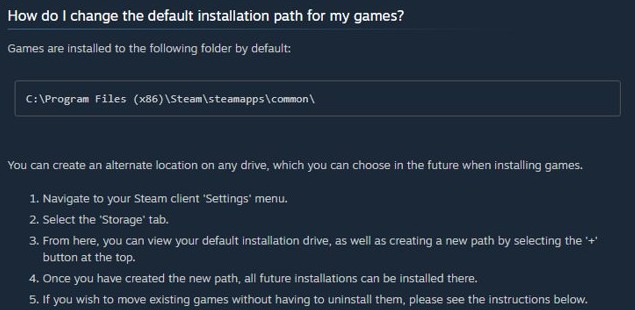
You do not need to move the Steam folder to put games on another drive. You can add a Steam library folder and choose it for future installs.
- Open Steam and go to Steam > Settings.
- Select the Storage tab.
- Select the + button at the top.
- Choose the drive or folder for the new library.
- To move a game there, select the drive it is on, select the game and select Move.
Moved games do not need a new download. Valve does not recommend installing Steam itself on an external hard drive because of potential performance issues.
Steam folder not found on Windows 10
C:\Program Files (x86)\Steam does not exist
Steam was installed to another location or moved after setup.
- Type
Steamin the taskbar search box and right-click Steam. - Select Open file location, then repeat it on the shortcut that opens.
- If Steam is not in the results, search This PC in File Explorer for
steam.exe. - If that finds nothing, run the PowerShell command on each drive.
Open file location only shows a shortcut
The search result points at the Start menu entry, not at the program.
- Right-click the Steam shortcut in the File Explorer window.
- Select Open file location a second time.
- Check that the new window contains
steam.exe.
A game is missing from steamapps\common
The game is installed in a different Steam Library folder.
- Open Steam > Settings and select the Storage tab.
- Select each listed drive in turn and look for the game.
- Right-click the game in your Library and select Properties.
- Select Installed Files, then Browse, to open its folder.
Saved games are not in the Steam folder
Each developer chooses where its game stores saves, and many use your user profile instead.
- Check
C:\Users\[Windows user name]\Documents\My Games\for a folder named after the game. - Check
Steam\userdata\[steamID]\for a folder named with the game's app ID. - Search the developer's support site for the save location if neither has it.
Steam folder on Windows 10 FAQ
Where is the Steam folder on Windows 10?
The default location is C:\Program Files (x86)\Steam\. To open it, right-click Start, select Run, type that path and press Enter. If the path does not exist, search for Steam on the taskbar and use Open file location.
Where are Steam games installed on Windows 10?
Steam installs games to C:\Program Files (x86)\Steam\steamapps\common\ by default. Games installed to another Steam Library folder sit in the steamapps\common folder of that library. The Storage tab in Steam's Settings shows which drives hold games.
How do I open a game's folder from Steam?
Right-click the game in your Library and select Properties. Open the Installed Files tab and select Browse. File Explorer opens at the game's main install folder, inside the steamapps\common folder of its library.
How do I change the default installation path for my games?
Open Steam > Settings, select the Storage tab and select the + button to create a new path. Valve says all future installations can then go there, and you choose the location when you install a game.
How do I move my existing Steam installation?
Back up steamapps first, then exit Steam. In the Steam folder, delete everything except steamapps, userdata and steam.exe. Cut and paste the folder to the new location, launch Steam, sign in and verify integrity of game files.
Where are Steam save files stored on Windows 10?
There is no single location, because each developer chooses where saves go. Check Steam\userdata\[steamID]\[appID]\ first, then C:\Users\[Windows user name]\Documents\My Games\. If neither has them, the game's developer or publisher can give the location.
Where are Steam screenshots saved?
Steam keeps screenshots in its own library rather than the Windows Pictures folder. You can open the Steam screenshot folder from View > Recordings & Screenshots in the Steam client, then export any shot as a regular file.
Is the Steam folder in the same place on Windows 11?
Yes. Valve's support pages give one default Windows path, C:\Program Files (x86)\Steam\, and do not separate Windows 10 from Windows 11. The same Windows search and Steam Library routes work if Steam was installed elsewhere.
Can I install Steam on an external hard drive?
Valve does not recommend it because of potential performance issues. Keep the Steam client on an internal drive and add a Steam Library folder on the other drive for games from the Storage tab in Settings.