To enable or disable cookies in Google Chrome, open Settings, select Privacy and security, then choose Allow third-party cookies or Block third-party cookies under Third-party cookies; all cookies are controlled under Site settings > Additional content settings > On-device site data.
This guide covers both switches on Windows, Mac and ChromeOS, per-site exceptions, Chrome on Android and iPhone, deleting cookies, and fixes for the "cookies are disabled" message.
How to enable cookies in Chrome on desktop
Chrome splits cookies into two settings. Third-party cookies have their own page, while the cookies a site saves for itself fall under on-device site data. Turn both on if a site says cookies are disabled.
- Open Chrome and select More (the three dots at the top right) > Settings.
- Select Privacy and security > Third-party cookies.
- Choose Allow third-party cookies.
- Go back to Privacy and security and select Site settings.
- Select Additional content settings > On-device site data.
- Choose Allow sites to save data on your device.
- Reload the website that asked for cookies.
The change applies at once. You do not need to restart Chrome.
How cookies work in Google Chrome
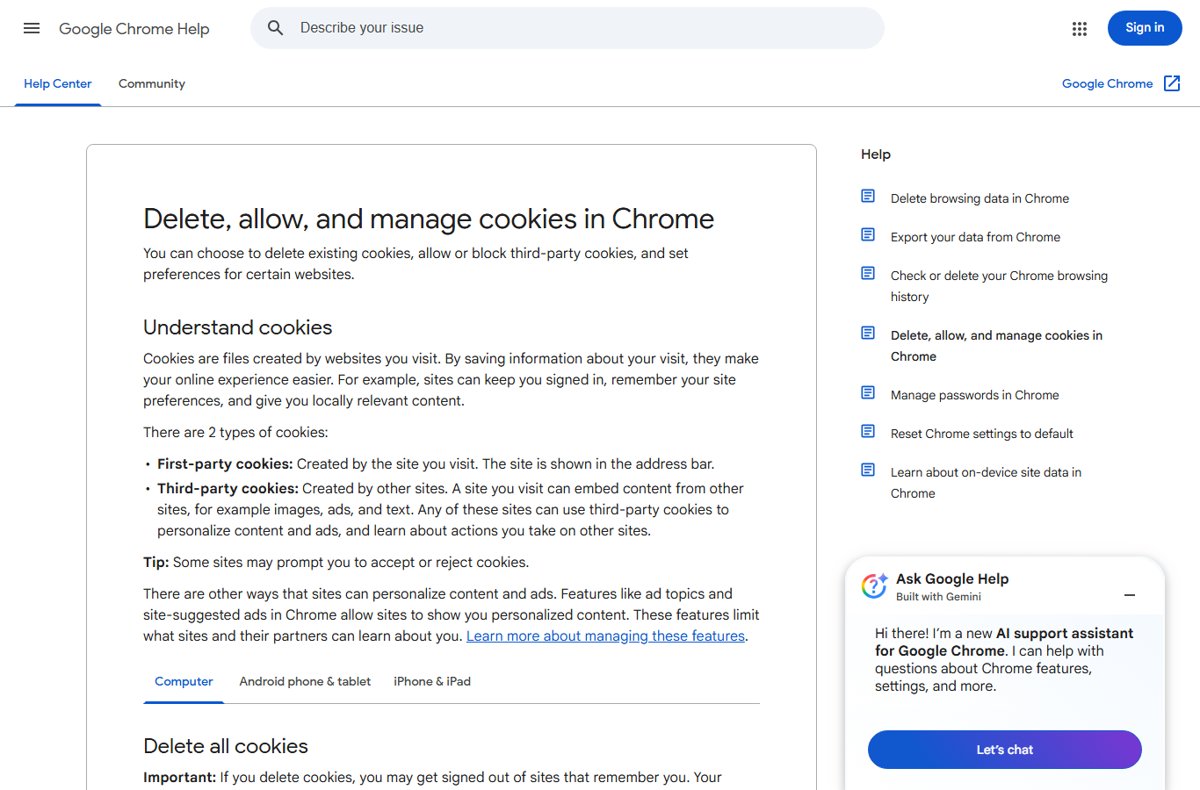
Cookies are files that websites create to save information about your visit. They keep you signed in, remember your site preferences and give you locally relevant content.
Google sorts them into two types, and Chrome gives each its own control.
| Cookie type | Who creates it | What it is used for | Where Chrome controls it |
|---|---|---|---|
| First-party cookies | The site shown in the address bar | Keeping you signed in, saving preferences and shopping carts | Site settings > Additional content settings > On-device site data |
| Third-party cookies | Other sites whose images, ads or text are embedded in the page | Personalising content and ads, and learning about your actions on other sites | Privacy and security > Third-party cookies |
| Cookies shared by related sites | Sites that belong to the same declared group | Letting one company's sites see your activity across the group | Allow related sites to see your activity in the group on the third-party cookies page |
| Embedded content cookies | A site embedded in the page you are on, after you allow it | Letting embedded content use its saved cookies for up to 30 days while you stay active | The Embedded content switch in the site information panel |
Some sites also show their own banner asking you to accept or reject cookies. That banner is the site's consent prompt and is separate from Chrome's settings.
Which Chrome cookie setting should you choose?
Each option on the two settings pages does something different. Match your goal to a row.
| Your goal | Setting to pick | What happens |
|---|---|---|
| Sites must remember you and embedded logins must work | Allow third-party cookies plus Allow sites to save data on your device | Every site and embedded service can save cookies |
| Stop cross-site tracking but stay signed in | Block third-party cookies | Sites you visit still save their own cookies; sites on your exceptions list keep third-party access |
| Start fresh every session | Delete data sites have saved to your device when you close all windows | Sites usually work, but they are less likely to remember you between visits |
| Block every cookie | Don't allow sites to save data on your device (not recommended) | Sites may not work as expected, and sign-ins and carts are not kept |
| One site needs cookies that you block elsewhere | An exception under Sites allowed to use third-party cookies | Only that site gets third-party cookies |
How to disable cookies in Chrome on desktop
Blocking third-party cookies is the usual choice, because it stops cross-site tracking without signing you out of everything. Blocking all cookies is a second step on a different page.
- Open Chrome and select More > Settings.
- Select Privacy and security > Third-party cookies.
- Choose Block third-party cookies to stop cross-site cookies, except for sites on your exceptions list.
- To block first-party cookies too, go back to Privacy and security and select Site settings > Additional content settings > On-device site data.
- Choose Don't allow sites to save data on your device (not recommended), or Delete data sites have saved to your device when you close all windows for a softer option.
Blocking new cookies does not remove the ones already stored. Delete them separately with the steps further down this page.
How to manage third-party cookies in Chrome
The third-party cookies page holds more than the main switch. With third-party cookies blocked, you also decide whether related sites can share your activity.
Chrome's cookie switch in the address bar grew out of the Cookie Controls UI tested in Canary, and it now offers a quick per-site override.
- Open Chrome and select More > Settings.
- Select Privacy and security > Third-party cookies.
- Choose Block third-party cookies.
- Turn Allow related sites to see your activity in the group on or off.
- To see which sites form a group, select See all site data and permissions, pick a site and open its drop-down arrow.
- When a site asks whether embedded content can use its saved cookies, select Allow or Don't allow.
- To change that later, select the site information icon to the left of the address bar and turn Embedded content on or off.
How to allow or block cookies for specific sites in Chrome
An exception lets one site use third-party cookies while the rest stay blocked. Exceptions apply in regular and Incognito windows.
- Open Chrome and select More > Settings.
- Select Privacy and security > Third-party cookies.
- Under Sites allowed to use third-party cookies, select Add.
- Type the web address. Put
[*.]before the domain to cover every subdomain, for example[*.]example.com. An IP address also works. - Select Add to save the exception.
- To remove it later, select Remove next to the site.
For a quick, temporary change, open the site and select the third-party cookies control at the top left of the address bar. Turn Third-party cookies on or off, then close the dialog so the page reloads.
In a regular window this temporary exception lasts 90 days or until you turn it off. In Incognito it lasts only for that session.
For other per-site permissions, select the site information icon to the left of the address, then Site settings. Reset permissions returns that site to your defaults.
How to enable or disable cookies in Chrome on Android and iPhone
Chrome on Android has the same third-party cookie switch and per-site exceptions as the desktop browser. Google's instructions for Chrome on iPhone and iPad cover deleting cookies only, with no allow or block switch.
- On Android, open Chrome and tap More > Settings.
- Under Advanced, tap Site settings > Third-party cookies.
- Choose to allow or block third-party cookies.
- For first-party cookies, go back to Site settings and tap On-device site data.
- To add an exception, open Privacy and security > Third-party cookies, tap Add site exception, type the address and tap Add.
- To change one site temporarily, open it, tap Page info in the address bar, tap Cookies and site data and turn Third-party cookies on or off.
- On iPhone or iPad, tap More > Settings > Privacy and Security > Delete Browsing Data to clear cookies.
On Android, the temporary per-site change also carries into Incognito, and you cannot reset it from an Incognito tab.
How to delete cookies in Google Chrome
Deleting cookies signs you out of sites that remember you and can erase saved preferences. Delete only one site's cookies when one site misbehaves.
| Device and scope | Steps |
|---|---|
| Computer, all cookies | More > Delete browsing data > pick a time range such as All time > tick Cookies and other site data > Delete data |
| Computer, one site | More > Settings > Privacy and security > Third-party cookies > See all site data and permissions > search for the site > Delete > Delete |
| Android, all cookies | More > Settings > Privacy and security > Delete browsing data > choose a time range > tick Cookies and site data > Delete data |
| Android, one site | Open the site > Page info > Cookies and site data > Delete next to the stored data |
| iPhone or iPad, all cookies | More > Settings > Privacy and Security > Delete Browsing Data > tick Cookies, Site Data > Delete Browsing Data > Done |
On a computer you can also type "Delete browsing data" in the address bar and select the action chip to open the same dialog.
How to check if cookies are enabled in Chrome
- Open Settings > Privacy and security > Third-party cookies and confirm the option you chose is selected.
- Open Site settings > Additional content settings > On-device site data and confirm the default you chose is selected.
- Sign in to a site, close Chrome and open the site again. If cookies are allowed, you are still signed in.
- Open Third-party cookies > See all site data and permissions and search for that site. Stored data for it confirms the site saved cookies.
Troubleshooting cookie-related website issues in Chrome
Google says cookies are disabled
Chrome is blocking the cookies your Google Account needs on the page you are signing in from.
- Open Settings > Privacy and security > Third-party cookies and choose Allow third-party cookies, or add the site as an exception.
- Open Site settings > Additional content settings > On-device site data and choose Allow sites to save data on your device.
- Open a new browser window and try signing in again.
Sign-in to a third-party website still fails after you turn cookies on
Old or damaged cookies for that site are still stored.
- Delete that site's cookies from See all site data and permissions.
- If that does not help, open More > Delete browsing data, tick Cookies and other site data and select Delete data.
- Try the sign-in in an Incognito window to rule out other saved data.
A website still asks about cookies after you enabled them
The banner is the site's own consent prompt, not a Chrome setting.
- Accept or reject cookies in the site's banner.
- Check that On-device site data is not set to delete data when you close all windows, because that clears the site's record of your choice.
- If the banner returns on every visit, confirm the site has stored data under See all site data and permissions.
Google Chrome cookies: frequently asked questions
Where are cookie settings in Google Chrome?
Cookie settings are in Settings > Privacy and security. Third-party cookies have their own Third-party cookies page there. Cookies that sites save for themselves are under Site settings > Additional content settings > On-device site data.
How do I enable cookies in the Google browser?
Open Settings > Privacy and security > Third-party cookies and choose Allow third-party cookies. Then open Site settings > Additional content settings > On-device site data and choose Allow sites to save data on your device.
How do I enable cookies on my Google Account?
Your Google Account uses the cookie settings of the browser you sign in with. In Chrome, allow cookies in Settings > Privacy and security. If you get a message that cookies are turned off, Google says you need to turn them on to use your account.
Where do I disable cookies?
In Chrome on a computer, open Settings > Privacy and security > Third-party cookies and choose Block third-party cookies. To block all cookies, set On-device site data to Don't allow sites to save data on your device.
What happens if I disable cookies in Chrome?
Blocking third-party cookies stops embedded sites tracking you across the web, and some embedded logins or widgets may stop working. Blocking all cookies means sites may not work as expected, and they cannot keep you signed in or hold a shopping cart.
Should I allow all cookies or block third-party cookies?
Block third-party cookies if privacy matters to you, then add exceptions for sites that break. Sites still save their own cookies, so you stay signed in. Allow all cookies only if a site you depend on needs them.
Can I block cookies for one website but allow them for another?
Yes. Block third-party cookies, then add each site that needs them under Sites allowed to use third-party cookies on the Third-party cookies page. You can also switch a single site on or off from the cookie control in the address bar.
Does deleting cookies sign me out of websites?
Yes. Deleting cookies signs you out of sites that remember you and can erase saved preferences. If Chrome sync is on, you stay signed in to the synced Google Account after clearing cookies.
Can I block cookies in Chrome on iPhone?
Google's help for Chrome on iPhone and iPad covers deleting cookies only. Tap More > Settings > Privacy and Security > Delete Browsing Data, tick Cookies, Site Data and confirm.
Bottom line: should you enable or disable cookies in Chrome?
Keep on-device site data allowed and block third-party cookies, then add exceptions for the few sites that break. That setup stops cross-site tracking while sites still keep you signed in. Blocking every cookie breaks sign-ins and carts for little extra privacy. Firefox users get a similar balance when they turn on Total Cookie Protection.







Google Chrome Canary now lets you remove all Third-Party Cookies - Techdows
[…] allows us to “Prevent third-party websites from saving and reading cookie data” when you enable block third-party cookies setting in the browser. Now if you turn on the “Enable removing SameSite= None Cookies”flag, it […]