To enable Windows Sonic in Windows 11, open Settings > System > Sound, select your headphones under Output, and choose Windows Sonic for Headphones under Spatial sound.
This guide also covers Windows 10, physical 7.1 speakers, Dolby Atmos and DTS alternatives, how to test the result, and fixes when the option is missing or the sound goes wrong.
Enable Windows Sonic for headphones or spatial sound in Windows 11
Windows Sonic is built into Windows, so there is nothing to install. Plug in your headphones first, because the option appears per output device.
- Select Start > Settings > System > Sound.
- Under Output, select the headphones you want to use.
- On the device page, find the Spatial sound setting.
- Open the list and choose Windows Sonic for Headphones.
- Select Apply if the button appears.
The setting sticks to that device only. If you switch to another headset, repeat the steps for it in the Windows 11 sound settings.
Enable Windows Sonic sound on Windows 10
Set up Windows Sonic in Windows 10 from Settings or straight from the taskbar. Both routes change the same per-device setting.
- Select Start > Settings > System > Sound.
- Choose your headphones as the output device.
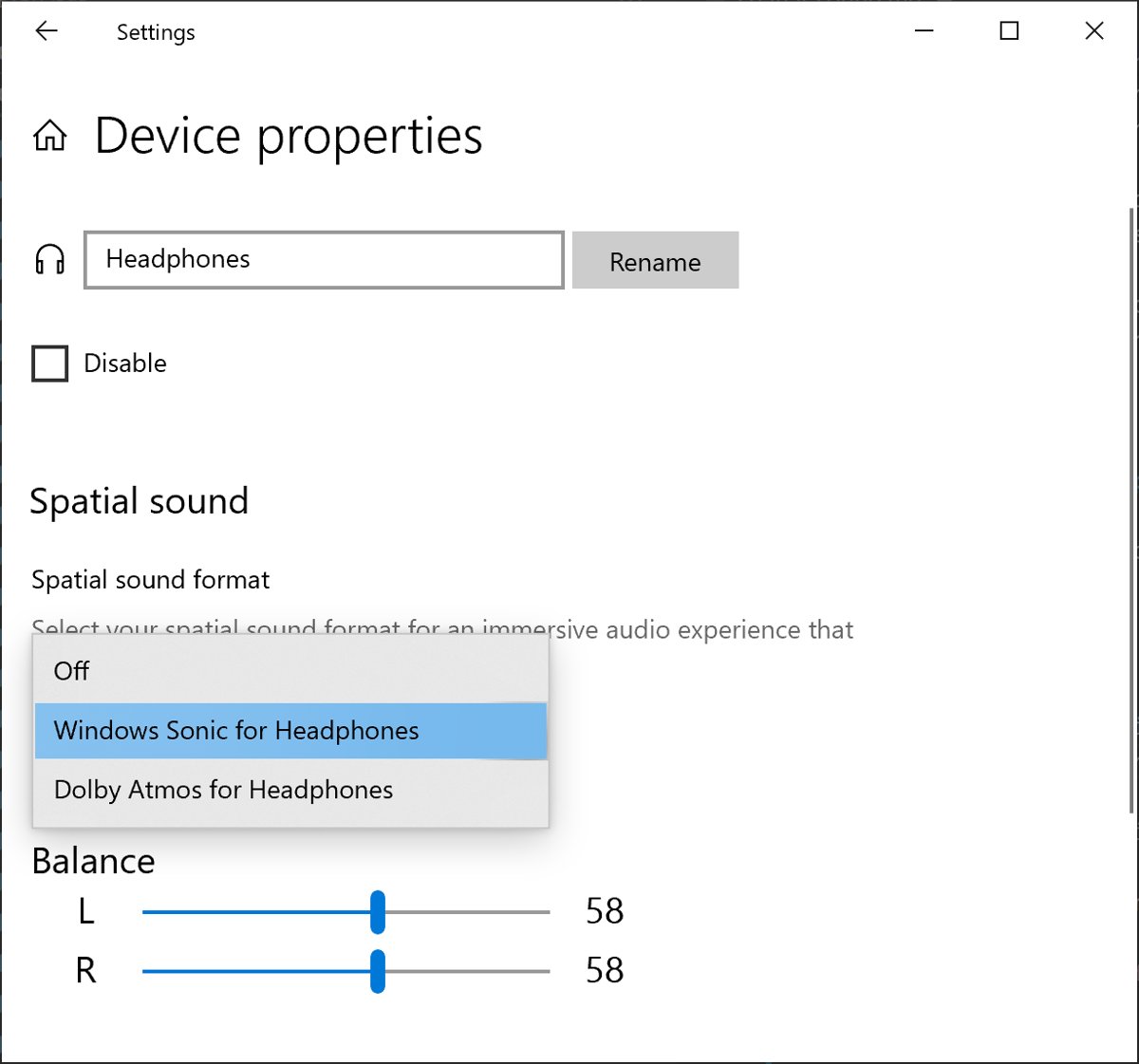
- Select Device properties.
- Under Spatial sound, pick Windows Sonic for Headphones and select Apply.
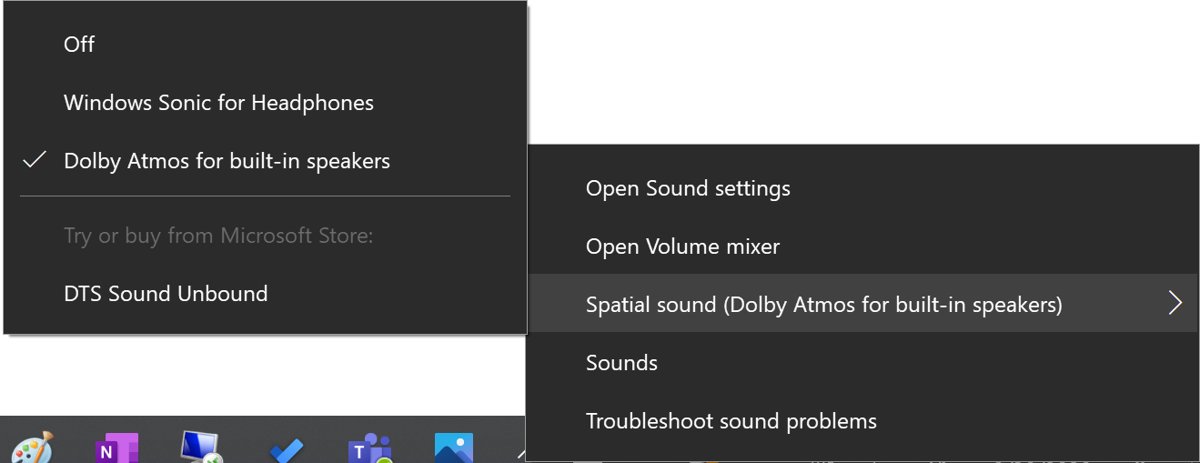
- For the faster route, right-click the Volume icon in the taskbar, point to Spatial sound, and choose Windows Sonic for Headphones.
What is Windows Sonic for headphones in Windows 10 and 11?
Windows Sonic for Headphones is Microsoft's own spatial sound format. It takes surround and height channels from a game or film and renders them as positional audio through ordinary stereo headphones.
| Question | Answer |
|---|---|
| Cost | Free and included with Windows 10 and Windows 11 |
| Headphones needed | Any pair of wired or wireless stereo headphones |
| Channel layout it can render | Up to 8.1.4.4: eight channels around you, one LFE channel, four above and four below |
| Laptop built-in speakers | Not supported; spatial sound is unavailable on embedded stereo speakers |
| Where it is set | Per output device, under Spatial sound on the device's properties page |
| What it leaves to the game | Doppler, distance, occlusion and room reverb still come from the game engine |
Windows Sonic and spatial sound are not two separate features. Spatial sound is the Windows setting, and Windows Sonic for Headphones is the free format you pick inside it.
Check your hardware compatibility
The spatial sound list only shows formats your output device supports. Match your setup to a row before you start, because it decides what kind of 7.1 setup you actually have.
| What kind of setup you have | Surround option that works | What you need |
|---|---|---|
| Stereo headphones or headset | Windows Sonic for Headphones (virtual surround) | Nothing extra |
| Headphones, premium format | Dolby Atmos for Headphones or DTS Headphone:X | Dolby Access or DTS Sound Unbound from the Microsoft Store |
| TV, AV receiver or soundbar over HDMI | Dolby Atmos for home theater or DTS:X for home theater | A device that supports Dolby Atmos or DTS:X, plus the matching app |
| 5.1 or 7.1 analog speakers on a sound card | Physical multichannel output, no spatial format needed | A sound card and driver that expose 6 or 8 channels |
| Laptop built-in speakers | None from Windows | Use headphones or external speakers instead |
What does 7.1 surround sound mean?
The number before the dot counts full-range speakers and the number after it counts subwoofer channels. Windows names the standard eight-speaker layout 7.1 home theater speakers.
| Channel | Speaker position | Present in 5.1? |
|---|---|---|
| Front left and front right | Either side of the screen | Yes |
| Center | Above or below the screen, carries most dialogue | Yes |
| LFE (the .1) | Subwoofer, anywhere in the room | Yes |
| Side left and side right | Beside the listening position | Yes, 5.1 content is usually authored for side speakers |
| Back left and back right | Behind the listening position | No, these two channels make 5.1 into 7.1 |
Dolby Atmos home theater adds four height channels on top, written as 7.1.4.
Physical 7.1 or virtual surround: which should you use?
| Your situation | Use this | Why |
|---|---|---|
| You game or watch films on headphones and want no extra cost | Windows Sonic for Headphones | Built in, works with any headphones |
| You already own eight speakers and a multichannel sound card | Physical 7.1 speaker setup | Each channel gets its own speaker, no virtualisation |
| Your TV, receiver or soundbar supports Dolby Atmos over HDMI | Dolby Atmos for home theater | Sends height channels to real speakers |
| You are shopping for a USB headset sold as "7.1" | Any stereo headset plus Windows Sonic | Most headsets have one driver per ear, so the 7.1 label means virtual surround |
| You want a premium headphone renderer | Dolby Access or DTS Sound Unbound | Adds Dolby Atmos for Headphones or DTS Headphone:X to the spatial sound list |
Windows Sonic vs Dolby Atmos: which spatial sound provider is best?
All three headphone formats accept the same 8.1.4.4 channel bed from Windows, so a game does not need separate code for each. The differences are cost, the app you need, and whether you can use real speakers.
| Format | Output | How you get it | Should you buy it? |
|---|---|---|---|
| Windows Sonic for Headphones | Headphones only | Built into Windows | No purchase; start here |
| Dolby Atmos for Headphones | Headphones | Dolby Access app from the Microsoft Store | Try it if a game or film is mixed in Dolby Atmos |
| Dolby Atmos for home theater | HDMI to an Atmos TV, receiver or soundbar | Dolby Access app | Only with Atmos-capable hardware |
| DTS Headphone:X | Headphones | DTS Sound Unbound app from the Microsoft Store | Try it if you prefer the DTS rendering |
| DTS:X for home theater | HDMI to a DTS:X receiver | DTS Sound Unbound app | Only with DTS:X-capable hardware |
Check the licence terms on each Store listing before you buy. Windows Sonic costs nothing, so compare it first on the same game or film.
How do you enable 7.1 surround sound on your PC with physical speakers?
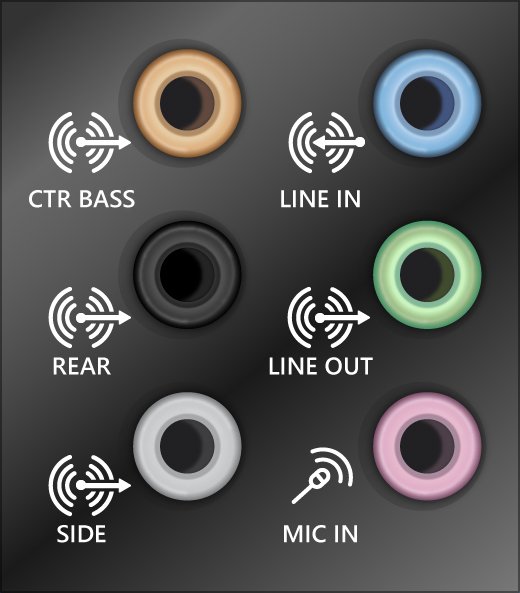
Physical 7.1 needs the right wiring and a driver that reports eight channels. Leave spatial sound off for this output, because Windows Sonic is a headphone format.
- Plug each speaker cable into the matching jack on the sound card or receiver; on multi-jack systems, every cord must sit in the correct jack.
- Turn on the speakers or receiver and raise its volume.
- Select Start > Settings > System > Sound, and under Output select the speaker device to make it the default.
- Set the speaker layout to 7.1 in the speaker setup option of the Sound control panel, or in your sound card maker's audio utility if it ships one.
- In Control Panel, open Hardware and Sound > Sound, select the device on the Playback tab, and select Properties.
- On the Advanced tab, under Default Format, pick a supported format and select OK.
Use either the speaker setup in the old Sound control panel or the maker's utility, not both. Mismatched settings between the two can leave channels misrouted.
Which game or media setting should you choose?
Windows decides the output format, but the app decides how many channels it sends. Match the app setting to the Windows setting so the two do not fight.
| Content | Windows setting | In-app setting |
|---|---|---|
| Surround sound in gaming on headphones | Windows Sonic for Headphones (or Dolby/DTS) | The game's surround or spatial audio option, with its own headphone virtualiser off |
| Surround sound in gaming on 7.1 speakers | Speakers set to 7.1, spatial sound off | 7.1 or surround output |
| Surround sound for movies and streaming on headphones | Windows Sonic or Dolby Atmos for Headphones | The 5.1 or Atmos audio track where the app offers one |
| Movies on an Atmos TV, receiver or soundbar | Dolby Atmos for home theater | The Atmos audio track |
| Stereo music on headphones | Spatial sound off if music sounds odd | Stereo |
Windows Sonic spatialises the whole mix, so stereo music can sound as if it is outside your head. Turn it off for music if you prefer the plain stereo image.
Advanced surround sound settings for better sound quality
These tips for the best surround sound experience apply on Windows 11 and Windows 10. Change one at a time and listen after each change.
| Setting | Where to find it | When to change it |
|---|---|---|
| Spatial sound format | Settings > System > Sound > your device > Spatial sound | Switch between Windows Sonic, Dolby and DTS to compare on the same scene |
| Audio enhancements | Settings > System > Sound > your device > Advanced settings | Turn off if surround sounds distorted, crackly or hollow |
| Default format | Settings > System > Sound > your device > Advanced, or the Advanced tab in Control Panel Sound | Try another sample rate if audio cuts out or distorts |
| Default output device | Settings > System > Sound > Output | Pick the device that should carry surround, not a monitor without speakers |
| Audio driver | Windows Update, then Device Manager > Sound, video and game controllers | Update when channels or spatial options are missing |
How can you test whether 7.1 or Windows Sonic is working?
- Reopen Settings > System > Sound and select your output device.
- Confirm Spatial sound still shows Windows Sonic for Headphones (or the format you chose).
- Play a game or film with a surround track and listen for sounds that move behind and beside you.
- For physical 7.1, play multichannel content and walk past each speaker to confirm the side and back pairs both carry sound.
- In Control Panel > Hardware and Sound > Sound, open the device Properties and check the Advanced tab shows the format you set.
If a stereo track sounds the same with spatial sound on and off, that is normal. Positional effects need surround or spatial content.
How to disable Windows Sonic
- Select Start > Settings > System > Sound.
- Under Output, select the headphones that use Windows Sonic.
- Under Spatial sound, choose Off.
- Select Apply if it appears.
Troubleshooting surround sound issues in Windows 11
Windows Sonic or spatial sound is missing or greyed out
The selected output does not support spatial sound, such as built-in laptop speakers, or the audio driver is outdated.
- Plug in headphones and select them under Settings > System > Sound > Output.
- Check Settings > Windows Update for driver updates and install them.
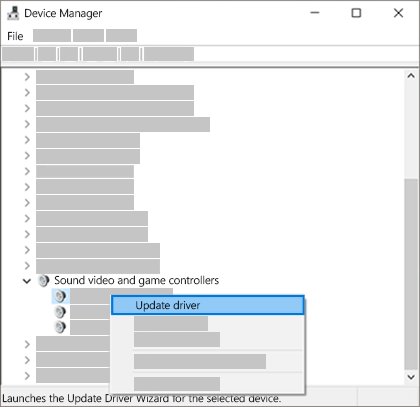
- In Device Manager, expand Sound, video and game controllers, right-click the device, and select Update driver.
Why is 7.1 missing from the Windows Configure wizard?
Windows only lists layouts the audio driver reports, so a stereo-only driver, a 5.1 card or an HDMI device that reports two channels hides 7.1.
- Install the latest audio driver from your PC or sound card maker's support site.
- Open the maker's audio utility, if one is installed, and look for the speaker layout there.
- In Device Manager, right-click the device and select Uninstall device, then restart so Windows reinstalls the driver.
Why do only the front speakers work?
The layout is still set to stereo, the source is stereo, or the rear cables are in the wrong jacks.
- Check every cable sits in the correct jack on the sound card.
- Set the speaker layout to 7.1 (or 5.1) in the speaker setup or the maker's utility.
- Play content with a real surround track rather than a stereo one.
Why are the rear channels swapped or silent?
Side and back cables are swapped, or 5.1 content is playing through a 7.1 layout, which routes surround to the side pair only.
- Swap the side and back cables at the sound card and test again.
- Play 7.1 content to confirm the back pair, since 5.1 content usually feeds only the side speakers.
- Match the speaker layout to the number of speakers you actually have.
Why does surround sound become muffled, hollow, or delayed?
Two virtualisers are stacked, Windows Sonic is on for speakers, or audio enhancements interfere.
- Turn off the game's or headset software's own virtual surround while Windows Sonic is on.
- Under Settings > System > Sound > your device > Advanced settings, set Audio enhancements to Off.
- Change the Default format under Advanced and test again.
Why does Dolby or DTS not appear in Spatial sound?
Dolby and DTS formats are not built into Windows; their apps add them.
- Install Dolby Access or DTS Sound Unbound from the Microsoft Store.
- Open the app once and complete its setup for your device.
- Return to Spatial sound and pick the new format.
Why is there no sound after selecting Dolby Atmos for Home Theater?
The HDMI device does not decode Dolby Atmos, or the receiver is set to a different input.
- Set Spatial sound back to Off to restore audio.
- Check the TV, receiver or soundbar manual for Dolby Atmos support over HDMI.
- Choose a headphone format instead, or keep spatial sound off on that HDMI output.
No speakers or headphones are plugged in on Windows 11
Windows does not detect the device, often from a loose cable, a disabled device, a driver fault or Bluetooth earbuds that need re-pairing.
- Reseat the cable or try a different USB port.
- Select More sound settings > Playback, open the device Properties, and set Device usage to Use this device (enable).
- Run Settings > System > Troubleshoot > Other troubleshooters > Audio > Run.
Windows Audio service stuck on stopping
The audio service hung after a driver or format change.
- Type services in the taskbar search box and open Services.
- Right-click Windows Audio and select Restart, then do the same for Windows Audio Endpoint Builder.
- If the service stays on stopping, restart the PC from Start > Power > Restart.
FAQs about Windows Sonic and surround sound in Windows 11
How do I turn on Windows Sonic?
Open Settings > System > Sound, select your headphones under Output, and choose Windows Sonic for Headphones under Spatial sound. On Windows 10 you can also right-click the Volume icon in the taskbar and pick it from the Spatial sound menu.
How do I get Windows Sonic?
Windows Sonic for Headphones is already part of Windows 10 and Windows 11. There is no download or purchase. It appears in the Spatial sound list once you select a headphone output device.
How do I enable Windows Sonic for headphones?
Connect the headphones, then select them as the output in Settings > System > Sound. On the device page, set Spatial sound to Windows Sonic for Headphones and select Apply if the button appears. The setting applies to that device only.
How do I disable Windows Sonic?
Go to Settings > System > Sound, select the headphones under Output, and set Spatial sound to Off. Audio returns to plain stereo straight away, and you can switch it back on the same way.
How do I enable surround sound in Windows 11?
For headphones, turn on Windows Sonic for Headphones under Spatial sound. For real speakers, connect them to a multichannel sound card or receiver, set the speaker layout to 5.1 or 7.1, and leave spatial sound off for that output.
What is the difference between Windows Sonic and spatial sound?
Spatial sound is the Windows setting that turns on positional audio for an output device. Windows Sonic for Headphones is the free format inside that setting; Dolby Atmos and DTS formats appear beside it when their apps are installed.
Should I enable spatial sound?
Yes for games and films on headphones, because sounds gain direction and height. Turn it off for stereo music if the mix sounds distant or hollow, and leave it off for physical 5.1 or 7.1 speakers.
Does Windows Sonic work with laptop speakers?
No. Spatial sound is not available on built-in laptop stereo speakers. Windows Sonic for Headphones needs headphones, while Dolby Atmos for home theater needs an HDMI TV, receiver or soundbar that supports it.
Is Windows Sonic better than Dolby Atmos?
Neither is better for every listener. Windows Sonic is free and built in, while Dolby Atmos for Headphones needs the Dolby Access app. Compare both on the same game or film and keep the one you prefer.
The bottom line: should you turn on Windows Sonic?
Turn on Windows Sonic for Headphones for games and films on headphones, and set up physical 7.1 only if you own eight speakers and a multichannel sound card. Windows Sonic is free, takes under a minute to enable, and renders the same channel bed as paid formats, so it is the right baseline before spending on Dolby Access, DTS Sound Unbound or a headset sold as 7.1.