To enable or disable NetBIOS over TCP/IP on Windows 11, open the network adapter's Internet Protocol Version 4 (TCP/IPv4) properties, select Advanced, and choose the setting on the WINS tab.
This guide covers that route, a PowerShell command for every adapter, the DHCP server option, how to check the result, and whether disabling NetBIOS is safe.
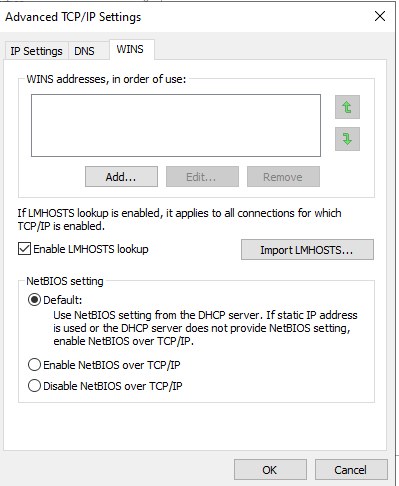
Enable or disable NetBIOS over TCP/IP on Windows 11/10
The setting is per adapter, so repeat these steps for Wi-Fi and Ethernet if you use both. You need an administrator account.
- Select Start, type View network connections, and open the result.
- Right-click your adapter, such as Wi-Fi or Ethernet, and select Properties.
- In This connection uses the following items, double-click Internet Protocol Version 4 (TCP/IPv4).
- Select Advanced, then open the WINS tab.
- Under NetBIOS setting, select Disable NetBIOS over TCP/IP to turn it off, or Enable NetBIOS over TCP/IP to turn it on.
- Select OK three times to close the dialogs.
The same dialog is reachable from Settings if you prefer it. Open the network adapter settings in Windows 11 and continue from step 2.
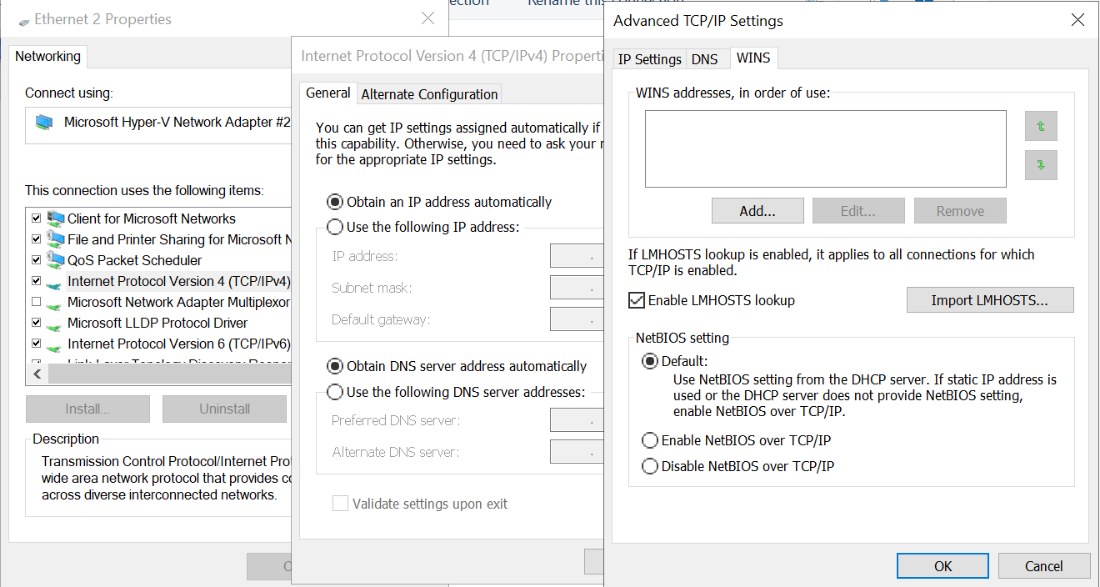
What does the NetBIOS setting Default mean in Windows 11?
The WINS tab offers three choices. The Default choice hands the decision to your DHCP server, which is why a home PC usually has NetBIOS on.
| WINS tab option | PowerShell value | What happens |
|---|---|---|
| Default (Use NetBIOS setting from the DHCP server) | 0 | The DHCP server decides. If it sends no NetBIOS option, NetBIOS stays enabled |
| Enable NetBIOS over TCP/IP | 1 | NetBIOS is on for this adapter whatever the DHCP server says |
| Disable NetBIOS over TCP/IP | 2 | No NetBIOS over TCP/IP packets are sent or received on this adapter |
Disable NetBIOS on all interfaces with PowerShell
PowerShell changes every active adapter at once, which is faster than the WINS tab on a PC with several connections. Open PowerShell as administrator by right-clicking Start and selecting Terminal (Admin), then run the command below.
Get-CimInstance Win32_NetworkAdapterConfiguration -Filter "IPEnabled=True" | Invoke-CimMethod -MethodName SetTcpipNetbios -Arguments @{TcpipNetbiosOptions=2}Selects every adapter with TCP/IP enabled and calls the SetTcpipNetbios method on it. The value 2 disables NetBIOS, 1 enables it, and 0 returns control to the DHCP server.
You should see: Each adapter returns ReturnValue 0 (done, no restart needed) or 1 (done, restart required). Any other number is an error code.
Disable NetBIOS on the DHCP server
On a Windows Server network, a DHCP server on Windows Server can switch NetBIOS off for every client that leaves the WINS tab on Default. This avoids touching each PC.
- On the DHCP server, open the DHCP console from Administrative Tools.
- Expand the server name, expand the scope, right-click Scope Options, and select Configure Options.
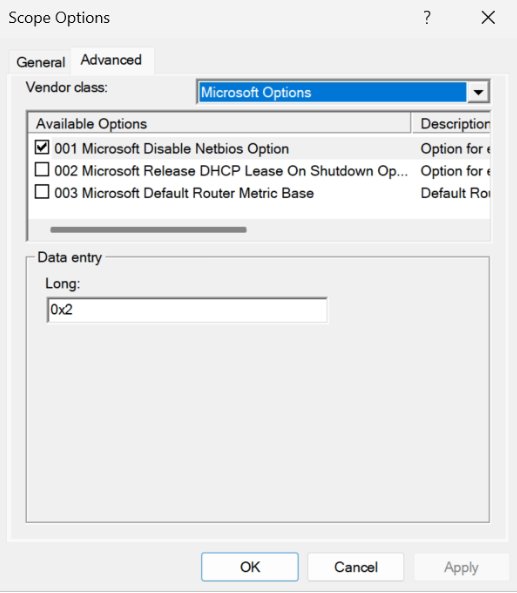
- Open the Advanced tab and select Microsoft Options in the Vendor class list.
- Make sure Default User Class is selected in the User class list.
- Tick 001 Microsoft Disable Netbios Option under Available Options.
- Type 0x2 in the Long box and select OK.
- On each Windows 11 or Windows 10 client, set the WINS tab to Use NetBIOS setting from the DHCP server.
The option takes effect when a client receives a DHCP offer or acknowledgment, so clients pick it up as they renew their lease.
How to check if NetBIOS is enabled
Two built-in commands show the state: one reads the setting, the other shows which network transports are actually bound.
- Right-click Start and select Terminal (Admin).
- Run
Get-CimInstance Win32_NetworkAdapterConfiguration -Filter "IPEnabled=True" | Select-Object Description, TcpipNetbiosOptions. - Read the TcpipNetbiosOptions column: 2 means disabled, 1 means enabled, and 0 means the DHCP server decides.
- Run
net config redirectorfor the second check. - Look at the Workstation active on list. A NetBT_Tcpip line appears for each adapter that still runs NetBIOS over TCP/IP; NetbiosSmb is the NetBIOS-less transport and always stays.
To see which NetBIOS names the PC still registers, run nbtstat /n. The switches are case-sensitive, so type a lowercase n.
Is it safe to disable NetBIOS over TCP IP?
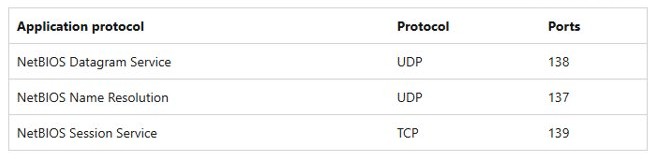
Windows file and printer sharing has run directly over TCP port 445 since Windows Vista, so modern Windows PCs and servers keep sharing without NetBIOS. NetBIOS uses ports 137, 138 and 139; disabling it closes those and removes broadcast and WINS name lookups. Leave TCP port 445 open, because file sharing now depends on it.
Disable NetBIOS over TCP/IP on Windows 11 unless you still share files with very old operating systems or devices that only speak SMB over NetBIOS. Microsoft lists removing the less secure NetBIOS protocol as an advantage, and name resolution moves to DNS. The one documented cost is that the PC can no longer reach earlier operating systems that need NetBIOS for SMB.
How to add and use Private DNS in Windows 11
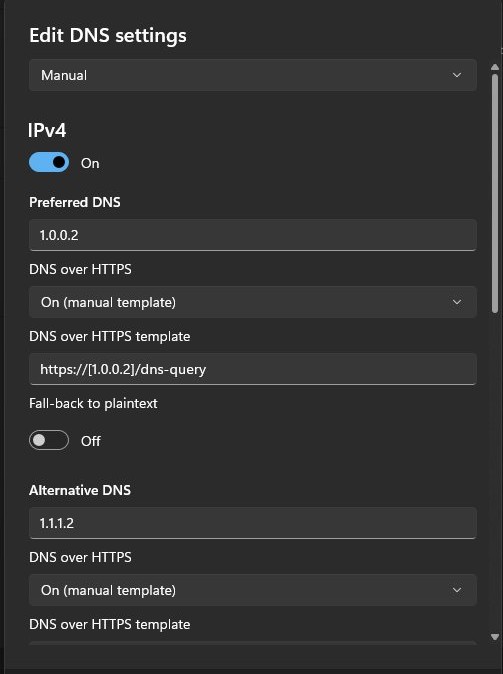
With NetBIOS off, Windows resolves names through DNS only, so it is worth encrypting those lookups. Windows 11 calls this DNS over HTTPS; Windows 10 does not have it.
- Open Settings > Network & internet.
- For Wi-Fi, select Wi-Fi > Manage known networks and pick your network. For a cable, select Ethernet.
- Next to DNS server assignment, select Edit.
- Choose Manual and turn on IPv4.
- Enter a DNS server that supports encryption in Preferred DNS, and a second one in Alternate DNS.
- Set DNS over HTTPS to On (automatic template), or On (manual template) and type the provider's template.
- Turn Fallback to plaintext off if you never want unencrypted lookups, then select Save.
After changing DNS servers, flush the DNS cache so old answers do not linger.
How to enable NetBIOS in Windows 11
Turn NetBIOS back on if an older NAS, printer or PC stops appearing after you disabled it.
- Open View network connections, right-click the adapter, and select Properties.
- Double-click Internet Protocol Version 4 (TCP/IPv4) and select Advanced.
- On the WINS tab, select Enable NetBIOS over TCP/IP, or Default to let the DHCP server decide.
- Select OK three times.
- For every adapter at once, run the PowerShell command above with
TcpipNetbiosOptions=1instead of 2.
NetBIOS over TCP/IP FAQ
How do I disable NetBIOS in Windows 11?
Open View network connections, open the adapter's Properties, double-click Internet Protocol Version 4 (TCP/IPv4), select Advanced, and choose Disable NetBIOS over TCP/IP on the WINS tab. Repeat for each adapter.
How do I turn off NetBIOS on every adapter at once?
Run Get-CimInstance Win32_NetworkAdapterConfiguration -Filter "IPEnabled=True" | Invoke-CimMethod -MethodName SetTcpipNetbios -Arguments @{TcpipNetbiosOptions=2} in an elevated PowerShell window. A return value of 0 or 1 means it worked.
How do I enable NetBIOS in Windows 11?
On the adapter's WINS tab, select Enable NetBIOS over TCP/IP, then select OK three times. Choose Default instead if you want your DHCP server to control the setting.
How do I test if NetBIOS is disabled?
Run net config redirector. If no NetBT_Tcpip entry is listed for an adapter, NetBIOS over TCP/IP is off on it. The PowerShell TcpipNetbiosOptions value of 2 confirms the same thing.
How do I check if NetBIOS is enabled?
Read TcpipNetbiosOptions with Get-CimInstance Win32_NetworkAdapterConfiguration. A value of 1 means enabled, and 0 means it follows the DHCP server, which normally leaves NetBIOS on.
Should NetBIOS be disabled?
On most Windows 11 PCs, yes. File sharing runs over TCP port 445 without it, and Microsoft calls NetBIOS the less secure protocol. Keep it only for old systems that need SMB over NetBIOS.
How do I disable NetBIOS on a network?
Use the DHCP server. Set 001 Microsoft Disable Netbios Option to 0x2 under the scope's Microsoft Options vendor class, and leave clients on Use NetBIOS setting from the DHCP server.