To fix a Mac that won't start up, check the power connection, hold the power button for 10 seconds, unplug all accessories, then start up from macOS Recovery and repair the disk with Disk Utility.
This guide puts Apple's basic startup troubleshooting steps in order, explains each startup error screen, and gives the exact keys for Apple silicon and Intel-based Mac computers.

How to fix Mac not starting up
Work through these steps in order and stop as soon as the Mac starts normally. Every Mac has a power button; on a laptop with Touch ID, the Touch ID button is the power button, so press it down rather than touching it lightly.
- Check that the power cable is undamaged and plugged firmly into the Mac and a working outlet. Try another compatible cable or adapter if you have one.
- On a Mac without a built-in display, check that the external display has power, is connected and is turned on.
- Press and hold the power button for about 10 seconds, then press and release it normally.
- Unplug every accessory, including printers, drives, USB hubs and phones, then repeat the power button step.
- If the Mac turns on but stops at a symbol or blank screen, start up from macOS Recovery.
- In Recovery, open Disk Utility and run First Aid on the startup disk, then choose Apple menu > Restart.
- If the problem returns, start up from Recovery again and choose Reinstall macOS.
Reinstalling macOS from Recovery does not remove your apps or personal data. Apple still advises a backup first if you can make one.
Mac startup error screens and what they mean
Where the Mac stops tells you which fix to try. Match the screen you see to a row.
| What you see at startup | What it means | What to do |
|---|---|---|
| Nothing happens when you press the power button | The Mac is not turning on | Check power, hold the power button 10 seconds, unplug accessories; on an Intel Mac, reset the SMC |
| Folder with a flashing question mark | The startup disk is missing or has no working macOS | Start up from Recovery, run First Aid, then reinstall macOS |
| Circle with a line through it | The disk has a macOS version or build this Mac cannot use | Start up from Recovery, run First Aid, then reinstall macOS |
| Apple logo or progress bar that never finishes | Startup found the disk but cannot finish, or an update is still installing | Wait if an update is installing; otherwise force off, unplug accessories, then repair from Recovery |
| Blank black, gray or blue screen | Usually a software problem | Force off and on, then repair the disk or reinstall macOS from Recovery |
| Globe with a warning symbol | Internet Recovery could not start | Check the internet connection, try Ethernet or another network, or try again later |
| Exclamation point in a circle | The Mac firmware needs to be revived or restored | Revive or restore the firmware using Apple's instructions |
| Recovery Assistant with a first-aid symbol | The Mac encountered an issue while starting | Follow Apple's instructions for Recovery Assistant |
| Lock icon | A firmware password is set | Enter the firmware password to continue |
| Drawing of a Magic Mouse or Magic Keyboard | The Mac cannot detect a mouse, trackpad or keyboard | Connect or switch on the keyboard or mouse |
A question mark that shows only briefly before a normal startup means the Mac is searching for its disk. Select your disk in Startup Disk settings, and on an Intel-based Mac reset NVRAM if it keeps happening.

How to tell if a Mac has Apple silicon or Intel
Most startup keys depend on the chip, so check this first. Open the Apple menu in the top-left corner and choose About This Mac: an item labeled Chip means Apple silicon, and Processor followed by an Intel name means an Intel-based Mac.
| Mac model | Has Apple silicon when introduced |
|---|---|
| MacBook Air | 2022 or later, plus MacBook Air (M1, 2020) |
| MacBook Pro | 2021 or later, plus MacBook Pro (13-inch, M1, 2020) |
| iMac | 2021 or later |
| Mac mini | 2020 or later |
| Mac Studio | 2022 or later |
| Mac Pro | 2023 |
| MacBook Neo | All models |
If the Mac will not start far enough to open About This Mac and you are unsure, Apple says it is safe to try the steps for both chip types.
How to boot to startup options on Mac with Apple silicon
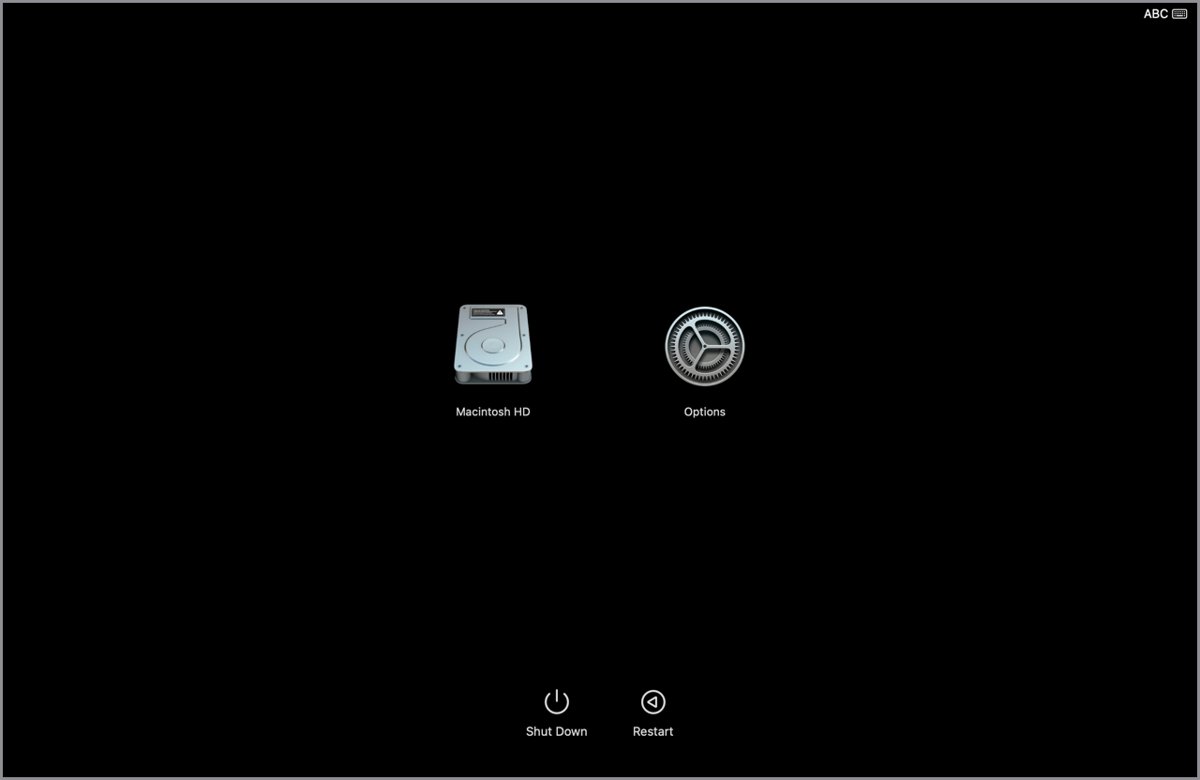
On a Mac with Apple silicon, the power button opens the startup options window. From there you reach Recovery, safe mode and Apple Diagnostics.
- Shut down the Mac. If it will not shut down, press and hold the power button for up to 10 seconds.
- Press and hold the power button and keep holding it.
- Release it when you see Loading startup options or the Options icon.
- Select a startup disk such as Macintosh HD and click Continue to start from it.
- Or select Options, then click Continue to open macOS Recovery.
The same window has Shut Down and Restart buttons. To quit Recovery later, choose Restart or Shut Down from the Apple menu.
Startup options on Mac with an Intel processor
An Intel-based Mac uses key combinations held right after you press the power button. Press all keys in a combination together, and shut down first if a combination fails during a restart.
| Hold at startup | What it does |
|---|---|
| Command-R | Starts up from the built-in macOS Recovery |
| Option-Command-R or Shift-Option-Command-R | Starts up from macOS Recovery over the internet |
| Option | Opens Startup Manager to choose another disk or volume |
| Shift | Starts up in safe mode |
| Option-Command-P-R | Resets NVRAM or PRAM |
| D, or Option-D over the internet | Starts Apple Diagnostics |
| Command-V | Starts up in verbose mode |
| T | Starts up in target disk mode |
Keys are not recognized when a wireless keyboard connects too late. Use the built-in keyboard on a laptop, plug in or swap to a wired Mac keyboard, and wait a few seconds after power-on before pressing keys. Some combinations do not work while a firmware password is turned on.
Start up your Mac in safe mode
Safe mode stops login items, non-Apple extensions and non-Apple fonts from loading, runs a basic disk check and clears some system caches. If a problem disappears in safe mode, software that loads at startup is the likely cause.
- Shut down the Mac.
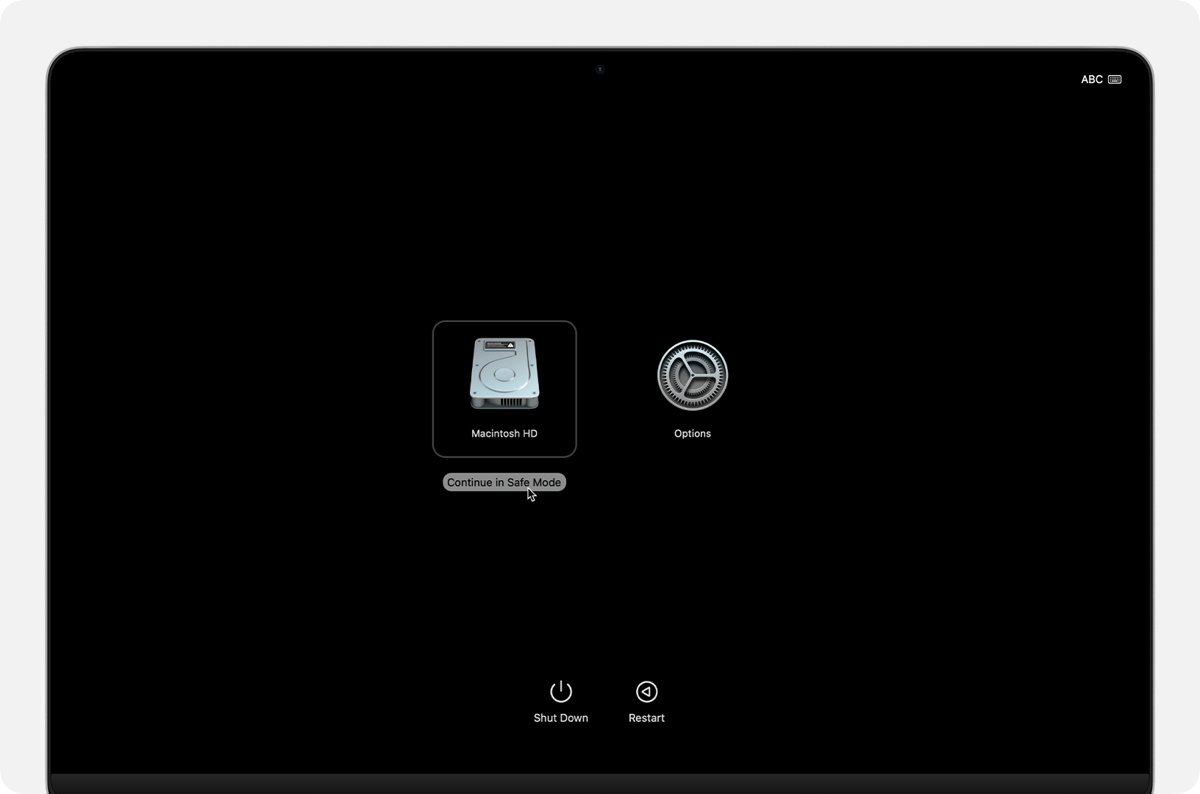
- On Apple silicon, press and hold the power button until you see Loading startup options, then release it.
- Select your startup disk, usually Macintosh HD.
- Press and hold Shift, then click Continue in Safe Mode.
- On an Intel-based Mac, instead turn on the Mac and hold Shift until the login window appears.
- Log in. Safe Boot may show in red in the upper-right corner of the login window.
- To leave safe mode, choose Apple menu > Restart.
To check the mode, hold Option and choose Apple menu > System Information, click Software, and look for Boot Mode: Safe. An Intel-based Mac with a firmware password cannot start in safe mode.
Repair the Mac startup disk with Disk Utility First Aid
Disk errors can stop a Mac from starting up completely. Run First Aid from Recovery when the startup disk is the one you are repairing.
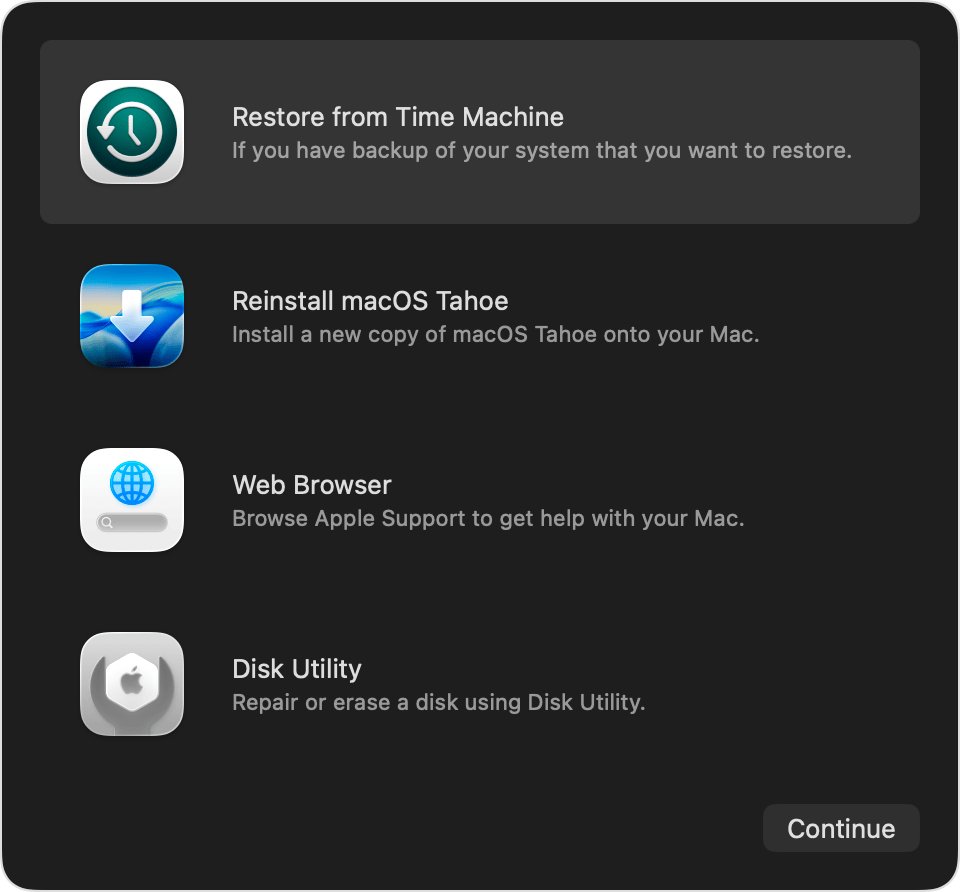
- Start up from macOS Recovery, select Disk Utility, then click Continue.
- Choose View > Show All Devices, if available.
- Select the last volume listed under the startup disk, such as Macintosh HD – Data.
- Click First Aid, then click Run. Enter your login password if asked to unlock the disk.
- Select the next item up the list and run First Aid again, working up to the device itself.
- Quit Disk Utility, then choose Apple menu > Restart.
If First Aid finds errors it cannot repair, Apple's next step is to erase the disk and reinstall macOS, which needs a backup to keep your files. If the disk does not appear in Disk Utility at all, the Mac or the disk may need service.
Mac startup error reset: SMC and NVRAM on an Intel Mac
These resets apply only to Intel-based Mac computers. On a Mac with Apple silicon, a normal restart or shut down resets the SMC automatically, and NVRAM reset steps are not needed.
| Mac type | How to reset |
|---|---|
| Apple silicon | Plug into power, then choose Apple menu > Restart, or shut down and press the power button. Nothing else is needed. |
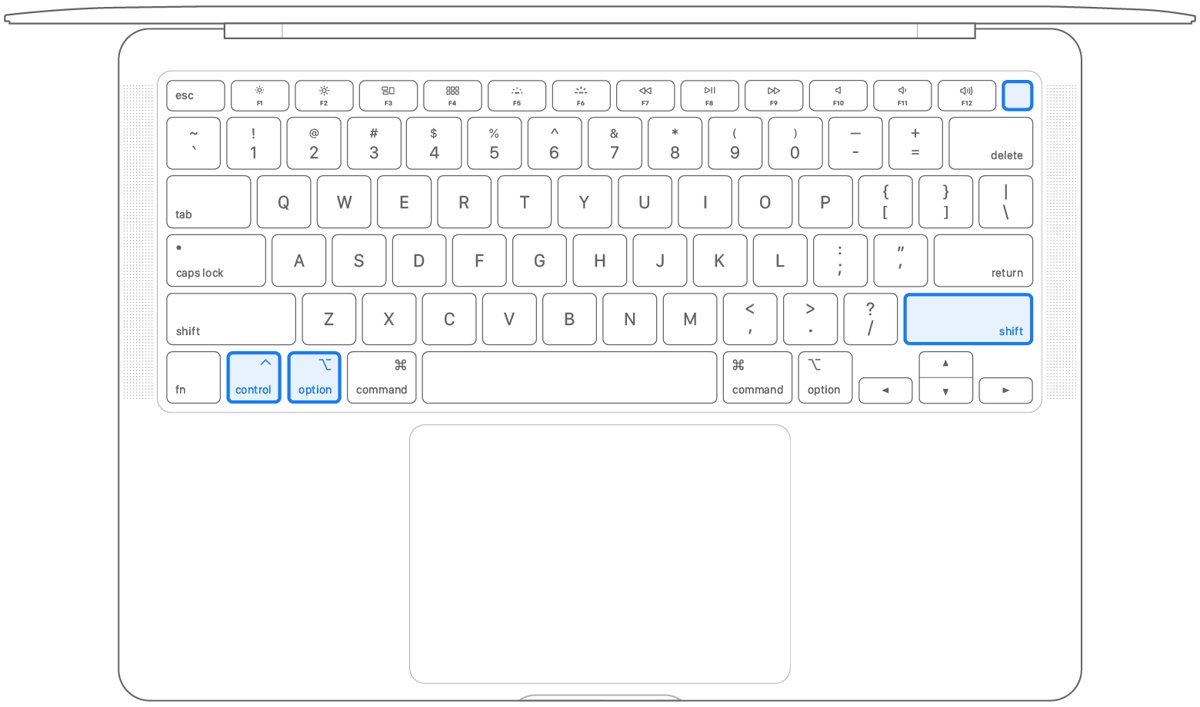
| Intel laptop with Apple T2 chip | Shut down. Hold left Control, left Option and right Shift for 7 seconds, add the power button for 7 more seconds, release, wait, then turn on. |
| Intel laptop without T2 | Shut down. Hold left Shift, left Control, left Option and the power button for 10 seconds, release, then turn on. |
| Intel desktop Mac | Shut down and unplug the power cord. Wait 15 seconds, plug it back in, wait 5 seconds, then press the power button. |
| Any Intel Mac: NVRAM | Shut down, turn on and at once hold Option-Command-P-R for about 20 seconds, then release. |
Apple lists a Mac that is not turning on among the problems an SMC reset can help on Intel models. After an NVRAM reset, check settings such as sound volume, display resolution, startup disk and time zone.
Reinstall macOS from Recovery when Mac won't start up
Reinstall when the disk checks out but the Mac still stops at the question mark, circle, Apple logo or blank screen. If built-in Recovery will not load, you can also reinstall macOS from Internet Recovery or a USB drive.
- Back up the Mac if you can.
- Start up from macOS Recovery using the steps for your chip.
- Select the option to install or reinstall macOS, click Continue and follow the onscreen instructions.
- If asked to choose between Macintosh HD and Macintosh HD – Data, choose Macintosh HD.
- Keep the Mac awake and the lid open until installation finishes. The screen may go blank for minutes at a time.
Recovery needs a broadband connection over Wi-Fi or Ethernet. A captive-network login page, 802.1X security or PPPoE can block installation.
Use Apple Diagnostics to test your Mac
When the steps above fail, test the hardware. Disconnect every external device except the keyboard, mouse, display, Ethernet and power first.
- Shut down the Mac.
- On Apple silicon, hold the power button until Options appears, release it, then press and hold Command-D until the Mac restarts.
- On an Intel-based Mac, turn it on and hold D, or Option-D if D does not work, until a progress bar or language choice appears.
- Follow the onscreen instructions. In macOS Tahoe 26 and later, choose the diagnostic to run.
- Note any reference code shown in the results.
Give that reference code to an Apple Store, an Apple Authorized Service Provider or an Independent Repair Provider if the Mac needs service.
Mac won't start up: common Mac troubleshooting issues
MacBook is not starting and the screen stays dark
No power is reaching the Mac, an accessory is interfering, or an Intel Mac needs an SMC reset.
- Check the cable, adapter and outlet, and try another compatible adapter.
- Hold the power button for about 10 seconds, then press it again normally.
- Unplug all accessories and try again.
- On an Intel-based Mac, reset the SMC using the table above.
- If it still does not turn on, contact Apple for service.
MacBook Pro startup stuck on the Apple logo or keeps restarting
Startup cannot finish, often because of a connected device or a disk error.
- Press and hold the power button for up to 10 seconds until the Mac turns off, then turn it on.
- If it happens again, force it off, unplug printers, drives and USB hubs, then turn it on.
- If it still stops, start up from Recovery and run First Aid.
- Reinstall macOS from Recovery if the problem continues.
"Your Mac restarted because of a problem"
A kernel panic, most often caused by faulty software, sometimes by incompatible hardware.
- If the message names the faulty software, move that software to the Trash.
- Restart in safe mode, then choose Apple menu > App Store, click Updates and install them.
- Remove non-Apple plug-ins and enhancement software that may not suit your macOS version.
- Disconnect all devices except an Apple keyboard and mouse, then reconnect them one at a time, restarting after each.
- Run Apple Diagnostics, then reinstall macOS if the panics continue.
Loading startup options on Mac not working
On Intel, the Mac is not seeing the keys in time; on Apple silicon, the Mac may not be reaching Recovery at all.
- On an Intel Mac, shut down fully before trying the key combination, rather than restarting.
- Use the built-in keyboard, or a wired keyboard made for Mac, and wait a few seconds after power-on before holding the keys.
- Turn off a firmware password if one is set, since it blocks some combinations.
- On Apple silicon, keep holding the power button until Options appears; if you see a blank screen or circled exclamation point instead, the firmware may need to be revived.
Mac starts slowly because too many apps open on startup
Login items open automatically each time you log in.
- Choose Apple menu > System Settings, then click General.
- Click Login Items & Extensions.
- Select an item you do not need and click the remove button below the list.
- To skip login items once, hold Shift while you click Log In, and release it when the Dock appears.
Mac startup troubleshooting FAQ
How do I fix my Mac not starting up?
Check the power cable and outlet, hold the power button for 10 seconds, and unplug all accessories. If the Mac turns on but stops at a symbol or blank screen, start up from macOS Recovery, run First Aid in Disk Utility, and reinstall macOS if the problem returns.
How do I boot to startup options on a Mac?
On a Mac with Apple silicon, shut down, then press and hold the power button until Loading startup options appears. On an Intel-based Mac, hold a key combination right after power-on, such as Option for Startup Manager or Command-R for macOS Recovery.
How do I troubleshoot a Mac?
Start with updates and a restart, then unplug accessories. Next try safe mode to rule out startup software, run First Aid in Disk Utility to check the disk, and use Apple Diagnostics to test the hardware. Reinstalling macOS from Recovery keeps your personal files.
What does a question mark on a Mac at startup mean?
A folder with a flashing question mark means the startup disk is not available or does not contain a working macOS. Start up from macOS Recovery, repair the disk with Disk Utility, and reinstall macOS if the question mark comes back after a restart.
What does "your Mac restarted because of a problem" mean?
It means a kernel panic occurred. Faulty software is the most likely cause, though damaged or incompatible hardware and connected devices can also trigger it. Update your software in safe mode, remove non-Apple plug-ins and disconnect accessories to find the cause.
Does reinstalling macOS delete my files?
No. Reinstalling macOS from macOS Recovery does not remove your apps or personal data. Apple still recommends a backup first. Erasing the disk in Disk Utility is different: it removes everything on the disk.
Do I need to reset the SMC or NVRAM on an M1 or newer Mac?
No. On a Mac with Apple silicon, the SMC resets automatically when you restart or shut down, and Apple says NVRAM reset steps do not apply. Those resets are only for Intel-based Mac computers.
How do I start a Mac in safe mode?
On Apple silicon, hold the power button until startup options load, select Macintosh HD, then hold Shift and click Continue in Safe Mode. On an Intel-based Mac, hold Shift right after turning it on until the login window appears.