To share a note on iPhone, open it in the Notes app, tap the Share button at the top, and choose Share a Link to collaborate or Send a Copy to send a snapshot.
This guide covers both options, shared folders, permissions, the older iOS 26 menu, sharing with Android and PC users, and what to do when the share options are missing.
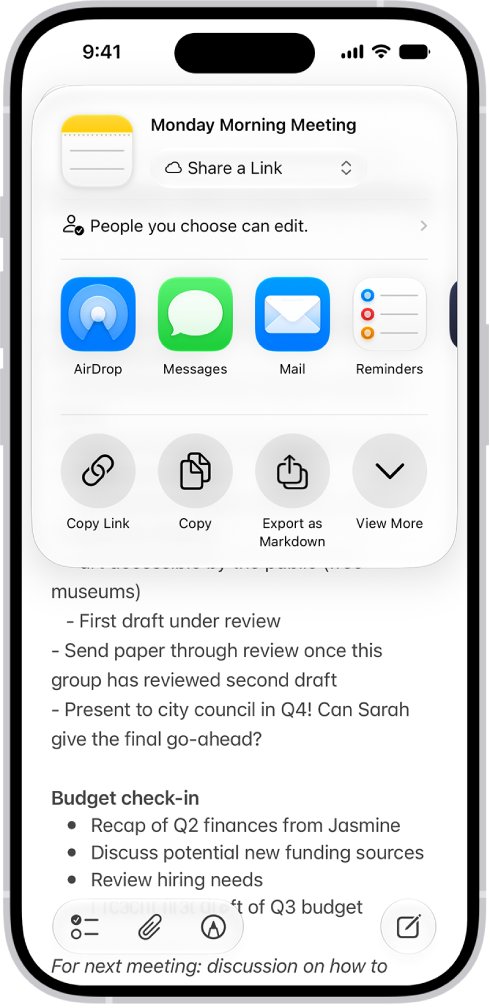
How to share a note on iPhone
These steps match iOS 27, the current version. A copy goes to anyone; a link lets people edit the same note with you.
- Open the Notes app on your iPhone.
- Open the note you want to share.
- Tap the Share button at the top of the screen.
- Tap the menu under the note title, then choose Share a Link to collaborate or Send a Copy to send a static copy.
- Pick how to send it, such as Messages or Mail, then add the person and send.
Share a Link vs Send a Copy in iPhone Notes
The two options look alike in the menu but behave very differently after you send them.
| What you want | Choose | What the other person gets |
|---|---|---|
| Edit a shopping list or plan together | Share a Link | The live note; everyone sees changes in real time |
| Send meeting notes someone only needs to read | Send a Copy | A copy that does not change when you edit yours |
| Let people read but not change the note | Share a Link with View and Download Only | The live note in read-only mode |
| Send to someone without an Apple Account | Send a Copy | The text in a message or email they can open anywhere |
| Share a locked note | Remove the lock first | Locked notes cannot be shared for collaboration |
| Give someone a file to keep | Export as PDF or Markdown | A file you send through any app |
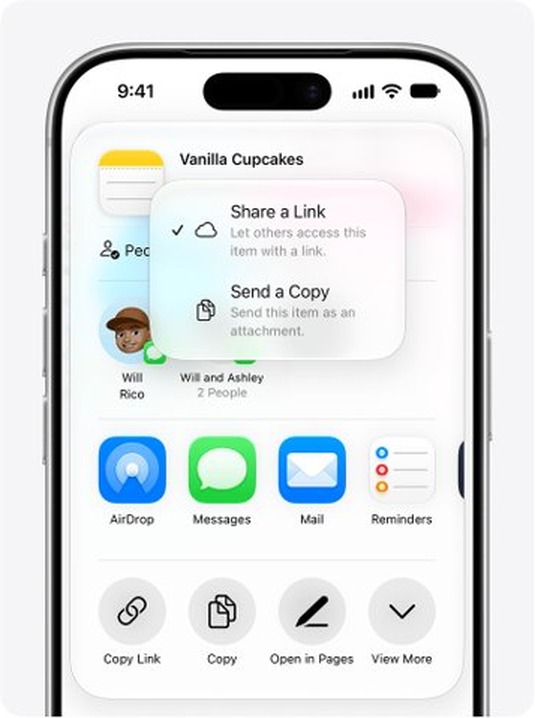
Step by step tutorial on how to share notes on iPhone
Collaboration works only for notes stored in iCloud. Everyone you invite must be signed in to an Apple Account with Notes turned on in iCloud settings.
- Open Notes, go to the All iCloud folder and open your note.
- Tap the Share button at the top of the screen.
- Tap the menu under the note title and choose Share a Link.
- Tap People you choose can edit to set access before you send.
- Under who can access, choose People you choose or Anyone with the link; with People you choose, you can turn on Access Requests.
- Under permissions, choose Edit or View and Download Only.
- Choose Messages or Mail, add the recipients, and send the invitation.
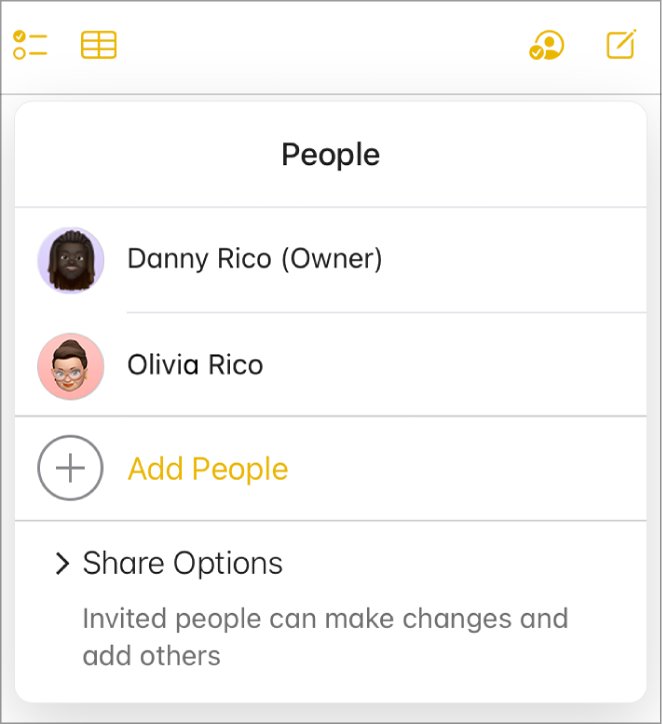
The first participant joins automatically. Add more people later by tapping the Collaborate button, then Manage Shared Note, then Add Participant.
With iMessage turned on, sending the invitation in Messages adds activity updates to that conversation whenever someone changes the shared note.
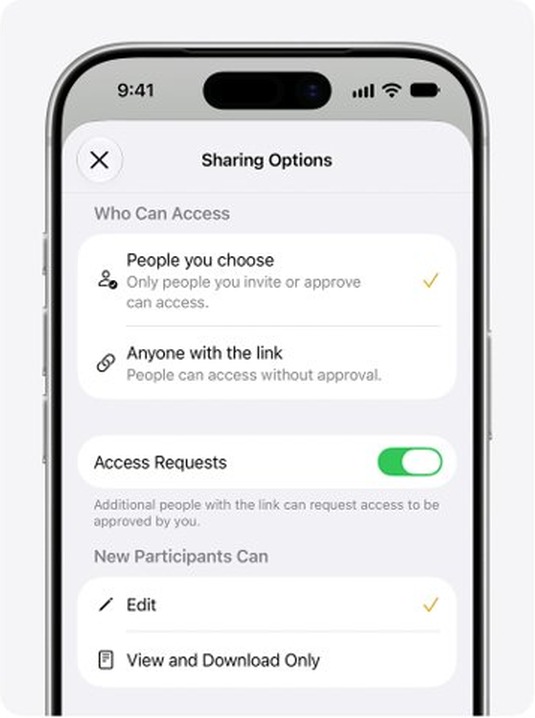
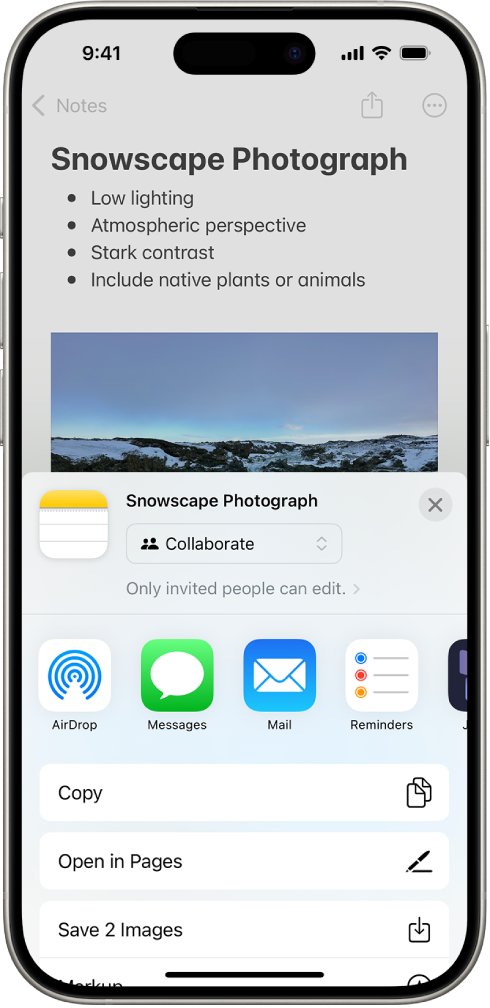
How to share notes on iPhone with someone in iOS 26 or iOS 18
Older versions name the options Collaborate and Send Copy instead of Share a Link and Send a Copy.
- Open Notes and go to the All iCloud folder.
- Open the note, then tap the Share button at the top of the screen.
- Under the note title, choose Collaborate (or Send Copy for a static copy).
- Tap Only invited people can edit or Only participants can make changes to set who can access the note, its permissions and whether others can invite people.
- Choose Messages or Mail to send the invitation.
On iOS 26 and earlier, collaboration works only with people who also use an Apple device signed in to an Apple Account.
How to share notes folder on iPhone
Sharing a folder shares every note inside it, and notes you add to that folder later inherit the same permissions. A folder that contains a locked note cannot be shared.
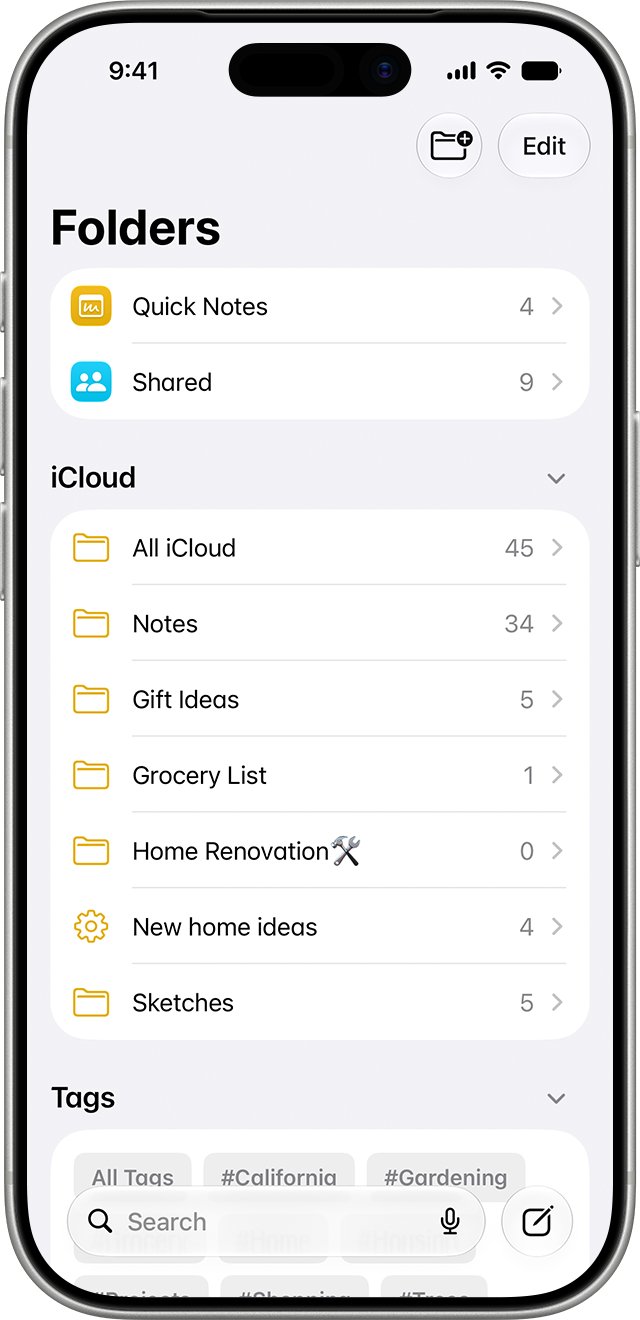
- Open Notes and make sure the folder is in your iCloud account, not On My iPhone or another account.
- Open the folder you want to share.
- Tap the share icon at the top of the folder view.
- Tap People you choose can edit and set access and permissions.
- Choose how to send the invitation and add the people you want.
To see what changed across the whole folder, touch and hold the folder in your folder list, then tap Show Folder Activity.
How to share and edit notes on iPhone together
Once a note is shared, every participant edits the same copy. An orange dot to the left of a note title in the notes list means it changed since you last looked.
- Open the shared note in Notes.
- Swipe right on the note, or swipe up on the Activity card, to see who made changes and when.
- Tap the activity options and choose Show Updates, Show All Activity or Show Highlights (names, dates and changes per participant).
- Type @ followed by a participant's name to mention them and notify them of an important update.
How to change who can edit a shared note on iPhone
Only the owner, or a participant made Co-Owner, can change participants and permissions.
- Open the shared note or folder in Notes.
- Tap the Collaborate button, then tap Manage Shared Note (or Manage Shared Folder).
- To change one person, tap their name and set their permission.
- To change everyone at once, tap Sharing Options.
- To remove someone, tap them, then tap Remove Participant; for a pending invite, tap Cancel Invitation.
- To hand over management, make a participant a Co-Owner; they can then manage everyone except the owner.
How to stop sharing a note on iPhone
Stopping sharing deletes the shared note or folder from every other participant's devices. Your own copy stays.
- Open the shared note or folder in Notes.
- Tap the Collaborate button, then tap Manage Shared Note or Manage Shared Folder.
- Tap Stop Sharing and confirm.
A note sent with Send a Copy cannot be pulled back, because the recipient already has an independent copy.
Share notes between iPhone and Android or a PC
Notes on iCloud.com runs in a web browser, so a participant with an Apple Account can open and edit shared notes from a Windows PC or an Android phone. People with no Apple Account need a copy instead.
| Recipient | Best route | How they open it |
|---|---|---|
| Android user with no Apple Account | Send a Copy through Mail or a messaging app | Reads the text in the email or message |
| Android or PC user with an Apple Account | Share a Link to their email address or phone number | Opens the link, selects Accept Invitation, edits at icloud.com/notes |
| You, on your own Windows PC | Nothing to send | Sign in at icloud.com/notes to see every iCloud note |
| Anyone who needs a file | Export as PDF or Markdown | Opens the file in any PDF reader or text editor |
On iCloud.com, an invitation sent to an email address or phone number that is not tied to the recipient's Apple Account will not open. Resend it to the right address, or add that address to the Apple Account.
Share a note as a PDF or Markdown file on iPhone
A file is useful when the recipient should keep a fixed version, or when they work outside Apple apps.
- Open the note in Notes and tap the Share button.
- For a PDF, tap Markup, mark up the pages if you want, then save or share the PDF.
- For Markdown, tap Export as Markdown, then choose how to send or save the file.
- To work on the note in Pages instead, tap Open in Pages; the Pages document is not shared even if the note is.
If Markup or Export as Markdown is missing from the first menu, tap the more options icon in the same menu to reveal it. A multipage PDF or scan inside a note exports only its first page. You can also print from your iPhone with the Print option in the same menu.
Tips for sharing notes on iPhone
| Tip | Why it matters |
|---|---|
| Keep shared notes in an iCloud folder | Notes in Gmail, Yahoo, Exchange or On My iPhone accounts cannot be shared for collaboration |
| Choose View and Download Only for reference notes | Readers cannot accidentally delete or overwrite your text |
| Send invitations in Messages | You get activity updates in the conversation when someone edits |
| Use @mentions for important changes | The mentioned participant gets a notification |
| Share a folder instead of many notes | New notes in the folder pick up the folder's permissions automatically |
| Watch the 100-person limit | Up to 100 people can collaborate on one note |
| Remove the lock before sharing | Locked notes, and folders holding them, cannot be shared |
Notes stored in iCloud follow your Apple Account, so they appear on a new phone as soon as you sign in after you transfer your iPhone data.
Why can't I share notes on iPhone?
Share a Link or Collaborate does not appear
The note is stored in a non-iCloud account (such as a Hotmail, Gmail or Exchange account) or On My iPhone.
- Open Notes, tap Folders and check which account the note sits under.
- Copy the note's text into a new note in an iCloud folder.
- Share the new iCloud note with Share a Link.
Notes are not syncing to iCloud
Notes is turned off in iCloud settings, so new notes are not stored in iCloud.
- Open Settings, tap your name, then tap iCloud.
- Under Saved to iCloud, tap Notes (or See All, then Notes).
- Turn on Sync this iPhone.
The note is locked and will not share
Apple blocks collaboration on locked notes and on folders that contain locked notes.
- Open the note and unlock it with your passcode, Face ID or Touch ID.
- Remove the lock from the note.
- Tap the Share button again.
The other person cannot open the shared note
They are not signed in to an Apple Account, are on an older iOS version, or the invite went to an address not linked to their account.
- Ask them to update their iPhone or iPad to the latest iOS or iPadOS.
- Ask them to sign in to their Apple Account and turn on Notes in iCloud settings.
- Resend the invitation to the email address or phone number on their Apple Account.
- If they still cannot join, use Send a Copy instead.
Share notes on iPhone not working after requesting access
On iOS 27, an access request waits for the owner to approve it.
- Ask the owner to open the note and tap the Collaborate button.
- The owner reviews the pending request and approves it.
No more people can join the note
The note has reached the 100-participant limit.
- Tap the Collaborate button, then Manage Shared Note.
- Remove participants who no longer need access.
- Send the new invitations again.
Share notes on iPhone FAQ
Can I share notes on iPhone?
Yes. Open the note, tap the Share button and choose Share a Link to collaborate or Send a Copy to send a static copy. Collaboration needs the note to be in iCloud and the recipient to have an Apple Account.
How do I share notes on iPhone with others so they can edit?
Use Share a Link and set the permission to Edit. Everyone you invite then works on the same note and sees changes in real time. Choose View and Download Only if they should read without changing anything.
Can I unshare a note after I've shared it?
Yes, for a shared link. Tap the Collaborate button, tap Manage Shared Note, then tap Stop Sharing. The note disappears from other participants' devices. A copy sent with Send a Copy cannot be recalled.
What if the person I'm sharing with doesn't have an iPhone?
Send a Copy through Mail or a messaging app works for anyone. If they have an Apple Account, they can also open a shared note in a browser at icloud.com/notes on Android or Windows.
Can I share a note with more than one person?
Yes. Add several recipients when you send the invitation, or add people later through Manage Shared Note and Add Participant. Up to 100 people can collaborate on one note.
Is there a limit to how many notes I can share?
Apple documents a limit of 100 participants per note and does not list a cap on the number of shared notes. To share many notes with the same people, put them in one folder and share the folder.
Can I share notes that have images or attachments?
Yes. Attachments are part of the note you share, and the View and Download Only permission lets readers view and download the content. When you export a note as a PDF, a multipage PDF or scan inside it exports only its first page.
Why can't I share my notes on iPhone?
The usual causes are a note stored outside iCloud, a locked note, or Notes not syncing to iCloud. Move the content into an iCloud folder, remove the lock and turn on Notes in iCloud settings.
How do I share hotmail notes on iPhone?
Notes in a Hotmail or Outlook account cannot be shared for collaboration in the Notes app. Copy the text into a new iCloud note and share that one, or send the content as a copy.
How do I share a notes folder on iPhone?
Open the iCloud folder, tap the share icon at the top, set access and permissions, and send the invitation. Every note in the folder, including ones added later, is shared with the same people.