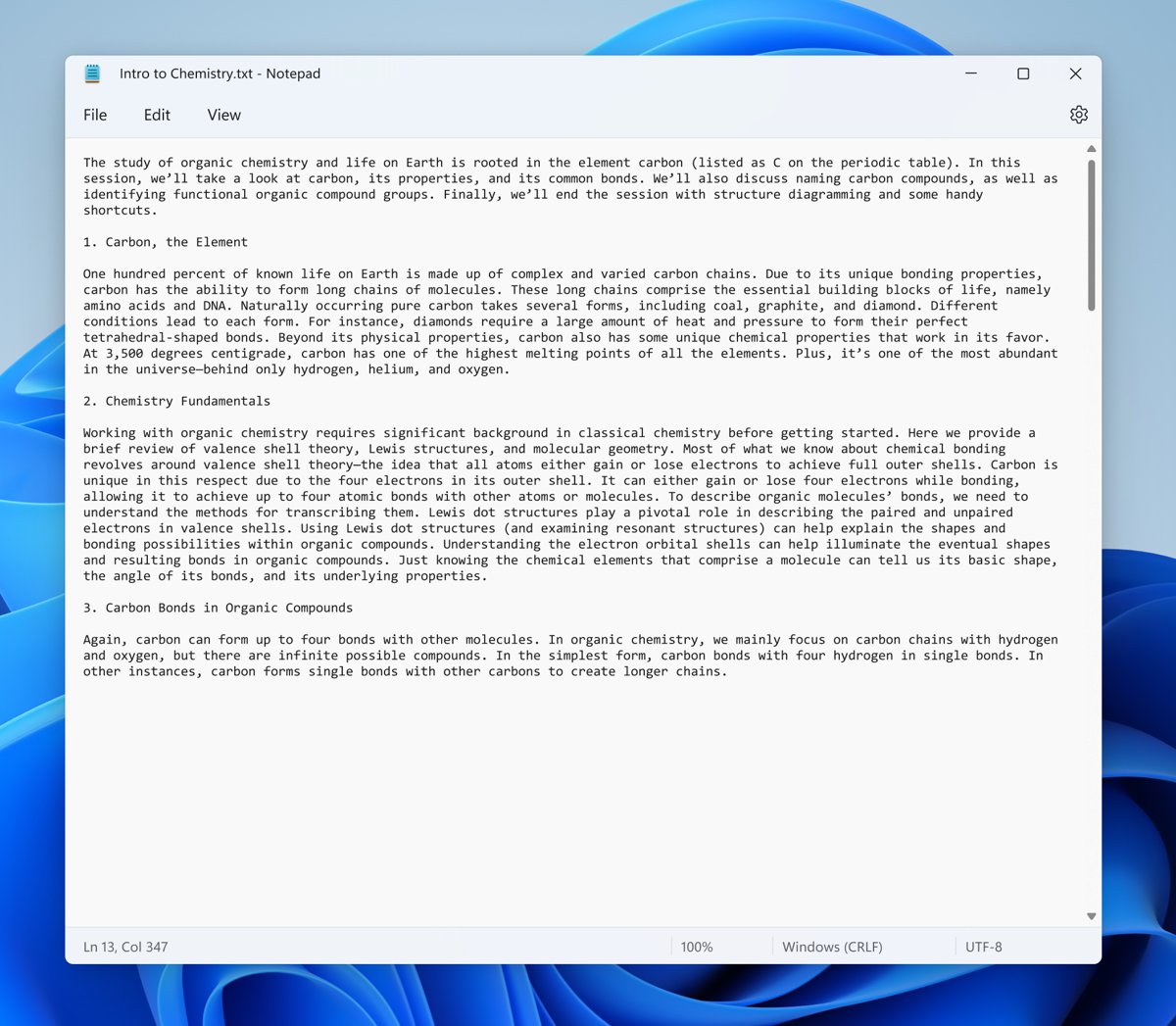
To change the Notepad font and size in Windows 11, open Notepad, select the Settings gear at the top right, expand Font, and pick a new Family, Style and Size.
This guide covers the font settings, zoom shortcuts, adding new fonts, going back to the default font, and making all Windows text larger.
How to change Notepad font and size in Windows 11
The redesigned Notepad keeps its font options on its own settings page, not in a Format menu. One font applies to every tab and window, so you set it once.
- Press the Windows key, type Notepad, and open the app.
- Select the Settings gear at the right end of the menu bar.
- Expand the Font section to show the font controls and a live preview.
- Open the Family list and choose a font, such as Consolas, Segoe UI or Arial.
- Open the Style list and pick Regular, Italic, Bold or another weight the font offers.
- Open the Size list and choose a larger or smaller point size.
- Select the back arrow at the top left to return to your document.
Notepad saves the choice straight away. There is no Apply or OK button, and the new font stays after you close and reopen the app.
Notepad font size vs zoom vs Windows text size
Three different controls make Notepad text look bigger. They differ in what they change and how long the change lasts.
| What you want | Use this | What changes |
|---|---|---|
| Bigger or smaller text in every Notepad file from now on | Settings > Font > Size | The font size Notepad uses for all tabs, saved between sessions |
| A different typeface, such as a monospaced font for code | Settings > Font > Family | The font used to draw every file |
| Larger text for a moment, without touching settings | Ctrl + Plus or Ctrl + mouse wheel | The zoom level shown in the status bar; Ctrl + 0 resets it |
| Larger menus, title bars and labels across Windows | Settings > Accessibility > Text size | System text, not the font inside the Notepad document |
| Everything on screen bigger, text and images | Settings > System > Display > Scale | The scale of all apps, Notepad included |
How to change font style in Notepad
Font style in Notepad settings is the weight and slant of the whole document. The list only shows the styles the chosen font family includes, so Consolas offers Regular, Bold, Italic and Bold Italic.
- Select the Settings gear in Notepad.
- Expand Font.
- Choose the font in Family first, because the style list changes with it.
- Open Style and select the weight you want, for example Bold.
- Watch the preview text under the lists until it reads comfortably.
- Go back to the document to see the style on every line.
To make only a few words bold or italic, select them and use the formatting toolbar instead. That formatting belongs to the text, while the Style setting changes how Notepad draws the entire file.
Notepad zoom in and zoom out shortcuts
Zoom changes how large the text looks without changing the saved font size. It is the quickest fix when one file looks too small on a high-resolution screen.
- Press Ctrl + Plus (+) to zoom in one step at a time.
- Press Ctrl + Minus (-) to zoom out.
- Hold Ctrl and turn the mouse wheel for finer control.
- Open View > Zoom if you prefer the menu to the keyboard.
- Read the current zoom percentage at the right side of the status bar.
- Press Ctrl + 0 to restore the default zoom level.
If the zoom percentage is missing, turn the status bar back on from the View menu.
How to add a new font to Notepad
Notepad lists the fonts installed in Windows. Install a font in Windows and it appears in the Notepad Family list.
- Press Windows + I to open Settings.
- Select Personalization > Fonts.
- Select Get more fonts in Microsoft Store, pick a font, and select Get or Buy.
- For a font file you already have, make sure it is a .ttf or .otf file, right-click it and select Install or Install for all users.
- Close and reopen Notepad.
- Open Settings > Font > Family and select the new font.
Microsoft notes that not every app supports custom fonts. If a freshly installed font is missing from the list, search for it under Available fonts in Settings > Personalization > Fonts to check that Windows installed it.
How to revert Notepad font to default
A fresh copy of Notepad on Windows 11 uses Consolas, Regular, 11 point. Set those three values again to get the original look back.
- Select the Settings gear in Notepad.
- Expand Font.
- Set Family to Consolas.
- Set Style to Regular.
- Set Size to 11.
- Return to the document and press Ctrl + 0 to clear any zoom.
Change display font size on Windows 11
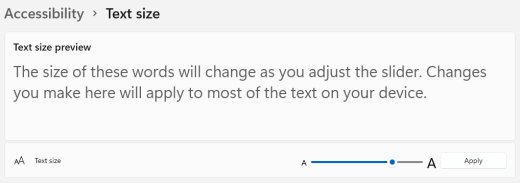
Notepad font settings only affect the document area. To enlarge menus, title bars and text in every app, change the text size in Windows from Accessibility settings.
- Press Windows + U to open Settings > Accessibility.
- Select Text size.
- Drag the Text size slider to the right until the sample text is easy to read.
- Select Apply.
- To enlarge images and apps as well, press Windows + I, select Display, and under Scale & layout choose a larger value in Scale.
- Sign out and back in if an app still shows the old size.
For a short-term close-up, press Windows + Plus (+) to start Magnifier and Windows + Esc to close it.
New features in Notepad in Windows 11
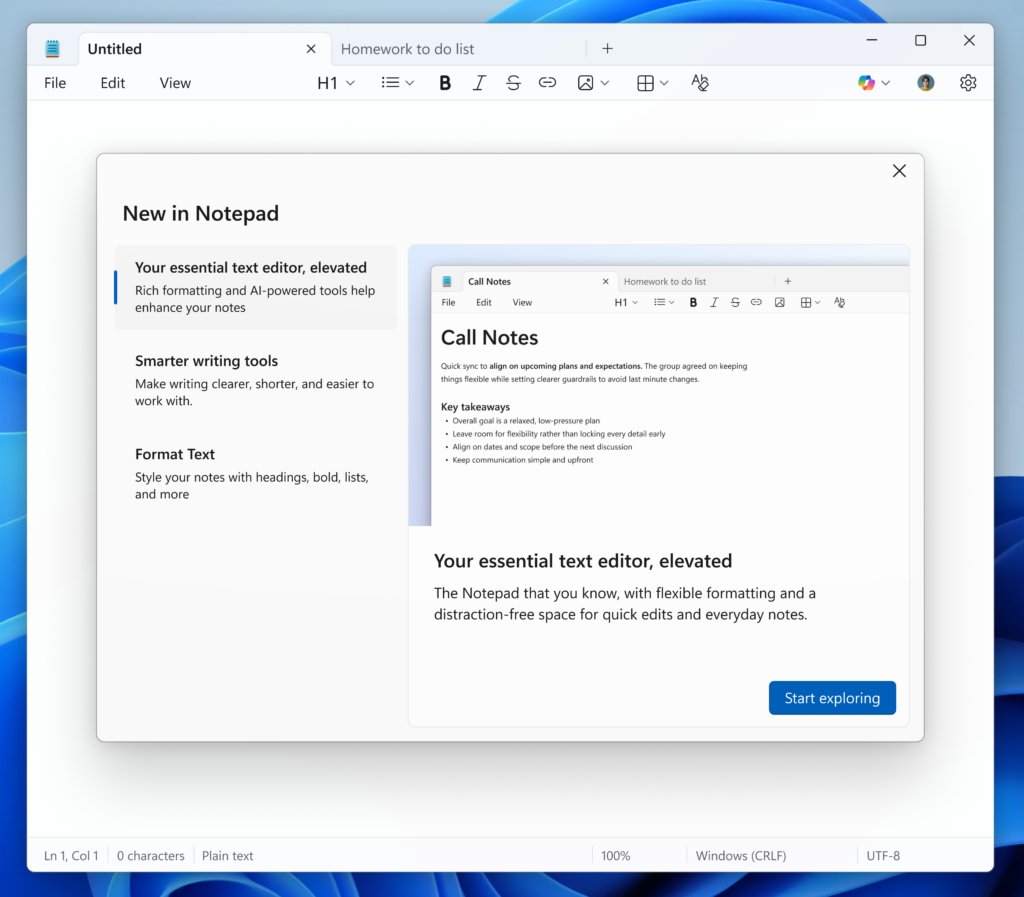
Recent Notepad updates added formatting that sits on top of the font settings. The font you pick in settings is still the base for headings, lists and tables.
| Feature | What it does | Where to find it |
|---|---|---|
| Settings page | Holds the font options and the app theme, which follows the Windows theme by default | Settings gear at the top right |
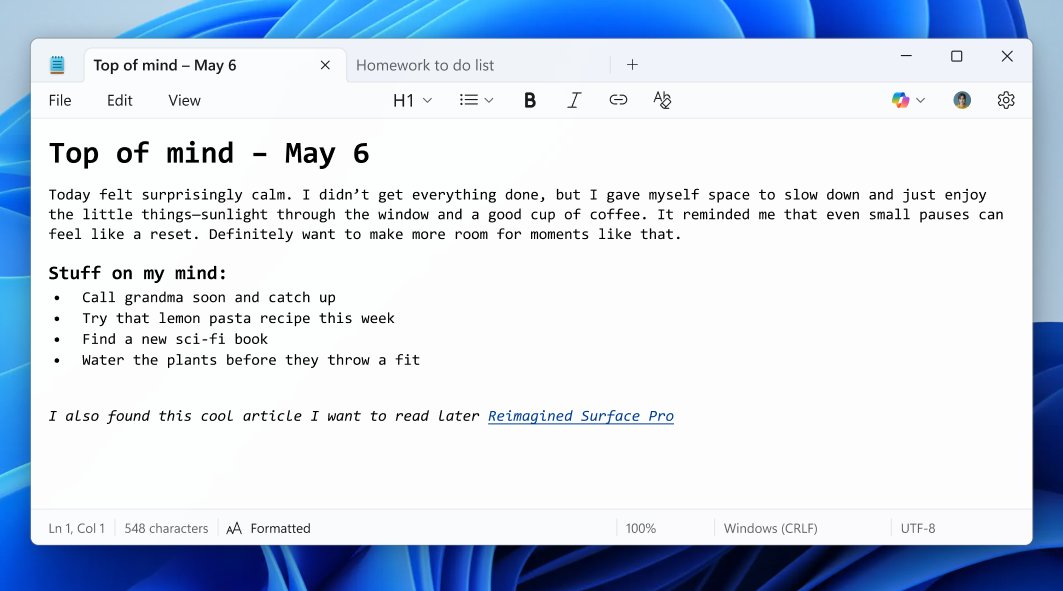
| Lightweight formatting | Bold, italic, hyperlinks, simple lists and headings | Formatting toolbar; can be turned off in settings |
| Markdown support | Opens and saves Markdown, and switches between formatted view and raw syntax | View menu or the status bar button |
| Tables | Inserts tables and adds or removes rows and columns | Formatting toolbar or the Table menu |
| Strikethrough and nested lists | Extra Markdown formatting added in version 11.2512.10.0 | Formatting toolbar |
| Write, Rewrite and Summarize | AI text tools that need a Microsoft account sign-in | Notepad toolbar |
Notepad formatting toolbar vs font settings
| Question | Font settings | Formatting toolbar |
|---|---|---|
| What it changes | How every file looks on your screen | Selected words in one file |
| Saved inside the file | No; a .txt file holds no font information | Yes, as Markdown in a .md file |
| Bold and italic | Whole-document style through the Style list | Only the text you select |
| Text colour | Not offered | Not among the listed formatting options |
| How to remove | Pick the default font again | Clear formatting from the toolbar or the Edit menu |
Notepad tips and tricks for Windows users
- Keep a monospaced font such as Consolas for scripts and logs, because every character has the same width and columns line up.
- Choose a proportional font such as Segoe UI for notes and drafts that read like normal prose.
- Use Ctrl + mouse wheel to zoom while presenting your screen, then press Ctrl + 0 before you close Notepad.
- Turn off formatting in Notepad settings when you edit configuration files and need plain text only.
- Pick the right file encoding as well when special characters look wrong; change the default character encoding in Notepad from the Save as dialog.
- Send font or display bugs through Feedback Hub (Windows + F) under Apps > Notepad.
Notepad font and size FAQ
How do I change font size in Notepad?
Select the Settings gear in Notepad, expand Font, and choose a value in the Size list. The new size applies to every tab and stays after a restart. For a temporary change, press Ctrl + Plus or Ctrl + Minus to zoom instead.
What is the default Notepad font in Windows 11?
Notepad in Windows 11 starts with Consolas, Regular style, at 11 point. Consolas is a monospaced Microsoft font designed for code, so every character takes the same width. Set those three values in Settings > Font to return to the original look.
How do I change the font style in Notepad?
Open Notepad settings, expand Font, choose a font in Family, and then pick an option in the Style list, such as Bold or Italic. The available styles depend on the font family, so the list changes when you choose a different font.
How do I change the font on Notepad in Windows 10?
Classic Notepad in Windows 10 keeps its font options under Format > Font. Choose the font, font style and size in that dialog and select OK. The Windows 11 version moved the same choices to its Settings page.
Can you change the font color in Notepad?
No. Notepad has no font colour option in settings, and its formatting toolbar offers bold, italic, links, lists, headings, strikethrough and tables rather than colour. Switching the app theme to dark changes the background and text together.
How do I change the text font in Notepad for one file only?
You cannot. Notepad uses one font for every open file because plain .txt files store no font information. To emphasise part of a file, select the words and use the formatting toolbar to make them bold or italic instead.
Why is a new font not showing in Notepad?
Notepad only lists fonts that Windows has installed. Check Settings > Personalization > Fonts under Available fonts, install the .ttf or .otf file with right-click > Install if it is missing, and then reopen Notepad so it reloads the font list.
How do I change the font in Notepad++?
Notepad++ is a separate editor from the Windows Notepad app, and it keeps its own font settings inside its own menus. Changing the font in Windows Notepad settings has no effect on Notepad++, and the reverse is also true.