TCP port 445 carries Server Message Block (SMB) traffic, which Windows uses for file sharing, printer sharing and named pipes, and you disable it by adding a Windows Defender Firewall rule that blocks TCP 445.
This guide explains what runs on port 445, when you still need it, how to block it on Windows 11 and Windows 10, and how to confirm the port is closed.
Block port 445 on Windows with one PowerShell command
The quickest way to close port 445 to other computers is an inbound block rule. It works on Windows 11 and Windows 10 and takes effect at once, with no restart.
- Right-click Start and select Terminal (Admin) or Windows PowerShell (Admin).
- Select Yes at the User Account Control prompt.
- Run
New-NetFirewallRule -DisplayName "Block TCP 445 inbound" -Direction Inbound -LocalPort 445 -Protocol TCP -Action Block. - Confirm the output shows Enabled : True and Action : Block for the new rule.
A block rule overrides the built-in File and Printer Sharing allow rules, so other PCs can no longer open shares on this computer. Your PC can still connect out to shares on other machines.
What is port 445 on Windows?
Port 445 is the standard port for SMB over TCP. Windows 2000 and every later version can run SMB directly on 445 without the older NetBIOS ports.
| Item | Detail |
|---|---|
| Port number | 445 |
| Transport | TCP |
| Protocol | Server Message Block (SMB) |
| Windows service that listens | Server (service name lanmanserver) |
| Older companion ports | TCP 139 and UDP 137 and 138 for NetBIOS, which Microsoft lists as optional |
| Default state on a home PC | Open on private networks when File and Printer Sharing is turned on |
What do I require the TCP 445 for?
Microsoft's port reference shows SMB on TCP 445 behind many everyday Windows features. Block it and every item below stops working for incoming connections.
| What uses port 445 | What breaks if you block it |
|---|---|
| Shared folders and mapped network drives | Other PCs cannot open files shared from this computer |
| Printer sharing | Network users cannot print to a shared network printer attached to this PC |
| Named pipes and RPC over named pipes | Remote tools such as Event Viewer for another computer fail |
| Active Directory domain controllers | Group Policy and logon scripts cannot be read from SYSVOL |
| Failover clustering | Adding a node with the Add Node Wizard fails |
| DFS Namespaces and Replication | Namespace and replication traffic between servers stops |
| Azure Files and some Office 365 scenarios | Outbound SMB mounts to the cloud stop if you block 445 outbound |
A standalone home PC that shares nothing needs none of this inbound. A domain-joined work PC or a file server does, so leave those to your IT team.
For what reason should port 445 be disabled to ensure safety?
Microsoft's SMB security guidance tells organisations to block TCP 445 inbound and outbound at the internet edge. An exposed SMB port lets attackers reach the file sharing service directly.
| Risk | Why port 445 matters |
|---|---|
| Internet exposure | An SMB port reachable from the internet can be scanned and attacked by anyone |
| Worms and ransomware | Malware that exploits SMB flaws spreads from PC to PC over port 445 |
| Lateral movement | An attacker on one PC uses SMB to reach other devices on the same network |
| Credential theft | Outbound SMB to a malicious server can leak sign-in hashes, which is why Microsoft advises blocking 445 outbound on public networks |
| Old SMBv1 | SMBv1 lacks modern security features; Microsoft recommends leaving it turned off |
Most home routers already block inbound 445 from the internet. A local firewall rule adds protection on public Wi-Fi and against infected devices inside your network.
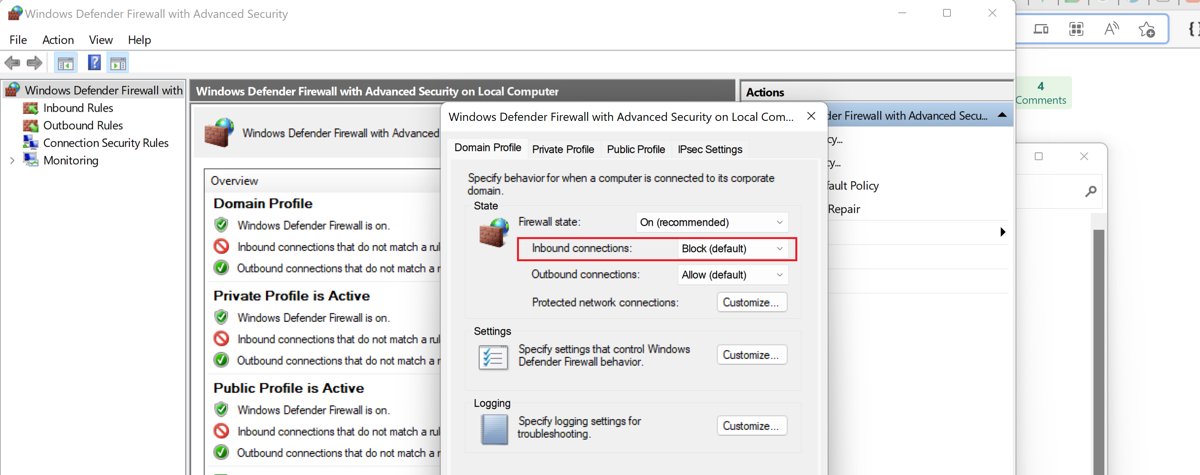
Disable TCP port 445 in Windows 7/10 or 11
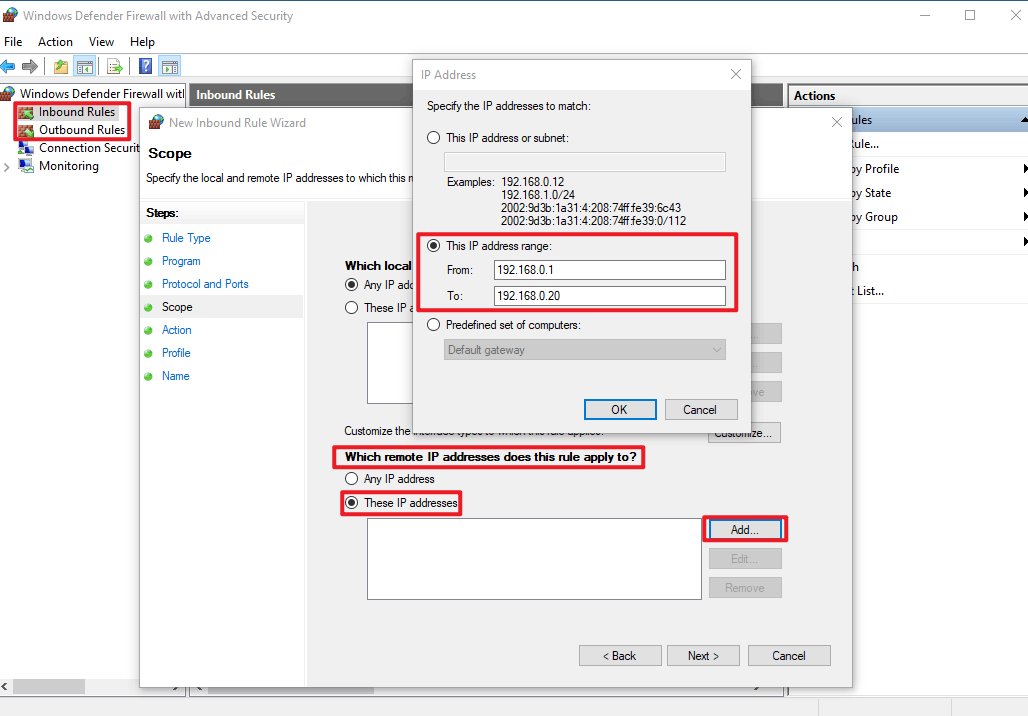
Windows Defender Firewall with Advanced Security has the same New Inbound Rule wizard on Windows 11, Windows 10 and Windows 7. Windows 7 no longer gets security updates, so blocking 445 there is a stopgap, not a fix.
- Select Start, type
wf.mscand press Enter. - Select Inbound Rules in the left pane.
- Select Action > New Rule.
- On the Rule Type page, select Port, then Next.
- On the Protocol and Ports page, select TCP, choose Specific local ports, type
445and select Next. - On the Action page, select Block the connection, then Next.
- Keep Domain, Private and Public checked and select Next.
- Name the rule, for example Block TCP 445, and select Finish.
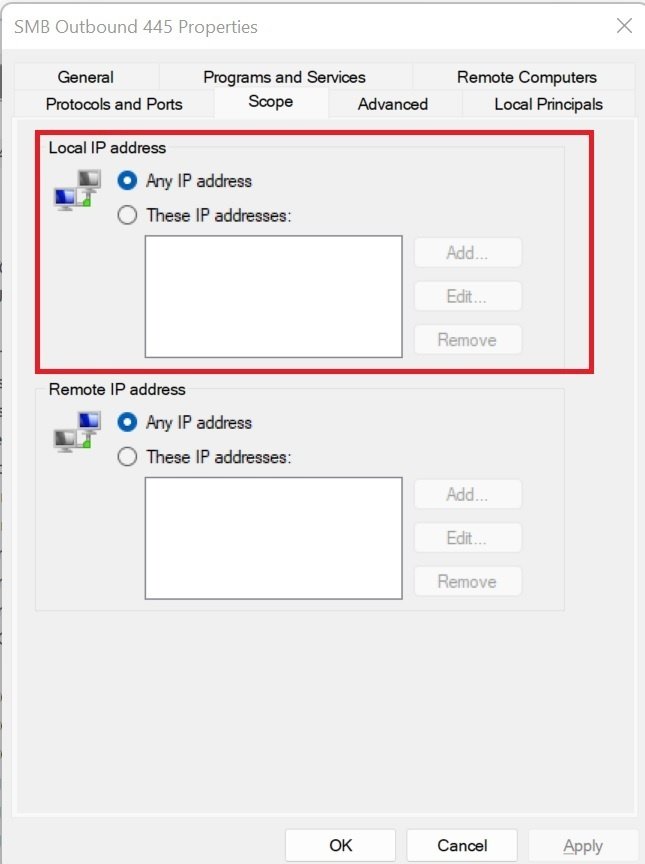
To stop this PC sending SMB to other machines too, repeat the steps under Outbound Rules and enter 445 as the remote port.
Block port 445 outbound with PowerShell
An outbound rule stops this PC from connecting to SMB shares anywhere. Use it on laptops that never use network drives, or limit it to the Public profile so home shares keep working.
New-NetFirewallRule -DisplayName "Block TCP 445 outbound public" -Direction Outbound -RemotePort 445 -Protocol TCP -Action Block -Profile Public-Direction Outbound filters traffic leaving the PC, -RemotePort 445 matches SMB servers, -Action Block drops it, and -Profile Public applies the rule only on networks marked Public.
You should see: PowerShell prints the new rule with Enabled : True, Direction : Outbound and Action : Block.
Stop the Server service to close port 445
The Server service (lanmanserver) is what listens on port 445. Disabling it shuts the SMB server on this PC entirely, which also removes every file and printer share it offers.
- Press Win + R, type
services.mscand press Enter. - Double-click Server in the list.
- Set Startup type to Disabled.
- Select Stop, then select OK.
- Restart the PC so dependent services start without it.
Use this only on a PC that shares nothing. The firewall rule is easier to undo and leaves outbound connections to other shares untouched.
Disable SMBv1 if you keep port 445 open
If you need file sharing, keep 445 open but make sure the old SMBv1 protocol is off. No restart is needed after the change.
- Open Terminal (Admin) or Windows PowerShell (Admin).
- Run
Get-SmbServerConfiguration | Select EnableSMB1Protocolto see the current state. - If it returns True, run
Set-SmbServerConfiguration -EnableSMB1Protocol $false. - Type Y to confirm, then run the first command again and check it returns False.
Is port 445 open? Test it with netstat and Test-NetConnection
A block rule does not stop the Server service listening locally, so netstat still shows 445. Test from a second PC to see what the network sees.
- On the PC you changed, open Command Prompt and run
netstat -ano, then look for a line with :445 and LISTENING. - A listening line means the Server service is running; it disappears only if you disabled that service.
- On another PC on the same network, open PowerShell and run
Test-NetConnection -ComputerName <IP address> -Port 445. - Read the TcpTestSucceeded line: False means port 445 is blocked, True means it is still reachable.
- Run
Test-NetConnection -ComputerName <IP address> -CommonTCPPort SMBas a shortcut for the same test.
How to reopen port 445 on Windows
- Open Terminal (Admin) or Windows PowerShell (Admin).
- Run
Remove-NetFirewallRule -DisplayName "Block TCP 445 inbound", using the name you gave the rule. - Repeat for any outbound rule, such as
Remove-NetFirewallRule -DisplayName "Block TCP 445 outbound public". - If you disabled the Server service, open
services.msc, set Server to Automatic and select Start. - Test again with
Test-NetConnection -ComputerName <IP address> -Port 445from another PC.
Rules made in the wizard can also be removed in wf.msc: right-click the rule under Inbound Rules and select Delete, or Disable Rule to keep it for later.
Port 445 FAQ
What is the use of port 445?
Port 445 carries SMB traffic. Windows uses it for shared folders, mapped network drives, printer sharing and named pipes between computers. Domain controllers also serve Group Policy files over it, so business networks rely on it heavily.
What is TCP port 445 used for?
TCP port 445 is the port for SMB over TCP. The Windows Server service listens on it so other computers can open files, folders and printers this PC shares.
What runs on port 445?
The Windows Server service, named lanmanserver, runs on port 445. Turning off File and Printer Sharing or disabling that service stops it listening.
Why is port 445 used instead of 139?
Port 445 runs SMB directly over TCP, while port 139 needs the older NetBIOS session layer. Windows 2000 and later can share files over 445 alone, so Microsoft lists the NetBIOS ports as optional.
What is the purpose of port 445 being open on my PC?
It lets other devices on your network reach files and printers you share. If you share nothing, the open port serves no purpose, and blocking it inbound with a firewall rule is safe for a standalone home PC.
Is it safe to block port 445?
Blocking 445 inbound is safe on a home PC that shares no folders or printers. On a domain-joined PC, a file server or a domain controller it breaks core features, so leave it to the network administrator.
Does blocking port 445 stop me opening network drives?
An inbound rule does not. Your PC connects out to other machines' port 445, so mapped drives keep working. Only an outbound block rule stops you reaching shares on other computers or NAS drives.
Should port 445 be open to the internet?
No. Microsoft advises blocking TCP 445 inbound and outbound at the internet edge. Never forward port 445 on your router; use a VPN or SMB over QUIC on UDP 443 for remote file access.