Create a symbolic link in Windows by running mklink Link Target in an elevated Command Prompt, adding /d when the target is a folder.
This guide covers mklink and PowerShell's New-Item, symlinks without admin rights, the difference between symlinks, hard links and junctions, finding every link on a drive, and removing one.
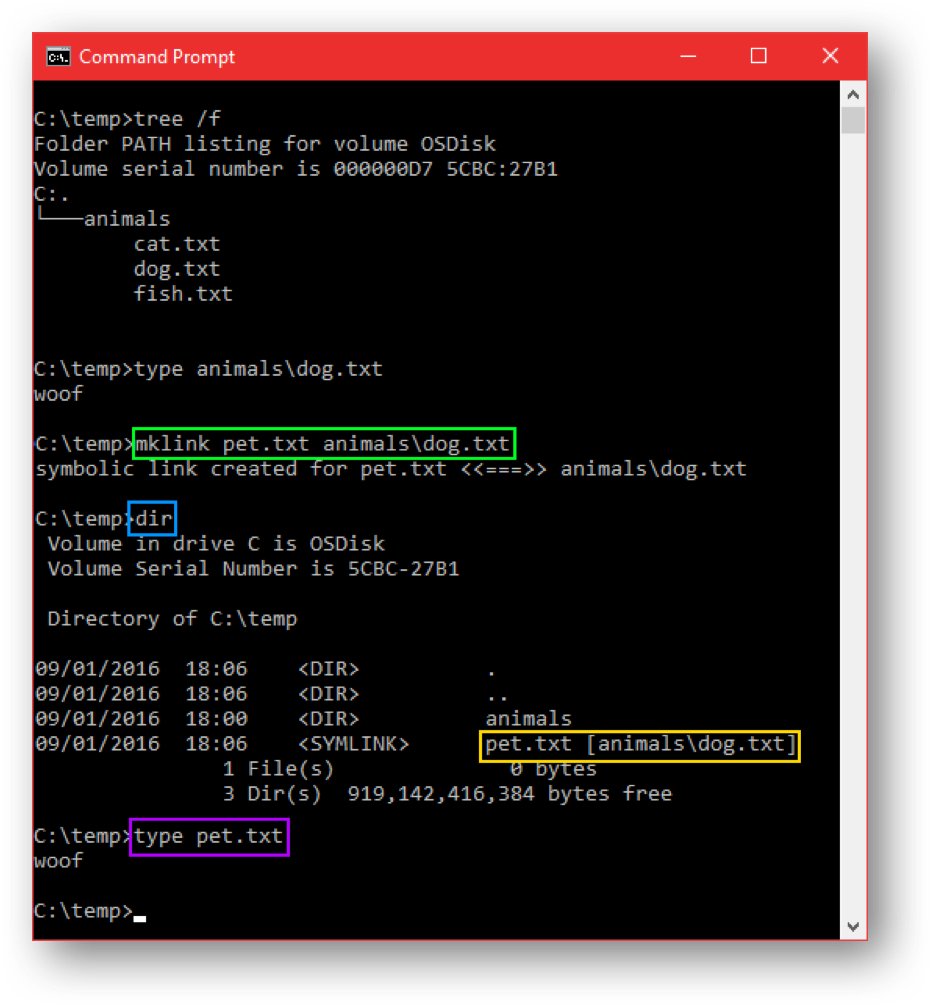
How to create a symbolic link in Windows?
A symbolic link is a file system object that points to another file or folder, called the target. Apps and File Explorer treat the link exactly like the target itself.
mklink is a Command Prompt command, and creating a symlink needs an elevated Command Prompt unless Developer Mode is on.
- Select Start, type
cmd, right-click Command Prompt and select Run as administrator. - Select Yes at the User Account Control prompt.
- For a file, type
mklink C:\Links\notes.txt D:\Data\notes.txtand press Enter. The link comes first, then the target. - For a folder, add
/d:mklink /d C:\Links\Projects D:\Work\Projects. - Wrap any path with spaces in quotation marks, such as
mklink /d "C:\My Links\Photos" "D:\Family Photos". - Open the link path in File Explorer and check that it shows the target's contents.
The link path must not exist yet, while the target can be an absolute path, a relative path, or a UNC path to a network share. Relative symlinks only work within a single volume.
mklink command syntax and switches
mklink creates four kinds of links from one command. The syntax is mklink [[/d] | [/h] | [/j]] <link> <target>.
| Command | What it creates | Example |
|---|---|---|
mklink |
File symbolic link (the default) | mklink C:\app\config.ini D:\Sync\config.ini |
mklink /d |
Directory symbolic link | mklink /d C:\Games\Saves D:\Saves |
mklink /h |
Hard link to a file on the same volume | mklink /h C:\Docs\copy.txt C:\Docs\report.txt |
mklink /j |
Directory junction | mklink /j C:\Cache D:\Cache |
mklink /? |
Help text at the prompt | mklink /? |
Create a symlink in PowerShell with New-Item
PowerShell has its own cmdlet for links, so you don't need to switch to Command Prompt. Run PowerShell as administrator, either on its own or in Terminal.
New-Item -ItemType SymbolicLink -Path "C:\Links\Projects" -Target "D:\Work\Projects"-ItemType SymbolicLink creates a symlink, and the same cmdlet makes a file or folder link depending on the target. -Path is the new link and -Target is what it points to. Use -ItemType Junction or -ItemType HardLink for the other link types.
You should see: PowerShell prints the new item, and its Mode column starts with l, which marks a link.
Older PowerShell versions need a full path for -Target. Relative targets work from PowerShell 6.2 for files and from PowerShell 7.1 for folders.
Create symbolic links without admin rights using Developer Mode
Windows 10 build 14972 and later let any user create symlinks without elevation once Developer Mode is on. Turning Developer Mode on still needs an administrator, and work PCs may block it.
- Open Settings with Windows key + I.
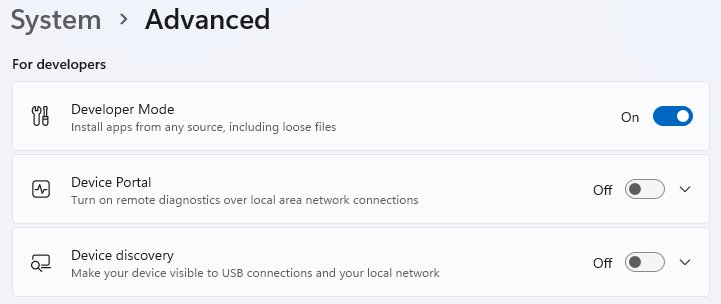
- On Windows 11 25H2 and later, go to System > Advanced and scroll to For developers. On earlier versions, open the For developers page.
- Turn on Developer Mode.
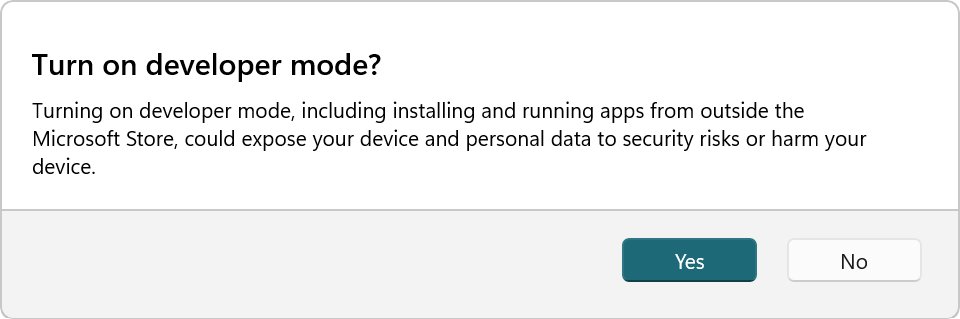
- Read the warning and select Yes.
- Open a normal Command Prompt or PowerShell window and run
mklinkorNew-Item -ItemType SymbolicLinkwithout Run as administrator.
Developer Mode also installs extra developer features such as SSH services for app deployment. If you only want symlinks, the user right in the next section is a narrower change.
Allow standard users to create symbolic links with Group Policy
The Create symbolic links user right controls who can make symlinks. By default only the Administrators group has it. Microsoft warns to grant it only to trusted users, because symlinks can expose flaws in apps that don't expect them.
- Press Windows key + R, type
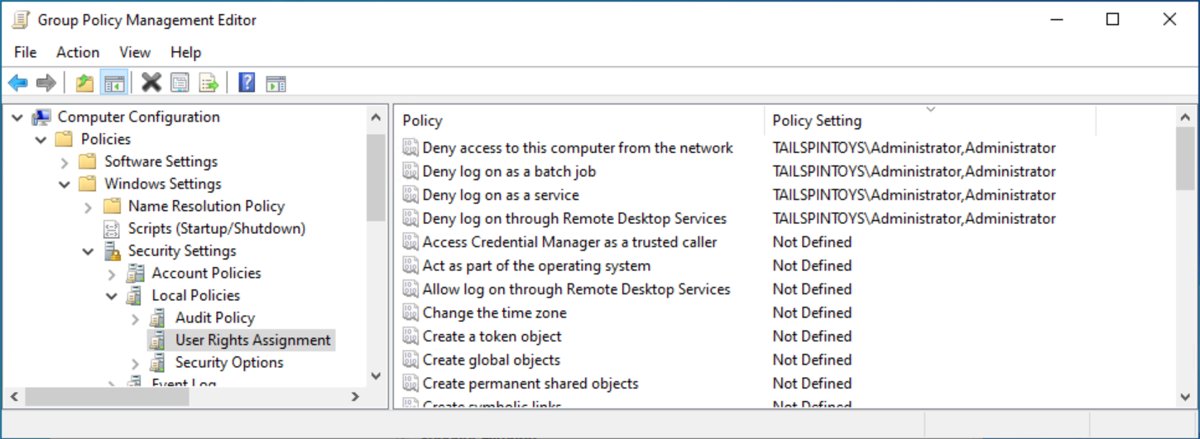
secpol.mscand press Enter (or edit a domain GPO in Group Policy Management). - Go to Security Settings > Local Policies > User Rights Assignment.
- Double-click Create symbolic links.
- Select Add User or Group, enter the user or group, and select OK twice.
- Sign out and back in so the new right is added to the account's token.
In a domain GPO the same setting sits under Computer Configuration > Windows Settings > Security Settings > Local Policies > User Rights Assignment.
Symbolic link vs hard link vs junction in Windows
NTFS supports three link types. Pick by what you link to and where it lives.
| Feature | Symbolic link | Hard link | Junction |
|---|---|---|---|
| Links to | Files or folders | Files only | Folders only |
| Across volumes | Yes, and to network shares by UNC path | No, same volume only | Yes, between local volumes only |
| Admin rights | Yes, unless Developer Mode or the user right is set | No | No |
| mklink switch | None for files, /d for folders |
/h |
/j |
| New-Item type | SymbolicLink |
HardLink |
Junction |
| If the target is deleted | Link stays but points nowhere | Data survives until the last hard link is deleted | Link stays but points nowhere |
A hard link is another name for the same file, so a change through any of its paths shows up in all of them. Junctions and symlinks are both reparse points that redirect the path.
How to find all symbolic links on a Windows drive?
Command Prompt's dir filters by the reparse point attribute, which covers symlinks and junctions. Run it from an elevated prompt so protected folders are included.
dir C:\ /a:l /s/a:l lists only reparse points, and /s searches the folder and every subfolder. Change C:\ to any drive or folder.
You should see: Every folder that holds a symlink or junction is listed, with the link names under it.
In PowerShell, run Get-ChildItem -Path C:\ -Recurse -Force -Attributes ReparsePoint -ErrorAction SilentlyContinue | Select-Object FullName, LinkType, Target. The LinkType column separates SymbolicLink, Junction and other reparse points. By default Get-ChildItem lists folder symlinks it meets but does not recurse into them.
How to see where a symlink points in Windows
Check a single link before you rely on it or delete it.
- In PowerShell, run
Get-Item C:\Links\Projects | Select-Object LinkType, Target. - Read LinkType: SymbolicLink, Junction or HardLink.
- Read Target for the path the link resolves to.
- In Command Prompt, run
fsutil reparsepoint query C:\Links\Projectsfrom an elevated window to see the raw reparse point data stored on the link. - Open the link in File Explorer and check that the target's files appear.
Enable remote symbolic links with fsutil
Windows decides which symlinks it will follow based on where the link and its target live. A link on a network share that points to a local path, or the reverse, may be refused until you allow that type.
| Link type | Code | Enable it (elevated prompt) |
|---|---|---|
| Local link to a local target | L2L | fsutil behavior set symlinkevaluation L2L:1 |
| Local link to a remote target | L2R | fsutil behavior set symlinkevaluation L2R:1 |
| Remote link to a local target | R2L | fsutil behavior set symlinkevaluation R2L:1 |
| Remote link to a remote target | R2R | fsutil behavior set symlinkevaluation R2R:1 |
Run fsutil behavior query symlinkevaluation to see the current settings. Set a value to 0 to turn that link type off again.
How to delete a symbolic link in Windows
Deleting the link removes only the pointer. Use the command that matches the link type, and point it at the link path, never the target.
- Open Command Prompt in the folder that holds the link, or use its full path.
- For a folder symlink or junction, run
rd C:\Links\Projects. - For a file symlink or hard link, run
del C:\Links\notes.txt. - In PowerShell, run
Remove-Item C:\Links\notes.txtfor a file link. - Open the target folder and check that its files are still there.
Never add /s to rd on a folder link. That switch deletes the contents, and through a link the contents are the target's files.
mklink not working in Windows
mklink reports that you don't have sufficient privilege
Creating symbolic links needs the Create symbolic links user right, which only administrators hold by default.
- Close the window and reopen Command Prompt with Run as administrator.
- Or turn on Developer Mode and use a normal window.
- Or create a junction with
mklink /jfor a local folder, which needs no special right.
mklink is not recognized in PowerShell
mklink is one of the built-in Command Prompt commands, not a PowerShell cmdlet.
- Use
New-Item -ItemType SymbolicLink -Path <link> -Target <target>in PowerShell. - Or type
cmd /c mklink <link> <target>to run it through Command Prompt from PowerShell.
The link exists but opening it fails
The target moved or was deleted, the link uses a relative path across volumes, or symlink evaluation blocks a remote link.
- Run
Get-Item <link> | Select-Object LinkType, Targetand check the target path still exists. - Recreate a relative link with an absolute target if it points to another drive.
- For links on or to network shares, run
fsutil behavior query symlinkevaluationand enable the matching type.
A hard link to another drive fails
Hard links only work for files on the same volume.
- Use a file symlink (
mklinkwith no switch) for a target on another drive. - Use
mklink /dormklink /jwhen the target is a folder.
Windows symlinks FAQ
What is the difference between a shortcut and a symbolic link?
A shortcut is a .lnk file that only File Explorer and apps that read shortcuts understand. A symbolic link works at the file system level, so every program and command treats the link path as if it were the target itself.
Does deleting a symlink delete the original file?
No. Deleting a symbolic link with del or rd removes only the link and leaves the target untouched. Deleting the target instead leaves a broken link that points to a path that no longer exists.
Can a symbolic link point to another drive?
Yes. A symbolic link can point to a file or folder on any local drive, or to a network share by UNC path. Relative symlinks are the exception and only work within one volume, and hard links are limited to the same volume.
Do I need administrator rights to create a symlink?
By default, yes, because only the Administrators group holds the Create symbolic links user right. Developer Mode on Windows 10 build 14972 or later, or granting that user right through Group Policy, lets standard users create symlinks too.
Should I use a junction or a symbolic link for a folder?
Use a junction for a folder on a local drive when you want no admin prompt. Use a directory symbolic link with mklink /d when you need a relative path or a target on a network share, which junctions do not support.
Which file systems support symbolic links in Windows?
Symbolic links are an NTFS feature, available since Windows Vista. The link has to be created on an NTFS volume, such as the Windows system drive.
How do I move a program folder to another drive with a symlink?
Close the program, move its folder to the new drive, then create a link at the old path pointing to the new location, for example mklink /d "C:\Program Data\App" "D:\App". The program keeps using the old path.