DYMO drivers for Windows 11 are installed by DYMO Connect for Desktop, which you download from DYMO's official site and install before you plug in the printer.
This guide covers which DYMO software fits each LabelWriter and LabelManager model, the install and manual-add steps, updates, clean reinstalls, network setups and the fixes for installs that fail.
The fastest way to install DYMO drivers on Windows 11
DYMO does not ship a separate driver download for current printers. The printer drivers are part of the DYMO software, so installing DYMO Connect for Desktop is how you get them.
- Unplug the DYMO printer's USB cable from the PC.
- Open DYMO's download page at dymo.com/compatibility-chart.html and pick the latest DYMO Connect for Desktop installer for Windows.
- Sign in with an administrator account, then run the installer and follow the prompts to the end.
- Restart the PC if the installer asks you to.
- Plug the printer's USB cable straight into the PC, not into a hub or docking station, and turn the printer on.
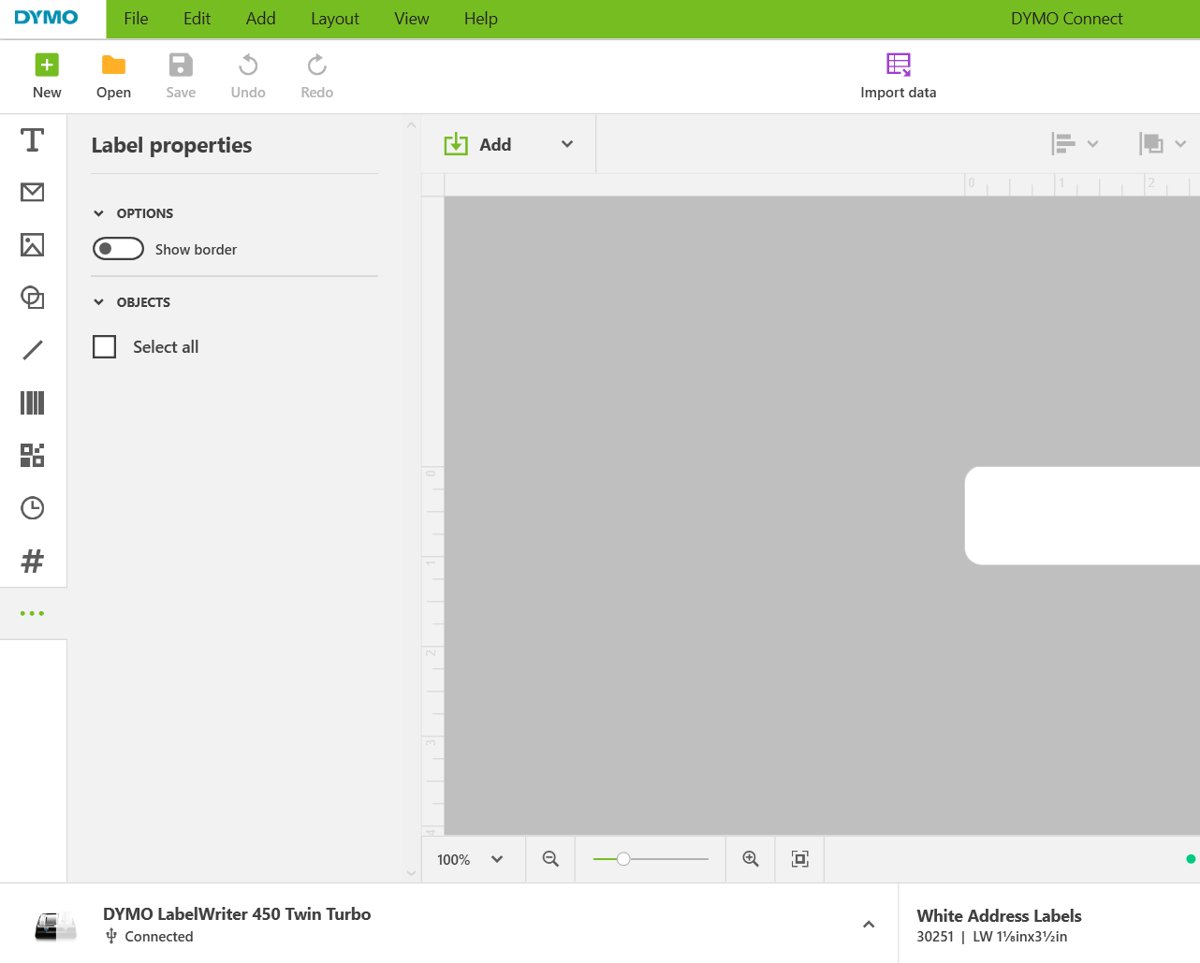
- Open DYMO Connect and confirm your printer appears in the printer list.
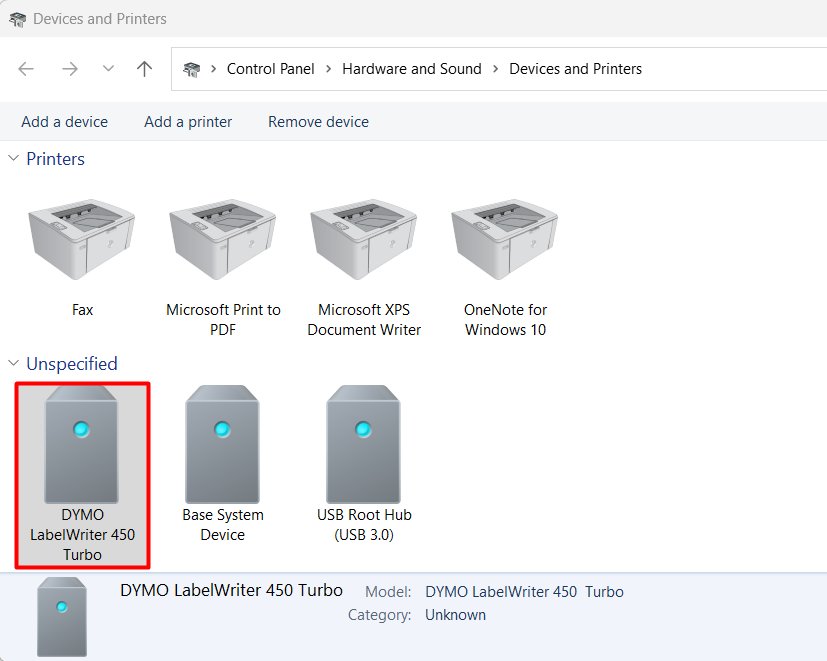
Windows then sets the printer up automatically on first connection. If it lands under Unspecified instead of Printers, jump to the troubleshooting section.
Which DYMO Software Do You Need for Windows 11?
DYMO lists only two desktop programs as Windows 11 software: DYMO Connect for Desktop for LabelWriter and LabelManager printers, and DYMO ID for the industrial Rhino and XTL range. Find your model in the left column.
| Your printer | Install this | Windows 11 status |
|---|---|---|
| LabelWriter 550, 550 Turbo, 5XL | DYMO Connect for Desktop (latest) | Supported; DYMO lists support from Windows 10 onward |
| LabelWriter 450, 450 Turbo, 450 Twin Turbo, 450 Duo, 4XL, LabelWriter Wireless | DYMO Connect for Desktop (latest) | Supported; older DYMO Connect or DYMO Label v.8 are listed as alternatives |
| LabelWriter 310, 320, 330 Turbo, Duo, TwinTurbo, 400, 400 Turbo | DYMO Label Software v.8.7.4 | Not officially supported; DYMO says it supports up to Windows 10 and "may work on Windows 11" |
| LabelManager 280, 420P, 500TS, PnP, MobileLabeler | DYMO Connect for Desktop (latest) | Supported |
| LabelManager Executive 640CB | DYMO Connect for Desktop (latest) | Supported |
| Other, older LabelManager models | DYMO Label Software v.8.7.4 | Not officially supported; may work |
| Rhino 6000+, XTL 300, XTL 500 | DYMO ID (latest) | Supported; Windows only |
| Rhino 6000, Rhino 6500 | Rhino Connect 1.4 | Not officially supported; listed for Windows 8 and 10 |
| LetraTag 200B | DYMO LetraTag Connect app on a phone | No Windows desktop software |
DYMO Label Software v.8 is marked obsolete, and some of its features no longer work. If your printer is in a v.8-only row, expect it to run on Windows 11 without any promise from DYMO.
Before You Download: Check Your Printer Model and Windows Version
Two checks prevent most failed installs: the exact printer model, which decides the software, and the processor type, which decides whether a driver exists at all.
| Check | Where to look | Why it matters |
|---|---|---|
| Printer model | The model name on the printer itself, its box or its user guide | Picks the row in the table above; a 450 and a 550 need different label stock and features |
| Windows version and system type | Start > Settings > System > About, under Device specifications | ARM devices show ARM based processor next to System type |
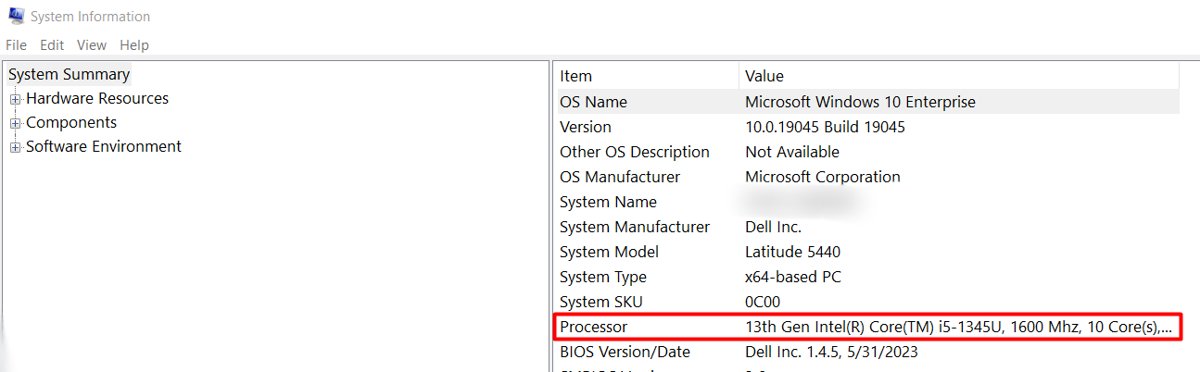
| Processor name | Search for System Information, open it and read the Processor field | DYMO's older drivers target Intel-series processors |
| Admin rights | The account you sign in with | The DYMO installer needs administrative privileges |
| Windows in S mode | Whether the PC only runs Microsoft Store apps | S mode blocks installers from outside the Microsoft Store |
| Cabling | A direct USB port on the PC | DYMO advises against USB hubs and docking stations |
On an ARM PC, such as a Copilot+ PC with a Snapdragon chip, use DYMO Connect for Desktop 1.6.2 or later. DYMO says Windows ARM drivers arrived in that version, and the LabelWriter 300 and 400 series, LabelManager PnP, MobileLabeler and v.8-only models will not work on ARM at all.
Where to Download DYMO Drivers for Windows 11 Safely
The only safe source is DYMO's own site. DYMO's help articles send readers to the compatibility chart page for every download, including older versions. The same rule applies to other printer brands, including KYOCERA printer drivers.
- Go to https://www.dymo.com/compatibility-chart.html in your browser.
- Search by your operating system or by the software name, as DYMO's instructions describe.
- Select the Windows installer for DYMO Connect for Desktop (or DYMO ID for Rhino and XTL).
- For an older release, scroll down to All software versions and pick the version you need.
- Save the installer and check that the file came from dymo.com before you run it.
Windows Update can also supply some printer drivers, and Microsoft calls it the recommended route for printers in general. DYMO's position is stricter: its software must be installed for the printer to install and work properly, even if you print from another program.
How to Install DYMO Drivers on Windows 11
Install the software first and connect the printer last. DYMO's own reinstall instructions follow that order every time.
- Disconnect the printer's USB cable from the computer.
- Right-click the DYMO installer and select Run as administrator.
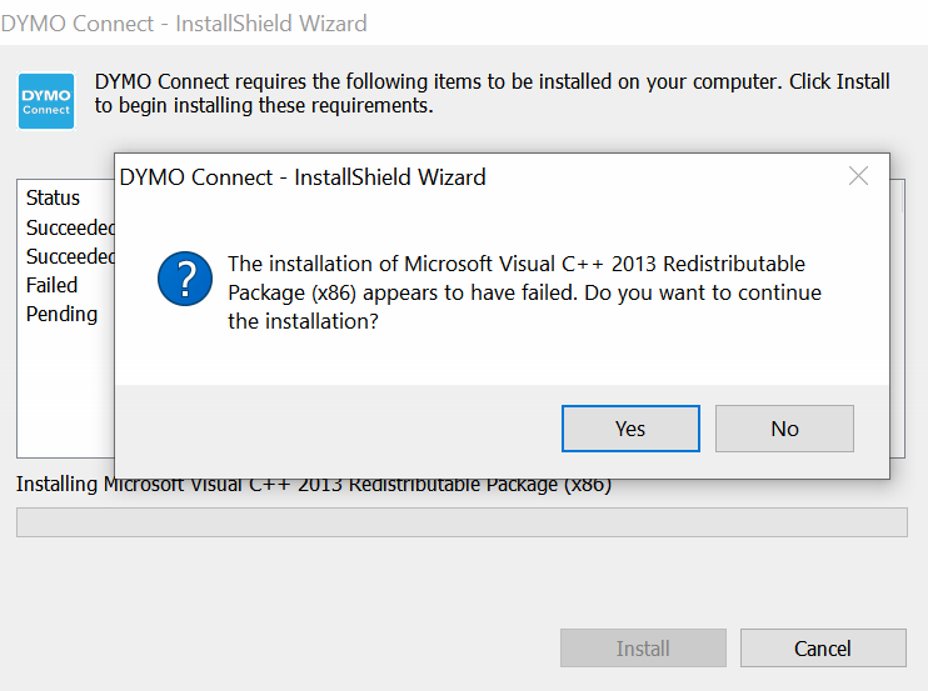
- If a Microsoft Visual C++ Redistributable error appears, select Yes to continue; it means that component is already installed, and it can appear twice.
- Accept the license and choose the complete installation, then let the wizard finish.
- Restart the computer.
- Connect the printer to a USB port on the PC and turn it on; Windows installs the driver on first connection.
- Load labels facing down and aligned to the left side of the feed path.
- Open DYMO Connect and check that the printer is listed.
The installer also adds Microsoft Access Database Engine (MS ACE) if it is missing. DYMO Connect uses it for the Import Data feature.
How to Add a DYMO Printer Manually in Windows 11
DYMO has reproduced cases where Windows 11 installs a printer only partly on first connection. This is DYMO's own manual fix, which reuses the USB port Windows already created.
- Search for Printers & scanners and open it.
- Select Print server properties under Related settings, open the Ports tab and note the USB port the LabelWriter uses, such as USB001.
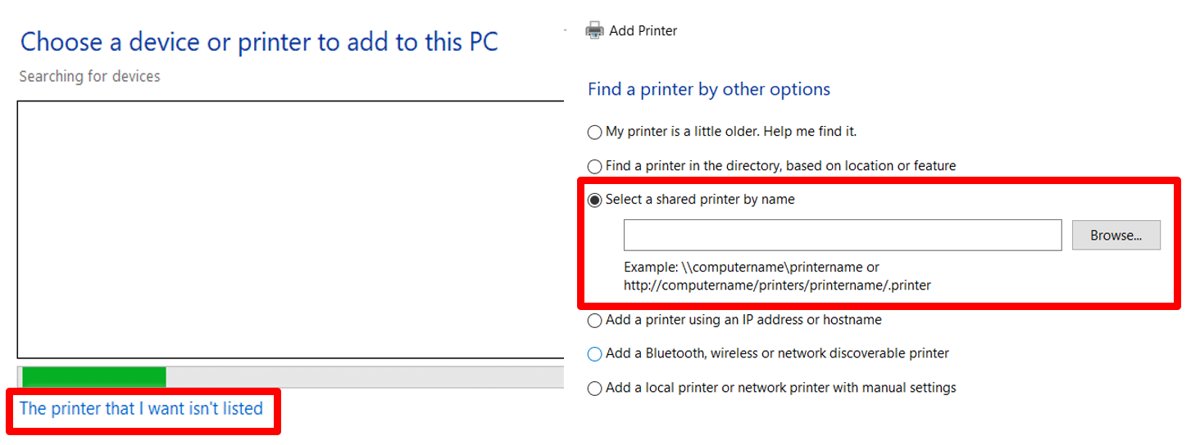
- Back in Printers & scanners, select Add device, then choose The printer that I want isn't listed (Add manually).
- Select Add a local printer or network printer with manual settings and select Next.
- Select Use an existing port, pick the port you noted and select Next.
- Select DYMO as the manufacturer, pick your LabelWriter model on the right and select Next.
- Select Next on the printer name page.
- Open Device Manager, expand Universal Serial Bus controllers, uninstall USB Printing Support, then select Action > Scan for hardware changes.
Finish by restarting the Print Spooler service in Services, then reconnect the USB cable. The DYMO entry only appears in the manufacturer list once DYMO software is installed.
How to Print a Test Label
A label printed from DYMO Connect proves the driver, the port and the label detection all work together.
- Open DYMO Connect and select New in the top-left corner.
- On the left, choose your installed DYMO printer.
- On the right, choose the label by name, size or product code; a LabelWriter 5 series fills this in automatically.
- Pick a sample template and select Open.
- Type a word on the label and select Print.
- Check Settings > Bluetooth & devices > Printers & scanners: the DYMO printer should be listed as a printer, not under Unspecified.
When you added the printer manually, the Add Printer wizard also offers Print a test page on its last screen. That page confirms Windows can reach the printer, but a label from DYMO Connect is the better test.
How to Update DYMO Drivers on Windows 11
Updating the drivers means installing a newer DYMO Connect for Desktop over the old one. DYMO recommends always running the latest version compatible with your printer.
- Open DYMO Connect, select Help in the top ribbon, then About to see your version.
- Compare it with the newest DYMO Connect for Desktop on DYMO's download page.
- Close DYMO Connect and unplug the printer's USB cable before the update.
- Run the newer installer as administrator and complete it.
- Restart the PC, reconnect the printer and print a label to confirm.
If the printer stops responding after an update, the clean reinstall below usually clears the corrupted driver.
How to Uninstall and Reinstall DYMO Drivers
A clean reinstall removes both the software and the printer with its driver. DYMO recommends it when the software freezes, crashes or keeps showing errors.
- Close DYMO Connect and disconnect the printer from the PC and from power.
- Back up your label files and address books from the Documents folder.
- Go to Settings > Bluetooth & devices > Printers & scanners, select the DYMO printer and select Remove.
- Go to Settings > Apps > Installed apps, find the DYMO software and select Uninstall.
- Press Windows + R, type
%localappdata%and delete the DYMO and Sanford,_L.P folders. - Open Services, right-click Print Spooler and select Restart.
- Empty the Recycle Bin and restart the computer.
- Install the latest DYMO software, restart again, then connect the printer.
If a folder will not delete, a DYMO service is still running in the notification area's hidden icons; right-click it and close it. DYMO's full manual method also deletes the HKEY_CURRENT_USER\SOFTWARE\DYMO and HKEY_LOCAL_MACHINE\SOFTWARE\DYMO registry keys, which you should only do after backing up the registry.
Troubleshooting DYMO Driver Problems on Windows 11
You can't install DYMO software on Windows 11
The installer lacks admin rights, Windows only allows Store apps, or a prerequisite fails.
- Sign in with an administrator account and run the installer with Run as administrator.
- If Windows says Many devices work without extra software on Windows, change the Windows app recommendation setting so apps from outside the Microsoft Store are allowed.
- If the PC is in S mode, the installer cannot run; switching out of S mode is done from the Microsoft Store and cannot be undone.
- If the Microsoft ACE step fails, leave the installer window open, press Windows + R, type
%temp%and search for the DYMO Connect .msi file. - Copy that .msi to the desktop, close the installer and run the .msi; data import will not work without MS ACE.
The printer shows under Unspecified instead of Printers
Windows did not recognize the device as a printer, usually because the driver was not picked up.
- Confirm DYMO software is listed in Installed apps.
- Open Device Manager as administrator and find the printer under Other devices or Software devices.
- Right-click it and select Update driver > Browse my computer for drivers.
- Browse to
C:\Program Files (x86)\DYMO\DYMO Connect\Drivers, tick Include subfolders and select Next. - Restart if asked; the device should move to Printers. If not, add it manually as shown earlier.
The software installs on an ARM laptop but the printer never appears
Older DYMO drivers do not support ARM processors, so the software installs without a working driver.
- Check Settings > System > About for ARM based processor under System type.
- Uninstall the current DYMO software and install DYMO Connect for Desktop 1.6.2 or later.
- If you own a LabelWriter 300 or 400 series, LabelManager PnP or MobileLabeler, use an Intel or AMD PC instead; those models have no ARM driver.
Error – Printing, Out of Paper or Printer offline
A stuck queue or a damaged driver package.
- Unplug the printer's power and USB cables and remove the labels.
- In Printers & scanners, select the LabelWriter, choose Open print queue, then Cancel all.
- Remove the printer, then restart Print Spooler in Services.
- Open Print server properties, select the Drivers tab, select the LabelWriter driver and select Remove > Remove driver only.
- Reconnect power, reload the labels, then reconnect USB directly to the PC.
LabelWriter 550 or 5XL says Labels not detected
LabelWriter 5 series printers work only with DYMO-branded labels made after April 2020.
- Check the roll: compatible labels have a white core with the DYMO logo inside.
- Remove the labels, unplug both cables and press the power button 10 times.
- Plug power straight into a wall outlet, turn the printer on and feed the labels again.
- If the light is solid, clear the queue, remove the printer, reopen DYMO Connect and reconnect USB.
- If labels are still not detected, close DYMO Connect and run it as administrator.
The printer disconnects or installs incompletely on USB
USB power saving can leave ports unresponsive and corrupt installed printers.
- Press Windows + R, type
powercfg.cpland select OK. - Select Change plan settings > Change advanced power settings.
- Expand USB settings, then the USB selective suspend entry, and disable it; if the entry is missing, skip this step.
- Shut the PC down, unplug it for one minute, then start it and reconnect the printer, trying another USB port if needed.
Using DYMO Printers with Shipping, Marketplace, and Business Apps
Shipping sites and business tools print through the Windows driver, so DYMO software must still be installed first. DYMO states this directly: the printer needs its software even if you print from another program.
| What you want to print | How it works with DYMO | Note |
|---|---|---|
| Shipping labels from a marketplace or carrier site | Print to the DYMO printer from the browser or app, using the installed driver | Set the label size in the site's print settings to match the roll in the printer |
| A shipping label saved as PDF | In DYMO Connect, add an Image object, select Browse, open the PDF, pick the page, crop and select Add image | Available from DYMO Connect 1.4.4 |
| Address labels from contacts | Import Data from Outlook or Google contacts, or use File > Manage Contacts | Address Fixer adds 9-digit ZIP Codes for US addresses |
| Batches from a spreadsheet | Import Data from Excel, Access, .csv or .udl files, then assign fields to label objects | Needs Microsoft Access Database Engine, installed with DYMO software |
| USPS mail barcodes | Add an Intelligent Mail barcode to an address or as its own barcode | US only; from DYMO Connect 1.4.4 |
| Inventory and product barcodes | Add a Barcode object: Code 128, Code 39, EAN, UPC, ITF14, PDF 417, QR Code, GS1 DataMatrix | Default type is Code 128 Auto |
| Your own business app | Use the DYMO SDK | Covered on DYMO's SDK help page |
A LabelWriter 5 series printer still needs DYMO-branded labels when you print from third-party software, because label detection happens in the printer.
Network and Shared DYMO Printers on Windows 11
DYMO supports only two network setups: a LabelWriter with a built-in LAN port, or the LabelWriter Print Server. Sharing a USB printer through Windows works for many people, but DYMO does not test or support it.
| Setup | Printers | Windows 11 notes |
|---|---|---|
| Built-in LAN port | LabelWriter 550 Turbo, LabelWriter 5XL | Supported; set up from the printer's user guide |
| LabelWriter Print Server | LabelWriter 300, 400 and 450 series, 4XL | The Control Center utility does not support Windows 11; configure it in a browser at the default address 192.168.1.100 |
| Print Server with a LabelWriter 5 series | LabelWriter 550, 5XL | Not possible; the 5 series works with no print server |
| Windows printer sharing | Any USB LabelWriter | Unsupported by DYMO; the host PC must stay on and awake |
| DYMO software on every client | All shared setups | Install the latest DYMO software on each PC that prints |
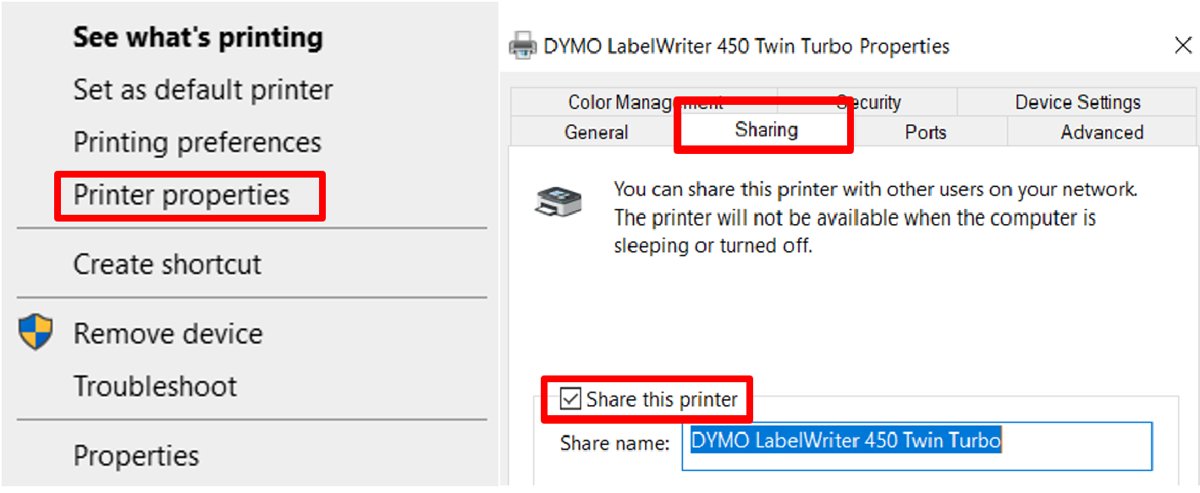
To share over Windows anyway, make sure the printer works over USB first. Then open the printer in Printers & scanners, open Printer properties, select the Sharing tab and tick Share this printer. Turn on Network discovery and File and printer sharing in Advanced sharing settings on the host.
On each client, install DYMO software, then select Add device > Add manually > Select a shared printer by name and browse to the host PC. If the Print Server's address is unknown, run arp -a and match the MAC address printed on the bottom of the server.
Security Tips for DYMO Driver Downloads
Driver downloads are a common way to deliver malware, because the installer asks for administrator rights. Keep the source and the prompts under control.
| Tip | Why |
|---|---|
| Download only from dymo.com | DYMO's help articles point every download to its own compatibility chart page |
| Skip driver-updater and download-portal sites | DYMO drivers come only inside DYMO software; a separate "DYMO driver" file from elsewhere is not the official package |
| Approve admin prompts only for the DYMO installer you just started | The installer legitimately needs admin rights; unexpected prompts do not |
| Expect the Visual C++ message | DYMO documents it as harmless when the component is already installed |
| Update LabelWriter Print Server firmware to 2.367 | That release carries security fixes for CVE-2023-49963 |
| Know that leaving S mode is permanent | Microsoft makes the switch one-way, so decide before you install desktop software |
If you already ran a DYMO installer from an unofficial site, uninstall it, scan the PC with Microsoft Defender or a tool such as Malwarebytes, then install the official package.
Frequently Asked Questions
Why can't I install DYMO software on Windows 11?
The usual causes are missing admin rights, Windows set to Microsoft Store apps only, S mode, or a failed Microsoft ACE prerequisite. Run the installer as administrator, allow apps from outside the Store, and if ACE fails, run the DYMO .msi file from %temp% instead.
Where do I get DYMO LabelWriter 550 drivers for Windows 11?
Install the latest DYMO Connect for Desktop from dymo.com. The LabelWriter 550, 550 Turbo and 5XL drivers are included in it, and DYMO lists support from Windows 10 onward. These printers need DYMO-branded labels made after April 2020.
Does the DYMO LabelWriter 450 work with Windows 11?
Yes. The LabelWriter 450, 450 Turbo, Twin Turbo, Duo and 4XL use the latest DYMO Connect for Desktop, which DYMO supports on Windows 11. Install the software first, then connect the printer by USB.
Is there a DYMO LabelWriter 400 driver for Windows 11?
Not an officially supported one. DYMO lists DYMO Label Software v.8.7.4 for the LabelWriter 400 and 400 Turbo, supported up to Windows 10, and says it may work on Windows 11. The 400 series will not work on ARM PCs.
Which DYMO software do I need for the 4XL or 5XL on Windows 11?
Both use the latest DYMO Connect for Desktop. The 4XL sits in the 450-series group and the 5XL in the 550-series group of DYMO's compatibility list, and each gets its driver from the same installer.
Does DYMO Label v8 work on Windows 11?
DYMO Label Software v.8 is obsolete and officially supports only up to Windows 10, though DYMO says it may work on Windows 11. Use it only for printers that have no DYMO Connect support, such as the LabelWriter 400.
Is DYMO Connect compatible with Windows 11?
Yes. DYMO Connect for Desktop is one of two DYMO desktop programs DYMO lists for Windows 11, alongside DYMO ID. It installs the printer drivers for LabelWriter and LabelManager models.
Can I use Windows Update instead of the DYMO download?
Microsoft recommends Windows Update for printer drivers in general, but DYMO says its software must be installed for the printer to install and work properly. Install DYMO Connect for Desktop from dymo.com to get a complete setup.
Are DYMO drivers for Windows 10 the same as for Windows 11?
For current printers, yes. DYMO Connect for Desktop supports Windows 10 and Windows 11 with the same installer. Windows 10 can also run DYMO Label v.8 and Rhino Connect, which DYMO does not list for Windows 11.
Do DYMO printers work on Windows 11 ARM laptops?
Only with DYMO Connect for Desktop 1.6.2 or later, which introduced Windows ARM drivers. The LabelWriter 300 and 400 series, LabelManager PnP, MobileLabeler and v.8-only models are not compatible with ARM processors.