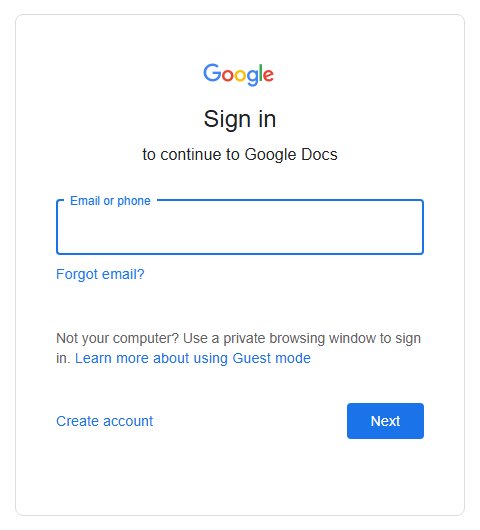
To sign on Google Docs, go to docs.google.com and enter your Google Account email or phone number and password, and your document list opens.
This guide covers signing in on a computer and on iPhone or Android, creating an account with a non-Gmail address, opening a shared document, switching accounts, signing a document with eSignature, and what to do when the sign-in fails.
Step by step tutorial on how to sign on Google Docs
Google Docs runs in the browser, so there is nothing to install on a computer. The same Google Account you use for Gmail, YouTube or Google Drive signs you in to Docs.
- Open Chrome, Edge, Safari or Firefox on your computer.
- Type docs.google.com in the address bar and press Enter.
- Enter your Google Account email address or phone number, then select Next.
- Enter your password and select Next. Complete any 2-Step Verification prompt your account asks for.
- If a saved account is already filled in and you need a different one, select Use another account and sign in with that one.
- Wait for the Docs home screen. Under Start a new document, select Blank to create a document, or open a recent file from the list below it.
You can also open docs.google.com/create to sign in and land straight in a new blank document.
Google Docs sign in on iPhone, iPad and Android
On a phone or tablet, the Google Docs app is the better route than the mobile browser. The app signs in with the same Google Account as the website.
- On an iPhone or iPad, open the App Store. On Android, open the Google Play app.
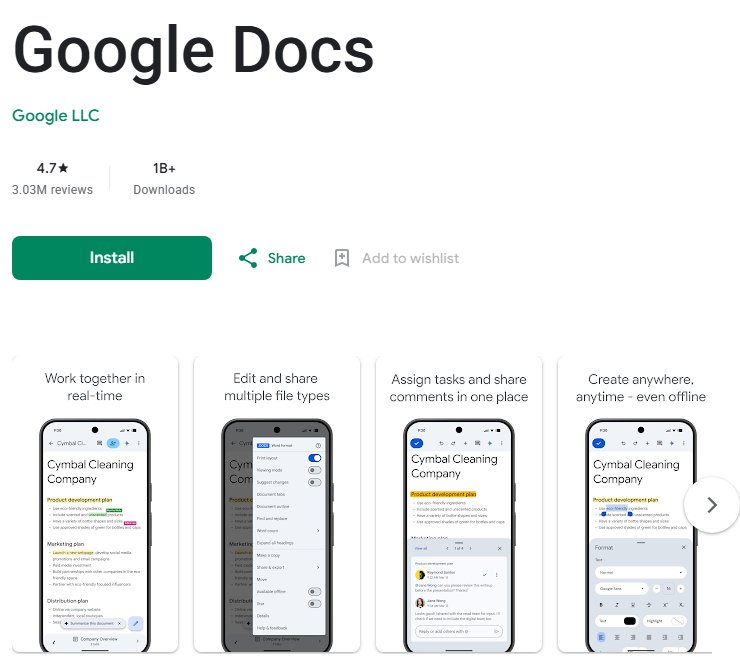
- Search for Google Docs and install the app.
- Open Google Docs and choose the Google Account you want to use, or add one with your email or phone number and password.
- Create a new document or open an existing file from the list.
Files you create in the app appear on docs.google.com on your computer once you sign in there with the same account.
Sign in Google Docs account with a non-Gmail email
Docs needs a Google Account, not a Gmail address. You can create a Google Account with an existing email from Outlook, Yahoo or any other provider.
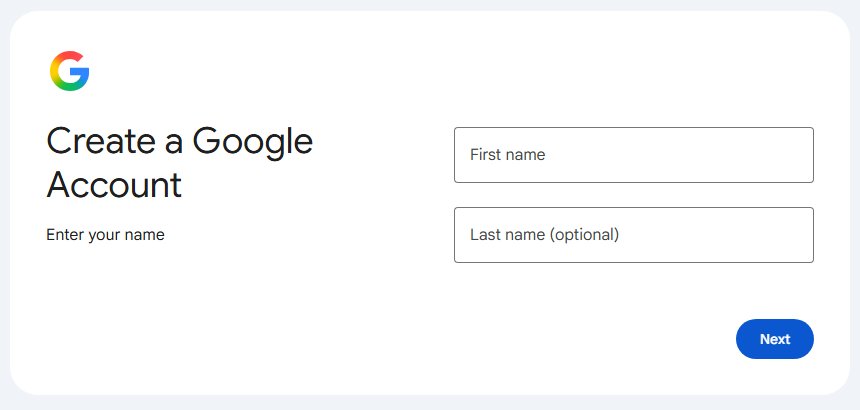
- Go to the Google Account sign-in page and select Create account.
- From the drop-down, select For my personal use.
- Enter your basic info, such as your name and birthday.
- Select Use your existing email and enter your current email address.
- Select Next, then enter the verification code Google sends to that email.
- Select Next and follow the on-screen prompts to create a password.
- Go back to docs.google.com and sign in with that email address and the new password.
To get a new Gmail address instead, pick one of the addresses Google suggests during sign-up. Either way, add a recovery phone number and recovery email afterward so you can get back in if you forget the password.
How to sign in Google Docs shared document
A shared document opens for whoever the owner gave access to. Sign in with the exact email address the invitation was sent to, or the file will tell you that you need access.
- Open the share email or message and select the document link.
- When the sign-in page appears, enter the email address the file was shared with and select Next.
- Enter your password and select Next.
- If the file opens under the wrong account, select your profile image or initial at the top right and pick the account the owner shared it with.
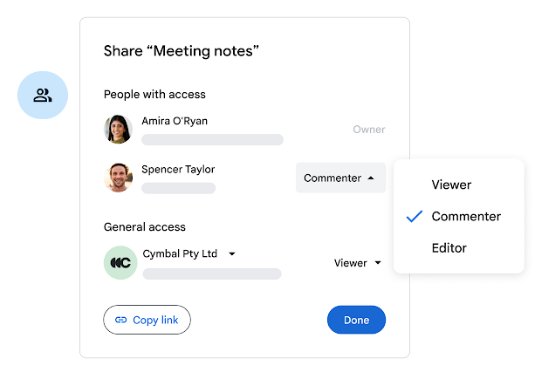
- Check the role you were given. A Viewer can only read, a Commenter can add comments and suggestions, and an Editor can change the text.
If the owner set General access to Anyone with the link, the file opens without signing in, and you appear to others as an anonymous animal. A Restricted file opens only for people the owner added, so ask the owner to share it with the address you use.
How to switch Google accounts in Google Docs
You can stay signed in to several Google Accounts in one browser and switch between them without signing out. Each account keeps its own documents.
- On docs.google.com, select your profile image or initial at the top right.
- To add a second account, select Add account and sign in to it.
- To switch, select your profile image again and choose the account you want to use.
- To sign out, select your profile image and choose Sign out or Sign out of all accounts.
- To remove a saved account from the sign-in page, go to myaccount.google.com, select Sign out, then Remove an account, and select Remove next to it.
When you open a new window while signed in to two accounts, Google may apply settings from your default account. The default is usually the account you signed in with first, but you can make another Google account your default.
How to sign in to Google Docs on a public computer
On a library, school or borrowed computer, sign in through a private window so the next person cannot open your account or see your history.
- Open Chrome and select Profile at the top right.
- Select Open Guest Profile. In Safari, Firefox or Edge, open a private window instead.
- Go to docs.google.com and sign in to your account.
- When you finish, close the Guest or private window. Chrome deletes the browsing history, cookies and site data from that session.
If the browser will not open a private window, clear its cache and cookies before you sign in and again after you sign out.
How to sign a document on Google Docs
Signing a document is a different job from signing in. Google Docs has a built-in eSignature feature for requests someone sends you, and anyone can add a drawn signature to their own file.
eSignature is available to Workspace Individual accounts and, when an administrator turns it on, to Business Standard and Plus, Enterprise Starter, Standard and Plus, Enterprise Essentials and Essentials Plus, and Education Plus.
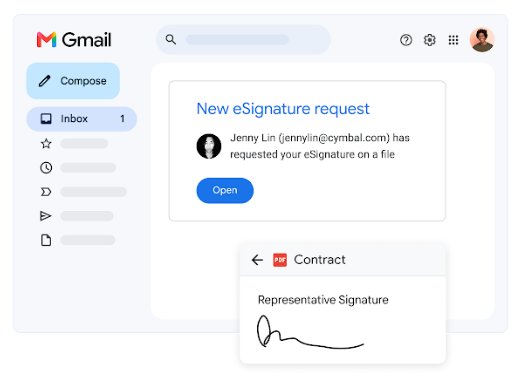
- Open the email that contains the eSignature request and select the embedded link. If you opened the PDF from Drive, select Sign.
- Fill in any text fields the sender added, such as Job Title or Email.
- Select each colored field assigned to you. Type your name to generate a signature, or draw one with your mouse, trackpad or touchscreen, then select Adopt and sign.
- After you complete every required field, select Mark Complete at the top of the page and check the email address that will be recorded for you.
- Review the Terms of Service and select Agree & Continue.
When you are the only signer, you and the requester each get a completion email. With several signers, the request completes only after everyone signs.
For a document of your own, you can add a drawn signature with the Drawing tool instead.
How to see which Google account is signed in to Google Docs
Documents seem to vanish when you are signed in to the wrong account. The account picker shows which one Docs is using.
- Open docs.google.com.
- Select your profile image or initial at the top right.
- Read the email address at the top of the menu. That is the account whose documents you see.
- If it is the wrong one, select the correct account from the same menu.
Why can't I sign into Google Docs
Most sign-in failures come from a forgotten password or email, blocked cookies, or a work or school account with its own rules.
You forgot your Google Docs password
The account is fine, but Google needs to confirm it is yours before you set a new password.
- Go to the Google Account recovery page and enter the email for the account.
- Answer the recovery questions as fully as you can. Wrong guesses do not lock you out, and there is no limit on attempts.
- Use a device, browser and location where you usually sign in.
- Choose a new strong password you have not used on this account before.
You cannot remember which email you used
Google can list the usernames tied to your recovery details.
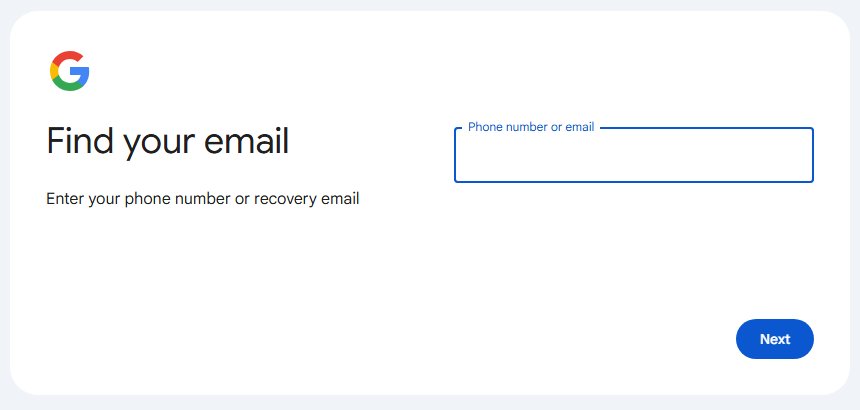
- Go to the Google Account recovery page and choose to find your username.
- Enter the phone number or recovery email address on the account.
- Enter the full name on the account and confirm it is yours.
- Pick the right username from the list Google shows and sign in to Docs with it.
A message says cookies are turned off
Google Account sign-in needs cookies to keep you signed in.
- In Chrome, select More > Settings > Privacy and security and check your cookie settings.
- Open a new browser window and try signing in again.
- Clear the browser's cache and cookies, then sign in again.
- Try signing in from a private window to rule out an extension or saved setting.
Docs keeps loading or shows the wrong account
Old site data or a second signed-in account is getting in the way.
- In Chrome, select More > Delete browsing data.
- Choose a time range, select Cookies and other site data, and select Delete data.
- Go back to docs.google.com and sign in to the account you want.
Your work or school account will not sign in
Accounts run by an organization follow that organization's sign-in and sharing rules, and the normal recovery steps might not work.
- Confirm you are entering your full work or school email address.
- Contact your administrator to reset the password or unlock the account.
Google never asks for your password or verification codes over email, phone or message, and it does not work with paid recovery services. Enter your password only at accounts.google.com.
Tips for signing on Google Docs
| Tip | Why it helps |
|---|---|
| Bookmark docs.google.com | Opens the sign-in page or your file list in one click |
| Add a recovery phone and email | Makes it much more likely you get back in after a forgotten password |
| Turn on 2-Step Verification | Keeps your documents safe if your password leaks |
| Sign in with the address a file was shared to | Shared files open only for the accounts the owner added |
| Use a Guest or private window on shared computers | Your session and cookies are deleted when you close it |
| Sign out before you leave a public computer | Stops the next person from opening your documents |
| Turn on offline access in Chrome or Edge | Lets you open recent files without a connection after you sign in once |
Offline access needs Chrome or Edge, a normal (not private) window and the Google Docs Offline extension, so set up Google Docs offline while you are still connected.
Google Docs sign in FAQ
Can I sign on Google Docs without a Gmail address?
Yes. Google Docs needs a Google Account, and you can create one with an existing email from any provider. Select Create account, choose For my personal use, then select Use your existing email and verify the code Google sends.
Can I access Google Docs without signing in?
Only for files shared as Anyone with the link. Those open in the browser without a Google Account, and you show up to others as an anonymous animal. Creating your own documents and opening Restricted files both need a signed-in Google Account.
How do I sign in to a Google Docs shared document?
Select the link in the share email and sign in with the exact address the owner shared the file with. If you are signed in to another account, select your profile image at the top right and switch to the right one.
How do I sign a document on Google Docs?
Open the eSignature request email and select its link, fill in your fields, then type or draw a signature and select Adopt and sign. Finish with Mark Complete and Agree & Continue. For your own file, add a drawn signature with the Drawing tool.
Why can't I sign into Google Docs?
The usual causes are a forgotten password or email, cookies turned off in the browser, stale site data, or a work or school account controlled by an administrator. Use Google's account recovery page for a lost password or email, then clear cookies if the page still fails.
What if I can't remember which email I used for my Google account?
Use the find-your-username option on Google's account recovery page. Enter the recovery phone number or recovery email on the account and your full name, confirm it is yours, and Google lists the usernames that match.
How do I sign in to Google Docs on my phone?
Install the Google Docs app from the App Store on iPhone or iPad, or from Google Play on Android. Open it and choose or add your Google Account with your email or phone number and password.
How do I sign out of Google Docs?
Select your profile image or initial at the top right of Google Docs and choose Sign out, or Sign out of all accounts. Signing out of Docs signs you out of the Google Account in that browser, including Gmail and Drive.
Can I be signed in to two Google accounts in Google Docs?
Yes. Select your profile image, choose Add account and sign in to the second account. You can then switch between them from the same menu without signing out, and each account keeps its own documents.