To use dual monitors on Windows 10, connect the second monitor, press Windows key + P, select Extend, and drag the monitors into position in Settings > System > Display.
This guide covers the cables you need, the four display modes, the main monitor, resolution, wallpaper, the taskbar, window shortcuts, laptops, and what to do when the second screen stays blank.
Step by step tutorial: Using dual monitors with Windows 10
These steps give you one desktop spread across both screens, which is the setup most people want.
- Connect the second monitor to a video port on your PC or dock, then turn the monitor on.
- Press Windows key + P and select Extend.
- Select Start > Settings > System > Display.
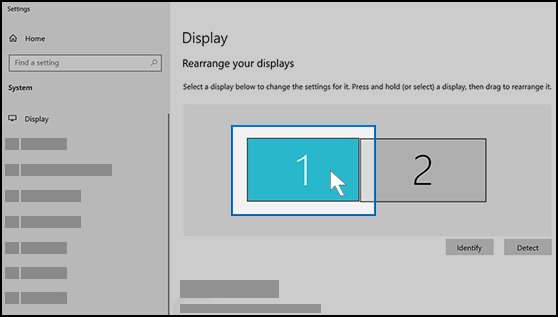
- Under Rearrange your displays, drag the numbered boxes so they match how the monitors sit on your desk.
- Select Apply.
- Move your mouse pointer from one screen to the other to test the layout.
You can also set the mode in Settings. On the Display page, open the drop-down that reads Duplicate these displays and select Extend these displays.
How to extend or duplicate dual monitors on Windows 10
Press Windows key + P to open the four display modes. Your choice decides what each screen shows, so match it to the job in front of you.
| What you want | Select this | What happens |
|---|---|---|
| More working space across two screens | Extend | One desktop spans both monitors, and you can move items between them |
| The same picture on both screens | Duplicate | Both monitors mirror each other, which suits showing your screen to a room |
| Only one screen in use | PC screen only | Content stays on one display |
| Everything on the external monitor | Second screen only | Content appears on the second display only |
How to connect dual monitors to a PC
Typical video ports are HDMI, VGA, DVI and DisplayPort. Look at the ports on your PC first, then check what monitor you have so you buy a cable that fits both ends.
| Your PC has | Use this | Why |
|---|---|---|
| A free video port that matches the monitor | A cable with that connector at both ends | This is the direct route, with no extra hardware |
| One video port, and you want more than one external monitor | A docking station from your PC maker | One video port supports a single external monitor by default |
| A USB-C port | A USB adapter that adds a video output port | It can give the PC one more video output |
| One port and a display splitter | A dock or adapter instead of the splitter | A splitter duplicates one signal, so it cannot extend your desktop |
| Several ports, but only one external monitor works at a time | The graphics card maker's specifications | The display adapter sets how many monitors the PC supports |

How to place dual monitors in Windows 10 display settings
The layout in Settings controls where your pointer crosses between screens. If the second monitor sits on your left but Windows has it on the right, your pointer stops at the wrong edge.
- Select Start > Settings > System > Display.
- Under Rearrange your displays, select Identify to show each monitor's number on its screen.
- Drag the box for each monitor to the position it holds on your desk.
- Line up the box edges to match the monitors' real height, including one placed above the other.
- Select Apply.
How to tell if dual monitors are working on Windows 10
A working extended setup passes all three of these tests.
- Open Settings > System > Display and look for two numbered boxes under Rearrange your displays.
- Move the pointer across the edge you arranged. It should pass straight onto the other screen.
- Press Windows key + Shift + Right arrow with a window open. The window should jump to the other monitor.
If only one box appears, Windows has not detected the second monitor. Go to the second monitor fixes further down this page, and if those do not help, you can troubleshoot an undetected second monitor in more depth.
How to switch the primary monitor on Windows 10
Change the main display when the monitor you look at most is not the one Windows chose as your primary screen.
- Select Start > Settings > System > Display.
- Under Rearrange your displays, select the monitor you want as your main screen.
- Scroll to Multiple displays.
- Select Make this my main display.
How to use dual monitors with different resolutions on Windows 10
Each monitor keeps its own resolution, scale and orientation, so a 4K screen can sit beside a 1080p one. The same Windows display settings also control brightness and color.
- Select Start > Settings > System > Display.
- Under Rearrange your displays, select the monitor you want to change.
- Scroll to Scale and layout.
- Under Display resolution, choose the option marked (Recommended).
- Under Change the size of text, apps, and other items, pick a size that looks right on that screen.
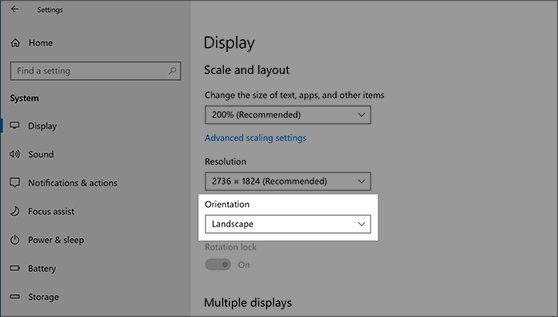
- If you stand the monitor on its side, choose a mode from the Orientation list, then physically rotate the screen.
- Repeat for the other monitor.
How to set a different wallpaper on dual monitors in Windows 10
Windows can show one picture on both screens or a separate picture on each.
- Select Start > Settings > Personalization > Background.
- Under Personalize your background, select Picture.
- Right-click an image in the list of pictures.
- Select whether the picture goes on all displays or on one display.
- Repeat with another image for the second monitor.
To rotate pictures instead, select Slideshow and pick a folder, and each screen shows a different picture from it. The per-display picture option is not available while you use multiple desktops.
How to set up the taskbar on dual monitors in Windows 10
Your extra monitor can group its taskbar buttons differently from the main screen.
- Right-click the taskbar and select Taskbar settings.
- Scroll to Multiple displays.
- Open the Combine taskbar buttons on other taskbars list and choose an option.
- Right-click the taskbar again and select Lock all taskbars if you want to stop them being moved.
How to work with dual monitors on Windows 10
You can drag a window across the screen edge with the mouse, but these Windows 10 shortcuts are quicker once both screens are busy.
| What you want to do | Press | Result |
|---|---|---|
| Send a window to the other monitor | Windows key + Shift + Left arrow or Right arrow | The active window moves to the monitor on that side |
| Snap a window to half a screen | Windows key + Left arrow or Right arrow | The window fills that side of its current screen |
| Maximize a window on its screen | Windows key + Up arrow | The window fills that one monitor |
| See all open windows | Windows key + Tab | Task view opens |
| Cycle through taskbar apps | Windows key + T | Focus steps through the apps on the taskbar |
| Change the display mode | Windows key + P | The Extend, Duplicate and single-screen choices open |
Tips for using dual monitors with Windows 10
How to use dual monitors effectively comes down to a few habits that keep the two screens working as one desk.
| Tip | How to do it | What you get |
|---|---|---|
| Give each screen one role | Snap your main app on the main display and keep reference windows on the second | Less switching between windows |
| Make your main screen the one you face | Use Make this my main display on that monitor | Your main display matches where you do most of your work |
| Mirror the desk in Settings | Match the numbered boxes to the real positions, including height | The pointer moves smoothly across displays |
| Add desktops when two screens fill up | Select New desktop in Task view, then press Windows key + Ctrl + Left arrow or Right arrow to switch | Unrelated projects stay organized |
| Keep Windows updated | Select Settings > Update & Security > Windows Update | You pick up any updates still offered for your PC, including display drivers |
How to use dual monitors with a laptop on Windows 10
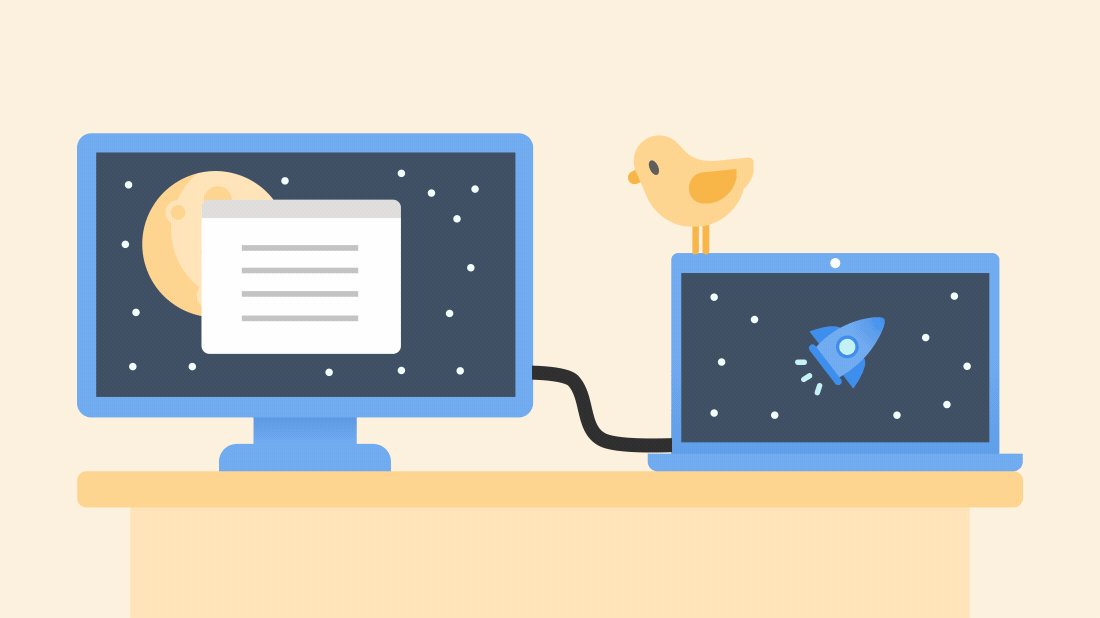
A laptop's own screen counts as one display, so one external monitor gives you two screens. Many laptops go to sleep when you close the lid, so change that setting first if you want to work with the lid shut.
- Connect the external monitor and press Windows key + P to select Extend or Second screen only.
- Search for control panel on the taskbar and open it.
- Select System and Security.
- In the Power Options section, select Choose what the power buttons do.
- Select Change settings that are currently unavailable.
- In the Plugged in column, set When I close the lid to Do nothing.
- Select Save changes.
How to get dual monitors to work on Windows 10
Find the line that matches what you see, then work through its steps in order.
The second monitor is not detected
Windows has not found the display, or a cable, port or accessory is at fault.
- Press Windows key + P and make sure Extend is selected.
- Select Settings > System > Display > Multiple displays > Detect.
- Disconnect docks, dongles and adapters, then connect the monitor directly.
- Secure the cable at both ends, then try a different cable.
- Plug the monitor into another video port on the PC.
- Test the monitor on another computer to find out whether the monitor or the PC is at fault.
Dual monitors show the same image
The display mode is set to Duplicate, or a splitter is sending one signal to both screens.
- Press Windows key + P and select Extend.
- If you use a display splitter, replace it with a docking station or USB adapter.
Dual monitors worked, then stopped
The graphics driver has stopped responding, or a recent driver update caused a problem.
- Press Windows key + Ctrl + Shift + B to reset the graphics driver.
- Select Start > Power > Restart. If that fails, shut down and turn the PC back on.
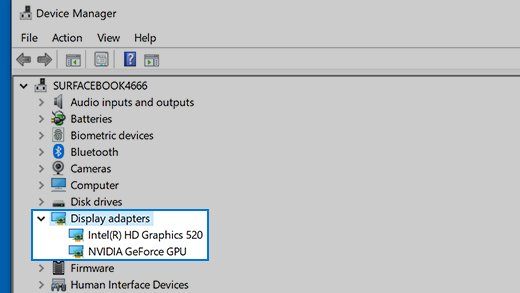
- Search for device manager on the taskbar and open it, then expand Display adapters.
- Right-click your display adapter, select Properties > Driver, then select Roll Back Driver.
- If that option is missing, right-click the adapter, select Uninstall device and Attempt to remove the driver for this device, then select Uninstall.
- Restart if asked, open Device Manager again, right-click the adapter, select Update driver, then select Search automatically for updated driver software.
A third monitor does not work
Your display adapter may not support that many screens.
- Confirm that each external monitor works on its own.
- In Device Manager, expand Display adapters to read the maker and name of your graphics card.
- Ask that maker how many monitors the card supports.
The wallpaper does not fill the external monitor
The built-in and external screens have different resolutions, so the picture appears too small or is cut off.
- Select Start > Settings > System > Display and select the external display.
- In the Display resolution list, choose any resolution other than the current one.
- When Windows asks Keep these display settings?, select Revert.
Dual monitors on Windows 10 FAQ
How do I get dual monitors to work?
Connect both monitors, press Windows key + P and select Extend. Then open Settings > System > Display and drag the numbered boxes to match your desk. If one screen stays blank, select Detect under Multiple displays and check the cable.
Can I use dual monitors with different resolutions?
Yes. Windows 10 sets resolution separately for each monitor. Select the monitor under Rearrange your displays in Settings > System > Display, then choose its Display resolution. The option marked Recommended is usually the best one for that screen.
How do I switch the primary and secondary monitor?
Open Settings > System > Display and select the monitor you want as primary under Rearrange your displays. Then scroll to Multiple displays and select Make this my main display. The other monitor becomes your secondary screen.
What kind of cable do I need to connect a second monitor?
You need a cable that fits a free video port on your PC and an input on the monitor. Typical ports are HDMI, VGA, DVI and DisplayPort. If the PC has only USB-C, a USB adapter may add a video output port.
Can I use a laptop as a second monitor?
Yes, wirelessly, on hardware that supports it. On Windows 10, you can use a laptop as a wireless display by adding the Wireless Display optional feature under Settings > System > Projecting to this PC, then opening the Connect app on that laptop.
What should I do if my second monitor is not detected?
Press Windows key + P and confirm Extend is selected, then select Detect in Settings > System > Display > Multiple displays. If it still does not appear, disconnect docks and adapters, try another cable and port, and test the monitor on another computer.
How do you use dual monitors on Windows 11?
The steps are close to Windows 10: press Windows key + P, select Extend and arrange the screens in Settings. The Windows 11 multiple monitor setup uses its own menu labels. Microsoft ended Windows 10 support on October 14, 2025, and recommends moving to Windows 11.