To export videos from Photos on a Mac with their original creation date, select them and choose File > Export > Export Unmodified Original, which saves the original file Photos imported instead of a new, re-encoded copy.
This guide covers the difference between the two export commands, where Photos shows a video's capture date, how to correct a wrong date, downloading originals from iCloud.com, and fixes when exports are slow or land in the wrong place.
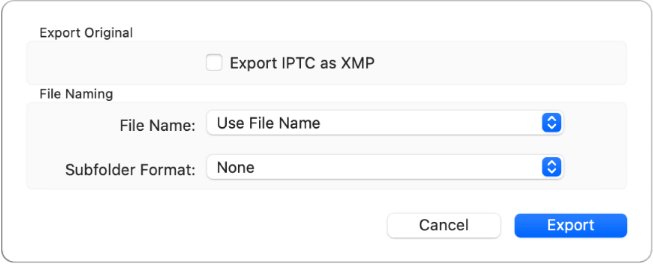
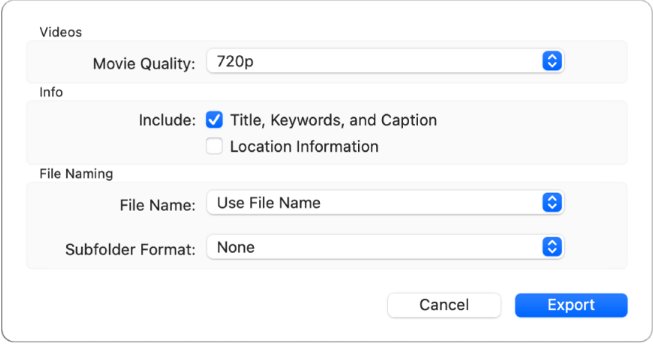
How to export videos from Photos on Mac with original creation date
Export Unmodified Original works for videos as well as photos, even though Apple's menu label mentions neither.
- Open the Photos app on your Mac.
- Select the videos you want to export. Command-click to pick several.
- Choose File > Export > Export Unmodified Original.
- Click the File Name pop-up menu and choose Title, File Name or Sequential.
- Click the Subfolder Format pop-up menu and choose whether to group the files in subfolders, or None.
- Click Export, choose a folder, then click Export Originals.
To reach the files on an iPhone, iPad or Windows PC as well, pick your iCloud Drive folder as the destination. That needs iCloud Drive turned on and a signed-in Apple Account.
Export unmodified original vs export videos in Photos
Photos has two export commands for video, and only one of them hands you the file as it was imported.
| What you want | Use this command | What you get |
|---|---|---|
| The original file with its original capture date | File > Export > Export Unmodified Original | The video in the format it was imported in, without edits |
| A smaller copy for a TV, a website or a slow connection | File > Export > Export [number] Videos | A new movie file at 480p, 720p, 1080p or 4K |
| Keywords and IPTC data next to each file | Export Unmodified Original with Export IPTC as XMP selected | The original plus a sidecar XMP file |
| Your trims and edits included | Export [number] Videos | A new file with the edits applied |
| Files from a Mac without the library | icloud.com/photos with More Download Options | A download in the file format you pick |
Dragging videos from Photos to a Finder window is the quickest export, but it gives you no file format or naming choices.
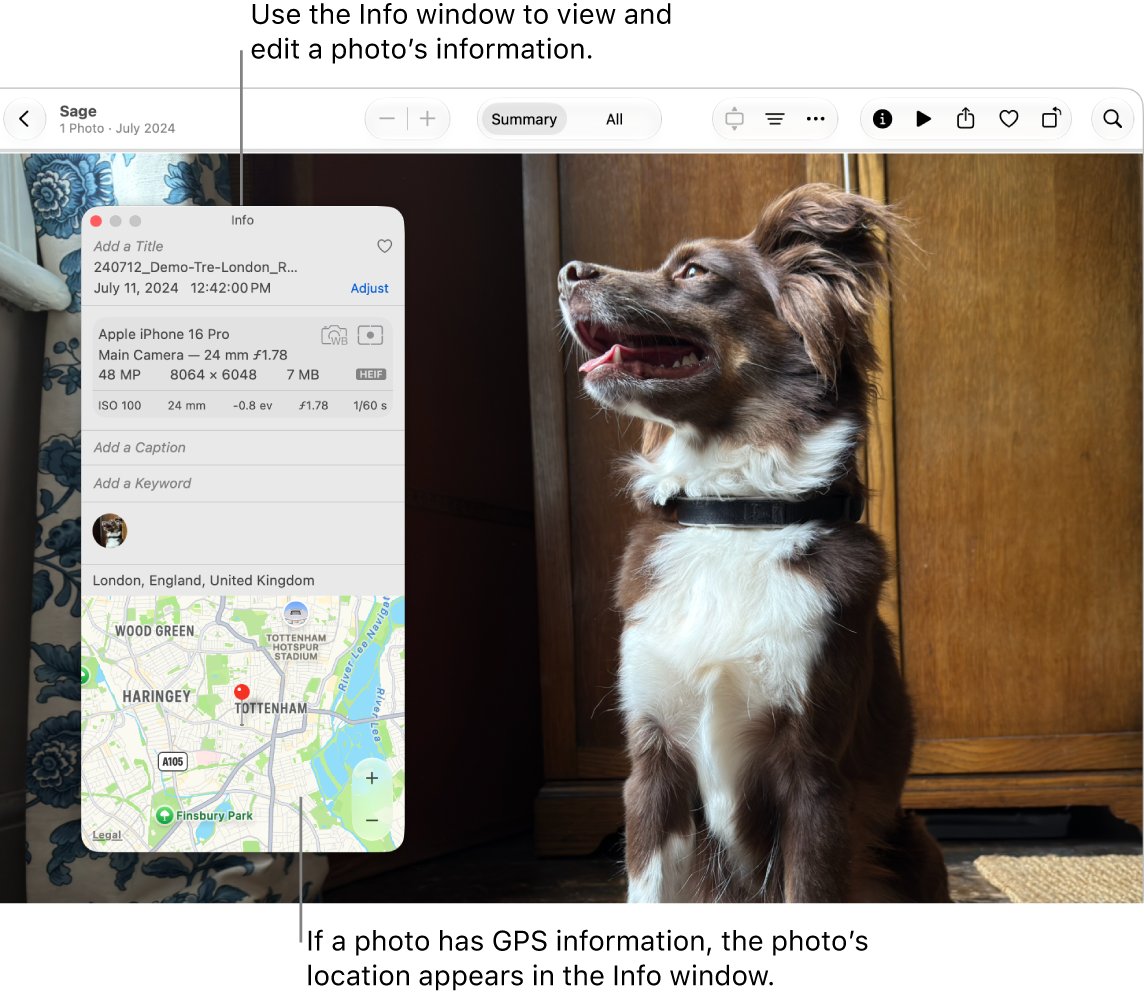
How to find original video creation date in Photos on Mac
The Info window shows the date and time a video was taken, along with the device that recorded it.
- Open the Photos app and click the video once to select it.
- Click the Info button in the toolbar, or press Command-I.
- Read the date and time the video was taken.
- Check the device name and file size in the same window to confirm you have the right clip.
- Close the Info window, or select another video to update it.
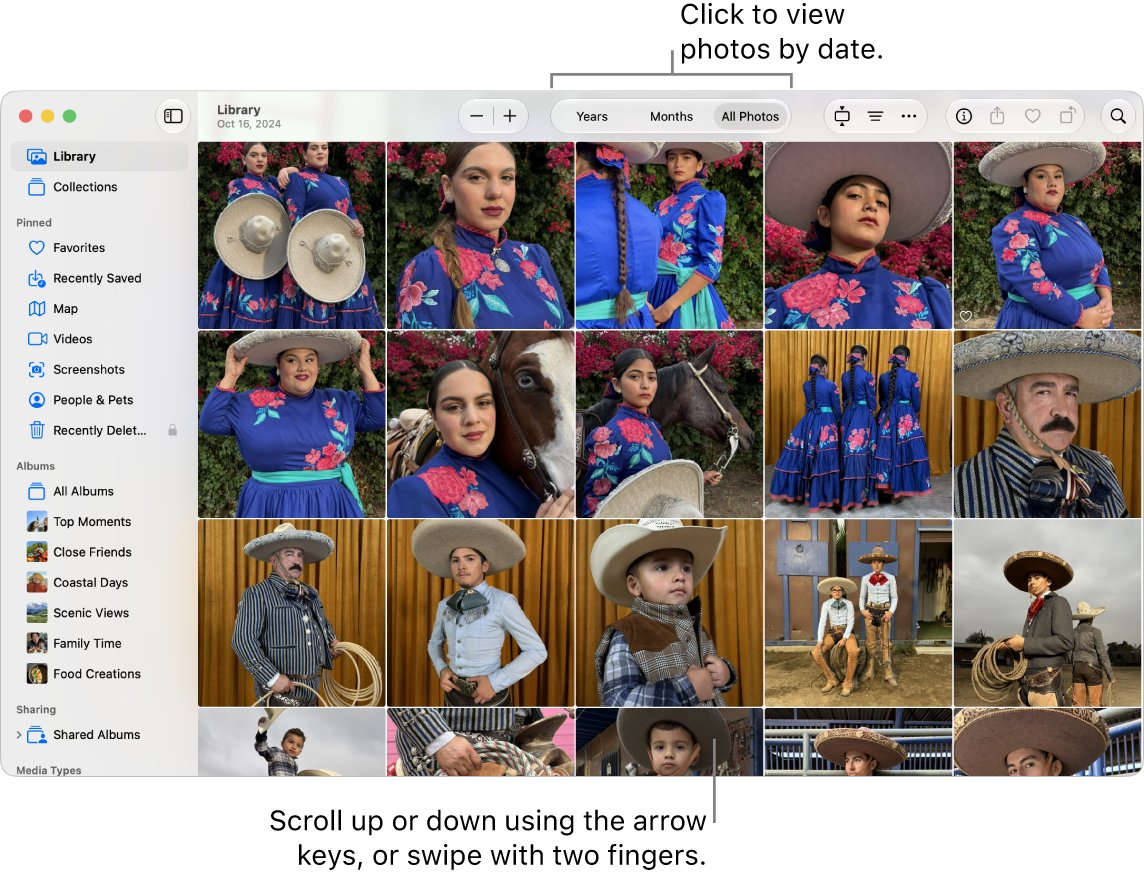
To browse by date instead, click Library in the sidebar and choose Years, Months or All Photos in the toolbar. All Photos lists every item in chronological order.
How to change date created on video in Photos
If a video sits on the wrong day in your library, correct it before you export.
- Open the Photos app and select the videos with the wrong date.
- Choose Image > Adjust Date and Time. You can also double-click the date in the Info window.
- Enter the correct date and time in the Adjusted field.
- Click a time zone on the map and choose the closest city, if needed.
- Click Adjust.
An unmodified original is the file as it was imported, so check the exported copy afterwards if you adjusted its date in Photos.
How to download original videos from iCloud.com
If the videos are backed up in iCloud Photos, you can download them from any computer without the Photos app. iCloud.com normally downloads the most compatible format for the device you are using, so choose the format first.
- Go to icloud.com/photos and sign in with your Apple Account.
- Select the videos you want to download.
- Click the download options button in the toolbar, then click More Download Options.
- Click the button next to the file format you want.
- Save the files to a folder on your computer.
To copy videos straight from the phone instead, you can transfer photos and videos from iPhone to a computer with a cable.
How to check exported video creation date on Mac
Check one exported file before you delete anything from your library.
- Note the capture date of the video in Photos with Command-I.
- Open the export folder in the Finder and find the exported file.
- Send the file to an iPhone with AirDrop, or open it on another Mac's Photos library.
- Open the video there and view its info.
- Compare that date with the one you noted. If it shows the export day, export again with Export Unmodified Original.
The Finder's own Created date describes the file on the disk, so it can differ from the capture date Photos shows.
Why is my video not exporting from Photos on Mac?
Find the symptom that matches, then work through its steps.
Exported videos show today's date
Export [number] Videos creates a new movie file rather than copying the original.
- Select the same videos in Photos.
- Choose File > Export > Export Unmodified Original.
- Export to an empty folder so the new files are easy to tell apart.
Why does exporting videos take so long?
With Optimize Mac Storage on, full-resolution videos are kept in iCloud, so the originals have to come down first. A 4K Movie Quality choice also makes bigger files.
- Keep the Mac connected to the internet while it exports, and check the iCloud Photos sync status if originals are still downloading.
- Export a smaller batch of videos at a time.
- Choose 1080p or 720p in Movie Quality if you do not need 4K.
Where is my exported video?
Photos saves to the folder picked in the last export dialog, and Subfolder Format can put files inside extra folders.
- Open the Finder and check the folder you chose in the save dialog.
- Open any subfolders Photos created inside it.
- Search for the video's file name or title with Spotlight if you still cannot find it.
Live Photo exports as two files
Export Unmodified Original saves a Live Photo as a still image file and a separate video file.
- Keep both files together if you want to re-import the Live Photo later.
- Use the video file alone if you only need the moving part.
Photos on Mac video export FAQ
What is a video export?
A video export saves a video from an app's library as a standalone file you can open in another app or copy elsewhere. In Photos on Mac, slideshows and memories export as video files too, and an album can become a slideshow or PowerPoint.
How do I export videos from Photos on Mac?
Select the videos, choose File > Export > Export [number] Videos, pick a Movie Quality such as 1080p or 4K, click Export and choose a folder. Use Export Unmodified Original instead when you want the original file.
Does Export Unmodified Original keep my edits?
No. It exports the file in the original format it was imported in, before any trims or adjustments. Use Export [number] Videos when you want the edited version as a new movie file.
Can I name exported videos by date?
Not through the file name. The File Name menu offers the title, the original file name or a sequential name. Set Subfolder Format to group videos by day instead, and Photos names each subfolder after that day.
Can I export videos into Files or iCloud Drive?
Yes. In the export dialog, choose your iCloud Drive folder as the destination. The videos then appear in the Files app on iPhone and iPad, and on any Mac or Windows PC set up with iCloud Drive.
How do I find exported videos on my Mac?
Open the folder you chose when you clicked Export, including any subfolders Photos created there. If you do not remember it, search for the file name in Spotlight.