To change mouse speed in Windows 11, open Settings > Bluetooth & devices > Mouse and drag the Mouse pointer speed slider; in Windows 10, open Settings > Devices > Mouse and drag the Cursor speed slider.
This guide also covers the Control Panel route, touchpad speed, mouse DPI, Enhance pointer precision, resetting the default, and fixes when the speed keeps changing.
How to Change Mouse Speed in Windows 11 Settings
The change applies the moment you release the slider, so test it as you go.
- Select Start, then Settings.
- Select Bluetooth & devices, then Mouse.
- Drag the slider next to Mouse pointer speed left to slow the pointer or right to speed it up.
- Move the mouse across the screen and adjust until one comfortable hand movement covers the distance you want.
- Close Settings; there is no save button.
Which method should you use?
| Your situation | Use this | Why |
|---|---|---|
| Windows 11 PC with a mouse | Settings > Bluetooth & devices > Mouse | One slider, applies instantly |
| Windows 10 PC with a mouse | Settings > Devices > Mouse > Cursor speed | Same setting under its Windows 10 name |
| You also want Enhance pointer precision or double-click speed | Control Panel Mouse Properties | All pointer options in one dialog |
| Laptop touchpad feels too fast or slow | Settings > Touchpad | Touchpad speed is a separate setting |
| Gaming mouse with a DPI button | Mouse DPI plus Windows pointer speed | DPI changes the sensor; Windows scales the result |
| Windows 7 | Control Panel Mouse Properties | Windows 7 has no Settings app page for the mouse |
Mouse Speed vs. DPI: What You’re Actually Changing
| Setting | Where it lives | What it changes |
|---|---|---|
| Pointer speed | Windows Settings or Control Panel | How far the pointer moves for a given mouse movement, on a 1 (slowest) to 20 (fastest) scale with 10 as the default |
| DPI | The mouse itself or its maker's app | How many counts the sensor reports per inch of movement |
| Enhance pointer precision | Settings or Pointer Options tab | Improves accuracy during slow movements |
| Touchpad cursor speed | Settings > Touchpad | Pointer speed for the built-in touchpad only |
| Scroll lines | Settings > Mouse > Scrolling | How far the page moves per wheel notch; default 3 lines |
Change one at a time. Raising DPI and the Windows slider together makes it hard to tell which change helped.
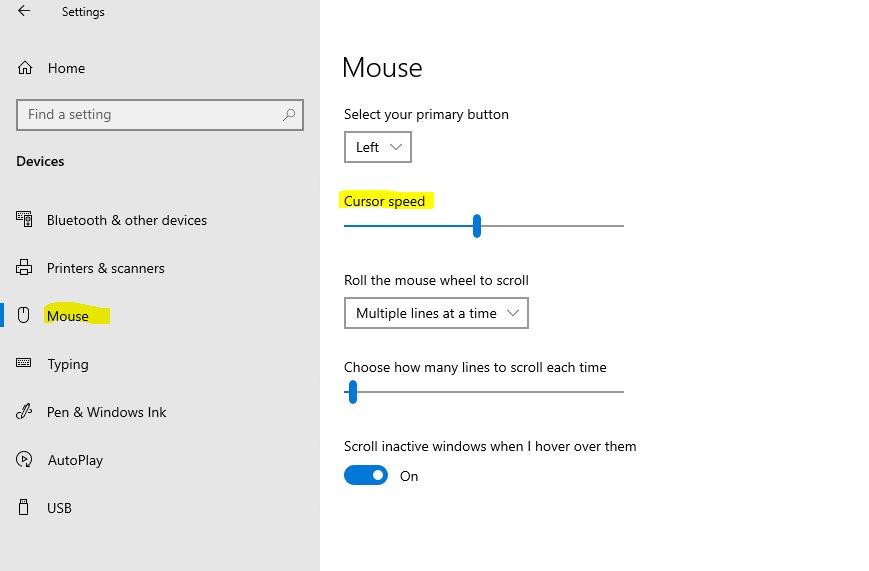
How to Change Mouse Speed in Windows 10 Settings
- Select Start, then Settings.
- Select Devices, then Mouse.
- Drag the slider under Cursor speed to set the pointer speed.
- If you don't see the cursor speed slider, select Additional mouse options and use the Pointer Options tab instead.
- Test the pointer and close Settings.
How to Change Mouse Speed Using Control Panel
The Mouse Properties dialog works on Windows 11, Windows 10 and Windows 7, and holds the Enhance pointer precision checkbox.
- Press Windows + R, type
control mouseand press Enter to open Mouse Properties. - Select the Pointer Options tab.
- Drag the pointer speed slider left to slow the pointer or right to speed it up.
- Tick or clear Enhance pointer precision on the same tab.
- Select Apply, test the pointer, then select OK.
In Windows 11 Settings, the same dialog opens from Additional mouse settings under Related settings.
How to Change Mouse DPI
Windows has no DPI setting. DPI belongs to the mouse sensor, so it changes on the mouse or in software from the mouse's maker. The full process is in the guide to change mouse DPI in Windows.
- Check the mouse for a DPI button, often below the scroll wheel, and press it to cycle presets.
- For finer control, open the mouse maker's app and select your mouse.
- Pick a DPI level and save it to the profile your mouse uses.
- Return to Windows mouse settings and fine-tune the pointer speed slider.
How to Change Touchpad Speed on a Windows Laptop
- Select Start > Settings.
- On Windows 11, select Bluetooth & devices > Touchpad; on Windows 10, select Devices > Touchpad.
- Adjust the cursor speed slider on the Touchpad page.
- Test with one finger and close Settings.
The Touchpad page only appears on PCs that have touchpad hardware. The mouse slider does not change touchpad speed.
Quick Keyboard Shortcuts and Commands
| Type or press | Opens |
|---|---|
| Windows + I | Settings |
| ms-settings:mousetouchpad in the Run box | Mouse settings page |
| ms-settings:devices-touchpad in the Run box | Touchpad settings, on PCs with a touchpad |
| control mouse in the Run box | Mouse Properties dialog with the Pointer Options tab |
| ms-settings:easeofaccess-mousepointer in the Run box | Mouse pointer size and colour settings |
Press Windows + R to open the Run box, type the entry and press Enter.
Should You Turn “Enhance Pointer Precision” On or Off?
Microsoft describes the setting as improving accuracy during slow mouse movement. It makes the pointer travel depend on how fast you move the mouse, not only how far.
| Your use | Setting | Why |
|---|---|---|
| Everyday work and browsing | On | Small slow movements land on buttons and links more precisely |
| Low-DPI office mouse on a large screen | On | Fast flicks still cross the screen |
| Games with their own sensitivity setting | Off | Same hand movement gives the same turn every time |
| Photo editing, design and CAD | Try off | Distance-only movement is easier to repeat |
In Windows 11 the switch is on Settings > Bluetooth & devices > Mouse; it is also on the Pointer Options tab in Control Panel.
Best Mouse Speed Settings for Different Uses
There is no single correct value. Start at the Windows default of 10 and change one step at a time.
| Use | Starting point | Adjust when |
|---|---|---|
| Everyday work and web browsing | Default pointer speed, Enhance pointer precision on | You overshoot small buttons: go slower |
| Large monitors and multiple displays | Raise pointer speed a few steps | Crossing all screens needs more than one hand movement |
| Gaming | Default Windows speed, set sensitivity in the game and with DPI | The game has a raw input or sensitivity option |
| Photo editing, design and CAD | Lower pointer speed, Enhance pointer precision off | Fine selections feel jumpy |
| Laptop touchpad | Set touchpad speed separately | The touchpad and mouse feel different |
How to check the new speed is right
- Move the pointer from one screen edge to the other in a single relaxed movement.
- Click a small target, such as a window's close button, without overshooting.
- Restart the PC and confirm the slider still sits where you left it.
- If the speed reverts, use the fixes under How to Fix Mouse Speed That Keeps Changing.
How to Reset Mouse Speed to Default
Windows has no reset button for pointer speed. The default value is 10 on the 1 to 20 scale, the middle of the range.
- Open Settings > Bluetooth & devices > Mouse on Windows 11, or Settings > Devices > Mouse on Windows 10.
- Drag the speed slider back to the middle of its range.
- Set Enhance pointer precision back to the state you had before you started.
- Reset DPI in the mouse maker's app if you changed it there.
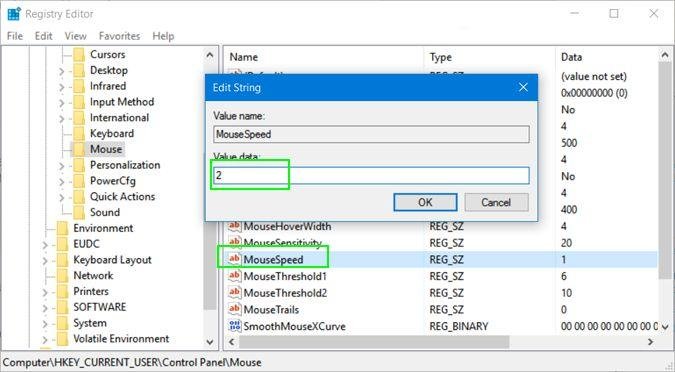
Advanced: Change Mouse Speed in the Windows Registry
Use Settings or Control Panel instead of editing the registry for mouse speed. Microsoft documents mouse speed as a 1 to 20 value, default 10, that is set through the mouse control panel or by apps through the SystemParametersInfo function. The slider sets the same value without the risk of a mistyped registry edit, and it applies immediately.
If you edit the registry anyway, back it up first and change only one value.
How to Fix Mouse Speed That Keeps Changing
Mouse speed keeps changing on its own
Accidental DPI switching: the DPI button on the mouse was pressed.
- Press the DPI button to cycle back to your usual level.
- Check whether the mouse has a DPI indicator light and note its colour at your preferred setting.
- Disable or remap the button in the mouse maker's app if it keeps getting pressed.
Speed changes when a certain app or game opens
Mouse software profiles switch automatically per app.
- Open the mouse maker's app.
- Check the profiles linked to specific programs.
- Remove the link or set the same DPI in every profile.
Speed feels different only inside one game
In-game mouse settings override or add to the Windows speed.
- Open the game's controls or mouse settings.
- Lower or raise the in-game sensitivity rather than the Windows slider.
- Turn off in-game mouse acceleration if the game offers it.
Troubleshooting: Mouse Still Feels Too Fast or Too Slow
The slider is at the end and the mouse is still too slow
Low sensor DPI limits how far the pointer can travel.
- Raise DPI with the mouse button or the maker's app.
- Bring the Windows slider back toward the middle.
- Fine-tune with the slider.
Pointer jumps, stutters or drifts
A driver problem, a weak wireless link or a dirty sensor.
- Right-click Start, select Device Manager and expand Mice and other pointing devices.
- Right-click the mouse and select Update driver, then Search automatically for updated driver software.
- If that fails, select Uninstall device, confirm with Uninstall and restart so Windows reinstalls it.
- Try a different USB port, or move a wireless receiver closer to the mouse.
- Clean the sensor and use a mat or a non-reflective surface.
Frequently asked questions
How do I change mouse speed in Windows 11?
Open Settings > Bluetooth & devices > Mouse and drag the Mouse pointer speed slider. The change applies at once. For the Enhance pointer precision checkbox and other options, select Additional mouse settings.
How do I change mouse speed in Windows 10?
Open Settings > Devices > Mouse and drag the slider under Cursor speed. You can also open Additional mouse options and use the Pointer Options tab in Mouse Properties.
How do I change mouse speed in Windows 7?
Use Control Panel. Press Windows + R, type control mouse and press Enter, then select the Pointer Options tab and drag the pointer speed slider. Select Apply and OK to keep the change.
How do I change mouse cursor speed in Windows 11?
Cursor speed and pointer speed are the same setting in Windows 11. Go to Settings > Bluetooth & devices > Mouse and move the Mouse pointer speed slider. Touchpad cursor speed is set separately under Touchpad.
How do I increase mouse speed in Windows?
Drag the pointer speed slider to the right in Settings or on the Pointer Options tab. If it is already at the maximum of 20, raise the DPI on the mouse or in its maker's app instead.
How do I change mouse speed on a laptop?
For the built-in touchpad, open Settings > Bluetooth & devices > Touchpad on Windows 11 or Settings > Devices > Touchpad on Windows 10 and adjust cursor speed. A plugged-in mouse uses the Mouse page.
How do I change mouse scrolling speed in Windows 11?
Open Settings > Bluetooth & devices > Mouse and use the Lines to scroll at a time slider under Scrolling. The Windows default is 3 lines per wheel notch. Choose One screen to move a full page instead.
How do I change mouse double-click speed in Windows 11?
Select Additional mouse settings on the Mouse page in Settings, then open the Buttons tab and move the Double-click speed slider. Select Apply and OK to keep the new speed.
Why does my mouse speed keep changing?
The most common causes are an accidental press of the mouse's DPI button, mouse software switching profiles per app, and games applying their own sensitivity. Check each in that order before reinstalling the mouse driver.
Choosing the Right Final Setting
Set DPI on the mouse first, then fine-tune the Windows pointer speed slider, and turn Enhance pointer precision off only for games or precision design work. DPI sets the sensor's resolution, the Windows slider scales it, and keeping the slider near the default 10 leaves room to adjust in either direction.