To create a Google Form, open forms.google.com, click Blank form, name it, add your questions with Add question, then click Publish and share the responder link.
This guide covers every way to start a form, the question types, sections, quizzes, sharing by link, email or embed, and saving responses to Google Sheets.
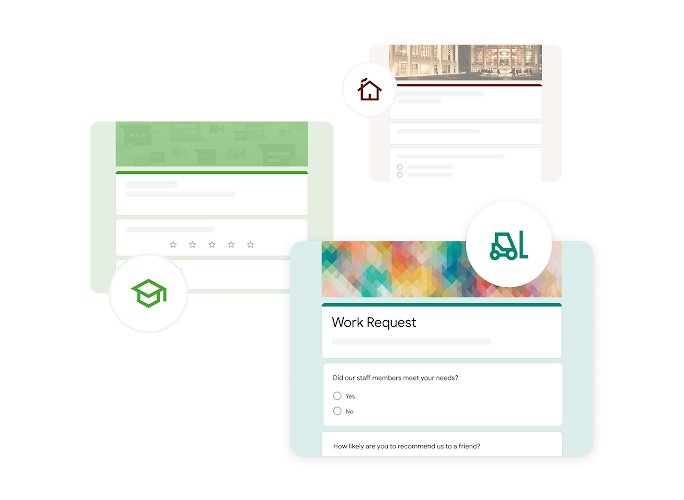
How to create a Google Form
You need a Google Account signed in to your browser. Everything below works in Chrome, Edge, Firefox and Safari on a computer.
- Go to forms.google.com and sign in.
- Click Blank form.
- Click Untitled form at the top and type a name for the form.
- Click Add question, choose the question type to the right of the question title, and type the answer choices.
- Turn on Required for any question people must answer.
- Repeat for each question, then click Publish at the top right.
- Click Share, then Copy responder link and send that link to the people who should fill in the form.
If you do not have an account yet, create a Google account first. Google lets you sign up with a non-Gmail address too.
Create a Google Form from Forms, Drive or Sheets
| Start from | How | Best when |
|---|---|---|
| Google Forms | Open forms.google.com and click Blank form, or pick a template | You want a new standalone form or a ready-made survey layout |
| Google Drive | Open drive.google.com, click New, then Google Forms | You want the form saved inside a specific Drive folder |
| Google Sheets | Open the spreadsheet, click Tools, then Create a new form | You want responses to land in that spreadsheet from day one |
Starting from Sheets adds a new sheet to the spreadsheet for the form's responses.
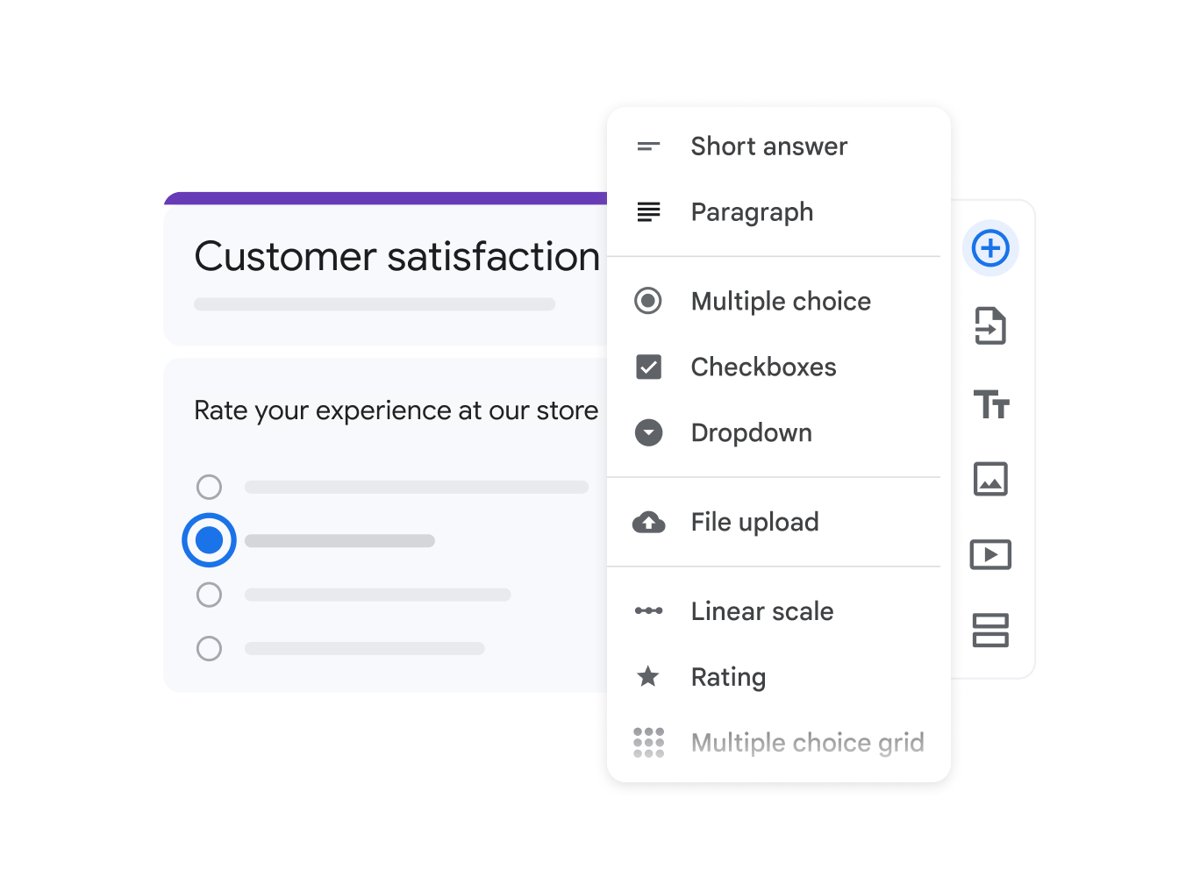
Google Forms question types explained
| Question type | What the responder does | Use it for |
|---|---|---|
| Short answer | Types a one-line reply | Names, email addresses, order numbers |
| Paragraph | Types a longer written reply | Comments and open feedback |
| Multiple choice | Picks exactly one option, with an optional Other field | Single-answer survey questions |
| Checkboxes | Picks several options | "Select all that apply" questions |
| Dropdown | Picks one option from a menu | Long lists such as states or departments |
| File upload | Attaches a file; needs a Google Account to answer | Assignments, CVs, photos |
| Linear scale | Picks a number on a scale with optional end labels | Satisfaction scores |
| Rating | Picks stars, hearts or thumbs up | Quick product or event ratings |
| Multiple choice grid | Picks options per row in a grid | Rating several items on the same scale |
| Checkbox grid | Picks multiple options per row | Availability across days and time slots |
| Date | Enters a date, with optional year or time | Registration dates, birthdays |
| Time | Enters a time of day or a duration | Appointment times |
How to add sections, images and videos to a Google Form
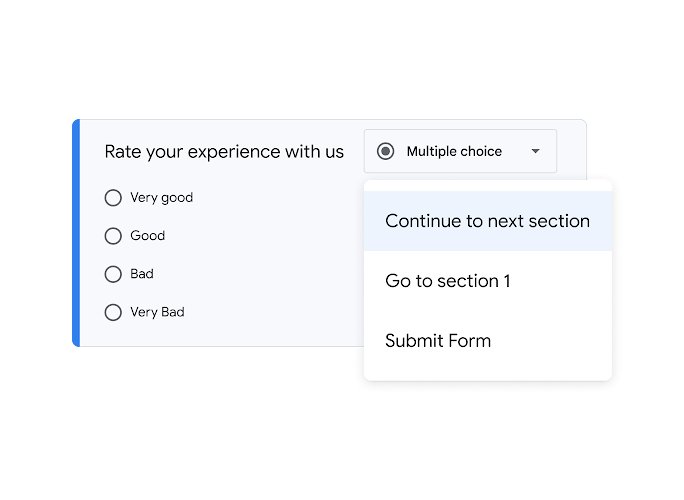
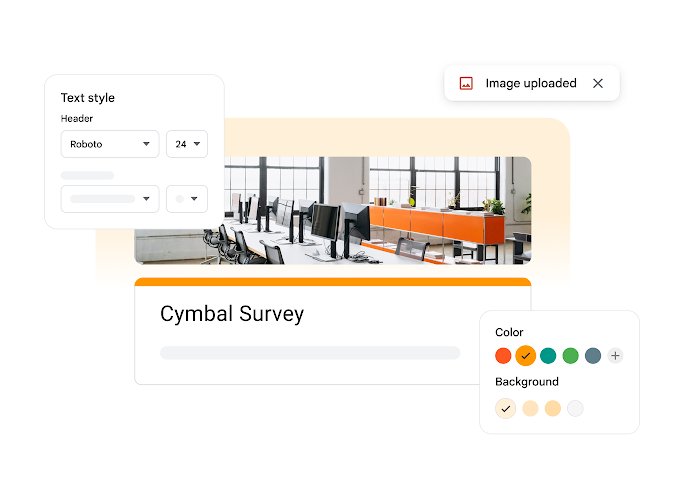
Sections split a long questionnaire into pages. Images and YouTube videos sit between questions, and images can also go on multiple choice and checkbox options.
- Open the form and click Add Section in the floating toolbar, then name the new section.
- To move a section, click More at its top right, select Move section, then choose Up or Down.
- To add a standalone image, click Add image, choose or upload one, then click Select.
- To add a video, click Add Video, choose a YouTube video, then click Select.
- To put an image on a question or answer, click it, click Add image to its right, then click Select.
- To copy a question, click it and select Duplicate.
- Click Undo at the top right if a change went wrong.
How to create a Google Form quiz
- Open the form and click Settings at the top.
- Turn on Make this a quiz.
- Under Responses, turn on Collect email addresses if you need to know who answered.
- Under Release grades, choose whether people see grades immediately after submitting or later, after manual review.
- Click Questions, select a question and click Answer key at its bottom left.
- Choose the correct answer and set the point value at the top right of the question.
- Click Done and repeat for each question.
Points and feedback can be added to every question type, and feedback can include a YouTube video explanation.
How to create a Google Form link and share it
A form collects nothing until it is published. Publishing also sets who is allowed to respond.
- Click Publish at the top right of the form.
- Click Manage to choose who can respond, and under General access allow anyone with the link if the form is public.
- Click Done, then Publish. The button changes to Published.
- Click Published, then Copy responder link.
- Select Shorten URL before clicking Copy if you want a short forms.gle link.
- Paste the link into an email, chat, document or social post.
Send a Google Form by email or embed it on a website
- To email the form, click Share and enter the names or groups of the people who should respond.
- Set their access to Responder with the down arrow.
- Keep Notify People checked, add a message and click Send.
- To embed it, click More at the top right and select Embed HTML.
- Click Copy and paste the HTML into your website or blog editor.
A form cannot be embedded inside an email if it has a file upload question, a rating question, an image in a question or option, or a secured quiz. Send the link instead.
How to create a Google Form to collect data in Google Sheets
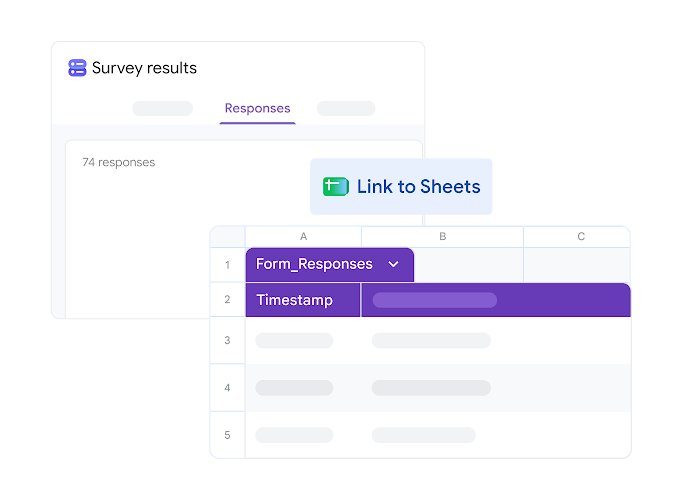
- Open the form and click Responses at the top.
- Click More at the top right of the responses area.
- Select Select destination for responses.
- Choose Create a new spreadsheet or Select existing spreadsheet.
- Click Create or Select.
- Open the linked sheet: each new submission arrives as a row.
The Summary tab under Responses shows charts of the answers, but it appears only once there is at least one response.
Advanced tips and tricks for Google Forms
| Goal | Where to set it |
|---|---|
| Allow one response per person | Settings > Responses > Limit to 1 response |
| Let people change answers after submitting | Settings > Responses > Allow response editing |
| Show respondents a results summary | Settings > Presentation > View results summary |
| Write a custom thank-you message | Settings > Presentation > Edit next to Confirmation message |
| Randomise question order | Settings > Presentation > Shuffle question order |
| Randomise answer choices | Question More menu > Shuffle option order |
| Send people a partly completed form | More > Pre-fill form, fill in answers, then Get link |
| Give a colleague edit access | Share the form with them as a collaborator from Share |
Preview and test a Google Form before you send it
- Click Preview at the top right to open the form as a responder sees it.
- Fill in every question, including required ones, and submit.
- Check that the confirmation message appears.
- Return to the editor, click Responses and confirm the test answer is listed.
- Open the linked Google Sheet and check that a row was added, then delete the test row.
Frequently asked questions
How do I make a Google Form step by step?
Open forms.google.com, click Blank form, name it, add questions with Add question, then click Publish. Copy the responder link from Share and send it to the people who should answer.
Can I create a Google Form without Gmail?
Yes. You need a Google Account, but Google lets you create one with a non-Gmail email address. Sign in to forms.google.com with that account and create the form as normal.
How do I create a Google Form survey or questionnaire?
Start from Blank form or a survey template, then use multiple choice, checkboxes, linear scale and paragraph questions. Split long questionnaires into pages with Add Section.
How do I create a Google Form for registration?
Add short answer questions for name and email, a date question if needed, and turn on Required for each. Use Limit to 1 response and link the form to a Google Sheet to keep a list of sign-ups.
How do I get a Google Form link?
Publish the form, click Published or Share, then Copy responder link. Tick Shorten URL before copying if you want a shorter link.
How do I turn a Google Form into a quiz?
Click Settings and turn on Make this a quiz. Then set an answer key and point value on each question with Answer key.
Where do Google Form responses go?
Responses appear in the form's Responses tab. To keep them in a spreadsheet, use More > Select destination for responses and create or choose a Google Sheet.
Can Google Sheets create a form?
Yes. In a spreadsheet, click Tools, then Create a new form. The form opens and a new sheet is added to collect its responses.