Open PowerToys Settings, select Keyboard Manager > Remap a shortcut, press the Copilot key in the Select box and choose what it should do in To send.
This guide covers the exact remap steps, which targets make sense, how PowerToys compares with the built-in Windows 11 setting, and fixes for remaps that stop working.
Remapping the Copilot key with PowerToys
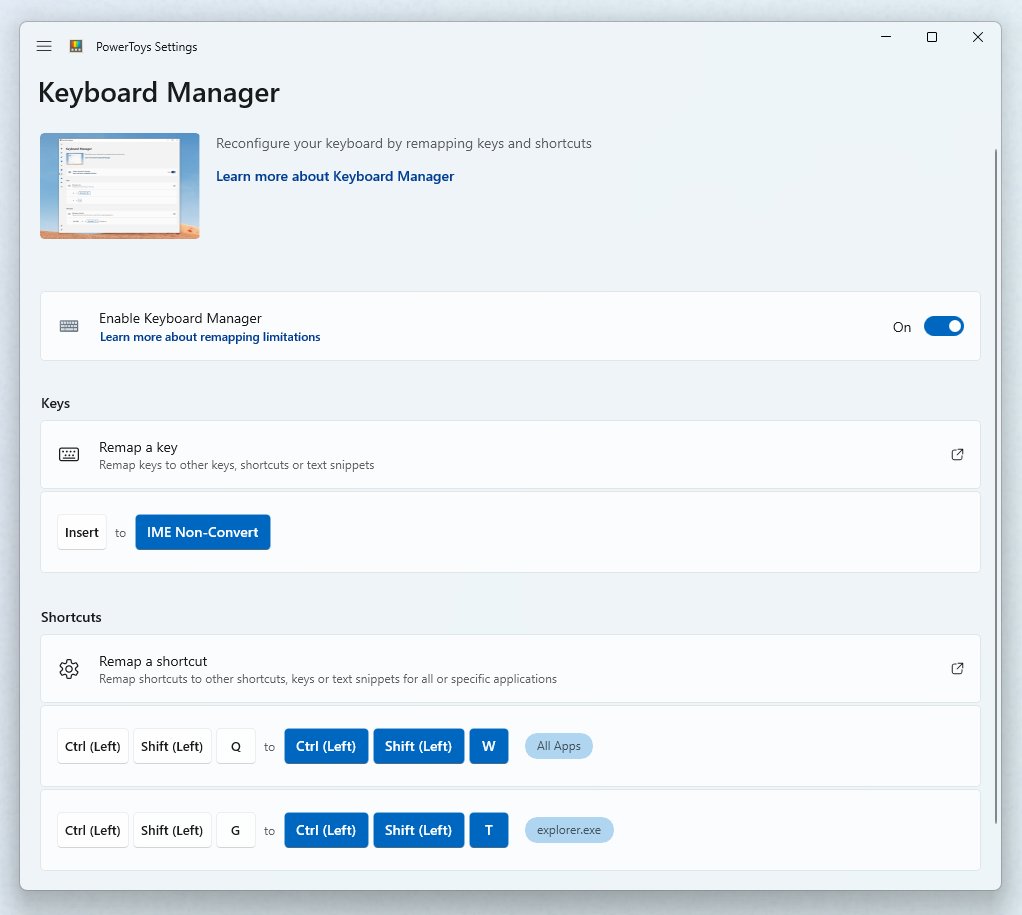
Keyboard Manager sees the Copilot key as a shortcut, not a single key. That is why the remap goes under Remap a shortcut rather than Remap a key.
- Install PowerToys from the Microsoft Store or with winget, then open PowerToys from the Start menu.
- Select Keyboard Manager in the left pane and make sure the utility is switched on.
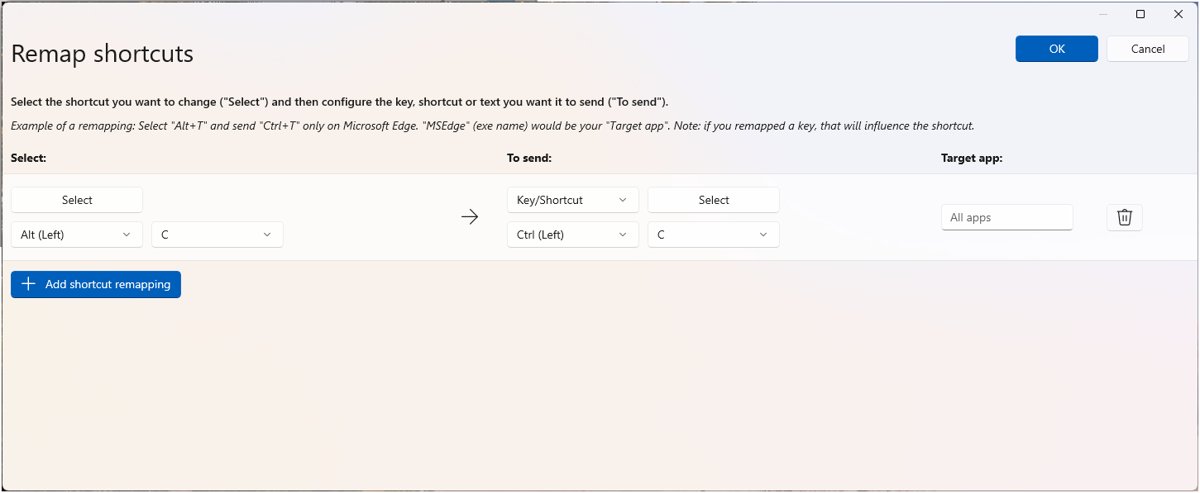
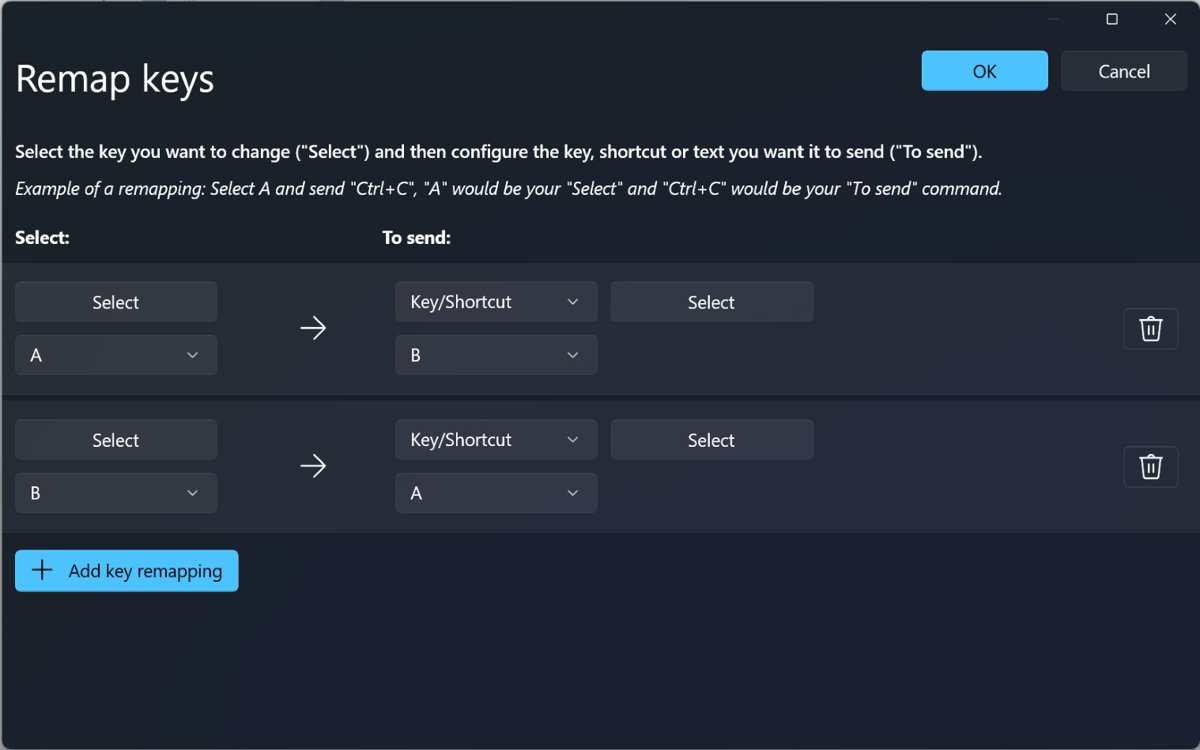
- Select Remap a shortcut, then select Add shortcut remapping.
- In the Select column, select Select and press the Copilot key once. The dialog records the shortcut the key sends, usually Left Shift + Win + F23.
- Hold Enter to accept the recorded shortcut.
- In the To send column, pick a key, a shortcut, Text or Start App, and fill in the value.
- Leave Target app empty to apply the remap everywhere, or type a process name such as
msedgeto limit it to one app. - Select OK. The remap works at once, with no restart.
PowerToys 0.100 and later opens a redesigned editor on new installations. If the buttons have different names, turn off Use the new editor on the Keyboard Manager page to get the legacy editor these steps use.
Copilot key background — full context
The Copilot key is a hardware key that Windows reads as a key combination. Knowing what it replaced and what it sends explains every remap choice below.
| Fact | Detail |
|---|---|
| Where it came from | From 2024, some Windows 11 laptops and keyboards shipped with a Copilot key in place of Right Ctrl or the context menu key. |
| What it sends | Left Shift + Win + F23 on most keyboards. Some keyboards send Win + C instead. |
| Default action | Opens Copilot where it is available in your country or region. With no target chosen, Win + C may do nothing or ask you to set it up. |
| Who it affects most | People who used Right Ctrl or the context menu key for shortcuts or assistive technology. |
| Windows response | Update KB5124010 (22 September 2026) adds Right Ctrl and Context menu options to the Copilot key setting, delivered by gradual rollout. |
| Manufacturer differences | Key layout and Copilot key behavior vary by manufacturer, firmware and hardware design. |
What Windows 11 lets you do natively with the Copilot key
Windows 11 keeps its own Copilot key list under Settings > Bluetooth & devices > Keyboard. The choices you see depend on your account, installed apps and update level.
| Option in Settings | What the key does | Limit |
|---|---|---|
| Copilot or Microsoft Copilot | Opens the Copilot app | Needs Copilot available in your region |
| Search | Opens Windows Search | No other action can be added |
| Custom | Opens an app you pick from a list | Lists only packaged, signed apps registered as Copilot key providers |
| Right Ctrl | Acts as a Right Ctrl key | Gradual rollout with KB5124010; Right Ctrl + Win and Right Ctrl + Shift combos stop working as usual, so use Left Ctrl for those |
| Context menu | Acts as the context menu key | Gradual rollout with KB5124010 |
If Ask Copilot is on in Settings > Personalization > Taskbar, it overrides the option chosen for the key. The built-in Copilot key setting changes with each Windows 11 update, so check it before installing anything.
The built-in route is not enough when you want a normal desktop program, a website, typed text or a different action per app. None of those appear in the Windows list.
How PowerToys Keyboard Manager works
Keyboard Manager intercepts key presses through keyboard hooks while PowerToys runs in the background. Close PowerToys or turn off the utility, and every remap stops.
| Part | What it does | Copilot key use |
|---|---|---|
| Remap a key | Turns one key into another key, a shortcut or text | Not used, because the Copilot key sends a shortcut |
| Remap a shortcut | Turns a shortcut into a key, shortcut, text, app launch or URI | Holds the Copilot key remap |
| Exact Match | Fires a shortcut-to-key remap only when no other keys are held | Stops the remap firing inside other combos |
| Target app | Limits a shortcut remap to one process name, such as msedge or outlook |
Gives the key a different job per app |
| Start App | Launches a program with App, Args, Start in, Elevation, If running and Visibility options | Opens any desktop program, not just Store apps |
| Reserved keys | Win + L and Ctrl + Alt + Del cannot be remapped | Never use them as targets |
| Where it does not work | Sign-in and password screens, and windows run as administrator unless PowerToys is elevated too | Expect Copilot behavior there |
Install PowerToys with winget
PowerToys needs Windows 11, or Windows 10 version 2004 (build 19041) or newer, on an x64 or ARM64 processor. You can also set up Microsoft PowerToys from the Microsoft Store if you prefer a click-through install.
winget install --id Microsoft.PowerToys --source wingetRun it in Windows Terminal or PowerShell. --id Microsoft.PowerToys names the exact package, and --source winget installs it from the winget community repository.
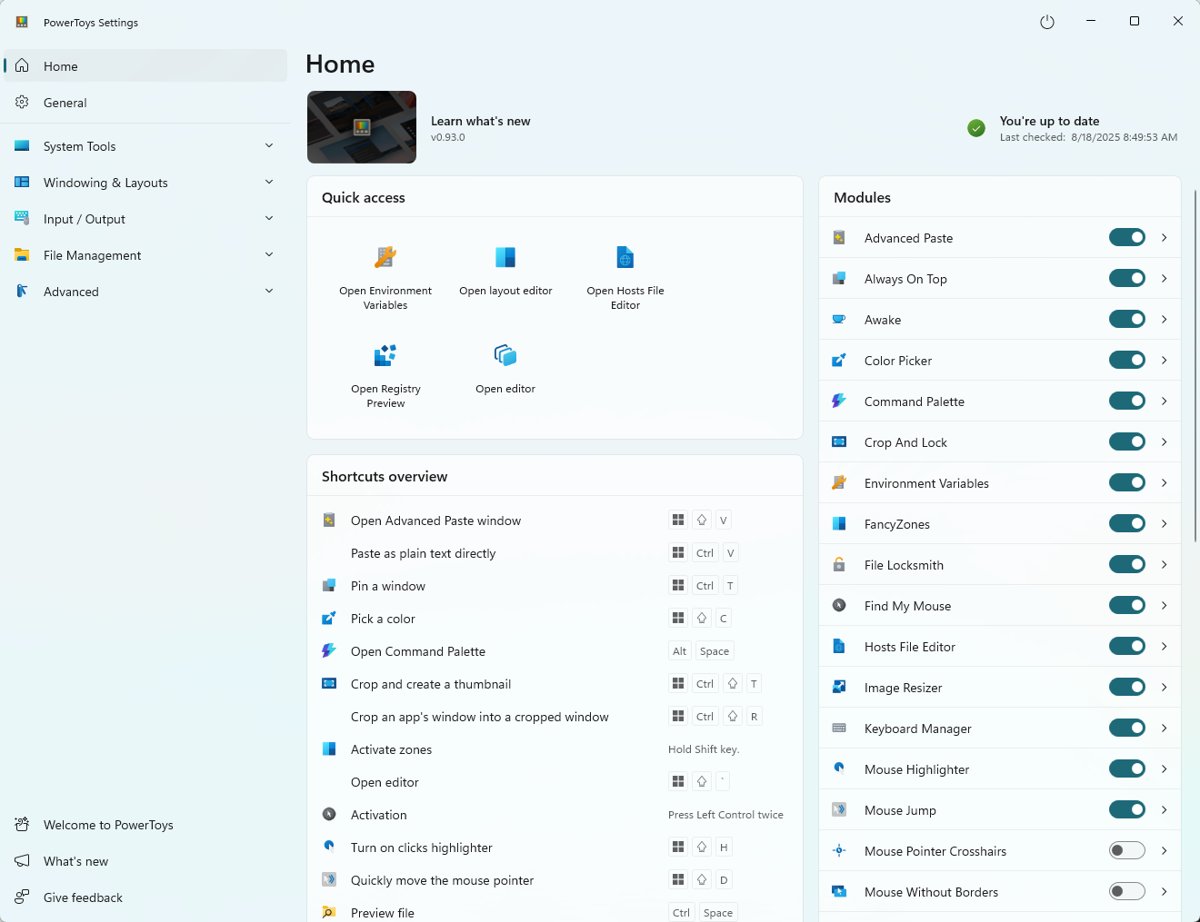
You should see: the PowerToys overview window opens after setup, and PowerToys appears in the Start menu.
Best practical remap choices for the Copilot key
Pick the target by what the key used to be on your keyboard, or by the one action you repeat most.
| You want the Copilot key to | Set To send to | Why |
|---|---|---|
| Work as Right Ctrl again | The Windows Right Ctrl option if you have it; otherwise a Right Ctrl key in PowerToys | The Windows option turns the key into a real Ctrl; a PowerToys remap sends Ctrl from a shortcut, so test the combos you use |
| Open the right-click menu | The context menu key | Restores the key many laptops lost to the Copilot key |
| Open a different AI app or any program | Start App with the path to the program | Works for desktop programs the Windows Custom list never shows |
| Open a web assistant or dashboard | A URI action with the web address | Opens it in your default browser in one press |
| Type a reply, signature or address | Text with the words to insert | Saves typing for text you enter many times a day |
| Control volume | A media key such as Volume Up | Useful on keyboards with no media row |
| Do something different in one app | Any target, with Target app set to the process name | The key keeps its normal job everywhere else |
Do not map the key to Win, Ctrl, Alt or Shift by remapping those keys themselves. Microsoft warns that remapping those modifiers may break gestures and some special keys.
The menu key, the fn layer, and what really changes
A remap changes what Windows receives, not the hardware. The table shows which nearby keys Keyboard Manager can touch.
| Key | Can Keyboard Manager remap it? | What changes |
|---|---|---|
| Copilot key | Yes, as a shortcut | The recorded shortcut fires your target on key-down while PowerToys runs |
| Context menu key | Yes, as a normal key | Map the Copilot key to it to get the old right-click key back |
| Fn key | No, in most cases | Fn-layer changes stay with the keyboard maker's own settings, where they exist |
| F13 to F24 | Yes | F23 is the hidden part of the Copilot key's shortcut, so leave F23 alone |
| Office key | Yes, as a shortcut | It sends Win + Ctrl + Alt + Shift, the same way the Copilot key sends a combo |
| Win + G | Partly | It often still opens Xbox Game Bar even when reassigned |
Older habits matter here. If your fingers still reach for Right Ctrl or the menu key in that spot, map the Copilot key back to that key first and add launch shortcuts elsewhere.
When PowerToys is the better choice than Settings
| Your situation | Use | Why |
|---|---|---|
| You want Right Ctrl or the context menu key and Windows shows that option | Settings | No background app is needed and the key works everywhere Windows does |
| You want Search or Copilot | Settings | Both are built-in choices |
| You want a desktop program or a website | PowerToys | Start App and URI targets reach things the Custom list cannot |
| You want typed text or a different shortcut | PowerToys | Windows has no text or shortcut target for the key |
| You want a different action in one app | PowerToys | Target app limits the remap to one process |
| You play games on the PC | Settings | Keyboard Manager interception can lower frame rates |
| Your work PC manages PowerToys by Group Policy | Ask IT | Utilities set by Group Policy cannot be switched on or off by the user |
A note on third-party AI assistants and app support
Whether another AI assistant shows up for the Copilot key depends on how its developer packages the app. PowerToys removes that dependency.
| Route | Which apps work | Where to set it |
|---|---|---|
| Windows Custom option | Packaged apps that register the com.microsoft.windows.copilotkeyprovider extension and are signed |
Settings > Bluetooth & devices > Keyboard |
| PowerToys Start App | Any program you can point to by path; environment variables are expanded | Keyboard Manager > Remap a shortcut |
| PowerToys URI action | Anything that opens from a URI, including web addresses | Keyboard Manager > Remap a shortcut |
| IT policy | One app set by its app user model ID through the Set Copilot Hardware Key policy | User Configuration > Windows Components > Windows Copilot in Group Policy |
The Set Copilot Hardware Key policy works on Windows 11 Pro, Enterprise and Education from version 22H2 with KB5044380. Users can still change the key assignment in Settings afterwards.
How to tell if the PowerToys Copilot key remap is active
- Open Notepad and press the Copilot key. Your chosen action should run, and Copilot should not open.
- Open an app you started with Run as administrator and press the key again. If nothing happens there, PowerToys is not elevated.
- Restart the PC, sign in and press the key before opening PowerToys. If Copilot opens, PowerToys is not starting with Windows.
- If you set a Target app, press the key in that app and in one other app. Only the target app should get the remap.
How to turn off the Copilot key remap in PowerToys
- Open PowerToys and select Keyboard Manager.
- Select Remap a shortcut.
- Delete the row that holds the Copilot key shortcut.
- Select OK. The key goes back to its Windows setting at once.
- To pause every remap instead, switch off Keyboard Manager or close PowerToys from the system tray.
PowerToys Copilot key remap not working
The remap does nothing in an app run as administrator
Windows stops a non-elevated PowerToys from intercepting keys in elevated windows.
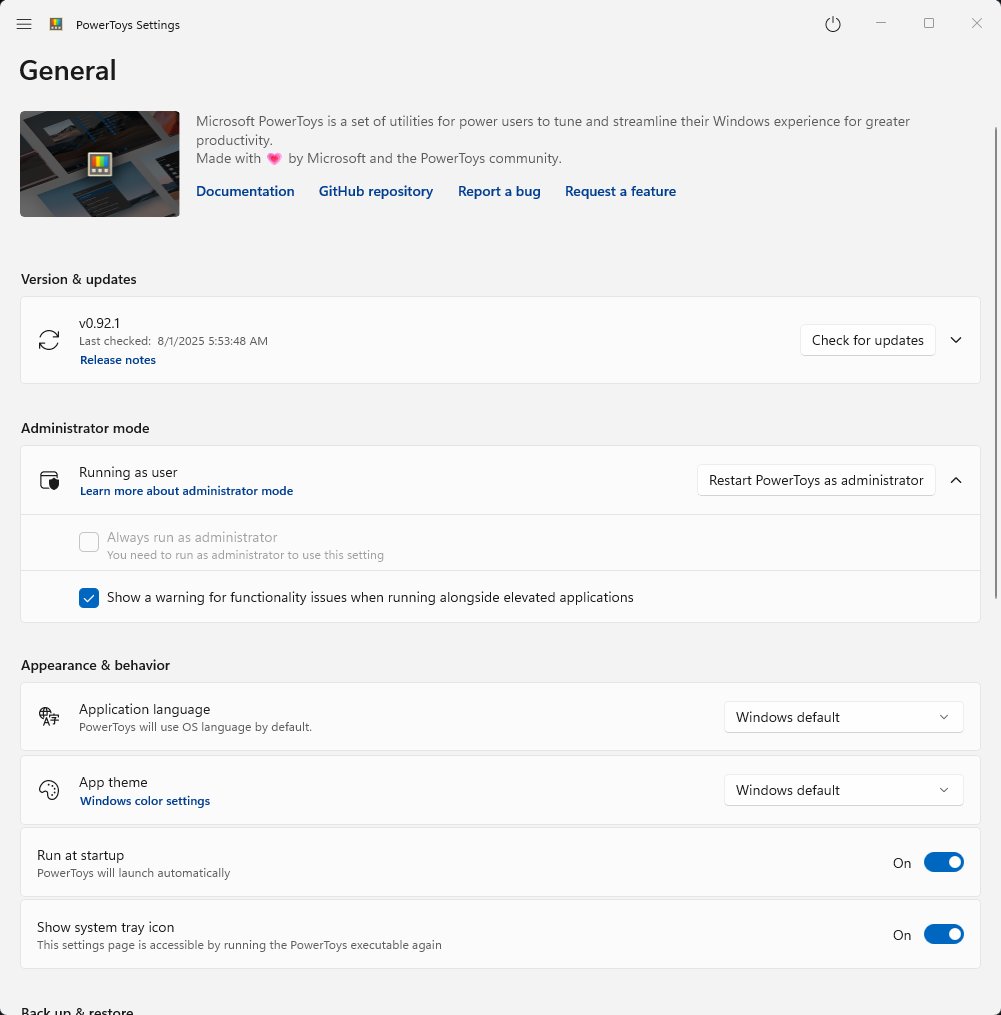
- Open PowerToys Settings and select General.
- Select Restart as administrator when you need the remap in elevated apps.
- Turn on Always run as administrator only if you need it every session.
The Copilot key opens Copilot again after a restart
PowerToys is not running, so no remap is applied.
- Open PowerToys Settings and select General.
- Turn on Run at startup.
- Sign out and back in, then press the Copilot key to test.
The Select dialog records Win + C instead of Win + Shift + F23
Some keyboards send Win + C for the Copilot key.
- Keep the shortcut the dialog recorded, because that is what your keyboard sends.
- Remember that remapping Win + C also changes the real Win + C shortcut.
- Set Target app if you only want the change in one program.
The remap worked, then stopped
Another app that hooks the keyboard is intercepting keys first.
- Open PowerToys Settings and select Keyboard Manager.
- Switch the utility off, then on again.
- Close keyboard utilities such as Microsoft Mouse and Keyboard Center, which has a known conflict, and test again.
Keyboard Manager cannot be switched on
On managed PCs, Group Policy can set a utility's state, and users cannot change it.
- Ask your IT team whether Keyboard Manager is blocked by policy.
- Use the Windows Copilot key setting under Settings > Bluetooth & devices > Keyboard in the meantime.
Games lag after the remap
Keyboard Manager interception lowers frame rates in games.
- Switch off Keyboard Manager before you start a game.
- Use the Windows Copilot key setting instead if you game on this PC every day.
Copilot key remap risks and concerns
| Risk | What happens | How to avoid it |
|---|---|---|
| Always running PowerToys as administrator | Microsoft does not recommend keeping any app elevated, because of security exposure | Use Restart as administrator only when an elevated app needs the remap |
| Remapping modifier keys | Win, Ctrl, Alt or Shift changes can break gestures and special keys; AltGr acts as Left Ctrl + Right Alt and breaks easily | Remap the Copilot shortcut, not the modifiers |
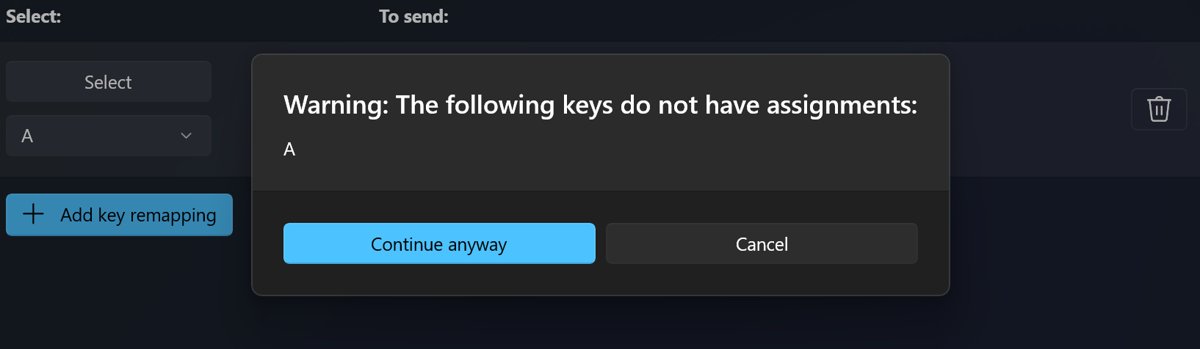
| Orphaned keys | A key you remap away may leave no key that produces the original | Watch for the orphaned key warning and add a mapping back |
| Two layers fighting | A manufacturer setting and the Windows setting can conflict | Use one layer for the Copilot key: maker utility, Windows setting or PowerToys |
| Several keyboards | The same remap applies to every keyboard on the PC | Expect the change on an external keyboard too |
| PowerToys closed | The key falls back to its Windows action | Keep Run at startup on |
PowerToys Copilot key remap strengths and opportunities
| Strength or opportunity | Detail |
|---|---|
| Any target | Send a key, a shortcut, text, an app launch or a URI from one key |
| Per-app control | Target app gives the key a job in one program only |
| Instant changes | Remaps apply when you select OK, with no restart |
| Free Microsoft tool | Install from the Microsoft Store or winget on Windows 11 and Windows 10 |
| Backup and restore | Back up & restore in General settings saves your mappings with the rest of PowerToys |
| Shortcut conflict detection | PowerToys warns when two of its utilities use the same shortcut |
| Input language changes | Remaps keep working when you switch keyboard language |
What to watch next for the Copilot key
| Change | Status on 4 November 2026 | Where to check |
|---|---|---|
| Right Ctrl and Context menu options in Windows | Rolling out gradually with KB5124010 on Windows 11 24H2, 25H2 and 26H2 | Settings > Windows Update > Advanced options > Optional updates |
| New Keyboard Manager editor | Default for new installs from PowerToys 0.100; legacy editor still available | Use the new editor toggle on the Keyboard Manager page |
| Third-party apps in the Custom list | Depends on each developer registering as a Copilot key provider | Settings > Bluetooth & devices > Keyboard |
| Manufacturer key utilities | Options vary by maker and firmware | Your laptop maker's support site |
Copilot key remap FAQ
Can PowerToys remap the Copilot key?
Yes. PowerToys Keyboard Manager remaps the Copilot key through Remap a shortcut, because the key sends a shortcut. Press the key in the Select dialog, then choose a key, shortcut, text, app or URI in To send.
What keys does the Copilot key send?
Most keyboards send Left Shift + Win + F23 when you press the Copilot key. Some send Win + C instead. The PowerToys Select dialog shows which one your keyboard uses.
Can I remap the Copilot key without PowerToys?
Yes. Windows 11 has a Copilot key list under Settings > Bluetooth & devices > Keyboard with Search, Copilot and Custom. After KB5124010 reaches your PC, Right Ctrl and Context menu also appear.
Why does my Copilot key remap stop after a restart?
PowerToys applies remaps only while it runs. Turn on Run at startup in PowerToys General settings, then sign out and back in. The remap returns as soon as PowerToys starts.
Does the Copilot key remap work in admin apps?
Only if PowerToys is elevated too. Select Restart as administrator on the PowerToys General page when an app run as administrator ignores the remap.
Can I make the Copilot key open another AI app?
Yes. In PowerToys, set To send to Start App and enter the program's path, or use a URI action for a web assistant. The Windows Custom list only shows packaged, signed apps that register for the key.
Does the remap work on the sign-in screen?
No. Keyboard Manager does not work on the sign-in screen or any password screen. The Copilot key keeps its Windows action there.
How do I undo a Copilot key remap?
Open Keyboard Manager > Remap a shortcut in PowerToys, delete the Copilot key row and select OK. To pause every remap at once, switch off Keyboard Manager or close PowerToys.