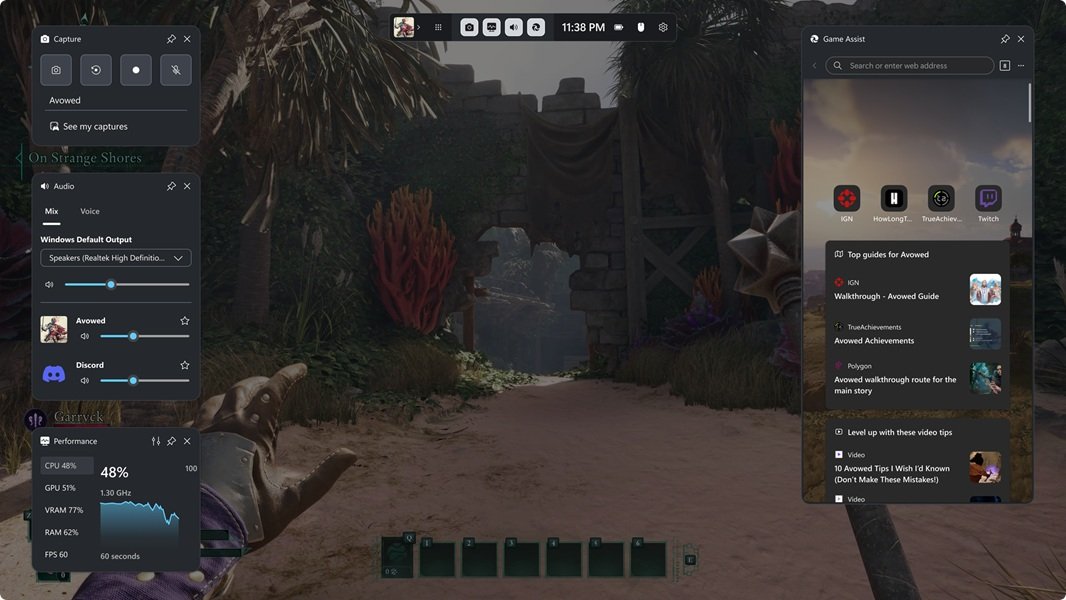
To close the Game Assist window, press Win + G to open Game Bar, select Unpin next to Close in the Game Assist title bar, and then dismiss Game Bar.
This guide covers the pinned window that stays on top of your game, the Close and menu options, and how to uninstall Game Assist if you never want it back.
Step-by-Step Guide to Closing the Assist Window
Game Assist stays on screen after Game Bar closes only when it is pinned. Unpinning it is the fix in almost every case.
- Press Win + G, or click the Game Assist window, to reopen Game Bar.
- Move your mouse to the top edge of the Game Assist window so its title bar appears.
- Select Unpin, next to Close, in the Game Assist title bar.
- Press Win + G again to dismiss Game Bar.
- Check that Game Assist has gone; it no longer appears once Game Bar is dismissed.
If the title bar will not show, drag the widget lower first. Game Bar hides the title bar when a widget sits too close to the top of the screen.
Understanding the Game Assist Window
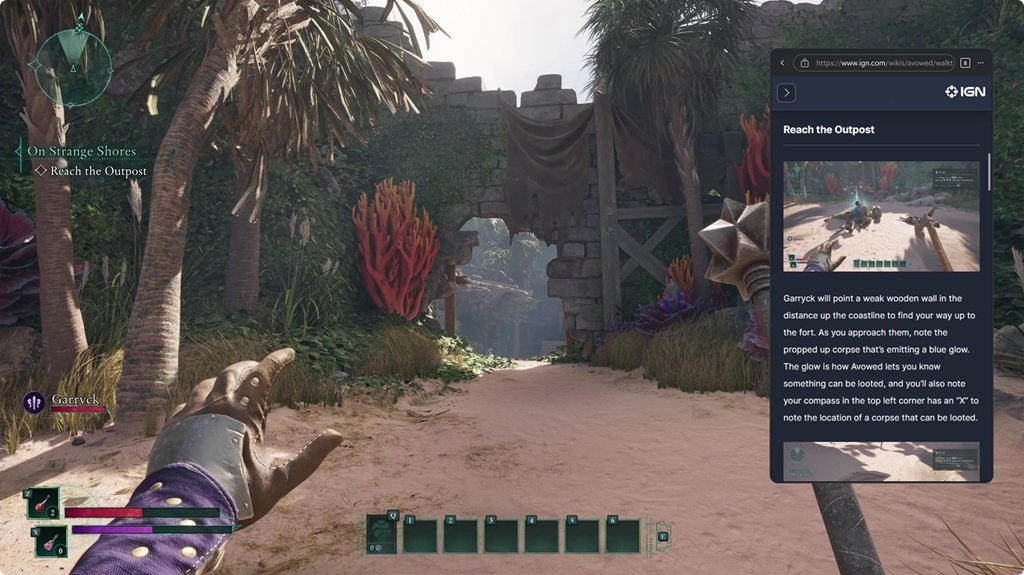
Game Assist, now also called Microsoft Edge for Game Bar, is a special version of Microsoft Edge that runs as a Game Bar widget on top of your game.
| Fact | Detail |
|---|---|
| What it is | An in-game browser built on Microsoft Edge, shown as a Game Bar widget |
| How it opens | Press Win + G and pick Game Assist from the Widget Menu |
| Why it stays on screen | The Pin icon keeps it on top of your game after Game Bar closes |
| Requirements | Microsoft Edge 137 or later on Windows 11 (22H2 or later) with current Game Bar updates |
| Shared data | Uses the same favorites, history, cookies and form fills as Edge on the desktop |
| Resource use | None while Game Bar is not in use; it shuts down after a short period of inactivity |
Identify the Assist window by its small browser layout with a title bar holding the Pin and Close icons, sitting over your game rather than on the desktop.
Reasons to Close the Assist Window
| Your situation | Do this | Why |
|---|---|---|
| Game Assist stays visible after Game Bar closes | Unpin it, then dismiss Game Bar | Pinned widgets stay on top of the game by design |
| You are done with it for this session | Select Close in its title bar, or close it from the Settings and more (…) menu | Closes the widget; reopen it later from the Widget Menu |
| It covers part of the game but you still need it | Move, resize or make it more transparent | You keep the guide visible without blocking the view |
| Clicks on it interrupt the game | Set clicks to pass through in Game Bar settings | Clicks reach the game while the widget stays pinned |
| You never use it | Uninstall it from the Apps page in Windows Settings | Removes the widget; it can be reinstalled from Edge |
Preparing to Close the Assist Window
| Check | Why |
|---|---|
| Keyboard and mouse available | Game Assist is built for keyboard and mouse; controller support is still limited |
| Game paused or in a safe spot | Opening Game Bar takes focus away from the game |
| Guide or video saved if you need it later | Your history is shared with Edge, so you can reopen the page from desktop Edge |
| Widget not touching the top of the screen | Its title bar, with Unpin and Close, does not show there |
Basic Method: Use the Close Button
Use this when Game Assist is open inside Game Bar and you simply want it gone for now.
- Press Win + G to open Game Bar.
- Hover over the top of the Game Assist window to show its title bar.
- Select Close in the title bar.
- Alternatively, open the Settings and more (…) menu inside Game Assist and close it from there.
- Press Win + G to return to your game.
Reopen Game Assist at any time from the Widget Menu in Game Bar.
Keyboard Shortcut (if available)
Game Assist has no single key that closes it. Win + G is the only shortcut that matters here, because it opens and dismisses Game Bar, and dismissing Game Bar hides any unpinned widget.
| Shortcut | What it does in Game Assist |
|---|---|
| Win + G | Opens or dismisses Game Bar; an unpinned Game Assist disappears with it |
| Ctrl + G | Fills the name of the current game into the search box; it does not close anything |
| Keyboard media keys | Pause or play a video playing in Game Assist |
How to check Game Assist is closed
- Press Win + G and then dismiss Game Bar again.
- Look at your game: Game Assist should not be drawn on top of it.
- Press Win + G once more and check that Game Assist is not open in Game Bar, unless you reopen it from the Widget Menu.
Force Close (Last Resort)
Game Assist is always visible, even when Game Bar is not open
The widget is pinned, which keeps it on top of your game.
- Press Win + G or click Game Assist to reopen Game Bar.
- Select Unpin next to Close in the title bar.
- Dismiss Game Bar.
Game Assist is not closing because the title bar is missing
Game Bar hides the title bar when the widget is too close to the top of the screen or Game Bar is closed.
- Open Game Bar with Win + G.
- Move the mouse to the top of the screen directly above the Game Assist widget.
- If the title bar appears, select Unpin or Close; otherwise close it from the Settings and more (…) menu.
Game Assist shows an error asking you to update Windows 11
Windows 11 or Game Bar is out of date.
- Install the latest monthly updates in Settings > Windows Update; Windows 11 22H2 or later is required.
- Open the Xbox app and check for Game Bar updates in the Microsoft Store.
- Restart the game and open Game Bar again.
It keeps coming back and you never use it
The widget is installed with Microsoft Edge.
- Open Settings > Apps in Windows 11.
- Find Game Assist in the app list and uninstall it.
- Reinstall later, if you want it, from Settings and more (…) in Microsoft Edge by searching for Game Assist.
Check for overlay conflicts too: Game Bar runs alongside other overlays, so another app's overlay on top does not stop Game Assist from closing, but it can hide the Game Assist title bar.
Best Practices for Managing Game Windows
| Practice | How |
|---|---|
| Use the in-game close option | Close Game Assist from its title bar or the Settings and more (…) menu when you finish |
| Utilize keyboard shortcuts | Use Win + G to show and hide Game Bar instead of alt-tabbing out of the game |
| Manage windows via system controls | Uninstall or reinstall Game Assist from the Apps page in Windows Settings |
| Adjust game settings | Use widget transparency and click pass-through in Game Bar settings for a pinned guide |
| Keep software updated | Keep Microsoft Edge, Windows 11 and Game Bar current; clear browsing data in desktop Edge, since Game Assist shares it |
Additional tips: move the widget by dragging its title bar, and resize it so it covers less of the game.
Frequently asked questions
What is Game Assist in Windows 11 and how do I close it?
Game Assist is an in-game version of Microsoft Edge that runs as a Game Bar widget. To close it, press Win + G, select Unpin next to Close in its title bar if it is pinned, then select Close or dismiss Game Bar.
Why isn't Game Assist closing?
It is pinned, so it stays on top of your game after Game Bar closes. Press Win + G, move the mouse to the top of the widget to show its title bar, select Unpin, and dismiss Game Bar.
How do I close the Microsoft Game Assist window on a laptop?
The same way as on a desktop PC. Press Win + G to open Game Bar, select Unpin or Close in the Game Assist title bar, then press Win + G again. A touchpad works, though a mouse makes the title bar easier to reach.
How do I close the Game Assist Edge window?
The Edge window inside Game Bar is Game Assist itself. Close it from its title bar or from the Settings and more (…) menu inside the widget. Closing it does not close Microsoft Edge on your desktop.
Can I uninstall Game Assist?
Yes. Microsoft says you can uninstall Game Assist from the Apps page in Windows Settings. You can reinstall it later from the Settings and more (…) menu in Microsoft Edge by searching for Game Assist.
Does Game Assist slow down my games?
Microsoft says Game Assist does not consume system resources when you are not using Game Bar and shuts down after a brief period of inactivity. Any app running while you play uses some resources.
How do I stop Game Assist covering my game without closing it?
Drag its title bar to move it, resize it, or raise its transparency with the widget transparency option in Game Bar settings. You can also make clicks on a pinned Game Assist pass through to the game.

How to turn off Game Assist: a practical guide - Techdows
[…] Bar hides a widget's title bar when it sits too close to the top of the screen. You can also close the Game Assist window without unpinning it first from the same […]