To turn off Game Assist, press Win + G, select Unpin next to Close in its title bar, and dismiss Game Bar; to remove it for good, uninstall it from Settings > Apps > Installed apps in Windows 11.
This guide covers the pinned widget, the uninstall route, the controller button that opens Game Bar, and what to do when Game Assist will not stay off.
How to turn off and unpin Game Assist in Game Bar
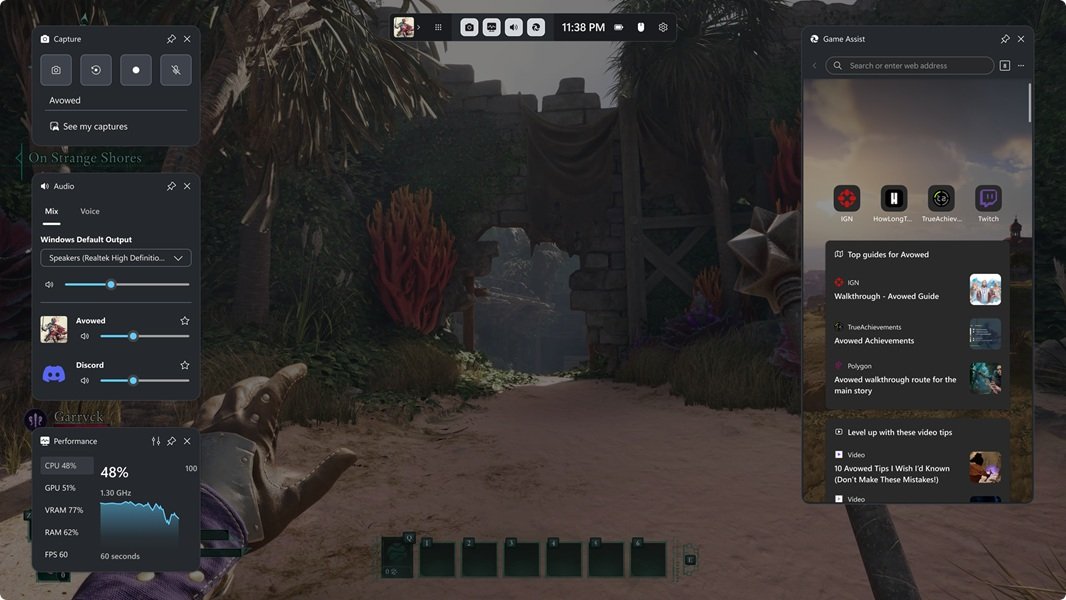
Game Assist only stays on screen outside Game Bar when it is pinned. Unpinning it and dismissing Game Bar turns it off for the rest of your session.
- Press Win + G, or click the Game Assist widget, to open Game Bar.
- Move your mouse to the top edge of the Game Assist widget so its title bar appears.
- Select Unpin, next to Close, in the Game Assist title bar.
- Select Close in the same title bar, or close it from the Settings and more (…) menu.
- Press Win + G again to dismiss Game Bar and return to your game.
If the title bar never appears, drag the widget lower first. Game Bar hides a widget's title bar when it sits too close to the top of the screen. You can also close the Game Assist window without unpinning it first from the same menu.
What Game Assist does and when it appears
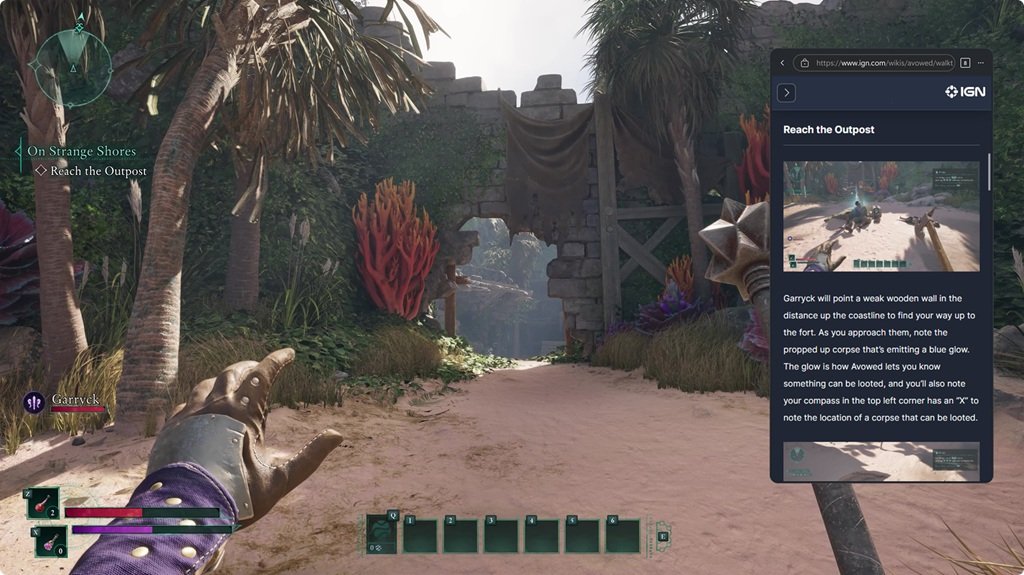
Game Assist is a special version of Microsoft Edge that runs as a widget inside Game Bar on Windows 11. Microsoft has since renamed it Microsoft Edge for Game Bar, so both names refer to the same widget.
| Question | Answer |
|---|---|
| What it is | An in-game browser built on Microsoft Edge, shown as a Game Bar widget |
| When it appears | When you open Game Bar with Win + G and select Game Assist in the Widget Menu |
| Why it stays on screen | The Pin icon keeps it on top of your game after Game Bar closes |
| What it knows about your game | Game Bar passes game context to its widgets, so Game Assist can suggest tips and guides for enhanced games |
| What data it shares | Favorites, history, cookies and form fills from Microsoft Edge on your PC |
| Requirements | Microsoft Edge 137 or later on Windows 11 22H2 or later, with current Game Bar updates |
| Resource use | None while Game Bar is not in use; it shuts down after a short period of inactivity |
Reasons to turn off Game Assist
Match your reason to the lightest fix. Unpinning solves most complaints, and uninstalling is only needed if you never want the widget.
| Your reason | Do this | Why |
|---|---|---|
| It interrupts gameplay or blocks clicks and controls | Unpin it, or set clicks on the pinned widget to pass through to the game in Game Bar settings | A pinned widget sits on top of the game until you unpin it |
| You worry it hurts performance, battery life or temperature | Close it when you finish with it | Microsoft says it uses no system resources while Game Bar is not in use |
| You do not want widgets reading what game you play | Limit which widgets get game context in Game Bar settings | Game Bar decides which widgets receive game context |
| You do not want it sharing your Edge history, cookies or sign-ins | Uninstall it from Settings > Apps > Installed apps | It uses the same browser data as Edge on your PC |
| It conflicts with another overlay or an accessibility setting | Unpin and close it, then reopen only when needed | Game Bar runs alongside other overlays, but a pinned widget can cover them |
| The controller button keeps opening Game Bar | Turn off Open Xbox Game Bar using this button on a controller | Game Assist only appears inside Game Bar |
How to disable Game Assist in system settings
Windows has no on/off switch for Game Assist itself. The system-level way to turn it off permanently is to uninstall the widget, which Microsoft supports from the Apps page in Windows Settings.
- Select Start > Settings > Apps > Installed apps.
- Type Game Assist in the search box at the top of the list; if nothing shows, try Edge for Game Bar.
- Select More (the three dots) next to the entry.
- Select Uninstall, then confirm.
- Press Win + G and open the Widget Menu to confirm Game Assist is no longer listed.
You can also uninstall from the Start menu: select Start > All apps, right-click the entry and select Uninstall. Uninstalling the widget leaves Microsoft Edge on the desktop untouched.
How to turn off Game Assist inside a game or app
Game Assist does not live in your game's own settings menu. It belongs to Game Bar, so you switch it off from Game Bar while the game keeps running.
- Press Win + G while the game is running.
- Hover over the top of the Game Assist widget to show its title bar.
- Select Unpin if the pin is active, so it no longer floats over the game.
- Select Close, or open Settings and more (…) inside Game Assist and close it there.
- Press Win + G to dismiss Game Bar and carry on playing.
If you only want it out of the way, minimise it in Game Bar instead of closing it. Microsoft notes you can quickly return to a minimised or closed widget later from the Widget Menu.
How to stop Game Assist from launching automatically
Game Assist does not start with Windows. It opens only when Game Bar opens and the widget was left open or pinned, and it shuts down by itself after a short period of inactivity.
So the automatic trigger to remove is Game Bar opening when you did not mean it to, usually from the Xbox button on a controller.
- Press Win + I to open Settings.
- Type xbox in the Find a setting box and select Enable Xbox Game Bar.
- Turn off Open Xbox Game Bar using this button on a controller.
- Press Win + G, unpin Game Assist and close it so it is not open the next time Game Bar appears.
- Restart your game and press the Xbox button to confirm Game Bar no longer opens.
Win + G still opens Game Bar after this change. The switch only stops the controller button from doing it.
How to turn off Microsoft Edge's Game Assist in Windows 11 or 10
Game Assist ships with Microsoft Edge but is managed through Game Bar and the Windows Apps page, not through Edge's own settings.
| Your setup | Where Game Assist is | How to turn it off |
|---|---|---|
| Windows 11 22H2 or later, Edge 137 or later | Game Bar Widget Menu, as Game Assist or Edge for Game Bar | Unpin and close it in Game Bar, or uninstall it from Settings > Apps > Installed apps |
| Windows 11 with an Insider channel of Edge (Beta, Dev or Canary) set as default | Game Assist connects to that channel after a restart of the widget | Same steps; uninstalling the widget does not remove the Insider browser |
| Windows 10 | Not available; Game Assist requires Windows 11 | Nothing to turn off; the Game Bar settings for the controller button still apply |
| Microsoft Edge on the desktop | Edge desktop is a separate app with its own tabs | Closing or uninstalling Game Assist does not close or remove desktop Edge |
How to check Game Assist is turned off
- Return to your game with Game Bar dismissed and confirm no browser widget is drawn over it.
- Press Win + G and confirm Game Assist is not open on the Game Bar overlay.
- Open the Widget Menu: if you uninstalled it, Game Assist is no longer listed.
- Press the Xbox button on your controller, if you turned that switch off, and confirm Game Bar stays closed.
How to reinstall Game Assist from Microsoft Edge
- Open Microsoft Edge on the desktop.
- Select Settings and more (…) in the top-right corner.
- Search for Game Assist and follow the prompt to install it.
- Press Win + G and pick Game Assist from the Widget Menu.
To bring back the controller shortcut, turn Open Xbox Game Bar using this button on a controller back on in Settings.
Troubleshooting when Game Assist will not stay off
Game Assist is always visible, even when Game Bar is closed
The widget is pinned, which keeps it on top of your game by design.
- Press Win + G, or click Game Assist, to reopen Game Bar.
- Select Unpin next to Close in the title bar.
- Dismiss Game Bar; Game Assist no longer appears.
You cannot find the Unpin or Close button
Game Bar hides the title bar when Game Bar is closed or the widget is too close to the top of the screen.
- Open Game Bar with Win + G.
- Move the mouse to the top of the screen directly above the Game Assist widget.
- If the title bar still does not show, close Game Assist from its Settings and more (…) menu.
Game Assist keeps turning back on after you disable it
Closing it only ends the session; it returns whenever Game Bar opens with the widget pinned or reopened, and a controller button press opens Game Bar.
- Unpin Game Assist rather than just dismissing Game Bar.
- Turn off Open Xbox Game Bar using this button on a controller in Settings.
- Uninstall Game Assist from Settings > Apps > Installed apps if you never use it.
Game Assist shows an error asking you to update Windows 11
Windows 11 or Game Bar is out of date, which can stop the widget's controls working.
- Install the latest monthly updates in Settings > Windows Update; Windows 11 22H2 or later is required.
- Open the Xbox app and check for Game Bar updates in the Microsoft Store.
- Restart the game, press Win + G and close or unpin Game Assist again.
Check for multiple Game Assist controls before assuming a fault: the pin lives on the widget, game context and click pass-through live in Game Bar settings, and removal lives on the Windows Apps page.
Turn off Game Assist FAQs: frequently asked questions
What is Game Assist, and how do I turn it off?
Game Assist is an in-game version of Microsoft Edge that runs as a Game Bar widget on Windows 11. Press Win + G, select Unpin next to Close in its title bar, then close it. Uninstall it from Settings > Apps > Installed apps to remove it.
How do I turn off the Game Assist widget?
Open Game Bar with Win + G, hover over the top of the Game Assist widget, select Unpin, then select Close. Once unpinned, the widget disappears when you dismiss Game Bar and stays hidden until you open it again from the Widget Menu.
How do I turn off Game Assist in Windows 11?
For one session, unpin and close it in Game Bar. To turn it off permanently, select Start > Settings > Apps > Installed apps, find Game Assist, select More and then Uninstall. Windows 11 has no separate on/off switch for the widget.
How do I turn off Game Assist in Microsoft Edge?
Edge's desktop settings do not control the widget. Game Assist runs inside Game Bar, so you unpin and close it there, or uninstall it from the Windows Apps page. You can reinstall it later from Settings and more (…) in Edge.
Is Xbox Game Assist the same as Microsoft Game Assist?
Yes. Game Assist is Microsoft Edge's in-game browser, and it lives in the Xbox Game Bar on Windows 11, so people call it both. Microsoft now names it Microsoft Edge for Game Bar. The turn-off steps are the same.
How do I unpin Game Assist?
Press Win + G or click the widget to open Game Bar, then select Unpin next to Close in the Game Assist title bar. If the title bar is missing, move the mouse to the top of the screen directly above the widget.
Will turning off Game Assist make games run worse?
No. Game Assist is optional and games do not depend on it. Microsoft says it uses no system resources while Game Bar is not in use and shuts down after a short period of inactivity, so turning it off frees little.
Where do I find Game Assist if it is not listed under that name?
Look for Microsoft Edge for Game Bar, the widget's newer name, in the Game Bar Widget Menu or on the Installed apps page. Game Assist also needs Windows 11 22H2 or later and Edge 137 or later, so it does not appear on Windows 10.
How do I stop using Game Assist without uninstalling it?
Unpin and close it in Game Bar, and it will not open again until you select it in the Widget Menu. Turning off the controller button that opens Game Bar also stops accidental launches from a gamepad.
Bottom line: should you turn off Game Assist?
Unpin and close Game Assist if it only gets in the way during play, and uninstall it from Settings > Apps > Installed apps if you never use an in-game browser. The widget uses no resources while Game Bar is closed, so the real cost is screen space and shared browser data, and both stop once it is unpinned or removed. Turning off Windows 11 Game Mode is a separate setting; check whether Game Mode helps on your PC before changing it.