To check the full health of a Windows PC or laptop, open Windows Security and select Device performance & health, then run the PC Health Check app, a battery report and the disk and system file scans built into Windows.
This guide covers each built-in tool for Windows 11 and Windows 10, what a healthy result looks like, how Automatic Maintenance keeps the PC in shape, and what to do when maintenance will not run.
Check PC health with Windows Security
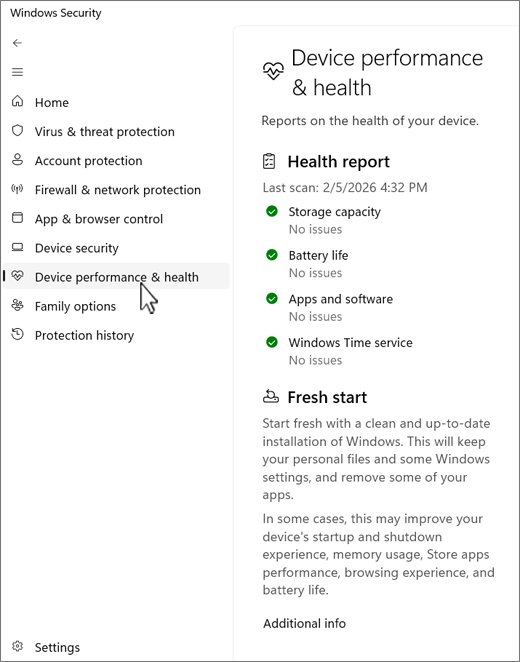
Windows Security runs a fresh health scan every time you open its Device performance & health page. It needs no download and works on Windows 11 and Windows 10.
- Select Start, type Windows Security and open the app. On Windows 11 you can also go to Settings > Privacy & security > Windows Security.
- Select Device performance & health. The page also opens from the
windowsdefender://perfhealth/shortcut. - Check the last scan time at the top. It should match the current time, because the scan runs when the page opens.
- Read the Health report: Storage capacity, Battery life, Apps and software and Windows Time service.
- Treat a green check as healthy. Select any item with a yellow mark to see what needs attention and the suggested fix.
The same app also runs malware checks. Go to Virus & threat protection and select Quick scan, and use a Microsoft Defender Offline scan for infections that a normal scan cannot remove.
Use the PC Health Check tool
PC Health Check is Microsoft's own app. It shows Windows 11 eligibility, update status, storage, startup time and, on some laptops, battery capacity on one screen.
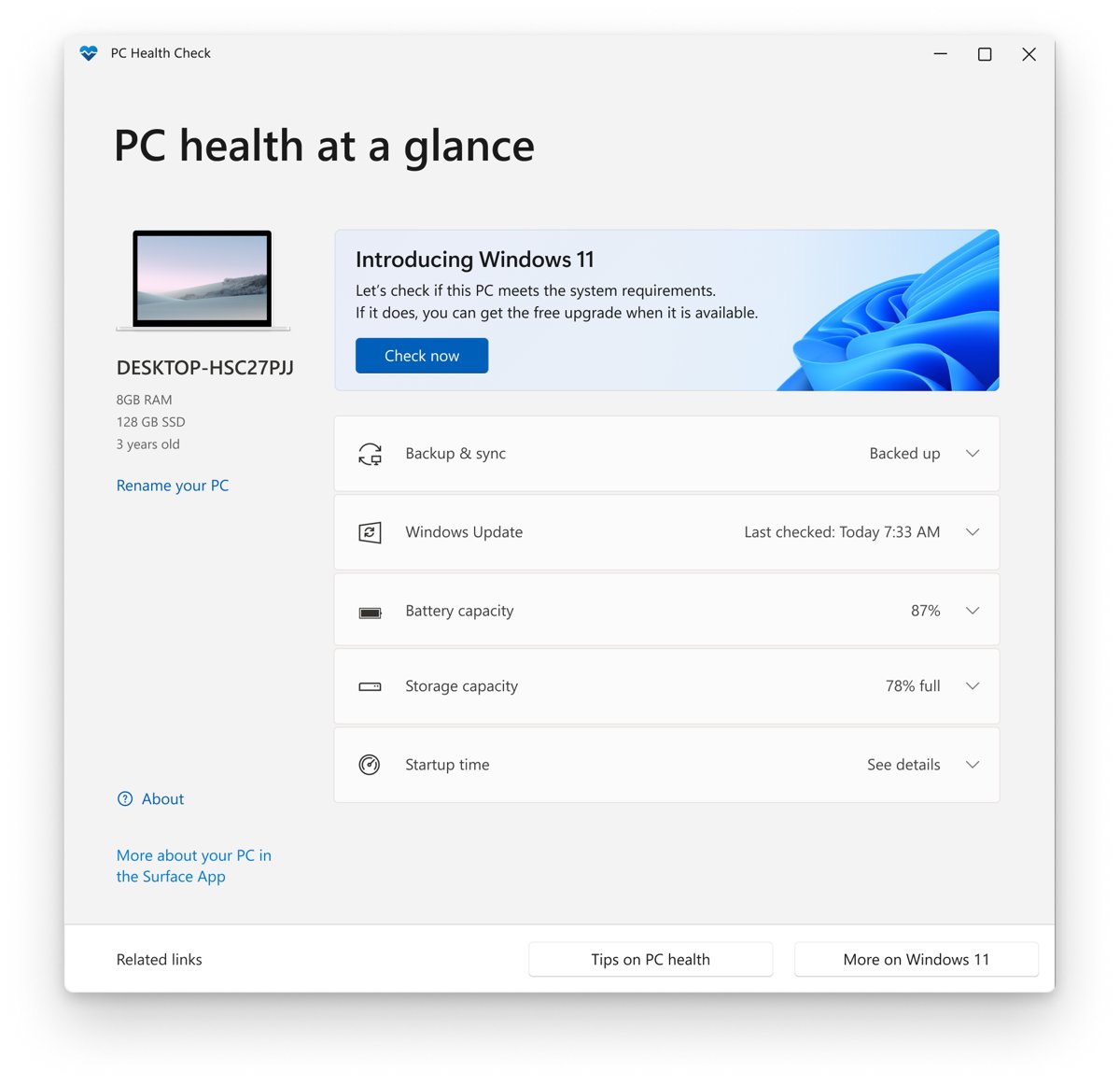
If Search does not find it, download the PC Health Check app from Microsoft's aka.ms/GetPCHealthCheckApp link and install it.
- Select Search on the taskbar, type PC Health Check and open the app.
- On Windows 10, select Check now under Windows 11 eligibility to see whether the PC meets the Windows 11 requirements and why.
- Look at the Windows Update entry. If it needs attention, select Open Windows Update and install what is waiting.
- Expand Storage capacity to see how full the main drive is, then select Manage storage settings to free space.
- Check Startup time and select Manage your startup programs if the PC boots slowly.
- On a laptop, review Battery capacity to compare the battery with its original capacity, and select See battery saving tips for advice.
The battery capacity entry appears only on devices with one or two batteries that are more than three years old. Newer laptops need the battery report further down.
Check PC health with Performance Monitor
Performance Monitor can build a System Diagnostics report that checks hardware, software and resource use in one pass. Running the data collector needs an administrator account.
- Sign in with an account that is in the local Administrators group.
- Press Win + R to open Run.
- Type
perfmon /reportand press Enter. This starts the System Diagnostics data collector set. - Leave the window open and keep the PC idle while the data is collected.
- Read the report that appears when collection finishes, starting with the results at the top, and expand any section that flags a problem.
- For crash and failure history, type
perfmon /relin Run to open Reliability Monitor.
perfmon /res opens the Resource View for live CPU, memory, disk and network use, and perfmon /sys opens the Performance Monitor graphs.
Use a sleep study to check battery health
A sleep study shows how much battery each sleep session used and which components kept the laptop awake. It exists only on PCs that use the modern standby power model.
- Select Start, type cmd, right-click Command Prompt and select Run as administrator.
- Type
powercfg /aand press Enter to list the sleep states the PC supports. A sleep study works only on modern standby PCs. - Run
powercfg /sleepstudy /output "%USERPROFILE%\sleepstudy.html"to save the report in your user folder. - Open File Explorer, go to your user folder and double-click sleepstudy.html to open it in the browser.
- Read the summary table. A red row drained 1% or more of the battery per hour, and a yellow row drained between 0.33% and 1% per hour.
- Select a red Sleep session to see its five most active components, listed as top offenders.
- Scroll to the battery information at the end to see the design capacity and cycle count.
- Add
/duration 7to the command for a week of data instead of the default three days. The maximum is 28 days.
Sessions shorter than ten minutes are not tracked, so leave the laptop asleep for an hour or more before you judge its standby drain.
How to generate a battery report in Windows 11
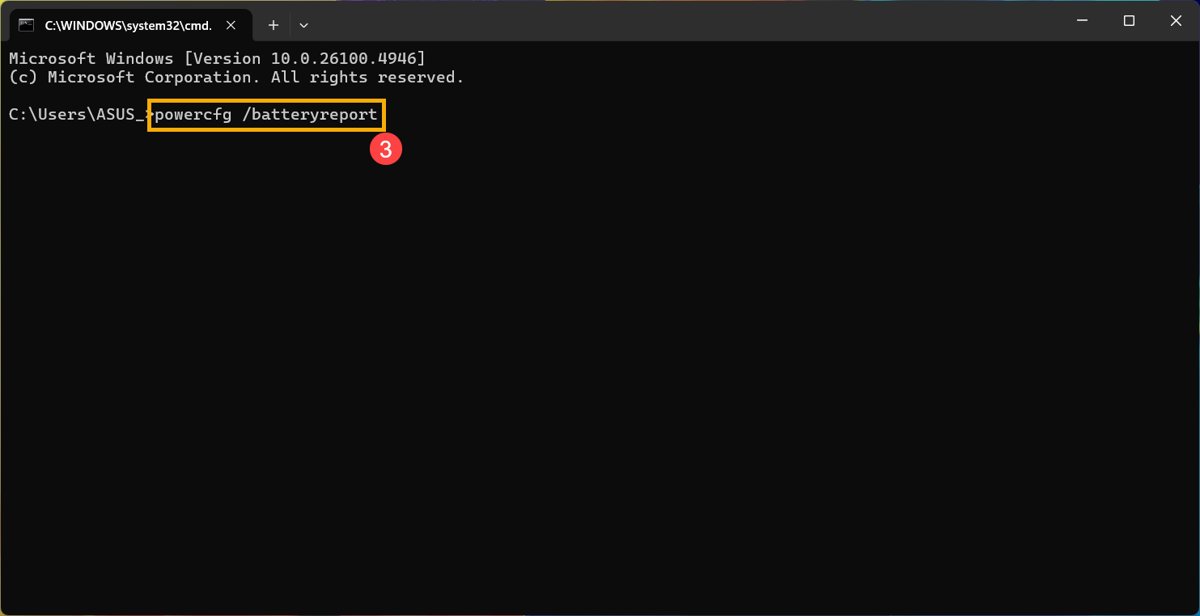
The battery report covers battery use over the whole life of the system, so it works on laptops without modern standby too. It is the clearest way to see how much capacity the battery has lost.
- Select Start, type cmd and open Command Prompt.
- Run
powercfg /batteryreport /output "%USERPROFILE%\battery-report.html". - Open File Explorer, go to your user folder and double-click battery-report.html.
- Find the installed battery section and compare the capacity the battery was designed for with the capacity it now charges to.
- Scroll down to the capacity history to see how fast that number has dropped over time.
- Add
/duration 7to the command to limit the usage sections to the last seven days.
A full charge capacity well below the design capacity means the battery holds less charge than it did when new. PC Health Check shows the same comparison on laptops older than three years.
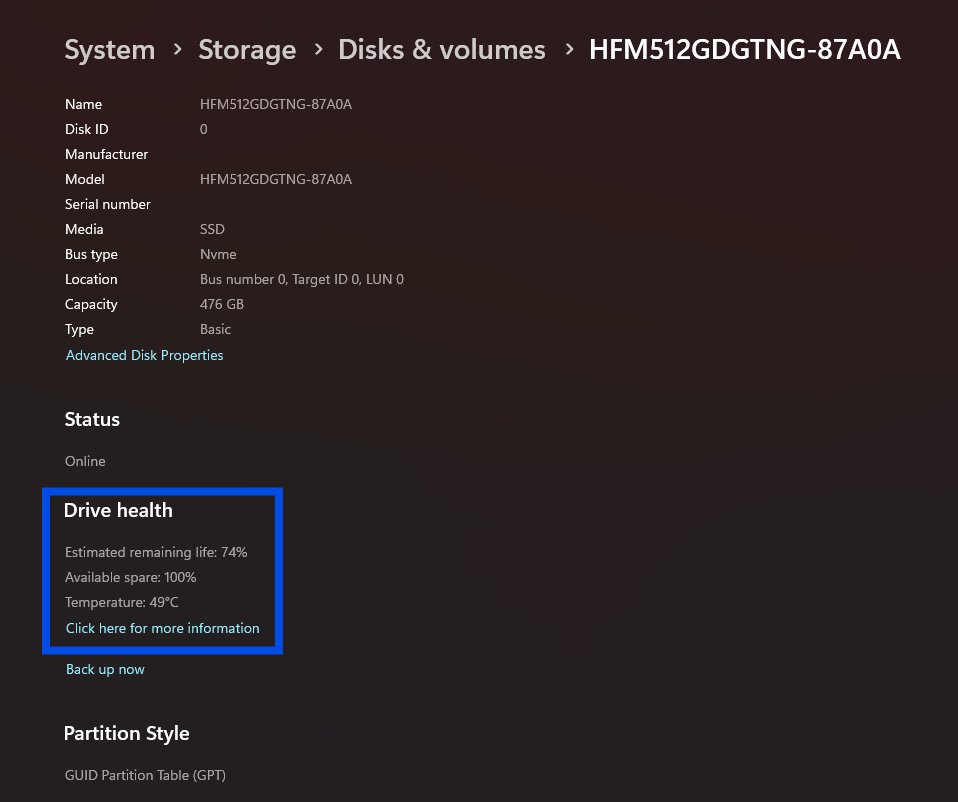
How to check hard drive health in Windows 11
Two built-in checks cover a drive: PowerShell reports the physical disk's health status, and chkdsk scans and repairs the file system on each volume.
- Select Start, type PowerShell, right-click Windows PowerShell and select Run as administrator.
- Run
Get-PhysicalDiskand read the HealthStatus column. It shows Healthy, Warning, Unhealthy or Unknown for each disk. - Run
chkdsk C:for a read-only status of the C: drive. Without switches, chkdsk reports problems but fixes nothing. - If chkdsk reports errors, run
chkdsk C: /f. Because Windows is using the drive, press Y to schedule the check for the next restart, then restart the PC. - Use
chkdsk C: /rinstead on a hard disk that may have bad sectors. It reads every sector, so it can take hours on a large drive. - Read the results later in Event Viewer: go to Windows Logs > Application, select Filter Current Log and choose the Chkdsk and Wininit sources.
chkdsk exit code 0 means no errors were found, and 1 means errors were found and fixed. Avoid repeated /r scans on an SSD, since full-surface scans add needless write cycles.
How to run SFC and DISM scans in Windows 11
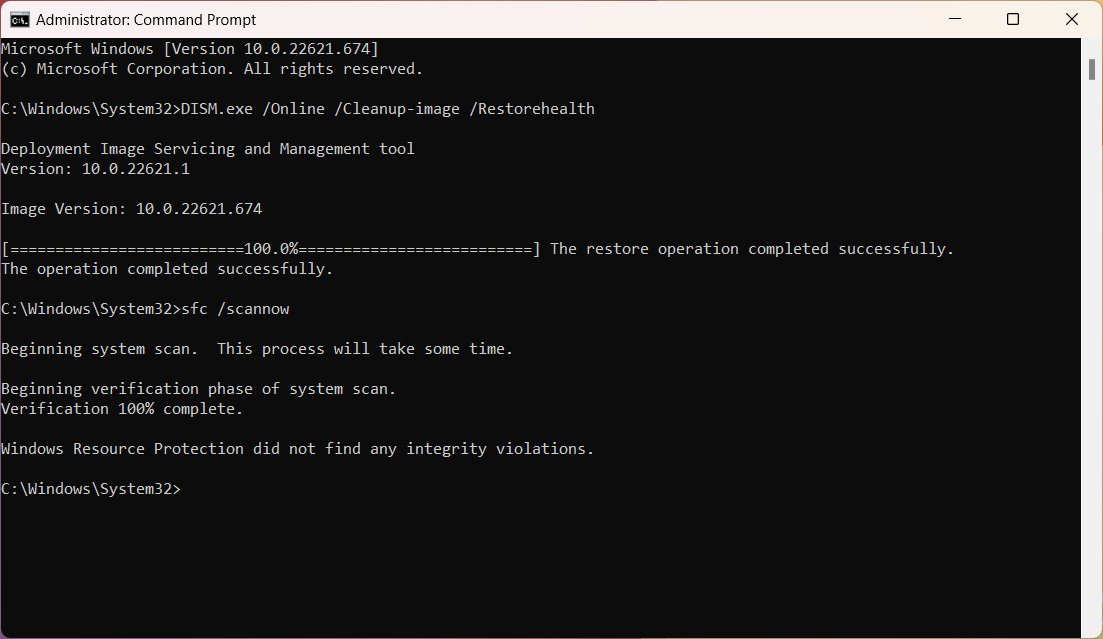
System File Checker repairs damaged Windows files, and DISM repairs the component store that SFC copies good files from. Both need an administrator Command Prompt.
sfc /scannowScans every protected system file and replaces incorrect versions with correct ones where it can. Use sfc /verifyonly to scan without making repairs.
If SFC cannot repair everything, run DISM /Online /Cleanup-Image /ScanHealth and then DISM /Online /Cleanup-Image /CheckHealth. CheckHealth reports the image as healthy, repairable or non-repairable.
For a repairable image, run DISM /Online /Cleanup-Image /RestoreHealth. It downloads clean files from Windows Update by default, so stay online, then run sfc /scannow again.
Checking your computer’s health
No single Windows tool checks everything. Use this table to match each part of the PC with the built-in check and the result that means it is healthy.
| Part of the PC | Built-in check | Healthy result |
|---|---|---|
| Storage, battery, apps and clock | Windows Security > Device performance & health | Green check on all four areas |
| Updates, startup time, Windows 11 readiness | PC Health Check app | Up to date and no warnings |
| Hardware, drivers and resources | perfmon /report |
No problems flagged at the top of the report |
| Battery wear | powercfg /batteryreport |
Full charge capacity close to design capacity |
| Battery drain in sleep | powercfg /sleepstudy |
Mostly green rows, under 0.33% drain per hour |
| Physical drive | Get-PhysicalDisk |
HealthStatus shows Healthy |
| File system on a drive | chkdsk C: |
No errors found |
| Windows system files | sfc /scannow and DISM CheckHealth |
No integrity violations; image healthy |
| Processor heat | BIOS/UEFI setup or the PC maker's utility | Temperatures in range when you check CPU temperature under load |
| Memory | Settings or Task Manager | The full amount of installed RAM is usable |
| Graphics | Task Manager | GPU usage drops when no game or video is running |
How to automate common maintenance tasks in Windows 11/10
Windows already automates most upkeep through Automatic Maintenance, which bundles Windows Update, drive optimization and antivirus updates and scans. You control the schedule from Control Panel > System and Security > Security and Maintenance > Automatic Maintenance.
| Maintenance task | Where to automate it | Default behavior |
|---|---|---|
| Automatic Maintenance (updates, scans, optimization) | Control Panel > System and Security > Security and Maintenance > Automatic Maintenance | Runs when the PC is idle and on AC power, on a daily or weekly schedule |
| Waking the PC for maintenance | Power Options > Edit Plan Settings > Change advanced power settings > Sleep > Allow wake timers | Laptops wake for maintenance only on AC power |
| Drive optimization and SSD trim | Search defrag > Defragment and Optimize Drives > Change Settings | Runs once a week |
| Temporary file cleanup | Settings > System > Storage > Storage Sense | Use Run Storage Sense now for an immediate cleanup |
| Windows updates | Settings > Windows Update | Updates install automatically; select Check for updates to run a check now |
| Malware scans | Windows Security > Virus & threat protection | Microsoft Defender updates and scans run as part of maintenance |
Maintenance in progress message in Windows 11/10
The message means Automatic Maintenance is running its queued jobs. It is normal and stops on its own when you start using the PC.
| What you see | What it means | What to do |
|---|---|---|
| Maintenance in progress in Security and Maintenance | Windows Update, drive optimization or antivirus jobs are running in the background | Leave the PC idle and plugged in so it finishes sooner |
| The PC feels slow while maintenance runs | Critical tasks past their deadline are catching up and use full system resources | Let the run finish; Windows notifies you when critical maintenance is running |
| Maintenance stops when you move the mouse | Automatic Maintenance pauses as soon as you interact with the PC | Nothing; it resumes at the next idle period |
| A notice asks you to run maintenance | Tasks stayed behind their deadline for too long | Start maintenance manually from the Automatic Maintenance page in Control Panel |
Windows is unable to run Automatic Maintenance
Maintenance never seems to run on a laptop
Maintenance tasks run only when the PC is idle and on AC power, and they pause whenever you use it.
- Plug the laptop in and leave it idle for a while.
- Open Control Panel > System and Security > Security and Maintenance > Automatic Maintenance.
- Start maintenance manually from that page and leave the PC untouched until it ends.
Scheduled maintenance does not wake the PC
Wake timers are off, the firmware blocks wake-up, or the PC does not support the sleep state needed to wake.
- Open Control Panel > Hardware and Sound > Power Options > Edit Plan Settings > Change advanced power settings.
- Expand Sleep > Allow wake timers and enable it.
- Check the PC's BIOS or UEFI settings for wake options.
- Run
powercfg /ain an administrator Command Prompt to see which sleep states the PC supports.
The maintenance time keeps changing back
A Group Policy setting, Automatic Maintenance Activation Boundary, overrides the time set in Control Panel.
- On a work or school PC, ask your IT team, because the policy comes from the organization.
- On a Pro PC you manage, open gpedit.msc and go to Computer Configuration > Administrative Templates > Windows Components > Maintenance Scheduler.
- Set Automatic Maintenance Activation Boundary to Not Configured so the Control Panel time applies again.
Windows PC health check FAQ
Does Windows 11 have a built-in PC health check?
Yes. Open Windows Security and select Device performance & health for a report on storage, battery, apps and the Windows Time service. Microsoft's PC Health Check app adds update status, startup time and Windows 11 eligibility.
How do I check battery health on a Windows laptop?
Run powercfg /batteryreport in Command Prompt and open the HTML file it saves. Compare the design capacity with the full charge capacity. On laptops older than three years, PC Health Check also shows a battery capacity comparison.
How do I check hard drive health in Windows?
Run Get-PhysicalDisk in an administrator PowerShell window and read the HealthStatus column, which should say Healthy. Then run chkdsk C: for a read-only file system check, and chkdsk C: /f to repair errors at the next restart.
What does a yellow mark in Device performance & health mean?
A yellow mark means that area needs attention, such as low disk space or an app that needs an update. Select the item to see the recommendation. A green check means Windows found no problem in that area.
Why can't I open Device performance & health?
On a work or school PC, policy settings set by the organization can block access to the Device performance & health page. Ask your IT department, or use PC Health Check and the command-line checks instead.
Does every laptop support a sleep study?
No. powercfg /sleepstudy works only on PCs that use the modern standby power model. Run powercfg /a to list the sleep states your laptop supports, and use the battery report on laptops without modern standby.
Can I stop Automatic Maintenance while it runs?
Yes. Automatic Maintenance stops by itself as soon as you start using the PC and resumes at the next idle period. You can also stop it or start it on demand from the Automatic Maintenance page in Control Panel.
Is PC Health Check made by Microsoft?
Yes. PC Health Check is Microsoft's own app, installed from Microsoft's aka.ms/GetPCHealthCheckApp link. It checks Windows 11 eligibility on Windows 10 and shows update, storage, startup and battery information.