Notepad on Windows 11 already saves new files as UTF-8 without a byte order mark, and you change the encoding of any file from the Encoding list in the Save as dialog.
This guide covers saving a file in another encoding, reading the current encoding, the system-wide UTF-8 setting, and fixes for garbled characters.
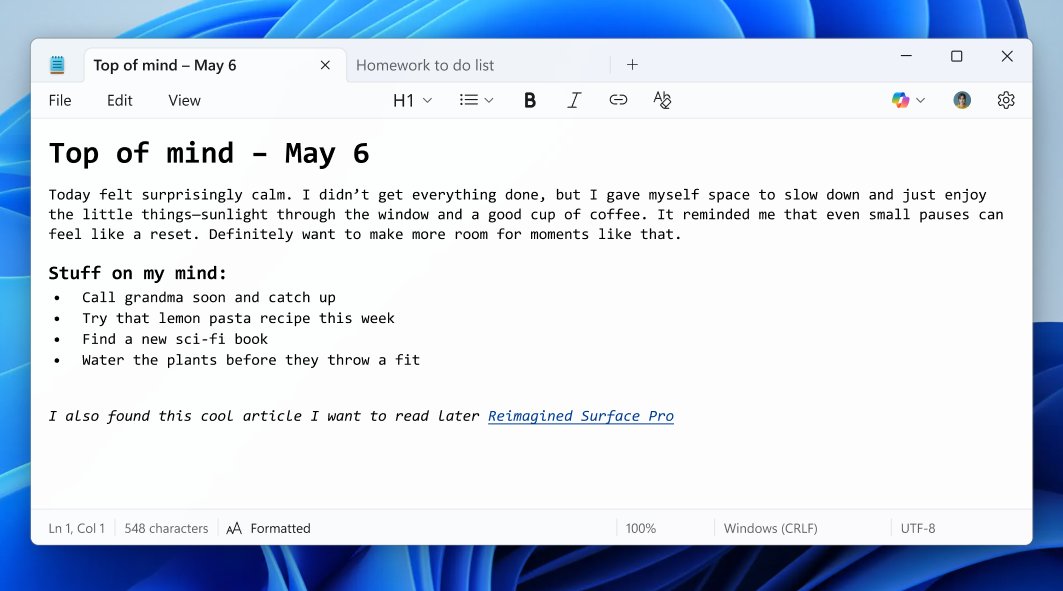
How to change default encoding in Notepad
Notepad has no separate default-encoding switch. New files start as UTF-8, and you choose a different encoding each time you save.
- Open the file in Notepad.
- Press Ctrl + Shift + S to open the Save as dialog.
- Open the Encoding list next to the Save button.
- Choose the encoding you need, such as UTF-8, UTF-8 with BOM, UTF-16 LE, UTF-16 BE or ANSI.
- Keep or change the file name, then select Save.
Notepad remembers the encoding of a file you open, so a file saved as UTF-16 stays UTF-16 the next time you press Ctrl + S.
Notepad UTF-8 vs ANSI vs UTF-16 encoding
| File is for | Choose | Why |
|---|---|---|
| Web pages, scripts, config files, Linux or macOS | UTF-8 | Backwards-compatible with ASCII and the standard on the web |
| An older Windows program that expects a byte order mark | UTF-8 with BOM | The BOM marks the file as UTF-8 for programs that cannot detect it |
| A Windows program that reads Unicode text in UTF-16 | UTF-16 LE | Matches the UTF-16 format Windows uses internally |
| A legacy program tied to your region's code page | ANSI | Uses the system code page; characters outside it are lost |
What is character encoding in Notepad?
Character encoding is the rule that turns each letter into bytes on disk. A file opened with the wrong rule shows odd symbols instead of accented letters or non-Latin script.
| Encoding | Bytes per character | Covers |
|---|---|---|
| UTF-8 | 1 to 4 | The whole Unicode character set |
| UTF-8 with BOM | 1 to 4, plus a 3-byte marker at the start | The whole Unicode character set |
| UTF-16 LE / BE | 2 or 4 | The whole Unicode character set, little- or big-endian byte order |
| ANSI | 1 or 2, depending on the code page | Only the characters of the active system code page |
See the current file encoding in Notepad
- Open the file in Notepad.
- Look at the status bar at the bottom of the window.
- Read the encoding column, which shows values such as UTF-8 or UTF-16 LE.
- If the status bar is hidden, select View > Status bar to show it.
Set Windows default file encoding to UTF-8
Older programs that read text through the system code page can be switched to UTF-8 for the whole PC. This is a beta option and affects every non-Unicode program.
- Open Settings and select Time & language.
- Select Language & region.
- Select Administrative language settings.
- Select Change system locale.
- Tick Beta: Use Unicode UTF-8 for worldwide language support and select OK.
- Restart the PC for the change to take effect.
Notepad itself does not need this setting to save UTF-8; it only changes what ANSI means for legacy programs.
New features in Notepad in Windows 11
| Feature | What it does | Where to control it |
|---|---|---|
| UTF-8 default | New files save as UTF-8 without a byte order mark | Encoding list in Save as |
| Encoding in the status bar | Shows the open file's encoding | View > Status bar |
| Formatting toolbar | Applies lightweight formatting while you type or to selected text | Turn formatting off in Notepad settings |
| Markdown support | Accepts Markdown-style input and Markdown files | Same formatting setting |
Notepad tips and tricks for Windows users
- Type .LOG on the first line of a file and save it; Notepad appends the date and time each time you reopen it.
- Select File > Page Setup to add a header and footer before printing; enter them again each time, because they are not saved.
- Press Ctrl + Shift + S to open Save as without the menu.
- Turn off formatting in Notepad settings when you need plain text only, for scripts or config files.
How to fix character encoding in Notepad
Accented letters show as two odd symbols, such as é
A UTF-8 file is being read by a program that expects ANSI.
- Open the file in Notepad and confirm the status bar shows UTF-8.
- Save a copy with Ctrl + Shift + S and choose UTF-8 with BOM in Encoding.
- Open that copy in the other program.
Characters turn into question marks after saving
The file was saved as ANSI and those characters do not exist in the system code page.
- Undo the change or reopen the original file.
- Save it again with UTF-8 selected in Encoding.
A script or web page fails because of stray characters at the start
A byte order mark was added to a file that must not have one.
- Open the file and check the status bar for UTF-8 with BOM.
- Save it with UTF-8 selected in Encoding.
Notepad character encoding FAQ
What is character encoding?
Character encoding is the rule that maps each character to bytes stored in a file. UTF-8, UTF-16 and ANSI are common examples. When the program reading a file uses a different rule from the one that wrote it, the text shows garbled symbols.
How do I change file encoding in Notepad?
Open the file, press Ctrl + Shift + S, choose the encoding in the Encoding list of the Save as dialog, and select Save. Notepad writes the file in the new encoding and keeps it on later saves.
What is the default encoding in Notepad on Windows 11?
New Notepad files save as UTF-8 without a byte order mark. Microsoft made this the default because UTF-8 without a BOM is backwards-compatible with ASCII and works better with the web.
How do I change text encoding to UTF-8?
Open the text file in Notepad, use Save as, pick UTF-8 in the Encoding list and save. The status bar then shows UTF-8 for that file.
How do I fix character encoding problems in a text file?
Check the encoding in Notepad's status bar, then save a copy in the encoding the other program expects, usually UTF-8 or UTF-8 with BOM. Avoid ANSI for text with characters outside your region's code page.
Can I set UTF-8 as the Windows default encoding?
Yes. In Settings > Time & language > Language & region > Administrative language settings > Change system locale, tick Beta: Use Unicode UTF-8 for worldwide language support and restart. It affects legacy non-Unicode programs, not Notepad's own default.
How do I change encoding without changing the file name?
Use Save as, keep the same file name and folder, choose the new encoding and select Save. Confirm the overwrite when Notepad asks.
Best default encoding for Notepad on Windows 11
Leave Notepad on UTF-8 and switch a file to another encoding only when a specific program demands it. UTF-8 covers every Unicode character and is what the web and most tools expect, so the default is already the safe choice. If you also want text files to open in another editor, change the default program for .txt files.