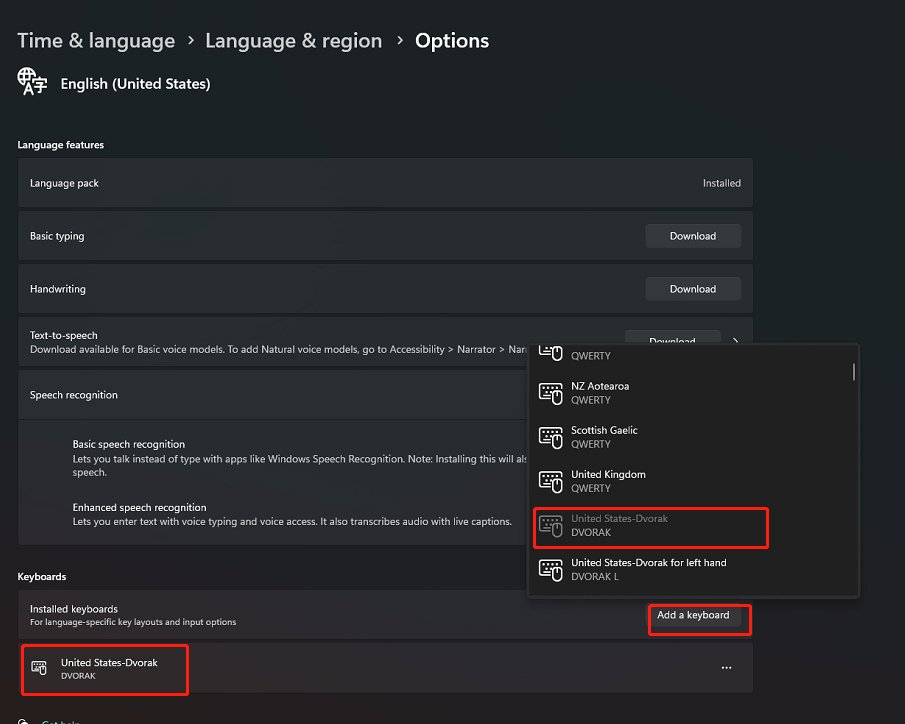
To add the Dvorak keyboard in Windows 11, open Settings > Time & language > Language & region, select Language options for your language, choose Add a keyboard and pick United States-Dvorak.
This guide covers the three Dvorak layouts Windows ships, the Windows 10 path, switching with Windows key + Spacebar, making Dvorak your only layout, and fixes when the keys still type QWERTY.
The fastest way to add the Dvorak keyboard in Windows 11
Dvorak is built into Windows 11, so there is nothing to download. It is added as a keyboard under a language you already have.
- Open Settings and go to Time & language > Language & region.
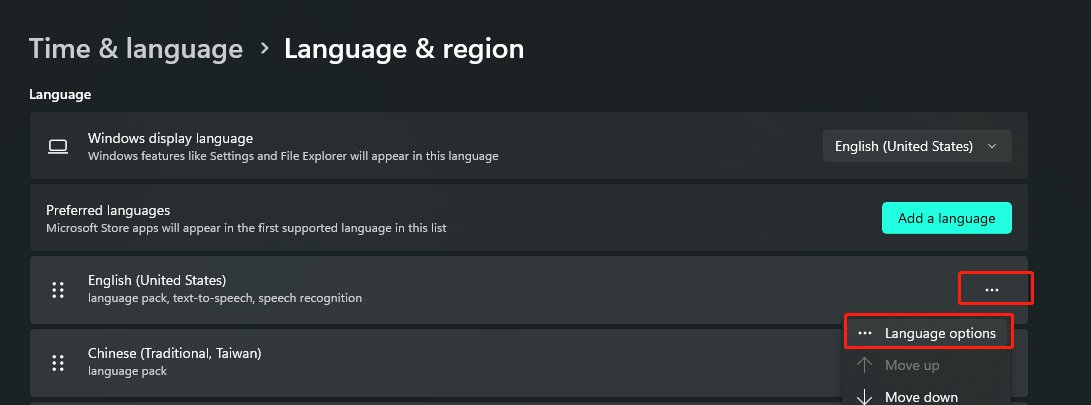
- Select the three dots (…) next to your display language, such as English (United States), then select Language options.
- Under Keyboards, select Add a keyboard.
- Choose United States-Dvorak from the pop-up list.
- Press Windows key + Spacebar to switch to the new layout and start typing.
What is the Dvorak Keyboard?
Dvorak is an alternative arrangement of the English letter keys. The physical keyboard stays the same; Windows simply maps each key to a different character.
Microsoft lists three Dvorak layouts, all available since before Windows XP. Pick the one that matches how you type.
| Layout name in Windows | Keyboard identifier | Who it suits |
|---|---|---|
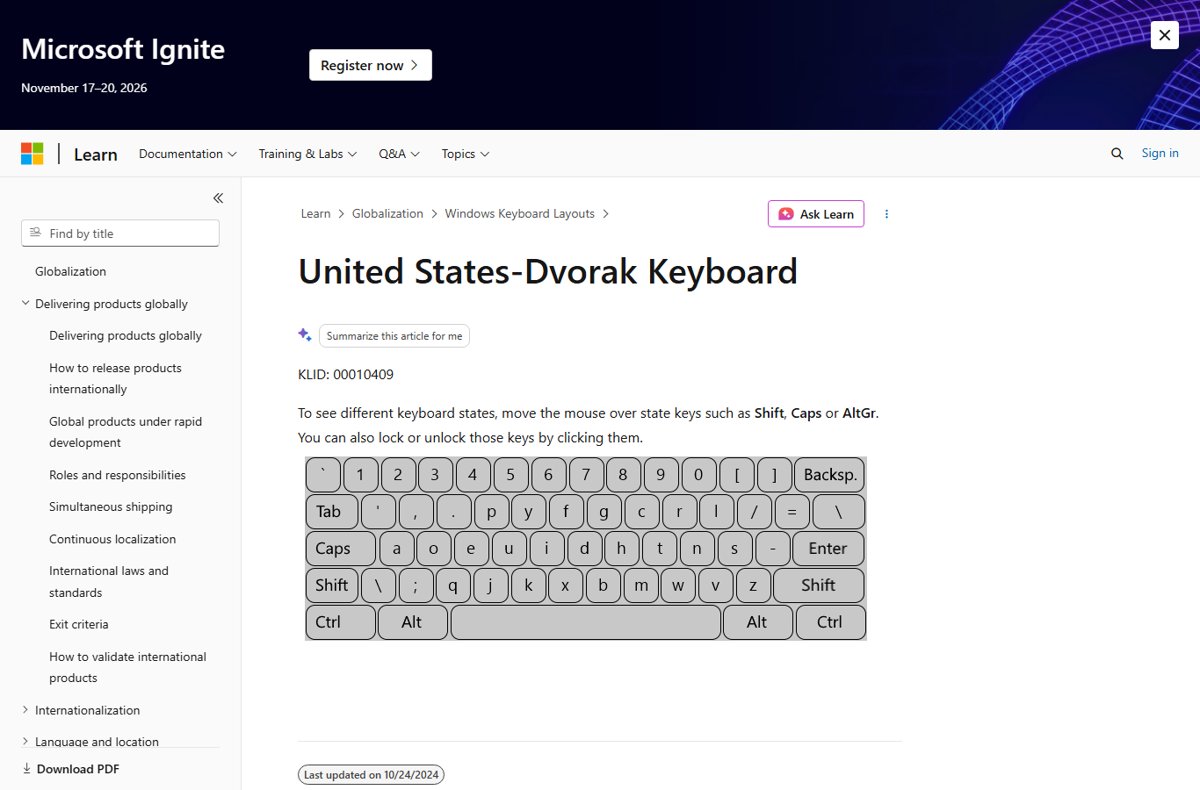
| United States-Dvorak | 00010409 | Two-handed typists; this is the layout most people mean by Dvorak |
| United States-Dvorak for left hand | 00030409 | People who type with the left hand only |
| United States-Dvorak for right hand | 00040409 | People who type with the right hand only |
Microsoft publishes an interactive map of each one, for example the United States-Dvorak keyboard page. Hover over Shift or Caps there to see the shifted characters.
Step-by-Step Guide to Add Dvorak Keyboard in Windows 11
Use this longer route if English is not your display language or you want a one-handed variant. A full language pack does not always need to be installed to use a keyboard layout.
- Press Windows key + I to open Settings, then select Time & language in the left pane.
- Select Language & region.
- If English (United States) is not under Preferred languages, select Add a language, search for it and add it.
- Select the three dots (…) next to that language and choose Language options.
- Under Keyboards, check that a Dvorak layout is not already listed, then select Add a keyboard.
- Scroll the pop-up list and select United States-Dvorak, United States-Dvorak for left hand or United States-Dvorak for right hand.
- Confirm the layout now appears under Keyboards next to US.
How to switch between Dvorak and QWERTY
Once two layouts are installed, Windows lets you flip between them without opening Settings. The input language icon on the taskbar shows which layout is active.
| Your situation | Use this | What happens |
|---|---|---|
| You want the quickest keyboard switch | Hold Windows key and press Spacebar | Each press of Spacebar cycles forward through installed layouts |
| You went one layout too far (Windows 11) | Windows key + Shift + Spacebar | Cycles backward through layouts |
| You want the layout you used last | Windows key + Ctrl + Spacebar | Changes to the previously selected input option |
| You have several layouts in one language | Ctrl + Shift | Switches the keyboard layout |
| You prefer the mouse | Select the input language icon in the system tray and pick a layout | The chosen layout becomes active in the current app |
Ctrl + Shift is easy to press by accident, which is the usual reason QWERTY suddenly comes back mid-sentence.
Where the Dvorak setting lives in Windows 11 and Windows 10
Windows 10 uses the same idea with slightly different labels. Match your version to a row.
| Windows version | Path to add a keyboard | Path to the language bar option |
|---|---|---|
| Windows 11 | Settings > Time & language > Language & region > … next to the language > Language options > Add a keyboard | Settings > Time & language > Typing > Advanced keyboard settings |
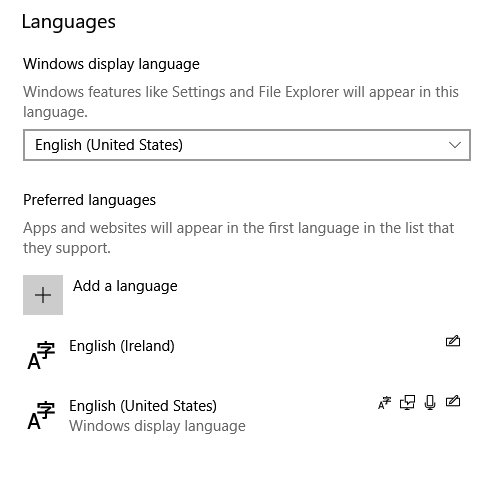
| Windows 10 | Start > Settings > Time & language > Language > select the language under Preferred languages > Options > Add a keyboard | Settings > Devices > Typing > Advanced keyboard settings under More keyboard settings |
The switching shortcuts Windows key + Spacebar and Ctrl + Shift work the same way on both versions.
How to check the Dvorak layout is active
- Look at the input language icon in the system tray. It displays the currently selected keyboard layout.
- Hold Windows key and tap Spacebar once. The pop-up list should show United States-Dvorak alongside your other layouts.
- Open Notepad and type a word using the letters printed on your keycaps.
- Check the result. With Dvorak active, most keys produce a different letter from the one printed on them.
- Compare a few keys with Microsoft's interactive United States-Dvorak map to confirm the mapping.
How to make Dvorak the default keyboard
Windows keeps every installed layout in the switching list. Removing QWERTY leaves Dvorak as the only layout, so nothing can switch you back by accident.
Add Dvorak first. Windows will not remove the only keyboard installed for the display language.
- Go to Settings > Time & language > Language & region.
- Select the three dots (…) next to the language that holds both layouts, then Language options.
- Under Keyboards, select the three dots next to US (the QWERTY layout).
- Select Remove.
- Repeat for any other languages whose keyboards you no longer use, so Windows key + Spacebar has nothing else to cycle to.
Keep QWERTY installed instead if other people share the PC. Switching with Windows key + Spacebar is quicker than adding it back.
How to remove the Dvorak keyboard
- Make sure another layout, such as US, is installed. If Dvorak is the only one, add US first with Add a keyboard.
- In Windows 11, go to Settings > Time & language > Language & region, select … next to the language, then Language options.
- Under Keyboards, select … next to United States-Dvorak and choose Remove.
- In Windows 10, go to Settings > Time & language > Language, select the language, select Options, select the Dvorak layout under Keyboards, then Remove.
Troubleshooting Common Issues
Dvorak layout not working after you added it
Adding a keyboard does not activate it; the previous layout is still selected.
- Hold Windows key and press Spacebar until United States-Dvorak is highlighted.
- Or select the input language icon in the system tray and choose the Dvorak layout.
- If it is not in the list, return to Language options and confirm it appears under Keyboards.
Typing is incorrect or keeps changing back to QWERTY
A switching shortcut such as Ctrl + Shift changed the layout, or you are reading the QWERTY keycaps.
- Check the input language icon to see which layout is active.
- Press Windows key + Ctrl + Spacebar to return to the layout you used previously.
- Remove the US layout if you never want QWERTY, using the default-keyboard steps above.
- Type by position, not by keycap label. The keycaps still show QWERTY letters.
The input language icon is missing from the taskbar
The legacy desktop language bar is turned on, or the Windows 10 system icon is off.
- In Windows 11, go to Settings > Time & language > Typing > Advanced keyboard settings.
- Under Switching input methods, uncheck Use the desktop language bar when it's available.
- In Windows 10, go to Settings > Personalization > Taskbar, select Turn system icons on or off under Notification area, and switch Input Indicator to On.
- If it is still missing in Windows 10, open Settings > Devices > Typing > Advanced keyboard settings and uncheck the same language bar option.
The Remove button is greyed out
The layout is the only keyboard installed for the current display language.
- Select Add a keyboard and add the layout you want to keep.
- Return to the old layout, select … and choose Remove.
Getting Comfortable with the Dvorak Keyboard
The hardest part of Dvorak is the first few weeks, when your fingers still expect QWERTY. These habits make the change easier to live with.
| Your situation | Do this | Why |
|---|---|---|
| You keep looking at the keycaps | Keep Microsoft's interactive Dvorak map open on screen | The printed letters are QWERTY and will mislead you |
| You need full speed for work while learning | Keep US installed and switch with Windows key + Spacebar for urgent typing | Practice sessions stay separate from deadline typing |
| You are ready to commit | Remove the US layout | No accidental switch back to QWERTY |
| Symbols such as the slash are hard to find | Check the symbol keys on the map, then see how to type a forward slash on a standard layout | Dvorak moves punctuation as well as letters |
| Shortcuts feel wrong | Test the ones you use most, such as undo, in Notepad after switching | You learn which keys your common shortcuts now use |
| You type with one hand | Add United States-Dvorak for left hand or for right hand instead | Those layouts are designed for one-handed typing |
Frequently Asked Questions
How do I add the Dvorak keyboard in Windows 11?
Open Settings > Time & language > Language & region, select the three dots next to your language, then Language options. Under Keyboards, select Add a keyboard and choose United States-Dvorak. Press Windows key + Spacebar to switch to it.
How do I add the Dvorak keyboard in Windows 10?
Select Start > Settings > Time & language > Language. Under Preferred languages, select your language and select Options. Under Keyboards, select Add a keyboard and choose United States-Dvorak from the list.
How do I change my keyboard layout to Dvorak?
Add the United States-Dvorak keyboard in Language options first, then hold the Windows key and press Spacebar until Dvorak is selected. You can also select the input language icon in the system tray and choose the layout.
How do I use Dvorak on Windows?
Add it as a keyboard under your language, switch to it with Windows key + Spacebar, and type by key position rather than by the printed labels. The input language icon on the taskbar shows which layout is active.
How do I make Dvorak the default keyboard in Windows?
Add United States-Dvorak, then remove the US layout from Language options under Keyboards. With only Dvorak installed, Windows has no other layout to switch to. Windows will not remove a layout if it is the only one installed for the display language.
What is the Dvorak keyboard?
Dvorak is an alternative arrangement of English letter and punctuation keys. Windows includes three versions: United States-Dvorak, and Dvorak layouts for left-hand and right-hand typing. Your physical keyboard does not change, only what each key types.
Do I need to download anything to use Dvorak on Windows 11?
No. United States-Dvorak and its left-hand and right-hand variants are built into Windows. Microsoft lists all three as available since before Windows XP, so you add them from Settings rather than installing software.
How do I learn the Dvorak keyboard?
Keep Microsoft's interactive United States-Dvorak map open while you practise, type by position rather than keycap labels, and keep QWERTY installed for urgent work until your speed recovers. Remove QWERTY once you no longer need it.

How to add another language to keyboard Windows 11 - Techdows
[…] choose between the Arabic keyboard layouts in Windows 11 before you start typing, and practise on a Dvorak keyboard in Windows 11 with a second layout kept as a […]