To fix a RAW hard drive in Windows 11, copy off any files you need with Windows File Recovery, then format the RAW partition as NTFS in Disk Management.
This guide covers recovery before formatting, the Disk Management and Command Prompt routes, external, USB, SSD and SD card cases, and the Disk Management errors you can hit along the way.
Fix RAW hard drive to NTFS on Windows computer
RAW means Windows sees the partition but finds no file system it recognises, such as NTFS, ReFS, FAT32 or exFAT. Formatting writes a new NTFS file system and erases everything on the partition, so recover files first if you need them.
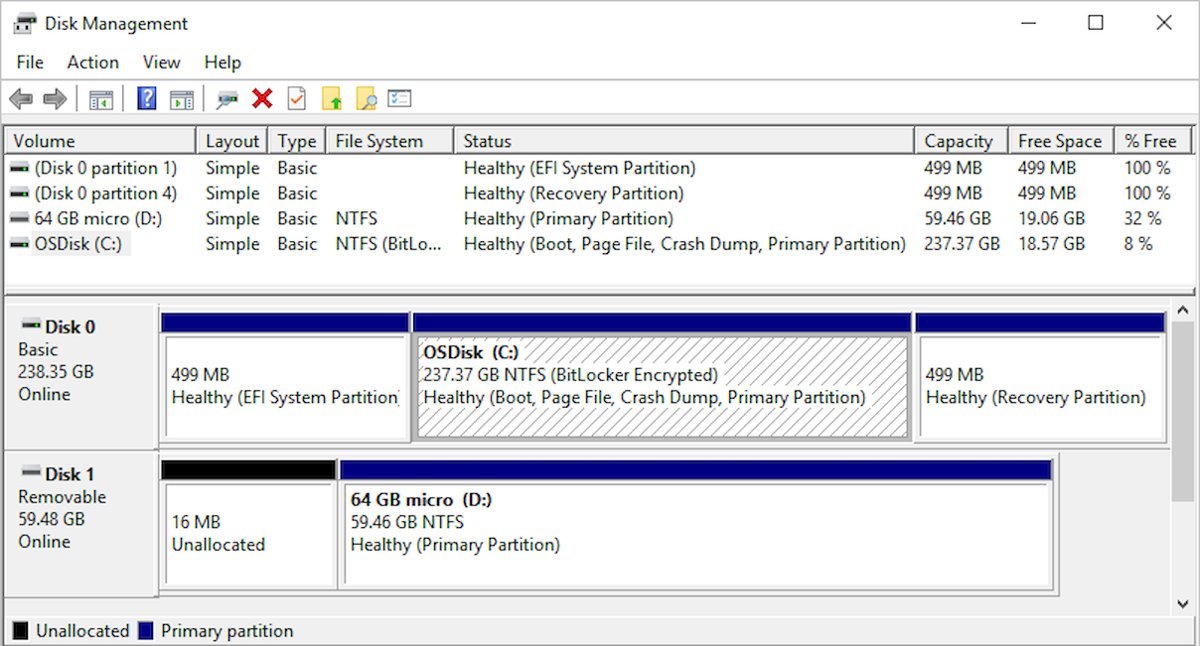
- Type Computer Management in the taskbar search box, right-click it and select Run as administrator.
- Go to Storage > Disk Management.
- Find the partition whose file system column shows RAW and check the disk number and size.
- Right-click the RAW partition and select Format.
- Type a volume label and choose NTFS as the file system.
- Leave the allocation unit size at its default and select OK.
- Confirm the warning that formatting erases all data on the partition.
- Wait until the partition shows NTFS and Healthy, then open it in File Explorer.
Never format partitions labelled EFI System Partition or Recovery Partition; Windows needs them to start and recover. To wipe a whole disk rather than one partition, format the hard drive in Windows 11 instead.
Hard drive raw format fix
Pick the route by what is on the drive and what Disk Management shows.
| Your situation | What to do | Why |
|---|---|---|
| Drive is RAW and holds files you need | Run Windows File Recovery first, then format | Formatting erases the partition and lowers recovery chances |
| Drive is RAW and empty or backed up | Format it as NTFS in Disk Management | Fastest fix, no data to lose |
| Disk Management will not open or you prefer typing | Use format with /FS:NTFS in Command Prompt |
Same result from an admin prompt |
| External drive turned RAW after unplugging | Reconnect, rescan and try another port and cable first | A power or connection fault can look like a dead file system |
| Disk shows Not Initialized, Unknown or Unreadable | Treat it as a failing disk and recover files before anything else | These states often point to hardware trouble or a corrupted boot sector |
| Drive turns RAW again after formatting | Back up and replace the disk | Repeated RAW states are a sign the disk is failing |
How to recover a RAW drive with Windows File Recovery
Windows File Recovery is Microsoft's free command-line app in the Microsoft Store. Its extensive and signature modes are built for corrupted disks and any file system. Stop writing to the RAW drive while you recover, because new data can overwrite what is left.
- Connect a second drive with enough free space to hold the recovered files.
- Install Windows File Recovery from the Microsoft Store, then open it from Start and select Yes at the prompt.
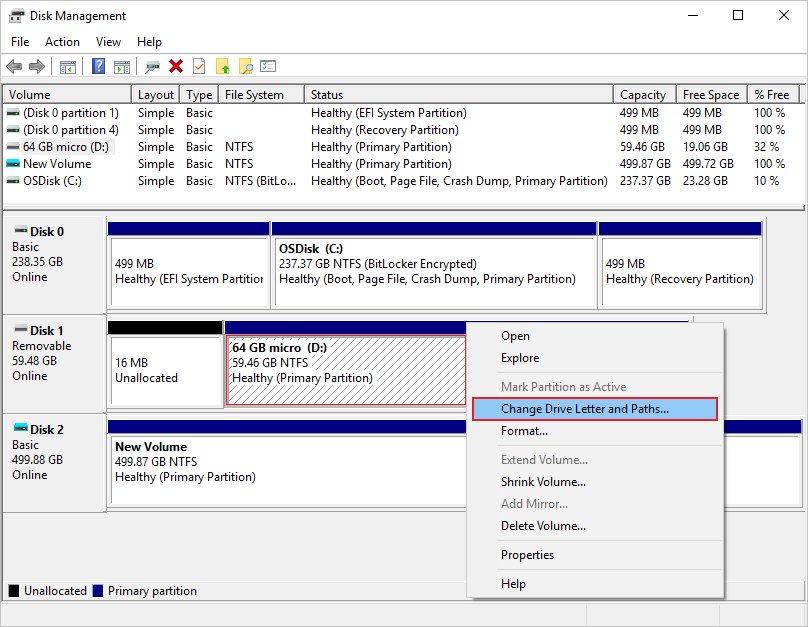
- If the RAW partition has no drive letter, right-click it in Disk Management and select Change Drive Letter and Paths to add one.
- Run
winfr E: D: /extensive, where E: is the RAW drive and D: is the destination drive. - Press Y when asked to continue, and wait for the scan to finish.
- Open the Recovery_ folder that the app creates on the destination drive and check the files.
- If extensive mode finds nothing, run
winfr /#to list file types, then trywinfr E: D: /signature /y:<group>for those types. - Format the RAW drive only after you have copied everything you need.
The source and destination must be different drives, so never recover files to the RAW drive itself. Press Ctrl + C to stop a scan early.
How to fix RAW drive to NTFS with Command Prompt
Open Command Prompt as administrator, and check the drive letter in Disk Management first; formatting the wrong letter erases the wrong drive.
format E: /FS:NTFS /V:DataFormats the RAW volume E: with the NTFS file system and names it Data. Leaving out /Q runs a full format, which also scans for bad areas; add /Q only when you know the disk is in good condition.
You should see: The command finishes without errors and the drive opens in File Explorer with NTFS listed in Properties.
If you are not sure which letter belongs to the RAW drive, type diskpart, then list volume, and match the size and file system column before you quit with exit.
External hard drive raw format fix
An external drive can show RAW because of a bad cable, a weak USB port or a hub, not only file system damage. Rule out the connection before you format.
- Unplug the drive, plug it back in and select Action > Rescan Disks in Disk Management.
- Shut down the PC, turn off the drive if it has its own power, and turn both back on.
- Plug the drive into a USB port directly on the PC, not a hub.
- Swap the USB cable for a different one.
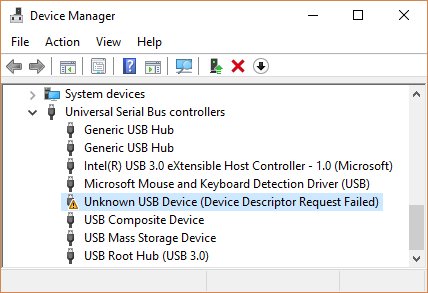
- Open Device Manager, right-click any device with a warning icon, select Uninstall device, then Action > Scan for hardware changes.
- Try the drive on a different PC to see whether it reads there.
- If it is still RAW everywhere, recover the files, then format it as NTFS.
How to fix RAW USB drive and flash drive
USB sticks and flash drives use the same Disk Management fix, but NTFS is not always the best file system for them. Choose the format by how you use the stick.
| Drive and use | File system | Reason |
|---|---|---|
| External hard drive or SSD used with Windows PCs | NTFS | Windows default for computers and external hard drives |
| Flash drive larger than 4 GB used with Windows | NTFS | Microsoft lists NTFS for larger flash and USB drives |
| Small flash drive or SD card | FAT32 or exFAT | Microsoft lists FAT and exFAT as typical for these |
| Stick shared with cameras, TVs or other devices | exFAT or FAT32 | Many such devices expect a FAT-family file system |
Recovery from a FAT or exFAT stick needs extensive mode in Windows File Recovery. For the trade-offs between the three formats, compare FAT32, exFAT and NTFS before you pick one.
Can CHKDSK fix the RAW partition?
No. Use Windows File Recovery to pull files off, then format the partition; chkdsk is the tool for errors on a drive that still shows NTFS or FAT. chkdsk checks and repairs FAT and NTFS file systems, and a RAW partition is one where Windows finds no file system to check. After formatting, chkdsk E: /r is useful to look for bad sectors on the new NTFS volume.
What does it mean if my SD card is RAW?
A RAW SD card has lost a readable file system, just like a RAW hard drive. SD cards normally use FAT or exFAT.
| Question | Answer |
|---|---|
| Are the photos gone? | Not necessarily; the data can still be on the card until it is overwritten |
| How to get files back | Windows File Recovery in extensive or signature mode, saving to another drive |
| Which file system after the fix | FAT32 or exFAT, so cameras and phones can read the card |
| When to replace the card | If it turns RAW again after a format, or it will not show in Disk Management at all |
How to see the file system of a drive in Windows 11
- Open File Explorer and select This PC.
- Right-click the drive and select Properties.
- Read the File system line on the General tab; it should now say NTFS.
- In Disk Management, check that the partition shows Healthy and has a drive letter.
How to repair RAW drive in Disk Management
The disk shows Offline
Windows has taken the disk offline.
- Right-click the disk label on the left of Disk Management.
- Select Online.
- Check whether the partition now shows a file system.
The partition is healthy but has no drive letter
The file system is fine; Windows just has no letter to show it under.
- Right-click the partition and select Change Drive Letter and Paths.
- Select Add, choose Assign the following drive letter, pick a letter and select OK.
- Open the drive in File Explorer.
The space shows Unallocated instead of RAW
There is no partition on that space.
- Recover files first if the space used to hold data.
- Right-click the unallocated space and select New Simple Volume.
- Follow the wizard and choose NTFS as the file system.
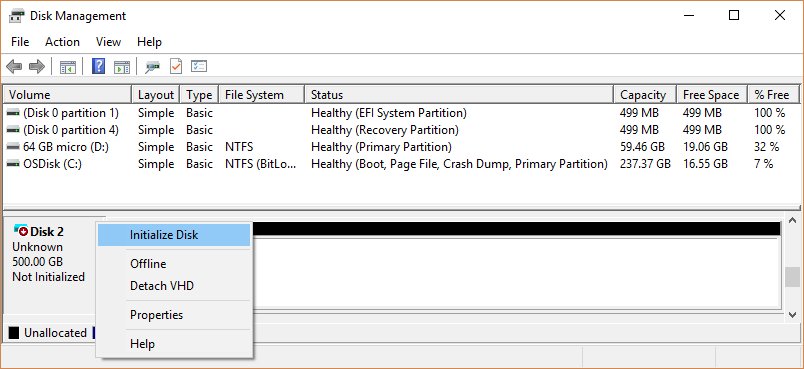
The disk shows Not Initialized or Unknown
The disk signature or boot sector is missing or corrupted, or the disk is failing.
- Recover files before you initialize, because initializing a disk with data on it puts those files at risk.
- Try another port, cable and PC to rule out the connection.
- Initialize the disk only when the data is safe or not needed, then create an NTFS volume.
The disk shows Unreadable
The disk is still spinning up, being rescanned, or has failed.
- Select Action > Rescan Disks, or restart the PC.
- If the status stays Unreadable, contact the disk maker or a data recovery lab for important files.
Shrink volume is greyed out in Windows 11 [fix]
Once the drive is NTFS again, you may want to split it into two partitions. Shrink Volume works only on basic volumes that use NTFS or have no file system, and only for an administrator or Backup Operator.
Shrink Volume is greyed out on a FAT32 or exFAT drive
Disk Management cannot shrink those file systems.
- Check the file system in the drive's Properties.
- Copy the files off the drive.
- Format the drive as NTFS, then right-click it and select Shrink Volume.
Shrink Volume is greyed out on an NTFS drive
Disk Management is not running with administrator rights.
- Close Disk Management.
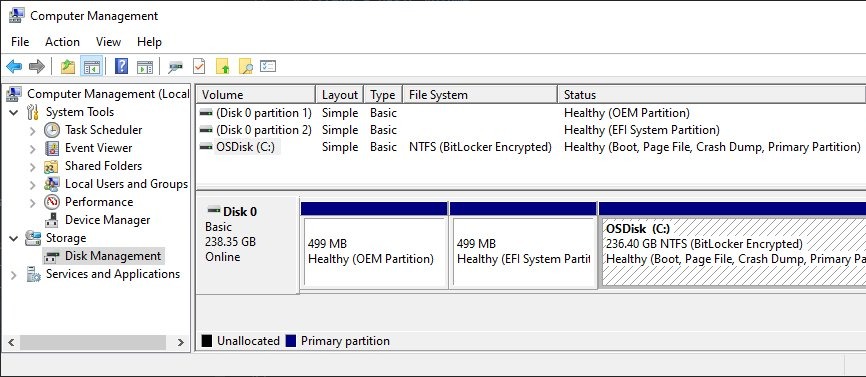
- Open Computer Management with Run as administrator and go to Storage > Disk Management.
- Right-click the basic volume and select Shrink Volume again.
Shrink fails on a disk with many bad clusters
Too many bad clusters were remapped for Windows to shrink the partition.
- Copy the data to a new disk with a file copy, not a block-level copy.
- Replace the failing disk.
Do not shrink a RAW partition that still holds data; shrinking it can destroy what is left.
How to shrink volume with unmovable files in Windows 11
Shrink stops at the first file Windows cannot move, such as the paging file or the shadow copy storage area. Find the blocker, move it temporarily, then shrink.
- Open Event Viewer and look in the Application log for event ID 259, which names the unmovable file.
- Run
fsutil volume querycluster /?if you know the cluster numbers and need to identify the file. - Move the paging file to another disk temporarily from Control Panel, or delete stored shadow copies.
- Open an admin Command Prompt, type
diskpartand runlist volume. - Run
select volume <number>for the volume you want to shrink. - Run
shrink desired=<size in MB>to free the space you want. - Move the paging file back to the original disk afterwards.
RAW hard drive to NTFS FAQ
How do I fix a RAW hard drive?
Recover any files you need with Windows File Recovery, then open Disk Management, right-click the RAW partition, select Format and choose NTFS. Formatting erases the partition, so it only fixes the drive, not the lost data.
How do I fix a RAW external hard drive?
Reconnect it to a USB port on the PC, not a hub, try another cable and select Action > Rescan Disks in Disk Management. If it is still RAW on another PC, recover the files and format it as NTFS.
How do I fix a RAW USB drive?
Use the same Disk Management Format option as for a hard drive. Choose NTFS for a large stick used only with Windows, or exFAT or FAT32 if it needs to work with cameras, TVs or other devices.
How do I recover an HDD in RAW format?
Install Windows File Recovery from the Microsoft Store and run winfr with the RAW drive as the source and a different drive as the destination, using /extensive. Try /signature mode if extensive mode finds nothing.
How do I fix a RAW SSD drive?
Recover files as soon as possible, because free space on an SSD may already be overwritten. Then format the RAW partition as NTFS in Disk Management and run chkdsk /r on the new volume to check for errors.
How do I fix a RAW flash drive?
Recover files with Windows File Recovery in extensive mode, since flash drives often use FAT or exFAT. Then right-click the partition in Disk Management, select Format and pick exFAT, FAT32 or NTFS.
How do I fix a RAW disk without losing data?
Copy the data off first with Windows File Recovery, saving it to another drive. The Disk Management fix for a RAW partition is a format, which erases it, and chkdsk only repairs FAT and NTFS volumes.
How do I recover a RAW drive that keeps coming back RAW?
A drive that turns RAW again after a format is usually failing. Recover what you can to another disk, stop using the drive for new data, and replace it.