To join a Zoom meeting, click the join link in your invite, open the Zoom Workplace app or choose Join from your browser, then click Join.
If you have no link, enter the meeting ID and passcode in the app or at zoom.us/join, on a phone or a computer. You do not need a Zoom account to join someone else's meeting.
How to join a Zoom meeting from an invite link
This is the fastest route on every device, because the link already carries the meeting ID.
- Open the email or calendar invite from the host.
- Click the link below Join Zoom Meeting.
- Open the Zoom Workplace app when prompted, or click Join from your browser if you do not want to download it.
- Check your audio and video settings, then click Join.
You then join the meeting right away, or you sit in the waiting room until the host admits you.
What you need to join a Zoom meeting
A Zoom account is optional for participants. You need the meeting details from the host and one working device.
| Item | Details | Where to get it |
|---|---|---|
| Invite link, or meeting ID and passcode | Meeting IDs are typically 10 or 11 digits. The link can carry both details | The host's email, calendar invite or message |
| A device | A computer, smartphone or tablet with the Zoom Workplace app or a web browser, or any phone for dial-in | The Zoom app for your PC or zoom.us/go on mobile |
| A current app version | The desktop and mobile apps must meet Zoom's global minimum version | You can update Zoom on Windows or Mac from the app |
| Microphone and camera | Needed to talk and appear on video. You can dial in for audio if your computer has no microphone | Allow access when the app or browser asks |
| A Zoom account | Not needed to join. You need one to host your own meeting | Free Basic sign-up in the app |
Download the app to join a Zoom meeting on your desktop
The Zoom Workplace desktop app gives you the full set of meeting controls. If you click a join link without it installed, Zoom prompts you to download it, so this step is optional.
- Go to zoom.us/download in a web browser.
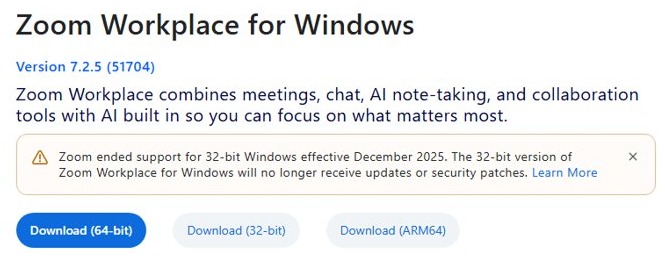
- Under Zoom Workplace for Windows, select Download (64-bit) or Download (ARM64) to match your PC. On a Mac, choose the macOS download from the same page.
- Open the downloaded installer and follow the on-screen prompts.
- Open the Zoom Workplace app.
- Choose Sign in, Join a meeting or Sign up on the first screen.
Avoid the 32-bit Windows download where you can, because Zoom ended support for it in December 2025 and it no longer receives updates or security patches.
How to join a Zoom meeting on Windows & Mac
The same steps apply to Windows and macOS. You can join with or without signing in.
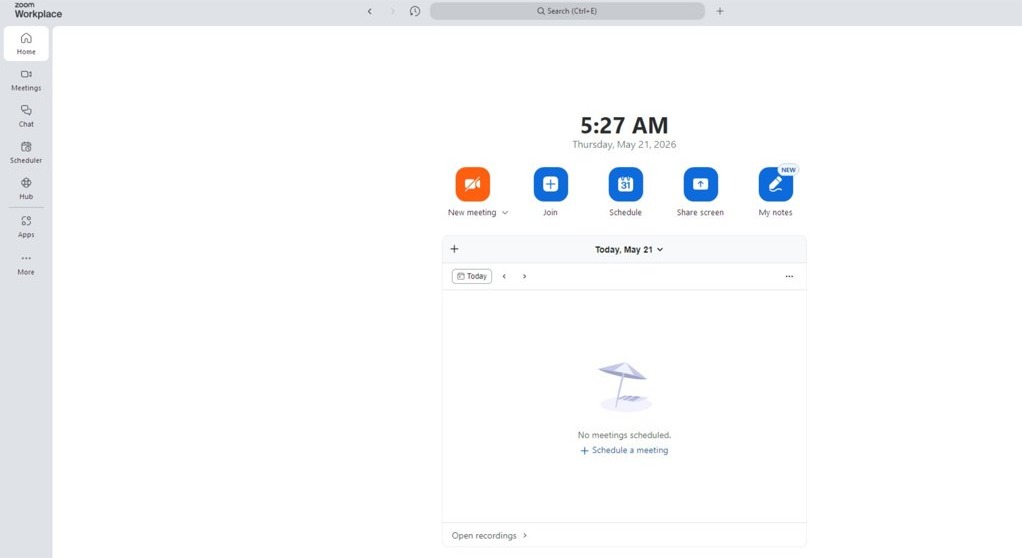
- Open the Zoom Workplace app.
- To join without signing in, click Join a meeting, enter the meeting ID and passcode, and join.
- To join while signed in, click the Home tab, or open More > Home if you do not see it.
- Click the meeting in the day's list. You can also use the Meetings or Calendar tab.
- Click Join on the meeting card. Hosts see Start instead.
- Wait for the host to admit you if you land in the waiting room.
The same invite-link pattern applies if you also need to join a Microsoft Teams meeting on the same PC. You can also schedule, record and fix Zoom meetings alongside Teams and Google Meet on Windows.
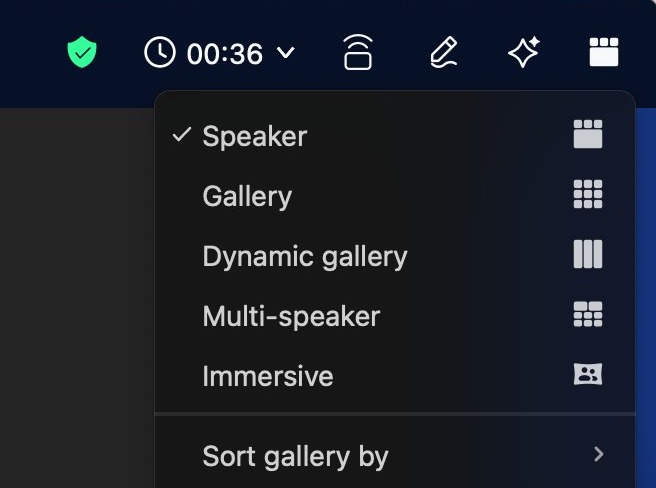
How to see everyone else in a meeting on desktop
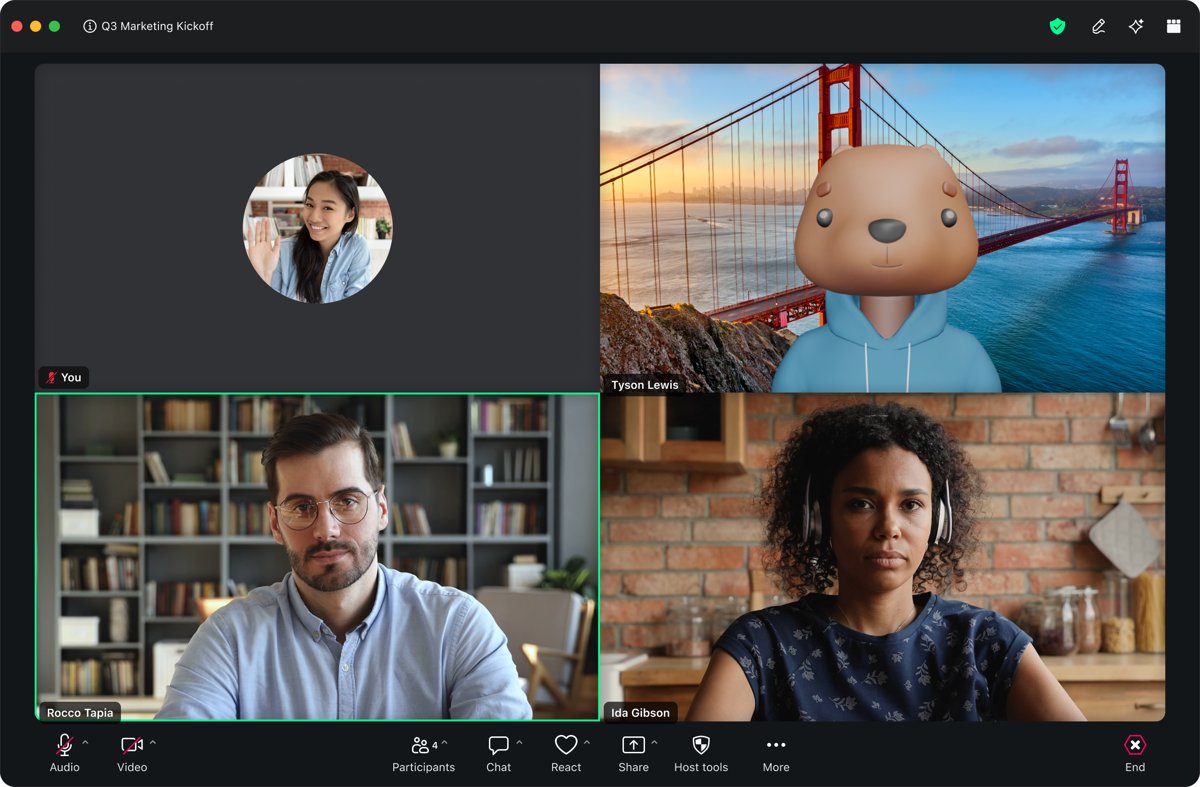
Gallery view shows participants in a grid. The desktop app fits up to 25 or 49 on one screen, depending on your CPU, and adds more pages if the meeting is larger.
- Join the meeting in the Zoom Workplace desktop app.
- Click the view icon in the top-right corner of the meeting window.
- Select Gallery.
- Click the right or left arrow in Gallery view to move between pages of participants.
- Double-click the Zoom window to go full screen, and press Esc to leave full screen.
- To change the grid size, click More > Settings > Display & controls > Participant video, then choose 25 or 49 under Maximum participants per screen.
To reduce clutter, click View in the top-right corner and select Hide Non-video Participants.
How to see everyone on your mobile app
The mobile app opens in active speaker view. The number of people shown per screen depends on your device's screen height.
- Join the meeting in the Zoom Workplace mobile app.
- Swipe left from the active speaker view to switch to Gallery view. This needs 3 or more participants in the meeting.
- Swipe right to the first screen to return to the active speaker.
- On an iPad, tap the screen and tap Switch to Gallery View in the upper-left corner. This needs 2 or more participants.
How to join a Zoom meeting via phone
Dial-in lets you join with no app, no internet connection and no smartphone. It is available only if the host's account and meeting allow it, and your carrier's rates apply on toll numbers.
- Dial a number from the meeting invitation, choosing one in your own country if it lists several.
- Enter the meeting ID when prompted, followed by #.
- Press # to skip the participant ID, or enter your participant ID followed by # if you are also in the meeting on a computer or mobile device.
- Enter the passcode when prompted, followed by #.
- Press *6 to mute or unmute yourself, and *9 to raise or lower your hand.
To use your phone only for audio while you watch on a computer, click Join Audio in the meeting controls, open the Phone Call tab and follow the numbers shown there.
How to join a meeting from the Zoom website
The Zoom Join Meeting page works in a desktop or mobile browser, and it needs nothing installed if you stay in the browser. The browser option has fewer features than the app.
- Go to zoom.us/join.
- Enter the meeting ID or personal link name from the host.
- Click Join, and enter the passcode if prompted.
- Open the Zoom Workplace app when asked, or click Cancel on that pop-up and select Join from your browser.
- Click Allow so Zoom can use your microphone and camera.
- Enter your name, then click Join.
The browser link appears only when the host's account has it turned on and the meeting does not use end-to-end encryption. Otherwise, Zoom asks you to join from the app.
Join a Zoom meeting on Linux
Zoom Workplace runs on the major Linux distributions, and it joins meetings just as on Windows. Install the package for your distribution once, then open the app.
- Download your distribution's installer file from zoom.us/download.
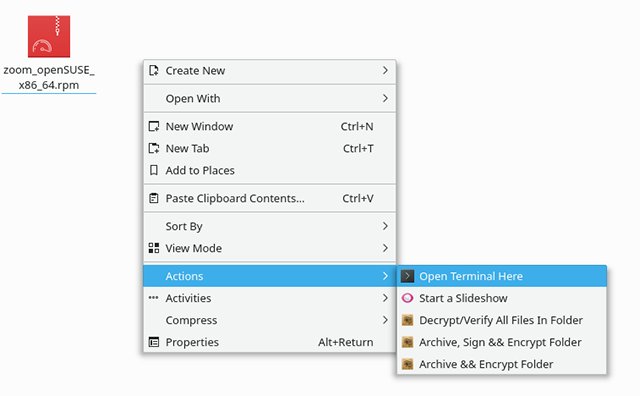
- Open a terminal in the download folder.
- On Debian, Ubuntu or Linux Mint, run
sudo apt install ./zoom_amd64.deb. - On Oracle Linux, CentOS, Red Hat or Fedora, run
sudo yum install zoom_x86_64.rpm. - On openSUSE, run
sudo zypper install zoom_openSUSE_x86_64.rpm, and on Arch or Manjaro runsudo pacman -U zoom_x86_64.pkg.tar.xz. - Enter your admin password and approve the installation when prompted.
- Open the Zoom Workplace app, click Join a meeting, and enter the meeting ID and passcode.
Check the filename before you run the command, because it can differ on older systems. An invite link also works once the app is installed, and the browser route above needs no installation.
How to join a Zoom meeting on a smartphone
These steps are the same on iPhone and Android, and tapping an invite link in your email or calendar is quicker if you have one.
- Go to zoom.us/go on the phone and install the Zoom Workplace app.
- Open the app.
- To join without signing in, tap Join meeting.
- If you are signed in, tap the Home tab, then tap Join, or tap the meeting card and tap Join.
- Enter the meeting ID and passcode if you are asked, then tap Join.
- Allow access to the microphone and camera when the phone asks.
Your meeting controls sit in a toolbar at the bottom of the screen. Tap inside the Zoom window if the toolbar is hidden.
Zoom meeting: login
Zoom asks for two different things, and they are easy to mix up. The meeting passcode gets you into one meeting, while your Zoom account login gets you into the app. Zoom has also called the passcode a meeting password.
- To enter a meeting with a password, use the passcode from the invite when Zoom prompts for it.
- To skip typing it, use the invite link, because a host can embed the passcode in it for one-click joining.
- To find a numeric passcode for a phone or room system, look in the invite, which lists one when the main passcode is alphanumeric.
- To log in to your account, open the app and select Sign in, or go to zoom.us/signin in a browser.
- To check your meeting details, open Meetings or Calendar in the desktop app, select the meeting, and click View join info.
How to record a Zoom meeting as a participant
A participant can record only when the host allows it. Computer recording is available on free and paid accounts in the desktop app, and it is not supported on iPhone, iPad or Android.
- Ask the host for permission to record.
- Have the host open Participants, click More next to your name, and click Allow Record. You then get a notification.
- Click Record in the meeting controls toolbar.
- Select Record on this Computer if a menu appears.
- Click Pause or Stop Recording when you need to. Stopping and restarting creates a new video file.
- Leave the computer on after the meeting while Zoom converts the recording. The folder with the files opens when it finishes.
Shutting down, sleeping the disk or closing a laptop during conversion can corrupt the files. Everyone in the meeting can see the recording indicator, and dial-in participants hear an announcement unless the host has disabled it.
Have a question? How to raise your hand in a Zoom meeting
Raise Hand tells the host you need something without interrupting the speaker. It works in the desktop, mobile and web apps, and by phone.
- On a computer or in the web app, click Reactions in the meeting controls, then click Raise Hand.
- On a smartphone or tablet, tap Reactions, then tap Raise Hand.
- On a phone call, dial *9 to raise or lower your hand.
- Press Alt + Y on Windows or Option + Y on a Mac as a keyboard shortcut.
- Unmute yourself if the host prompts you to speak.
- Click Lower Hand when you finish, or tap Reactions then Lower Hand on mobile. This does not mute you.
In a large meeting, the host may also move you to a Zoom breakout room for a smaller discussion.
How to join a Zoom test meeting
Run this before an important call. It checks your connection, video and audio without involving anyone else.
- Go to zoom.us/test on your computer or phone.
- Click Join to launch Zoom.
- Click Open Zoom Meetings if the app is installed, Download Now if it is not, or Join from your browser if you cannot install it.
- Follow the on-screen prompts to test your video, audio and microphone.
- Stay in the test meeting to try the participant controls, then leave.
Can't join a Zoom meeting: how to fix it
Zoom says the meeting ID is invalid
The ID was mistyped, or it has expired. A one-time meeting ID expires 30 days after its scheduled date, and an instant meeting ID expires when the meeting ends.
- Copy the ID from the invite rather than typing it.
- Use the invite link instead, because it carries the ID.
- Ask the host for a new invite if the ID still fails.
Stuck in the waiting room
The host has a waiting room on and must admit each person.
- Keep the window open until the host admits you.
- Check the meeting's start time in your invite.
- Message the host if the meeting should already have started.
No Join from your browser link
The host's account has the link turned off, or the meeting uses end-to-end encryption.
- Ask the host whether browser joining is allowed for this meeting.
- Install the Zoom Workplace app from zoom.us/download.
- Join the meeting again from the app.
Zoom asks you to sign in when joining as a guest
Zoom checks guests with an invisible CAPTCHA, and a flagged guest is prompted to sign in.
- Sign in with a Zoom account, or tap Sign up to create a free Basic one.
- Join the meeting again from your invite link.
No microphone or camera in the Zoom Web App
The browser does not have permission to use them.
- Click Allow when the browser asks for microphone and camera access.
- Check the browser's site permissions for Zoom if you dismissed the prompt, and allow both.
- Run the test meeting at zoom.us/test to check your audio and video.
Join Zoom meeting FAQ
Can I join a Zoom meeting without an account?
Yes. Open the Zoom Workplace app and choose Join a meeting, then enter the meeting ID and passcode. You can also click an invite link and join from your browser, where you only enter your name. An account is needed to host.
Can I join a Zoom meeting without downloading the app?
Yes, in most meetings. Click the invite link, cancel the pop-up, and select Join from your browser. The host must allow that link and must not use end-to-end encryption. The browser version has fewer features than the Zoom Workplace app.
Where do I find the Zoom meeting ID and passcode?
Both are in the invitation the host sent you, and the invite link already carries the ID. If the meeting is on your calendar in the desktop app, open it from the Meetings or Calendar tab and click View join info.
How many digits is a Zoom meeting ID?
Zoom meeting IDs are typically 10 or 11 digits. A 10-digit number is used for a personal meeting ID, and an 11-digit number is used for instant, scheduled or recurring meetings. Zoom's dial-in instructions also mention nine-digit IDs.
Can I join a Zoom meeting by phone without internet?
Yes. Dial a number from the invitation on any phone, then enter the meeting ID and passcode, each followed by the # key. The host's account and meeting settings must allow phone participants, and toll numbers cost your carrier's normal rates.
Can I record a Zoom meeting on my iPhone or Android phone?
Not as a local recording, because Zoom's computer recording is not supported on iOS, iPad or Android. Mobile users on paid accounts can use cloud recording instead. A participant still needs permission from the host before recording a meeting on a computer.
Does the host know if I raise my hand in Zoom?
Yes. Zoom notifies the host as soon as you raise your hand. If the host lets you talk, you may be prompted to unmute yourself. Lowering your hand afterwards does not mute you, so mute yourself separately when you finish.
Why does Zoom ask me for a meeting passcode?
The host's account requires one as a security step. Free accounts have passcodes enforced, and many paid accounts need either a passcode or a waiting room. Use the passcode in your invite, or open the invite link, which can embed it.