To claim a Twitch Drop, open your Drops Inventory at twitch.tv/drops/inventory and click Claim on the finished reward, or click Claim in the Drops & More panel in chat.
This guide covers checking progress, linking your game account, getting the item in-game, Channel Point rewards, Prime perks and the fixes for Drops that do not count or arrive.
The fastest way to claim a Twitch Drop
Drops work in a desktop web browser and in the Twitch app for Android and iOS. Link the game account first, because rewards are delivered only to the linked account.
- Sign in to Twitch and open
https://www.twitch.tv/drops/inventory. - Find the campaign you want and click Connect next to the game name.
- Sign in on the game developer's site that opens, then return to Twitch.
- Watch a live stream that shows the Drops Enabled tag until the requirement is met.
- Click Claim in the Drops & More panel in chat, or on the reward in your Drops Inventory.
- Open the game and check your mailbox, inventory or cosmetics menu. Most rewards arrive within 24 to 48 hours.
What Twitch Drops Are
Drops are rewards that a game developer or promotional partner grants for watching or supporting participating channels. The partner sets the requirement and the reward; Twitch tracks progress and handles the claim.
| Part of a Drop | What it means | Who handles it |
|---|---|---|
| Automatic in-game reward | Items, skins or currency added to your linked game account after you claim | Game developer delivers it |
| Code-based reward | A unique code sent to you by notification, entered on the partner's website or app | Promotional partner redeems it |
| Twitch extras | Emotes or chat badges, including Creator Badge Drops run by individual streamers | Twitch |
| Watchtime requirement | Watch a participating live stream for a set time | Twitch counts it |
| Subscription requirement | Buy a new paid or gift subscription on a participating channel while it is live | Twitch counts it |
| Multi-day requirement | Hit a minimum watch time on several separate days, not necessarily consecutive | Twitch counts it |
Twitch splits every Drop into three stages: earn on Twitch, claim on Twitch, then delivery to the game. Twitch Support covers the first two; the game developer covers delivery.
Before You Watch: Check the Requirements
| Requirement | What to check | Where to check it |
|---|---|---|
| 1. Confirm the Drop campaign is active | The campaign end date has not passed. Progress stops for good when a campaign ends. | Drops Inventory or the All Campaigns page |
| 2. Connect your game account | The Inventory shows Connected and the game's site shows your Twitch username. You can link one account per developer. | Drops Inventory, then the developer's site |
| 3. Check whether you must claim each Drop manually | Every Drop needs a Claim click on Twitch; code-based rewards also need entry on the partner site. | The reward type listed on the campaign in your Inventory |
| Supported device | A PC or Mac web browser, or the Twitch app on Android or iOS. Console, smart TV and other TV apps do not support Drops. | Your device |
| Subscription Drops | Only new paid 1-, 3- or 6-month subs and new gift subs count. Prime subs, renewals and Sub Tokens do not. | The campaign details before you buy |
| iOS game rewards | Drops that grant rewards for iOS apps and games cannot be claimed in the Twitch iOS app. | Claim them in a web browser instead |
You can still claim a reward and link the account afterwards. Most developers deliver if you link within 14 days of the campaign ending, but linking first avoids problems.
How to Find Eligible Twitch Drops Channels
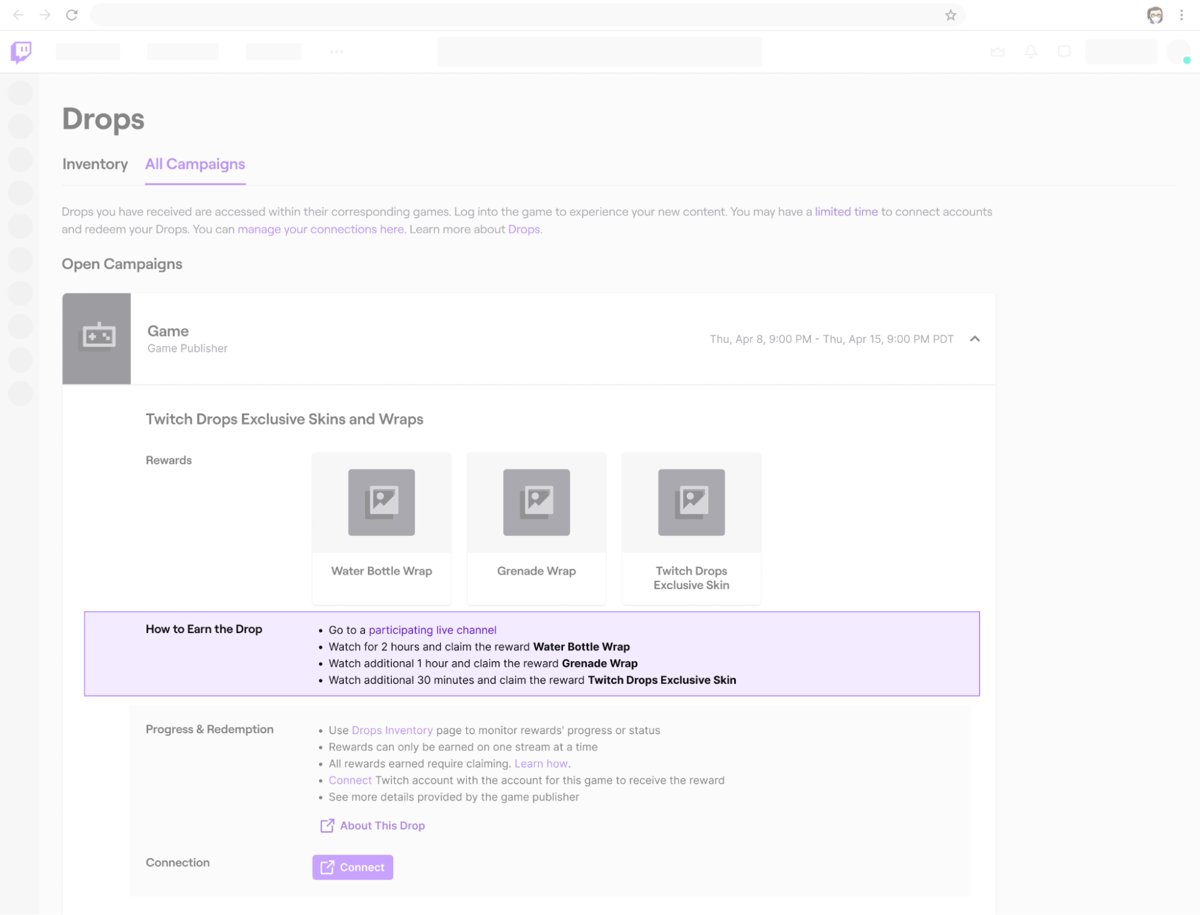
A game can have an active campaign while some channels streaming it are not participating. Check the channel, not just the game.
- Use the Drops campaigns page: open
https://www.twitch.tv/drops/campaignsto see every active campaign, its rewards and its participating channels. - Open a channel from the campaign and look for the Drops Enabled tag on the stream.
- Look for the Drops banner at the top of chat, which shows a featured Drop and how many more are available.
- Look for the Drops icon in the icon bar at the bottom of chat, next to the Bits and Channel Points icons.
- Confirm the stream is live. Reruns, VODs and clips never count toward Drops.
Streamers do not add the Drops Enabled tag by hand. Twitch applies it automatically when the channel is eligible, opted in and set to the campaign's game category.
How to Check Twitch Drops Progress
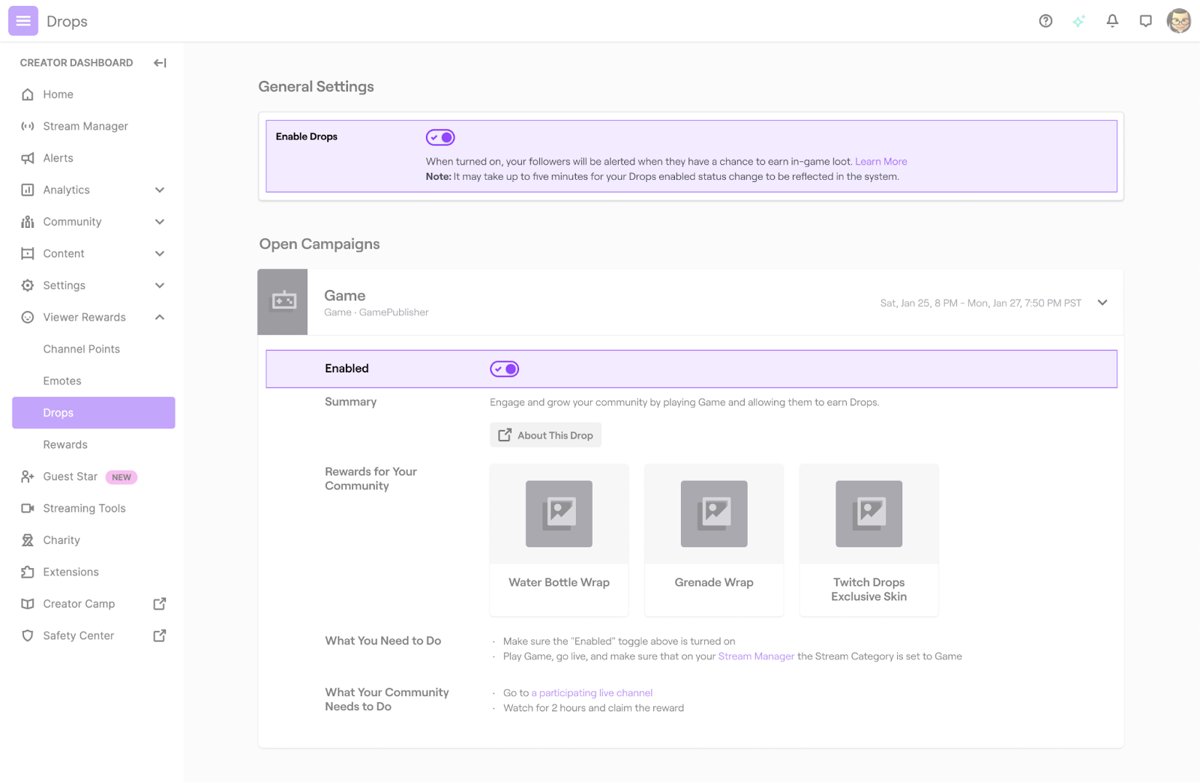
The chat panel shows progress for the channel you are watching. The Drops Inventory shows progress across every active campaign.
- On desktop, click the Drops icon at the bottom of chat or the Drops banner at the top of chat to open the Drops & More panel.
- Read the progress line on each Drop, for example Watch 30m to earn, and note any EXPIRING SOON badge.
- Click a category, Watchtime Drops or Subscription Drops, to see more detail on that group.
- On the Twitch mobile app, tap the same Drops icon or banner in chat; the panel works the same way.
- To see every campaign at once, open
https://www.twitch.tv/drops/inventoryand check the progress bar on each reward.
How to Claim Twitch Drops
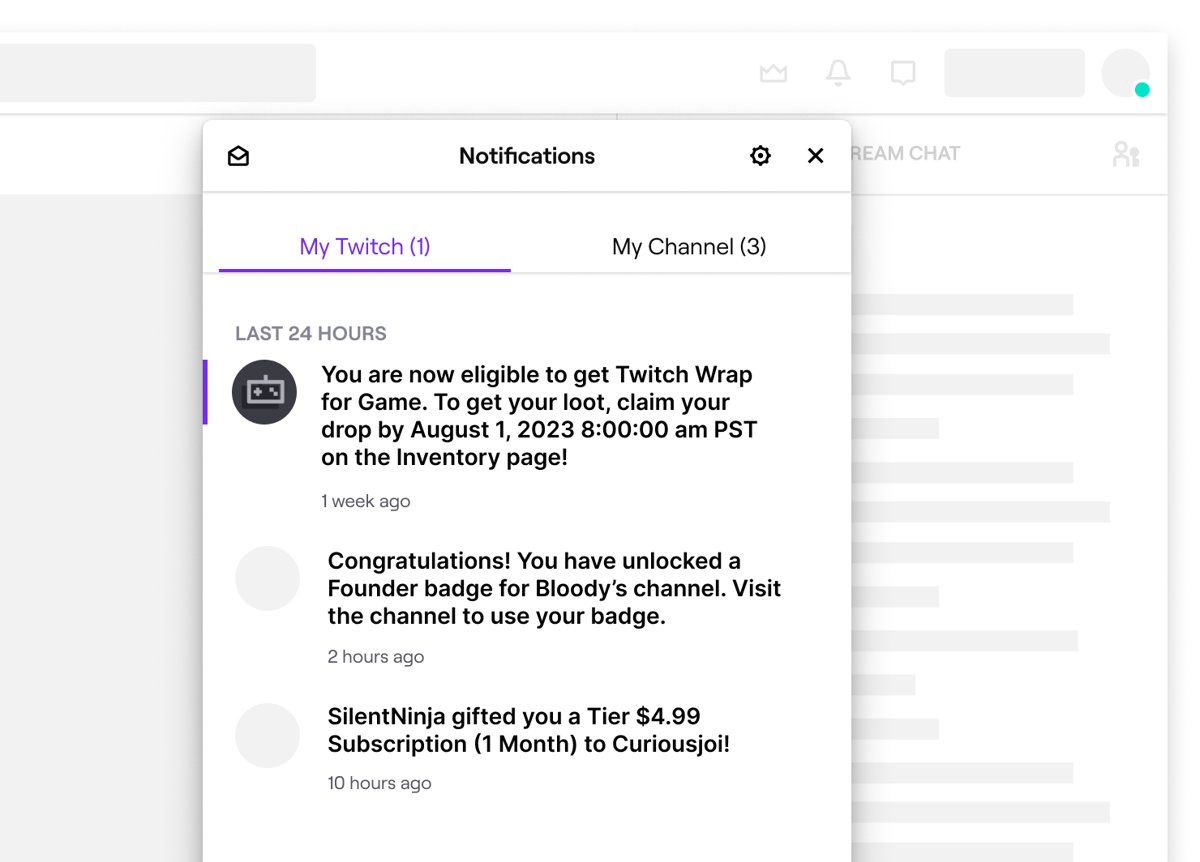
Twitch sends a notification when you meet a requirement. Nothing is added to your game until you claim it on Twitch.
- While watching a stream, click Claim on the notification that appears in chat or at the top of the Twitch navigation.
- Or open the Drops & More panel and click Claim on the finished Drop.
- Or claim Drops from the inventory page: open
https://www.twitch.tv/drops/inventoryand click Claim on any reward marked ready to claim. - For a code-based reward, copy the code Twitch delivers and follow the redemption details listed on the campaign in your Inventory.
- Confirm the reward now shows as Claimed in your Drops Inventory.
Claim Drops before they expire. Twitch's help pages describe a grace period of up to 7 days (168 hours) after a campaign ends, but the same FAQ says unclaimed Drops expire at campaign end, so claim as soon as the reward is earned.
You do not need to keep watching after claiming a reward. Keep watching only if the campaign has further Drops you want to earn.
How to Get the Reward in Your Game
Delivery is the game developer's job once you have claimed on Twitch. Match your case to a row.
| Your situation | Do this | Why |
|---|---|---|
| Claimed an automatic reward in the last 48 hours | Wait, then check the correct in-game location: mailbox, inventory, or cosmetics and skins menu | Most rewards take 24 to 48 hours; some are instant, a few take up to 7 days |
| The game has an in-game claim step | Claim the item inside the game as well | Some rewards must be claimed a second time in-game |
| You play on several accounts or platforms | Check which game account is linked to Twitch and sign in to that one | Rewards go to the linked account only |
| You received a code | Check the publisher's redemption page named on the campaign in your Inventory and enter the code there | Code-based rewards are redeemed on the partner's site, not on Twitch |
| Still missing after 48 hours | Contact the game developer's support with your Twitch username, game account name, Drop name and a screenshot of the Claimed status | Twitch cannot add items to a game account |
How Twitch Watch Time Works
| Rule | What it means for you |
|---|---|
| You need to watch live streams | VODs, reruns, replays and clips do not count toward Drops |
| Only eligible channels count | The channel must be participating in the campaign, shown by the Drops Enabled tag or the Drops banner in chat |
| One channel at a time | Watching two Drops channels at once does not earn progress faster; you earn on one campaign at a time |
| Switching channels keeps progress | You can watch 30 minutes on one participating channel and continue on another |
| Pauses are fine | Progress is saved while the campaign is active, so you can take breaks |
| Multi-day days are rolling 24-hour windows | A day starts when you begin earning; minutes short of that day's target are discarded when the window closes |
| Progress may not update instantly | Refresh the page, then check the Drops Inventory to see what was counted |
| Campaign end is final | Unfinished progress is lost when the campaign ends, even at 80% |
| Your own channel does not count | Streamers cannot earn viewer Drops while streaming on their own channel |
Ad-blocking browser extensions and an unstable connection can interrupt tracking. Twitch does not document whether muted streams or background tabs count, so keep the stream playing in a visible tab to be safe.
How to Check and Use Twitch Channel Point Rewards
Channel Points are a separate, per-channel currency on monetized channels. You earn them while signed in and watching on twitch.tv or in the Twitch app, not in embedded players on other sites.
- Where to find Channel Points: open a channel and look at the bottom of the chat window, where your private balance for that channel appears.
- How to claim bonus Channel Points: click the click-to-claim bonus notification when it appears at the bottom of chat. Points for follows and raids are added automatically.
- How to redeem Channel Point rewards: click the Channel Point icon at the bottom left of the chat window.
- Pick a reward from the list, which shows the cost of each one on this channel.
- Follow the reward's instructions, such as typing a message or choosing an emote.
- Click the purple Unlock button that shows how many points will be deducted.
A reward that cannot be claimed is usually out of stock for the stream, at your per-user limit, or on a cooldown shown by a counter. For custom rewards, the streamer can reject a request, which returns your points.
How many Channel Points each action earns
| Action | Points | Condition |
|---|---|---|
| Watching | +10 | Every 5 minutes of live watch time |
| Active watching bonus | +50 | Every 15 minutes of live watch time; click to claim |
| Joining a raid | +250 | Automatic |
| Following | +300 | Once per channel |
| Watch Streak 2 / 3 / 4 / 5+ | +300 / +350 / +400 / +450 | Consecutive streams of at least 10 minutes, at least 30 minutes apart |
| First Cheer | +350 | Once per 30 days on the channel |
| First gifted sub | +500 | Once per 30 days; anonymous gifts earn nothing |
| Subscriber multiplier | 1.2x / 1.4x / 2x | Tier 1 / Tier 2 / Tier 3 on watch points |
Twitch lists these as the non-subscriber rates and notes they are subject to change. Points never expire and cannot be moved between channels.
How to Claim Prime Gaming Rewards on Twitch
On Twitch itself, Prime perks come through the Prime Member Perks page: a free monthly channel subscription, extra chat colors, emotes and the Prime chat badge. Twitch's old in-game content claim article now redirects to Amazon Luna help, so free games and in-game loot are claimed through Amazon, not Twitch.
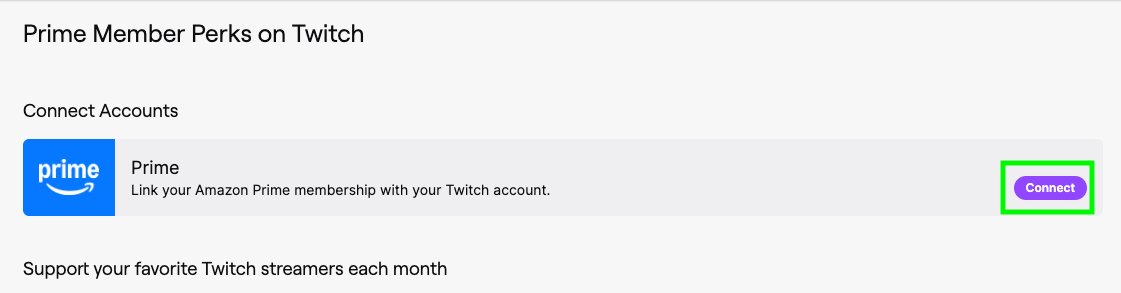
- Sign in to Twitch and open the Prime Member Perks page.
- Select Connect and sign in to the Amazon account that holds the Prime membership.
- Open the channel you want to support and select Subscribe.
- Use your Prime subscription for the free monthly sub. Refresh the channel page if Prime is not offered yet.
- How to check Prime Gaming rewards: open the Prime Member Perks page again to confirm the Amazon account shows as connected.
Prime Gaming vs. Twitch Drops: Prime perks need a paid or trial Prime membership, while Drops need only a Twitch account and watch time or a new paid sub. A Prime sub never counts toward a subscription-based Drop.
The Twitch iOS app cannot redeem a Prime channel sub; in some regions the Subscribe button redirects to subs.twitch.tv in the mobile browser instead.
How to check a Drop was claimed and delivered
- Open
https://www.twitch.tv/drops/inventoryand confirm the reward shows Claimed, not ready to claim. - Confirm the campaign's game shows Connected in the Inventory.
- Sign in to the game developer's website and confirm it shows your Twitch username.
- For a code-based reward, confirm the code appears in your Twitch notifications and on the campaign in your Inventory.
- Open the game on the linked account and find the item in the mailbox, inventory or cosmetics menu.
Earned Drops disappear from the Inventory after 6 months, so take a screenshot of the Claimed status if you expect to contact support.
What to Do If Twitch Drops Are Not Working
Twitch Support handles earning and claiming on Twitch at link.twitch.tv/Contact-Us. The game developer or partner handles account linking on their side, delivery and code redemption.
Drops progress is not counting
The channel is not participating, the stream is not live, or an extension is blocking tracking.
- Confirm the channel shows the Drops Enabled tag or the Drops banner in chat.
- Check the campaign end date in your Drops Inventory.
- Close every other Drops stream so only one is playing.
- Turn off ad-blocking extensions for twitch.tv and refresh the page.
- Check the Inventory again, then contact Twitch Support with your username, the campaign name and the channel if it still does not count.
Twitch says link account, but the game is already linked
The link completed on only one side.
- Open the campaign in your Drops Inventory and click Connect next to the game name.
- Check that Twitch shows Connected and the game's site shows your Twitch username.
- If only one side shows it, unlink on the developer's site and wait 5 minutes.
- Link again from the Drops Inventory, wait 15 minutes, then refresh both pages.
- After 24 hours, contact the game developer's support with your Twitch username and game account name.
You cannot link an under-13 or managed game account
The game platform blocks linking for age-restricted accounts, such as Epic Games cabined accounts.
- Check the game platform's own age and account requirements.
- Contact that platform's support if the account was flagged in error.
- Link the account from the Drops Inventory once the restriction is lifted.
You claimed a Drop but did not get it in-game
Delivery takes time, or the reward went to a different linked game account.
- Confirm the Inventory shows Claimed; click Claim if it still shows ready to claim.
- Check which game account is linked and sign in to that one.
- Wait the delivery time on the campaign, usually 24 to 48 hours.
- Check the mailbox, inventory and cosmetics menus, and any in-game claim screen.
- Contact the game developer's support after 48 hours with your Claimed screenshot.
A Drops code is missing, invalid or already used
Twitch sends the code; the partner controls whether it works.
- If no code arrived, recheck the campaign requirements, then contact Twitch Support.
- If the code fails, check for typos, the expiry date and whether your region is eligible.
- Check whether the reward was already applied to your account on the partner's site.
- Contact the partner using the contact details on the campaign in your Drops Inventory.
Channel Points are not being earned in Firefox
Firefox Enhanced Tracking Protection can block the events Twitch uses to count watch time.
- On twitch.tv, click the shield icon in the Firefox address bar.
- Turn off Enhanced Tracking Protection for this site only.
- Refresh the page and confirm your points balance rises after 5 minutes of live watching.
Common Mistakes That Cause Missed Drops
| Mistake | What happens | Avoid it by |
|---|---|---|
| Watching a Drops game on a non-participating channel | No progress at all | Checking for the Drops Enabled tag first |
| Watching a VOD or rerun | No progress | Watching live only |
| Running two Drops streams at once | Progress is no faster | Keeping one stream playing |
| Missing part of a multi-day window | That day's partial minutes are discarded | Finishing each day's minimum in one sitting |
| Buying a sub with Prime or a Sub Token | The subscription Drop is not earned | Buying a new paid or gift sub while the channel is live in the right category |
| Linking the wrong game account | The item lands on an account you do not play | Checking the linked name on the developer's site |
| Not clicking Claim | Nothing is sent to the game | Checking the Inventory before the campaign ends |
| Watching on a console or TV app | No Drops support | Using a browser or the mobile app |
How to Keep Track of Future Drops
- Bookmark
https://www.twitch.tv/drops/campaignsand check it for new campaigns, participating channels and requirements. - Follow the participating channels you like, then click the bell icon on each channel page to choose which notifications you get.
- Keep Drops notifications on: go to Settings > Notifications, scroll to Marketing and make sure Drops & Quests is checked.
- Click Save Changes.
- To cut the noise instead, uncheck Drops & Quests; you still earn Drops without the notifications.
Game developers decide which games get Drops. To ask about a game that is not on the campaigns page, contact its publisher directly.
Frequently Asked Questions
How do I claim Twitch rewards?
Open your Drops Inventory at twitch.tv/drops/inventory and click Claim on any finished reward, or click Claim in the Drops & More panel in chat. Channel Point rewards are redeemed separately, from the Channel Point icon at the bottom left of a channel's chat.
How do I claim my Twitch channel points?
Most Channel Points are added automatically while you watch signed in. The bonus appears as a click-to-claim notification at the bottom of chat about every 15 minutes of live watching; click it to add the points. Follow and raid points arrive without a click.
How do I claim my Twitch watch rewards?
Watch-time Drops are claimed with the Claim button in the Drops & More panel or your Drops Inventory once the timer finishes. Watch Streak Channel Points are added automatically when you return for consecutive streams of at least 10 minutes each.
How do I claim my Twitch weapon code?
An in-game item code from a Drops campaign is a code-based reward. Claim it in your Drops Inventory, copy the code Twitch sends you, and enter it on the redemption page named on the campaign. The game's partner, not Twitch, handles codes that fail.
How do I claim my Twitch badges?
Creator Badge Drops are earned by subscribing, gifting or watching during a streamer's badge event. Top Supporter badges equip automatically; subscription and watch-time badges must be equipped from the badge card when you click your username in that channel's chat.
Do Twitch Drops work on consoles or smart TVs?
No. Drops work in a PC or Mac web browser and in the Twitch app for Android and iOS. Twitch apps on game consoles, smart TVs and other TV devices do not support earning or claiming Drops.
Can you earn Twitch Drops from VODs or reruns?
No. Only live streams on participating channels count toward Drops. VODs, reruns, replays and clips earn no progress, even when they show the same game from the same channel.
Do Twitch Channel Points expire?
No. Channel Points do not expire and there is no maximum balance. They belong to one channel and cannot be transferred, and you lose them if the creator deletes the channel.
Can I earn Drops on two channels at the same time?
No. Twitch counts progress on one channel at a time, so a second stream adds nothing. You can switch between participating channels for the same campaign and keep the progress you already earned.