A Blue Screen of Death is caused mostly by faulty third-party drivers, then by failing hardware, and is fixed by finding the stop code and removing or updating the component behind it.
This guide covers what each cause looks like, the general fix order, three common stop codes, and how to stop the crashes coming back on Windows 11 and Windows 10.
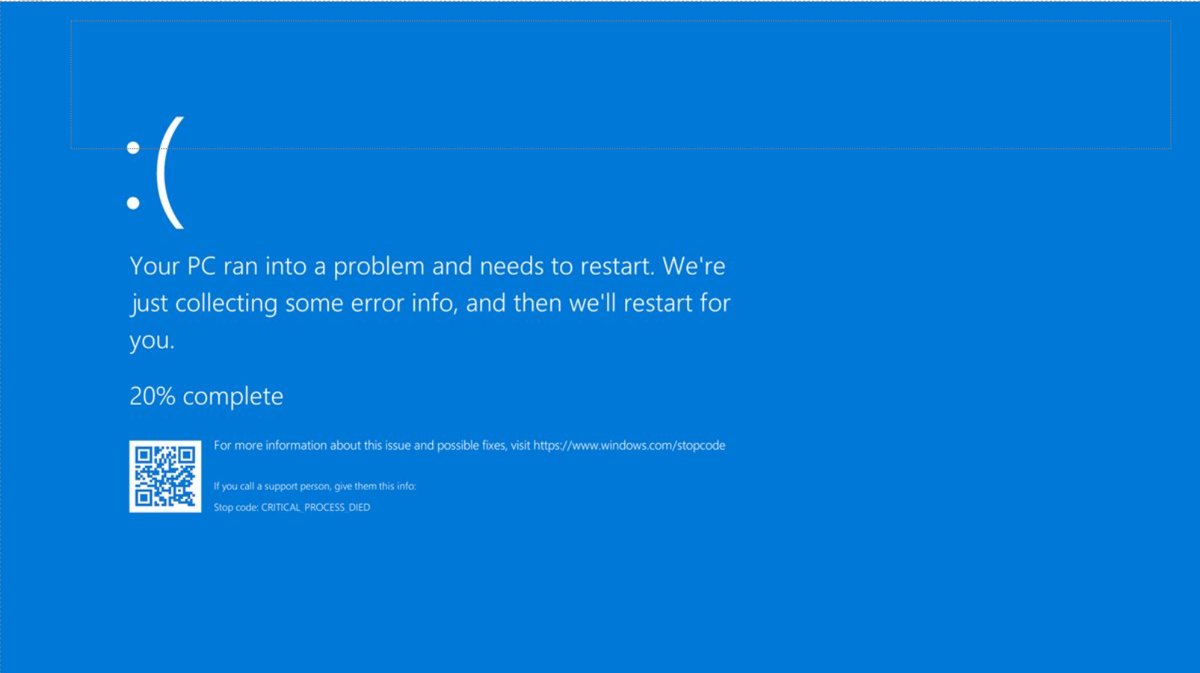
How to fix a Blue Screen of Death
Most blue screens clear after the automatic restart. When the same stop code keeps returning, work through these steps in order.
- Write down the stop code at the bottom of the screen, such as MEMORY_MANAGEMENT or PAGE_FAULT_IN_NONPAGED_AREA, and any module name shown with it.
- Unplug any hardware you added just before the crashes started, then restart.
- If Windows will not stay up, start the PC in safe mode and continue from there.
- Right-click Start, open Device Manager, right-click any device marked with ! and select Update driver.
- Open Settings > Windows Update and select Check for updates.
- Free disk space until 10% to 15% of the system drive is empty.
- If the crashes continue, restore Windows from a system restore point.
A known stop code has its own fix, for example the PAGE_FAULT_IN_NONPAGED_AREA error, which usually traces back to memory or a driver.
Blue Screen of Death causes and solutions
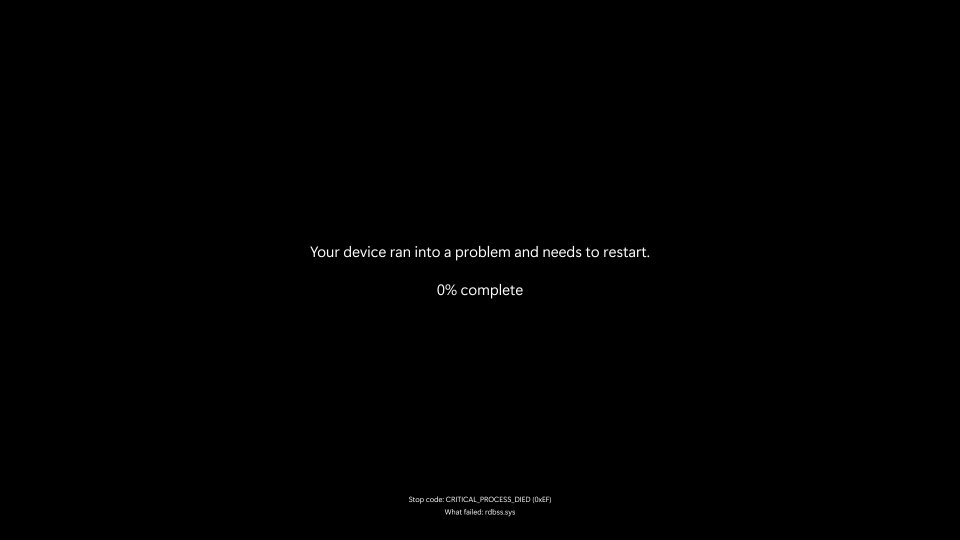
Windows stops itself when a fault could corrupt the system or your data. Microsoft calls this a bug check or stop error. Its crash analysis splits the causes like this.
| Cause | Share of crashes (Microsoft) | Solution |
|---|---|---|
| Third-party driver code | 70% | Update, roll back or remove the driver named in the stop screen |
| Hardware faults | 10% | Test memory and storage, remove new hardware, update BIOS and firmware |
| Microsoft code | 5% | Install the latest cumulative update |
| Unknown, memory too corrupted to analyze | 15% | Collect a memory dump and check the System log in Event Viewer |
An app such as a browser can trigger a stop error, but it usually exposes a driver, hardware or operating system fault underneath.
Can hardware cause a Blue Screen?
Yes. Hardware accounts for about one crash in ten, and the symptom pattern points to the part.
| Question | Answer | What to do |
|---|---|---|
| Can RAM cause Blue Screen? | Yes, faulty memory corrupts the kernel memory pool | Run Windows Memory Diagnostic and check the result in Event Viewer |
| Can overheating cause Blue Screen? | Yes, unstable parts under heat produce random stop codes | Clean vents and fans and check that crashes follow heavy load |
| Can GPU cause Blue Screen? | Yes, through the graphics driver or a failing card | Install the GPU maker's current driver or roll back a new one |
| Can a bad SSD cause Blue Screen? | Yes, read errors on the system drive halt Windows | Back up data and run the drive maker's diagnostic tool |
| Can PSU cause Blue Screen? | Yes, unstable power gives crashes under load | Test with a known-good power supply if other parts check out |
| Can CPU cause Blue Screen? | Yes, usually after overclocking or overheating | Reset clock settings to default in the BIOS |
| Can dust cause Blue Screen? | Indirectly, by blocking airflow and raising temperatures | Clean the case, fans and heatsinks |
| Can a bad laptop battery cause Blue Screen? | It can when power delivery becomes unstable | Test on mains power and contact the laptop maker |
| Can BIOS cause Blue Screen? | Yes, outdated firmware can conflict with drivers | Update the BIOS and firmware from the PC maker's site |
Fix BAD_POOL_CALLER Blue Screen on Windows 11
BAD_POOL_CALLER (0x000000C2) means a thread made an invalid memory pool request, usually from a driver freeing the same memory twice. Memory faults are the other suspect.
- Search for Memory in Control Panel and select Diagnose your computer's memory problems.
- Let the test run after the restart.
- Open Event Viewer, go to the System log and find the MemoryDiagnostics-Results entry.
- If memory passes, update or roll back drivers you installed recently.
- To find the faulting driver, type
verifierat a command prompt and verify as few drivers as possible. - Turn Driver Verifier off once the crash names the driver, because it slows the PC.
DAM WATCHDOG TIMEOUT Blue Screen in Windows 11
DAM_WATCHDOG_TIMEOUT (0x000001EB) appears when the Desktop Activity Moderator cannot unfreeze user processes in time after the PC resumes from modern standby. It shows up on wake from sleep.
- Open Settings > Windows Update and install every pending update.
- Update the chipset, graphics and storage drivers from the PC maker's support site.
- Update the BIOS and firmware from the same site.
- Right-click Start, open Device Manager and update any device marked with !.
- Put the PC to sleep and wake it to confirm the crash is gone.
Blue Screen on Printer when printing on Windows 11
A crash that happens only when you print points to the printer driver, since third-party drivers cause most stop errors.
- Open Settings > Bluetooth & devices > Printers & scanners.
- Select the printer and select Remove.
- Install the current driver for your model from the printer maker's site.
- Add the printer again and print a test page.
- If the crash returns, start the PC in safe mode and roll back the latest Windows update or driver.
How to read Blue Screen error logs and memory dumps
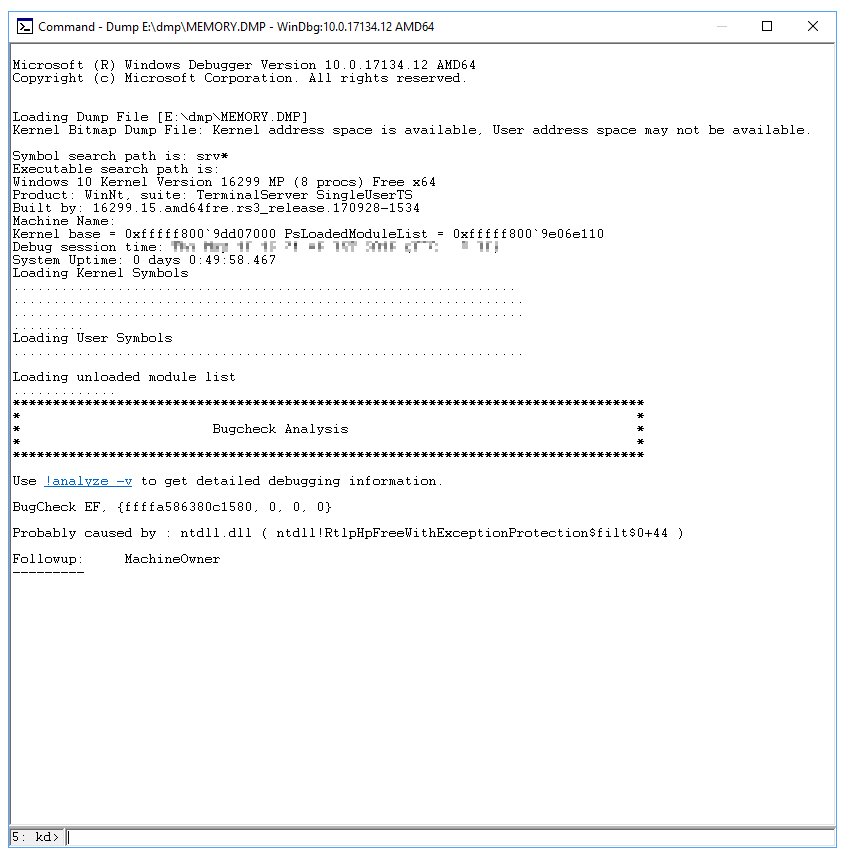
A memory dump records what Windows was running when it crashed. Set it up once so the next crash leaves evidence.
- Search the taskbar for Advanced system settings and press Enter.
- On the Advanced tab, select Settings under Startup and Recovery.
- Under Write debugging information, choose Automatic memory dump and select OK.
- Restart the PC.
- After the next crash, open Event Viewer > System to see the bug check and its four parameters.
- Find small dumps in
%SystemRoot%\Minidumpand full dumps at%SystemRoot%\MEMORY.DMP.
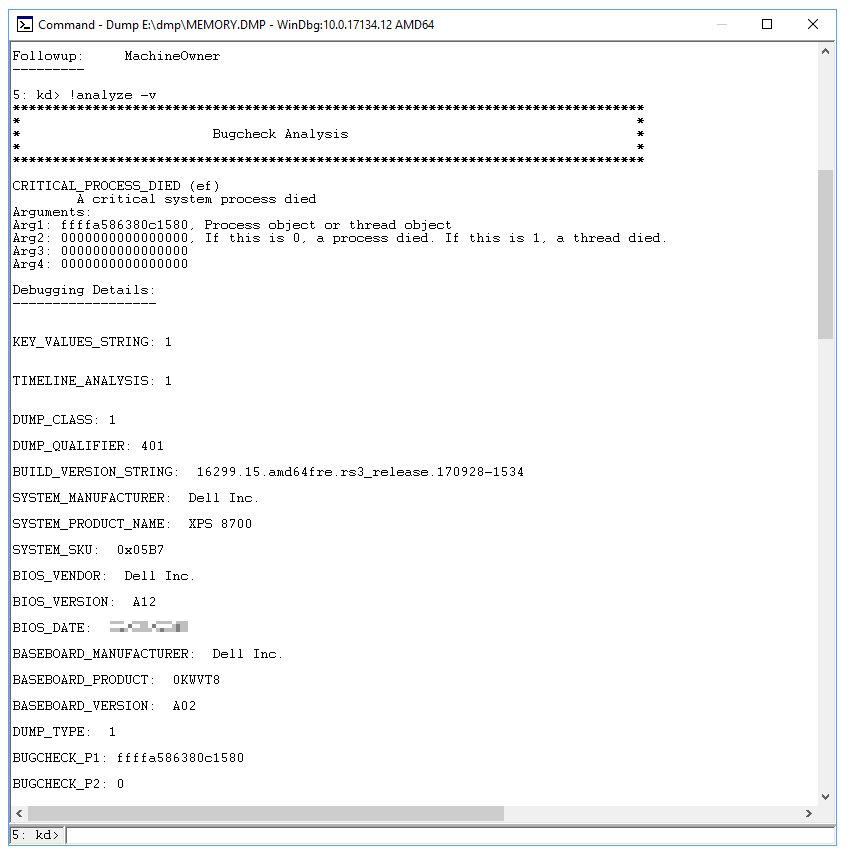
The free WinDbg debugger opens these files, and the !analyze -v command often names the driver behind the crash.
Check the Blue Screen is fixed
- Use the PC for a few days the way you did when it crashed.
- Open Event Viewer > Windows Logs > System and look for new BugCheck entries.
- Check that
%SystemRoot%\Minidumphas no new files. - Repeat the action that crashed it before, such as printing or waking from sleep.
Blue Screen of Death keeps happening
Blue screen loop at every startup
A driver or update loads early in boot and crashes Windows each time.
- Start the PC in safe mode from the Windows Recovery Environment.
- Uninstall the latest driver or Windows update.
- If safe mode fails too, use a system restore point from the recovery options.
Blue screen after installing new hardware
The device or its driver is incompatible or faulty.
- Shut down and remove the new hardware.
- Restart and confirm the crashes stop.
- Install the maker's current driver before refitting the device.
Random stop codes that change every time
Memory, power or overheating faults rather than one driver, the same faults that make a laptop keep freezing.
- Run Windows Memory Diagnostic.
- Update the BIOS and firmware.
- Clean the fans and test with default clock settings.
Blue Screen of Death FAQ
What is blue screen of death?
The Blue Screen of Death is the stop screen Windows shows when it halts to protect the system or your data from a serious fault. Microsoft calls it a stop error or bug check, and it shows a stop code.
What causes blue screen of death?
Microsoft's analysis attributes about 70% of blue screens to third-party drivers, 10% to hardware, 5% to Microsoft code and 15% to unknown causes. Apps rarely cause one directly.
What causes blue screen of death on Windows 11?
The causes on Windows 11 are the same as earlier versions: drivers first, then hardware such as memory and storage. Windows 11 restarts with a message that your device ran into a problem.
Is the blue screen of death bad?
A single blue screen that does not repeat is usually harmless, because the restart clears it. Repeated crashes with the same stop code point to a fault you should fix before data is lost.
How do I resolve blue screen of death?
Note the stop code, remove new hardware, update drivers in Device Manager, install Windows updates and free disk space. If crashes continue, restore Windows from a restore point.
How do I prevent blue screen of death?
Keep Windows, drivers, BIOS and firmware updated, keep 10% to 15% of the system drive free, avoid unstable overclocks, and keep vents clean so parts do not overheat.
Can I trigger a blue screen of death on purpose?
Developers trigger test crashes with a kernel debugger or Driver Verifier to capture dumps. Ordinary users have no reason to force one, because it can lose unsaved work.