When Windows 11 or Windows 10 won't start, interrupt startup twice to reach the Windows Recovery Environment, then choose Troubleshoot > Advanced options > Startup Settings > Restart and press 4 or F4 for Safe Mode.
If that screen never appears, a USB recovery drive or Windows installation media opens the same menus, and one bcdedit command can force Safe Mode from Command Prompt.
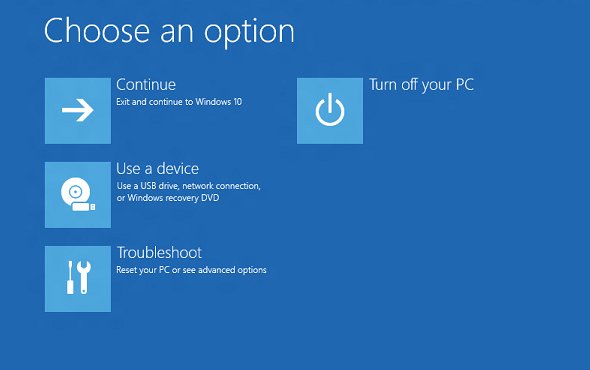
Method 1: Enter Safe Mode via Windows Recovery Environment
Windows RE is built into Windows and opens without any extra media. Forcing two failed starts makes Windows load it on the third.
- Turn on the PC and wait for the Windows logo or the manufacturer's logo.
- As soon as the logo appears, press and hold the power button until the PC shuts down.
- Turn the PC on again and repeat the forced shutdown at the logo.
- Turn the PC on a third time and wait for the Automatic Repair screen, then select Advanced options.
- On the Choose an option screen, select Troubleshoot > Advanced options > Startup Settings.
- Select Restart.
- When Startup Settings appears, press 4 or F4 for Safe Mode, 5 or F5 for Safe Mode with Networking, or 6 or F6 for Safe Mode with Command Prompt.
Windows RE also starts on its own after two failed starts in a row, or after two unexpected shutdowns or restarts within two minutes of boot completing. Some PCs also have a manufacturer recovery button, and you can boot into Windows Recovery Environment from Settings once Windows starts again.
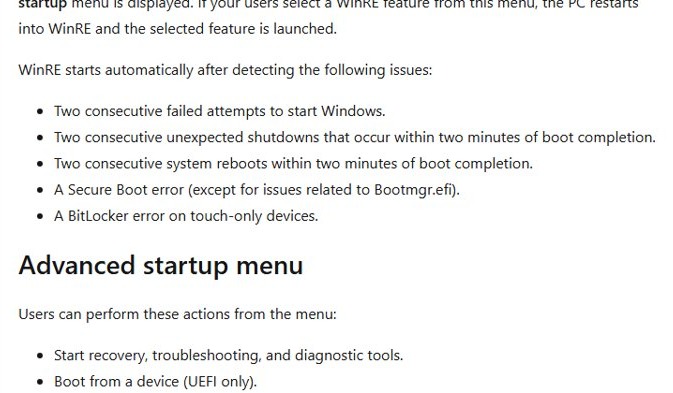
Method 2: Enter Safe Mode using a USB recovery drive
Use this when forced shutdowns never bring up the Automatic Repair screen. A recovery drive boots straight into Windows RE.
Make the drive on a working Windows PC. The process erases the USB drive, so use an empty one.
- On the working PC, search Start for Recovery Drive and open it, or run
recoverydrive.exe. - Keep Back up system files to the recovery drive selected and select Next.
- Connect the USB drive, select it, select Next, then select Create and wait for the copy to finish.
- Plug the drive into the PC that won't boot and start it from the USB drive. The boot menu key differs by manufacturer.
- When Windows RE loads, select Troubleshoot > Advanced options.
- If Startup Settings is listed, select it, select Restart and press 4 or F4.
- If Startup Settings is not listed, select Command Prompt and run the bcdedit command in the next section, then remove the USB drive and restart.
No recovery drive? Create Windows installation media with the Media Creation Tool on another PC, boot from it, choose your language and select Next, then select Repair my PC (older media says Repair your computer). Microsoft supports a recovery drive for full recovery only on the PC that made it, so installation media is the safer choice for a borrowed drive.
Boot into Safe Mode from Command Prompt with bcdedit
Open Command Prompt from Troubleshoot > Advanced options > Command Prompt in Windows RE, or press Shift + F10 on the first Windows setup screen when you boot from installation media.
bcdedit /set {default} safeboot minimal{default} is the Windows entry the boot manager starts, and safeboot minimal tells it to load Safe Mode. The setting stays until you delete it, so Windows opens in Safe Mode on every restart until then.
You should see: Close Command Prompt, remove any USB drive and restart. Windows loads in Safe Mode instead of the normal desktop.
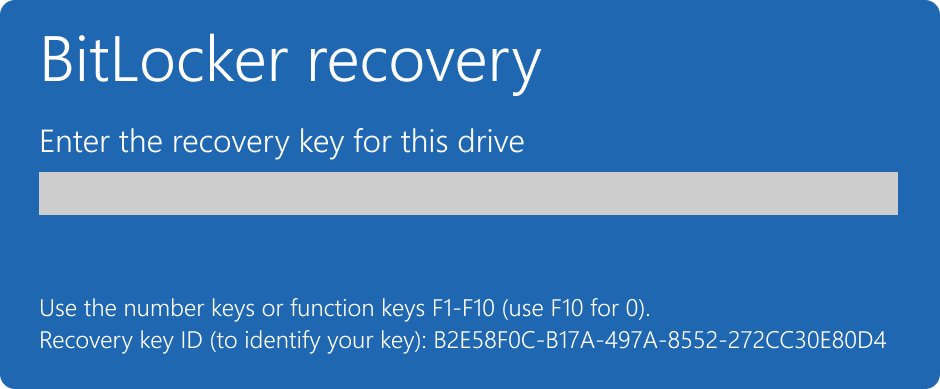
On a BitLocker-encrypted PC, keep the BitLocker recovery key ready, because Windows RE needs it to use certain tools.
Safe Mode vs Safe Mode with Networking in Windows 11 and 10
The Startup Settings screen lists numbered options. Press the number key or the matching function key, or press Enter to start Windows normally.
| Key | Option | What it does | Use it when |
|---|---|---|---|
| 4 or F4 | Enable Safe Mode | Starts Windows in a basic state with a limited set of files and drivers | You need to remove a driver, app or update and do not need the internet |
| 5 or F5 | Safe Mode with Networking | Adds the network drivers and services needed to reach the internet and other PCs | You need to download a driver or reach files on another PC |
| 6 or F6 | Safe Mode with Command Prompt | Starts Safe Mode with a command prompt instead of the normal desktop | The desktop itself will not load, or you plan to run commands |
| 3 or F3 | Enable low-resolution video | Starts Windows with the current video driver at low resolution and refresh rate | You need to reset display settings that leave the screen unreadable |
| 2 or F2 | Enable boot logging | Writes ntbtlog.txt with the drivers loaded at startup | You want a list of drivers to find the one that stops startup |
| 9 or F9 | Disable automatic restart on system failure | Stops Windows restarting after a crash | The PC is stuck in a crash-and-restart loop |
Start with plain Safe Mode. Move to Safe Mode with Networking only when the fix needs a download.
How to use F8 to boot into Safe Mode on Windows 11 and 10
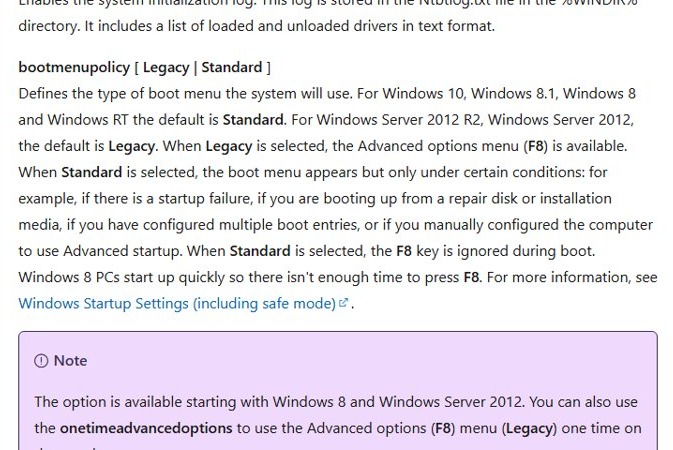
The Standard boot menu policy, the default on Windows 10, ignores F8 during boot. Switching the policy to Legacy brings back the Advanced Boot Options screen.
- Open Command Prompt from Windows RE or from installation media with Shift + F10.
- Type
bcdedit /set {default} bootmenupolicy legacyand press Enter. - Close Command Prompt, remove any USB drive and restart the PC.
- Press F8 while the PC starts, before Windows begins loading.
- On the Advanced Boot Options screen, choose Safe Mode or Safe Mode with Networking.
The F8 Safe Mode menu stays on for every boot until you set the policy back to Standard.
What to fix in Safe Mode when Windows 11 won't boot
Safe Mode only helps if you use it to remove the cause. Match what changed before the PC stopped booting to the fix.
| Problem started after | Fix to try | Where to run it |
|---|---|---|
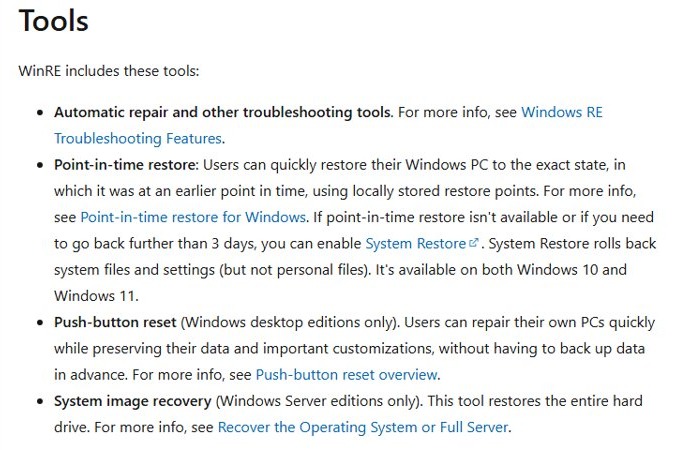
| A Windows update | Uninstall Updates to remove a recently installed update | Windows RE > Troubleshoot > Advanced options |
| A new driver, app or setting | Uninstall it, or use System Restore, which rolls back system files and settings but keeps personal files | Safe Mode, or Windows RE > Advanced options |
| A third-party service that hangs startup | Run a clean start: open msconfig, choose Selective startup and test services one at a time |
Safe Mode |
| Nothing obvious, a stop error after the logo | Open Event Viewer and read the System log for the failing driver or service | Safe Mode or Safe Mode with Networking |
| BCD missing, Bootmgr missing or a black screen with a cursor | Startup Repair, then the bootrec commands | Windows RE > Advanced options |
| None of the above works | Reset this PC and choose whether to keep your personal files | Windows RE > Troubleshoot |
When the error names a boot file, repair Windows boot problems with bootrec before trying Safe Mode again.
Do you need a BitLocker recovery key to enter Safe Mode?
Yes, on an encrypted PC, have the BitLocker recovery key ready before you start. Microsoft says an encrypted device needs the BitLocker key to complete Startup Settings and to use certain Windows RE tools. Look the key up on another device before you force the first shutdown.
How to get out of Safe Mode in Windows 11 and 10
Restart the PC first. If Windows keeps starting in Safe Mode, or you set Safe Mode with bcdedit, clear the safe boot setting.
- In Safe Mode, press Windows key + R, type
msconfigand select OK. - Open the Boot tab.
- Under Boot options, clear the Safe boot check box.
- Select OK and restart the PC.
- If the check box is already clear, open Command Prompt as administrator, run
bcdedit /deletevalue {default} safebootand restart.
Can't boot into Safe Mode on Windows 11 or 10
Automatic Repair never appears after forced shutdowns
The PC cannot load Windows RE from its own drive, for example when Windows RE is turned off or damaged.
- Create a USB recovery drive or Windows installation media on another PC.
- Boot the broken PC from the USB drive.
- Select Repair my PC on installation media, then Troubleshoot > Advanced options.
- Use Startup Settings if listed, or the bcdedit command from Command Prompt.
The PC won't start from the USB drive
The PC is not set to boot from a USB drive before its internal disk.
- Check the manufacturer's website for the boot menu key or the way to change boot order.
- Restart and press that key to pick the USB drive, or move the USB drive to the top of the boot order in firmware settings.
- Boot again with the USB drive connected.
The PC keeps stopping at the recovery options screen
Repeated startup failures send Windows back to recovery every time.
- Open Command Prompt from Troubleshoot > Advanced options.
- Run
bcdedit /set {default} recoveryenabled noto break the cycle. - In the same window, run
bcdedit /set {default} safeboot minimal, then restart. - After the fix, run
bcdedit /set {default} recoveryenabled yesso Windows RE can start on its own again.
Windows Safe Mode boot FAQ
How do I boot into Safe Mode if Windows won't start?
Turn the PC on and hold the power button at the logo to shut it down, twice. On the third start, select Advanced options on the Automatic Repair screen, then Troubleshoot > Advanced options > Startup Settings > Restart, and press 4 or F4.
Does F8 work for Safe Mode in Windows 11?
Usually not. The Standard boot menu policy, the default on Windows 10, ignores F8 during boot. Running bcdedit /set {default} bootmenupolicy legacy from Command Prompt switches to Legacy, where the F8 Advanced options menu is available.
How many times do I force shutdown to get to Automatic Repair?
Twice. Hold the power button as soon as the Windows logo appears, two starts in a row. On the third start, Windows should show the Automatic Repair screen, where Advanced options leads to Safe Mode.
Can I start Safe Mode from a USB drive?
Yes. Boot from a USB recovery drive or Windows installation media, go to Troubleshoot > Advanced options, and use Startup Settings or run bcdedit /set {default} safeboot minimal from Command Prompt, then restart without the USB drive.
Does Safe Mode delete my files?
No. Safe Mode only starts Windows with a limited set of files and drivers. Your personal files stay where they are, though Reset this PC with Remove everything, chosen later, would delete them.
What is the difference between Safe Mode and Safe Mode with Networking?
Safe Mode loads a minimal set of drivers with no network. Safe Mode with Networking adds the network drivers and services needed to reach the internet and other computers, which helps when a fix needs a download.
Why does my PC keep booting into Safe Mode?
The safe boot option is still set. Open msconfig, clear Safe boot on the Boot tab and restart, or run bcdedit /deletevalue {default} safeboot from an administrator Command Prompt.
Can I get to Safe Mode from the BIOS?
No. Safe Mode is chosen in Windows RE under Startup Settings, not in firmware. Use the firmware settings or boot menu only to start the PC from a USB recovery drive or installation media.