You can download SteamVR free on a Windows 11 or Windows 10 PC straight from Valve’s Steam store. It installs inside the Steam desktop app and runs PC VR games on the Valve Index, HTC Vive, Oculus Rift, Windows Mixed Reality and other supported headsets.
Meta Quest, PICO and HTC standalone headsets connect to it too, through Valve’s free Steam Link app.
This guide covers the official links, the install steps, Quest streaming, Mac options, system requirements, updates and fixes for SteamVR that will not launch.
Which SteamVR download do you need?
There is one SteamVR build for PCs. What changes is how your headset reaches it.
| Your setup | What to install | What it needs |
|---|---|---|
| Windows PC with a Valve Index, HTC Vive, Oculus Rift or Windows Mixed Reality headset | SteamVR on Steam | Steam desktop app, 64-bit Windows, a GTX 970 or R9 290 class graphics card |
| Windows PC with a Meta Quest 2, 3 or Pro, PICO or HTC Vive Focus headset | Steam Link for Meta, HTC and PICO headsets | SteamVR on the PC, Windows 10 or newer, a 5 GHz Wi-Fi 5 router |
| PC without Steam yet | Install Steam | A free Steam account |
| Mac | Valve’s macOS support notice | No current macOS build; see the Mac section below |
Every Steam VR game you own plays on any SteamVR-compatible headset, so the headset choice never locks your library.
Download SteamVR from the official Steam links
Valve develops SteamVR and distributes it only through Steam. A standalone SteamVR exe on any other site is not from Valve.
- SteamVR on the Steam store — Free; select Play Game to install it through Steam
- Steam desktop app — Required before SteamVR can install or launch
- Steam Link for Meta, HTC and PICO headsets — Valve’s requirements and setup for wireless streaming
- SteamVR Beta instructions — Opt in to test builds before release
- Valve Index hardware — Valve’s own headset, controllers and base stations
The Steam store shows no separate download size for SteamVR. Steam fetches the files after you select install, so keep the PC online.
How to install SteamVR on Windows 11 and 10
Connect the headset before you start, so SteamVR can detect it on first launch.
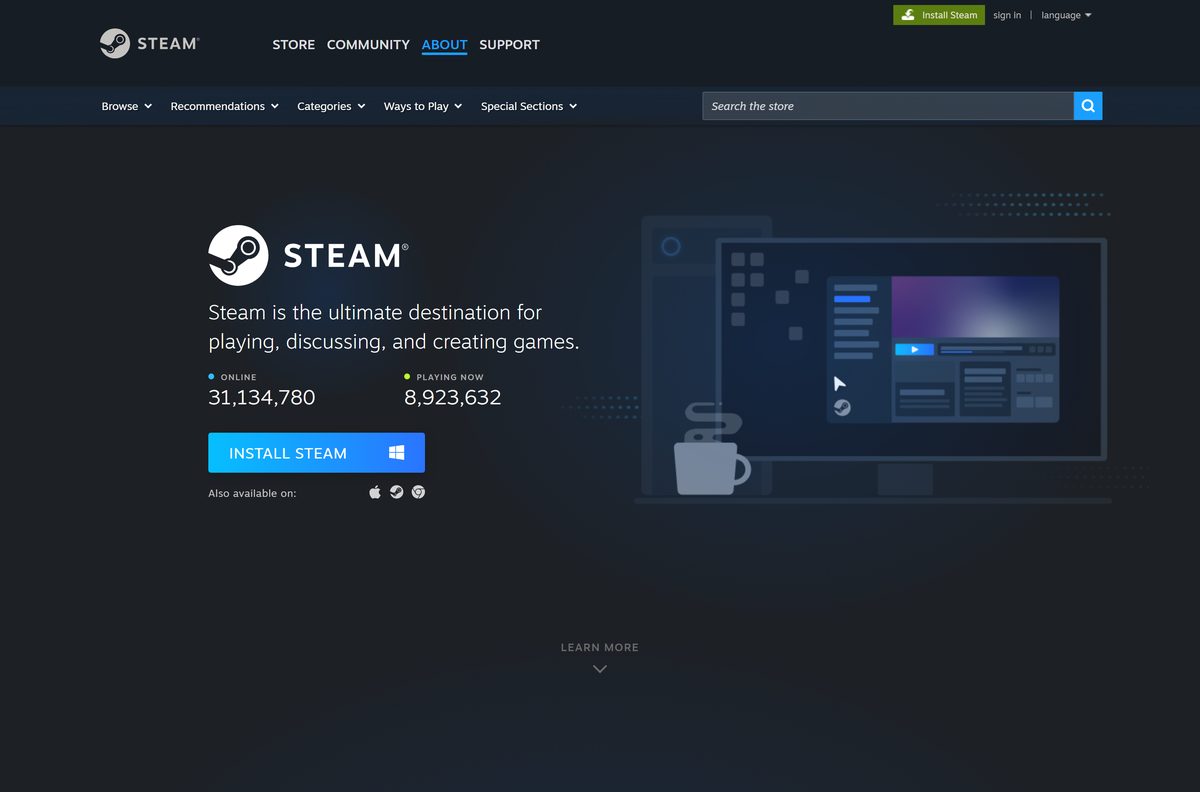
- Open the Steam install page and select Install Steam if the Steam app is not on your PC yet.
- Run the Steam setup, then sign in with your Steam account or create a free one.
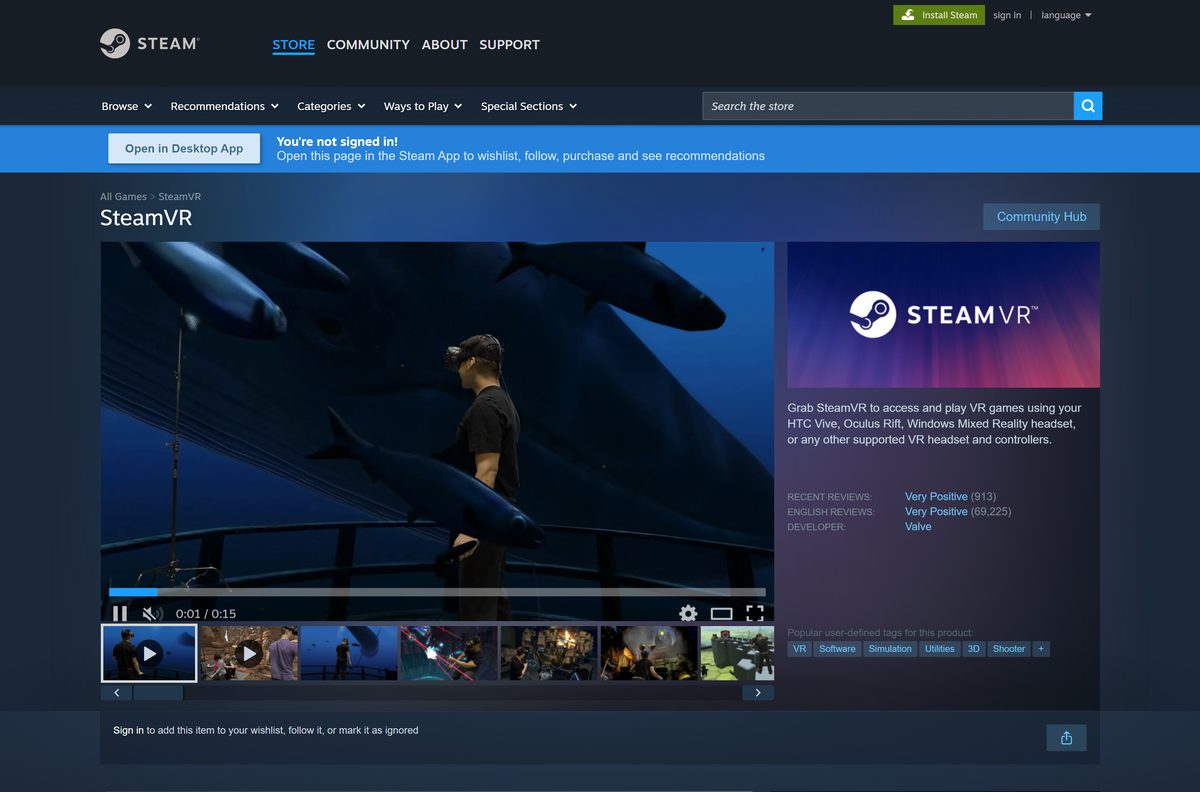
- Open the SteamVR store page and select Play Game.
- Choose the install drive in the dialog and select Install.
- Wait for the download to finish under Library > Downloads.
- Plug the headset into the PC over USB and DisplayPort or HDMI, or start its own PC link software.
- Select SteamVR in your Library and launch it.
- Follow the Room Setup prompts to set your play area boundaries.
The Chaperone boundary you draw in Room Setup keeps walls and furniture visible as a grid while you play.
Install SteamVR for a Meta Quest, PICO or HTC headset with Steam Link
Standalone headsets stream SteamVR from your PC over Wi-Fi. SteamVR still runs on the PC; the headset only needs the Steam Link app.
- Install Steam and SteamVR on the PC using the steps above.
- Update the headset: Meta headsets need OS v74, PICO needs v5.13 and HTC needs v7.0.999.344.
- Turn on the PC, open Steam and sign in.
- Connect the headset to the same network as the PC, ideally a 5 GHz band.
- Open the store in your headset and install the free Steam Link app.
- Open Steam Link in the headset and follow the on-screen prompts to pair it with your PC.
- Start any VR game from your Steam library inside the headset.
Valve lists a Wi-Fi 5 router on a 5 GHz channel as the minimum, and recommends Wi-Fi 6 or Wi-Fi 6E for smoother streaming.
How to use SteamVR on a Mac
Valve ended macOS support for SteamVR on May 1, 2020, to focus on Windows and Linux. The Steam store now lists Windows as its only platform.
Existing Mac owners were pointed to a legacy macos branch under Properties > Betas. It receives no new features, so plan around one of these options.
| Your Mac | Option | Guide |
|---|---|---|
| Intel-based Mac with a capable graphics card | Install Windows 10 with Boot Camp, then install Steam and SteamVR in Windows | Apple Boot Camp guide |
| Mac with Apple silicon (M1 or later) | Boot Camp is not available; run SteamVR on a Windows PC instead | SteamVR on Steam |
| Mac that already ran SteamVR before 2020 | Opt into the legacy macos branch for the old build | Valve’s macOS notice |
Check Apple menu > About This Mac. A Chip line means Apple silicon; a Processor line with an Intel name means Boot Camp can work.
Is SteamVR free?
Yes. The Steam store lists SteamVR as free, and installing it costs nothing beyond a free Steam account.
You pay for the headset and for any paid VR games. SteamVR Home, the Chaperone system and the VR dashboard all come included.
Install SteamVR free from the Steam store and ignore any site that charges for it or offers a separate SteamVR download. Valve gives SteamVR away inside Steam, so a paid copy, key or standalone installer is either a scam or malware.
How to check your SteamVR version and update it
Steam updates SteamVR automatically. The newest public release is SteamVR 2.17.10, a hotfix posted on September 18, 2026.
- Open Steam and go to Library > Downloads to finish any queued SteamVR update.
- Restart Steam if SteamVR shows an Update button instead of launching.
- Check the latest SteamVR release notes to see what the newest build changed.
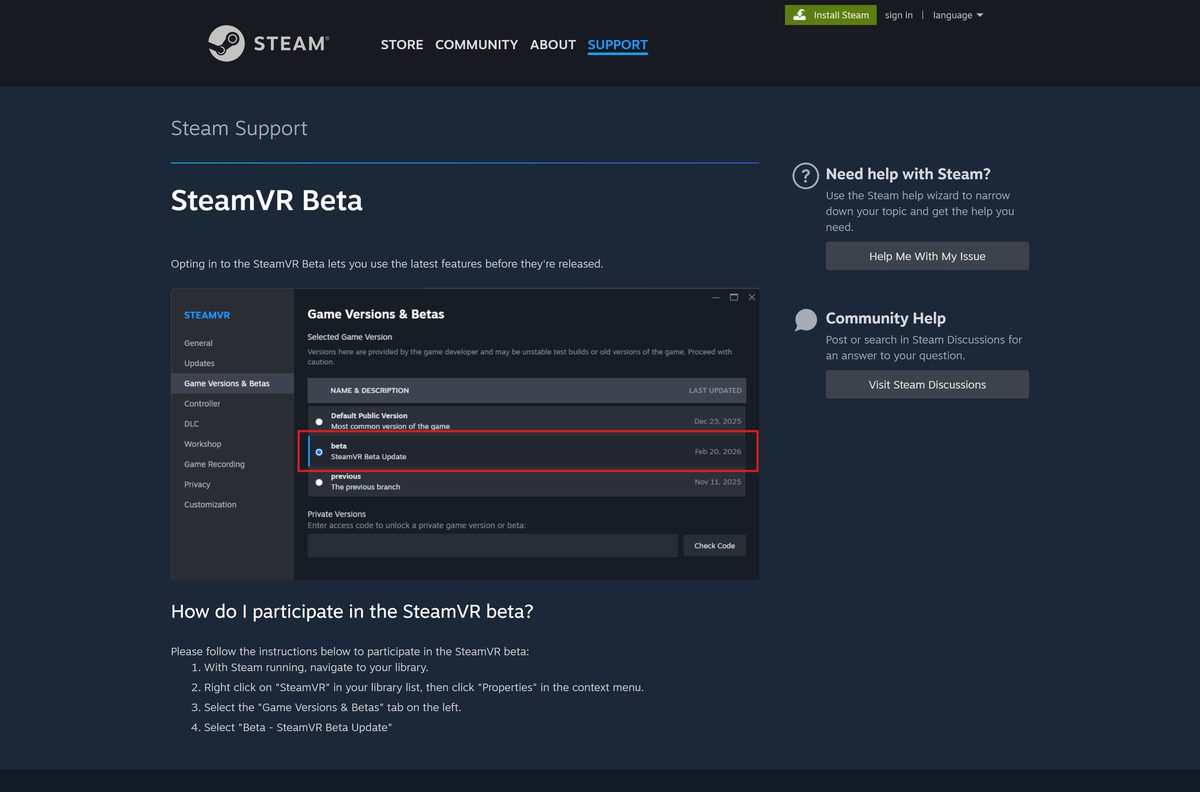
- To test builds early, right-click SteamVR in your library and select Properties.
- Open Game Versions & Betas and select Beta – SteamVR Beta Update.
- Switch back to None on the same tab to return to the public build.
Leave the beta if an update breaks tracking or launching; Steam then reinstalls the stable build.
Check the SteamVR system requirements
The requirements come from Valve’s store listing. Your headset maker may ask for more, so check both.
| Field | Details |
|---|---|
| Software | SteamVR |
| Developer | Valve |
| Latest version | 2.17.10 (hotfix, September 18, 2026) |
| Price | Free |
| Operating system | 64-bit Windows 10 or Windows 11 (the store also lists Windows 7 SP1 and 8.1, which Steam no longer supports) |
| Architecture | 64-bit (x64); Steam ended 32-bit Windows support on January 1, 2026 |
| Processor | Intel Core i5-4590 or AMD FX 8350 equivalent or better |
| Memory | 4 GB RAM |
| Graphics (minimum) | NVIDIA GeForce GTX 970 or AMD Radeon R9 290 equivalent or better |
| Graphics (recommended) | NVIDIA GeForce GTX 1060 or AMD Radeon RX 480 equivalent or better |
| Ports | 1x USB 2.0 or newer, HDMI 1.4, DisplayPort 1.2 or newer |
| Network | Broadband internet connection |
| macOS | Not supported since May 2020 |
| Offline installer | No; installs through the Steam desktop app |
| Official download source | Steam store (store.steampowered.com) |
| Last verified | 2026-09-19 |
Press Windows + R, type dxdiag and select OK to see your processor, memory and graphics card in one window.
How to confirm your SteamVR copy is genuine
Fake SteamVR downloads usually arrive as a single exe or zip from a file site. The real one never ships that way.
- Start the download from store.steampowered.com and nowhere else.
- Check that the store page lists Valve as the developer.
- Right-click the Steam setup file, select Properties and open Digital Signatures.
- Confirm the signer is Valve before you run it.
- Delete any file offering SteamVR as a standalone exe, zip or “offline installer”.
Fix SteamVR not launching or not detecting your headset
Match the symptom to what you see, then work through its fix in order.
SteamVR crashes, will not open or reports missing files
Files are damaged after an interrupted update.
- Restart the PC and launch Steam.
- Right-click SteamVR in your library and select Properties.
- Open Installed Files and select Verify integrity of game files.
- Launch SteamVR again once the check finishes.
SteamVR says the headset is not detected
A loose cable, a sleeping USB port or the headset’s own software is not running.
- Reseat the USB and DisplayPort or HDMI cables at both ends.
- Plug the display cable into the graphics card, not the motherboard.
- Start the headset’s own PC software first for Rift, Quest Link or Windows Mixed Reality.
- Restart SteamVR from its status window menu.
SteamVR broke after an update or in the beta
A beta or new build has a bug on your hardware.
- Right-click SteamVR and select Properties > Game Versions & Betas.
- Select None to leave the beta and return to the public build.
- Update your NVIDIA, AMD or Intel graphics driver and restart the PC.
Steam or SteamVR will not install on the PC
The PC runs 32-bit Windows, which Steam stopped supporting on January 1, 2026.
- Open Settings > System > About.
- Read System type under Device specifications.
- Move to 64-bit Windows 10 or Windows 11 if it shows a 32-bit operating system.
How to uninstall SteamVR
Remove SteamVR from inside Steam. A reinstall later starts from the same store page.
- Close SteamVR and any running VR game.
- Open Steam and select Library.
- Right-click SteamVR and select Manage > Uninstall.
- Confirm with Uninstall in the dialog.
- Restart Steam, then reinstall from the SteamVR store page if you want a clean copy.
Your VR games stay installed and playable once SteamVR is back.
Frequently asked questions
Is SteamVR free to download?
Yes. SteamVR is free on the Steam store for Windows. You need only a free Steam account and the Steam desktop app. You pay for your headset and any paid VR games, not for SteamVR itself.
Where is the official SteamVR download?
The only official download is the SteamVR page on the Steam store at store.steampowered.com/app/250820. Select Play Game there and the Steam desktop app installs SteamVR into your library. Valve publishes no standalone SteamVR installer.
Can I download SteamVR without Steam?
No. SteamVR installs, updates and launches only through the Steam desktop app. Install Steam from store.steampowered.com/about first, sign in, and then install SteamVR from its store page.
Does SteamVR work on Windows 11?
Yes. SteamVR runs on 64-bit Windows 11 and Windows 10. Steam stopped supporting 32-bit Windows on January 1, 2026, and every copy of Windows 11 is 64-bit, so any Windows 11 PC qualifies.
How big is the SteamVR download?
Valve does not list a download or storage size for SteamVR on its Steam store page. Steam shows the size in the install dialog before the download starts, so check it there against your free space.
Is there a SteamVR offline installer?
No. SteamVR downloads and updates through the Steam desktop app, which needs an internet connection. Any site offering an offline SteamVR installer is not distributing Valve’s files.
Can you use SteamVR on a Mac?
Not with a current build. Valve ended SteamVR macOS support on May 1, 2020, and the store lists Windows only. An Intel Mac can run Windows 10 through Boot Camp; Apple silicon Macs cannot.
Does SteamVR need a 64-bit PC?
Yes. The Steam client runs only on 64-bit Windows since January 1, 2026, so SteamVR needs a 64-bit processor and a 64-bit copy of Windows 10 or Windows 11.
Does SteamVR work with Meta Quest?
Yes. Install SteamVR on your Windows PC, then install Valve’s free Steam Link app on the Quest 2, 3 or Pro. The headset streams SteamVR games over Wi-Fi from the PC.
Is it safe to download SteamVR?
Yes, from the Steam store. Valve develops SteamVR and delivers it through Steam, which checks the files. Avoid any site offering a SteamVR exe, zip or crack, because the genuine software never ships that way.
What is the latest version of SteamVR?
The newest public release is SteamVR 2.17.10, a hotfix Valve posted on September 18, 2026. Steam installs updates automatically, and the SteamVR Beta branch carries test builds before release.
Why won’t SteamVR launch?
The usual causes are damaged files, a headset cable or link app that is not connected, or a buggy beta build. Verify the files in Steam, reseat the cables, then leave the beta under Game Versions & Betas.

Download VRChat for PC, Windows 11/10, iPhone and Android (Free) - Techdows
[…] and start your SteamVR headset first if you want to play in […]