Snipping Tool is free and already on your PC. Press Windows + Shift + S and it opens. If it is missing, Microsoft publishes a signed setup to put it back, covered below.
You only need a file if you uninstalled it. Microsoft publishes a signed setup for that case, and it is a small bootstrapper rather than a full offline installer.
This guide covers which file you actually need, the official Microsoft sources, installing and reinstalling, what Mac users should do instead, and fixes for Snipping Tool missing, not opening or not installing.
Which Snipping Tool download do you need?
Match your situation below. Most rows need no download at all, which is the answer rather than a gap.
| Your situation | What you need | Size |
|---|---|---|
| Windows 11, any supported version | Nothing. Press Windows + Shift + S | 0 |
| Windows 10 22H2 | Nothing. It is in the Start menu | 0 |
| You uninstalled it, 64-bit PC | snippingtool_setup_x64.exe | 254 KB |
| You uninstalled it, 32-bit PC | snippingtool_setup_x86.exe | 198 KB |
| You uninstalled it, ARM64 PC | snippingtool_setup_arm64.exe | 244 KB |
| Windows 7 or Windows 8 | No download exists. Both are out of support | 0 |
| Mac | Use the built-in Screenshot app | 0 |
To check whether your PC is 64-bit or ARM64, press Windows + I, open System > About and read the System type line.
Download Snipping Tool from the official Microsoft source
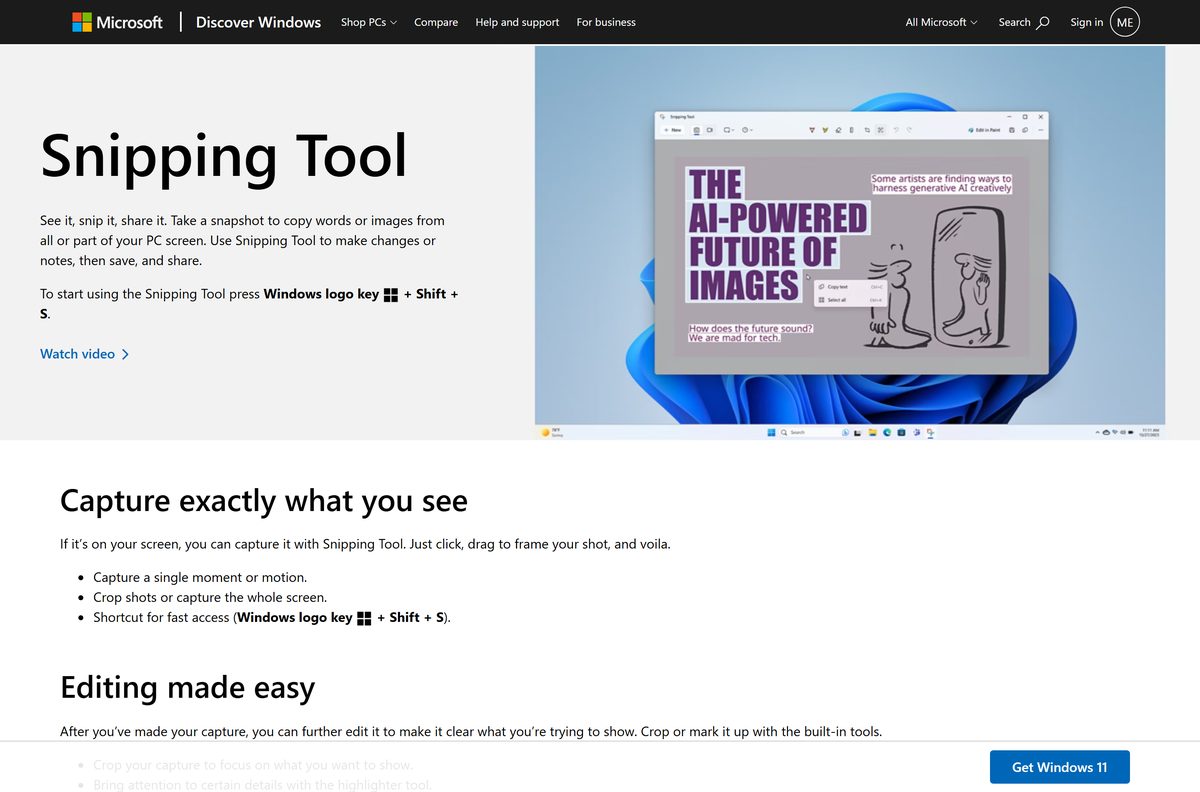
Microsoft distributes Snipping Tool in exactly two places. Everything else is somebody else’s copy or somebody else’s app.
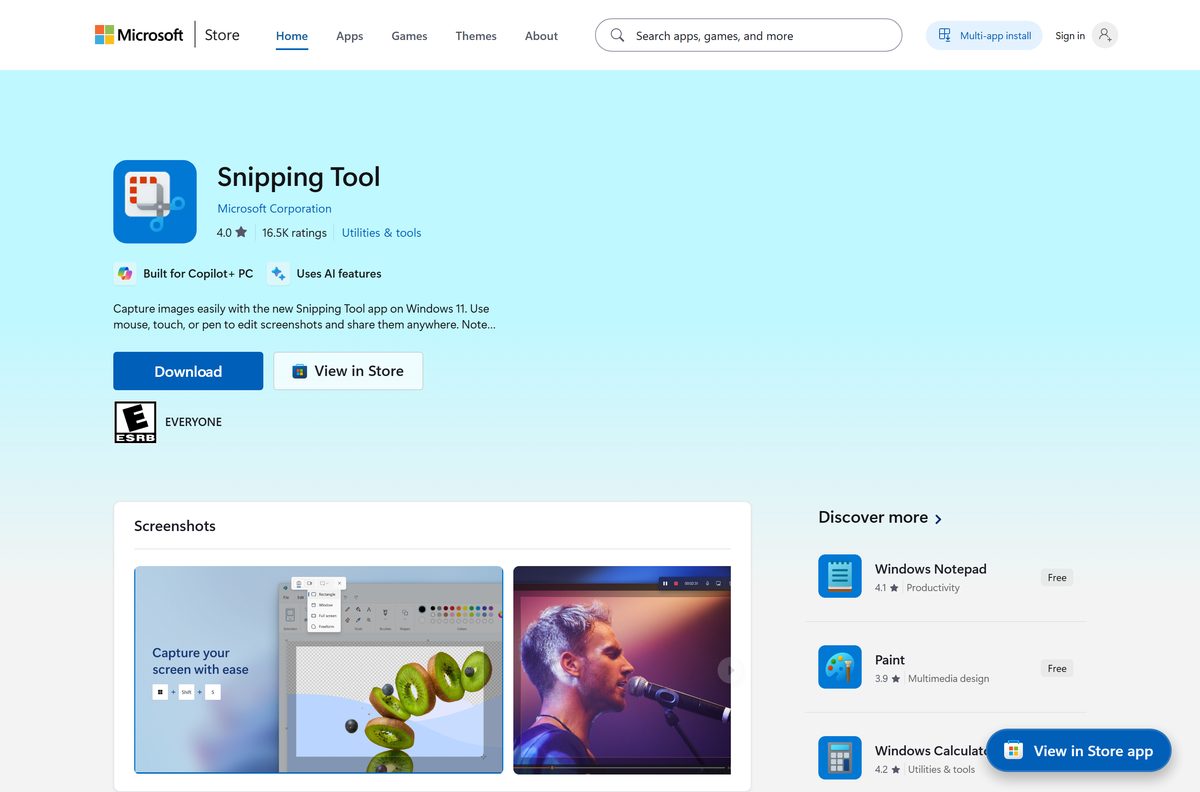
- Microsoft Store listing, product 9MZ95KL8MR0L — publisher Microsoft Corporation
- Signed setup files on download.microsoft.com — x64, x86 and ARM64, for reinstalling after an uninstall
- Microsoft’s own how-to page — it offers no download, because the app ships with Windows
There is no offline installer. The signed setup is 254 KB and contains no application package. Its own text reads Resolving the package, then Installing the package, and it falls back to Please install Snipping Tool in Microsoft Store. It needs an internet connection.
Search results for this term are not all the same file. One large portal lists a same-named app from a different publisher, another serves a copy of Microsoft’s package that is years behind the Store version. Microsoft’s guidance is to download apps from official publisher websites or stores.
Check the Snipping Tool system requirements
Snipping Tool has no requirements of its own beyond the operating system it ships with.
| Field | Value |
|---|---|
| Developer | Microsoft Corporation |
| Latest version | 11.2605.38.0 |
| Package identity | Microsoft.ScreenSketch |
| Store product ID | 9MZ95KL8MR0L |
| Price | Free, included with Windows |
| Supported OS | Windows 11, and Windows 10 22H2 |
| Architecture | x64, x86, ARM64 |
| Setup file size | 254 KB x64, 198 KB x86, 244 KB ARM64 |
| Offline installer | No, the setup needs an internet connection |
| Mac version | None |
| Windows 11 minimum hardware | 1 GHz dual-core 64-bit CPU, 4 GB RAM, 64 GB storage, TPM 2.0, UEFI Secure Boot |
| Last verified | 2026-09-10 |
Windows 10 reached end of support on 14 October 2025. Snipping Tool still runs there, but the operating system under it stops receiving security updates unless the device is enrolled in consumer Extended Security Updates.
How to install Snipping Tool on Windows 11 and 10
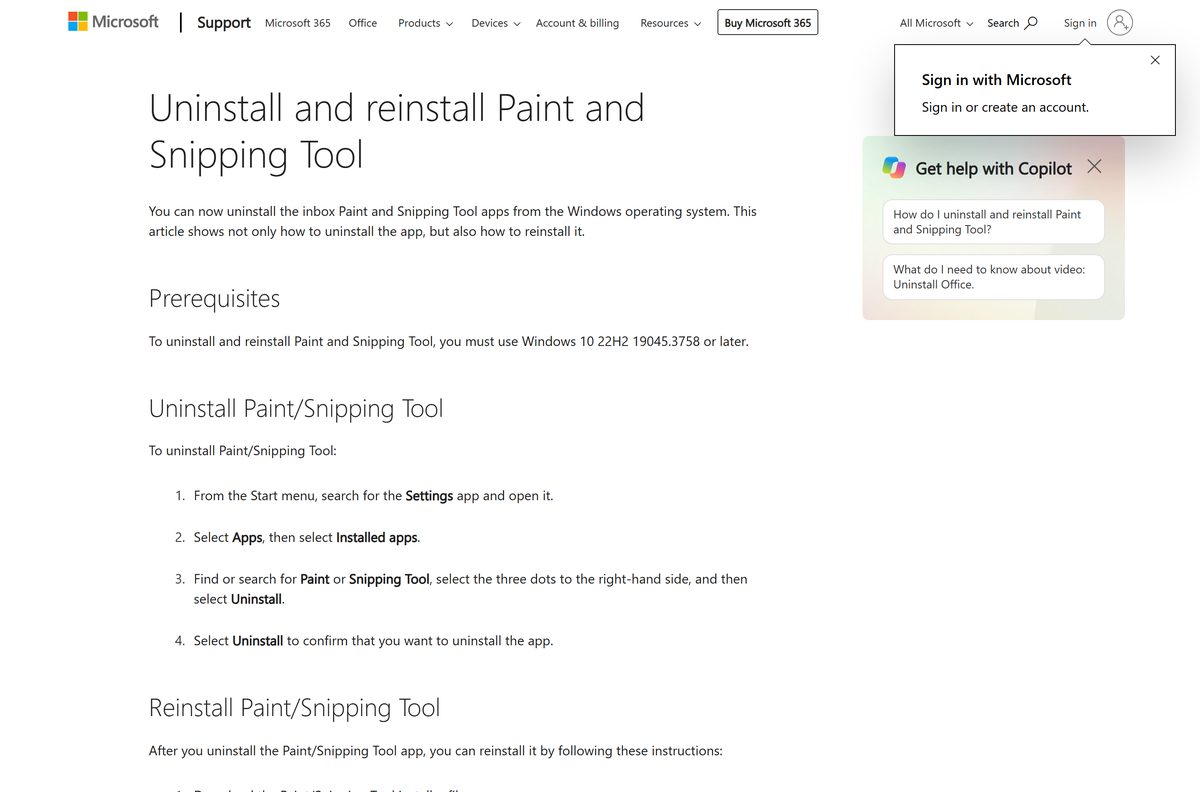
Use this only if Snipping Tool is missing. Microsoft requires Windows 10 22H2 build 19045.3758 or later.
- Press Windows + I, open System > About and read the System type line.
- Download the setup file that matches it from the table above.
- Double-click the downloaded file.
- Select Yes at the User Account Control prompt.
- Wait while the installer shows Resolving the package and then Installing the package.
- Close the installer when it reports that Snipping Tool was installed.
- Press Windows + Shift + S to confirm the capture overlay appears.
If the installer says Snipping Tool is already installed, it is. Nothing is broken and there is no second copy to add.
Install Snipping Tool from the Microsoft Store or with winget
The Store route works on any PC where the Store itself is healthy, and it is the route the signed setup falls back to anyway.
- Open Microsoft Store from the Start menu.
- Search for Snipping Tool, or open the listing for product 9MZ95KL8MR0L directly.
- Check the publisher line reads Microsoft Corporation.
- Select Get, or Install if you have had the app before.
- For a command line instead, open a terminal and run winget install 9MZ95KL8MR0L –source msstore .
The winget identifier is the Store product ID. Microsoft publishes no friendlier name, so the numeric ID is the one to type.
How to verify the Snipping Tool installer is genuine
The setup file is signed. Checking the signature takes about ten seconds and tells you whether the file came from Microsoft.
- Right-click the downloaded setup file and select Properties.
- Open the Digital Signatures tab.
- Select the signature in the list and click Details.
- Confirm the signer name reads Microsoft Corporation.
- Click View Certificate and confirm the issuer is a Microsoft code signing authority.
A copy fetched on 10 September 2026 returned a valid signature for CN=Microsoft Corporation, Redmond, Washington, described as Snipping Tool Installer. No Digital Signatures tab means it did not come from Microsoft.
Is Snipping Tool free?
Yes, and it always has been. Snipping Tool is part of Windows. The Microsoft Store lists it at no cost with no in-app purchases, and there is no paid tier, subscription or licence key. Any page selling a Snipping Tool licence is selling something Microsoft gives away, or a different product with a similar name.
Which Snipping Tool download do you need for your Mac?
None. Microsoft does not make Snipping Tool for macOS, and its own documentation applies to Windows 11 and Windows 10 only. macOS has an equivalent built in.
| What you want to capture | Press | Where it goes |
|---|---|---|
| The whole screen | Shift + Command + 3 | Desktop, as a PNG |
| A selected area | Shift + Command + 4 | Desktop, as a PNG |
| One window | Shift + Command + 4, then Space | Desktop, as a PNG |
| The full toolbar, including recording | Shift + Command + 5 | Your chosen folder |
Hold Control with any of those shortcuts to copy to the clipboard instead of saving a file. Techdows covers the Mac side in more depth in how to take a screenshot on a Mac and how to print screen on a Mac.
How to check your Snipping Tool version and update it
Snipping Tool updates through the Microsoft Store, not through Windows Update.
- Open Snipping Tool.
- Select the See more button, then Settings.
- Scroll to About this app and read the version number.
- To update, open Microsoft Store and select Library.
- Select Get updates and let any Snipping Tool update install.
A Windows 11 machine checked on 10 September 2026 was running 11.2605.38.0. If yours is older and the Store will not update it, the repair steps below are the next thing to try.
What Snipping Tool can capture
| Capture | How | Windows 11 | Windows 10 |
|---|---|---|---|
| Rectangle | Drag around the object | Yes | Yes |
| Freeform | Draw any shape around the object | Yes | Yes |
| Window | Click the window or dialog box | Yes | Yes |
| Full screen | One click | Yes | Yes |
| Video clip | Windows + Shift + R | Yes | No |
| Text from an image | Text actions, runs on your device | Yes | No |
| Redact emails and phone numbers | Quick redact in Text actions | Yes | No |
| Delayed capture | Alt + D, 1 to 5 seconds | Yes | Yes |
Inside the app, Alt + M picks the capture mode, Alt + N repeats the last one, Ctrl + C copies and Ctrl + S saves.
Snipping Tool can also save every capture automatically, a change Techdows covered when auto save arrived in the Windows 11 Snipping Tool.
How to make the Print Screen key open Snipping Tool
The Print Screen key does not open Snipping Tool until you turn the setting on. It lives under Accessibility, not under Keyboard.
- Press Windows + I to open Settings.
- Select Accessibility.
- Select Keyboard.
- Turn on Use the Print screen key to open screen capture.
- Press Print Screen to confirm the capture overlay appears.
On Windows 10 the same setting is under Settings > Ease of Access > Keyboard, as Print Screen shortcut. Windows + Shift + S works either way and needs nothing switched on.
Fix Snipping Tool not working, not opening or not installing
Snipping Tool will not open
The app package is damaged. Windows can rebuild it without removing your settings.
- Select Start > Settings > Apps > Installed apps.
- Select the three dots beside Snipping Tool, then Advanced options.
- Select Repair.
- If Repair is greyed out or does not help, select Reset.
- Reopen the app.
Snipping Tool is missing from the Start menu
It was uninstalled, which Windows has allowed since Windows 10 22H2 build 19045.3758.
- Open Microsoft Store and select Library.
- Find Snipping Tool and select Install.
- If it is not listed, download the signed setup for your architecture from the table above.
- Run it and let it finish.
The install fails or the Store will not fetch it
The Store cache or a pending restart is blocking it.
- Restart the PC if Windows updates installed recently but you have not rebooted.
- Select Start > Settings > Windows Update > Check for updates.
- Press Windows + R, type wsreset.exe and select OK. A blank window opens, closes after about ten seconds, and the Store reopens.
- Confirm the date, time and region on the PC are correct.
- Try the install again.
Print Screen does nothing
The Accessibility toggle is off.
- Open Settings > Accessibility > Keyboard.
- Turn on Use the Print screen key to open screen capture.
- Use Windows + Shift + S in the meantime.
Snipping Tool freezes or hangs
No Microsoft known issue covers this. The release health dashboard listed nothing affecting Snipping Tool on 10 September 2026, so treat it as a damaged install.
- Install any pending Windows updates.
- Open Microsoft Store > Library > Get updates and update the app.
- Run Repair, then Reset, from the steps above.
- Uninstall and reinstall with the signed setup if it still hangs.
How to uninstall Snipping Tool
Windows allows this on Windows 10 22H2 build 19045.3758 and later. Reinstalling means downloading the setup again, so keep the link.
- Open Settings from the Start menu.
- Select Apps, then Installed apps.
- Search for Snipping Tool and select the three dots beside it.
- Select Uninstall, then Uninstall again to confirm.
- To remove it from a command line instead, run Get-AppxPackage -Name Microsoft.ScreenSketch | Remove-AppxPackage in PowerShell.
Microsoft documents the Settings route only. The PowerShell line is built from Microsoft’s own documented syntax for Get-AppxPackage and Remove-AppxPackage , and removes the app for the current user.
What you can use instead of Snipping Tool
Before installing anything else, check whether a tool you already own does the job.
| Tool | Where it comes from | Best for |
|---|---|---|
| Print Screen key | Windows, built in | The whole screen straight to the clipboard |
| Alt + Print Screen | Windows, built in | Just the active window, to the clipboard |
| Xbox Game Bar | Windows 11 and 10, built in | Recording games and full-screen apps |
| Clipchamp | Windows 11, built in | Editing a clip after Snipping Tool records it |
| Screenshot app | macOS, built in | Everything Snipping Tool does, on a Mac |
| Preview Markup | macOS, built in | Annotating a screenshot after you take it |
Microsoft names Snipping Tool, Xbox Game Bar and Clipchamp as the replacements for Steps Recorder, which it has retired.
Other system utilities and drivers for Windows include IPVanish and FortiClient.
Frequently asked questions
Is Snipping Tool free to download?
Yes. It is part of Windows 11 and Windows 10 at no cost, with no paid tier and no licence to buy.
Do I need to download Snipping Tool at all?
Only if you uninstalled it. On Windows 11 and Windows 10 22H2 it is already installed, and Windows + Shift + S opens it.
Is there a Snipping Tool offline installer?
No. Microsoft’s signed setup is a 254 KB bootstrapper that resolves and installs the package over the internet, and falls back to the Microsoft Store. It contains no application package.
Can I install Snipping Tool without the Microsoft Store?
You can run the signed setup instead of browsing the Store, but it still needs an internet connection and a working Store service to fetch the package.
What is the official Snipping Tool download page?
The Microsoft Store listing for product 9MZ95KL8MR0L, published by Microsoft Corporation. The signed setups are linked from Microsoft’s reinstall support page.
Is there a Snipping Tool download for Windows 7 or Windows 8?
No. Microsoft has never distributed it separately for those versions, and both are out of support. On Windows 7 it shipped as part of the operating system.
Is there a Snipping Tool for Mac?
No. Microsoft does not publish Snipping Tool for macOS. Use the built-in Screenshot app with Shift + Command + 5.
What happened to Snip & Sketch?
It became Snipping Tool. They are the same Microsoft Store product, 9MZ95KL8MR0L, and the old Snip & Sketch Store link redirects to the Snipping Tool listing.
Which Snipping Tool version is current?
A Windows 11 PC checked on 10 September 2026 was running 11.2605.38.0. Check yours under See more, then Settings, then About this app.
Can Snipping Tool record video?
Yes, on Windows 11. Press Windows + Shift + R, or open the app and switch to the record mode. Windows 10 does not have it.
Can Snipping Tool copy text out of a screenshot?
Yes, on Windows 11. Select Text actions to run optical character recognition on your device, then copy the text or redact emails and phone numbers.
Is Snipping Tool safe to download from other sites?
Those results are not all the same file. One portal lists a same-named app from a different publisher, another serves a years-old copy of Microsoft’s package. Use official sources.





Download Snipping Tool for Mac (Free Built-in Alternative) - Techdows
[…] Only one row involves an installer, and it runs on Windows. The Windows side is covered in the Snipping Tool download guide for PC. […]
Fix Snipping Tool Not Downloading or Installing (Windows 11/10) - Techdows
[…] Any other site offering a Snipping Tool .exe is offering something Microsoft did not publish. The full download picture is in Snipping Tool download for PC, Windows 11/10 and Mac. […]
How to Screenshot on Windows 11: A Step-by-Step Guide - Techdows
[…] If Snipping Tool is missing from Start, see the Snipping Tool download guide. […]
Is Snipping Tool Free? Pricing, Limits and Paid Look-Alikes - Techdows
[…] Every route to the file, including the reinstall setups, sits in the full Snipping Tool download guide. […]