You can install Google Maps as a desktop app on Windows 11, Windows 10 and Mac in about a minute, straight from Chrome or Microsoft Edge. It opens in its own window, sits in the Start menu or the Applications folder, and can start with the computer.
Google Play and the App Store carry the official Maps apps for Android, iPhone and iPad, and those apps download whole map areas for use without a signal.
This guide covers the route for each device, the official Google links, installing on Windows and Mac, saving offline areas, removing the app, and fixes for Maps not loading.
Which Google Maps download do you need?
Match your device to a row. No installer file lands on a computer’s disk.
| Your device | What to install | Size |
|---|---|---|
| Windows 11 or Windows 10 PC | Maps web app, installed from Chrome or Edge | No separate download |
| Mac | Maps web app, installed from Chrome or Edge | No separate download |
| Chromebook or Linux PC | Maps web app, installed from Chrome | No separate download |
| Android phone, tablet or Wear OS watch | Google Maps on Google Play | Play states no size |
| iPhone or iPad | Google Maps on the App Store | 476.4 MB |
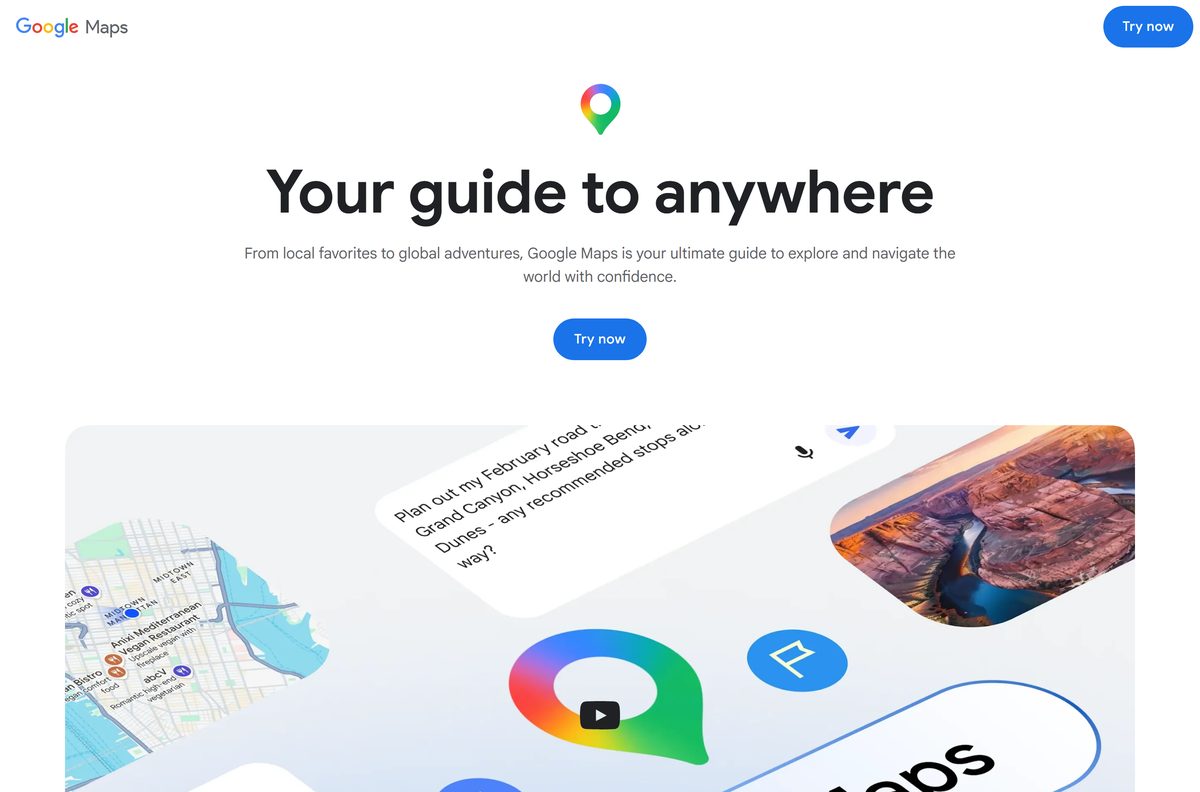
Download Google Maps from Google’s official pages
Google publishes Maps at these addresses, and each one is free.
- Google Maps on the web — open it, then install it as an app from Chrome or Edge
- Google Maps product page — features, and a Download Google Maps section for phones
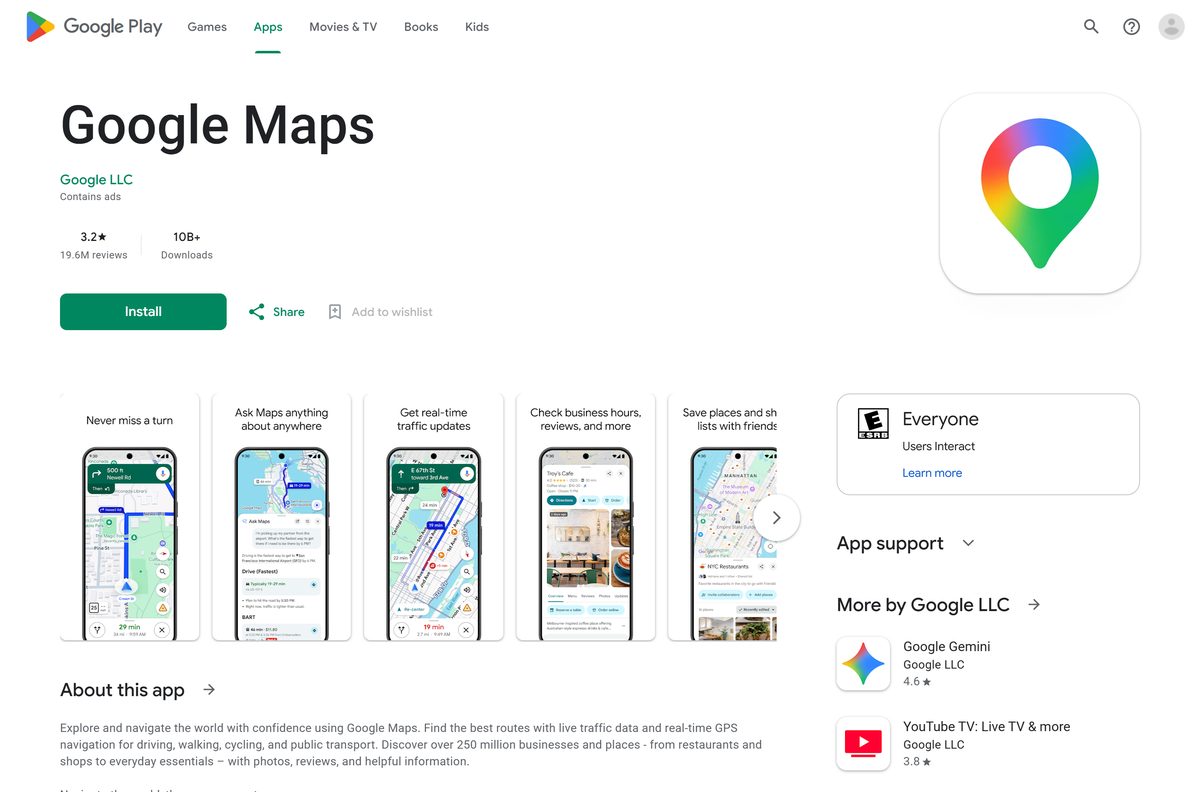
- Google Maps on Google Play — Google LLC, 10B+ downloads, updated 17 September 2026
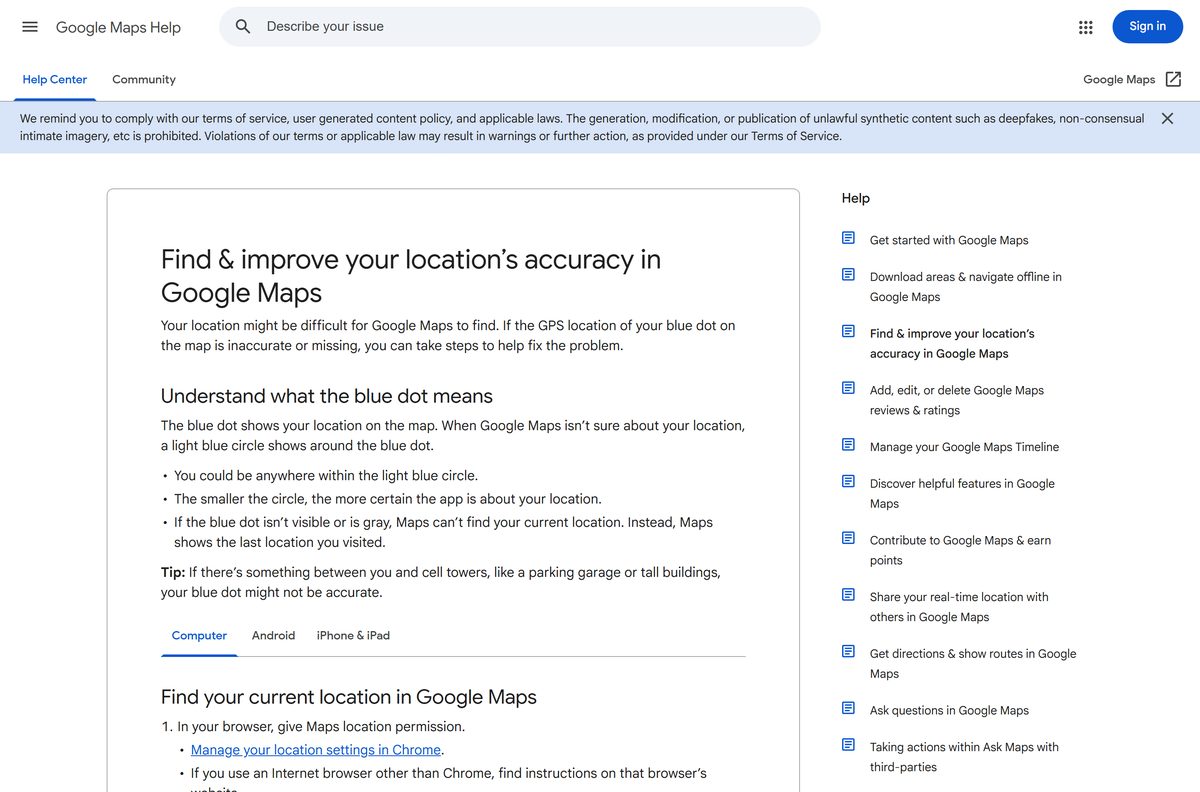
- Google Maps on the App Store — 476.4 MB · iPhone and iPad, iOS 16.0 or later
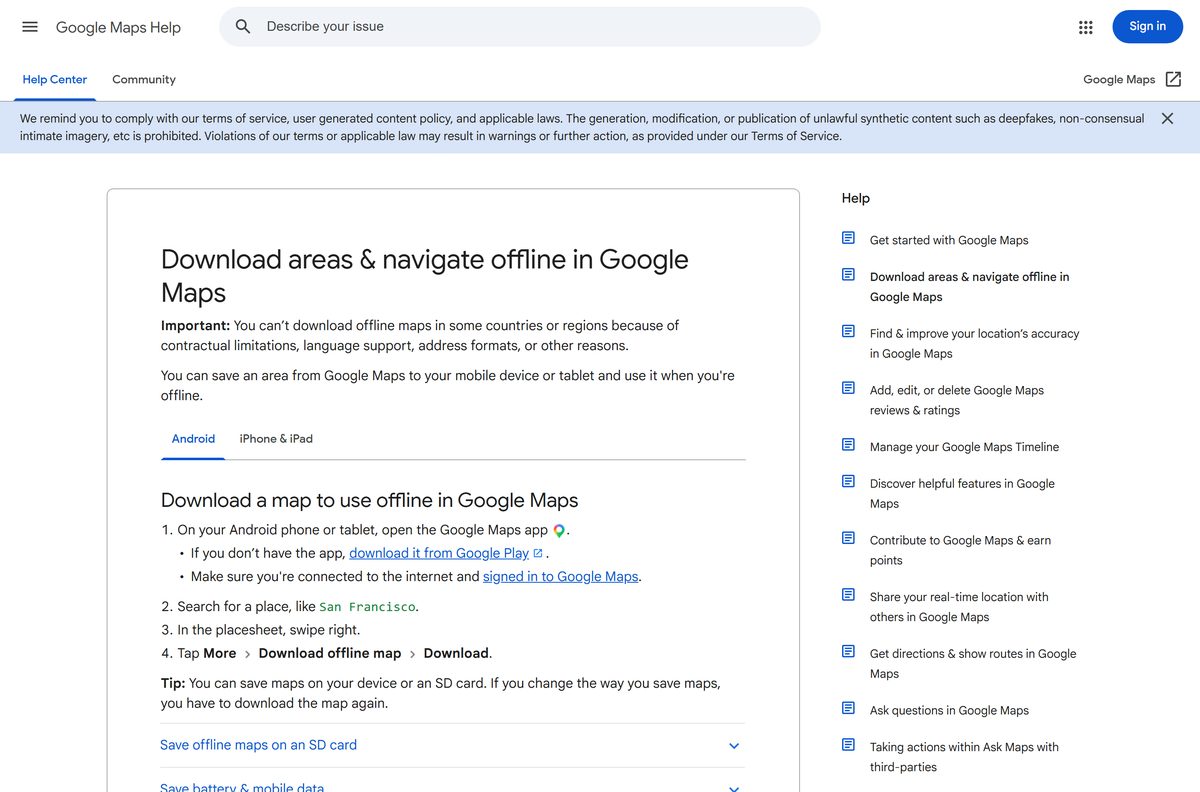
- Download areas and navigate offline — Google’s own instructions for saving a map area
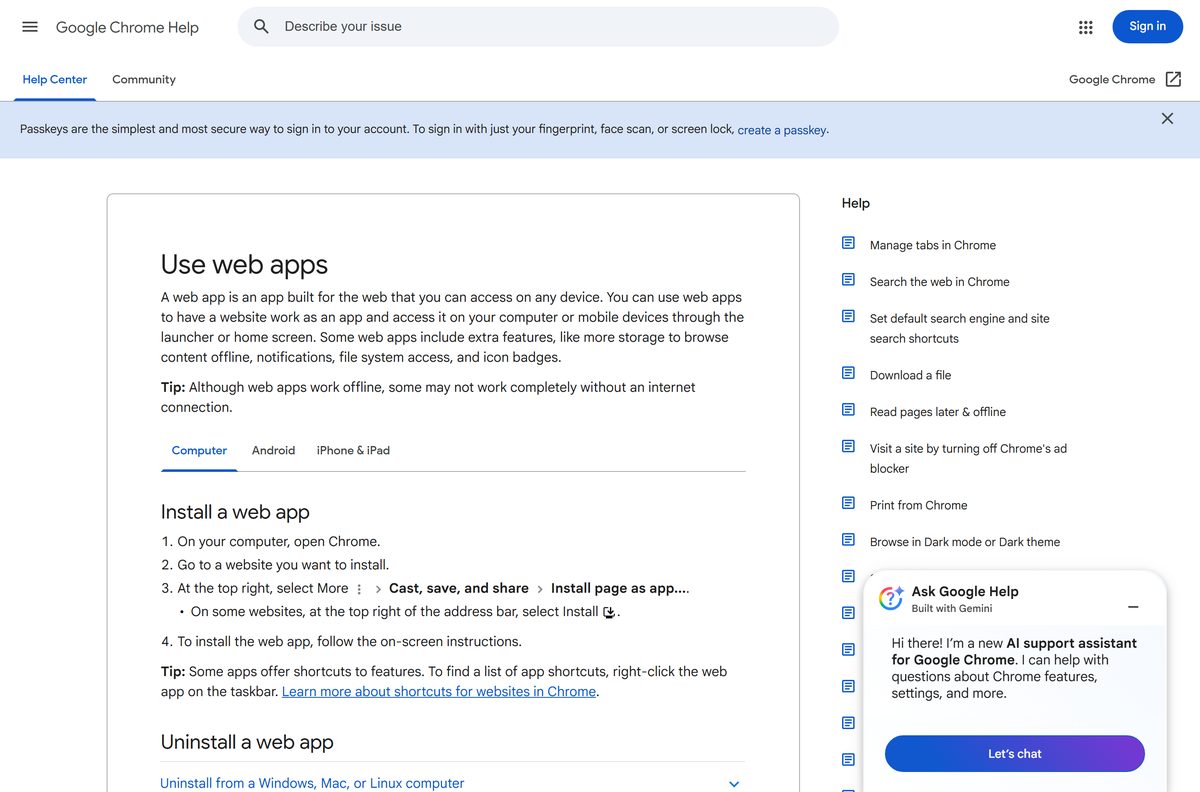
How to install Google Maps on Windows 11 and 10
Chrome turns the site into a web app that runs in its own window, with no browser tabs or address bar around it.
- Open Chrome and go to google.com/maps.
- Sign in with your Google Account so saved places and lists follow you.
- At the top right, select More, the three-dot button.
- Select Cast, save, and share, then Install page as app.
- If an Install icon shows at the right of the address bar, select that instead.
- Follow the on-screen instructions to finish the install.
- Open Start and select Google Maps to launch it in its own window.
- Right-click its taskbar icon and select Pin to taskbar to keep it there.
Install Google Maps from Edge, Google Play or the App Store
Microsoft Edge installs the same site as an app and lists it at edge://apps. Phones and tablets get the native app from their own store.
- In Edge, open google.com/maps.
- Select Settings and more, then More tools, then Apps, then Install this site as an app.
- Open edge://apps, select Details on the card, then Pin to taskbar.
- On Android, open Google Maps on Google Play and tap Install.
- On iPhone or iPad, open Google Maps on the App Store and tap Get.
- Sign in with the same Google Account on every device.
Which Google Maps download do you need for your Mac?
There is no .dmg to open. The Mac route is the same browser install, and the result lands in the Applications folder.
| What you want | Do this | Where it opens |
|---|---|---|
| A Maps window in the Dock | Install the web app from Chrome | Applications folder and the Dock |
| Maps without installing anything | Open google.com/maps in Safari | A normal browser tab |
| Maps on an iPhone or iPad nearby | Google Maps on the App Store | Home Screen, 476.4 MB |
How to download map areas for offline use
Saving an area is the one genuine file download in Google Maps, and it happens on a phone or tablet rather than a computer.
Some countries and regions are excluded because of contractual limitations, language support, address formats and other reasons.
- Open the Maps app on Android, iPhone or iPad, and check the device is online.
- On iPhone and iPad, leave Incognito mode first.
- Search for a place, such as San Francisco.
- On Android, swipe right in the placesheet. On iPhone, tap the name or address at the bottom.
- Tap More, then Download offline map, then Download.
- For a custom area, tap your profile picture, then Offline maps, then Select your own map.
- Drag and zoom the box over the area you want, then tap Download.
- Check what you saved under Offline maps in the same menu.
Offline, driving directions still work when the whole route sits inside a saved area. Transit, cycling and walking directions do not, and driving loses traffic and alternate routes.
Android can store areas on an SD card set up for portable storage. Switching the storage location means downloading the area again.
Is Google Maps free?
Yes. Google Maps costs nothing on the web, as an installed web app, on Google Play or on the App Store. The App Store lists the app as Free, and Google Play offers it at no charge with the listing marked Contains ads. No sign-in is needed to search or get directions. Google Maps Platform, the paid developer product for building maps into your own software, is a different thing from the app. A site charging for a Maps installer is selling a file Google does not make.
How to check your Google Maps version and update it
The computer app has no version number of its own. It loads the current site each time it opens.
- On a PC or Mac, close the app window and open it again to pick up the newest site.
- Keep Chrome or Edge updated, since the app runs on the browser engine.
- On Android, open Google Play, tap your profile picture, then Manage apps & device.
- Select Update available, find Google Maps and tap Update.
- On iPhone or iPad, open the App Store, tap your profile picture and scroll to the update list.
- For saved areas, open Offline maps and tap Update on any area marked as expiring.
Saved areas expiring in 15 days or less update on their own when the device is on Wi-Fi.
Check the Google Maps system requirements
Maps sets no hardware floor of its own on a computer. The browser sets it.
| Field | Value |
|---|---|
| Developer | Google LLC |
| Latest version | Web-based on a computer; 26.37.3 on iPhone and iPad |
| Price | Free, ad-supported on Android |
| Supported OS | Windows 11, Windows 10, macOS, Linux and ChromeOS through a browser; Android; iOS and iPadOS 16.0 or later |
| Desktop app | Google Chrome or Microsoft Edge, installed as a web app |
| Architecture | None of its own on a computer, so x64 and ARM64 run the same app |
| Offline installer | None |
| Offline maps | Android, iPhone and iPad only |
| iPhone and iPad app size | 476.4 MB |
| Android form factors | Phone, Watch, Car, Chromebook, Tablet |
| Official source | google.com/maps |
| Last verified | 2026-09-22 |
How to make Google Maps open when your computer starts
- In Chrome, open chrome://apps in a new tab.
- Right-click Google Maps and select Launch at startup.
- To add a desktop or Start menu shortcut, right-click it again and select Create shortcut.
- Choose where the shortcut goes, then select Create.
- In Edge, open edge://apps and select Details on the Maps card.
- Turn on Auto-start on device login.
- To undo either setting, return to the same menu and switch it back off.
How to check a Google Maps download really came from Google
No Google Maps setup file exists for Windows or macOS, so any .exe, .msi or .dmg offering one was made by somebody else.
- Start at google.com/maps and let the browser do the installing.
- Check the address bar reads google.com before selecting Install.
- On Google Play, check the developer line reads Google LLC under the app name.
- On the App Store, check the seller reads Google LLC in the Information section.
- Treat any site offering a Maps installer for Windows or macOS as somebody else’s file.
Fix Google Maps not installing, not loading or not finding you
No install option appears in the browser
The app is installed already, the browser is out of date, or the browser does not support web apps.
- Open chrome://apps or edge://apps and look for Google Maps.
- If it is listed, open it from Start or Applications instead.
- Update Chrome or Edge, then reload google.com/maps.
- Safari and Firefox offer no install option, so use a tab or a bookmark there.
- On a work PC, ask the administrator whether installing apps is allowed.
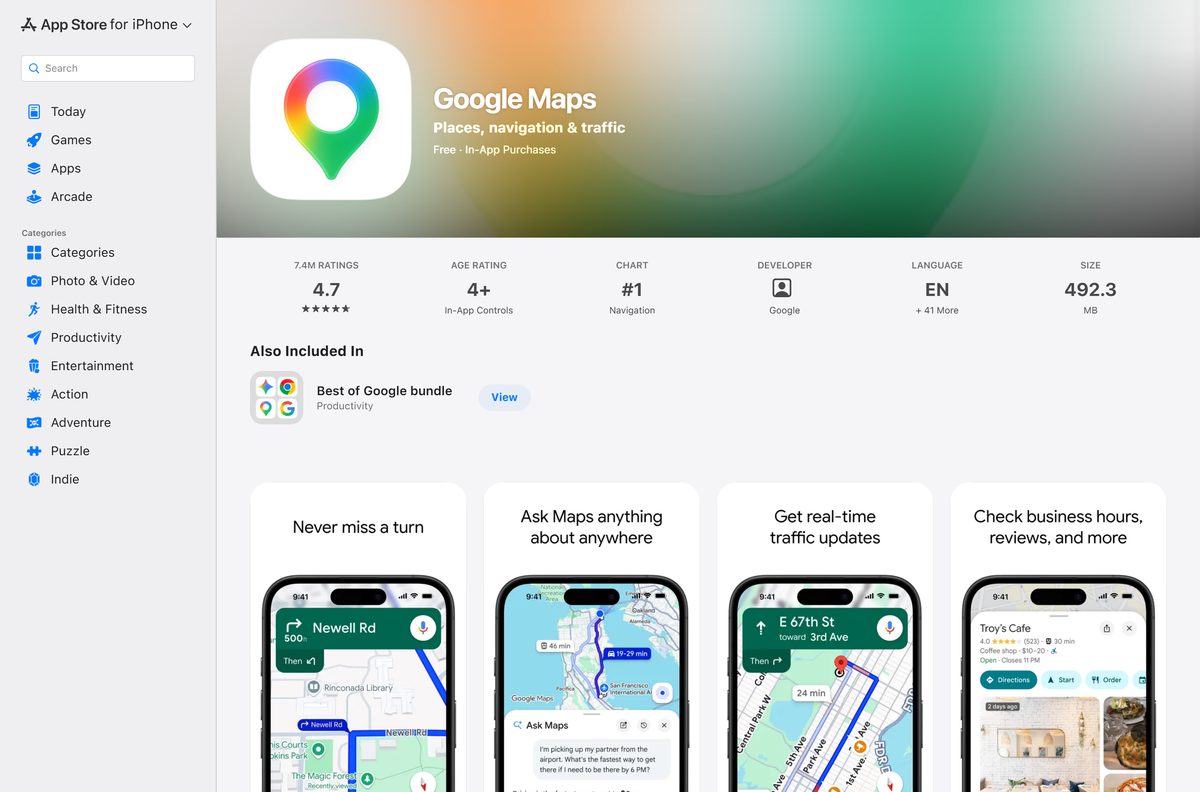
Your location cannot be determined on a computer
The browser has not been given location permission, or the connection dropped.
- Give Maps location permission in your browser settings.
- Open Google Maps and select My location at the bottom right.
- Reload the browser and check the internet connection is strong.
- Double-check the site permission settings for google.com.
- Restart the computer, then try again.
An area will not download for offline use
The region is excluded, the device is offline, or storage is full.
- Check the device is online and signed in to a Google Account.
- On iPhone or iPad, leave Incognito mode.
- Pick a smaller area, since very large selections are rejected.
- Free up storage, or switch the storage setting to an SD card on Android.
- Accept that some countries and regions cannot be saved at all.
How to uninstall Google Maps from a PC, Mac or phone
Removing the web app leaves the site itself untouched, so google.com/maps still opens in a tab.
- In Chrome, open the Maps app window and select More at the top right.
- Select Uninstall, then Remove. Tick Also delete data from Chrome to clear its stored data.
- In Edge, open edge://apps and select Details on the Maps card.
- Select Uninstall, choose whether to delete app history and data, then confirm with Uninstall.
- On Android, press and hold the icon, then follow the prompt to uninstall or disable it.
- On iPhone or iPad, press and hold the icon, then tap Remove App, then Delete App.
- Delete saved areas first from Offline maps if you want that storage back.
Which way to open Google Maps instead of the installed app
| Option | Publisher | Install needed | Best for |
|---|---|---|---|
| Maps web app from Chrome | Yes, from the browser | Daily route planning in its own window | |
| Maps web app from Edge | Microsoft | Yes, from the browser | Windows PCs already on Edge |
| google.com/maps in a tab | No | Safari and Firefox, or a shared PC | |
| Google Maps for Android | Yes, from Google Play | Turn-by-turn navigation and offline areas | |
| Google Maps for iPhone and iPad | Yes, from the App Store | Navigation on Apple devices |
Frequently asked questions
Is Google Maps free?
Yes. Google Maps costs nothing on the web, as an installed app, on Google Play or on the App Store. The Android listing is marked Contains ads. Google Maps Platform, the developer product, is billed separately.
What is the official Google Maps download page?
On a computer the official address is google.com/maps, which installs as an app from Chrome or Edge. Phones and tablets get the Google LLC apps on Google Play and the App Store.
Can you install Google Maps on Windows 11?
Yes. Open google.com/maps in Chrome, select More, then Cast, save, and share, then Install page as app. Maps then opens from Start in its own window and pins to the taskbar.
What is the Google Maps download size?
On a PC or Mac nothing sizeable downloads, because the app installs from the browser. The iPhone and iPad app is 476.4 MB, and Google Play lists no size for the Android app.
Is there a Google Maps offline installer?
No. Google makes no .exe, .msi or .dmg for Maps. The computer app installs from Chrome or Edge, and offline map areas are saved inside the Android, iPhone and iPad apps.
Is there a Google Maps app for Mac?
Yes, as a web app. Install it from Chrome or Edge and it opens from the Applications folder and the Dock. Safari and Firefox have no install option, so use a tab there.
Is Google Maps 64-bit or ARM64?
The computer app has no build of its own, so the browser’s architecture applies. An x64 PC and an ARM64 PC install exactly the same app from the same address.
Can you download Google Maps for offline use on a PC?
No. Google’s instructions cover Android, iPhone and iPad only. Save the area on a phone or tablet, then use it while driving without a signal.
Is it safe to download Google Maps from other sites?
Those files are not Google’s, because no Windows or macOS setup file exists. Install from google.com/maps in the browser, Google Play or the App Store, and check the publisher reads Google LLC.
What is the latest version of Google Maps?
Maps on a computer carries no version number and updates on Google’s servers. The App Store listed version 26.37.3 on 16 September 2026, and Google Play updated its listing on 17 September 2026.
Why won’t Google Maps install on my PC?
Usually the app is installed already, or the browser is out of date. Check chrome://apps or edge://apps for Google Maps, update the browser, and on a work PC ask the administrator whether installing apps is allowed.

How To Change Language In Google Maps – Full Guide - Techdows
[…] On the web, Google Maps has its own language menu, so you do not have to change your browser or your whole Google Account. This works in Chrome, Edge, Safari or Firefox. If you use Maps as a desktop shortcut, see how to get Google Maps on a PC or Mac. […]