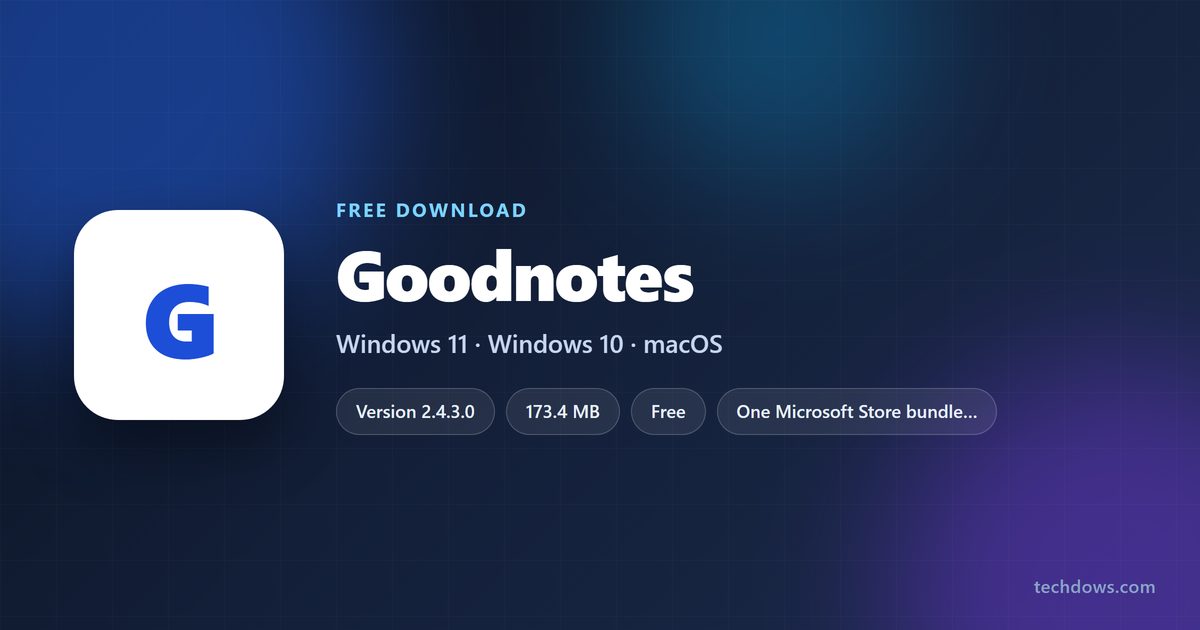
The Goodnotes download for Windows 11 and Windows 10 is a free Microsoft Store app, and the Mac version installs free from the Mac App Store. Both let you handwrite notes, mark up PDFs and sketch on a whiteboard.
The same account also opens Goodnotes on iPad, iPhone, Android and in any browser at web.goodnotes.com.
Below: which download fits your device, the official links, install steps for Windows and Mac, the winget command, what the free plan covers, and fixes when the install stalls.
Which Goodnotes download do you need?
Match your device to a row. Every link goes to goodnotes.com or to an official app store.
| Your device | What to open | Size and note |
|---|---|---|
| Windows 11 or Windows 10 PC or tablet | Goodnotes on the Microsoft Store | 173.4 MB, one bundle for x86, x64 and ARM64 |
| Windows PC you set up from a script | Same listing, installed by winget | Product ID 9N92MC09DB30, msstore source |
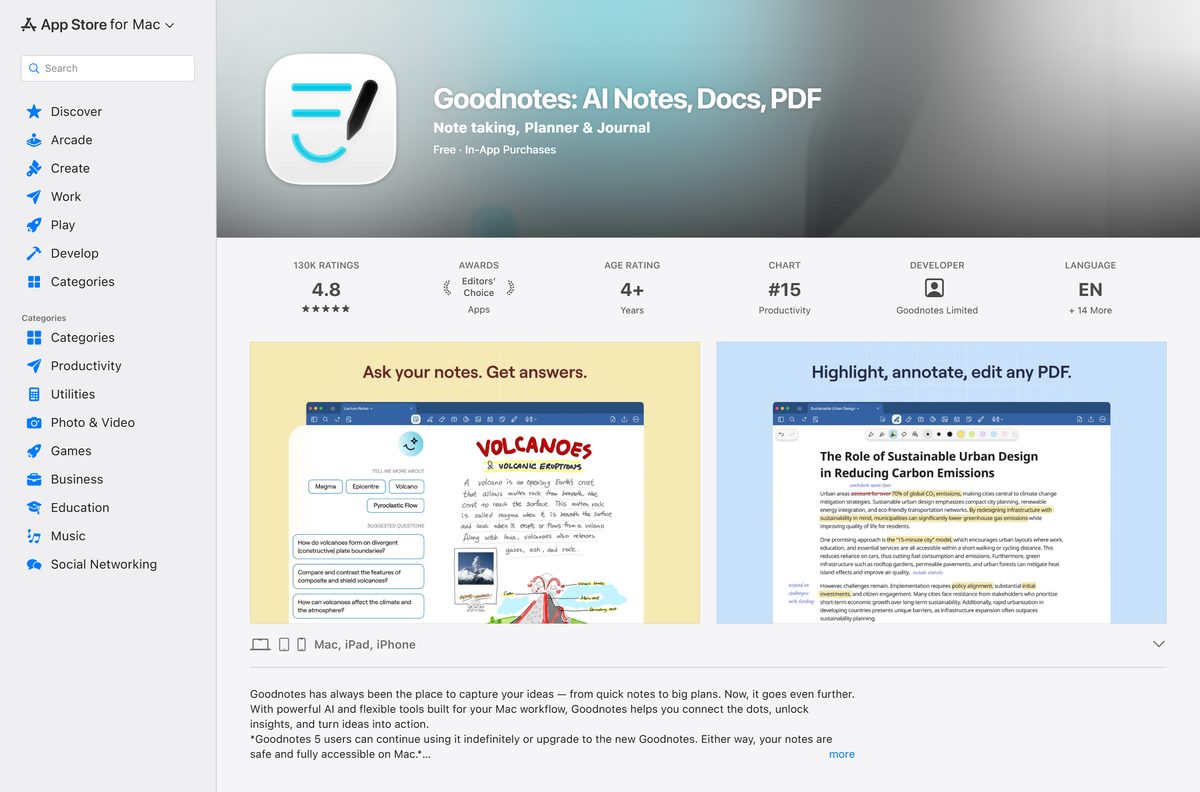
| Mac with macOS 15.6 or later | Goodnotes on the Mac App Store | 931.4 MB, syncs with iPad through iCloud |
| iPad or iPhone | Goodnotes on the App Store | 832.5 MB, needs iPadOS or iOS 18.6 |
| Android phone, tablet or Chromebook | Goodnotes on Google Play | Package com.goodnotes.android.app |
| Any computer, nothing installed | Goodnotes for Web | Runs in the browser after you sign in |
Press Windows + R, type winver and select OK to read your Windows build. The Store app needs build 17763 or later.
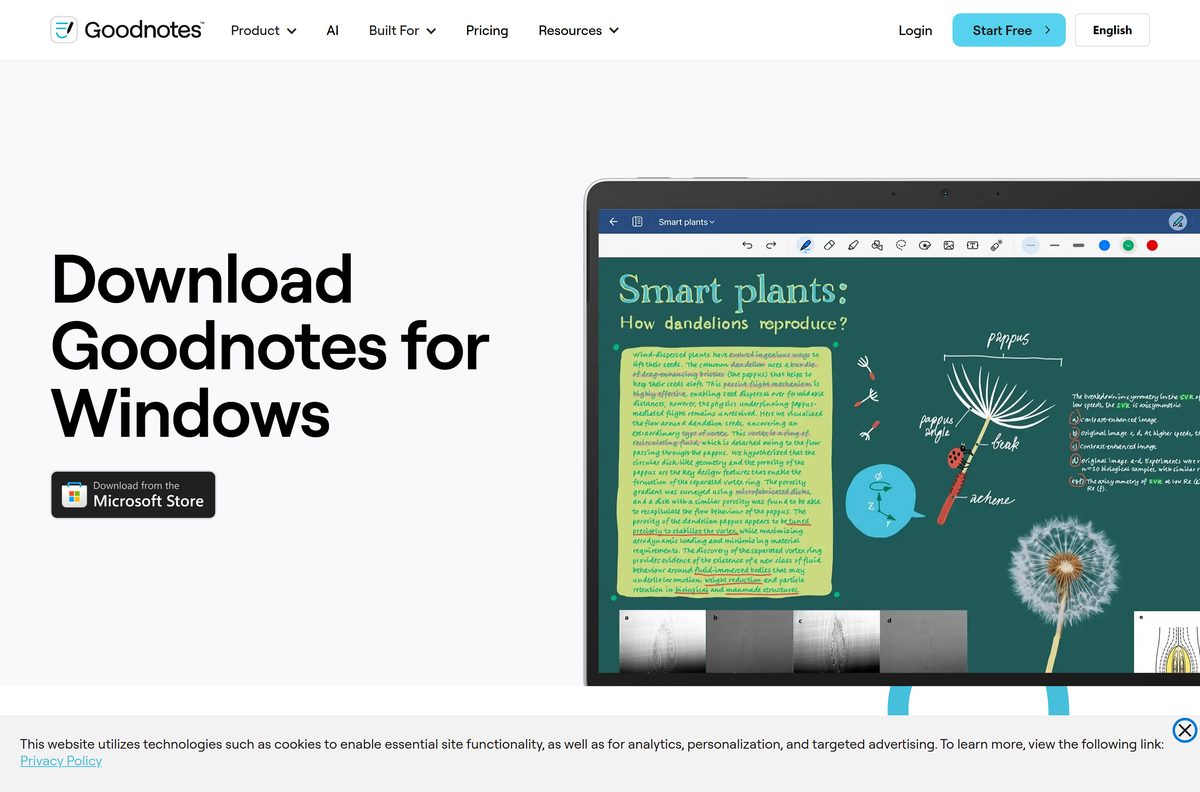
Download Goodnotes from the official stores for Windows, Mac and mobile
Goodnotes publishes no setup file on its own site. Its download buttons hand you to these store listings, all published by Goodnotes Limited.
- Goodnotes for Windows (Microsoft Store) — 173.4 MB · Windows 10 version 1809 or later and Windows 11
- Goodnotes for Mac (Mac App Store) — 931.4 MB · macOS 15.6 or later
- Goodnotes for iPad and iPhone (App Store) — 832.5 MB · iPadOS 18.6 and iOS 18.6 or later
- Goodnotes for Android and Chromebook (Google Play) — 5M+ downloads
- Goodnotes for Web — No install, sign in with your Goodnotes account
- Goodnotes for Windows product page — Vendor page with the Store badge and FAQ
The Windows app is version 2.4.3.0. The Apple app follows its own version line, so the numbers never match across platforms.
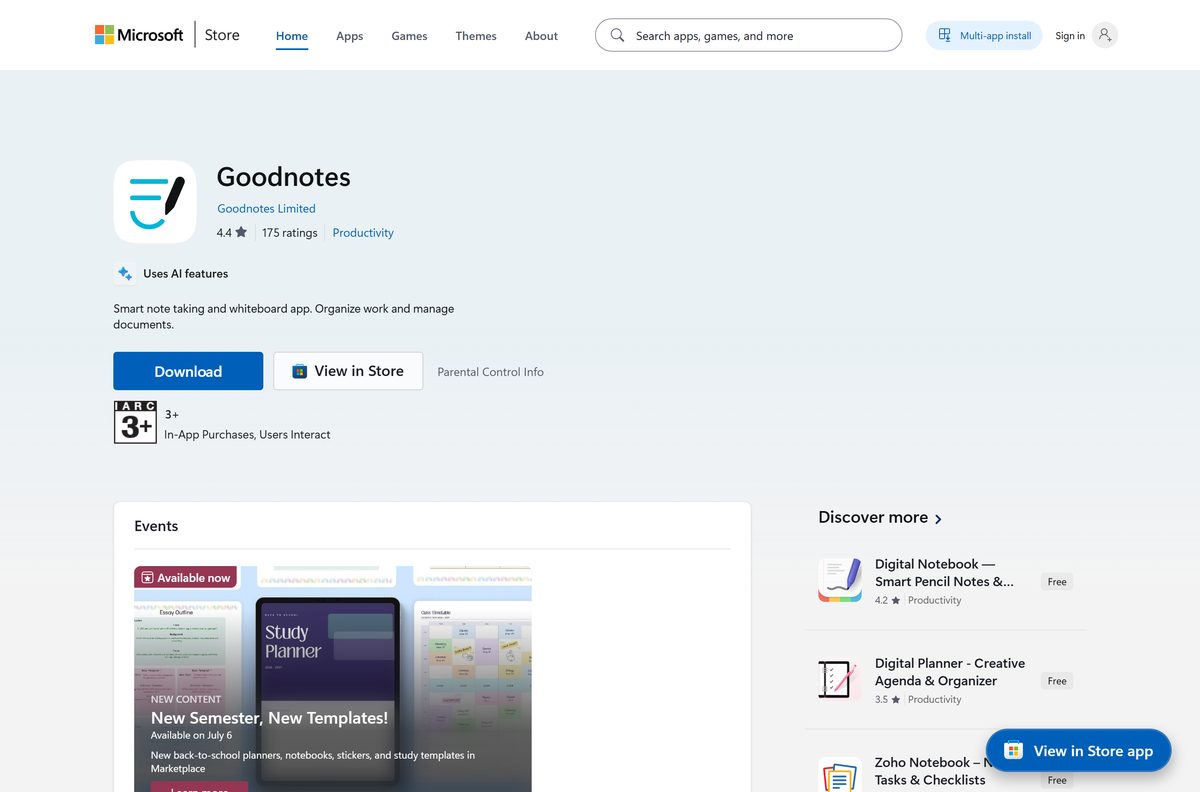
Check the Goodnotes system requirements before you install
The Windows build is light enough for most tablets and laptops. The Mac build sets a much newer floor, so check your macOS version first.
| Field | Value |
|---|---|
| Software | Goodnotes |
| Developer | Goodnotes Limited |
| Latest version | 2.4.3.0 on Windows; 7.1.24 on Mac, iPad and iPhone (21 September 2026) |
| Licence | Free plan with 3 notebooks; Essential $11.99 a year, Pro $35.99 a year |
| Windows | Windows 10 version 1809 (build 17763) or later, Windows 11 |
| Mac | macOS 15.6 or later |
| iPad and iPhone | iPadOS 18.6 and iOS 18.6 or later |
| Android | Phones, tablets and Chromebooks through Google Play |
| Architecture | x86, x64 and ARM64 packages in one Store bundle |
| Download size | 173.4 MB on Windows, 931.4 MB on Mac, 832.5 MB on iPad and iPhone |
| Installed size on Windows | About 150.3 MB |
| Offline installer | No, Microsoft Store only |
| Store rating | 3.8 out of 5 from 10,226 ratings on the Microsoft Store |
| Official download source | Microsoft Store, Mac App Store, App Store, Google Play |
| Last verified | 2026-09-25 |
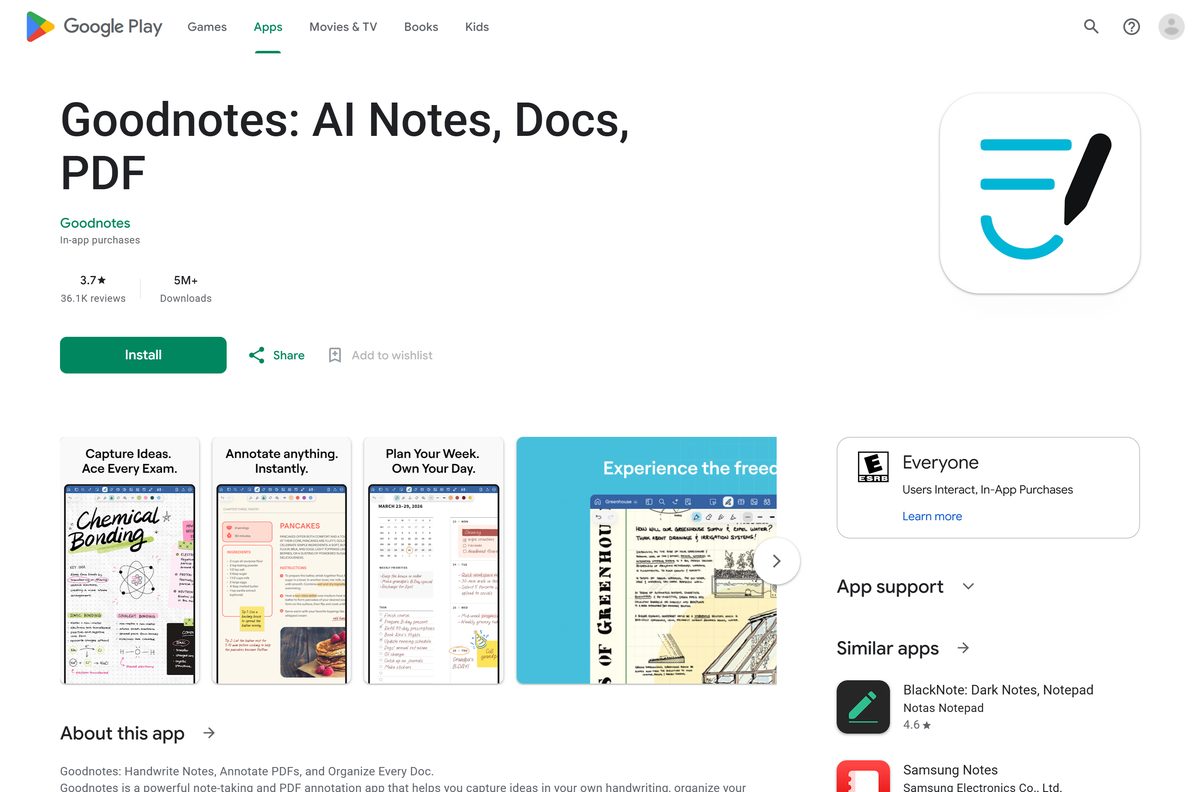
How to install Goodnotes on Windows 11 and 10
You need a Microsoft account signed in to the Store, and a Goodnotes account to open the app.
- Open the Goodnotes listing in your browser.
- Select Get in Store app and allow the browser to open Microsoft Store.
- Check that the publisher reads Goodnotes Limited.
- Select Get and wait for the download to finish.
- Select Open, or find Goodnotes in the Start menu.
- Select Sign up to create a free account, or Log in with an existing one.
- Create your first notebook and pick a paper template.
- Right-click Goodnotes in the Start menu and choose Pin to taskbar.
A pen works straight away on Surface and other pen-enabled PCs. On a normal laptop you write with the mouse or touchpad.
Install Goodnotes with winget instead of the Store window
winget pulls the same Microsoft Store package, which suits a fresh PC or a setup script.
- Right-click Start and select Terminal.
- Run winget show –id 9N92MC09DB30 –source msstore and check it reads Goodnotes from Goodnotes Limited.
- Run winget install –id 9N92MC09DB30 –source msstore .
- Type Y to accept the Microsoft Store source agreement if prompted.
- Wait for Successfully installed.
- Open Goodnotes from the Start menu and sign in.
The package installs per user, so run the command in each Windows account that needs Goodnotes.
Run Goodnotes in a browser without installing anything
Goodnotes for Web suits a shared or locked-down PC where the Store is blocked. Your Windows and Android notebooks appear there too.
- Open web.goodnotes.com in your browser.
- Select Log in and use your Goodnotes account, or Sign up for a free one.
- Select New and choose Notebook, Whiteboard or Text Document.
- Write with a mouse, touch or pen, or type.
- Select Share to send a view or edit link to someone else.
- Sign out when you finish on a shared computer.
The web version has the same free limit of three notebooks as the Windows app.
Which Goodnotes download do you need for your Mac?
There is one Mac download, from the Mac App Store. Your macOS version decides whether it installs.
| Your Mac runs | What to do | Link |
|---|---|---|
| macOS 15.6 or later | Install Goodnotes from the Mac App Store | Goodnotes on the Mac App Store |
| macOS older than 15.6 | Update macOS in System Settings, General, Software Update, or use the web app | Goodnotes for Web |
| Any Mac, notes already on an iPad | Install the Mac App Store app and sign in to the same iCloud account | Goodnotes on the Mac App Store |
Open the Apple menu and select About This Mac to read your macOS version.
To install, open the listing, select Get, then Install, and confirm with Touch ID or your Apple Account password. Open Goodnotes from Applications or Launchpad.
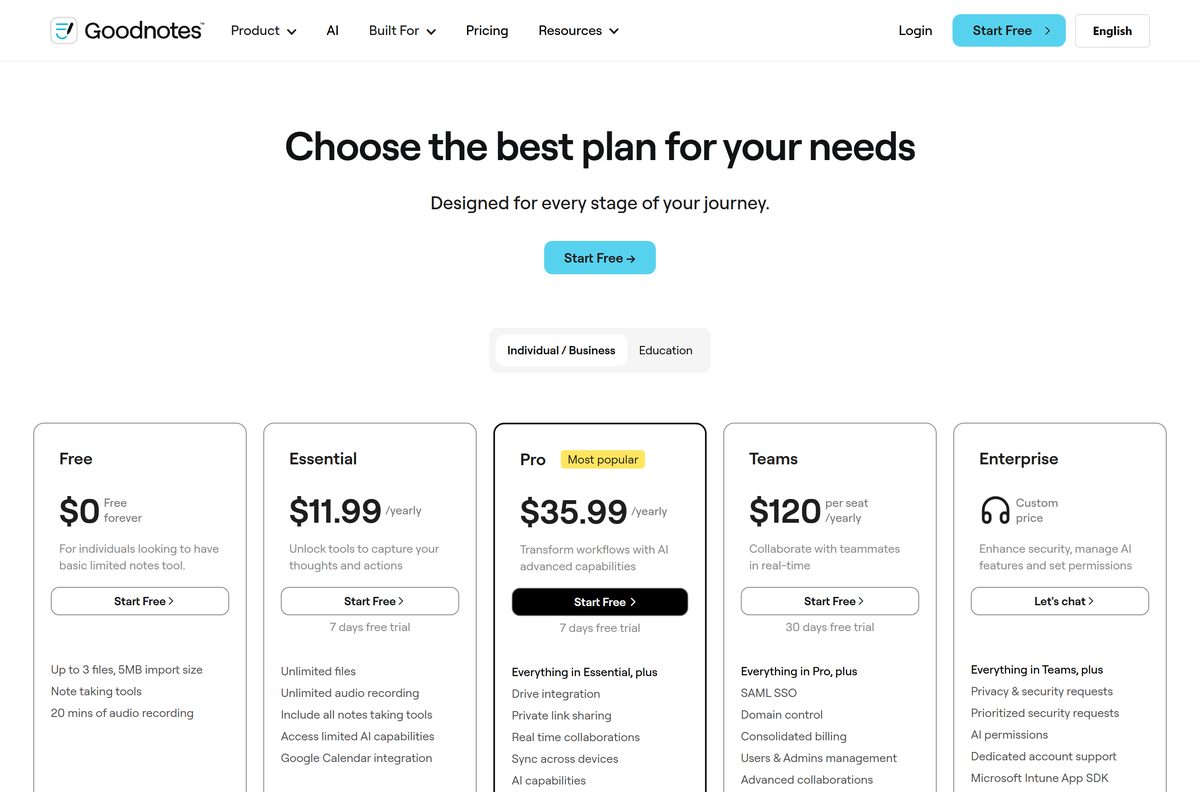
Is Goodnotes free?
Yes, with limits. The free plan includes up to three notebooks, whiteboards or text documents, 100MB of storage and 20 minutes of audio recording.
On Windows, Android and web, free accounts also have limited sharing, a 5MB import cap and watermarked exports.
Start on the free plan, then pick Essential if three notebooks is your only problem, or Pro if you need real-time collaboration and cross-device sync. Essential is $11.99 a year and adds unlimited notebooks, full sharing and 5GB of storage. Pro is $35.99 a year and adds drive integration, private link sharing, real-time collaboration and sync across devices. Both come with a 7-day free trial. Apple users can instead buy Special Edition once, listed at $35.99 in the US App Store.
AI Pass is a separate $9.99 monthly add-on for heavier AI use. Teams costs $120 per seat a year with a 30-day trial.
A “free Goodnotes Pro” download or unlocker from any other site is not from Goodnotes Limited. Paid plans unlock only through your Goodnotes account or a store purchase.
How to check your Goodnotes version and update it
Both the Windows and Apple apps update through their store, not from inside Goodnotes.
- On Windows, open Settings, select Apps, then Installed apps.
- Find Goodnotes, select the three dots and choose Advanced options to see the version.
- Open Microsoft Store, select Library and select Get updates.
- On a Mac, open App Store and select Updates in the sidebar.
- Select Update next to Goodnotes if it appears.
- Restart Goodnotes after the update finishes.
Fix Goodnotes not installing or syncing on Windows 11 or 10
Install failures are almost always Microsoft Store problems. Missing notes are usually the one-way sync limit.
The Store will not download Goodnotes or shows an error code
The Store cache is stale or the account is signed out.
- Press Windows + R, type wsreset.exe and select OK.
- Wait for the Store to reopen by itself.
- Select your profile picture and confirm you are signed in.
- Open the Goodnotes listing again and select Get.
The Store says Goodnotes does not work on this device
Windows is older than version 1809.
- Press Windows + R, type winver and select OK.
- If the build is below 17763, open Settings, select Windows Update and install every update.
- Restart the PC and try again.
- If the PC cannot update, use Goodnotes for Web.
Your iPad notebooks do not appear on Windows
Goodnotes on iOS does not yet sync to Windows, Android or web.
- On the iPad, open the notebook and select Share, then Export.
- Choose PDF and save it to OneDrive, Google Drive or email.
- On Windows, open Goodnotes and import that PDF.
Goodnotes will not let you create a new notebook
The free plan stops at three notebooks, whiteboards or text documents.
- Delete a notebook you no longer need to free a slot.
- Or select Upgrade in Goodnotes and start the 7-day trial of Essential or Pro.
How to uninstall Goodnotes from Windows and Mac
Notebooks saved to your Goodnotes account stay online after you remove the app.
- On Windows, open Settings, select Apps, then Installed apps.
- Find Goodnotes, select the three dots and choose Uninstall.
- Select Uninstall again to confirm.
- On a Mac, open Finder and select Applications.
- Drag Goodnotes to the Trash, then empty the Trash.
- Cancel any paid plan separately, through the store or account that billed you.
Which note app should you install instead of Goodnotes?
Pick by device. Goodnotes is strongest on iPad and Mac, where it has its full feature set.
| If you need | Install | Why |
|---|---|---|
| Handwritten notes on a Samsung Galaxy Book | Samsung Notes on the Microsoft Store | Free from Samsung Electronics |
| PDF markup with a pen on Windows | Drawboard PDF + Notes on the Microsoft Store | Built around pen annotation of PDFs |
| An iPad and Mac note app with audio recording | Notability on the App Store | Ginger Labs, runs on iPad, iPhone and Mac |
| Goodnotes with nothing installed | Goodnotes for Web | Same account, any browser |
Stay with Goodnotes if your notebooks already live on an iPad. Its Apple app has more features than the Windows version.
Frequently asked questions
Is Goodnotes free to download?
Yes. Goodnotes is a free download from the Microsoft Store, the Mac App Store, the App Store and Google Play. The free plan lets you create up to three notebooks, and the Essential or Pro plans remove that limit.
Where is the official Goodnotes download page?
Goodnotes links its official downloads from goodnotes.com/windows and the goodnotes.com homepage. Windows uses the Microsoft Store listing 9N92MC09DB30, and Mac, iPad and iPhone share one App Store listing from Goodnotes Limited.
Does Goodnotes work on Windows 11?
Yes. Goodnotes installs from the Microsoft Store on Windows 11 and on Windows 10 version 1809 or later. It works with a mouse, touch or a pen, and the Store bundle covers x86, x64 and ARM64 PCs.
How big is the Goodnotes download for Windows?
The Microsoft Store bundle is 173.4 MB and takes about 150.3 MB once installed. The Mac App Store build is 931.4 MB, and the iPhone and iPad build is 832.5 MB.
Is there a Goodnotes offline installer for Windows?
No. Goodnotes ships its Windows app only through the Microsoft Store, so there is no standalone .exe or .msi. Use the Store listing or the winget command with the msstore source instead.
Is Goodnotes available for Mac?
Yes. Goodnotes for Mac comes from the Mac App Store and needs macOS 15.6 or later. It is the same App Store product as the iPad and iPhone app, so your notebooks sync through iCloud.
Does Goodnotes on Windows sync with my iPad?
Only one way for now. Notes made on Windows, Android or the web sync to iOS when you sign in with the same account, but notes made in Goodnotes on iPad do not yet sync to Windows.
Does Goodnotes support ARM64 Windows PCs?
Yes. The Microsoft Store bundle includes x86, x64 and ARM64 packages, so Windows picks the right one for a Snapdragon laptop, a Surface Pro X or a standard Intel or AMD PC.
Is Goodnotes safe to download?
Yes, when it comes from the Microsoft Store, App Store or Google Play listing published by Goodnotes Limited. A Goodnotes .exe, cracked build or free Pro unlocker from any other site is not from Goodnotes.
What is the latest Goodnotes version?
The Windows app is version 2.4.3.0 in the Microsoft Store. The Mac, iPad and iPhone app runs a separate release line, currently 7.1.24, released on 21 September 2026. Both update through their store.
How much does Goodnotes cost?
Goodnotes Essential is $11.99 a year and Goodnotes Pro is $35.99 a year, each with a 7-day free trial. On Apple devices you can instead buy the one-time Special Edition, listed at $35.99 in the US App Store.
Why won’t Goodnotes install on my PC?
The usual causes are a stale Microsoft Store cache or a Windows build older than 1809. Run wsreset.exe, install pending Windows updates, then open the Goodnotes listing again and select Get.