To get rid of black lines on an iPhone XR screen, restart or force restart the phone, remove the case and screen protector, and update iOS; if the lines are still there, the LCD panel needs a display repair from Apple or an Apple Authorized Service Provider.
This guide covers how to tell a software glitch from a failing display, the restart, update and restore steps, iPhone XR screen repair options, and what each kind of line usually means.
How to get rid of black lines on iPhone XR screen
Work through these in order and look at the screen after each one. The first four take a couple of minutes and clear any software cause.
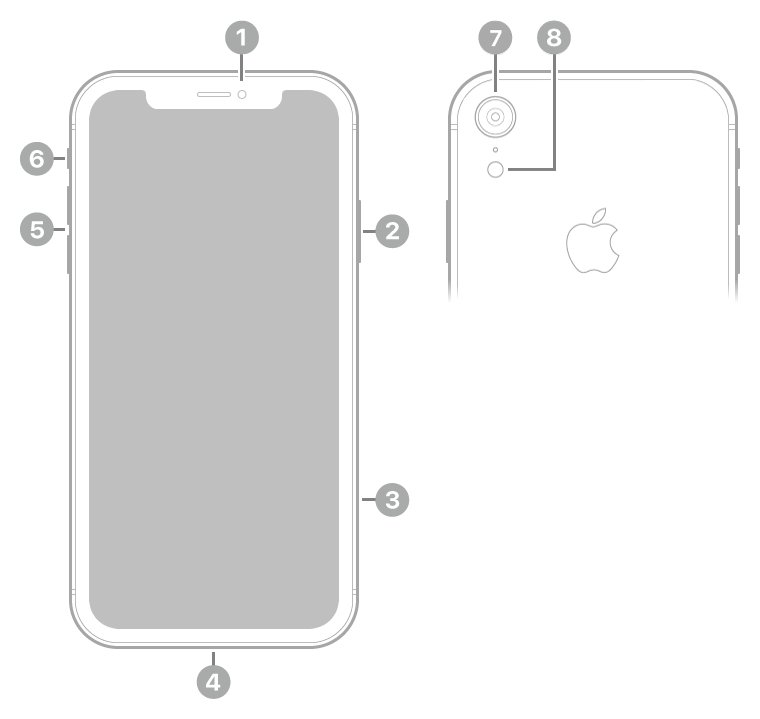
- Turn the iPhone XR off: press and hold the side button and either volume button until the sliders appear, then drag Power Off. Wait 30 seconds and hold the side button until the Apple logo appears.
- If the screen is frozen, force restart instead: press and release volume up, press and release volume down, then hold the side button until the Apple logo appears.
- Remove the case and any screen protector, and unplug any Lightning accessory.
- Open Settings > General > Software Update and install any update offered.
- Watch the Apple logo during the next restart. Lines that show on the logo point to the display, not to iOS.
- If the lines remain, back up the iPhone and set up a display repair with Apple.
Black lines on iPhone screen: hardware or software?
A screenshot records what iOS draws, not what the glass shows. That makes it a quick way to separate a display fault from an app or software problem.
- Open the screen where the black lines are visible.
- Quickly press and release the side button and the volume up button at the same time to take a screenshot.
- Send the screenshot to another phone or computer, or open it in Photos > Collections > Screenshots on a second device.
- Look at the screenshot on the other screen. If the lines are missing from it, the iPhone XR display is producing them.
- If the lines appear in the screenshot too, the app or iOS is drawing them; update or reinstall the app and update iOS.
- Restart the iPhone and check the black Apple logo screen. Lines on that screen confirm a hardware fault.
Lines that stay in the same place in every app, in the screenshot test and on the startup logo are a panel or connector fault that no setting can remove.
How to force restart an iPhone XR
A force restart clears a hung display driver or a frozen screen that a normal shutdown cannot reach. The same button sequence applies to every Face ID iPhone, and it is the first step in most black iPhone screen fixes.
- Press and quickly release the volume up button.
- Press and quickly release the volume down button.
- Press and hold the side button.
- Release the side button when the Apple logo appears.
- Unlock the iPhone and check whether the lines are gone.
If the iPhone does not restart, charge it and try the sequence again; if the buttons still do nothing, fix the force restart not working before moving on.
Update iOS on iPhone XR to fix screen glitches
Software Update installs the newest iOS release the iPhone XR supports. The XR is not on Apple's list of iPhone models compatible with iOS 27, so it stays on an earlier version and still receives the updates Apple offers it.
- Connect the iPhone XR to Wi-Fi and plug it into power.
- Open Settings and tap General.
- Tap Software Update.
- If an update is listed, follow the onscreen prompts to install it.
- Enter your passcode and wait for the iPhone to restart.
- Check Settings > General > About to confirm the installed iOS version.
Factory reset iPhone XR to rule out software
Only take this step if the screenshot test showed the lines inside the image, or the lines change from app to app. A reset erases the phone, so back it up first with iCloud or a Mac or PC.
- Back up the iPhone with iCloud or with a computer.
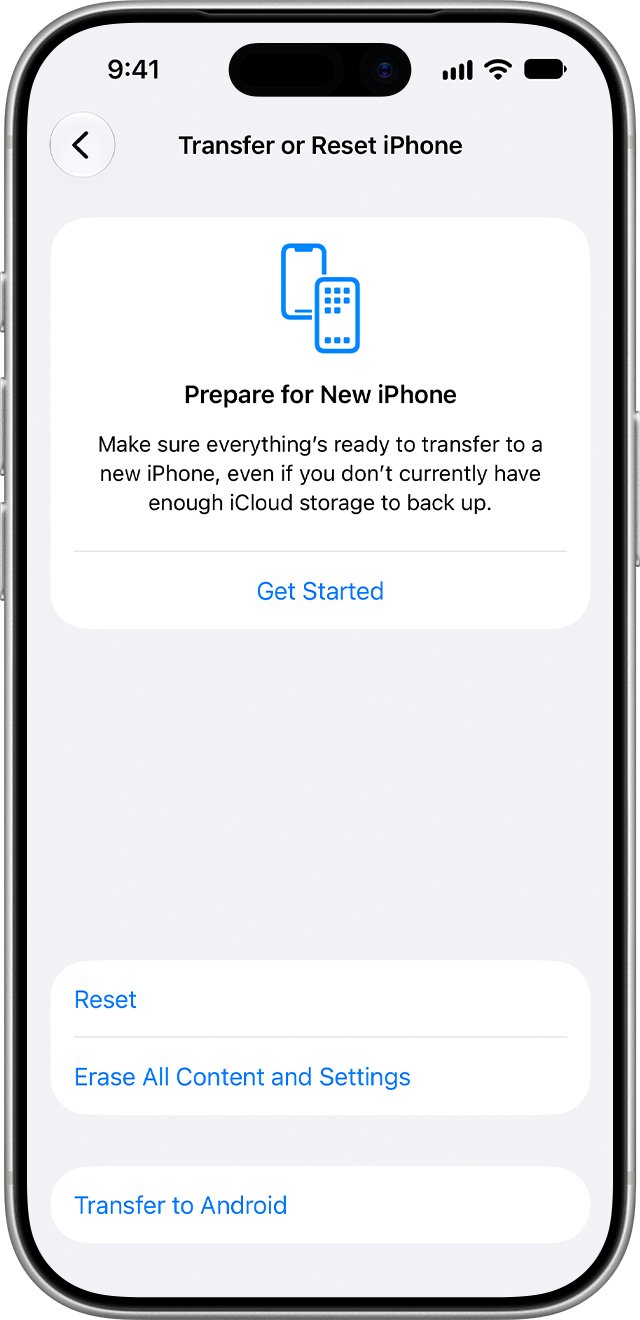
- Open Settings > General > Transfer or Reset iPhone.
- Tap Erase All Content and Settings, then tap Continue.
- Choose to keep or delete your eSIM, then enter your passcode.
- Enter your Apple Account password and wait for the reset to finish.
- Check the Hello screen and the setup screens for lines before you restore your backup.
If the touch screen cannot be used through the lines, restore the phone with a computer instead: open Finder on a Mac or the Apple Devices app on a PC, select the iPhone and click Restore iPhone. That process is also how to factory reset an iPhone with a broken screen.
iPhone XR screen replacement from Apple
Black lines that survive a restart, an update and the screenshot test need a new display. Apple's repair page for iPhone screens lists iPhone XR among the models it serves.
- Back up the iPhone XR.
- Open Apple's iPhone screen repair page at support.apple.com/iphone/repair/screen-replacement.
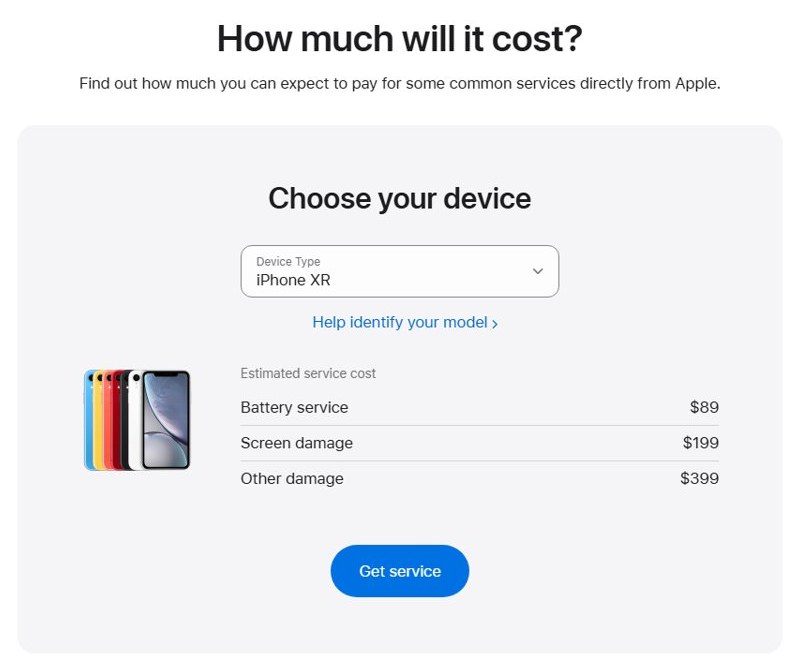
- Choose iPhone XR under Choose your device to see the estimated out-of-warranty cost.
- Select Get started and describe the black lines on the screen.
- Pick a service option: an appointment at a Genius Bar or Apple Authorized Service Provider, or mail-in service with a prepaid box.
- Bring or ship the phone. The technician inspects it and confirms the final fee.
Apple guarantees its service and replacement parts for 90 days or the rest of your warranty term, whichever is longer.
How to tell if the iPhone XR display is fixed
- Restart the iPhone and watch the Apple logo screen for any line or band.
- Open a plain white or light-gray image in Photos and view it full screen.
- Scroll slowly through a long webpage in Safari and watch for lines that stay fixed while the page moves.
- Tap and swipe across the area where the lines were to check that touch works there; if it does not, fix the unresponsive touch screen next.
- Raise and lower the brightness in Control Center and check that the screen looks evenly lit.
What causes black lines on an iPhone XR screen
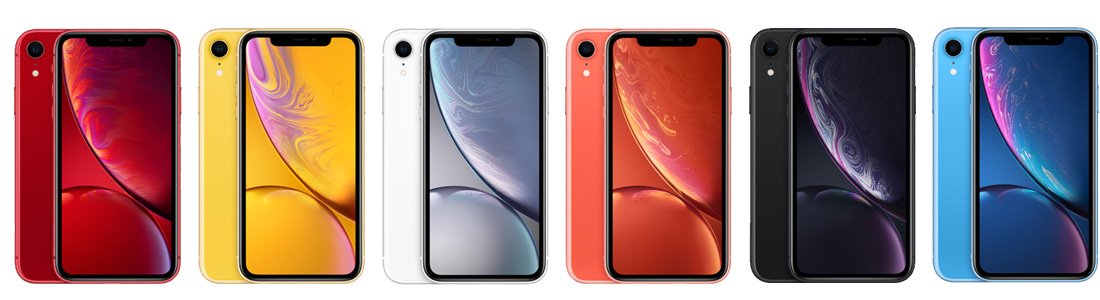
The iPhone XR uses a 6.1-inch Liquid Retina HD display: an LCD Multi-Touch panel with IPS technology at 1792 by 828 pixels. The pattern of the lines usually tells you which part has failed.
| What you see | Likely cause | What to do |
|---|---|---|
| Lines that flicker, move or vanish after a restart | Frozen software or a display glitch | Force restart and update iOS |
| Lines in one app only | The app is drawing them | Update or reinstall the app |
| Lines that also appear in screenshots | Software, not the panel | Update iOS, then reset if they persist |
| Fixed vertical or horizontal lines in every app and on the Apple logo | Damaged LCD panel or display connection | Display repair |
| Lines that appeared after a drop or pressure on the screen | Physical damage to the panel | Display repair |
| Lines plus touch that fails in the same area | Damaged display assembly | Display repair |
| Lines, uneven brightness or poor touch after a third-party screen repair | A nongenuine display part | Have the display replaced with a genuine Apple part |
iPhone XR black lines and screen problems
Black lines appeared after the iPhone XR was dropped
The impact damaged the LCD panel or loosened its connection.
- Restart the phone once to rule out a frozen screen.
- If the lines stay, back up the iPhone right away in case the display gets worse.
- Set up a display repair with Apple.
Lines on the screen after the iPhone got wet
IP67 water resistance is not permanent and can drop with normal wear, and Apple's warranty does not cover liquid damage.
- Do not charge the iPhone while it is wet.
- Dry the phone, then restart it and check whether the lines remain.
- Book service if the lines stay; expect a cost because liquid damage is not covered under warranty.
Lines only appear with a case or screen protector fitted
Apple lists cases and screen protectors among the causes of a screen that misbehaves or responds intermittently.
- Remove the case and the screen protector.
- Clean the screen with a soft, lint-free cloth.
- Use the phone without them for a day and see whether the lines return.
Lines and touch problems after a non-Apple screen repair
Apple notes that nongenuine displays can cause Multi-Touch areas that do not respond and display brightness that is not uniform.
- Ask the repair shop whether a genuine Apple display was fitted.
- Take the iPhone to an Apple Store or Apple Authorized Service Provider for a genuine display replacement.
Screen goes black with lines and does not respond
iOS has frozen, or the display has failed completely.
- Force restart with volume up, volume down, then hold the side button.
- Charge the iPhone and try again if nothing appears.
- Book a display repair if the logo never shows.
Can you fix black lines on an iPhone XR yourself?
No settings change removes fixed black lines from an iPhone XR, so have the display replaced by Apple, an Apple Authorized Service Provider or an Independent Repair Provider that uses genuine Apple parts. Apple's Self Service Repair covers only iPhone models introduced in 2024 or later, and Apple warns that repairs by untrained people with nongenuine parts can affect the display, leave loose parts that damage the battery or cause overheating.
The iPhone XR is not on Apple's vintage or obsolete iPhone lists, so Apple service providers can still order parts for it. Apple's Parts and Service History check in Settings starts with iPhone 11, so an iPhone XR does not show whether its display was replaced before.
iPhone XR black lines on screen FAQ
Can black lines on an iPhone XR screen go away on their own?
Lines caused by frozen software often disappear after a restart or force restart. Lines that stay fixed in every app and on the Apple logo come from the panel and do not go away; the display needs replacing.
Will a factory reset get rid of black lines on my iPhone XR?
Only when software causes them. If a screenshot of the screen shows no lines, the display hardware is at fault and a reset will not help. Back up before any reset, because it erases the iPhone.
How much does an iPhone XR screen replacement cost?
Apple shows an estimate on its iPhone screen repair page once you choose iPhone XR under Choose your device. The estimate is for out-of-warranty service and may include tax and shipping; the technician confirms the final fee after inspection.
Does Apple still repair the iPhone XR?
Yes. The iPhone XR appears in Apple's screen repair device list and is not on its vintage or obsolete iPhone lists. You can book service at a Genius Bar, an Apple Authorized Service Provider, or by mail.
Does the Apple warranty cover black lines on the screen?
The Apple Limited Warranty covers manufacturing issues for one year from purchase and excludes accidental damage. An iPhone XR is almost always past that year, so a display repair is usually paid unless consumer law or a plan applies.
Can a screen protector cause lines on an iPhone screen?
A lifted or damaged protector can look like lines or interfere with touch. Apple advises removing cases and screen protectors when the screen misbehaves, so test the iPhone XR without one before booking repair.
Is it safe to keep using an iPhone XR with black lines?
You can keep using it while the screen still responds, but a damaged display can stop working without warning. Back up the iPhone now so your data is safe if the screen fails before the repair.